DocuSign Connector Documentation
- Connect your DocuSign to Abacus.AI
- How to Use the DocuSign Connector
- Supported DocuSign Entities
- Using DocuSign Data
Connect your DocuSign to Abacus.AI
The DocuSign connector uses OAuth 2.0 (Authorization Code Grant) to securely authenticate with your DocuSign eSignature account. No API keys are needed — simply log in to DocuSign and authorize Abacus.AI.
Step 1: Open Connected Services
-
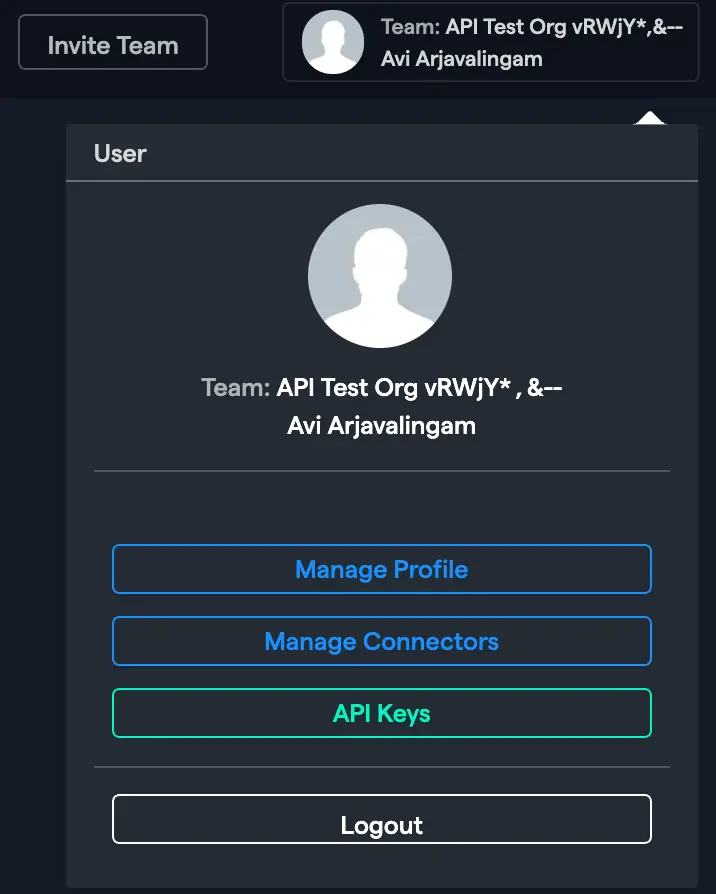
In the Abacus.AI interface, click on your profile picture in the top right corner.

-
Select "Manage Connectors" from the dropdown menu.
Step 2: Add a New DocuSign Connector
-
Click on "Add New Connector", then choose "DocuSign" from the list of available services.
-
Enter a name for your connector in the Connector Name field.
-
Click "Connect DocuSign" to initiate the OAuth flow. You will be redirected to DocuSign's authorization page where you can log in and grant the requested permissions.
-
After authorizing, you will be redirected back to Abacus.AI and your connector will be verified. The connector resolves your default Account ID and the correct API base URI (e.g.
https://na3.docusign.net) automatically from your DocuSign user profile.
Config Only Mode (Advanced)
If you want to pre-configure the connector without immediately authenticating (for example, to customize OAuth scopes or to set up a config connector for user-level connectors), toggle Config Only to "Yes". This reveals a Scopes selector where you can choose which DocuSign permissions to request.
Available Scopes
| Scope | Description |
|---|---|
signature | eSignature REST API access: send, sign, and manage envelopes, templates, and recipients (required) |
extended | Issues a long-lived refresh token so Abacus.AI can refresh access without re-prompting |
click.manage | DocuSign Click: create and manage clickwrap agreements |
click.send | DocuSign Click: send clickwraps to recipients |
aow_manage | Agreement Orchestration (Maestro) workflows: manage automated agreement workflows |
organization_read | Read organization-level data via the DocuSign Admin API |
user_read | Read user profile information |
account_read | Read account settings and information |
group_read | Read group membership and configuration |
permission_read | Read permission profiles |
webforms_read | Read DocuSign Web Forms definitions |
webforms_instance_read | Read submitted Web Form instances |
webforms_instance_write | Create and update Web Form instances |
The signature scope is required and cannot be removed. All scopes except click.send are selected by default; you can remove optional scopes to restrict access, or add click.send if you need to send clickwraps.
DocuSign maintains separate Demo (account-d.docusign.com) and Production (account.docusign.com) authentication servers. Make sure you authenticate against the environment that holds the account you want to read from.
How to Use the DocuSign Connector
Once the DocuSign connector is set up, you can import eSignature data into Abacus.AI for analysis and model training.
Creating a Dataset
-
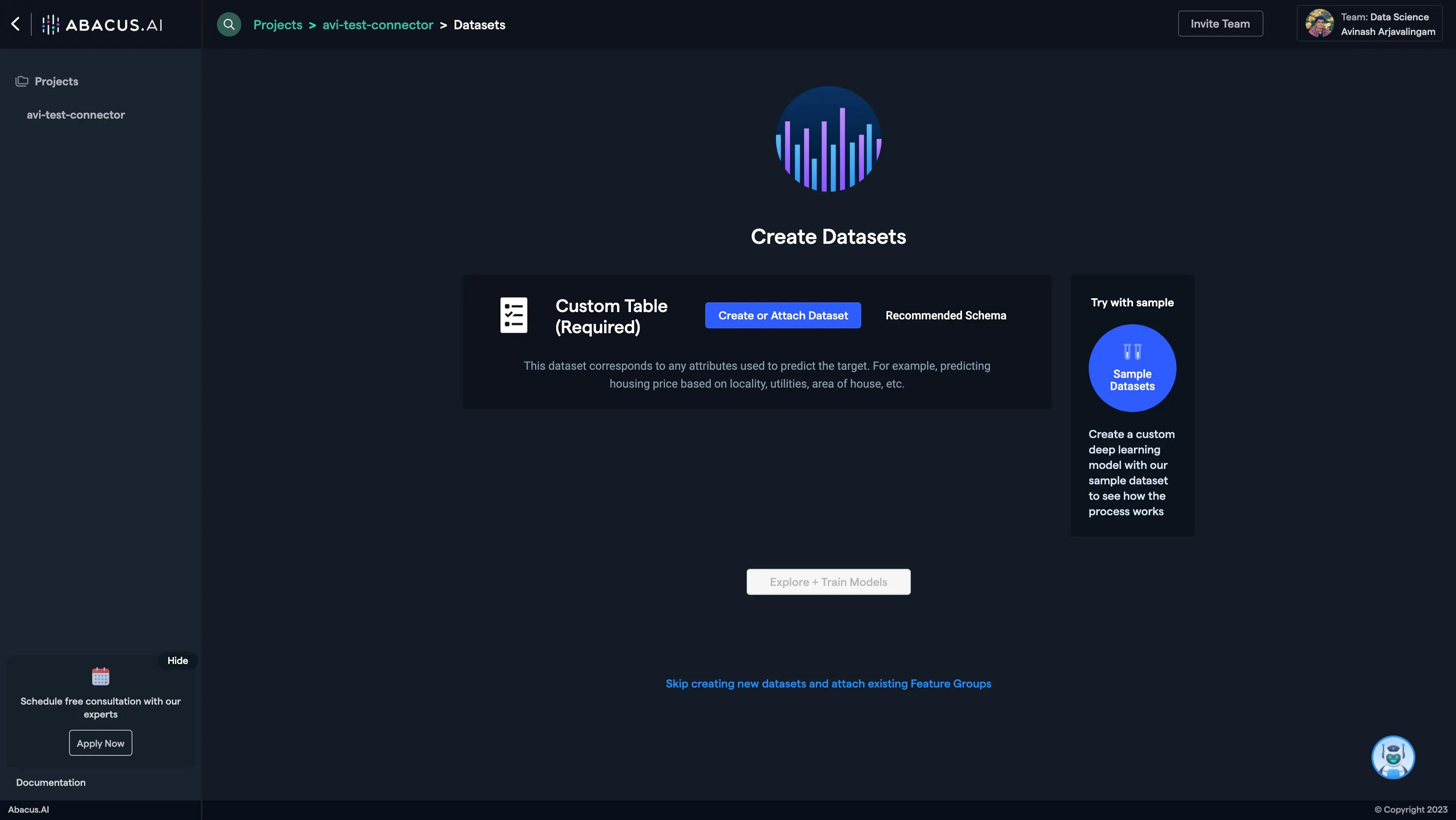
Create a new project and select the use case, then go to the Datasets tab and click "Create Dataset".
-
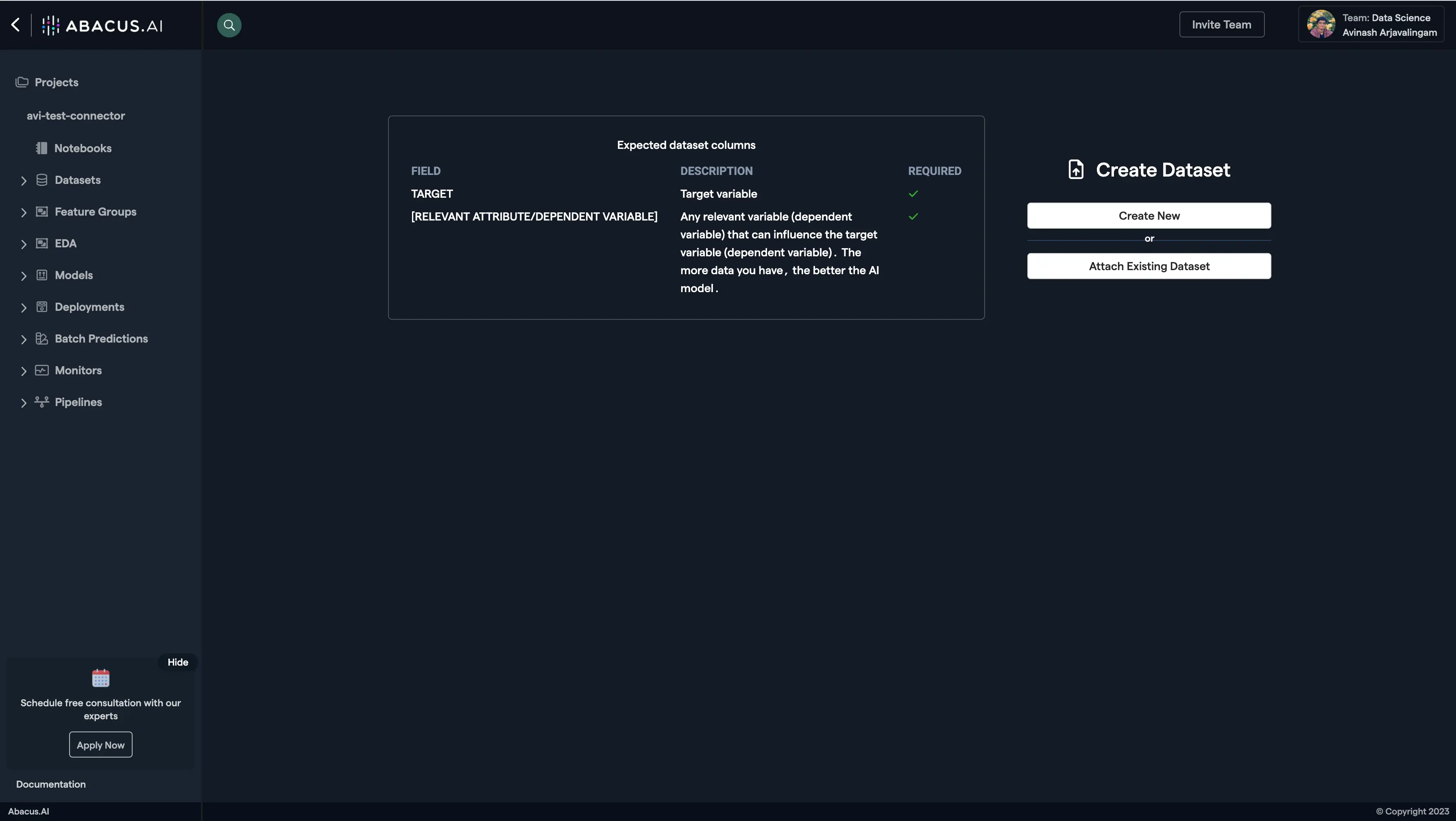
Click on "Create New" and name the dataset.
-
Choose "Read from External Service" and select your DocuSign connector under "Application Connectors".

-
Configure the dataset import options:
- DocuSign Entity: Select the entity type you want to import (e.g., Envelopes, Templates, Recipients). See the full list of supported entities below.
- From Date (Advanced): For envelope-based entities, optionally restrict the import to envelopes created or changed on/after this date. If omitted, a default look-back window is applied.
- Folder (Advanced): Optionally limit the import to envelopes in a specific folder (e.g.,
inbox,sentitems, or a custom folder). - Status Filter (Advanced): Optionally restrict to envelopes with a given status (e.g.,
completed,sent,voided).
-
After configuring the data import options, proceed to upload the dataset.
-
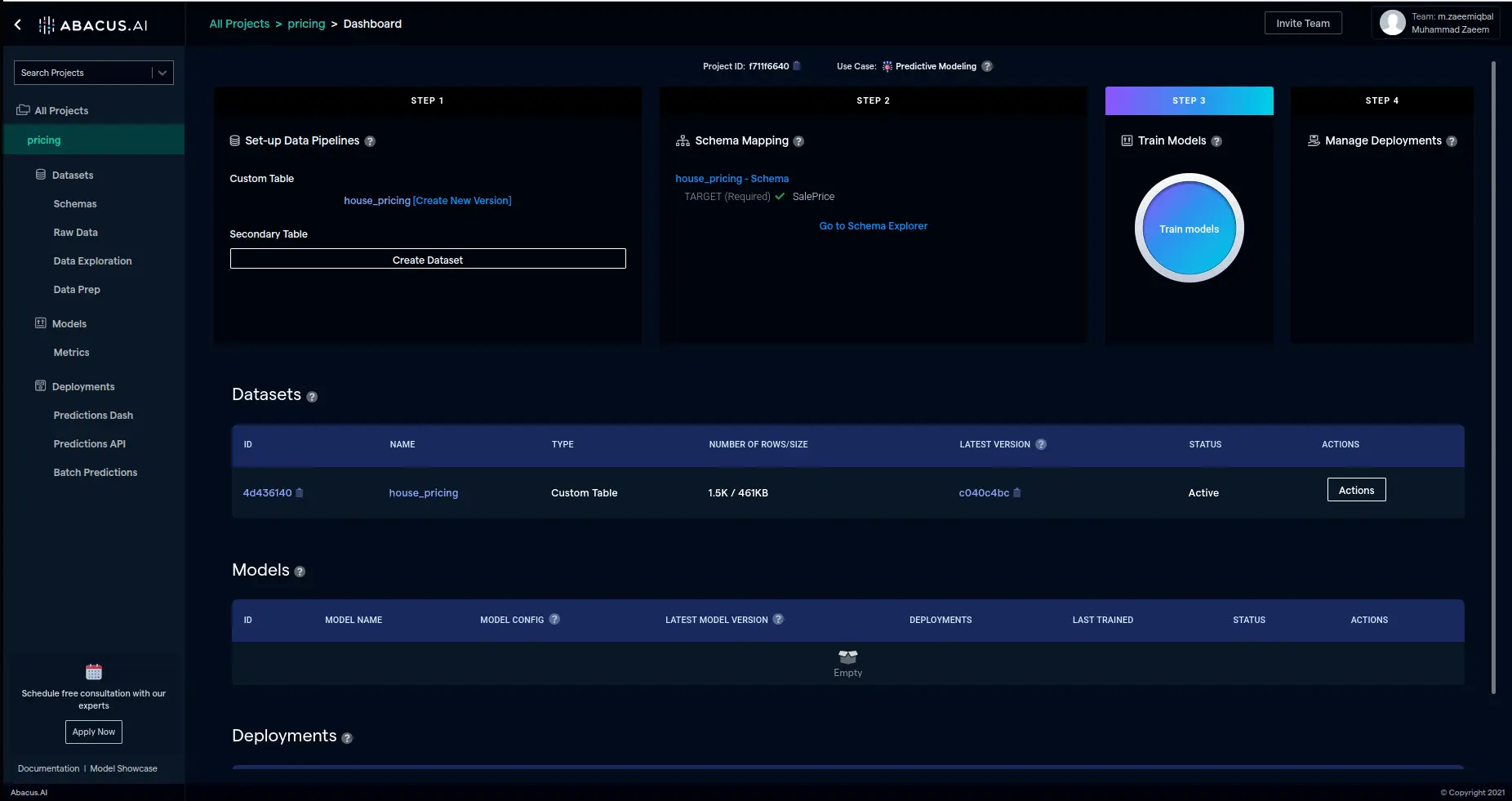
Once the dataset is uploaded, configure the schema mapping and train models with the data.
Supported DocuSign Entities
The DocuSign connector supports importing the following eSignature objects:
| Entity | Description |
|---|---|
| Envelopes | Signature requests, including status, subject, sender, and timestamps |
| Recipients | Signers, carbon-copy recipients, and agents on each envelope, with their status |
| Templates | Reusable envelope templates configured in your account |
| Documents | Document metadata for the files attached to envelopes |
| Folders | Folder structure (inbox, sent items, custom folders) and envelope membership |
| Custom Fields | Envelope-level custom fields (text and list) used for tagging and reporting |
| Users | Members of the DocuSign account and their permission profiles |
| Audit Events | Per-envelope audit trail of actions (sent, delivered, signed, completed) |
Exported Data Format
Each dataset record includes the fields returned by the DocuSign eSignature REST API for the selected entity. Nested objects are flattened using dot notation, and list-valued fields are JSON-serialized. Common fields across envelope-based entities include:
- envelopeId — Unique envelope identifier
- status — Current envelope/recipient status (e.g.,
sent,delivered,completed,voided) - emailSubject — Subject line of the signature request
- createdDateTime — Envelope creation timestamp
- sentDateTime / completedDateTime — Lifecycle timestamps
Using DocuSign Data
- DataLLM Use Case: DocuSign data is ideal for structured data interactions, such as querying envelope status, analyzing turnaround time, tracking pending signatures, or generating completion reports.
- ChatLLM Use Case: DocuSign data is treated as a custom table and cannot be directly used in ChatLLM projects as a document source.
- Combined Data+ChatLLM Use Case: DocuSign data can be combined with other data sources (documents, emails, etc.) to provide conversational insights alongside structured agreement data.
Troubleshooting
If you encounter issues:
- Invalid connector status: Your OAuth tokens may have expired. Delete the connector and re-authenticate.
- Wrong account / empty datasets: A DocuSign login can have access to multiple accounts. Verify the connector authenticated against the account (and environment — Demo vs. Production) that contains the data you expect.
- Permission errors: Ensure the
signaturescope was granted during OAuth authorization and that your DocuSign user has permission to view the requested envelopes. - Token cannot refresh: Ensure the
extendedscope was granted; without it DocuSign does not issue a refresh token and the connector must be re-authenticated when the access token expires.