HubSpot Connector Documentation
- Connect your HubSpot to Abacus.AI
- How to Use the HubSpot Connector
- Supported CRM Objects
- Using HubSpot Data
Connect your HubSpot to Abacus.AI
The HubSpot connector uses OAuth 2.0 to securely authenticate with your HubSpot account. No API keys are needed — simply log in to HubSpot and authorize Abacus.AI.
Step 1: Open Connected Services
-
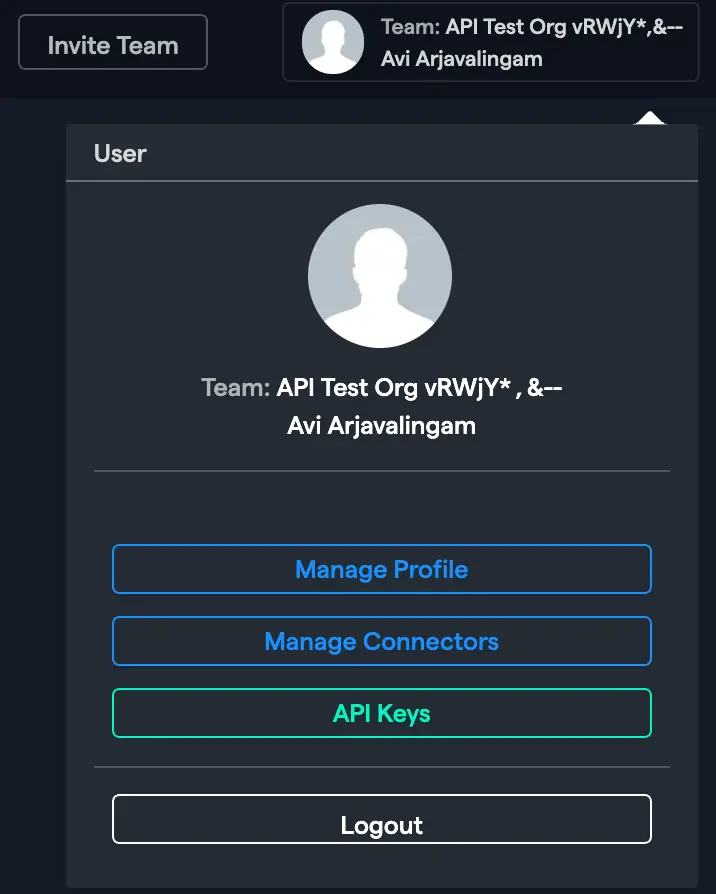
In the Abacus.AI interface, click on your profile picture in the top right corner.

-
Select "Manage Connectors" from the dropdown menu.
Step 2: Add a New HubSpot Connector
-
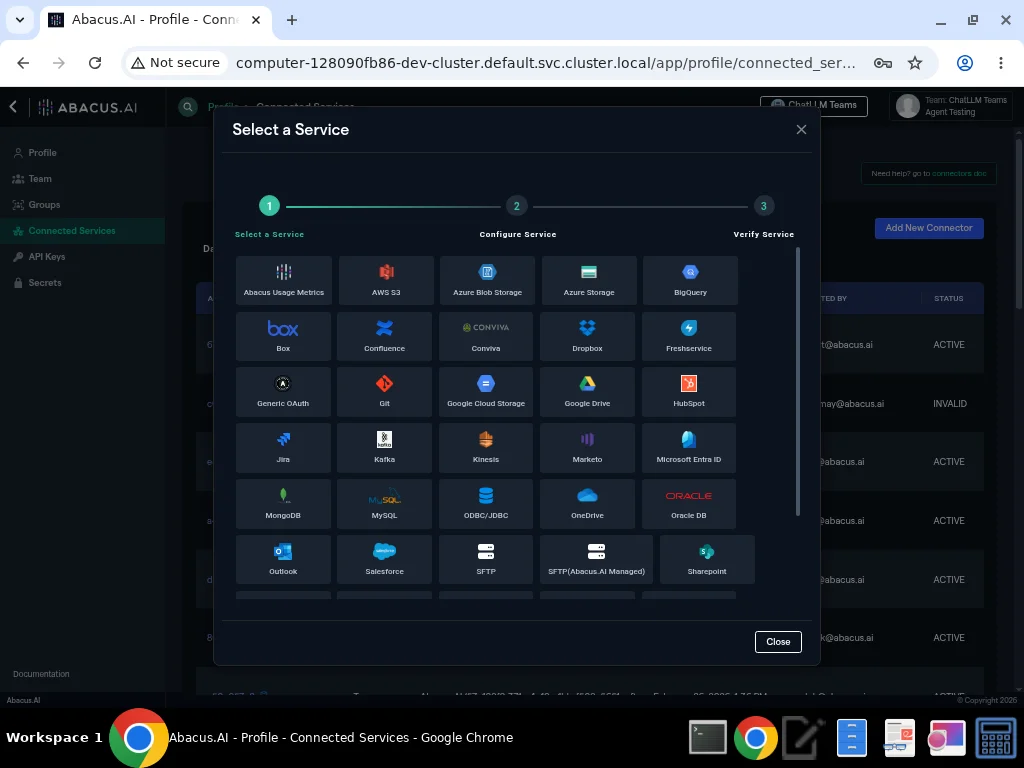
Click on "Add New Connector", then choose "HubSpot" from the list of available services.
-
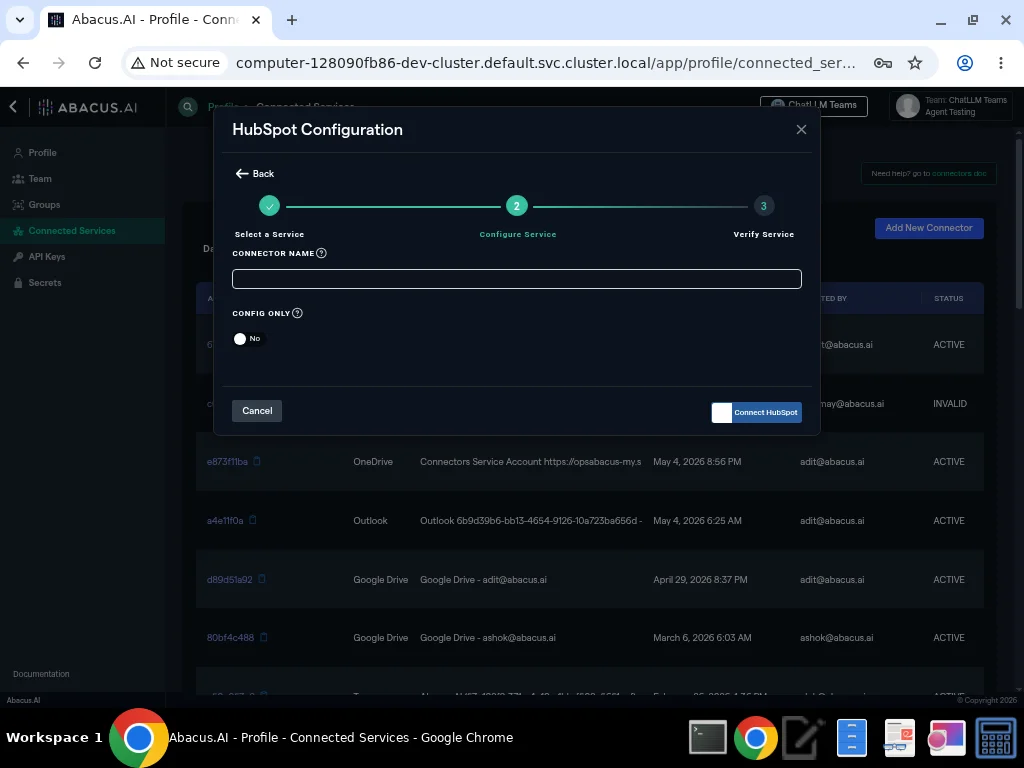
Enter a name for your connector in the Connector Name field.
-
Click "Connect HubSpot" to initiate the OAuth flow. You will be redirected to HubSpot's authorization page where you can log in and grant the requested permissions.
-
After authorizing, you will be redirected back to Abacus.AI and your connector will be verified.
Config Only Mode (Advanced)
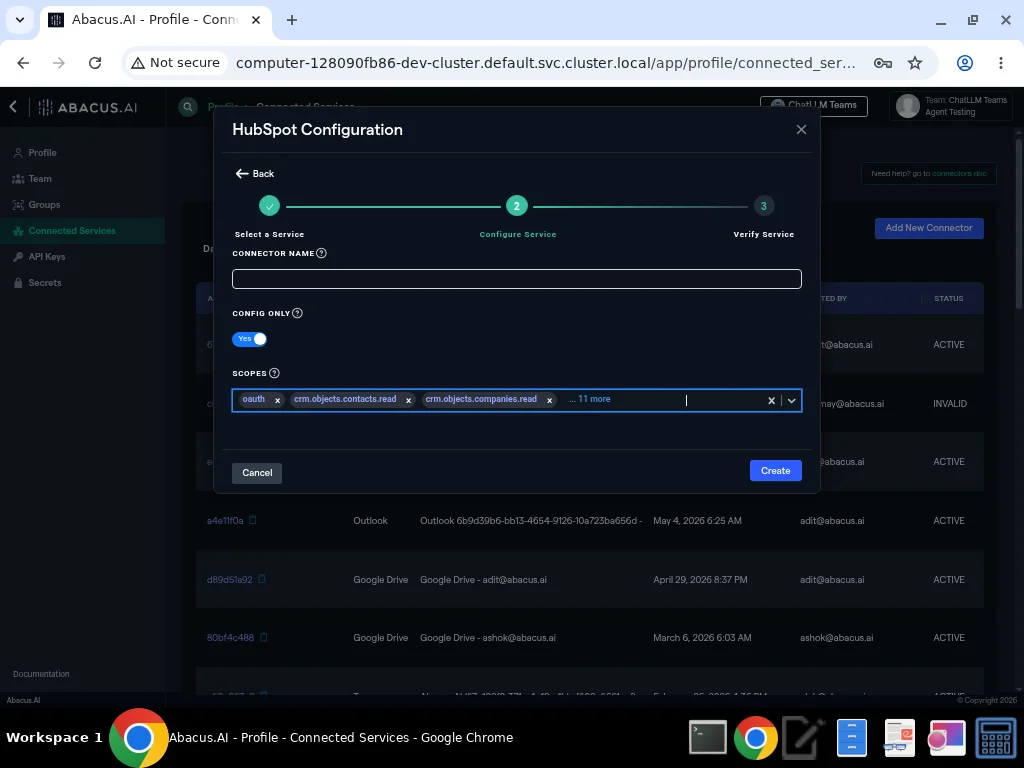
If you want to pre-configure the connector without immediately authenticating (for example, to customize OAuth scopes), toggle Config Only to "Yes". This reveals a Scopes selector where you can choose which HubSpot permissions to request.
Available Scopes
| Scope | Description |
|---|---|
oauth | Required base scope for OAuth authentication |
crm.objects.contacts.read | Read access to contacts |
crm.objects.companies.read | Read access to companies |
crm.objects.deals.read | Read access to deals |
crm.objects.line_items.read | Read access to line items |
crm.objects.products.read | Read access to products |
crm.objects.quotes.read | Read access to quotes |
crm.objects.owners.read | Read access to record owners |
crm.schemas.contacts.read | Read contact schemas/properties |
crm.schemas.companies.read | Read company schemas/properties |
crm.schemas.deals.read | Read deal schemas/properties |
crm.schemas.line_items.read | Read line item schemas/properties |
crm.schemas.quotes.read | Read quote schemas/properties |
crm.schemas.custom.read | Read custom object schemas |
All scopes are selected by default. You can remove scopes if you want to restrict access.
How to Use the HubSpot Connector
Once the HubSpot connector is set up, you can import CRM data into Abacus.AI for analysis and model training.
Creating a Dataset
-
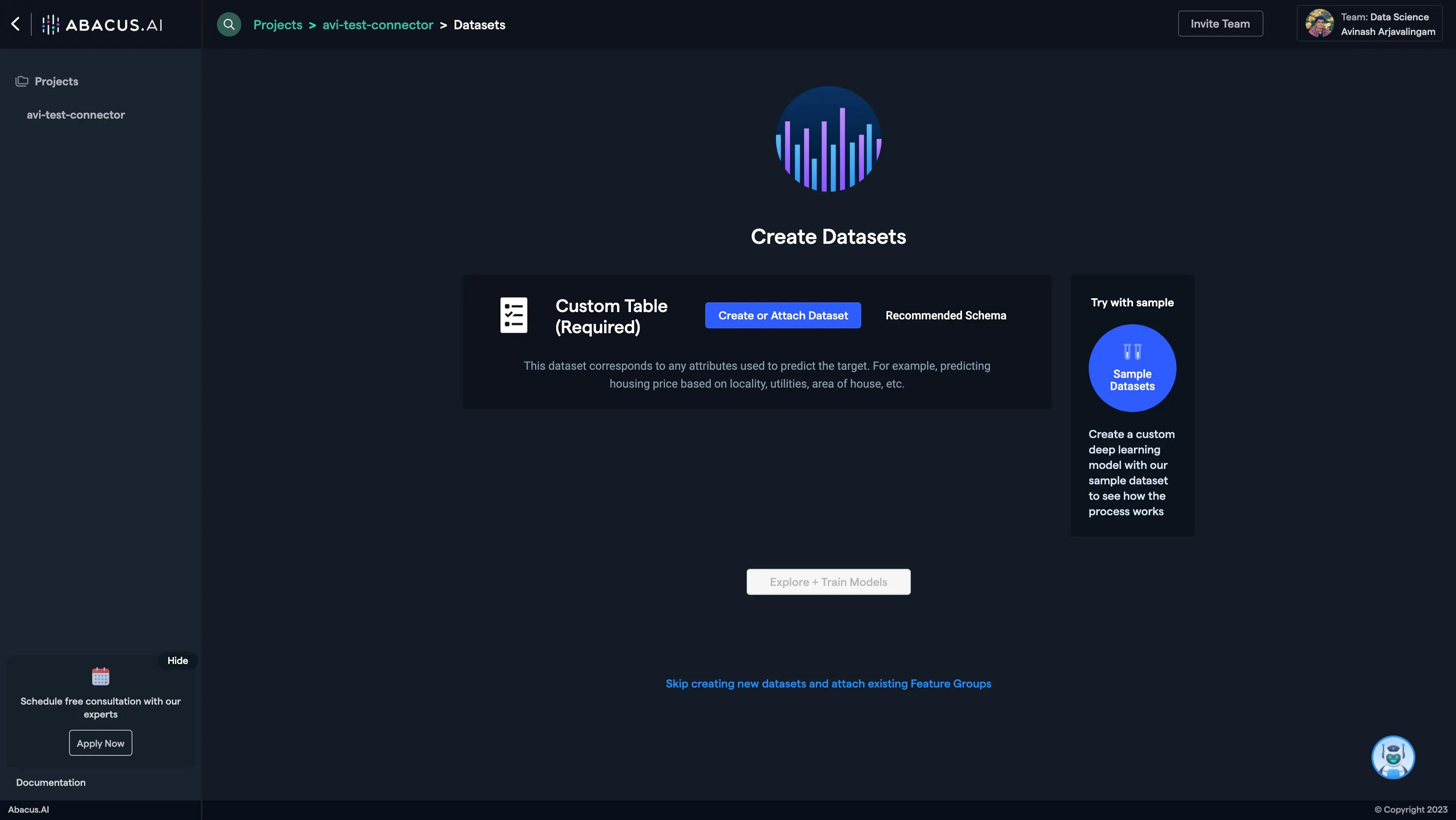
Create a new project and select the use case, then go to the Datasets tab and click "Create Dataset".
-
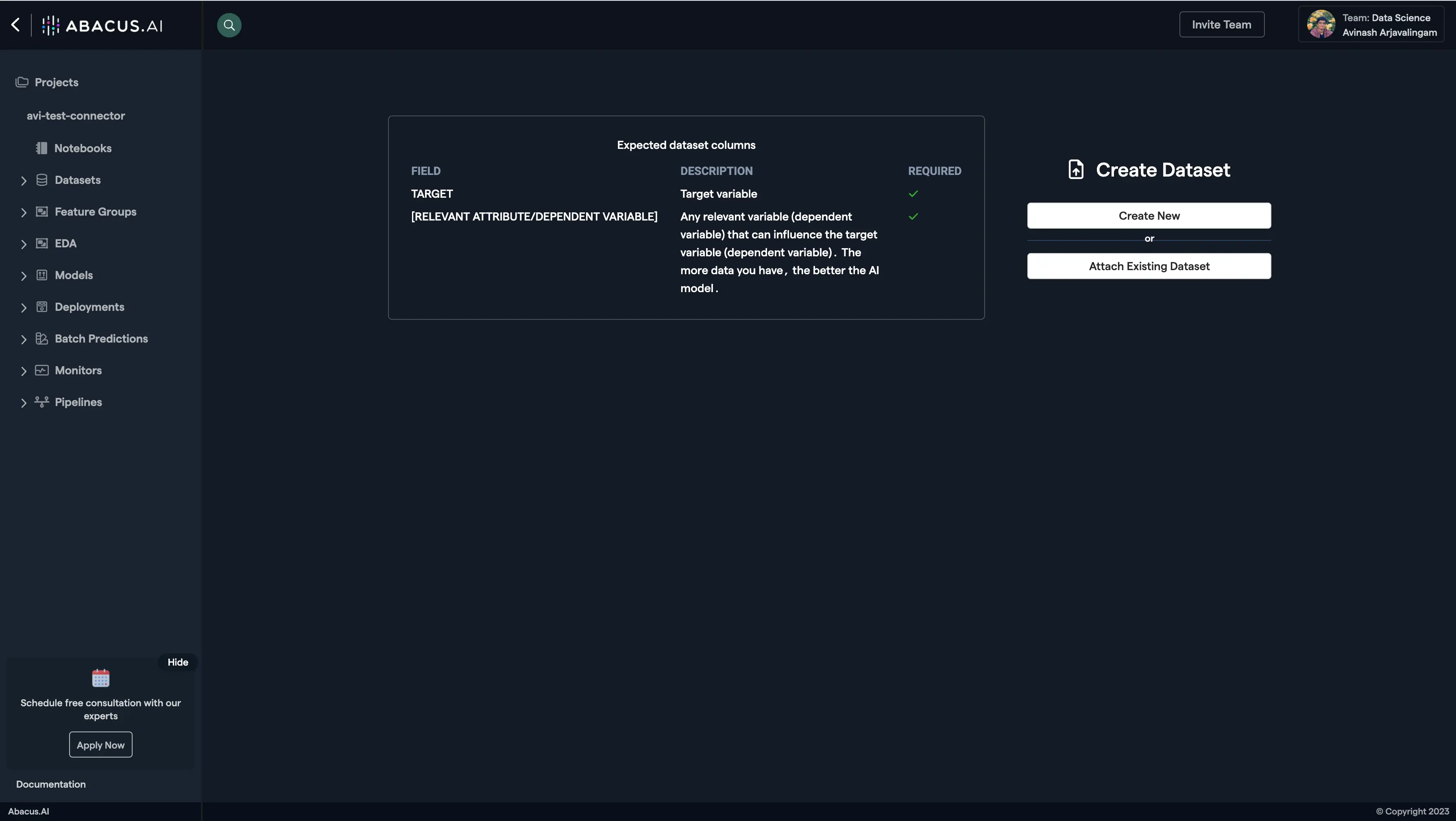
Click on "Create New" and name the dataset.
-
Choose "Read from External Service" and select your HubSpot connector under "Application Connectors".

-
Configure the dataset import options:
- HubSpot CRM Object: Select the object type you want to import (e.g., Contacts, Companies, Deals). Both standard and custom objects are listed dynamically from your HubSpot account.
- Associations (Advanced): Optionally specify associated object types to include (e.g.,
companies,contacts,deals). Association data will be added as extra columns. - Include Archived Records (Advanced): Check this to include records that have been archived in HubSpot.
-
After configuring the data import options, proceed to upload the dataset.
-
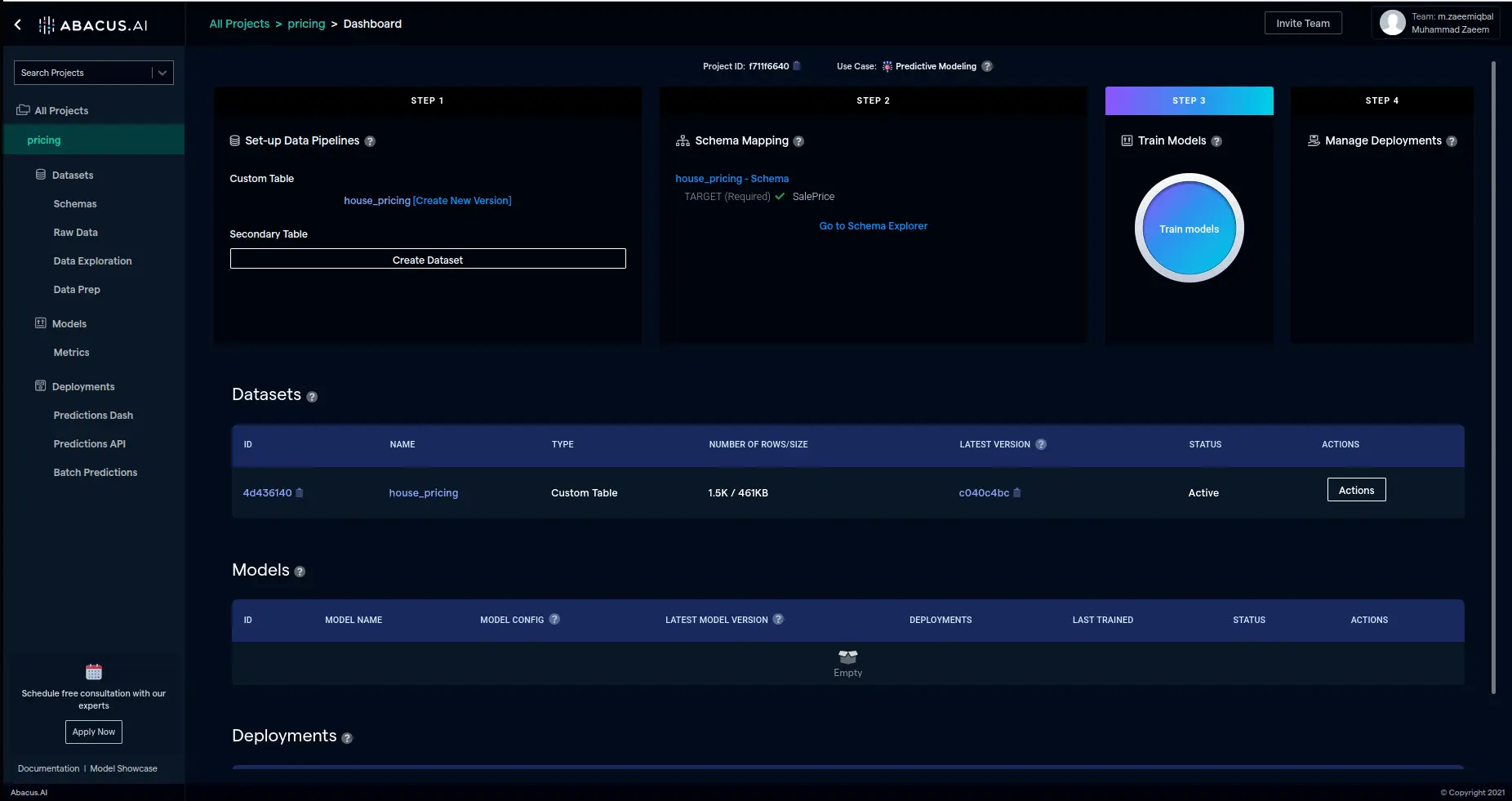
Once the dataset is uploaded, configure the schema mapping and train models with the data.
Supported CRM Objects
The HubSpot connector supports importing the following standard CRM objects:
| Object | Description |
|---|---|
| Contacts | People in your CRM (leads, customers, etc.) |
| Companies | Organizations associated with your contacts |
| Deals | Sales opportunities and pipeline items |
| Line Items | Individual items within a deal |
| Products | Items in your product catalog |
| Quotes | Price quotes associated with deals |
In addition, custom objects defined in your HubSpot account are automatically discovered and available for import.
Exported Data Format
Each dataset record includes:
- id — HubSpot record ID
- createdAt — Record creation timestamp
- updatedAt — Last modification timestamp
- archived — Whether the record is archived
- All selected properties for the object type
- Association columns (if associations are configured)
Using HubSpot Data
- DataLLM Use Case: HubSpot CRM data is ideal for structured data interactions, such as querying contacts, analyzing deal pipelines, generating sales reports, or tracking customer trends.
- ChatLLM Use Case: HubSpot data is treated as a custom table and cannot be directly used in ChatLLM projects as a document source.
- Combined Data+ChatLLM Use Case: HubSpot data can be combined with other data sources (documents, emails, etc.) to provide conversational insights alongside structured CRM data.
Troubleshooting
If you encounter issues:
- Invalid connector status: Your OAuth tokens may have expired. Delete the connector and re-authenticate.
- Missing objects: Ensure the OAuth scopes include read access for the object type you need.
- Empty datasets: Verify that the selected CRM object contains records in your HubSpot account.
- Custom objects not showing: Ensure the
crm.schemas.custom.readscope is included in your connector configuration.