Dropbox Connector Documentation
If you have already set up a connector, skip to How to Use the Dropbox Connector.
Connect your Dropbox to Abacus.AI
To connect your Dropbox account to Abacus.AI, follow these steps to set up the connector:
Prerequisites
To connect Dropbox to Abacus.AI, you need:
- An active Dropbox account.
- Files or folders stored in Dropbox that you want to sync.
- The ability to grant Abacus.AI permission to access your Dropbox account.
Note: Ensure that your Dropbox folder is not empty and contains supported file types.
Authorize Abacus.AI to Access Dropbox
-
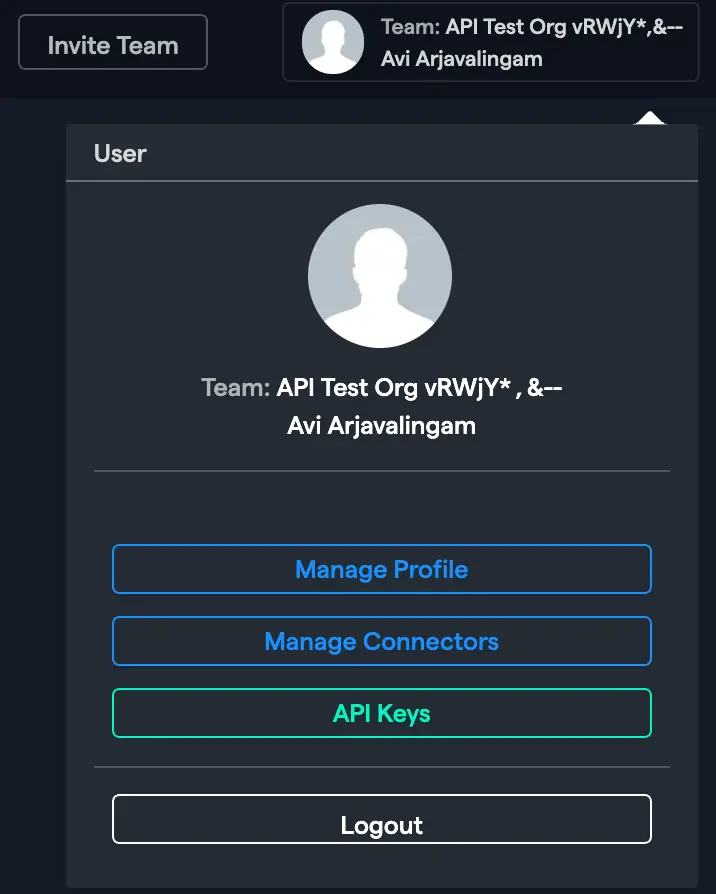
In the Abacus.AI interface, click on your profile picture in the top right corner.

-
Select Manage Connectors from the dropdown menu.
-
Click on Add New Connector, choose Dropbox from the list.
-
Click
Connect Dropbox.
-
You will be redirected to the Dropbox login page. Log in to your Dropbox account if you are not already logged in.
-
Review the permissions requested by Abacus.AI and click Allow to authorize access. Once authorized, you will be redirected back to Abacus.AI.
Permissions and Access
When setting up the connector, the following Dropbox permissions (scopes) are requested:
| Permission | Description |
|---|---|
| account_info.read | Read your basic account information (name, email, account type) |
| files.metadata.read | View metadata of files and folders in your Dropbox |
| files.metadata.write | Modify metadata of files and folders |
| files.content.read | Read the content of files in your Dropbox |
| files.content.write | Write (upload) files to your Dropbox |
| sharing.read | View information about shared files and folders |
These permissions allow the connector to read, list, and sync your Dropbox files to Abacus.AI.
How to Use the Dropbox Connector
Once the Dropbox connector is set up, you can fetch data to create datasets and train models in Abacus.AI.
Creating a Dataset
-
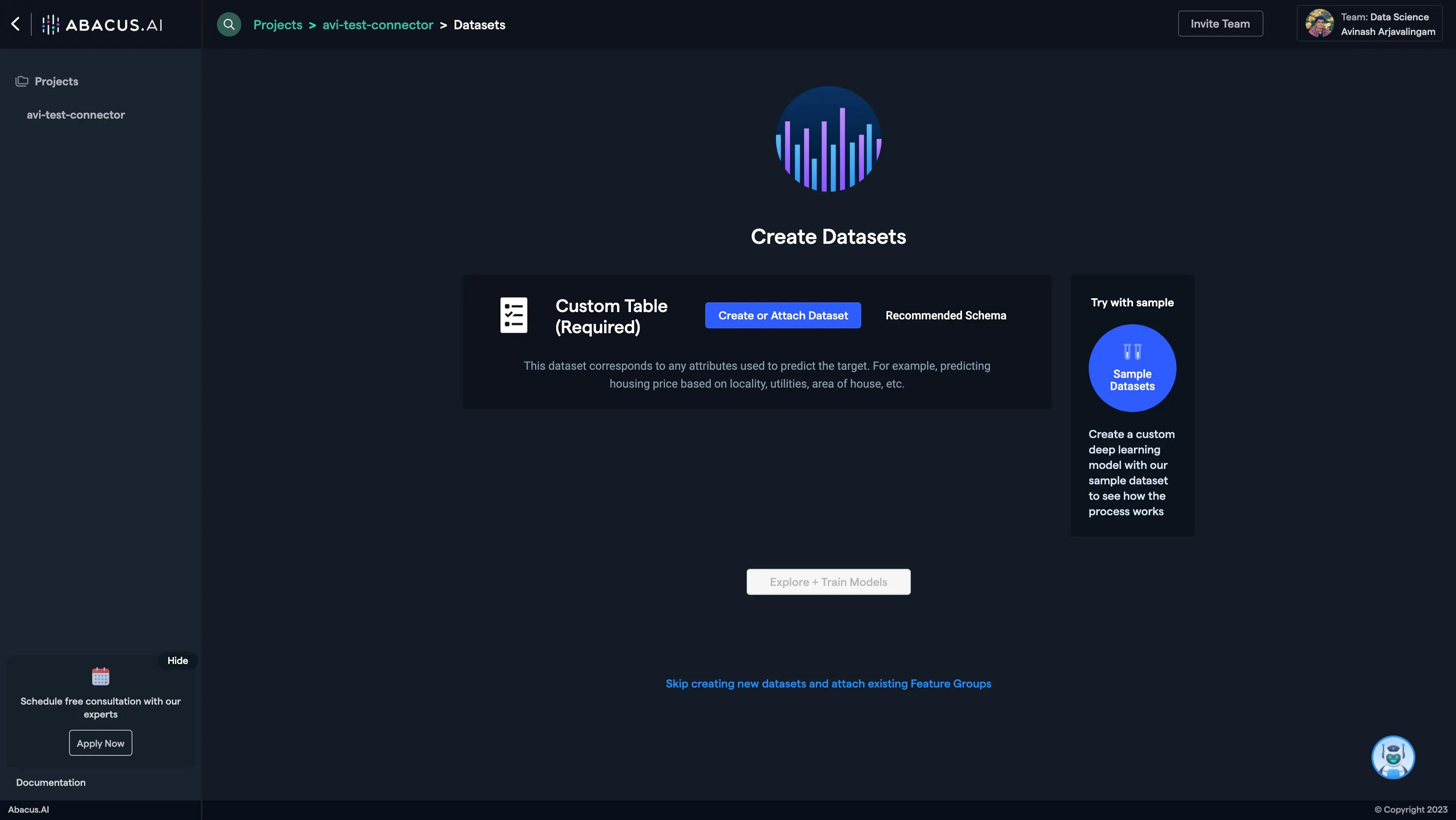
Create a new project and select the use case, then go to the Datasets tab and click Create Dataset.
-
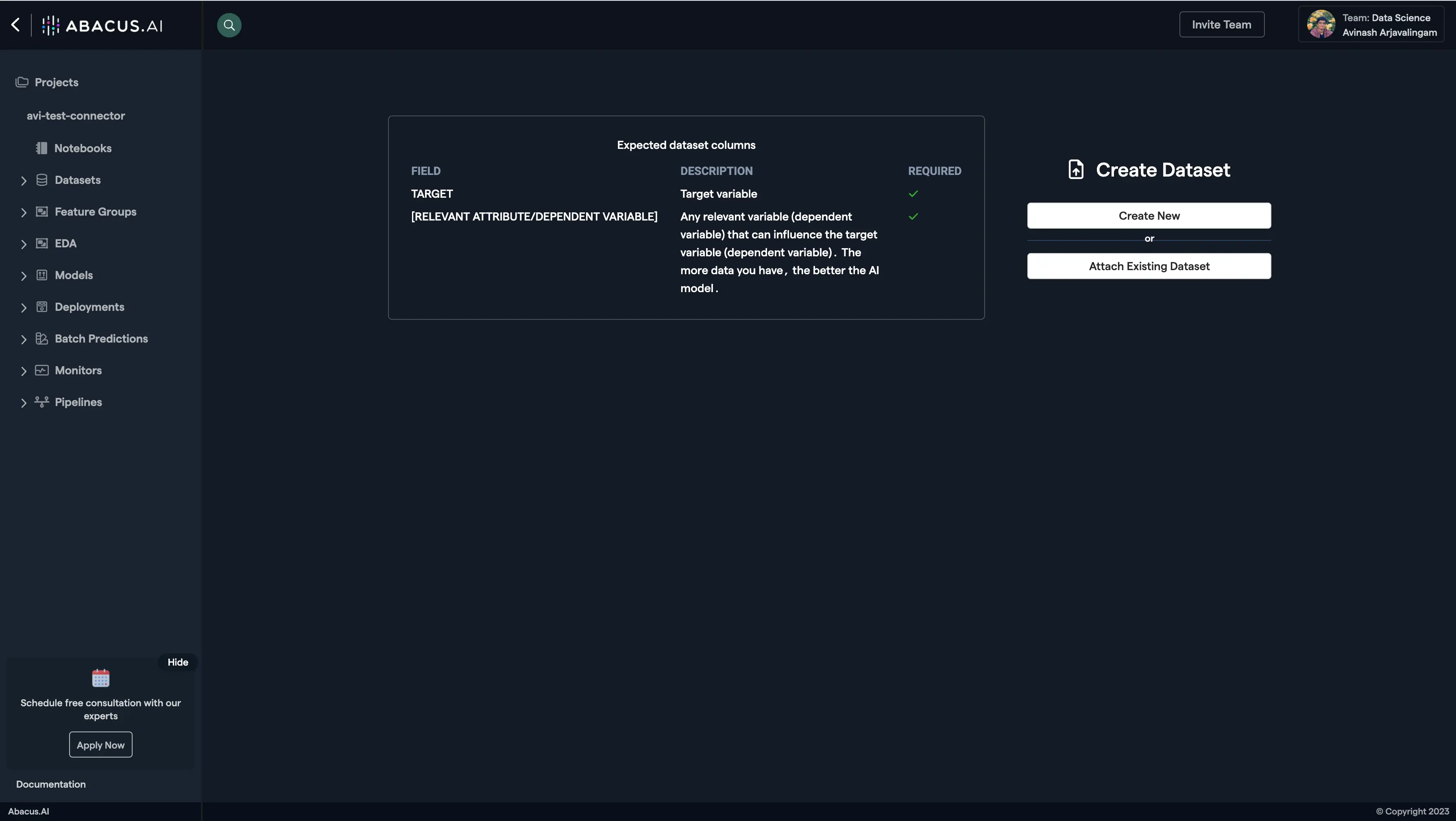
Click on Create New.
-
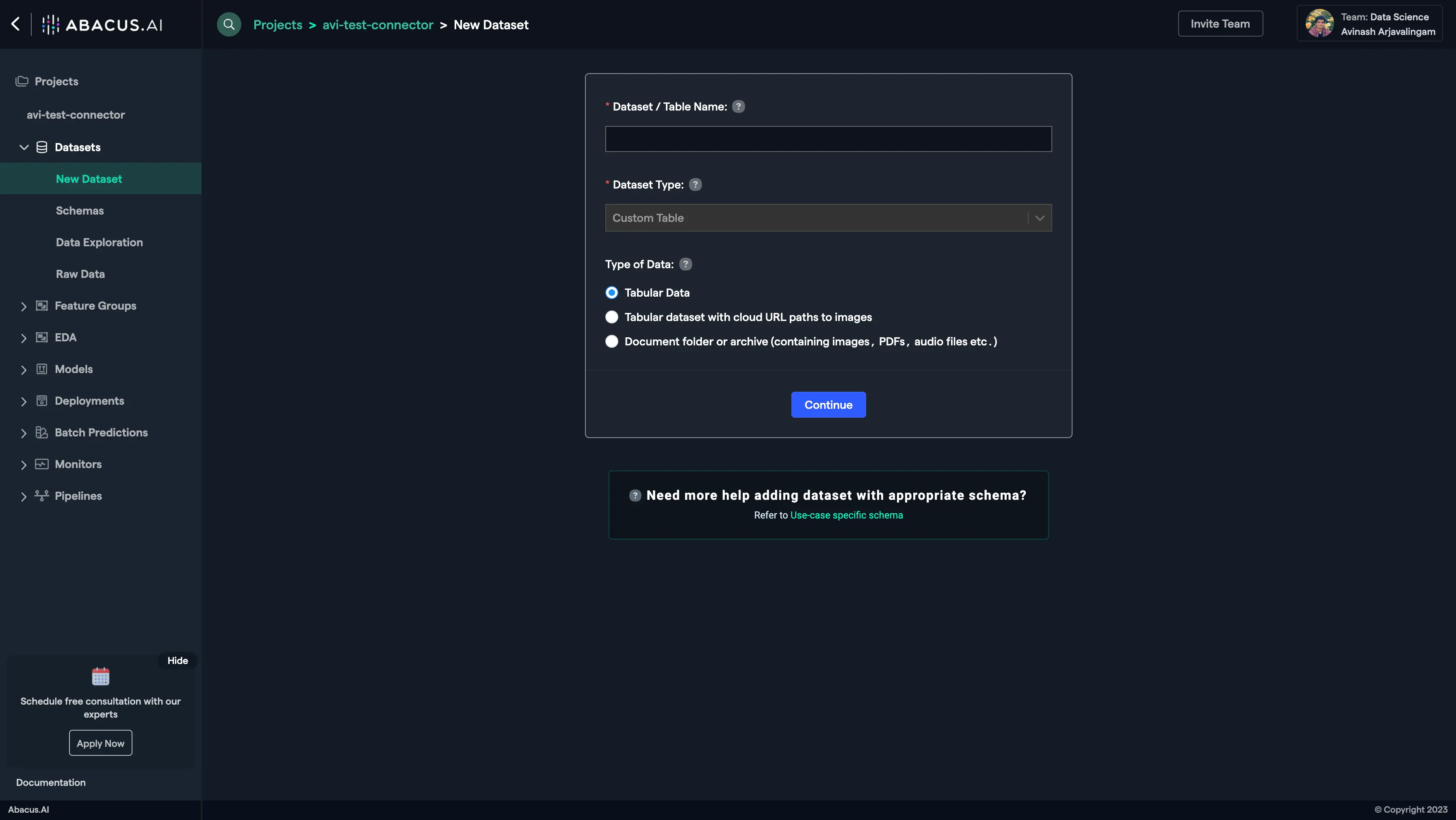
Name the dataset, select the data type, and click Continue.
-
Choose Read from External Service and select your Dropbox connector under Application Connectors.
-
Browse and select the folder or files you want to sync from your Dropbox account.
- You can select multiple files or folders at the same level.
- If you move into a nested/subfolder, the files you selected at the higher level will not be included.
- Ensure that the selected folder contains supported file types.
-
If you want to include highlighting for documents in the doc viewer, enable the Extract Bounding Boxes advanced option.
-
Click Add Dataset to upload the data to Abacus.AI.
-
Once the dataset is uploaded, configure the schema mapping and train models with the data.
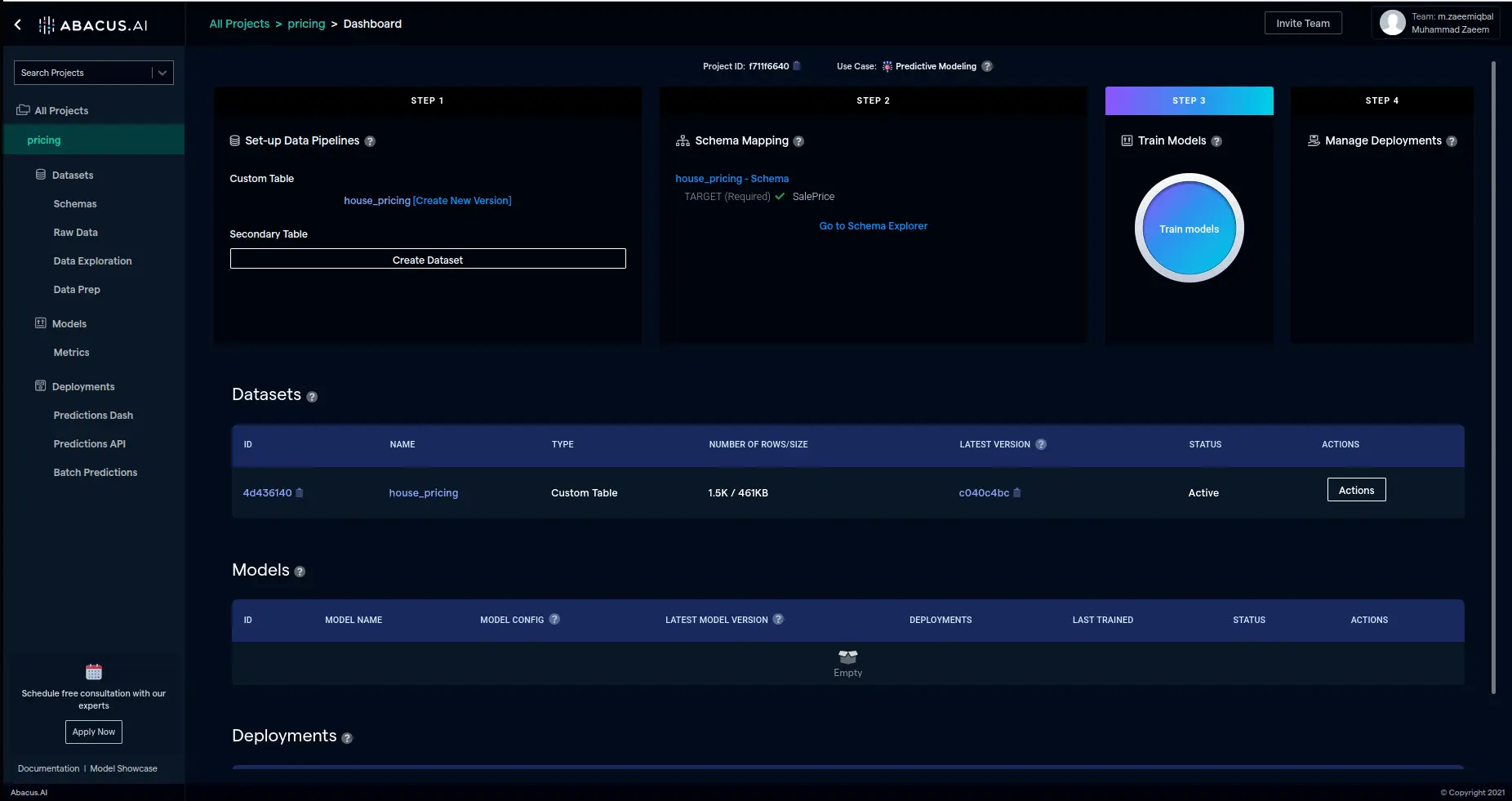
By following these steps, you can seamlessly integrate your Dropbox account with Abacus.AI and use your data for machine learning and analytics.