Tableau User Connector
Connect Tableau Cloud to Abacus.AI so that ChatLLM Teams chats with RouteLLM, the Abacus AI Agent and Custom Chatbots can read your workbooks, views, published data sources and projects, and query view data on demand.
Tableau is a zero-interaction connector. There is no Tableau login pop-up for end users: an administrator registers a Tableau Connected App (Direct Trust) once, and each user's connection is identified by the email address of their Abacus.AI account.
Prerequisites
- Access to ChatLLM Teams
- A Tableau Cloud site, with each end user provisioned as a Tableau user whose email matches their Abacus.AI account email
- For the required config connector: Tableau site administrator access to create a Connected App (Direct Trust), and administrative access in Abacus.AI to create connectors
Config connector (required)
A config connector is required for the Tableau user connector to work. It stores the Tableau Connected App (Direct Trust) credentials that every user-level connection uses to mint its short-lived JWT and exchange it for a Tableau REST session. Without it, users cannot connect.
Step A — Create a Tableau Connected App (Direct Trust)
In Tableau Cloud, as a site admin:
- Go to Settings → Connected Apps.
- Click New Connected App → Direct Trust.
- Give the app a name and select the access level and project scope you want to expose.
- Set the app's status to Enabled.
- Under the app, click Generate New Secret and note the Client ID (the Connected App ID), the Secret ID and the Secret Value.
Step B — Create the config connector in Abacus.AI
-
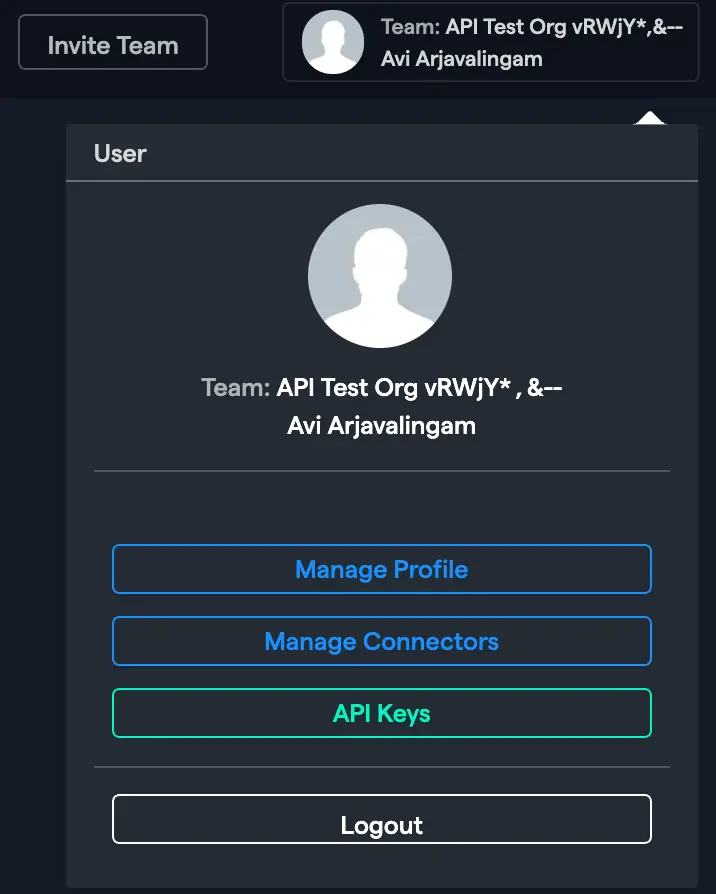
Navigate to the Connected Services Dashboard. You can also click your profile picture in the top right corner and select Manage Connectors.

-
Click Add New Connector and choose Tableau from the "Select a Service" popup.
-
Toggle Config Only to Yes.
-
Fill in the Tableau Connected App fields:
Field Required Description Tableau Server URL Yes Your Tableau Cloud URL, e.g. https://10ax.online.tableau.com.Site Content URL No The site's content URL (the value after /site/in the Tableau URL). Leave blank to use the Tableau Cloud default site.Connected App Client ID Yes The Connected App (Direct Trust) Client ID from Step A. Connected App Secret ID Yes The Connected App Secret ID from Step A. Connected App Secret Value Yes The Connected App Secret Value from Step A. -
Click Create.
Scopes and permissions
The connector is provisioned with the tableau:content:read scope and is intended for read-only metadata and data retrieval. What a user can see is governed by the Tableau permissions of the matching Tableau user and by the project scope you selected on the Connected App. There are no scopes for end users to approve.
Use Tableau in ChatLLM
Step 1 — Connect Tableau
In ChatLLM Teams, click the Connectors link on the home page, or click your profile in the top right and navigate to Profile → User Connectors.
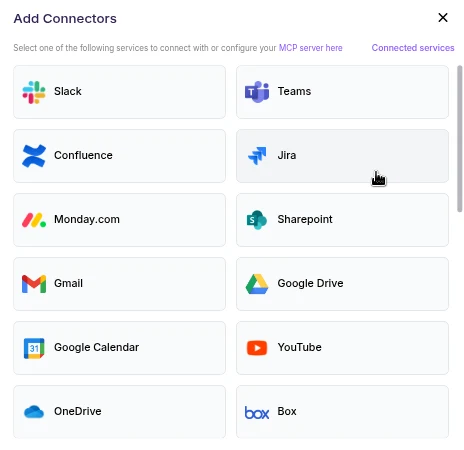
- Scroll the connector list and click Tableau.
- Click Connect. Because Tableau is a zero-interaction connector, the connection activates immediately; there is no Tableau login pop-up. Your Abacus.AI account email identifies you on the Tableau site.
- Tableau appears under your connected services and is ready to use.
Step 2 — Chat with RouteLLM
- Open a new chat in ChatLLM Teams.
- From the model selector, choose RouteLLM (
route-llm). RouteLLM automatically routes each request to the most suitable underlying model, and is available for unlimited use to ChatLLM subscribers.
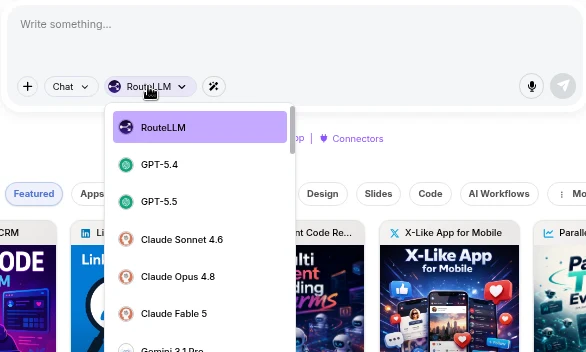
- Ask a question that references Tableau, for example "List the Tableau workbooks I have access to". RouteLLM invokes the Tableau tool, fetches the data under your identity, and responds in chat.
The first time you query a newly connected service in a chat, you may be prompted to authorize the connector. Complete the sign-in once and the request continues automatically; subsequent requests reuse the connection.
You don't need to train a Custom Chatbot to use Tableau with RouteLLM. Once the connector is configured in the User Connectors panel, it is immediately available across your workspace chats and to the Abacus AI Agent.
If you want a dedicated bot with its own instructions and a restricted set of tools, train a Custom Chatbot in the Developer Platform and, under Advanced Options → Tool Use, select Tableau_Tool. You must also pick the Tableau config connector under **Config Connectors**; without it, the chatbot's users cannot connect. End users of that chatbot are prompted to sign in to Tableau once, and the bot then acts under each user's own identity. See the Custom Chatbots guide for the full training and deployment walkthrough.
Supported Tableau tool actions
The Tableau user connector provides a thin REST wrapper that lets the AI agent call the Tableau Cloud REST API. The tool automatically resolves the Tableau server URL and site ID from the connector, attaches the session token, and refreshes it when it expires. You only provide the path after /api/3.21/sites/{site_id}/.
| Operation | Endpoint | Description |
|---|---|---|
| List Workbooks | workbooks | List all workbooks on the site |
| Get Workbook | workbooks/{workbook_id} | Get details for a single workbook |
| List Views | views | List all views on the site |
| Get View Data | views/{view_id}/data | Query / download the data for a view (returned as CSV under result.raw) |
| List Data Sources | datasources | List published data sources |
| List Projects | projects | List projects on the site |
Important notes
- Matching Tableau user required: a Tableau user with the same email as the Abacus.AI account must exist on the Tableau site, otherwise Tableau rejects the Direct Trust JWT.
- Automatic token refresh: Tableau REST session tokens (default 240 minutes of inactivity on Tableau Cloud) and Direct Trust JWTs are minted and refreshed automatically.
Troubleshooting
- Cannot connect / connection fails immediately: confirm the Tableau config connector exists and that its Connected App Client ID, Secret ID and Secret Value are correct and the Connected App is Enabled in Tableau.
- "User not found" or sign-in rejected: ensure a Tableau user with the same email as your Abacus.AI account exists on the configured Tableau site.
- Wrong site / empty results: verify the Site Content URL on the config connector. Leave it blank only if you intend to use the Tableau Cloud default site.
- Users cannot connect from a Custom Chatbot: verify the Tableau config connector is selected under the model's Tool Use → Config Connectors.
- Server URL errors: use the full Tableau Cloud URL including the scheme (e.g.
https://10ax.online.tableau.com) and without a trailing path.