Slack User Connector
Connect your own Slack account to Abacus.AI so that ChatLLM Teams chats with RouteLLM, the Abacus AI Agent and Custom Chatbots can work with your Slack data under your own identity. The connector can only see what your Slack account can see, and the activity is recorded against your account in Slack.
Prerequisites
- Access to ChatLLM Teams
- A Slack account in the workspace you want to query
Scopes and permissions
The Slack connector uses the Abacus.AI application and requests a fixed set of permissions (OAuth scopes) that the Slack tool needs. You review and approve them on the Slack consent screen when you connect, and you can only ever access data that your own Slack account is allowed to see.
No configuration is needed on the Abacus.AI side, and there is no config connector for Slack. To revoke access later, remove Slack from Profile → User Connectors; you can also revoke the Abacus.AI app from your Slack account settings.
Use Slack in ChatLLM
Step 1 — Connect Slack
In ChatLLM Teams, click the Connectors link on the home page, or click your profile in the top right and navigate to Profile → User Connectors.
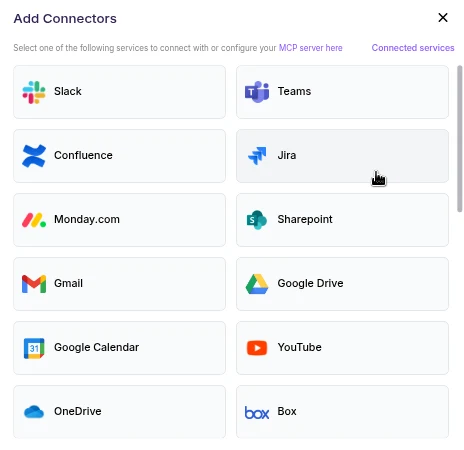
- Scroll the connector list and click Slack.
- A browser pop-up opens asking you to sign in to Slack and authorize Abacus.AI.
- Review the requested permissions and click Allow (or Authorize).
- After authorization completes, Slack appears under your connected services and is ready to use.
User connectors are configured once per user and run under your own identity. After the connector is set up, every chatbot and the Abacus AI Agent in your workspace can query data from it.
Step 2 — Chat with RouteLLM
- Open a new chat in ChatLLM Teams.
- From the model selector, choose RouteLLM (
route-llm). RouteLLM automatically routes each request to the most suitable underlying model, and is available for unlimited use to ChatLLM subscribers.
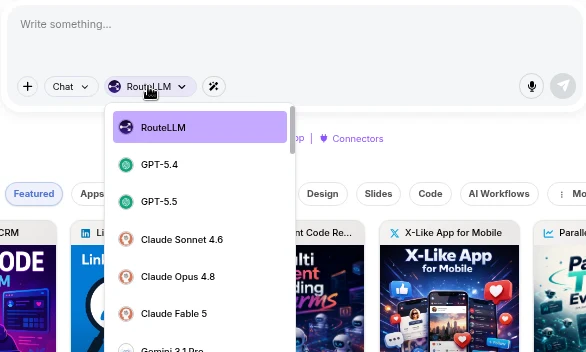
- Ask a question that references Slack, for example "Summarize the latest messages in my #general channel". RouteLLM invokes the Slack tool, fetches the data under your identity, and responds in chat.
The first time you query a newly connected service in a chat, you may be prompted to authorize the connector. Complete the sign-in once and the request continues automatically; subsequent requests reuse the connection.
You don't need to train a Custom Chatbot to use Slack with RouteLLM. Once the connector is configured in the User Connectors panel, it is immediately available across your workspace chats and to the Abacus AI Agent.
If you want a dedicated bot with its own instructions and a restricted set of tools, train a Custom Chatbot in the Developer Platform and, under Advanced Options → Tool Use, select Slack_tool. End users of that chatbot are prompted to sign in to Slack once, and the bot then acts under each user's own identity. See the Custom Chatbots guide for the full training and deployment walkthrough.
Troubleshooting
- The authorization pop-up does not appear: allow pop-ups for the Abacus.AI site in your browser and click Slack in the User Connectors panel again.
- "Not authorized" or stale results: remove Slack from Profile → User Connectors and connect it again to refresh the authorization.
- Some items are missing: the connector cannot see more than your own Slack account can. Check your access in Slack itself.