DocuSign User Connector
Connect your own DocuSign account to Abacus.AI so that ChatLLM Teams chats with RouteLLM, the Abacus AI Agent and Custom Chatbots can list, create, send and void envelopes under your own identity and DocuSign role.
Prerequisites
- Access to ChatLLM Teams
- A DocuSign eSignature account
- To customize scopes: administrative access in Abacus.AI to create connectors
Scopes and permissions
By default all scopes except click.send are requested, granting eSignature access plus a refresh token, DocuSign Click, Agreement Orchestration (Maestro) workflows, admin and organization reads, and Web Forms access. The signature scope is required and cannot be removed. You approve the scopes on DocuSign's consent screen when you connect.
| Scope | Description |
|---|---|
signature | eSignature REST API access: send, sign, and manage envelopes, templates, and recipients (required) |
extended | Issues a long-lived refresh token so Abacus.AI can refresh access without re-prompting |
click.manage | DocuSign Click: create and manage clickwrap agreements |
click.send | DocuSign Click: send clickwraps to recipients (off by default) |
aow_manage | Agreement Orchestration (Maestro) workflows: manage automated agreement workflows |
organization_read | Read organization-level data via the DocuSign Admin API |
user_read | Read user profile information |
account_read | Read account settings and information |
group_read | Read group membership and configuration |
permission_read | Read permission profiles |
webforms_read | Read DocuSign Web Forms definitions |
webforms_instance_read | Read submitted Web Form instances |
webforms_instance_write | Create and update Web Form instances |
An organization administrator can change the requested scopes with an optional config connector:
- Navigate to the Connected Services Dashboard.
- Click Add New Connector.
- Select DocuSign from the "Select a Service" popup.
- Toggle Config Only to Yes.
- Select the Scopes you want to grant.
- Click Create.
If you are happy with the default scopes, skip the config connector. Users who connected DocuSign before a scope change must reconnect it from Profile → User Connectors.
Use DocuSign in ChatLLM
Step 1 — Connect DocuSign
In ChatLLM Teams, click the Connectors link on the home page, or click your profile in the top right and navigate to Profile → User Connectors.
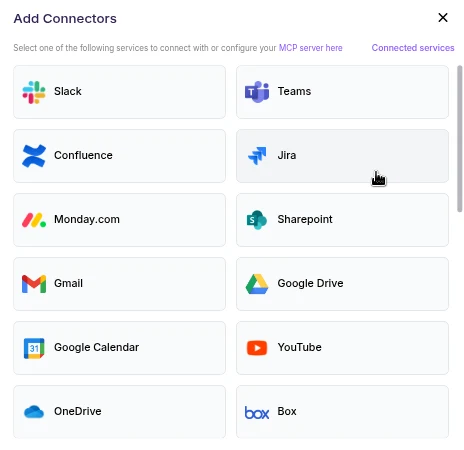
- Scroll the connector list and click DocuSign.
- A browser pop-up opens asking you to sign in to DocuSign and authorize Abacus.AI.
- Review the requested permissions and click Allow (or Authorize).
- After authorization completes, DocuSign appears under your connected services and is ready to use.
User connectors are configured once per user and run under your own identity. After the connector is set up, every chatbot and the Abacus AI Agent in your workspace can query data from it.
DocuSign separates Demo (account-d.docusign.com) and Production (account.docusign.com) environments. Sign in to the environment that holds your account.
Step 2 — Chat with RouteLLM
- Open a new chat in ChatLLM Teams.
- From the model selector, choose RouteLLM (
route-llm). RouteLLM automatically routes each request to the most suitable underlying model, and is available for unlimited use to ChatLLM subscribers.
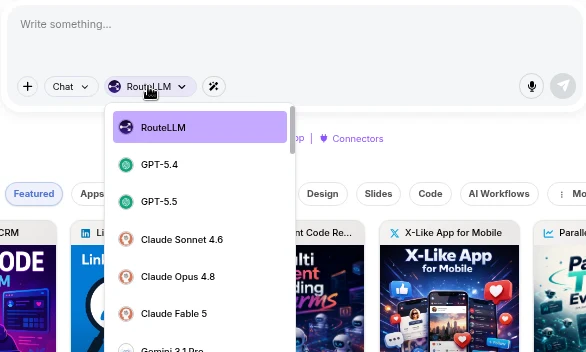
- Ask a question that references DocuSign, for example "List my DocuSign envelopes awaiting signature". RouteLLM invokes the DocuSign tool, fetches the data under your identity, and responds in chat.
The first time you query a newly connected service in a chat, you may be prompted to authorize the connector. Complete the sign-in once and the request continues automatically; subsequent requests reuse the connection.
You don't need to train a Custom Chatbot to use DocuSign with RouteLLM. Once the connector is configured in the User Connectors panel, it is immediately available across your workspace chats and to the Abacus AI Agent.
If you want a dedicated bot with its own instructions and a restricted set of tools, train a Custom Chatbot in the Developer Platform and, under Advanced Options → Tool Use, select Docusign_Tool. If you created a config connector, also pick it under **Config Connectors**. End users of that chatbot are prompted to sign in to DocuSign once, and the bot then acts under each user's own identity. See the Custom Chatbots guide for the full training and deployment walkthrough.
Supported DocuSign tool actions
The DocuSign user connector exposes the eSignature REST API to the AI agent. The tool automatically handles authentication, token refresh, and resolving the account ID and base URI.
| Action | Description |
|---|---|
list_envelopes | List envelopes, optionally filtered by date, folder, or status |
get_envelope | Fetch a single envelope's details and status by envelope ID |
list_recipients | List the recipients (signers, CCs) on an envelope and their status |
list_templates | List reusable templates in the account |
get_template | Fetch the definition of a single template |
list_documents | List the documents attached to an envelope |
download_document | Download a document (or the combined PDF) from an envelope |
create_envelope | Create a draft envelope from documents or a template |
send_envelope | Send a draft envelope, or create-and-send in one step |
void_envelope | Void an in-process envelope with a reason |
list_folders | List folders and their envelope contents |
get_audit_events | Retrieve the audit trail for an envelope |
The tool operates over standard DocuSign eSignature objects: Envelopes, Recipients, Documents, Templates, Folders, Custom Fields, and Audit Events.
Important notes
- Token refresh: OAuth tokens are refreshed automatically as long as the
extendedscope was granted. - Read and write: the tool can create, send and void envelopes when the authenticated user has the corresponding permissions. Available actions are limited by the signed-in user's DocuSign role.
- Rate limits: DocuSign enforces hourly API rate limits; the tool automatically retries with backoff when limits are hit.
Troubleshooting
- Cannot authenticate: confirm you completed the DocuSign login in the correct environment (Demo vs. Production).
- Token expired: make sure the
extendedscope was granted so the tool can refresh tokens; otherwise reconnect DocuSign from Profile → User Connectors. - Wrong account data: a DocuSign login may have access to multiple accounts. Confirm the tool is operating on the intended account.
- Permission errors: ensure the
signaturescope was granted and your DocuSign role permits the requested operation.