Monday.com User Connector
Connect your own Monday.com account to Abacus.AI so that ChatLLM Teams chats with RouteLLM, the Abacus AI Agent and Custom Chatbots can read and update your boards, items, groups and updates under your own identity.
Prerequisites
- Access to ChatLLM Teams
- A Monday.com account with access to the boards you want to work with
- The Abacus.AI Monday.com app installed in your Monday.com account (see below)
Install the Monday.com app
Before connecting, install the Abacus.AI app in your Monday.com account:
- Open the Abacus.AI Monday.com app installation link.
- Sign in to your Monday.com account if prompted.
- Review the requested permissions and click Install.
If you skip the installation and try to connect, Monday.com returns:
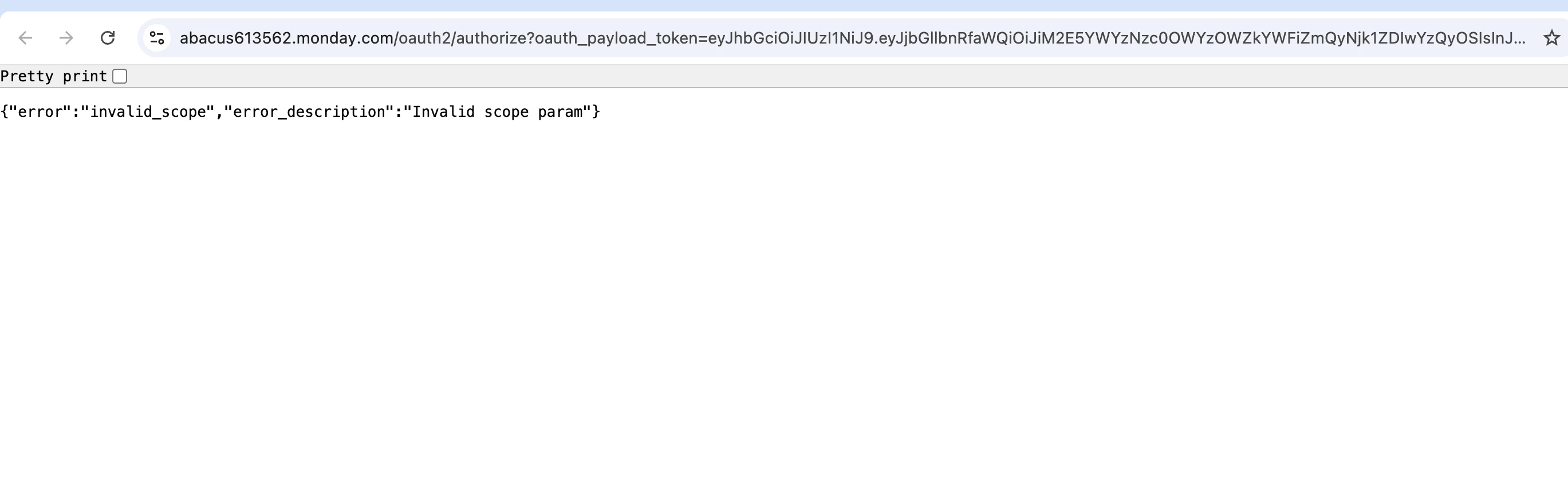
{"error":"invalid_scope","error_description":"Invalid scope param"}
This means the Abacus.AI app is not installed in your Monday.com account. Open the installation link, click Install, then connect again.
Scopes and permissions
The connector uses the Abacus.AI Monday.com app and requests permissions for boards, items, updates, users and workspaces. You approve them when you install the app and again on Monday.com's consent screen when you connect. There is no config connector for Monday.com; the tool can only act on boards your Monday.com user can access.
Use Monday.com in ChatLLM
Step 1 — Connect Monday.com
In ChatLLM Teams, click the Connectors link on the home page, or click your profile in the top right and navigate to Profile → User Connectors.
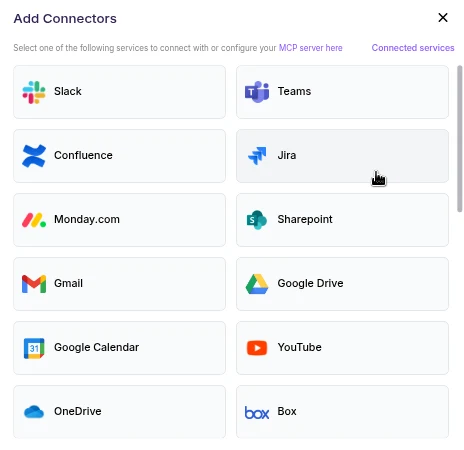
- Scroll the connector list and click Monday.com.
- A browser pop-up opens asking you to sign in to Monday.com and authorize Abacus.AI.
- Review the requested permissions and click Allow (or Authorize).
- After authorization completes, Monday.com appears under your connected services and is ready to use.
User connectors are configured once per user and run under your own identity. After the connector is set up, every chatbot and the Abacus AI Agent in your workspace can query data from it.
Step 2 — Chat with RouteLLM
- Open a new chat in ChatLLM Teams.
- From the model selector, choose RouteLLM (
route-llm). RouteLLM automatically routes each request to the most suitable underlying model, and is available for unlimited use to ChatLLM subscribers.
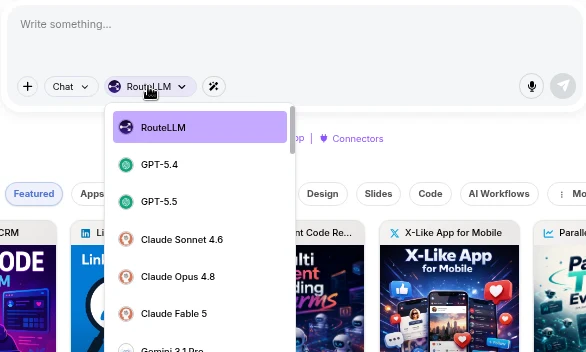
- Ask a question that references Monday.com, for example "List the items on my Monday.com boards". RouteLLM invokes the Monday.com tool, fetches the data under your identity, and responds in chat.
The first time you query a newly connected service in a chat, you may be prompted to authorize the connector. Complete the sign-in once and the request continues automatically; subsequent requests reuse the connection.
You don't need to train a Custom Chatbot to use Monday.com with RouteLLM. Once the connector is configured in the User Connectors panel, it is immediately available across your workspace chats and to the Abacus AI Agent.
If you want a dedicated bot with its own instructions and a restricted set of tools, train a Custom Chatbot in the Developer Platform and, under Advanced Options → Tool Use, select Monday_Tool. End users of that chatbot are prompted to sign in to Monday.com once, and the bot then acts under each user's own identity. See the Custom Chatbots guide for the full training and deployment walkthrough.
Available operations
Once connected, the Monday.com connector supports the following operations through natural language:
- Boards: list boards (with pagination and workspace filtering), get board details, create, update and archive boards.
- Items: create, get, update, delete, duplicate items, and move items between groups.
- Columns: list columns, create columns (text, status, date, etc.), update multiple column values on an item.
- Groups: create, update, delete and duplicate groups.
- Updates and comments: create, list and delete updates on items.
- Users and workspaces: list users, get the current user, list workspaces.
- Generic GraphQL: run any Monday.com GraphQL query or mutation for advanced use cases.
Important notes
- Rate limits: the connector automatically handles Monday.com API rate limits with exponential backoff retries.
- Permissions: the tool can only perform operations your Monday.com account is allowed to perform.
Troubleshooting
- "Invalid scope param": the Abacus.AI app is not installed in your Monday.com account. See Install the Monday.com app.
- Authorization fails or results look stale: remove Monday.com from Profile → User Connectors and connect it again.
- GraphQL errors: verify the query syntax against the Monday.com API documentation.