Zoom User Connector
Connect your own Zoom account to Abacus.AI so that ChatLLM Teams chats with RouteLLM, the Abacus AI Agent and Custom Chatbots can work with your meetings, recordings and users under your own Zoom identity and permissions. This page covers adding, using and removing the connector.
The Abacus.AI Zoom connector is coming soon and will be launched in the near future. The instructions below are published in advance so you can review how the connector is added, used and removed before it becomes generally available.
Once connected, the Zoom Tool can, for example:
- List your upcoming and past meetings and fetch meeting details
- Schedule, update or delete meetings
- List meeting participants for past meetings
- List and retrieve links to your cloud recordings
- Look up Zoom user and account information
Prerequisites
- Access to ChatLLM Teams
- A Zoom account (Basic, Pro, Business or Enterprise)
Some actions (for example, cloud recordings) require a paid Zoom plan and the corresponding scopes to be enabled on your Zoom account.
Scopes and permissions
The connector uses the Abacus.AI Zoom app and requests the meeting, recording and user scopes the Zoom Tool needs. You approve them on Zoom's consent screen when you connect. There is no config connector for Zoom; which actions succeed depends on your Zoom plan and on the scopes your Zoom account allows (for example meeting:write for scheduling, and recording scopes on a paid plan for cloud recordings).
Adding the app
Step 1 — Connect Zoom
In ChatLLM Teams, click the Connectors link on the home page, or click your profile in the top right and navigate to Profile → User Connectors.
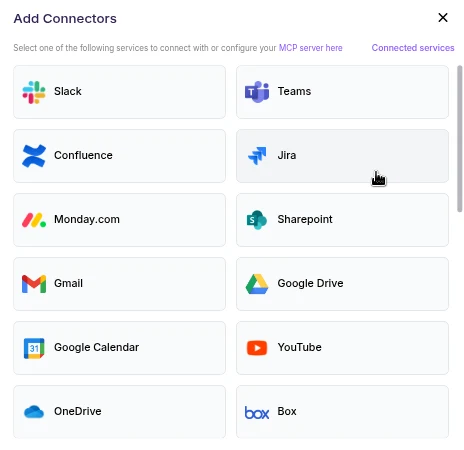
- Scroll the connector list and click Zoom.
- A browser pop-up opens asking you to sign in to Zoom and authorize Abacus.AI.
- Review the requested permissions and click Allow (or Authorize).
- After authorization completes, Zoom appears under your connected services and is ready to use.
User connectors are configured once per user and run under your own identity. After the connector is set up, every chatbot and the Abacus AI Agent in your workspace can query data from it.
Step 2 — Chat with RouteLLM
- Open a new chat in ChatLLM Teams.
- From the model selector, choose RouteLLM (
route-llm). RouteLLM automatically routes each request to the most suitable underlying model, and is available for unlimited use to ChatLLM subscribers.
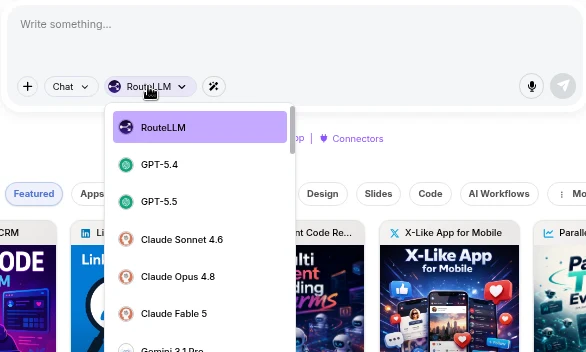
- Ask a question that references Zoom, for example "List my Zoom meetings scheduled for this week". RouteLLM invokes the Zoom tool, fetches the data under your identity, and responds in chat.
The first time you query a newly connected service in a chat, you may be prompted to authorize the connector. Complete the sign-in once and the request continues automatically; subsequent requests reuse the connection.
You don't need to train a Custom Chatbot to use Zoom with RouteLLM. Once the connector is configured in the User Connectors panel, it is immediately available across your workspace chats and to the Abacus AI Agent.
If you want a dedicated bot with its own instructions and a restricted set of tools, train a Custom Chatbot in the Developer Platform and, under Advanced Options → Tool Use, select Zoom_tool. End users of that chatbot are prompted to sign in to Zoom once, and the bot then acts under each user's own identity. See the Custom Chatbots guide for the full training and deployment walkthrough.
Usage
Each feature of the Zoom Tool maps to a clear use case. All actions run under the signed-in user's own Zoom identity and permissions.
| Feature / action | Use case | Prerequisites |
|---|---|---|
| List meetings | "Show me my Zoom meetings this week" — view your upcoming and past scheduled meetings. | Zoom connector added and authorized; any valid Zoom plan. |
| Get meeting details | "What are the details of my next meeting?" — retrieve topic, time, join URL and settings for a meeting. | The meeting must belong to (or be accessible by) the signed-in user. |
| Schedule a meeting | "Schedule a Zoom meeting tomorrow at 3pm titled Project Sync" — create a new scheduled meeting. | meeting:write scope enabled on your Zoom account. |
| Update a meeting | "Move my 4pm meeting to 5pm" — change the time, topic or settings of an existing meeting. | meeting:write scope; you must own the meeting. |
| Delete a meeting | "Cancel my standup meeting" — delete a scheduled meeting. | meeting:write scope; you must own the meeting. |
| List meeting participants | "Who attended my standup yesterday?" — list participants for a past meeting. | Meeting must be in the past; reporting/dashboard scope on a paid Zoom plan. |
| List / retrieve cloud recordings | "Show me my recent cloud recordings" — list recordings and their play/download links. | A paid Zoom plan with cloud recording enabled and recording scopes granted. |
| Look up user / account info | "Who am I in Zoom?" — return the connected Zoom user and account information. | Zoom connector added and authorized. |
Example prompts
| Prompt | What it does |
|---|---|
| "List my upcoming Zoom meetings" | Lists scheduled meetings for the signed-in user |
| "What are the details of my next meeting?" | Fetches meeting topic, time, join URL and settings |
| "Schedule a Zoom meeting tomorrow at 3pm titled Project Sync" | Creates a new scheduled meeting |
| "Who attended my standup meeting yesterday?" | Lists participants for a past meeting |
| "Show me my recent cloud recordings" | Lists cloud recordings and their download/play links |
| "Who am I in Zoom?" | Returns the connected Zoom user/account information |
Removing the app
You can remove the Zoom connector at any time, either from Abacus.AI or directly from your Zoom account. Removing the connector de-authorizes Abacus.AI's access to your Zoom data.
Remove from Abacus.AI
- Go to the Connected Services Dashboard (click your profile in the top right, then Manage Connectors).
- Locate the Zoom connector in your list of connected services.
- Click Remove (or the delete icon) next to the Zoom connector and confirm.
Remove from your Zoom account
- Sign in to the Zoom App Marketplace.
- Click Manage → Added Apps (or search for the Abacus.AI app).
- Locate the Abacus.AI app and click Remove.
- Confirm removal to revoke the app's access to your Zoom account.
What happens when you de-authorize
- Access is revoked immediately. Abacus.AI's OAuth access and refresh tokens for your Zoom account are invalidated, and the Zoom Tool can no longer list or manage meetings, list participants, access recordings, or look up your Zoom user/account information.
- Chatbots and the Agent stop accessing Zoom. Any chatbot, the Abacus AI Agent, or RouteLLM chats that previously used the Zoom Tool can no longer retrieve Zoom data. If you re-add the connector later, you will be prompted to sign in to Zoom and authorize access again.
- No further calls are made. After de-authorization, Abacus.AI makes no additional requests to Zoom on your behalf.
How your data is removed
When you remove the connector (from either Abacus.AI or Zoom) or Abacus.AI receives Zoom's app deauthorization notification, Abacus.AI deletes the stored Zoom OAuth tokens and connector credentials associated with your account. Abacus.AI does not retain your Zoom content beyond what is required to service your in-session requests; any cached or derived Zoom data tied to the connector is purged as part of removal. No shared Zoom credentials are stored at any time, since the connector operates per user.
Specific requirements
- Removing the connector affects only your own Zoom authorization; other users in your workspace who connected Zoom are unaffected and must remove it individually.
- To fully revoke access, Zoom recommends removing the app from the Zoom App Marketplace → Manage → Added Apps page in addition to removing it from Abacus.AI.
- Re-adding the connector after removal requires completing the Zoom OAuth authorization flow again.
Important notes
- Per-user credentials: each user authenticates with their own Zoom identity. The Zoom Tool operates with the exact permissions of the signed-in user.
- Plan limits: cloud recording features require a paid Zoom plan with cloud recording enabled.
Troubleshooting
- The authorization pop-up is blocked: allow pop-ups for the Abacus.AI site in your browser and retry.
- Recordings are not returned: confirm cloud recording is enabled on your Zoom plan and the recording scopes are granted.
- An action fails with a permissions error: review your Zoom scopes and plan for the action you are attempting.
- Access stopped working unexpectedly: the connector may have been de-authorized. Re-add Zoom from the User Connectors panel to restore access.