Smartsheet User Connector
Connect your own Smartsheet account to Abacus.AI so that ChatLLM Teams chats with RouteLLM, the Abacus AI Agent and Custom Chatbots can work with your sheets, rows, columns, attachments and user information under your own Smartsheet identity and permissions.
Once connected, the Smartsheet Tool can, for example:
- List the sheets you have access to and fetch full sheet contents
- Search across all of your sheets, or search within a specific sheet
- Retrieve the data for a specific row or column on a sheet
- List the attachments on a sheet and fetch a specific attachment's details
- Look up your own Smartsheet user and account information
- Add, update and delete rows, create sheets, and share sheets, when an administrator has granted the matching write scopes (see below)
Prerequisites
- Access to ChatLLM Teams
- A Smartsheet account with access to the sheets you want to query
- To grant write scopes: administrative access in Abacus.AI to create connectors
Scopes and permissions
By default the Smartsheet user connector requests read-oriented scopes: READ_SHEETS, READ_USERS, READ_SIGHTS, READ_EVENTS and READ_CONTACTS. You can only access sheets and data your Smartsheet account already has permission to view.
To allow write operations, an organization administrator grants the write scopes on a config connector. Every user-level Smartsheet connection in the organization inherits the scopes stored there.
- Navigate to the Connected Services Dashboard (click your profile picture in the top right, then Manage Connectors).
- Click Add New Connector.
- Select Smartsheet from the "Select a Service" popup.
- (Optional) Enter a Connector Name.
(Config Only)is appended automatically. - Select the Scopes to request. The read scopes are selected by default; add
WRITE_SHEETS,CREATE_SHEETS,DELETE_SHEETSorSHARE_SHEETSto enable the corresponding write operations.READ_SHEETSandREAD_USERSare always included, because user connections fail without them. - Click Create.
The Smartsheet config connector is inherently config-only: there is no "Config Only" toggle to turn on, and it does not create an organization-level connection of its own.
Scopes are fixed at the moment a user authorizes Smartsheet. After changing the config connector, existing users must reconnect Smartsheet from Profile → User Connectors before the new scopes take effect.
Use Smartsheet in ChatLLM
Step 1 — Connect Smartsheet
In ChatLLM Teams, click the Connectors link on the home page, or click your profile in the top right and navigate to Profile → User Connectors.
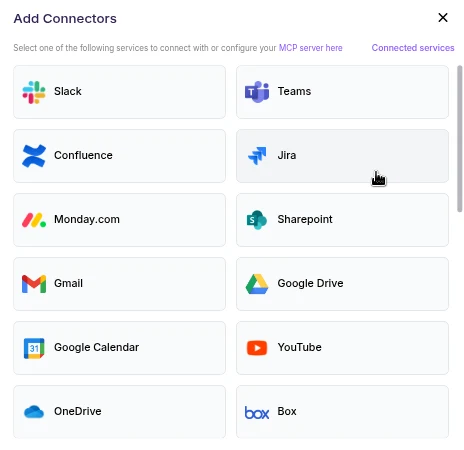
- Scroll the connector list and click Smartsheet.
- A browser pop-up opens asking you to sign in to Smartsheet and authorize Abacus.AI.
- Review the requested permissions and click Allow (or Authorize).
- After authorization completes, Smartsheet appears under your connected services and is ready to use.
User connectors are configured once per user and run under your own identity. After the connector is set up, every chatbot and the Abacus AI Agent in your workspace can query data from it.
Step 2 — Chat with RouteLLM
- Open a new chat in ChatLLM Teams.
- From the model selector, choose RouteLLM (
route-llm). RouteLLM automatically routes each request to the most suitable underlying model, and is available for unlimited use to ChatLLM subscribers.
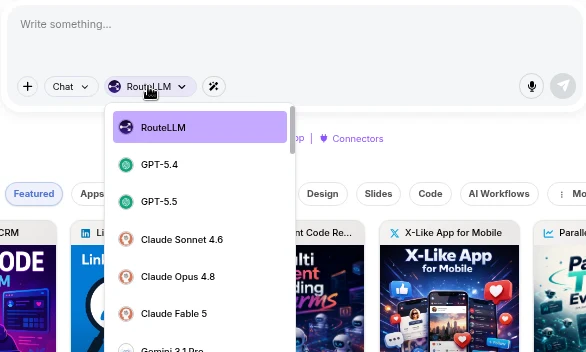
- Ask a question that references Smartsheet, for example "List the Smartsheet sheets I have access to". RouteLLM invokes the Smartsheet tool, fetches the data under your identity, and responds in chat.
The first time you query a newly connected service in a chat, you may be prompted to authorize the connector. Complete the sign-in once and the request continues automatically; subsequent requests reuse the connection.
You don't need to train a Custom Chatbot to use Smartsheet with RouteLLM. Once the connector is configured in the User Connectors panel, it is immediately available across your workspace chats and to the Abacus AI Agent.
If you want a dedicated bot with its own instructions and a restricted set of tools, train a Custom Chatbot in the Developer Platform and, under Advanced Options → Tool Use, select Smartsheet_tool. If you created a config connector, also pick it under **Config Connectors**. End users of that chatbot are prompted to sign in to Smartsheet once, and the bot then acts under each user's own identity. See the Custom Chatbots guide for the full training and deployment walkthrough.
Example prompts
| Prompt | What it does |
|---|---|
| "List all my Smartsheet sheets" | Lists the sheets the signed-in user can access |
| "Show me the contents of my Project Plan sheet" | Fetches the full data for a specific sheet |
| "Search my sheets for 'Q3 budget'" | Searches across all of the user's sheets |
| "Find rows mentioning 'overdue' in this sheet" | Searches within a specific sheet |
| "What's in row 12 of my Tasks sheet?" | Retrieves the data for a specific row |
| "Show me the Status column details for this sheet" | Retrieves the data for a specific column |
| "List the attachments on my Launch Plan sheet" | Lists attachments on a sheet |
| "Who am I in Smartsheet?" | Returns the connected Smartsheet user/account information |
Supported capabilities
Read operations, available with the default scopes:
| Capability | Description | Required inputs |
|---|---|---|
| List sheets | List all sheets the user can access | — |
| Get sheet data | Retrieve the full contents of a sheet | Sheet ID |
| Search everything | Search across all of the user's sheets | Search query |
| Search within a sheet | Search inside a specific sheet | Sheet ID, search query |
| Get row data | Retrieve a specific row's data | Sheet ID, Row ID |
| Get column data | Retrieve a specific column's data | Sheet ID, Column ID |
| List attachments | List attachments on a sheet | Sheet ID |
| Get attachment | Retrieve a specific attachment's details | Sheet ID, Attachment ID |
| Current user | Return the connected Smartsheet user/account info | — |
You don't need to know sheet, row, column or attachment IDs in advance. The agent can first list your sheets (or attachments) to discover the relevant IDs, then drill into the specific row, column or attachment automatically.
Write operations, only available when the matching scope has been granted on the config connector. Without it, the request fails with a 403 naming the missing scope.
| Capability | Description | Required scope |
|---|---|---|
| Add rows | Add rows to a sheet | WRITE_SHEETS |
| Update rows | Update existing rows on a sheet | WRITE_SHEETS |
| Delete rows | Delete rows from a sheet | WRITE_SHEETS |
| Add columns | Add columns to a sheet | WRITE_SHEETS |
| Update sheet | Update sheet properties, such as its name | WRITE_SHEETS |
| Create sheet | Create a new sheet, optionally in a folder or workspace | CREATE_SHEETS |
| Delete sheet | Delete a sheet | DELETE_SHEETS |
| Share sheet | Share a sheet with other users | SHARE_SHEETS |
Important notes
- Per-user credentials: each user authenticates with their own Smartsheet identity, and the tool operates with exactly that user's permissions. Scopes granted on the config connector never exceed your own Smartsheet permissions.
- Read-only by default: out of the box the connector can retrieve and search your Smartsheet data but cannot create, modify or delete sheets, rows or columns.
Troubleshooting
- Authorization fails or results look stale: remove Smartsheet from Profile → User Connectors and connect it again.
- A sheet, row or attachment is not found: ask the agent to list your sheets (or attachments) first to discover valid IDs, and check your sharing settings in Smartsheet.
- A write operation fails with a
403naming a missing scope: ask an administrator to add that scope to the config connector, then reconnect Smartsheet from Profile → User Connectors.