January 2026 Platform Update
Abacus DeepAgent Webinar
We will be hosting a webinar to showcase the latest developments with DeepAgent on February 25th 9am - 10am PST. If you would like to attend please register on our associated Eventbrite page
AI Workflow Updates
A number of updates have been made to the AI Workflow builder to simplify the creation process.
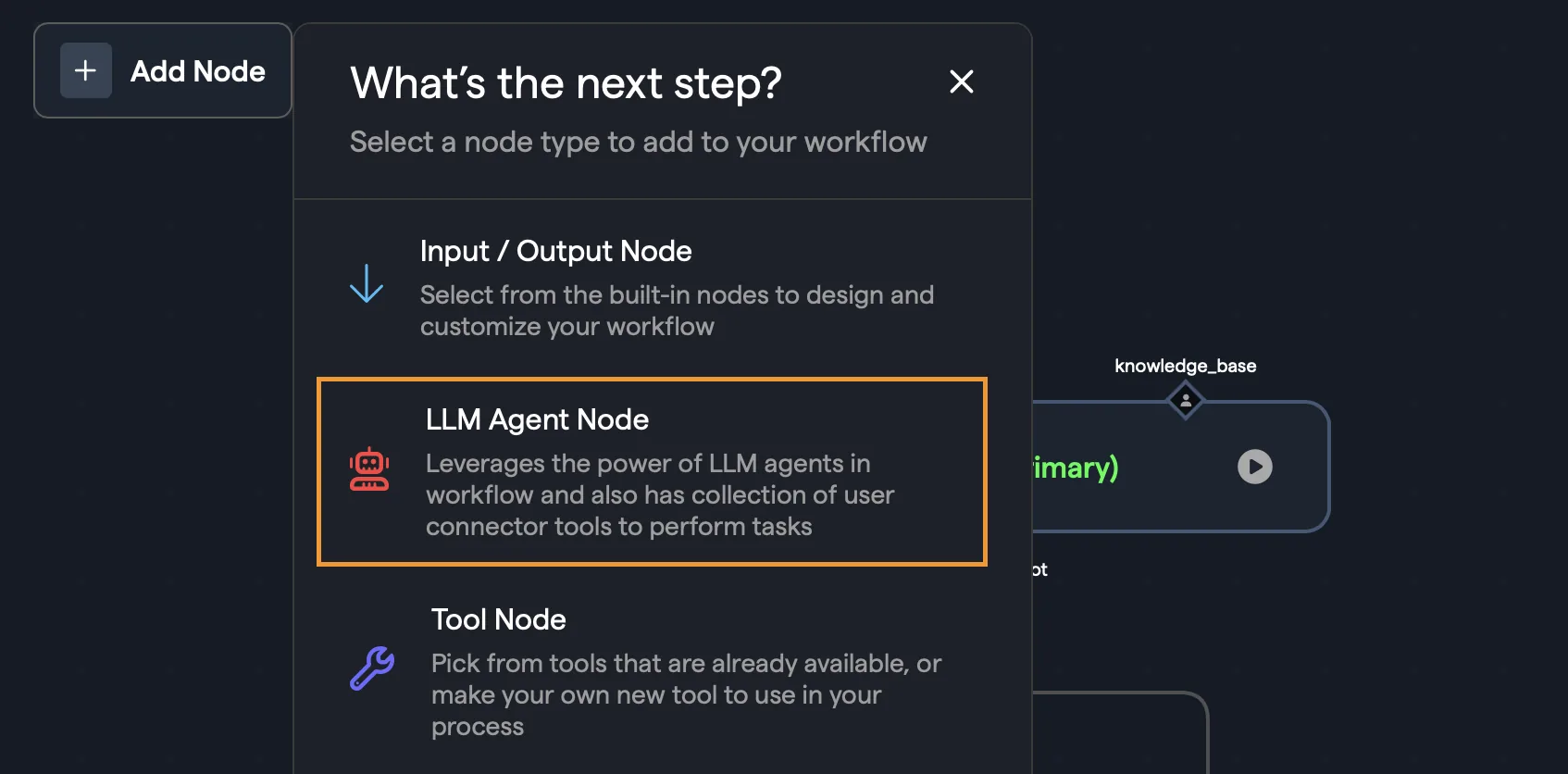
LLM Agent NodesA new feature of the workflows are the LLM Agent Nodes which incorporate the power of the Abacus platform to handle common agent tasks like tool integration and data processing without having to build them each time. In the workflow builder select Add Node and then LLM Agent Node from the options:
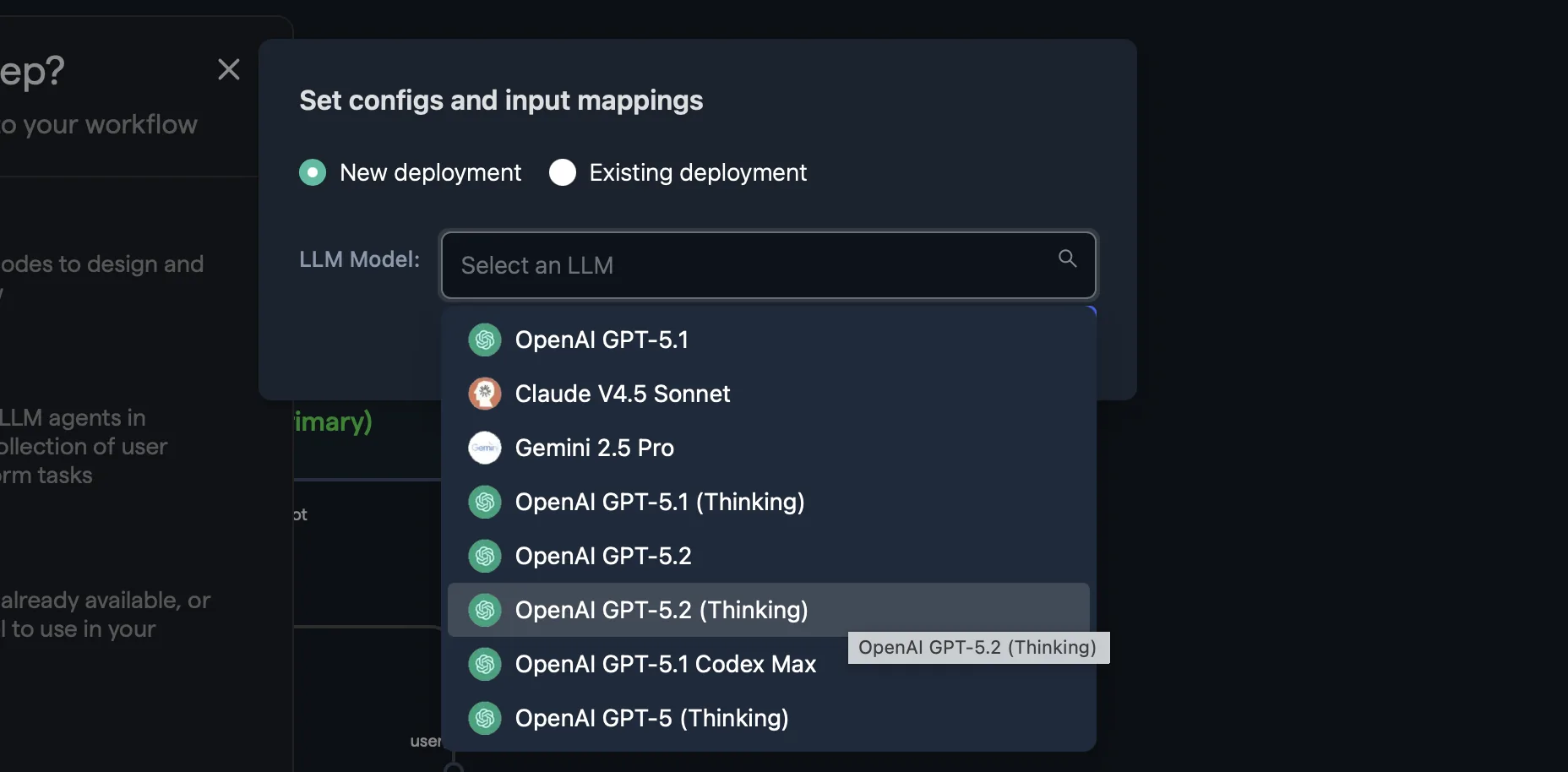
The system will give you two options for adding the node into the workflow: New or Existing. When adding a New Agent Node select the LLM from the dropdown list:
If you have an existing Agent Node you would like to add, or you have a custom ChatBot you have previously deployed that you would like to incorporate, selecting Existing will allow you to select the specific project and deployment:
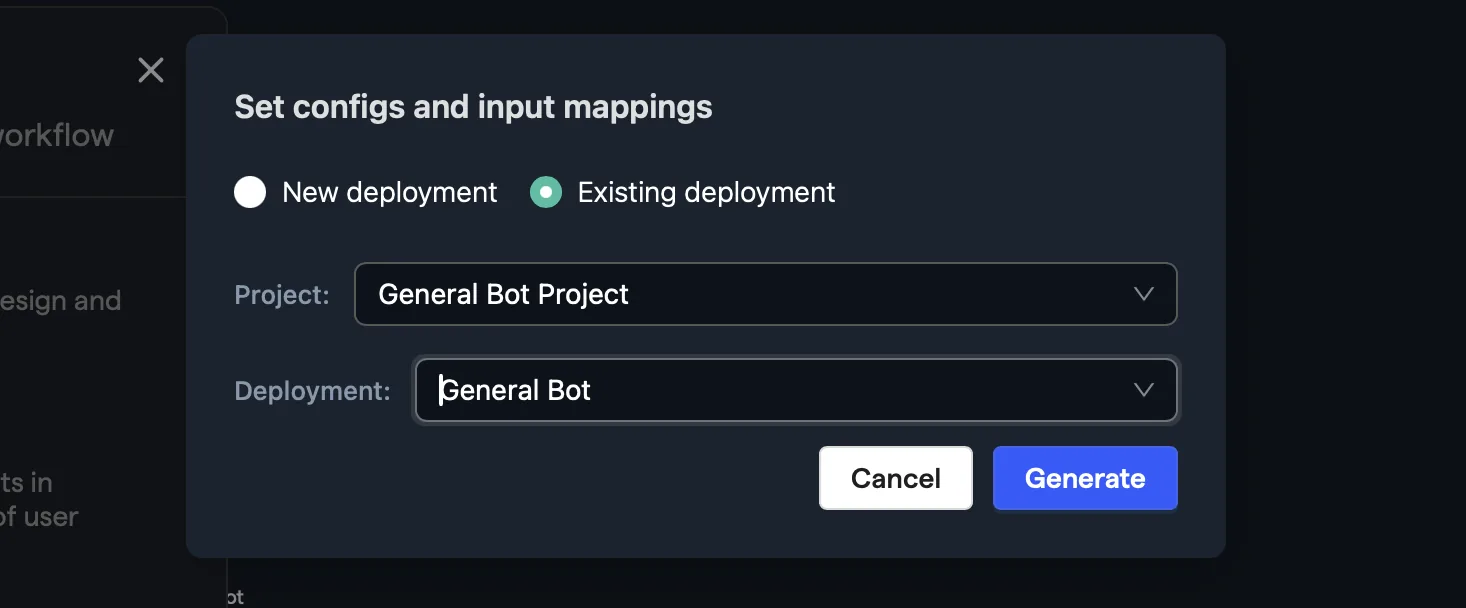
Click Generate to add the new node into the workflow. To update any of the configuration for that node, make sure that node is selected and click on Node Configuration in the top-right of the screen. This will provide a number of key options:
- LLM Options -The ability to easily change the LLM you would like to use
- Add Tools - Add any of the pre-defined connector tools
- Behaviour Instructions - Provide prompt instructions to guide the LLM's behaviour
- Knowledge Base - Attach any specific document retrievers that you would like the agent to access
- Structured Data - Specify any structured data sources that the agent would be able to execute queries against
- Response Instructions - Define the manner of responses that the LLM should generate
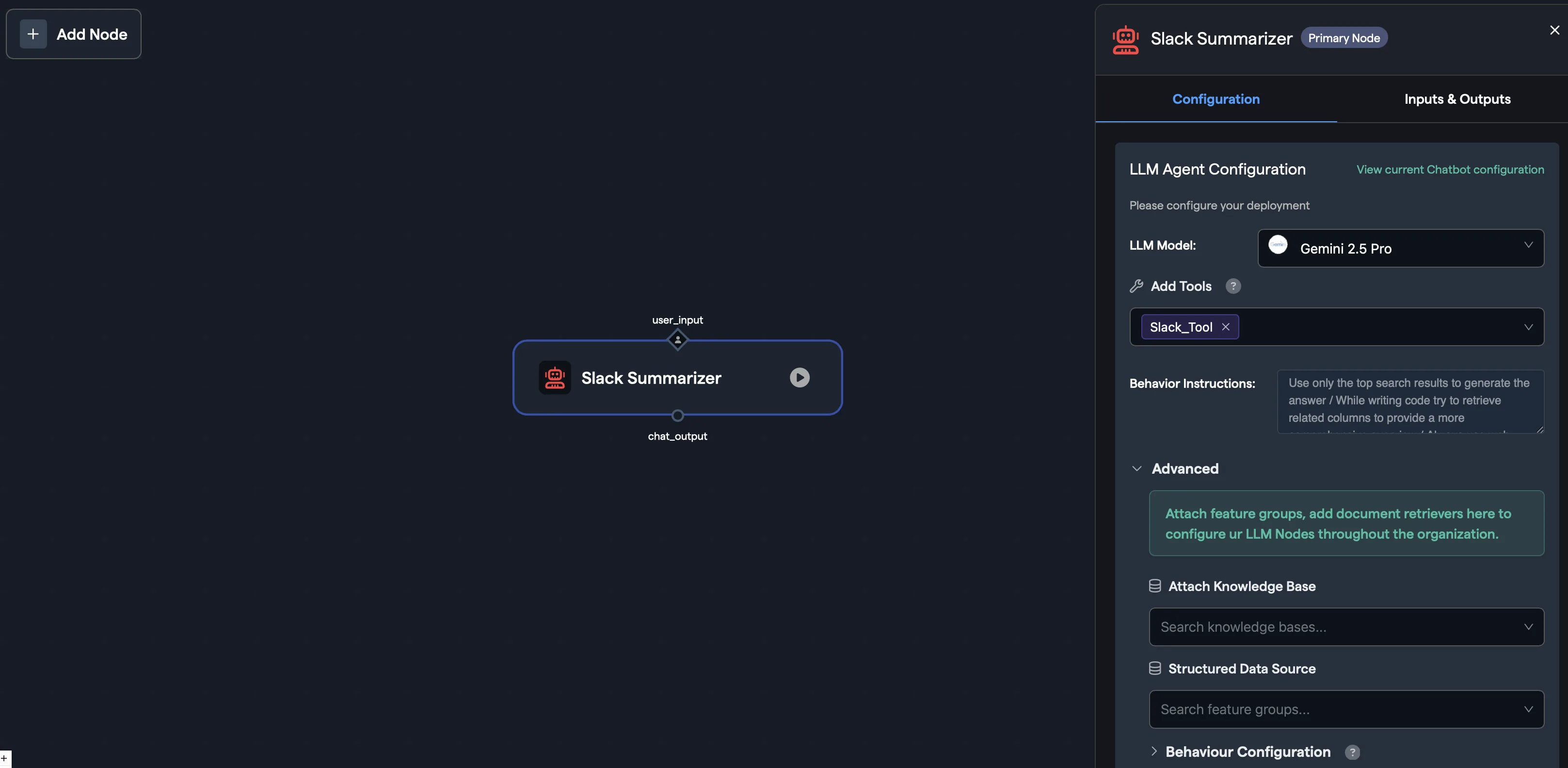
N.b. Any document retrievers or structured data sources you would like to use must be part of the project where this workflow is being built
Tool NodeThe Tool Node has been improved to make finding relevant tools easier and more intuitive. The UI is split between Built-in Tools that have been build by Abacus and Created Tools that have been built by you or other members of your organization - you can also create new tools with the Create New Tool option.
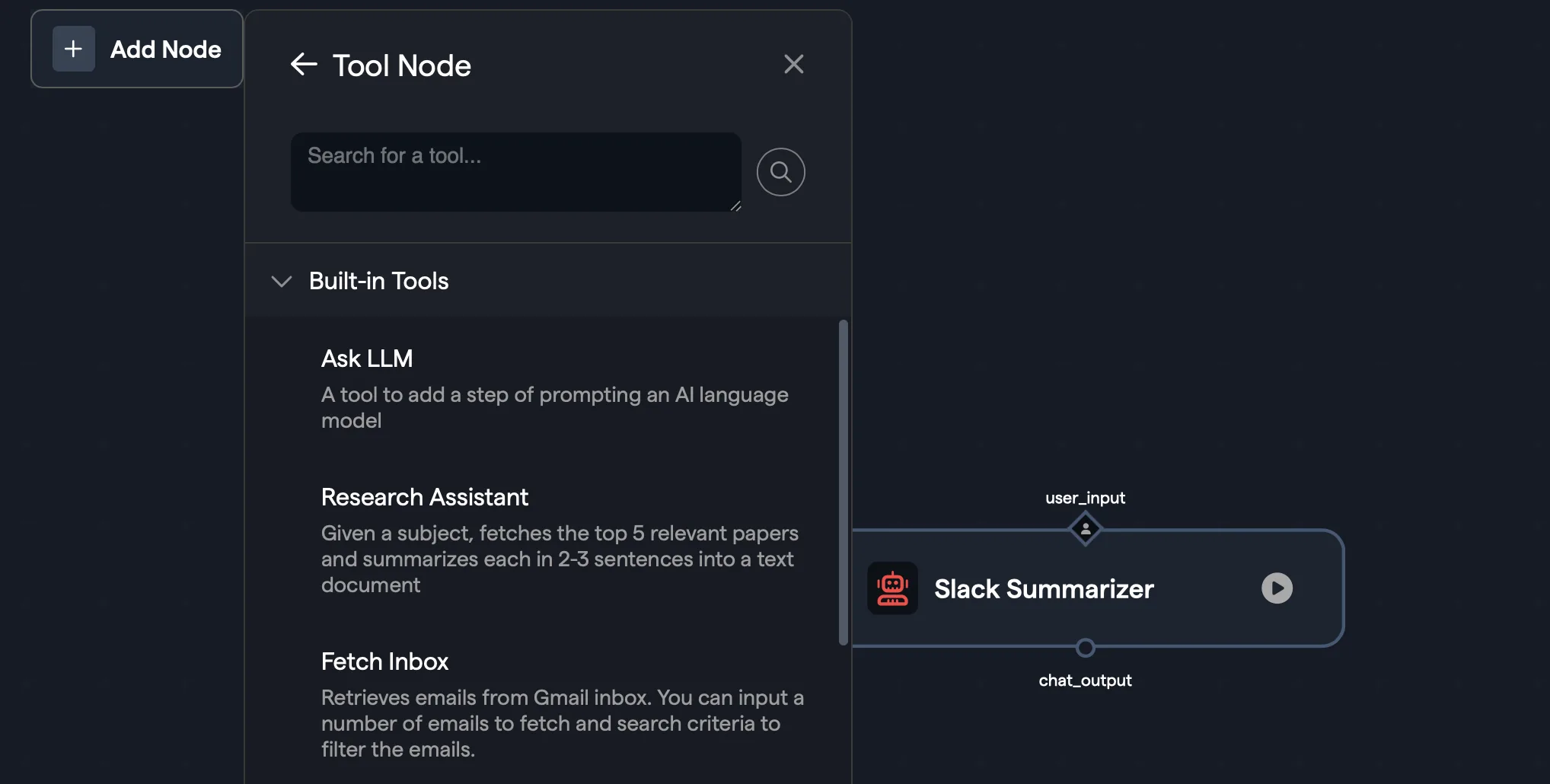
Once added the node's configuration options can be accessed through the Node confiuration pane.
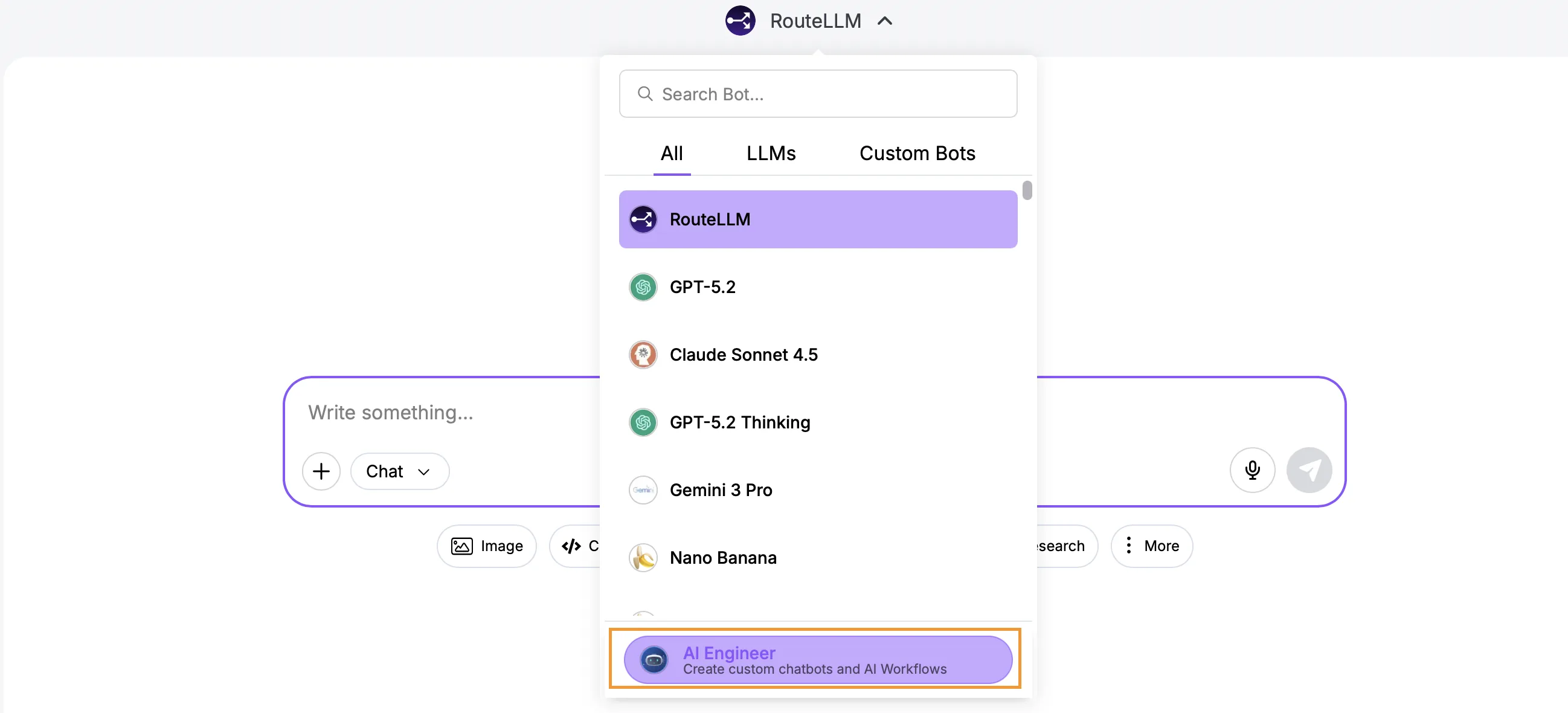
DeepAgent Workflow Builder A number of updates have also been made to how Abacus can autonomously build workflows using the DeepAgent. In order to access this functionality navigate to the Abacus front-end UI and under the LLM dropdown at the top of the page, select the AI Engineer:
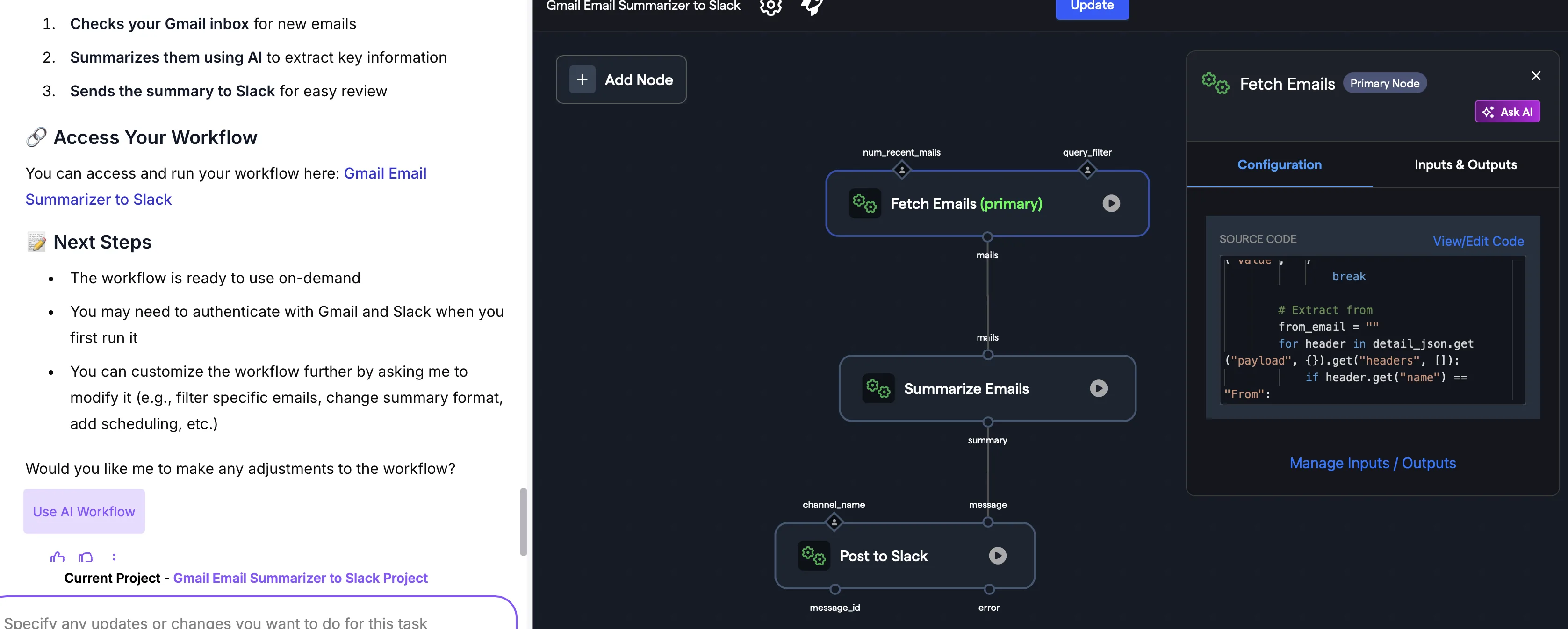
From the options above the prompt window choose AI Workflow. DeepAgent will prompt you to provide specific details of the workflow that you would like to build and will then plan how to architect that as a workflow. After planning it will build out the workflow node-by-node, writing the relevant code snippets and testing as it goes:
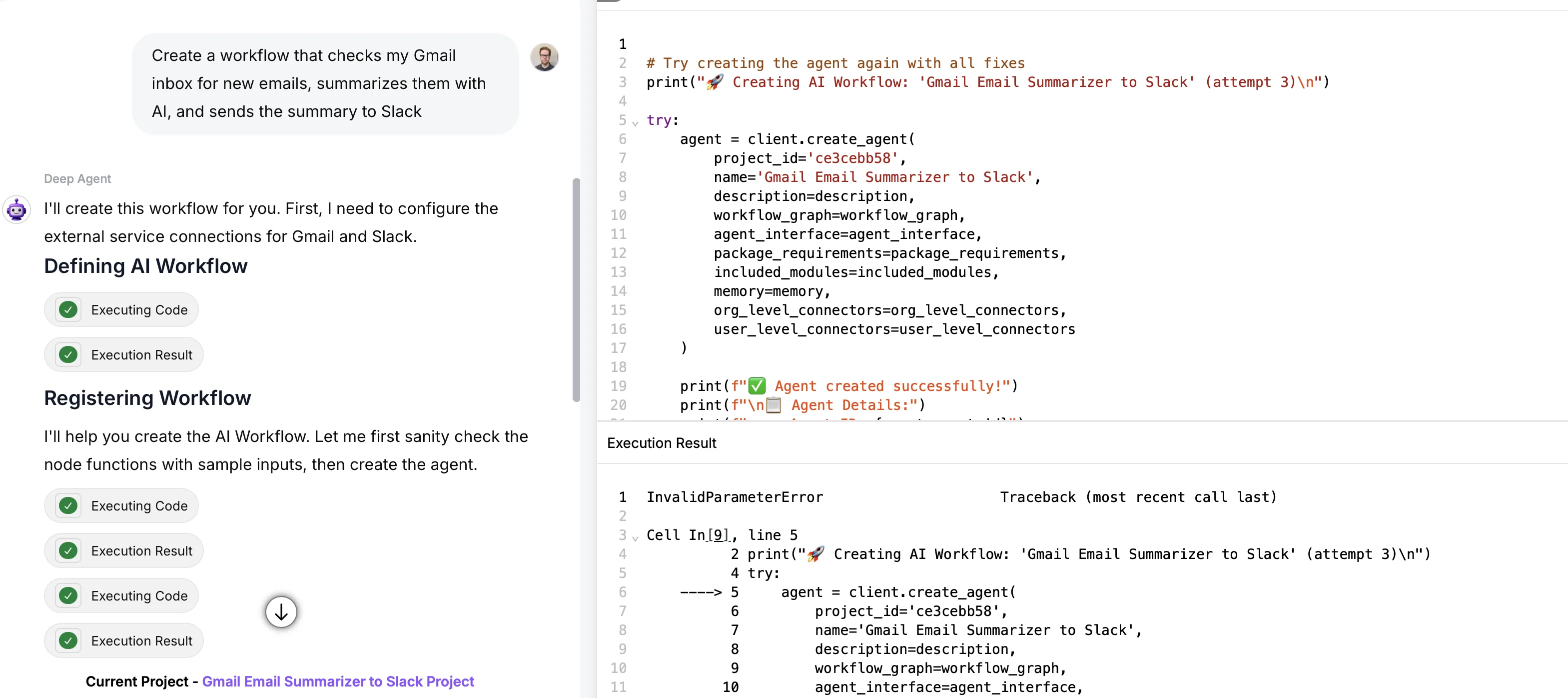
After completion the workflow will be deployed and you'll be able to test it and make any additonal changes you need to all within the same conversation.
RouteLLM API Updates
The RouteLLM API now supports PDF parsing and tool calling. Tools from OpenAI, Anthropic and Google are all supported, but requests should be made using the OpenAI API schema — Abacus will automatically translate requests into the correct schema for the provider.
For more details and examples please refer to the RouteLLM API documentation:
Super AssistantNew Models
Anthropic's Claude Opus 4.6 has been added to the platform. To find out how a range of new models perform don’t forget to check out our benchmark, LiveBench
Usage Throttling
To help organizations manage overall use of the platform we have added the ability for admins to set daily usage limits. Navigate to the Profile >> Groups and Permissions >> Permissions menu:
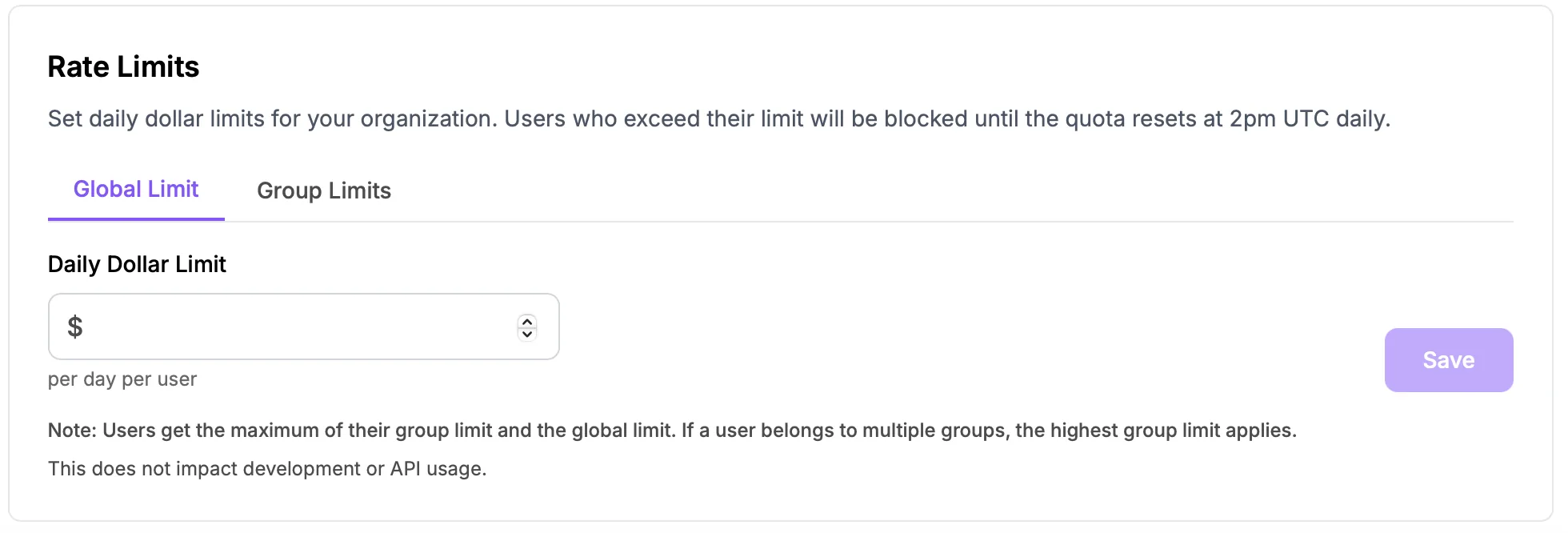
Daily limits can then be set at either a global level or on a group-by-group basis. N.b. the limits apply to Super Assistant use only - i.e. RouteLLM, DeepAgent, Tasks. Autonomous agents or access of chatbots through our API's are not affected.
DeepAgent - Editing Function
We have added a new Edit function for DeepAgent projects when building either apps or slides. One of the biggest challenges with these projects is that they often require edits and changes after the inital version has been built. Traditionally it is hard for the agent to pinpoint the exact context from the code to make only the relevant changes requested. The Edit feature solves this by providing an inline selection tool that allows you to pinpoint the exact changes you require. The precise context for that element is then passed to the agent making changes much more accurate and efficient.
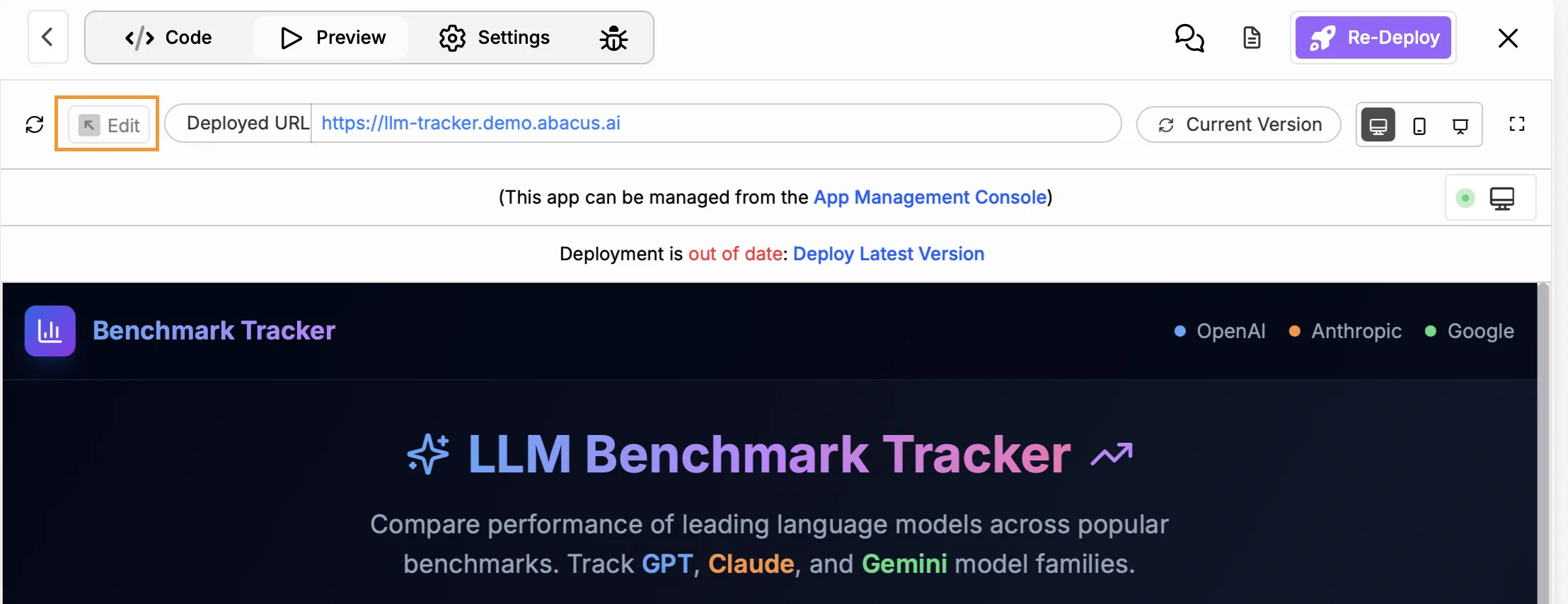
To enable the Edit feature make sure you are in the preview window, then click on the Edit button at the top of the screen:
For powerpoint, Edit mode will enable you to edit inline elements of the slides - directly changing text and moving elements around.
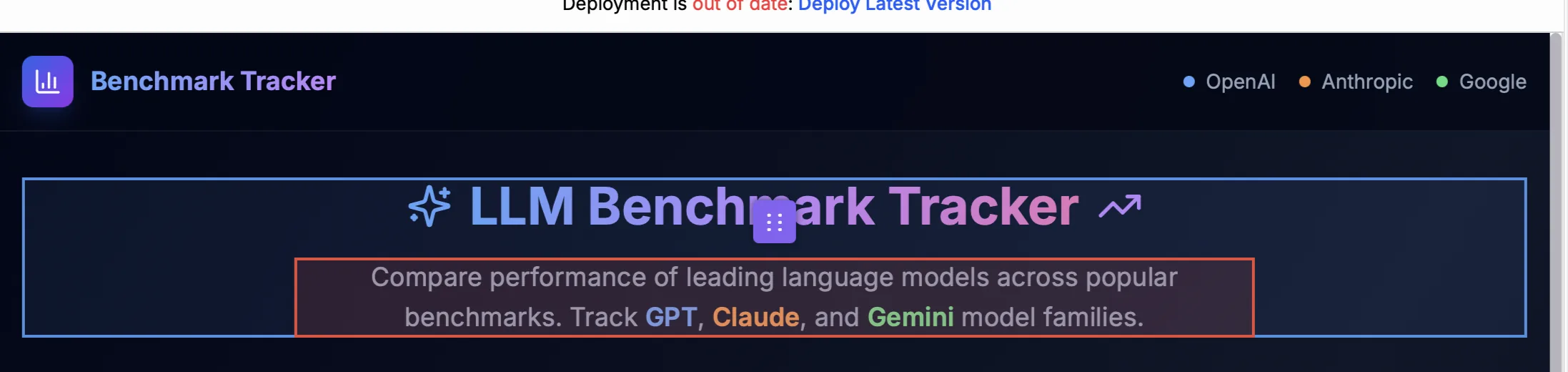
With apps you will be able to select elements and then prompt the specific changes that you would like. The specific code for that element will be loaded into the chat as context to increase the efficiency and accuracy of the editing process
DeepAgent - Projects
It is now possible to include DeepAgent conversations inside of projects, making it much easier to work collaboratively on DeepAgent tasks. To start a new DeepAgent conversation inside an existing project, using the Switch to DeepAgent mode button:
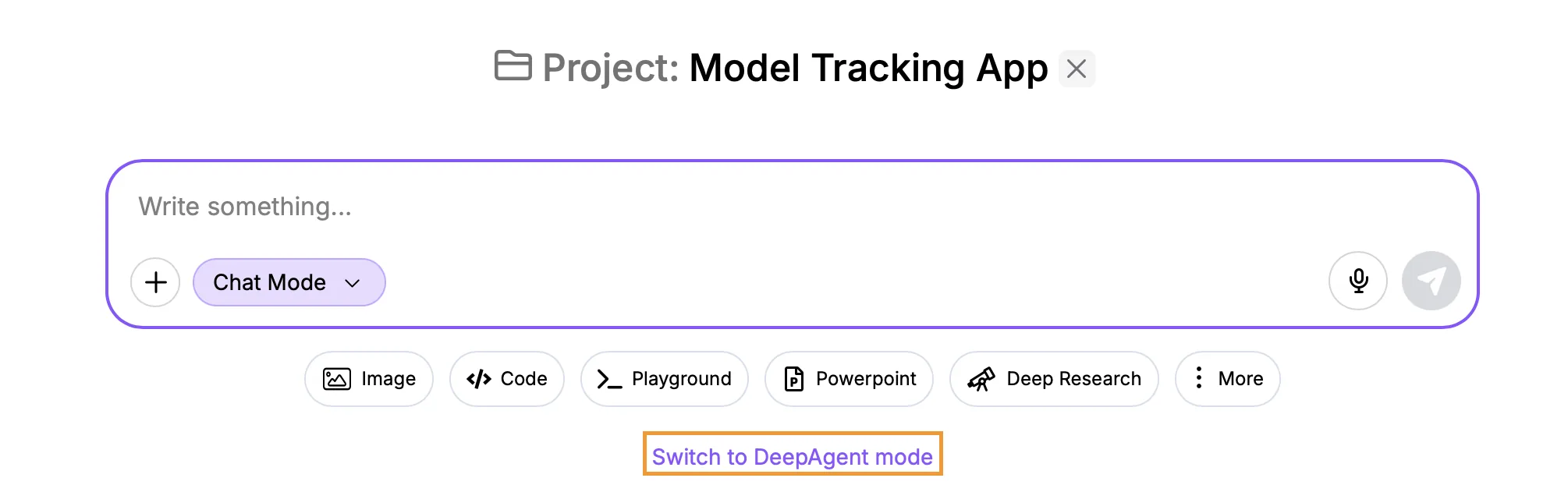
Alternatively you can add an existing DeepAgent conversation into a project:
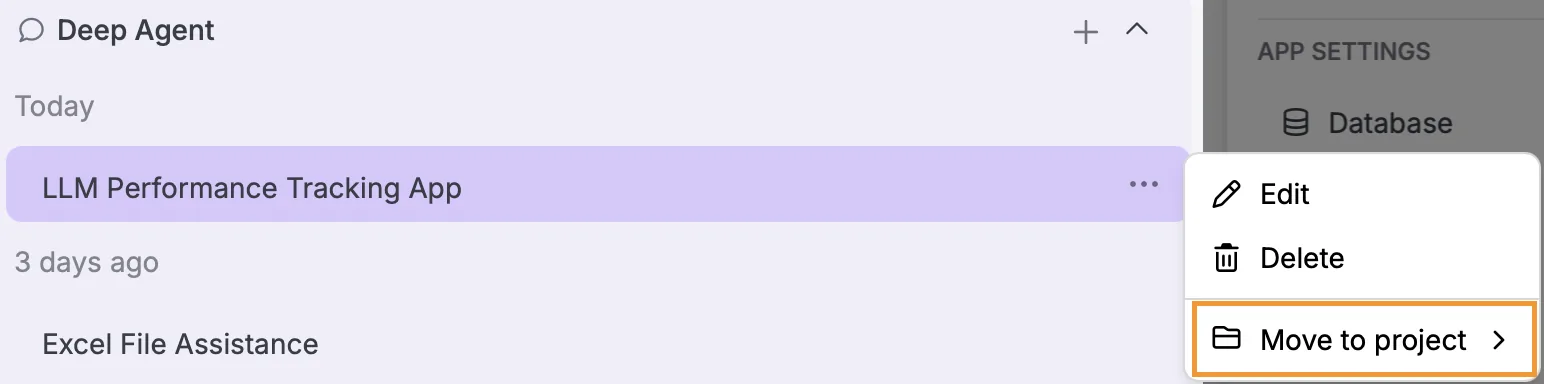
Click on the ... next to a DeepAgent conversation and then use the menu to select Move to project
DeepAgent - App Updates
Database SchedulingA specific option has been added to the app management console to make scheduling database refreshes much easier. To access the App Management Console click on the Apps button in the top-left of the Super Assistant screen. Any apps that contain a database will give you the option the view or schedule
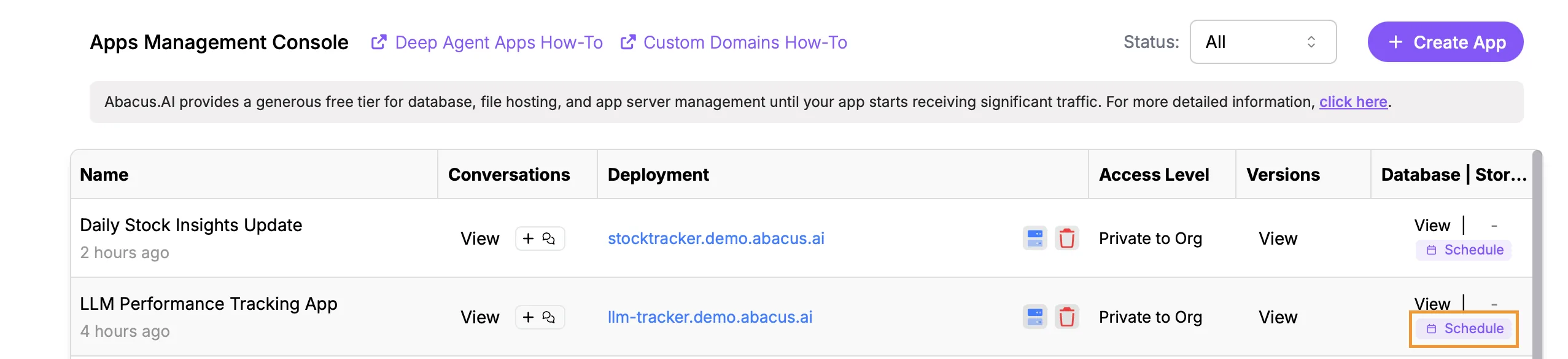
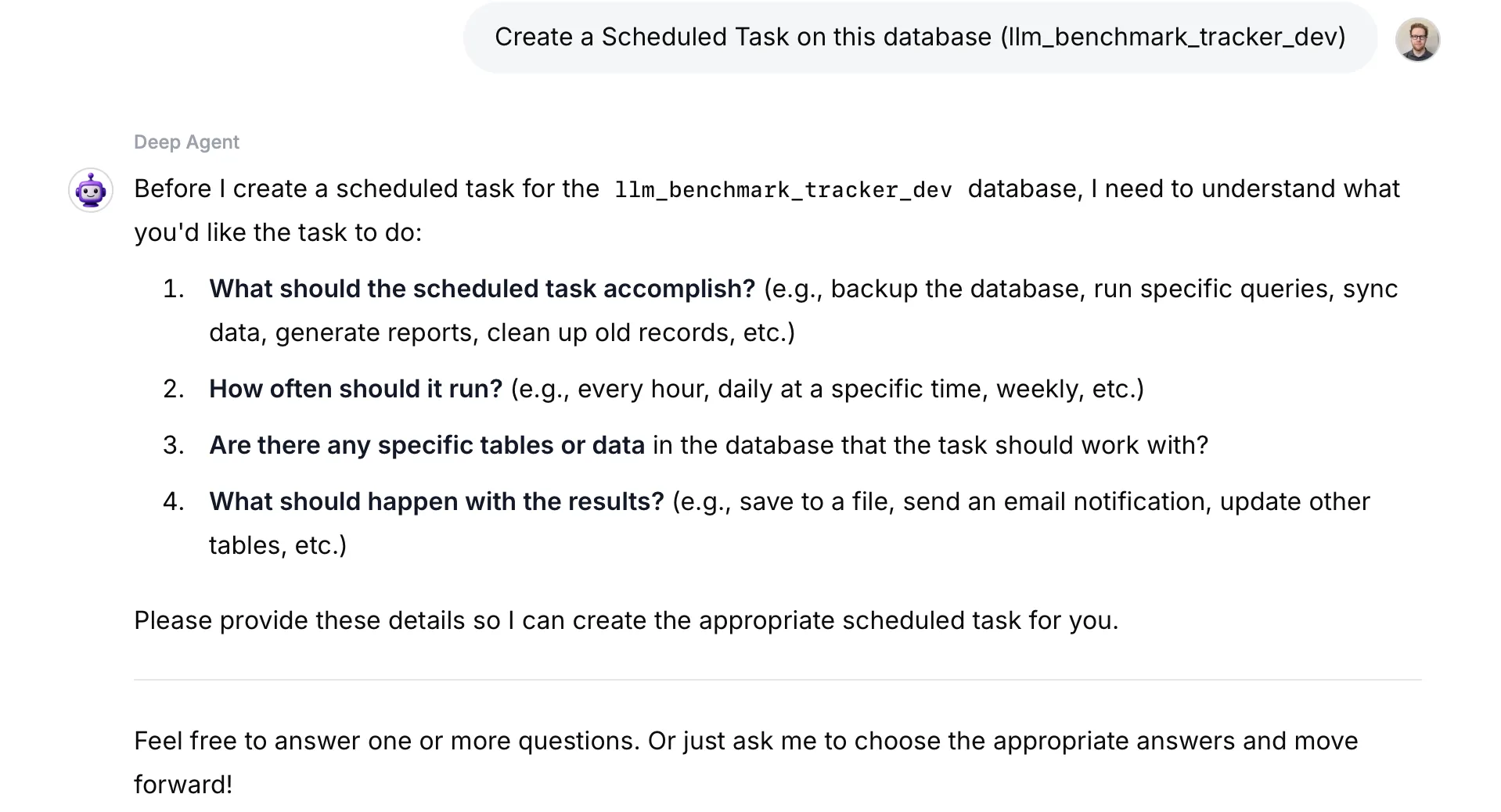
Clicking on the schedule button will open up a new conversation with DeepAgent to specify exactly what the refresh process should be. When complete the DeepAgent will create a Task that can be managed through the Tasks Management Console
 App Notifications
You can use DeepAgent to create notifications for your deployed apps. These notifications can cover a range of things e.g. new users, completed forms, updated data. In order to access notifications you need to navigate to the app settings, which can be done in one of two ways:
- When previewing the app as part of the conversation - at the top of the page select Settings
- Through the App Management Console by clicking to View Versions or Database, or by clicking Manage under Custom Domain.
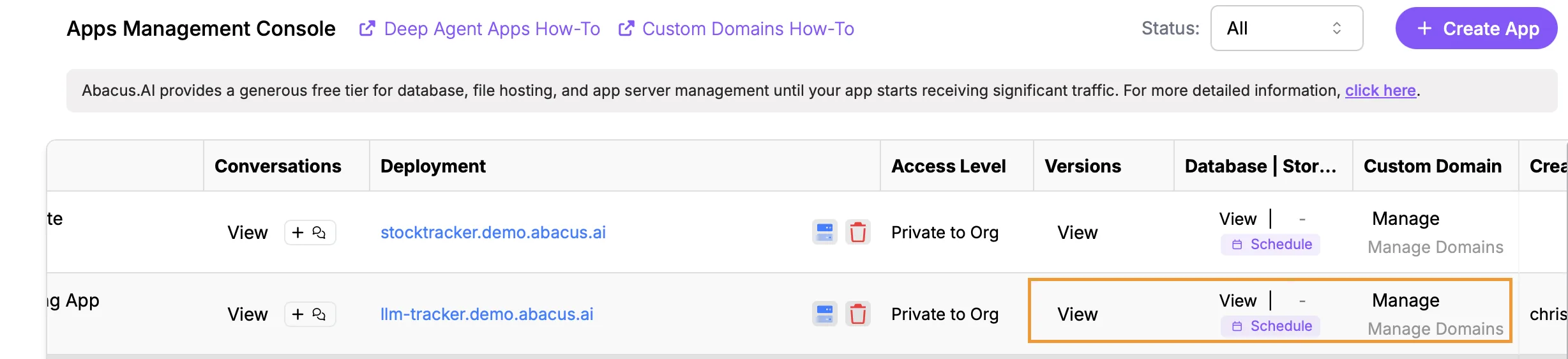
Once in Settings click on the Notifications tab
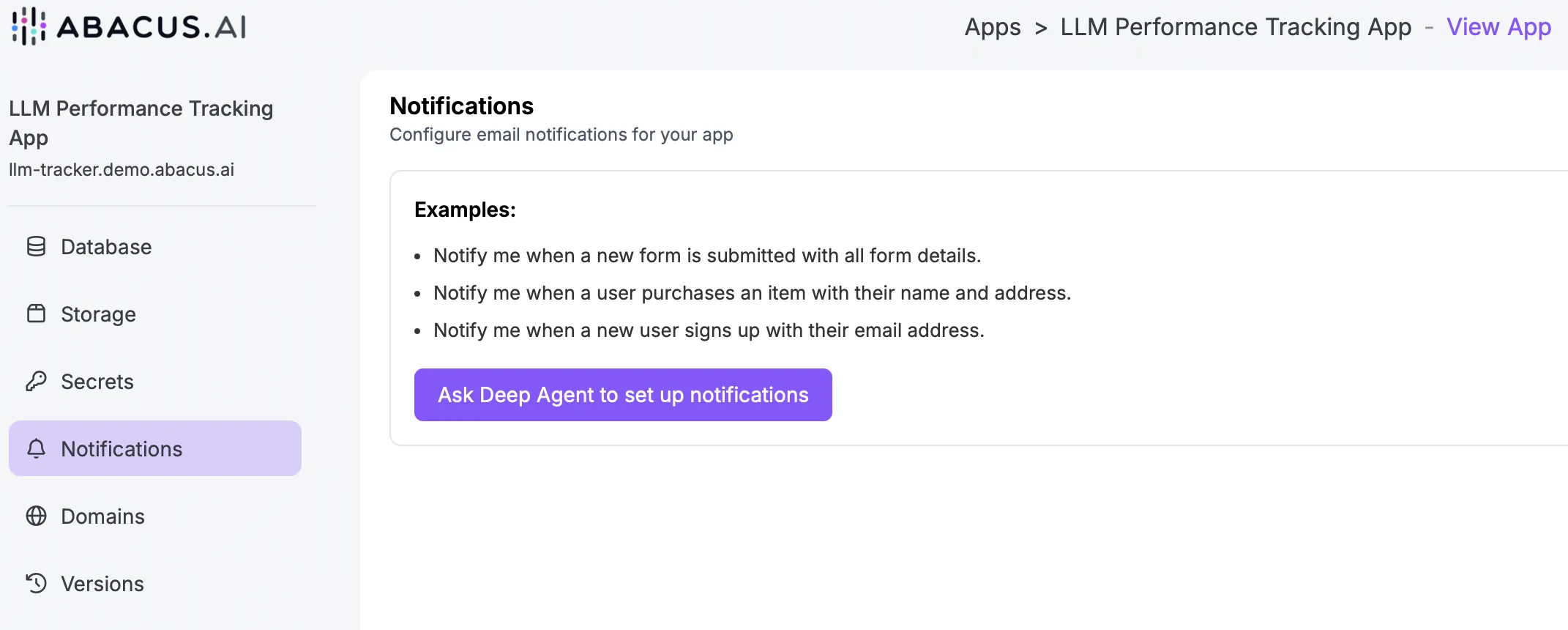
From the notifications screen you will be able to launch a DeepAgent conversation to build the specific notifications that you would like. Notifications are currently limited to email outputs, but the emails can contain any data that can be captured or analysed from the app. N.b. for more detailed analysis the app can be integrated with Google Analytics
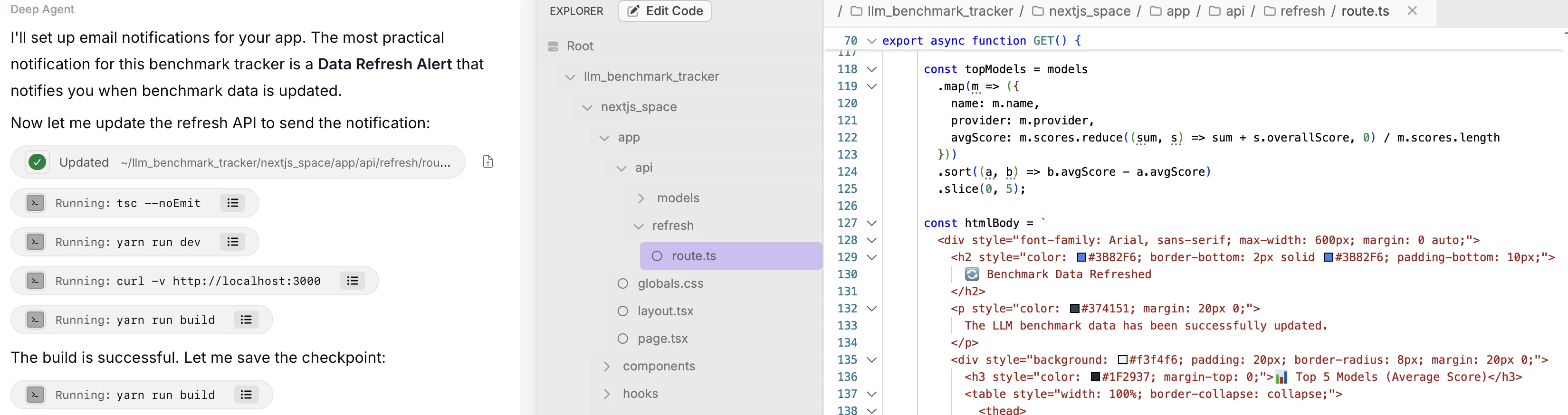
In this example DeepAgent creates a simple email notification that tracks when the underlying LLM benchmark data changes with a summary of the new top models:
 Database Sharing
Another new option for DeepAgent apps is the ability to build multiple apps that leverage the same underlying database. This allows for much more efficient data management by preventing the need to host multiple copies of the same data. To do this navigate to the Settings page of the app that has the database you would like to re-use. On the Database tab click on the Create button in the top-right hand corner.
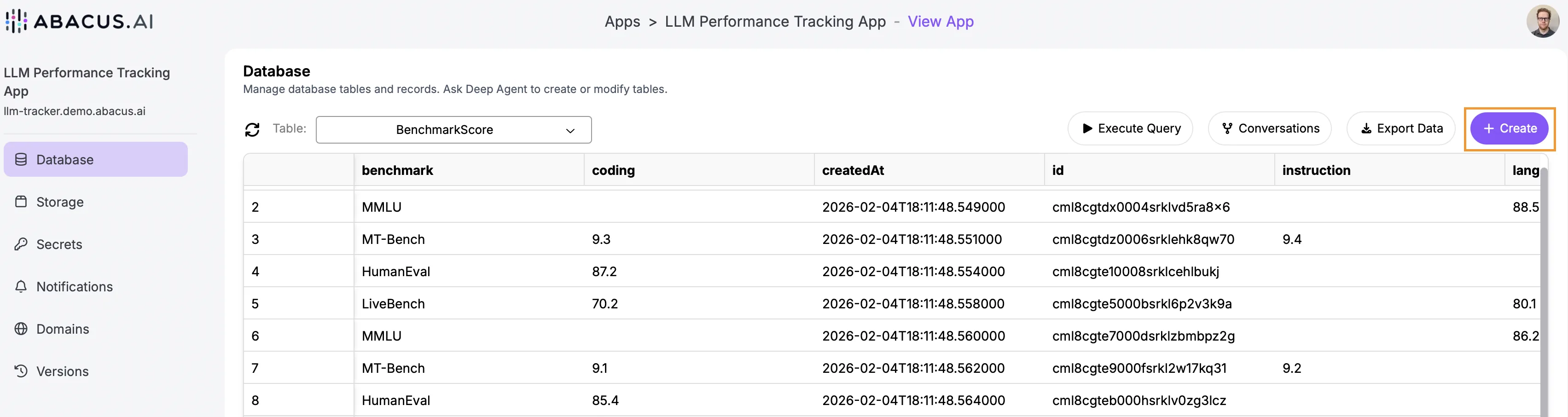
This will start a new DeepAgent conversation for designing the new app.
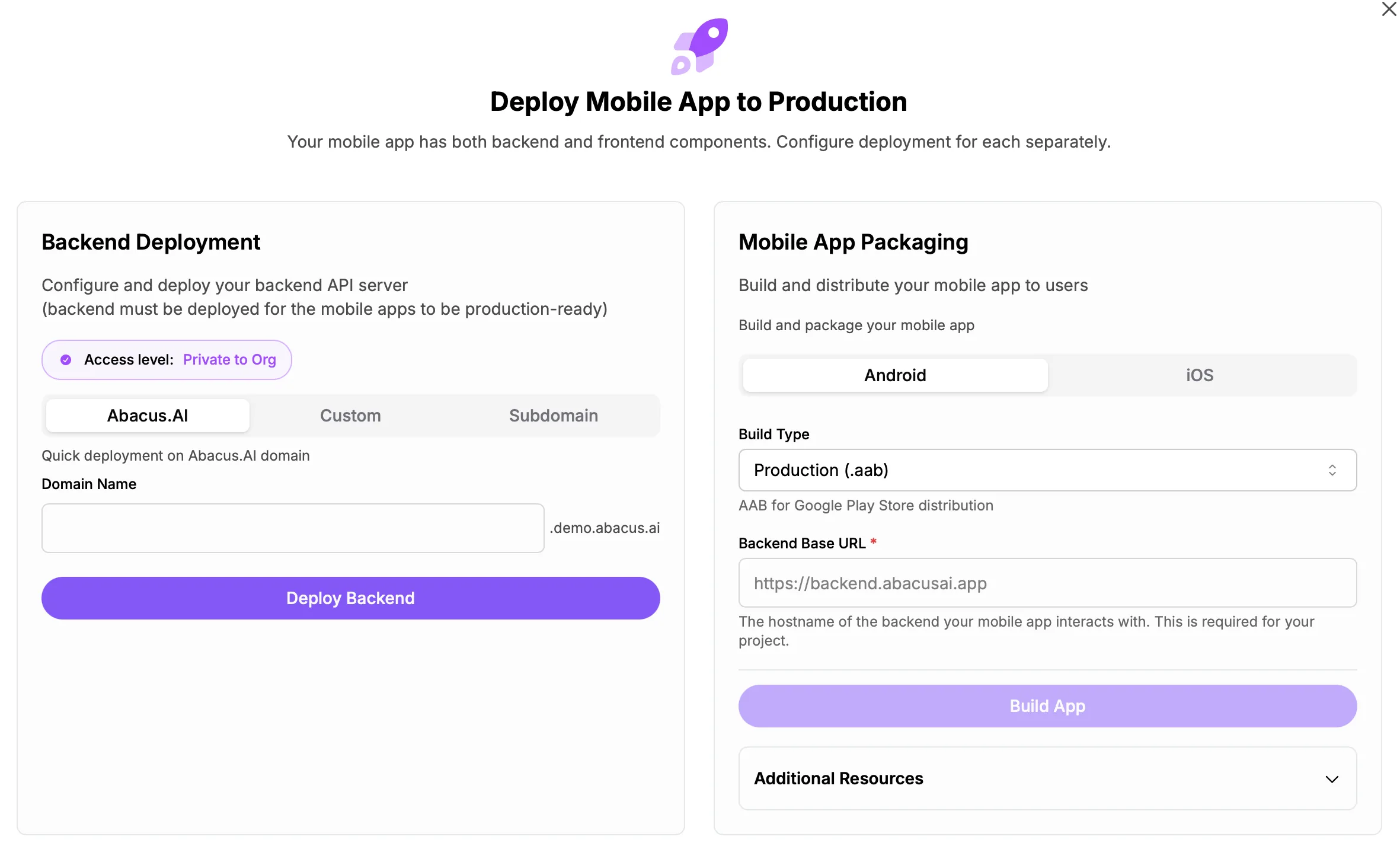
Mobile AppsFinally, DeepAgent now supports building mobile apps. Simply add into your prompts that you'd like to build an app for mobile devices and it will optimize the build process, creating the frontend UI as well as all the backend api's that get deployed separately.
To deploy the app choose how the backend should be deployed (like you would any other DeepAgent app), and then use the Mobile App Packaging options to deploy the app as either Android or iOS:
OAuth Connectors
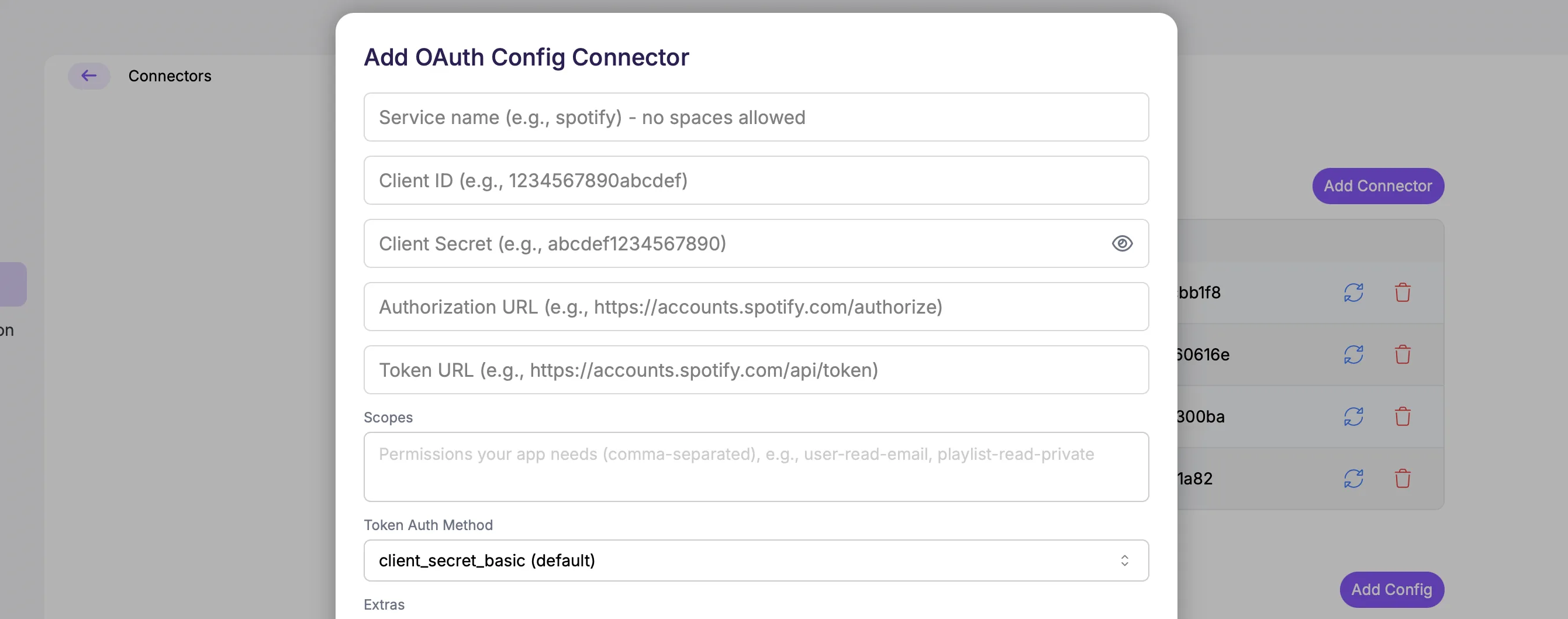
We have extended support for generic OAuth connectors into the Super Assistant. Under Profile >> Connectors there is a new option for creating connectors into specific services using the Generic OAuth tool:

Clicking Add Config will open the configuration screen for authentication. Most services that support this type of connectivity will have OAuth or developer specific documentation that you will need to follow to generate the relevant IDs, urls and tokens.