December 2025 Platform Update
DataLLM - Multiple Source Types Support
A new option when building custom chatbots on structured data allows the integration more seamlessly between feature group and database data sources.
When configuring the chatbot select the FEATURE GROUP AND EXTERNAL DATABASES option in the Data Source dropdown. Then specify the feature groups and database connectors that the bot should have access to.
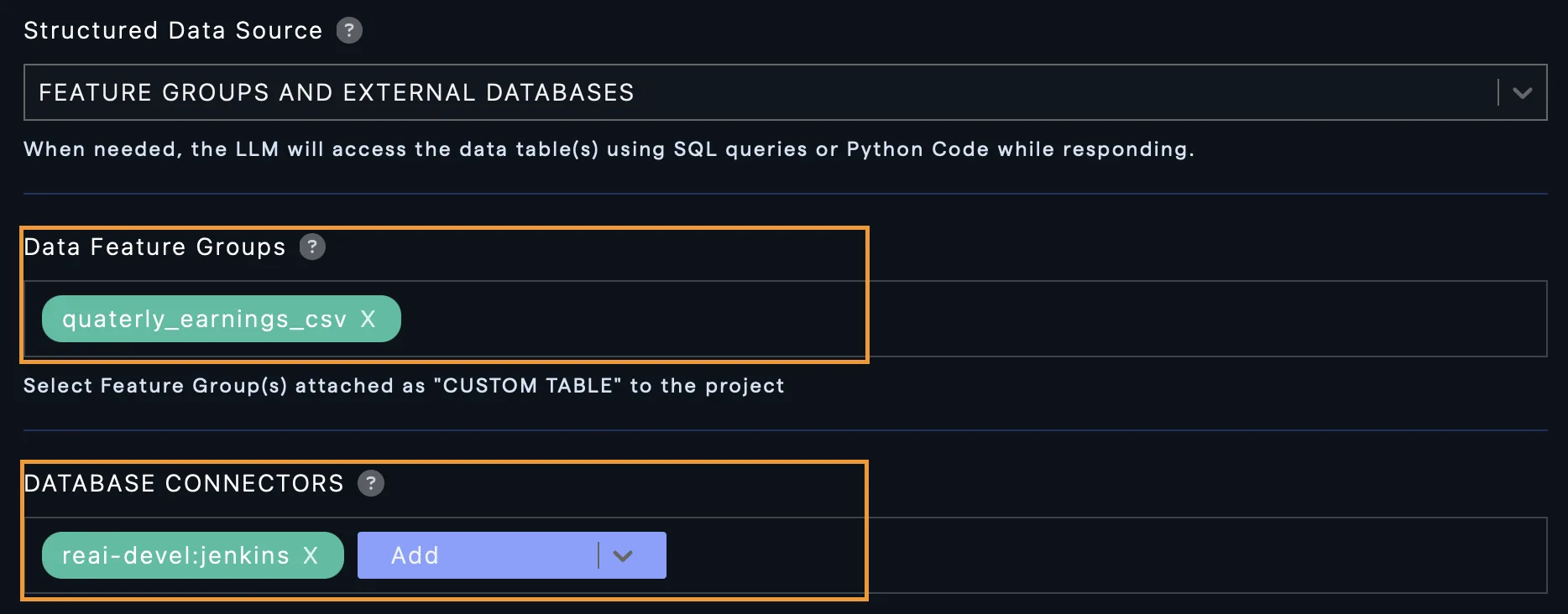
When asking questions of the bot it can reference both feature groups and database connectors in the same query.
Connector Updates
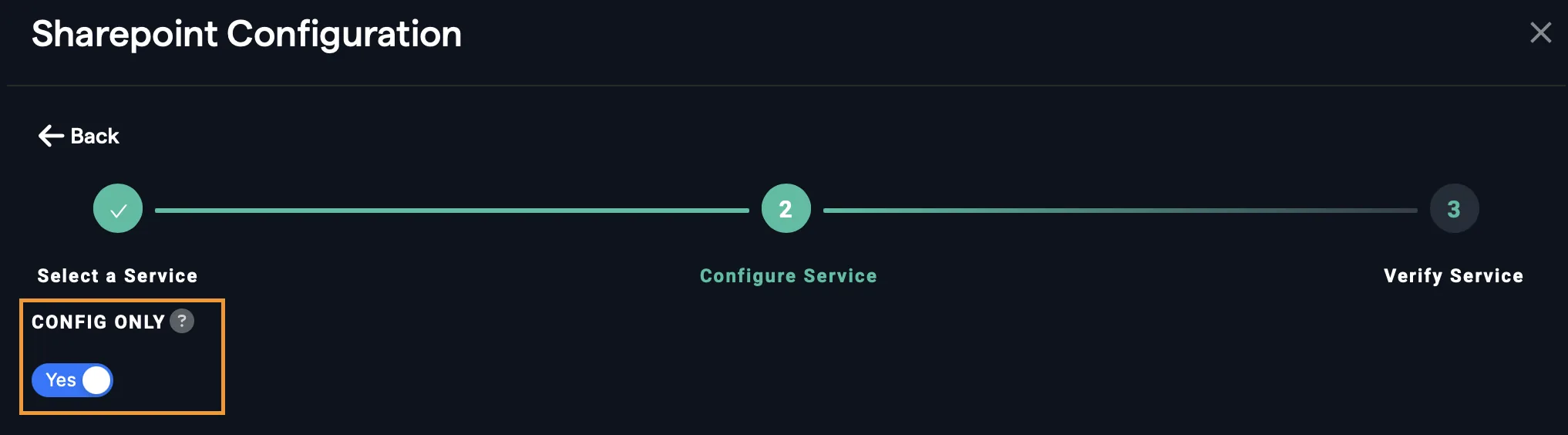
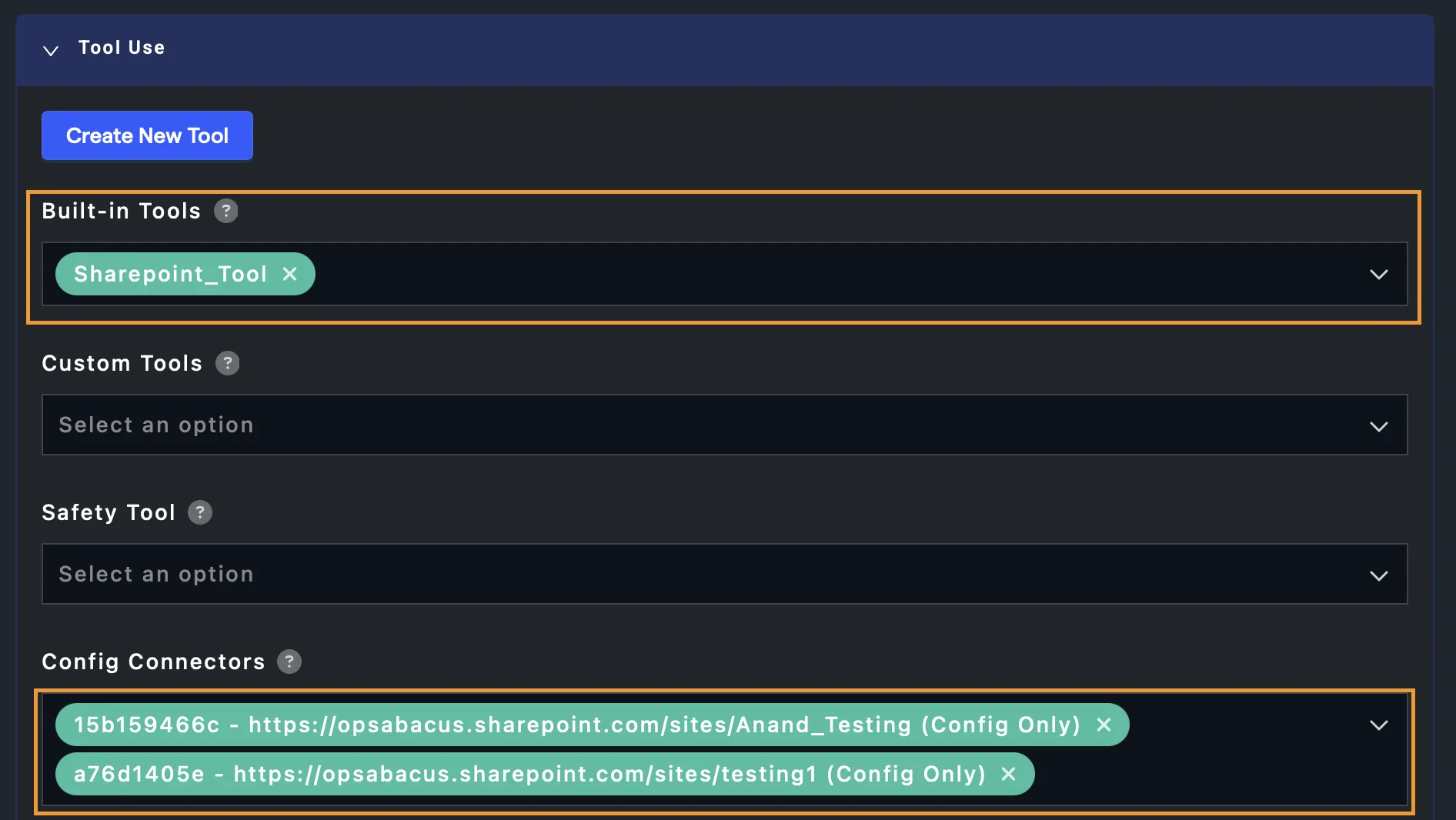
Sharepoint Config ConnectorsWe have added the ability for users of custom bots to be able to authenticate against multiple Sharepoint sites. A config connector for each site should be created and then added to the configuration screen of the custom bot.
Creating a config connector for the Sharepoint site is similar to creating a regular connector, except that you should select the config only option during creation:
Once your config connectors are created add them into the configuration screen for the custom chatbot. For each config connector the end users will be asked to authenticate the first time using the bot:
 Super Assistant
New Models
OpenAI GPT 5.2 (including thinking and pro models) have been added to the platform. To find out how well the new models perform don’t forget to check out our benchmark, LiveBench
App Permissions
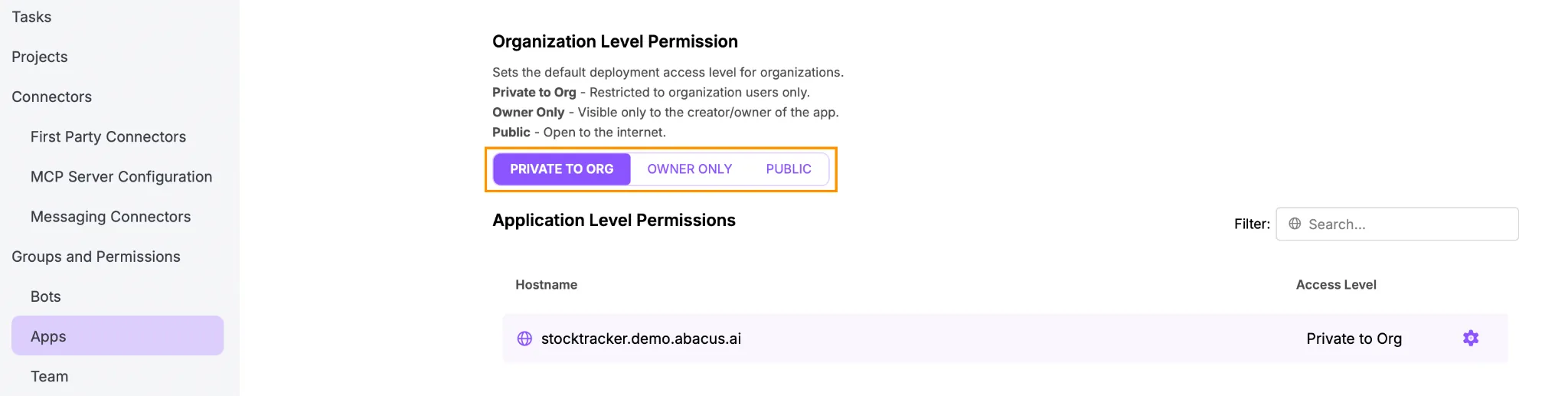
Default Organizational PermissionsPermission handling for DeepAgent generated apps has been updated to add more controls. At the organization level admins can set the default access permissions for all apps that are created. It can be managed in the Profile >> Groups and Permissions >> Apps menu.
- Private to Org - Apps are restricted to organizational users only
- Owner Only - Visible only to the creator/owner of the app
- Public - Open to the internet
Individual App Permissions The permissions for individual apps can be changed from the default by clicking on the cog symbol next to each app.

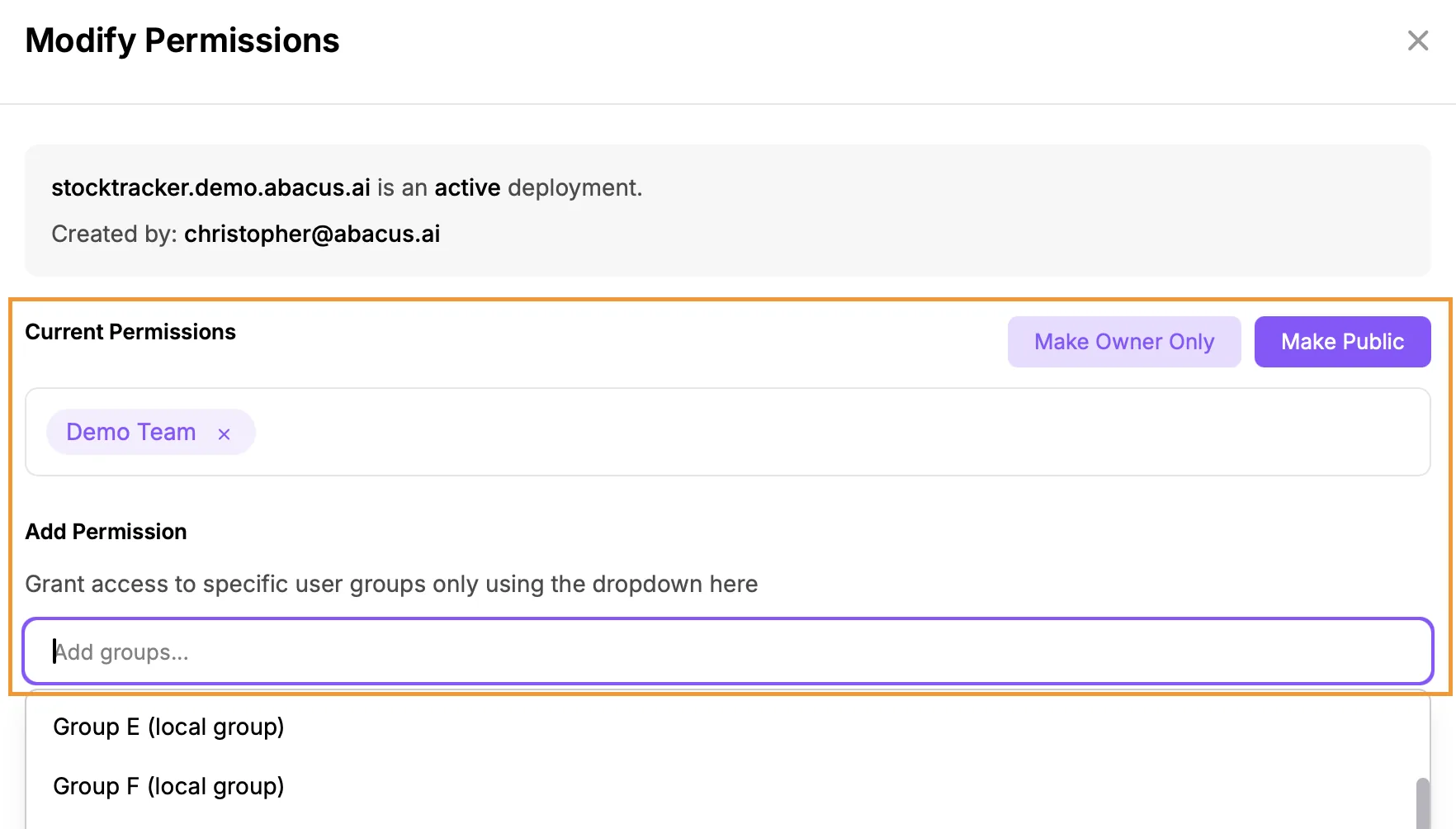
Within the settings for each app the owner or an admin can change the permissions between Owner Only and Private to Org. Only an admin can make apps Public if this is not the organization default.
When an app is Private to Org it is also possible to control access based on permission groups that have been created / are available in the platform. To do this use the Add Permissions drop-down in the app’s modify permissions screen:
 Controlling App Sharing Permissions
Platform admins are also able to control who is able to share their apps, which limits an individual user's ability to assign permission groups to an app.
This is controlled through the Permissions menu (Profile >> Groups and Permissions >> Permissions). Adding groups into this selection means that users in these groups can only create apps visible to themselves
