November 2025 Platform Update
Updated Agent Workflow UX
We have the first of a number of updates coming on our AI Workflow builder, with the overall aim to improve the ease of building workflows and to streamline the user experience.
Node DefinitionThe new workflow builder has a much cleaner UX to simplify the building process, which starts with the nodes themselves:
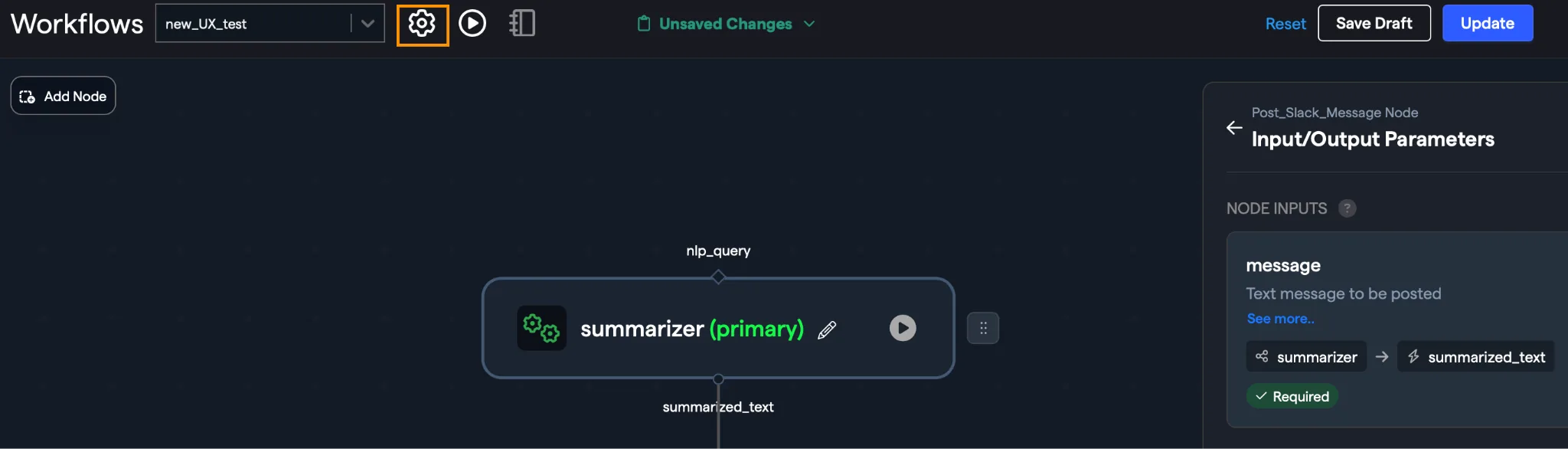
The code that defines each node is now hidden in the side-menu keeping the main workflow diagram cleaner and easier to understand. Clicking on any individual node will load the relevant code definitions on the right-hand pane.
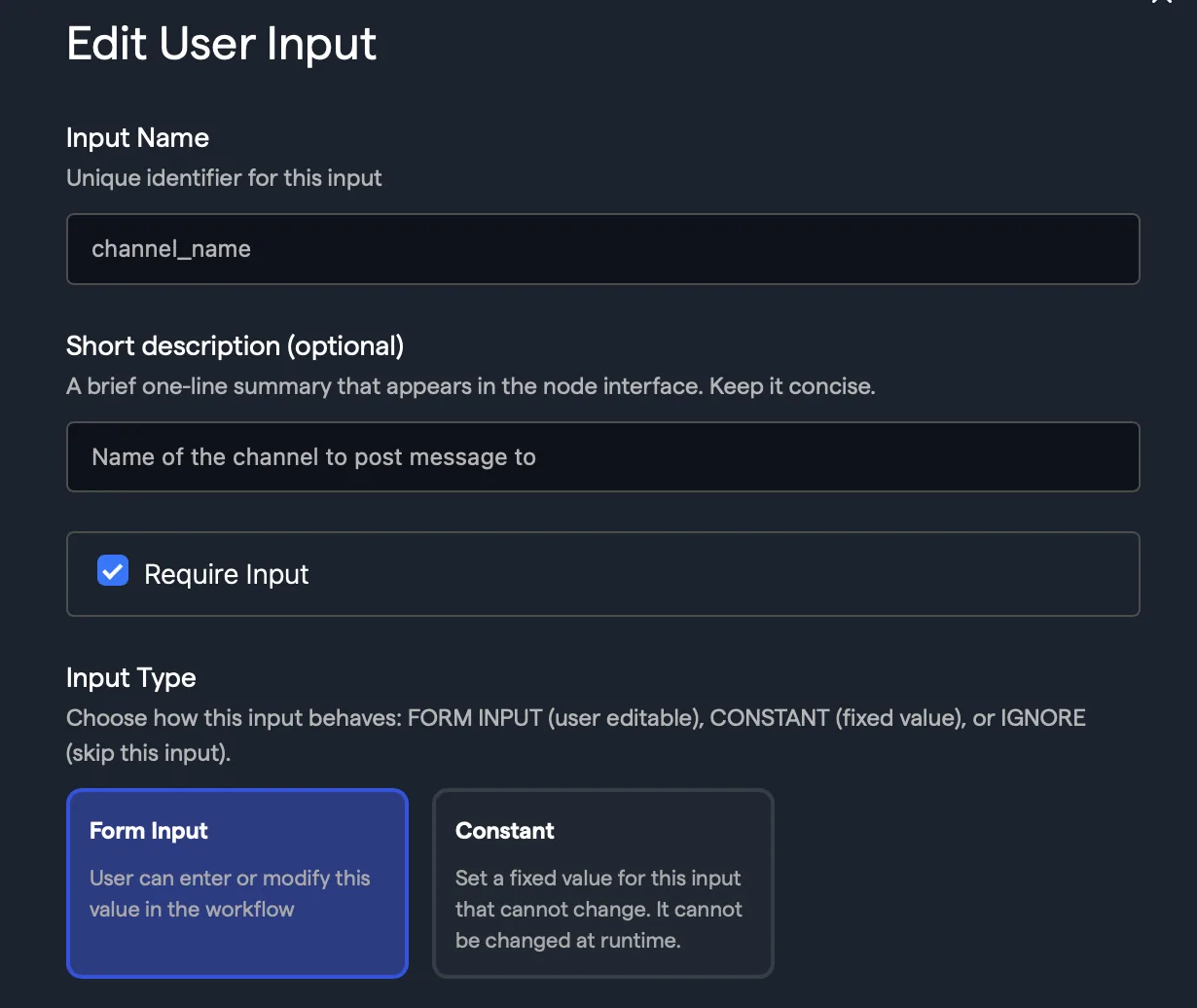
Inputs / OutputsManaging the node inputs and outputs has been improved. Clicking on the *Manage Inputs and Outputs *button on the side menu launches the input / output management pages.
-
NODE INPUTS Manage inputs that come from other nodes:
-
Easily identity from which nodes variables originate
-
*Required *nodes are clearly marked
-
Quickly convert to user input with the Convert to User Input button
-
Edit specific variables through the new configuration form
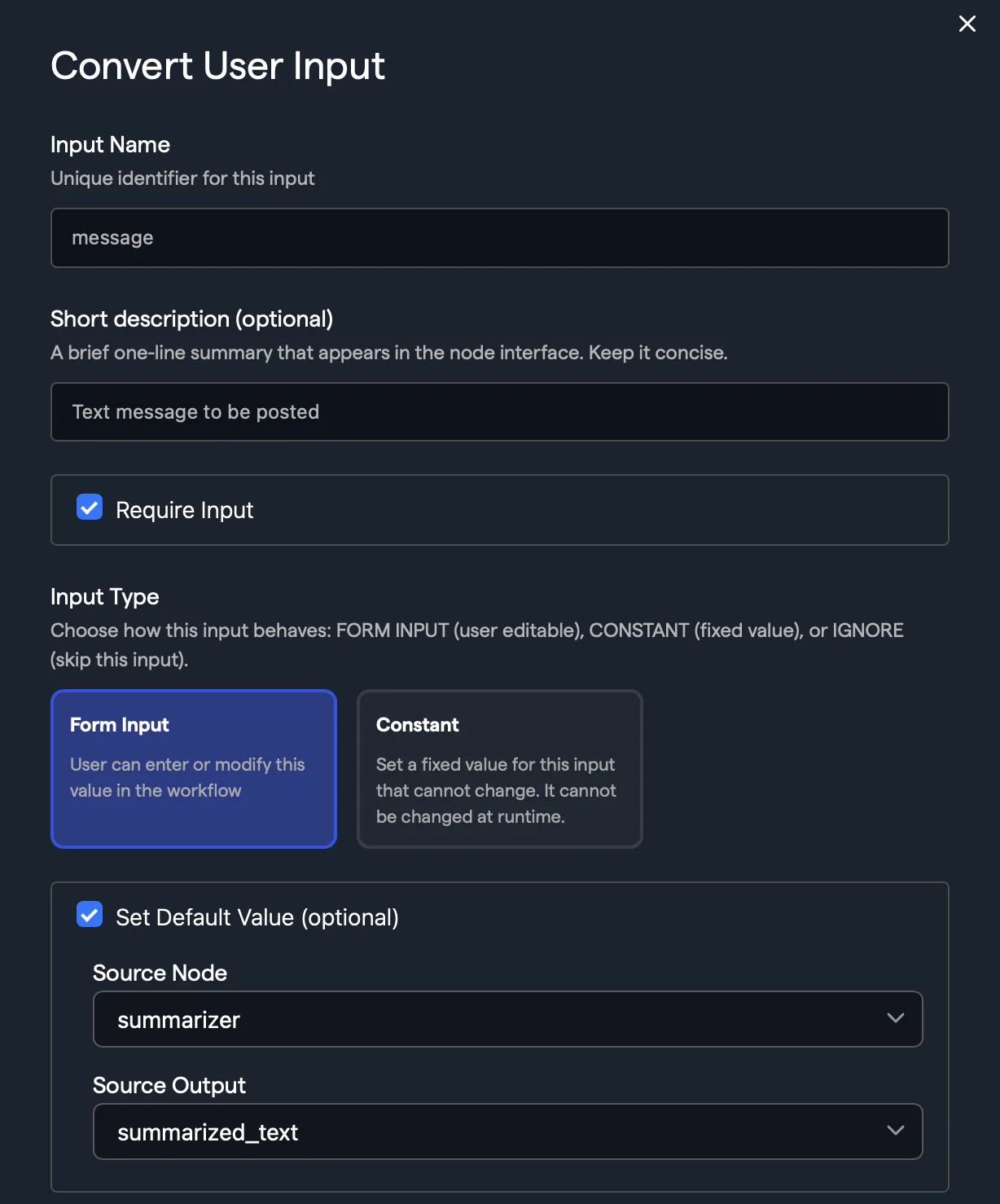
-
USER INPUTS Manage inputs that are from users:
-
Easily convert to node input, using the Convert to Node Input button
-
Required nodes clearly marked
-
Edit specific variables through the new configuration form
-
Manage overall input form structure and definition
-
OUTPUTS Manage node outputs:
-
Add / delete variables
-
Edit existing variables through the new Edit Outputs form
-
Visible in the UI variables are clearly marked to easily understand which are returned to users and which are passed through Node Testing
Testing individual nodes has been simplified by adding a Run button prominently on each node in the workflow diagram.

Enabling Run mode allows you to manually test individual nodes by providing the relevant inputs manually and evaluating the node outputs inside of the workflow editor.
Workflow ConfigurationElements of the workflow configuration have been updated to provide much greater controls and options, especially when adding in connector nodes.
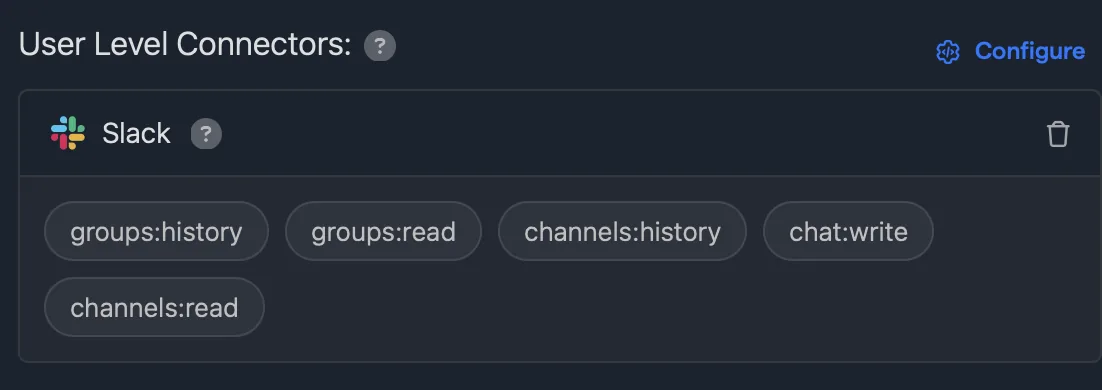
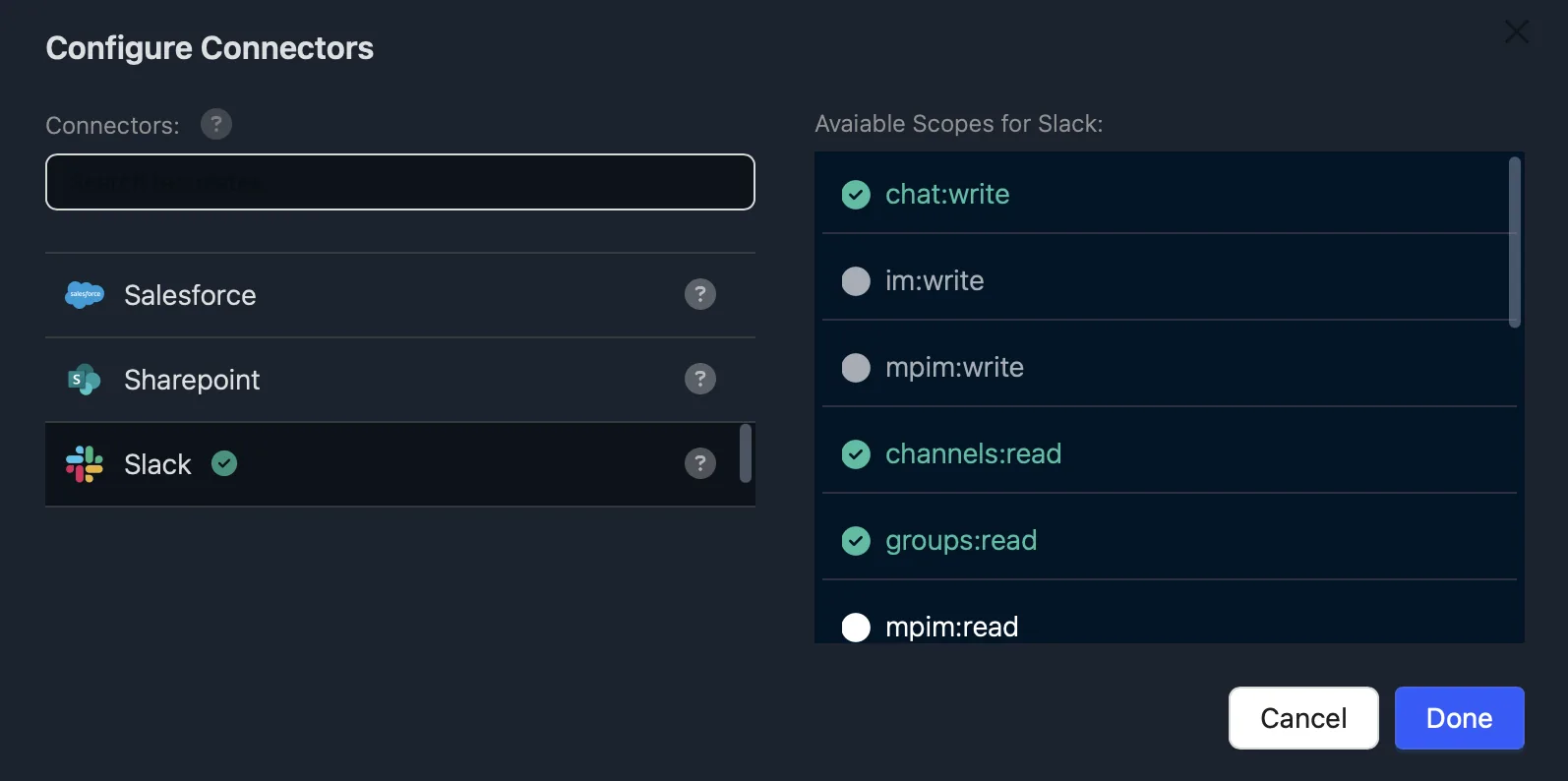
To access the configuration settings click on the cog symbol at the top of the page. In this example we have added the Slack tool to the workflow, and the configuration screen shows the actual scopes that have been enabled:
To update any of the specific connector scopes for these tools added to a workflow, click on the configure button. This will allow you to manage the specific access / capabilities for the connectors on a workflow by workflow basis.
More updates in the coming months…
Connector Updates
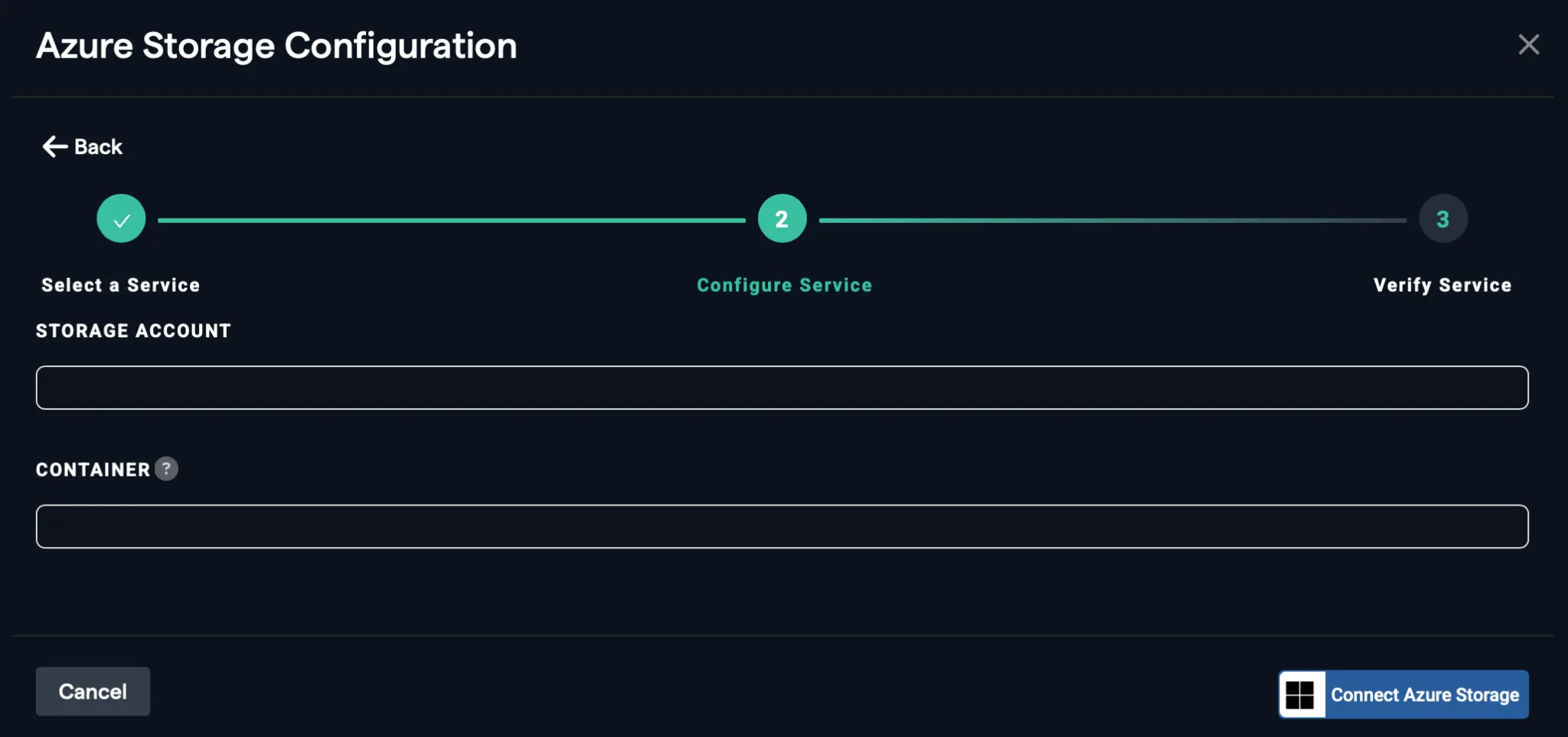
Azure StorageA new Azure Storage Container connector has been added that can be authenticated using O-Auth. This can be configured to access a specific container or at account level
 Generic O-Auth
The generic O-Auth tool has been developed to make it possible for platform users to be able to create their own connectors to any service that supports O-Auth.
The configuration screen details the parameters that need to be provided to build the connector, as well as any scopes that you would like the connector to have access to:
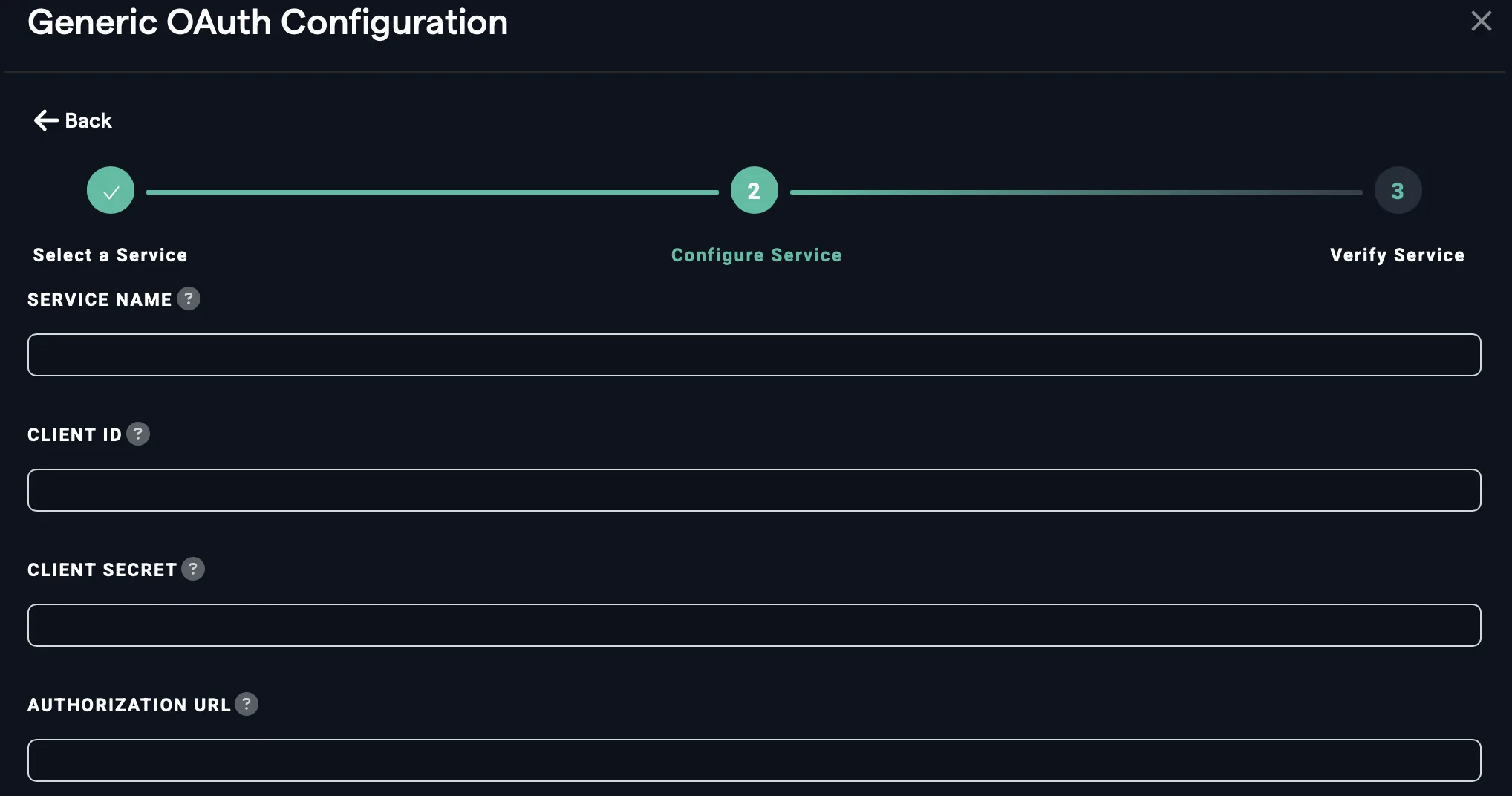
Please note, the specific configuration parameters and scopes available will be determined by the individual service you are connecting to. Details of how to register and authenticate are often provided as part of providers developer pages.
OutlookThe Outlook connector tools have been updated to also interact with Outlook calendar, enabling a far wider range of potential use cases
Super AssistantNew Models
OpenAI 5.1 and Gemini 3 have both been added to the platform. To find out how well the new models perform don’t forget to check out our benchmark,
Organization Level GitHub Policies
A new setting has been enabled to manage organization access to the GitHub connector. To enable this navigate to the Profile menu by clicking on your profile on the top right-hand corner and selecting profile.
On the Profile page then use the menu on the left to select Manage >> Permissions
