5 posts tagged with "improvements"

View All Tags

March 2026 Platform Update

Head of Presales Data Science

Connectors​

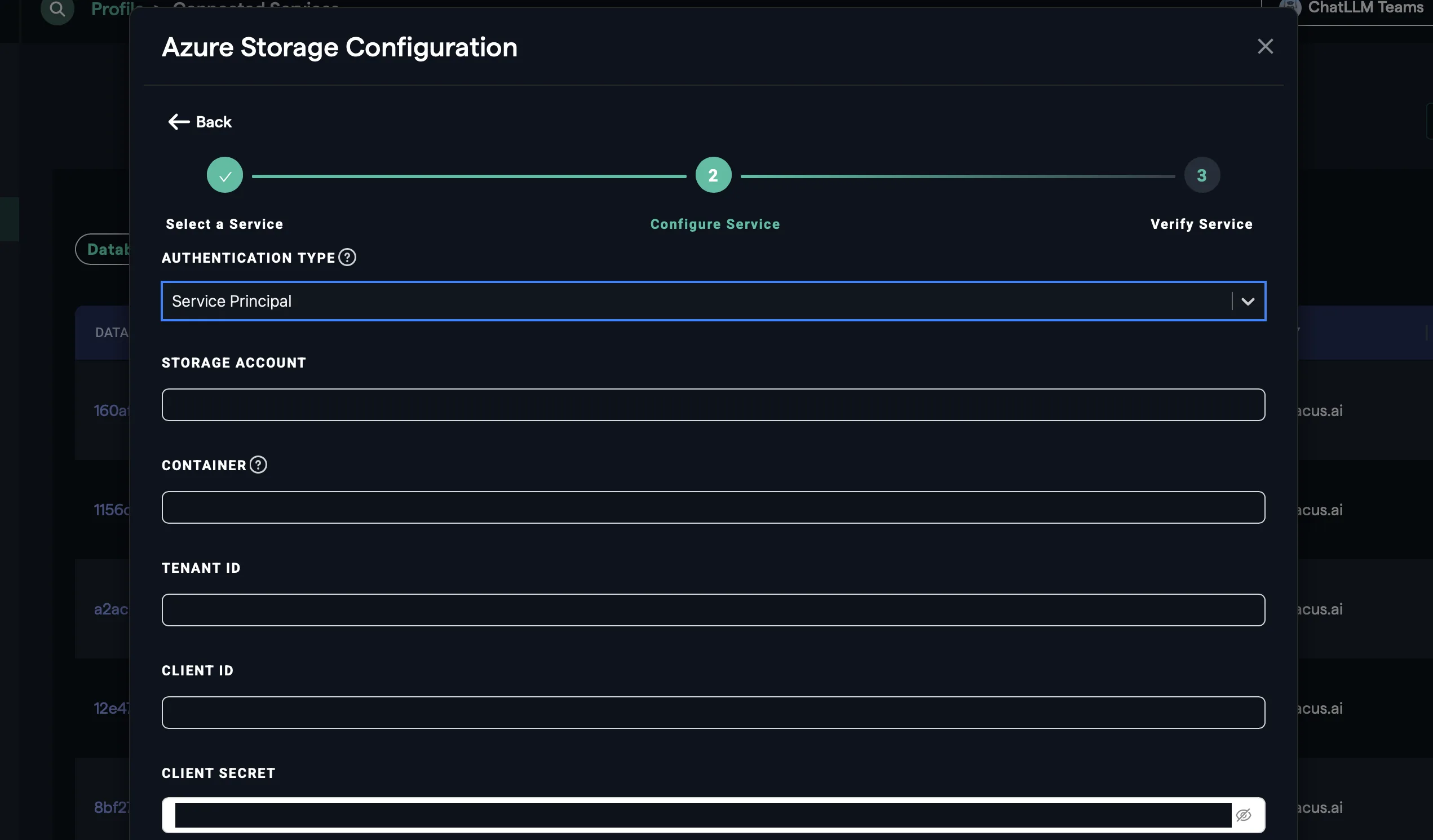
Azure Storage

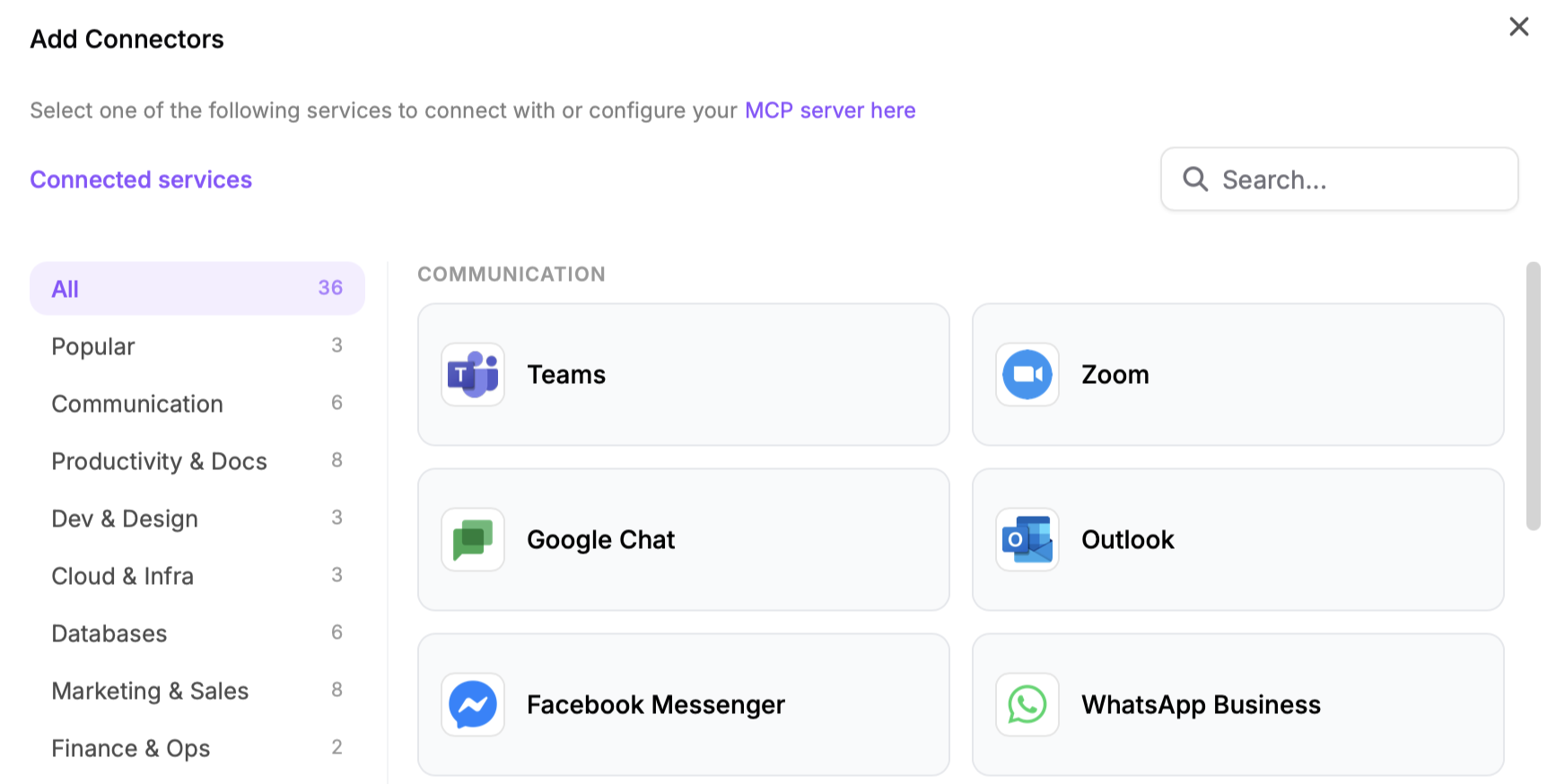
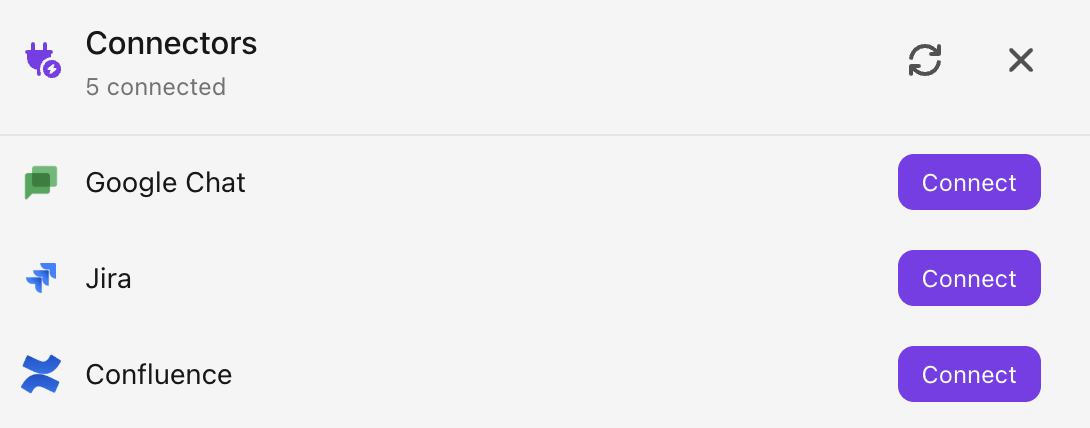
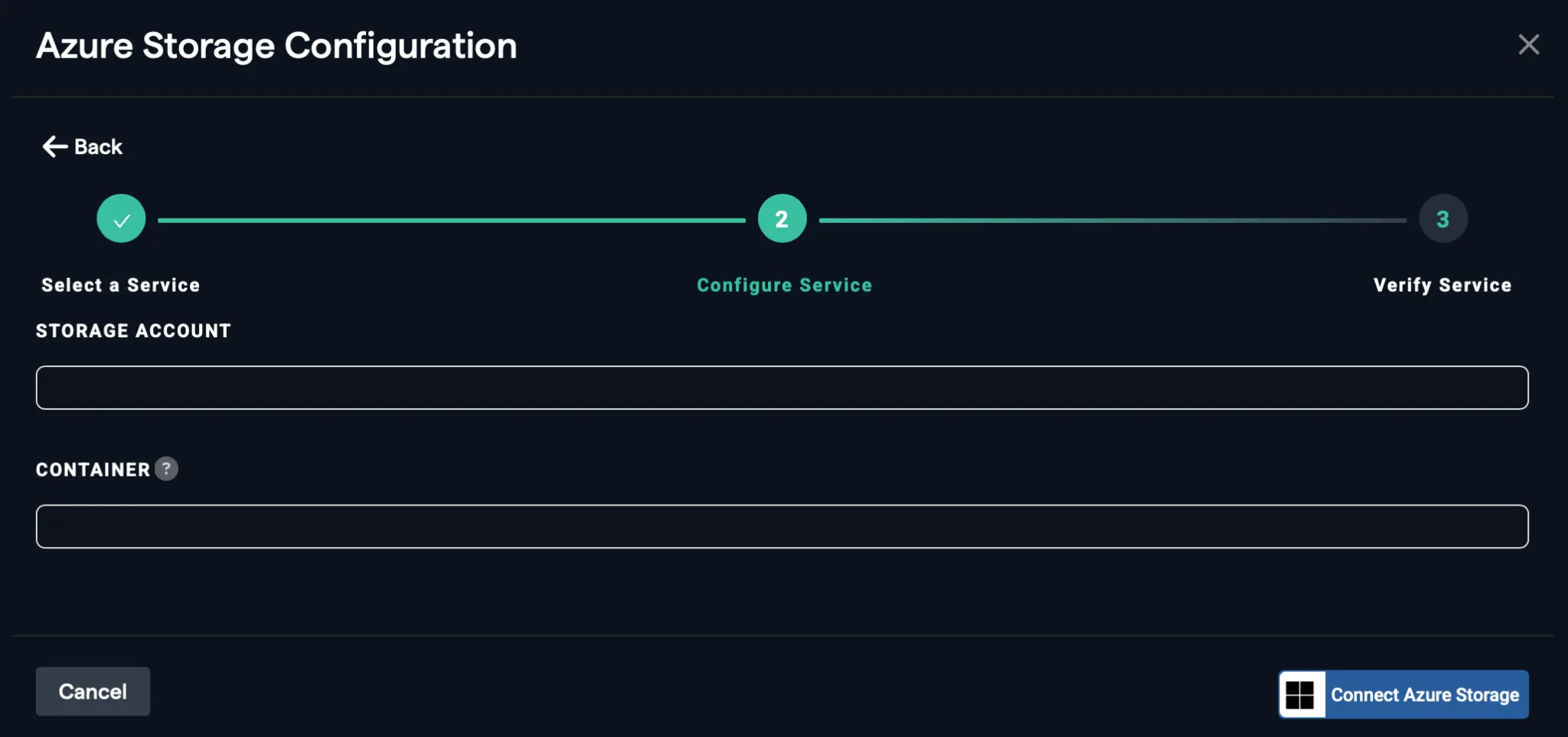
When connecting to Azure Storage, service principal has been added as a new authentication method. To configure Azure Storage navigate to the Connected Services tab, accessed via the Profile menu >> Manage Connectors

Super Assistant

New Models​

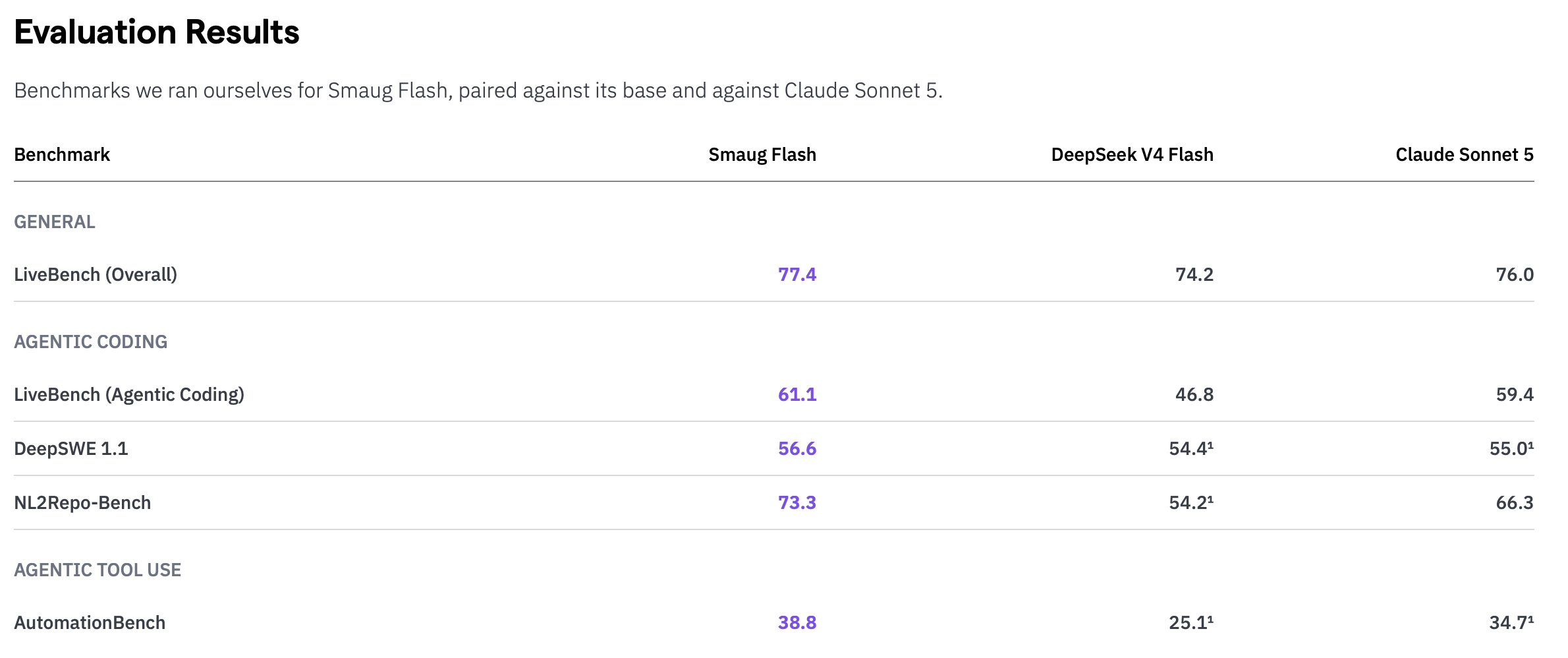
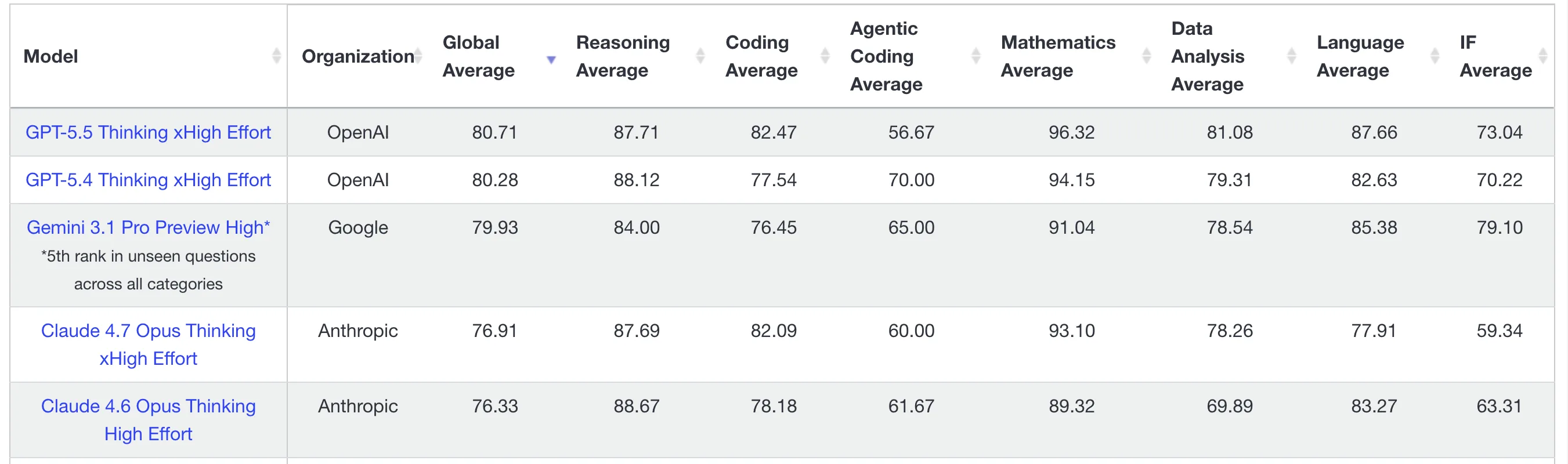
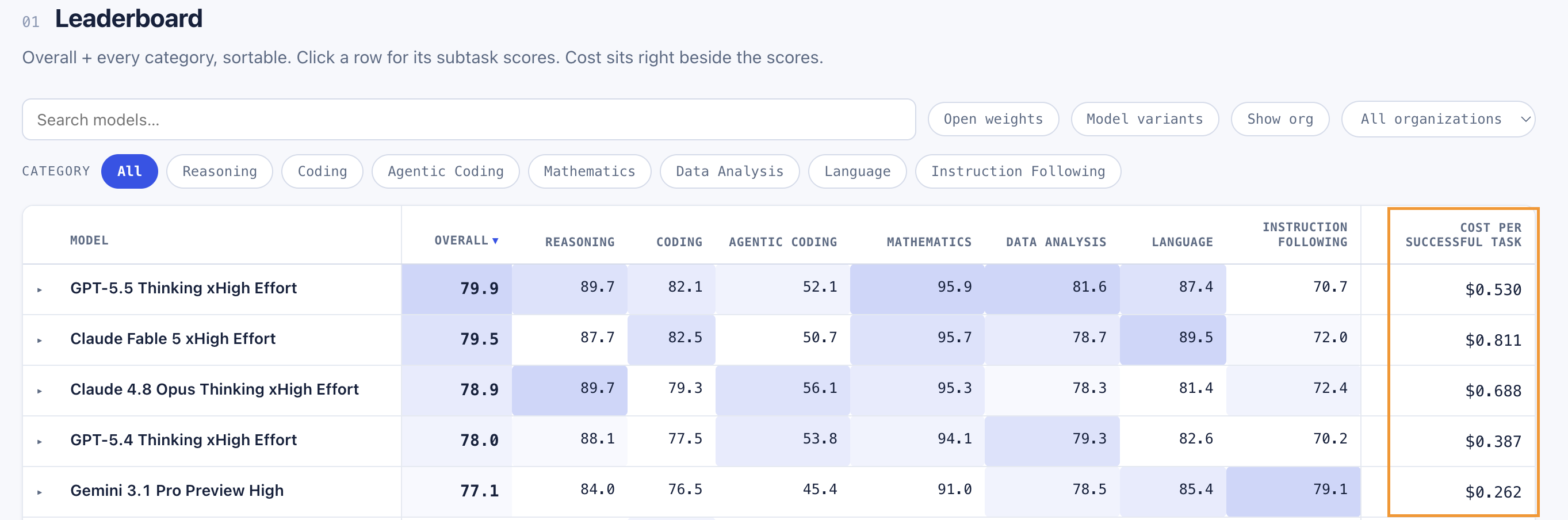
A number of new models have been made available in the platform over the last month: Google Gemma 31B, GLM 5.1, MiniMax M2.7 and Qwen 3.6. To find out how a range of new models perform don’t forget to check out our benchmark, LiveBench

Abacus AI Agent​

Abacus AI Agent is the new name for Deep Agent. The name is being updated across the platform and will be fully rolled-out in the coming weeks.

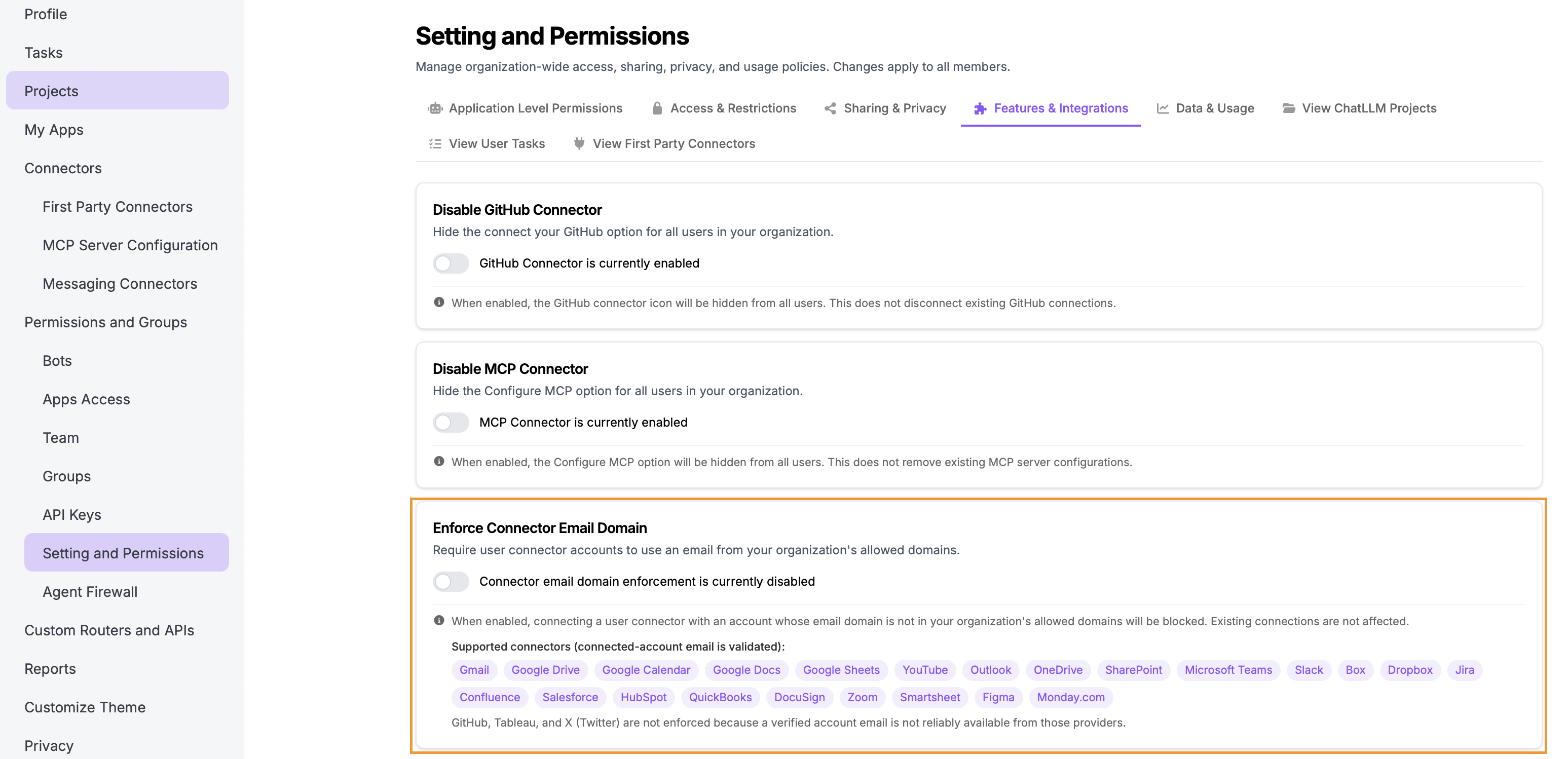
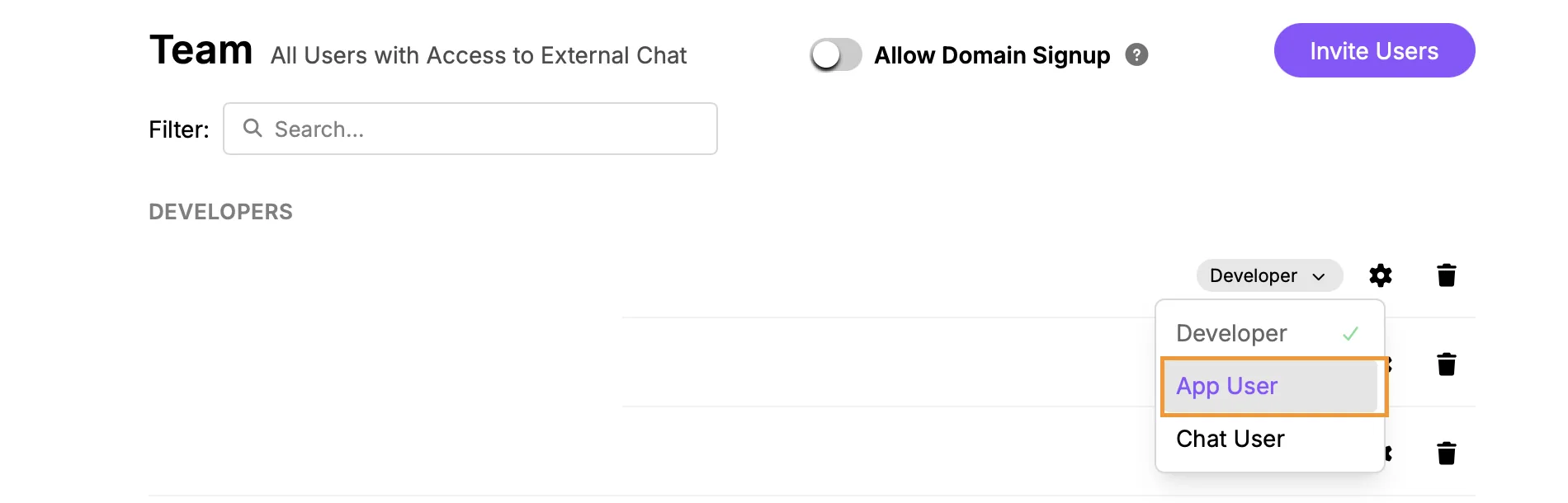
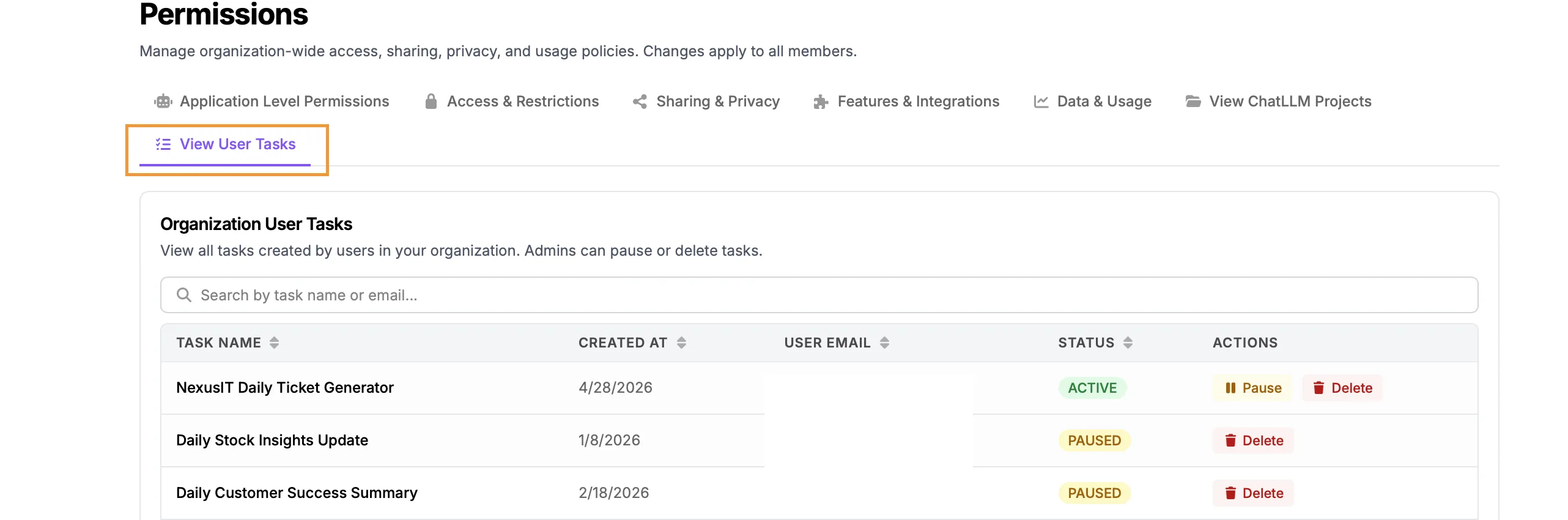
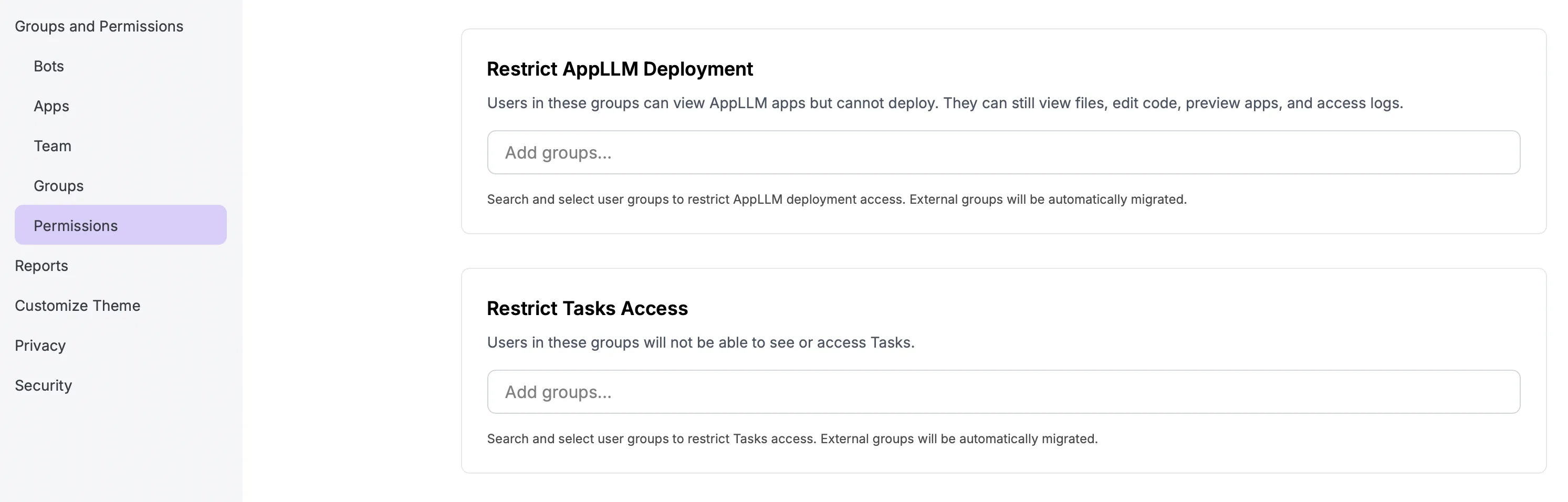
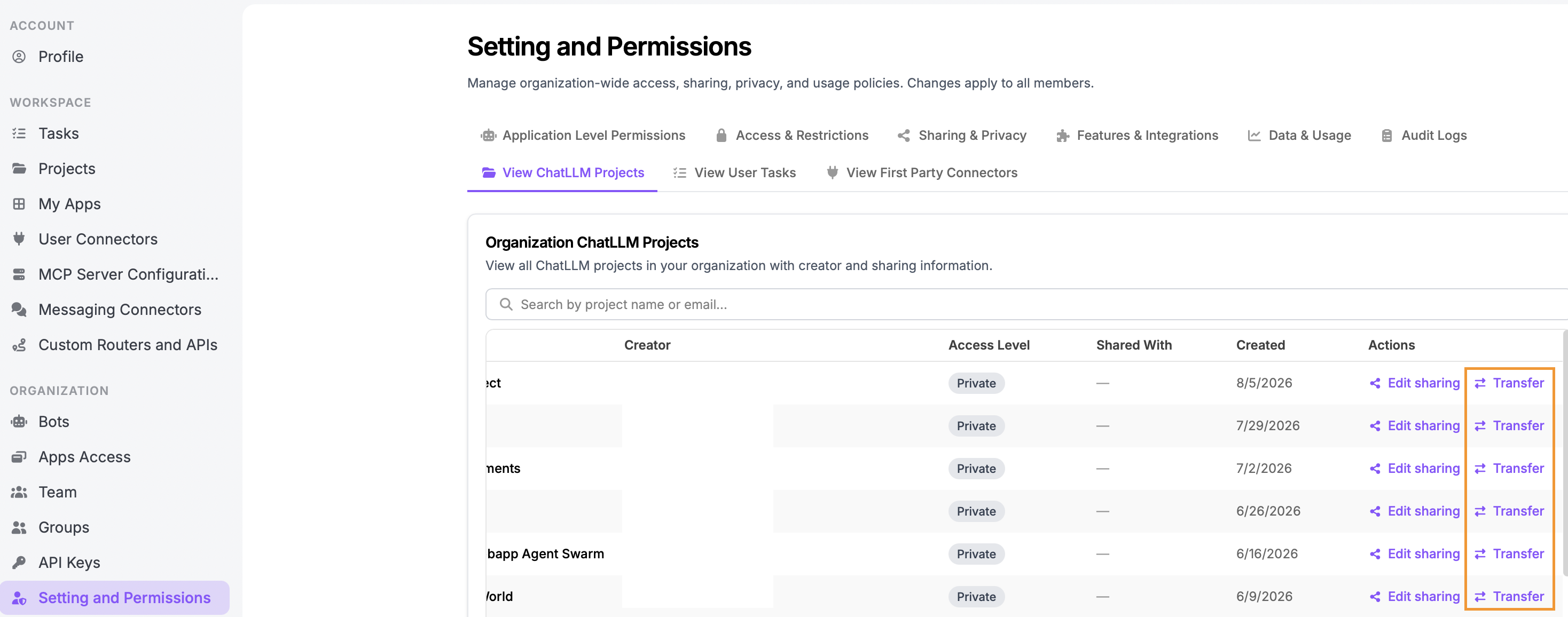
App Deployment and Task Controls Two new admin controls have been added to enhance controls over which users in an organization can deploy applications and create automated tasks.

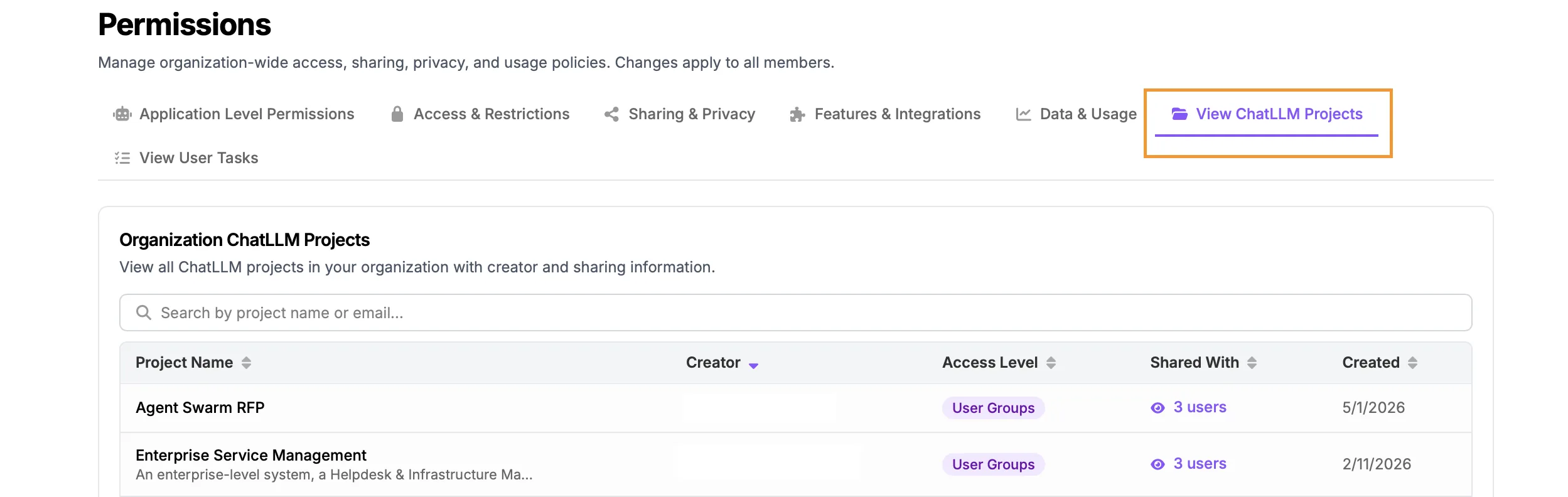
To enable these options use the Permissions menu in the Super Assistant UI, accessed via: Profile >> Groups and Permissions >> Permissions

Manage Agent Video Exmaples For organizations that would like to remove the video exmaples from the AI Agent workspace, a new option is available under the Permissions menu:

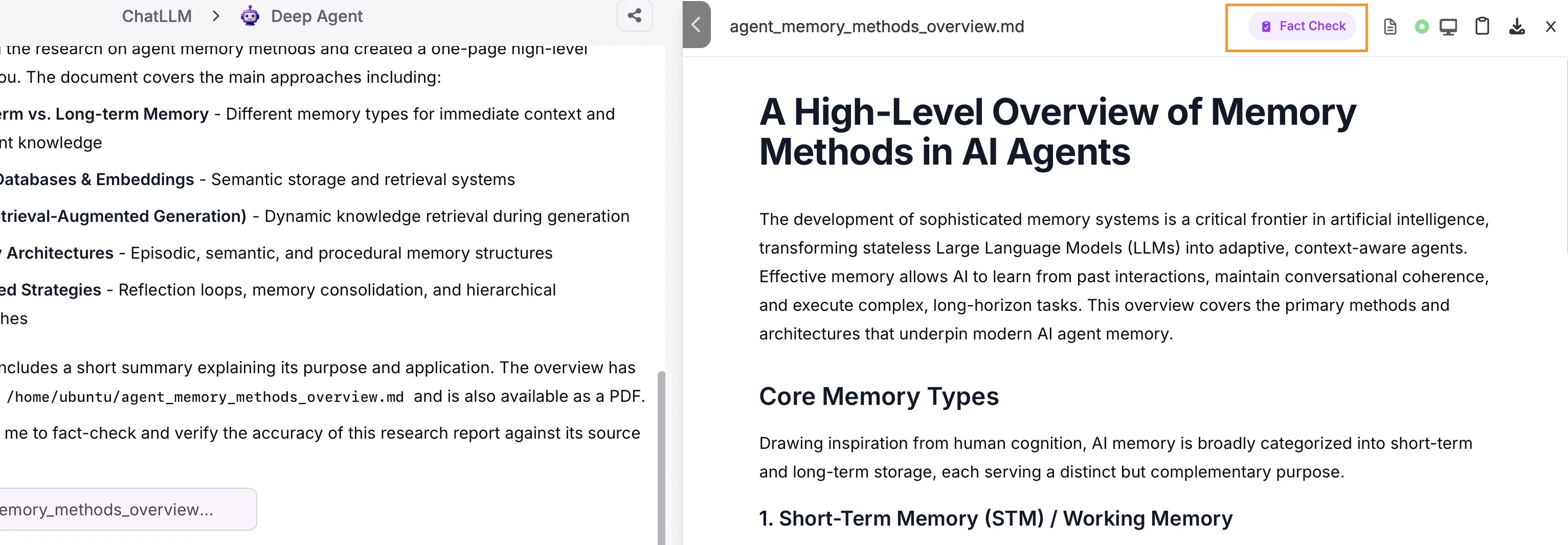
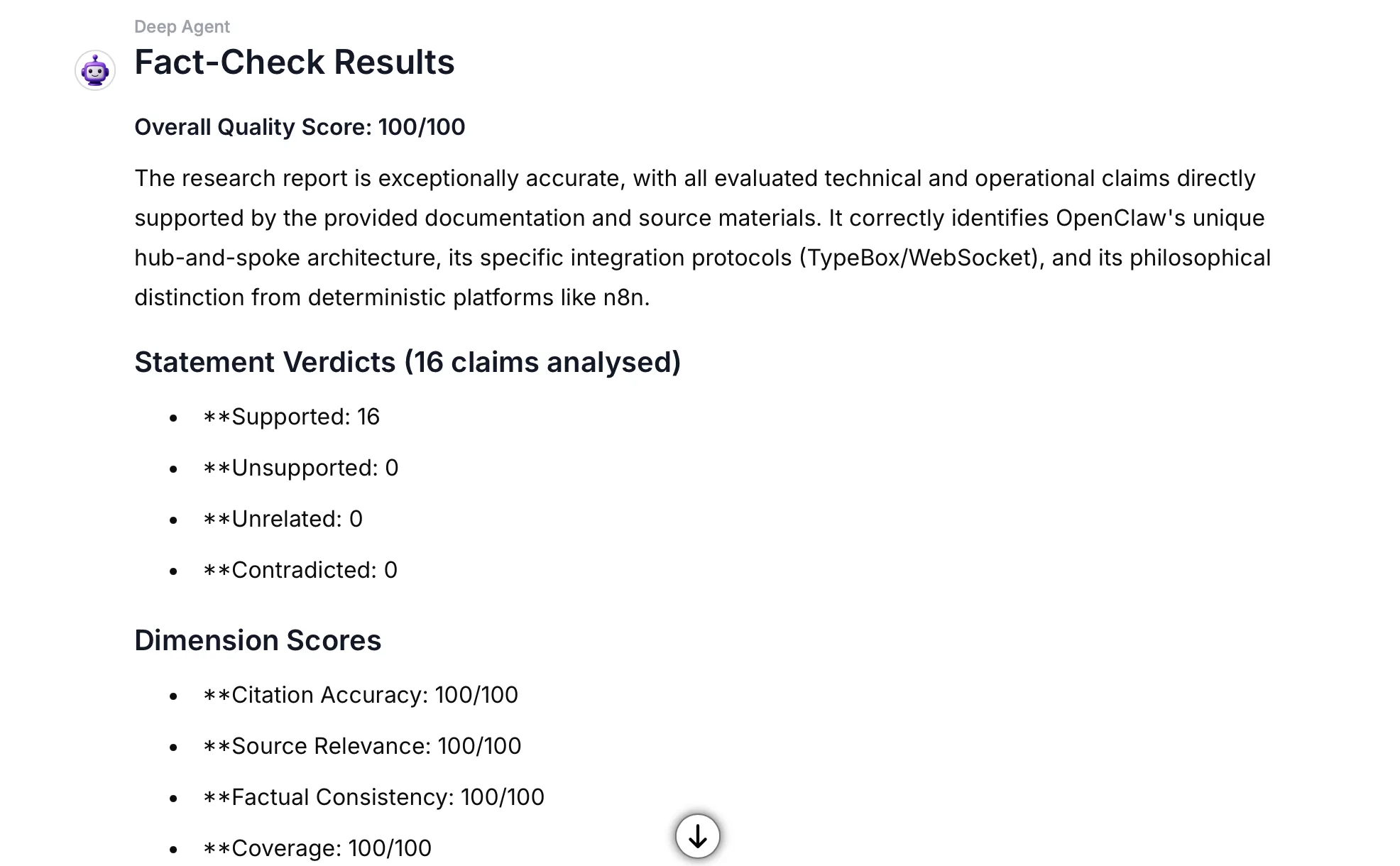
Deep Research Verification When the Abacus Agent completes a research task a new option appears in the preview screen allowing users to perform a fact verification check on the content.

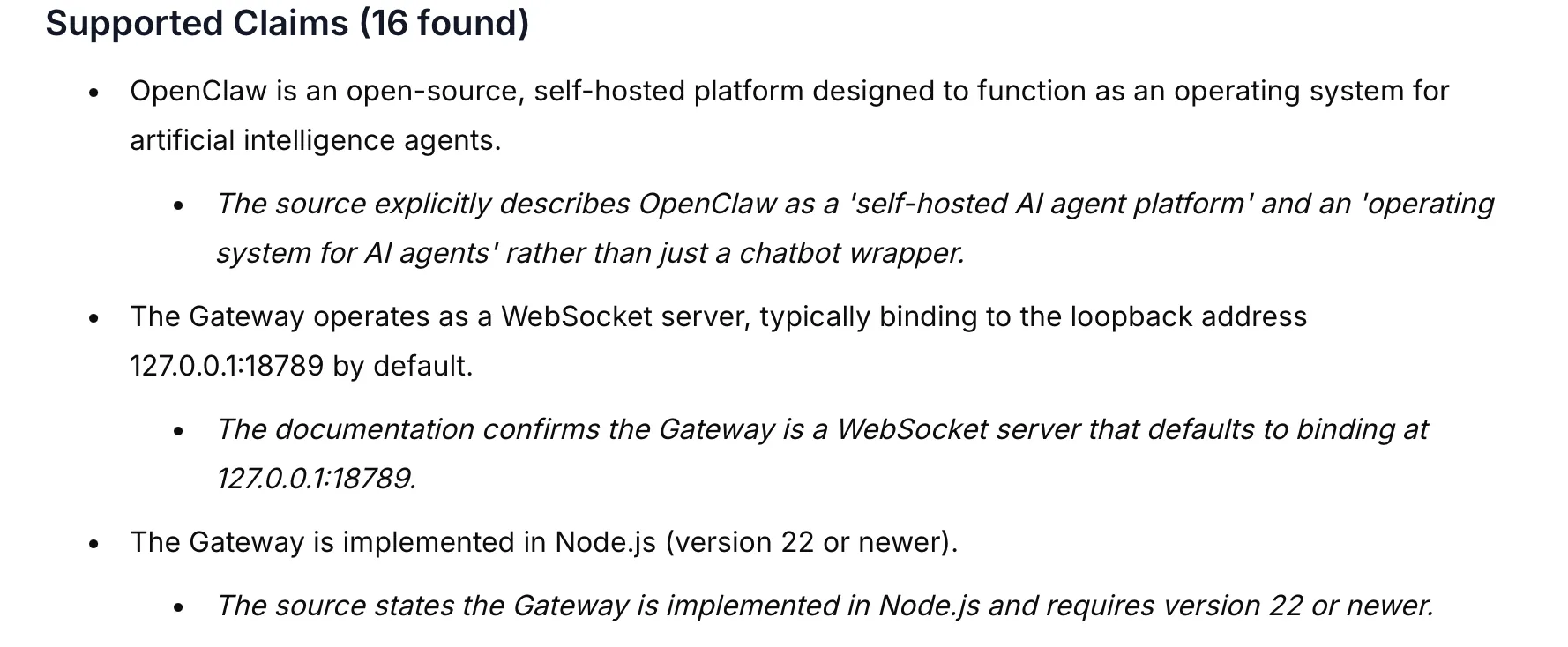
The agent will perform the verification analysis and provide a report to the user on the quality of the research, covering metrics such as: statement classification into supported, unsupported, unrelated and contradicted; citation accuracy; source relevance and factual consistency.

These metrics are provided as both high level statistics,

as well as more detailed comparisons for specific statements:

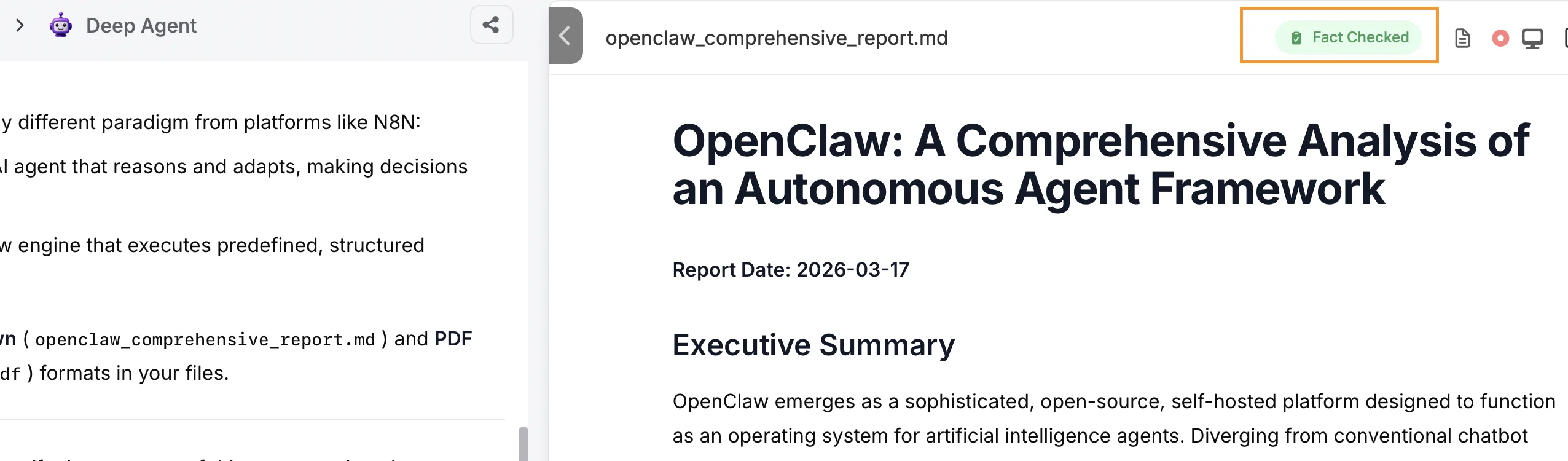
Once the verification has been completed the preview panel will show a Fact Checked label:

Powerpoint Updates

Several updates have been made to powerpoint generation in the Abacus Agent covering editing, speaker notes and direct publishing options.

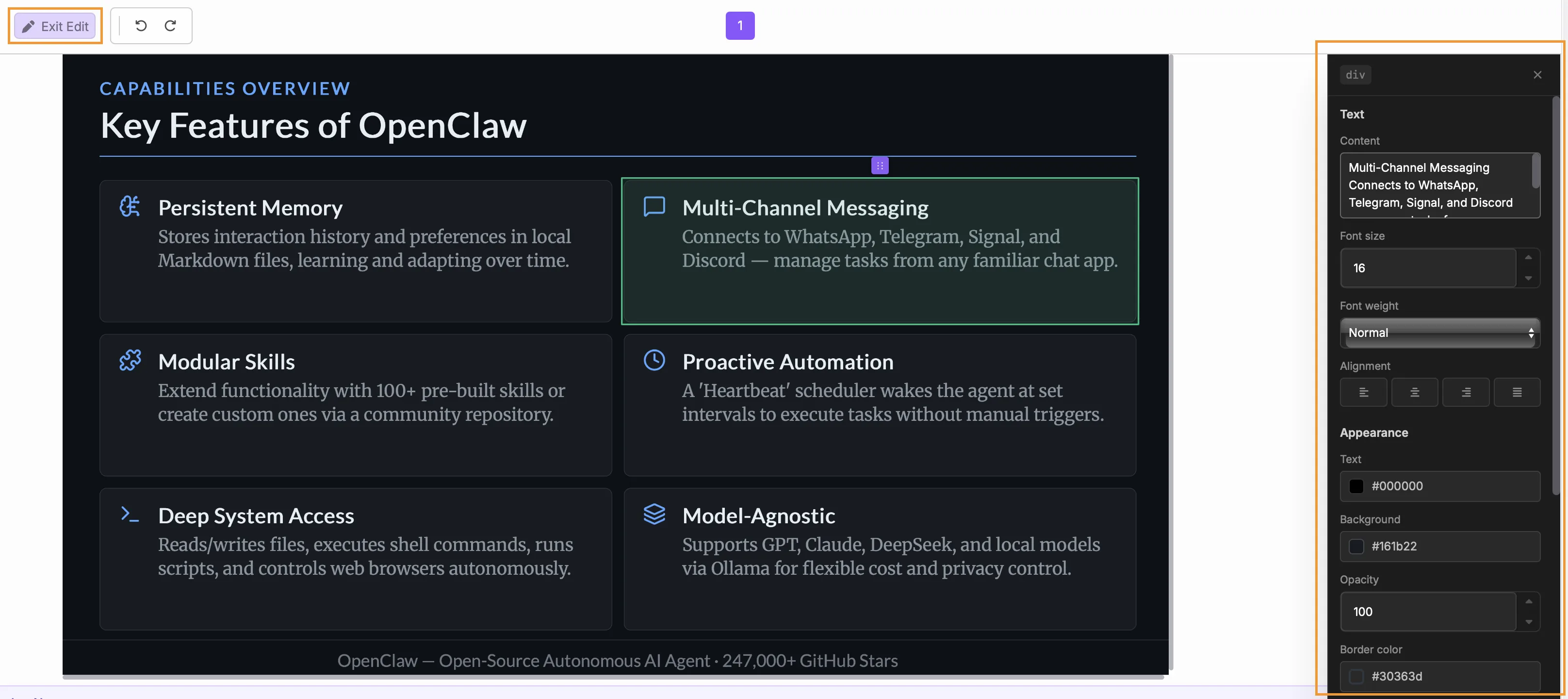
Slide Editing The editing function for slides has been enhanced to provide considerably more options for users handling in-line edits in the preview screen. Use the Edit button at the top of the screen to open the editing interface, whereby the editing toolbar will appear on the right of the screen:

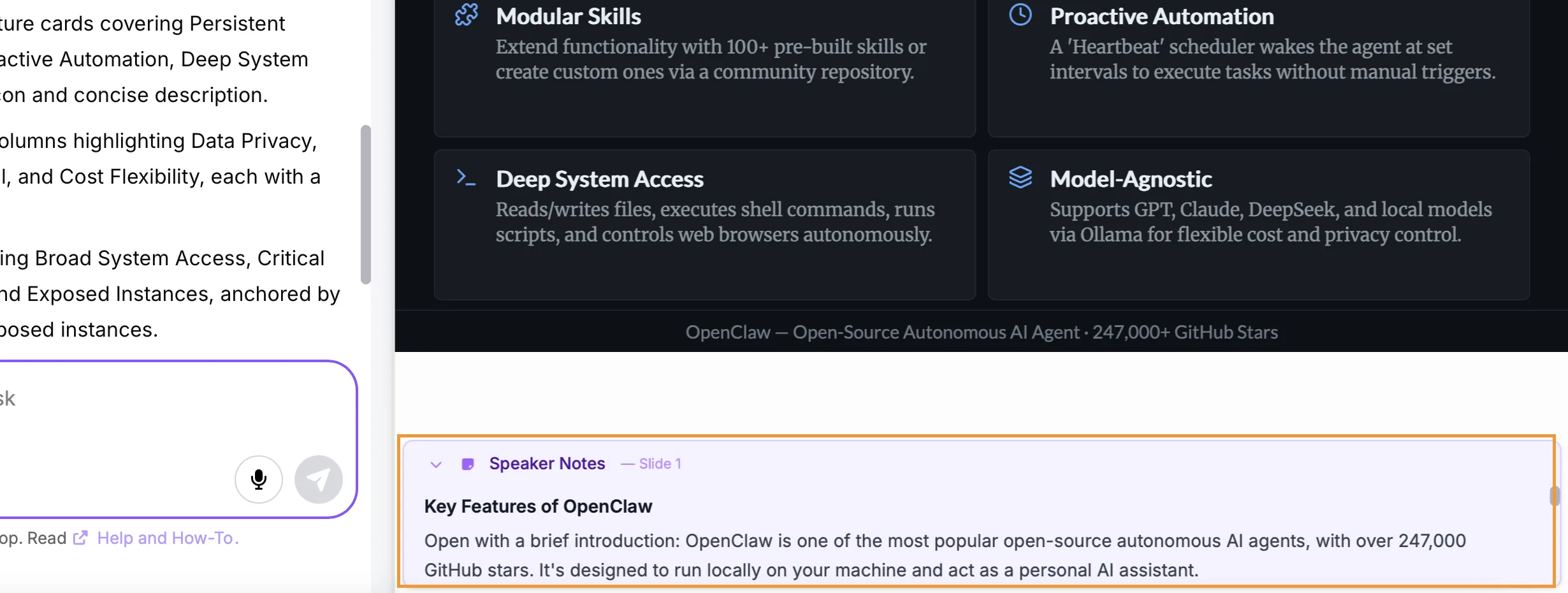
Speaker Notes Prompt the Abacus Agent to add speaker notes if you would like the additional context to accompany each slide. Notes are added under the slide images in the preview panel:

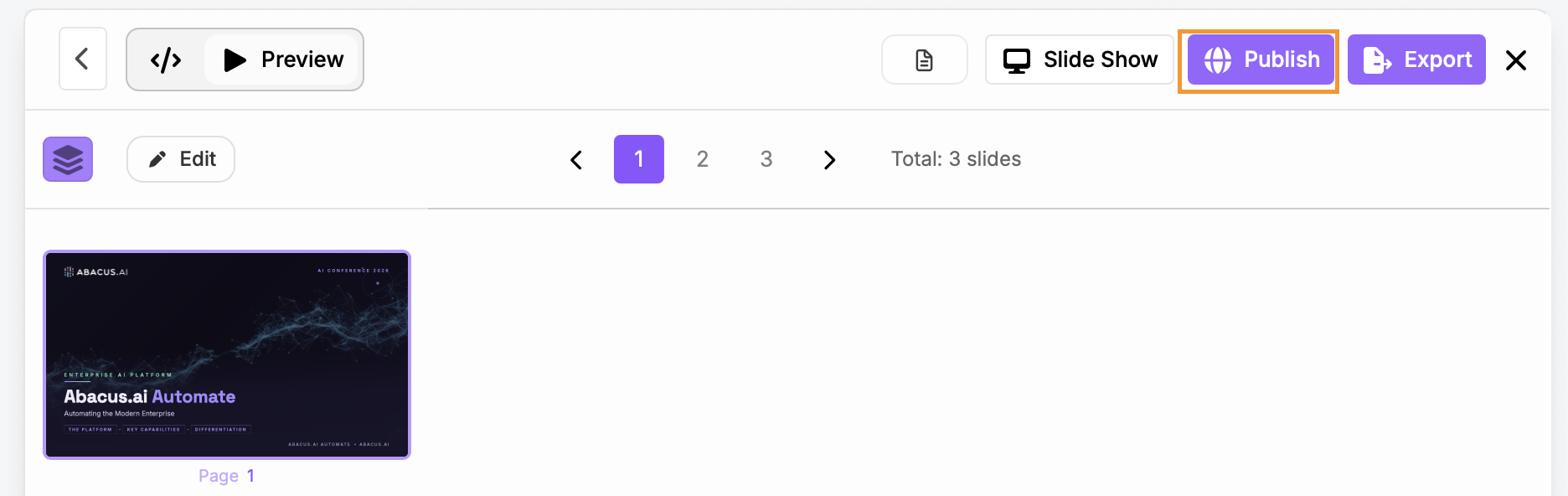
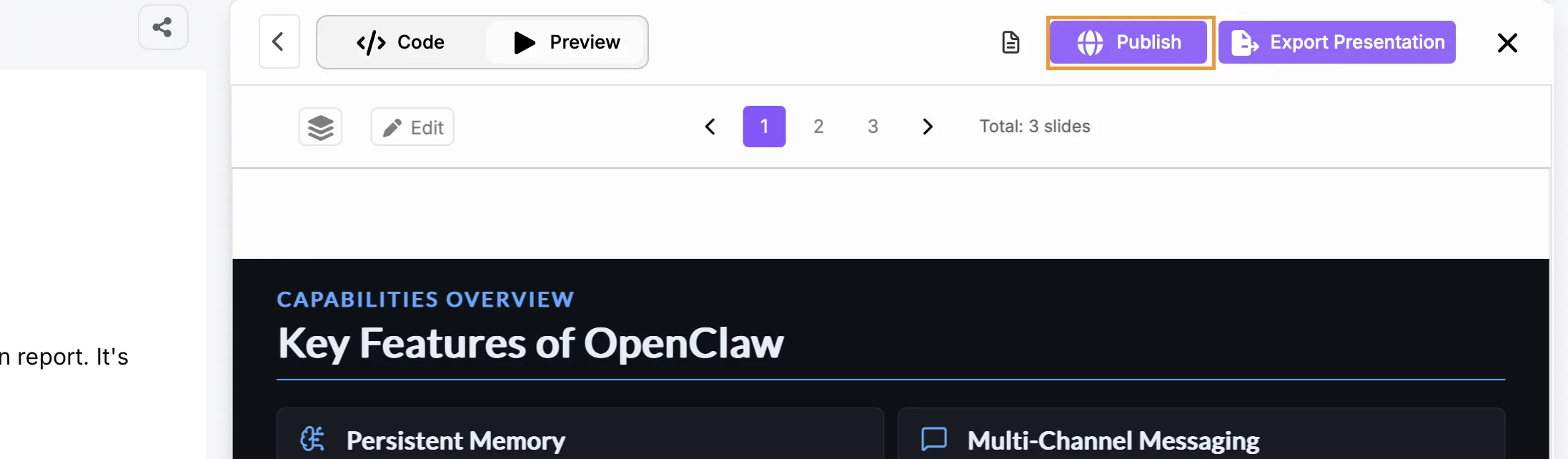
Slide Publishing A new option has been added to enable slide publishing for easier sharing and presentation. Once the slides are complete use the Publish button at the top of the screen:

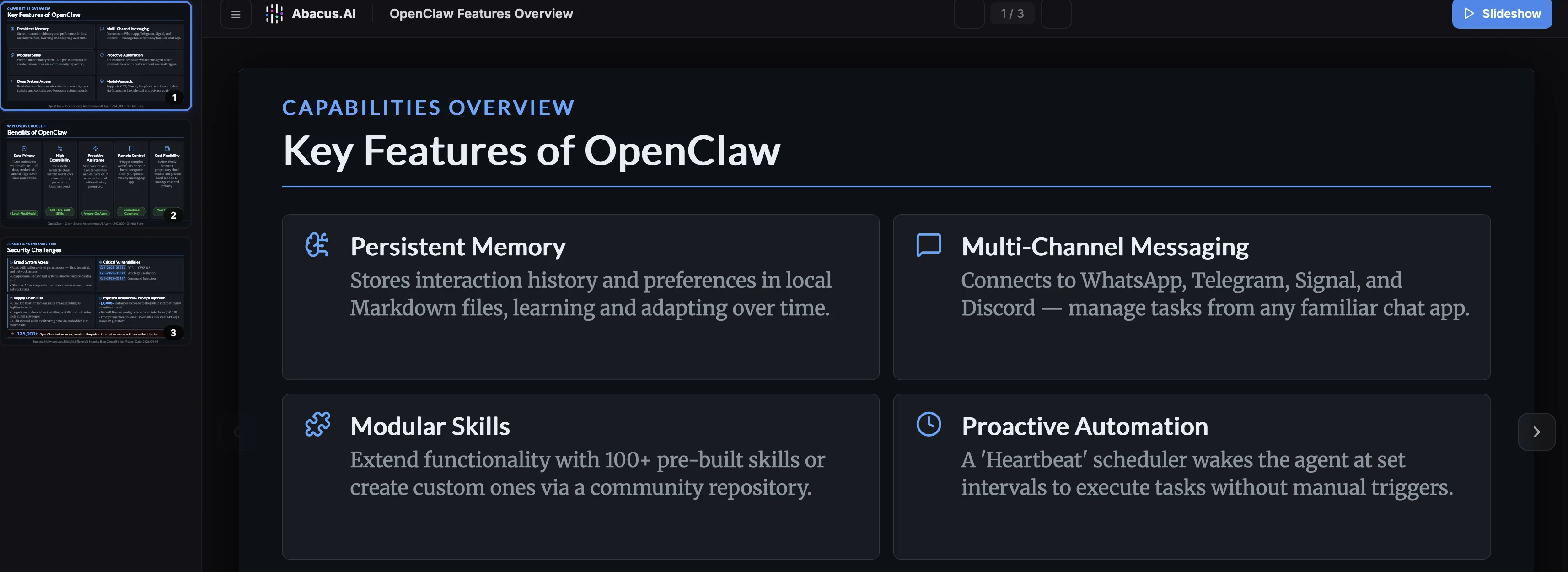
Once published the presentation is available at a dedicated url and can be viewed as a slideshow directly from that location:

Skills​

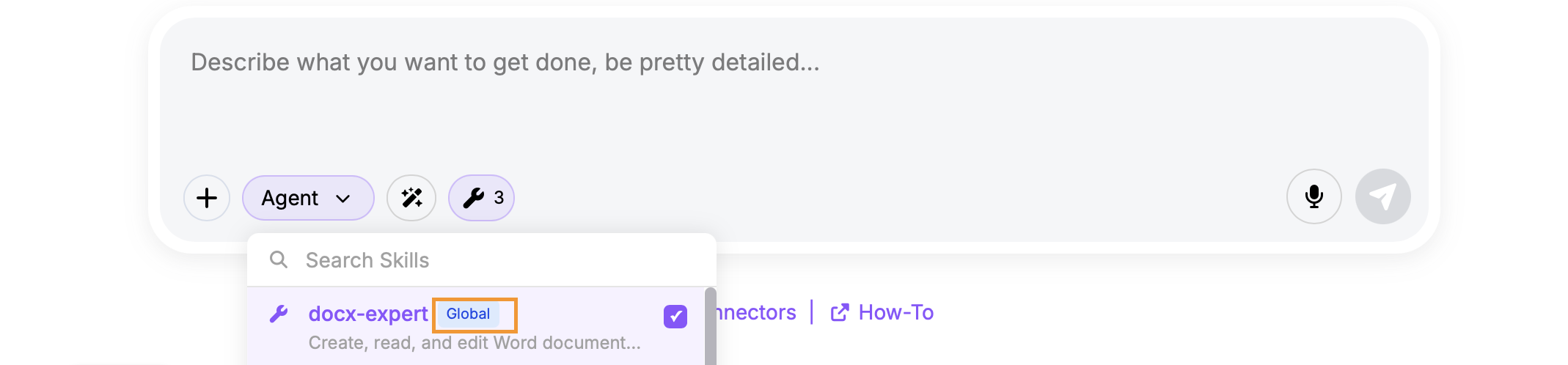
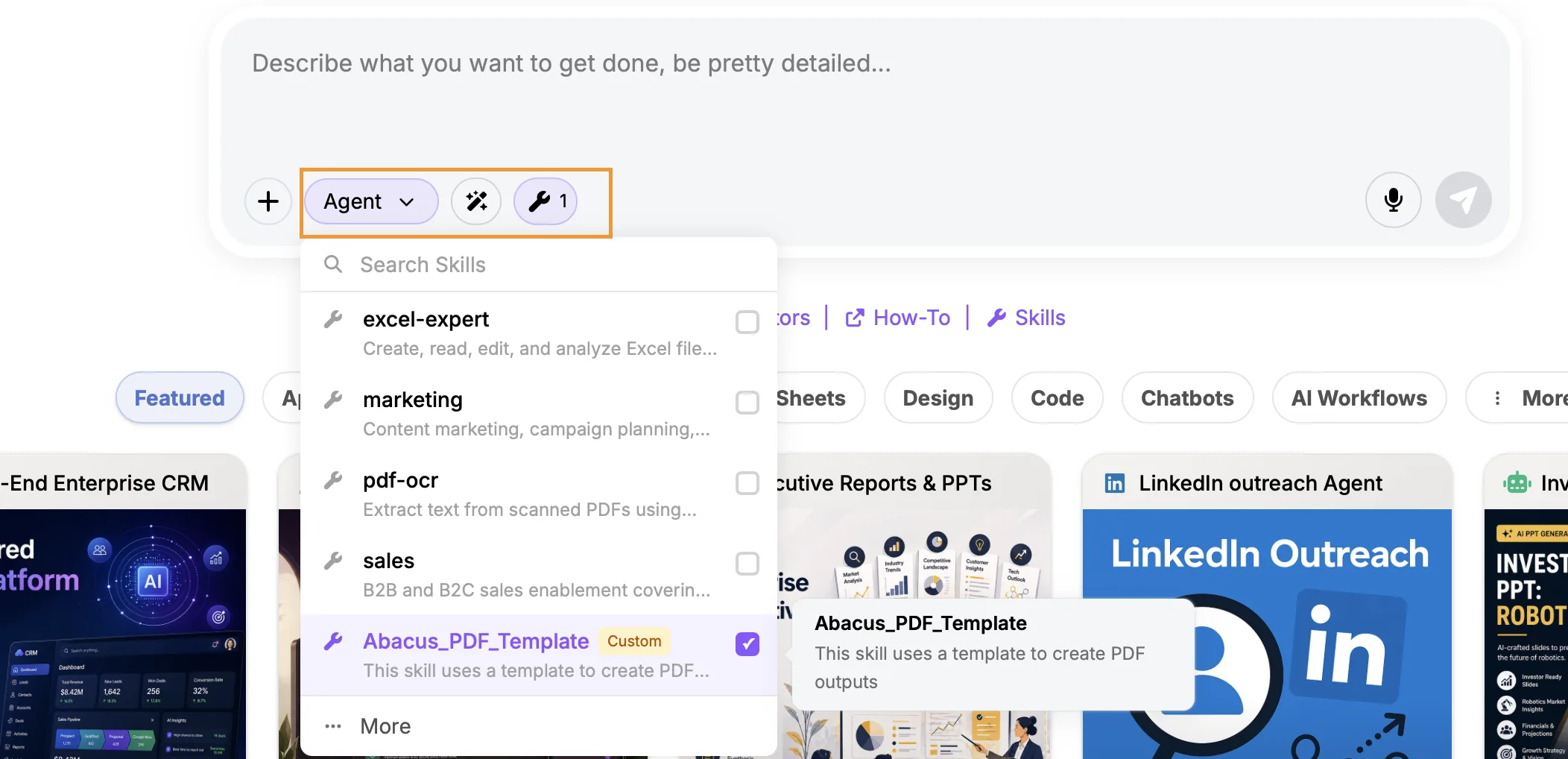
A significant new feature is the introduction of skills to the Abacus platform. Skills give the Abacus AI Agent the ability to execute with specific instructions or domain expertise in a consistent manner. They ensure that there is:

  • Consistent Quality - The agent follows established methods every time
  • Specialized Expertise - You can provide specific instructions on how it handles technical writing, data analysis, code review and more
  • Automatic Activation - The Abacus AI Agent detects when to use each skill based on your request
  • Time saving - Skills streamline the prompting process avoiding repeatedly needing to define prompts

Skills can be simply defined as a SKILL.md file, but can also be configured with separate folders that contain examples, templates and references. More details on how to create skills are available on our documentation page.
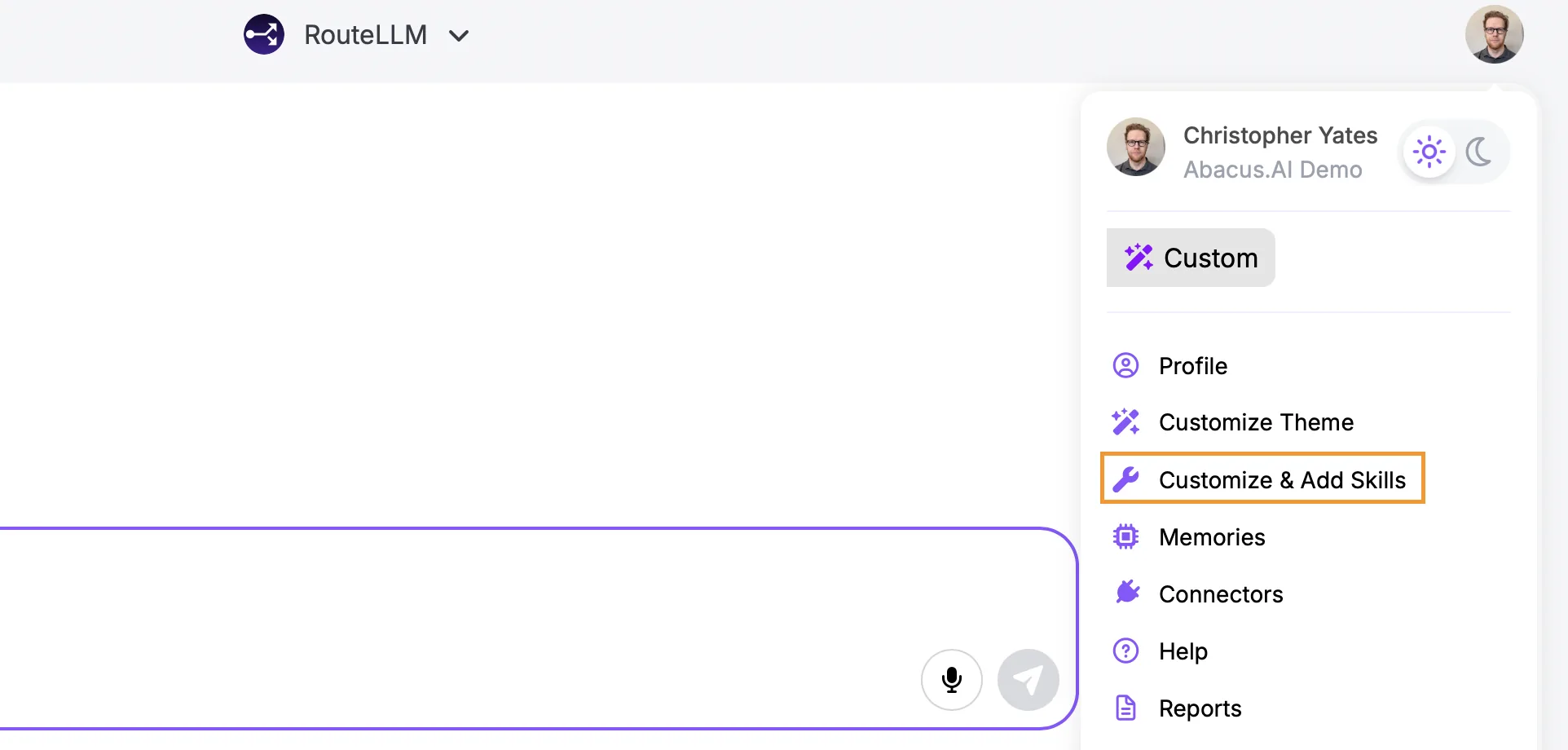
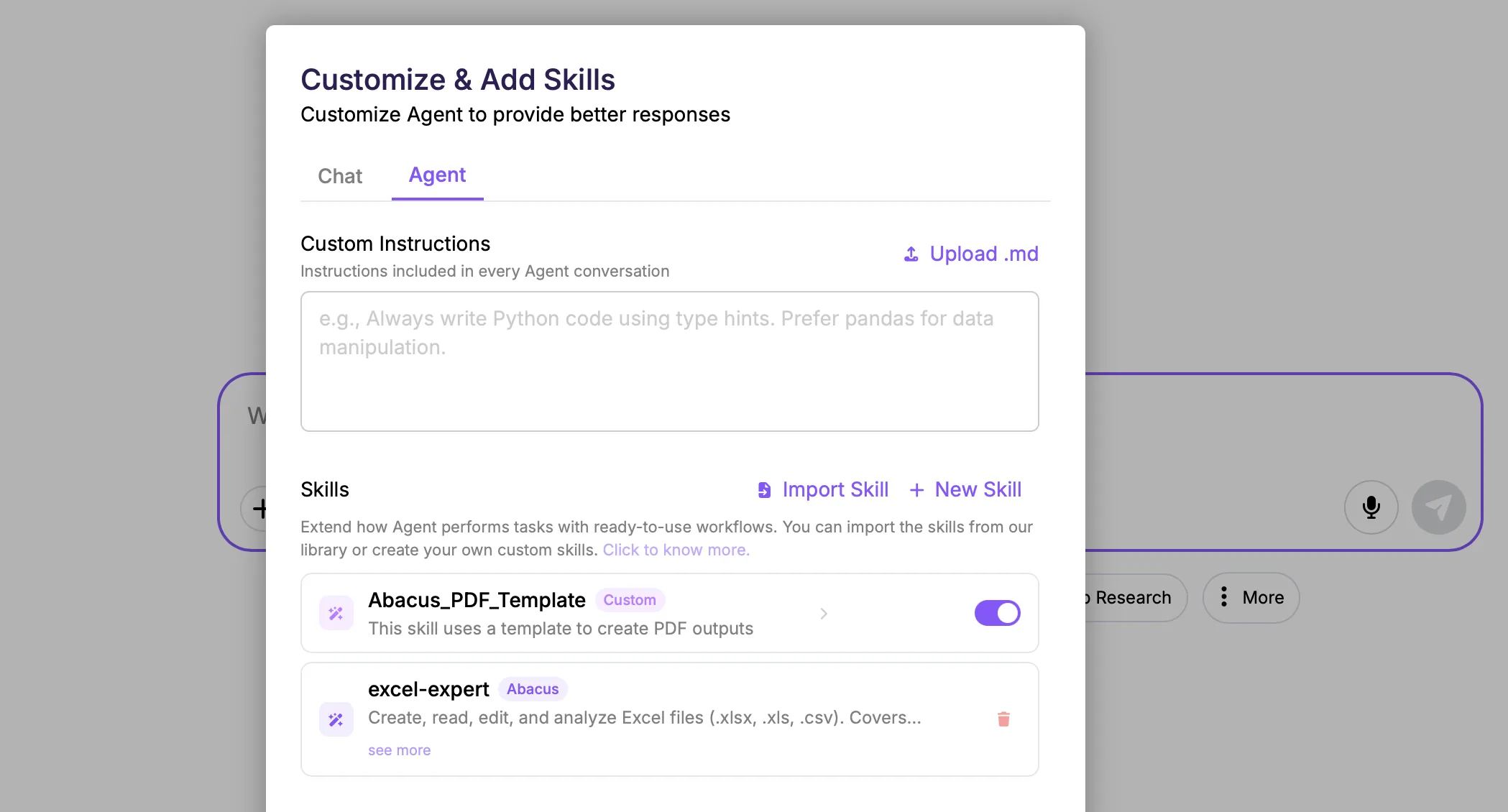
Managing Skills Adding and managing skills in the platform can be done through the Customize & Add Skills menu, which is found when clicking on your profile icon in the top-right of the screen:

Then select the Agent tab:

Under the Skills section you will see any custom skills that you have already added as well as any Abacus built system skills that you have imported. For custom skills a toggle is available to turn them on or off, but system skills you have imported are on by default - to turn these off delete that skill, it can be re-imported later if required.

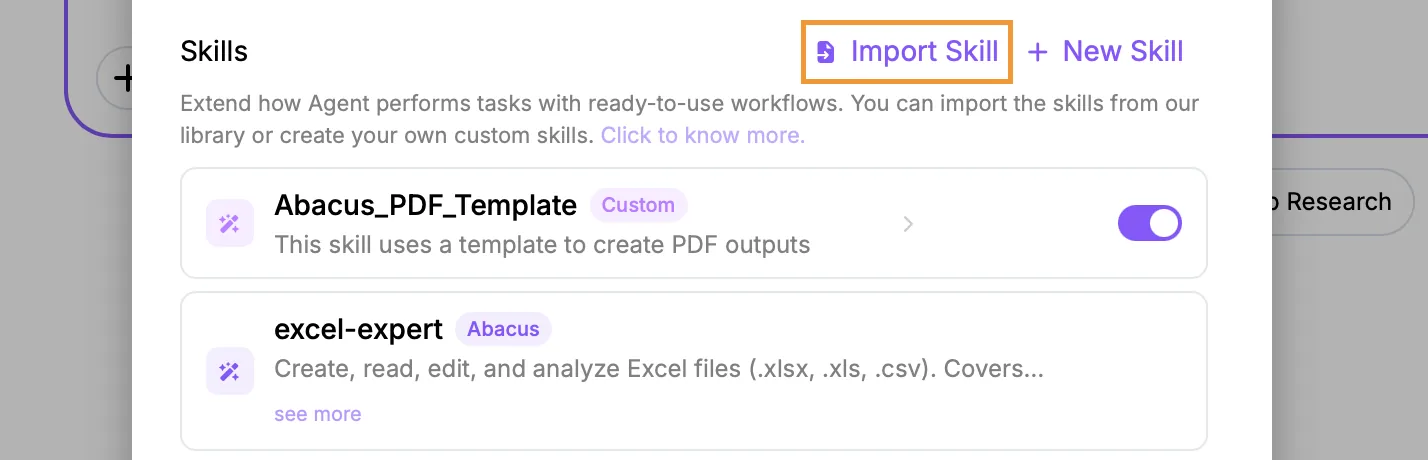
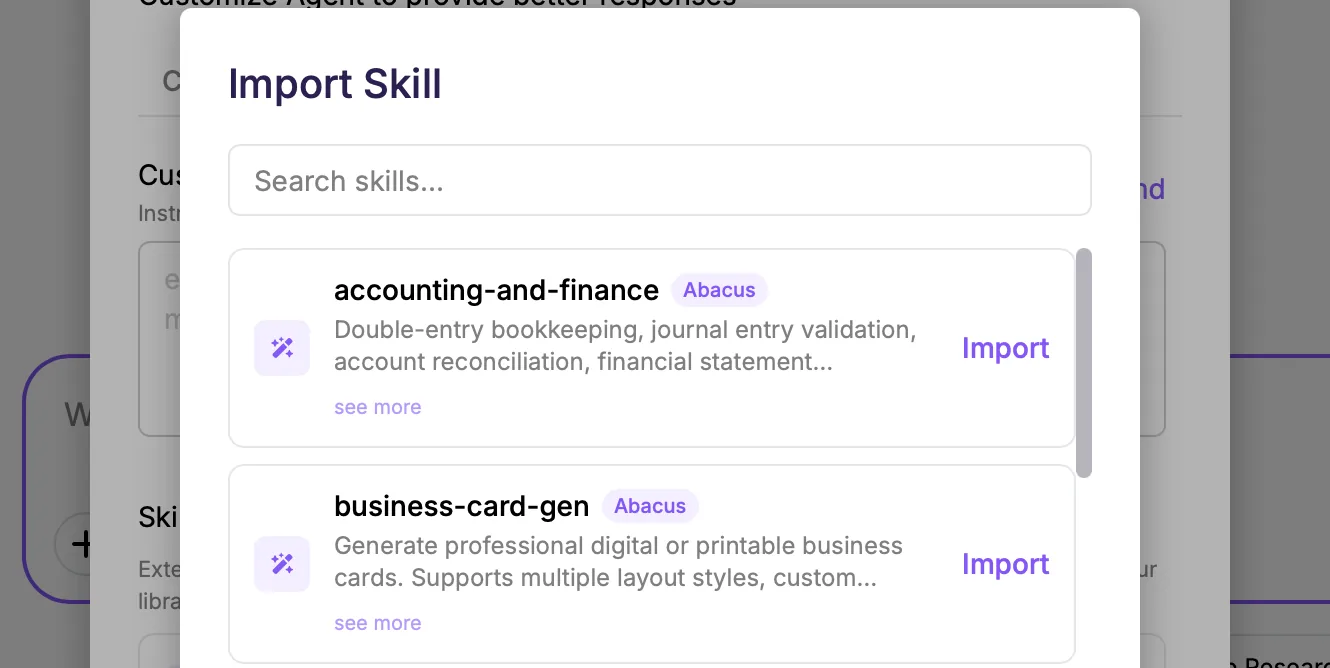
Importing System Skills To import Abacus built system skills click on the Import Skill button:

This will open a new window listing all of the available system skills to import. Once imported they will be automatically available for the Abacus AI Agent.

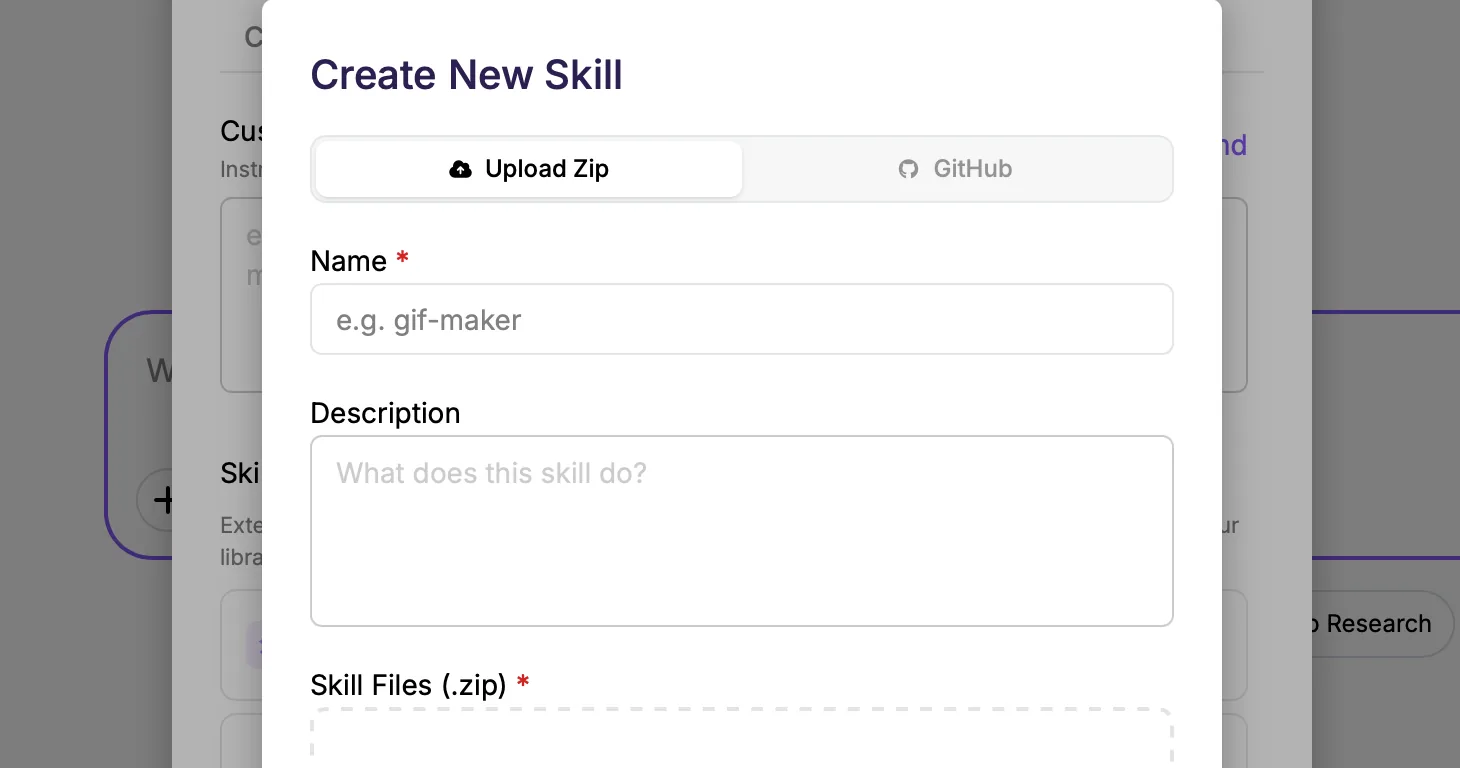
Adding Custom Skills If you have defined your own custom skills, these are added using the New Skill button:

New skills can be added either by directly uploading a .zip file or by providing a valid GitHub repo url. For both options the SKILL.md file must be at hte root level.

Custom skills can be managed in the main menu, allowing you to:

  • Edit existing skills by uploading new versions of the skill files
  • Delete the file completely
  • Toggle custom skills on or off

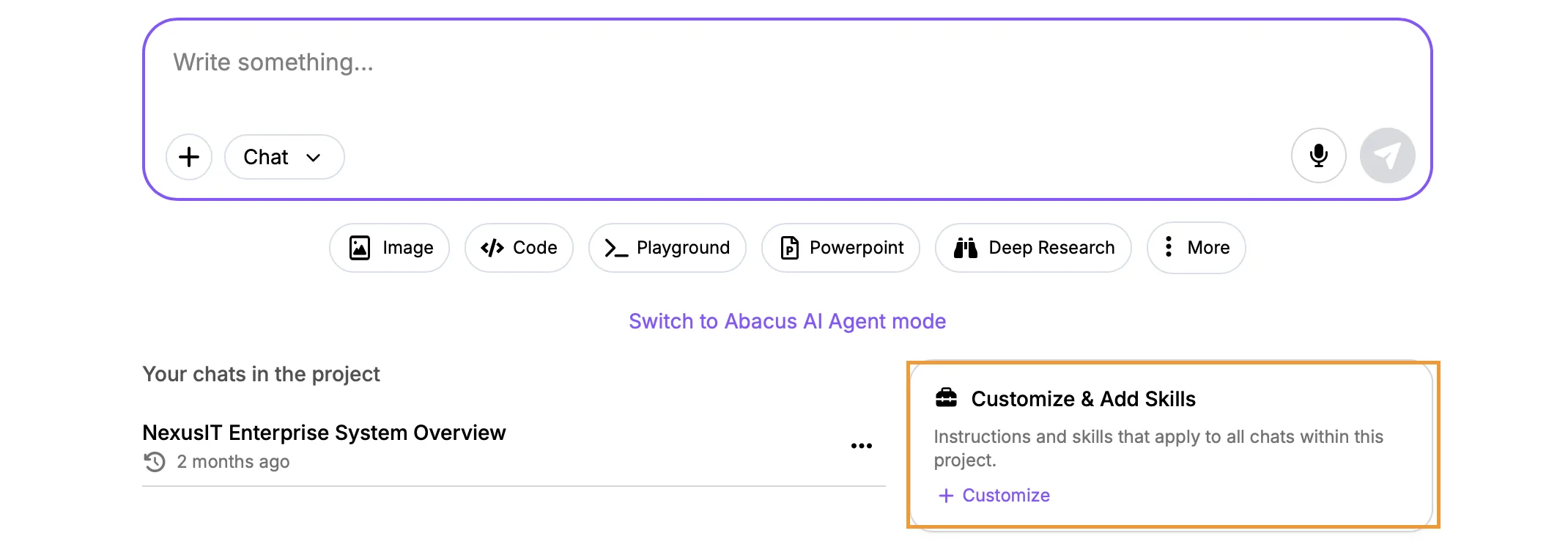
Both system and custom skills can also be added to projects using the Customize & Add Skills option:

Note: currently skills are only available for use by the Abacus AI Agent for standalone tasks, or AI Agent tasks inside of projects. Skills added to projects won't be used for regular, chat mode, conversations

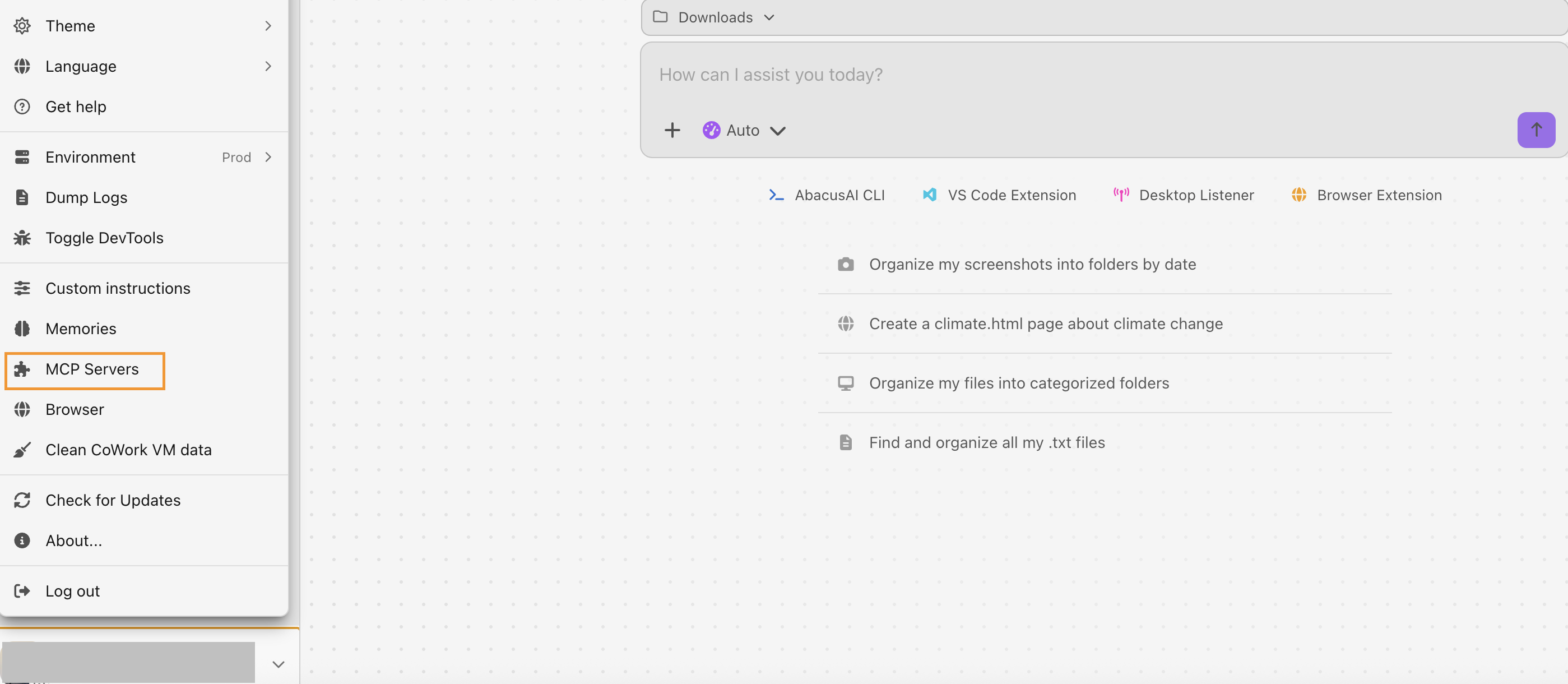
Abacus Desktop - Cowork​

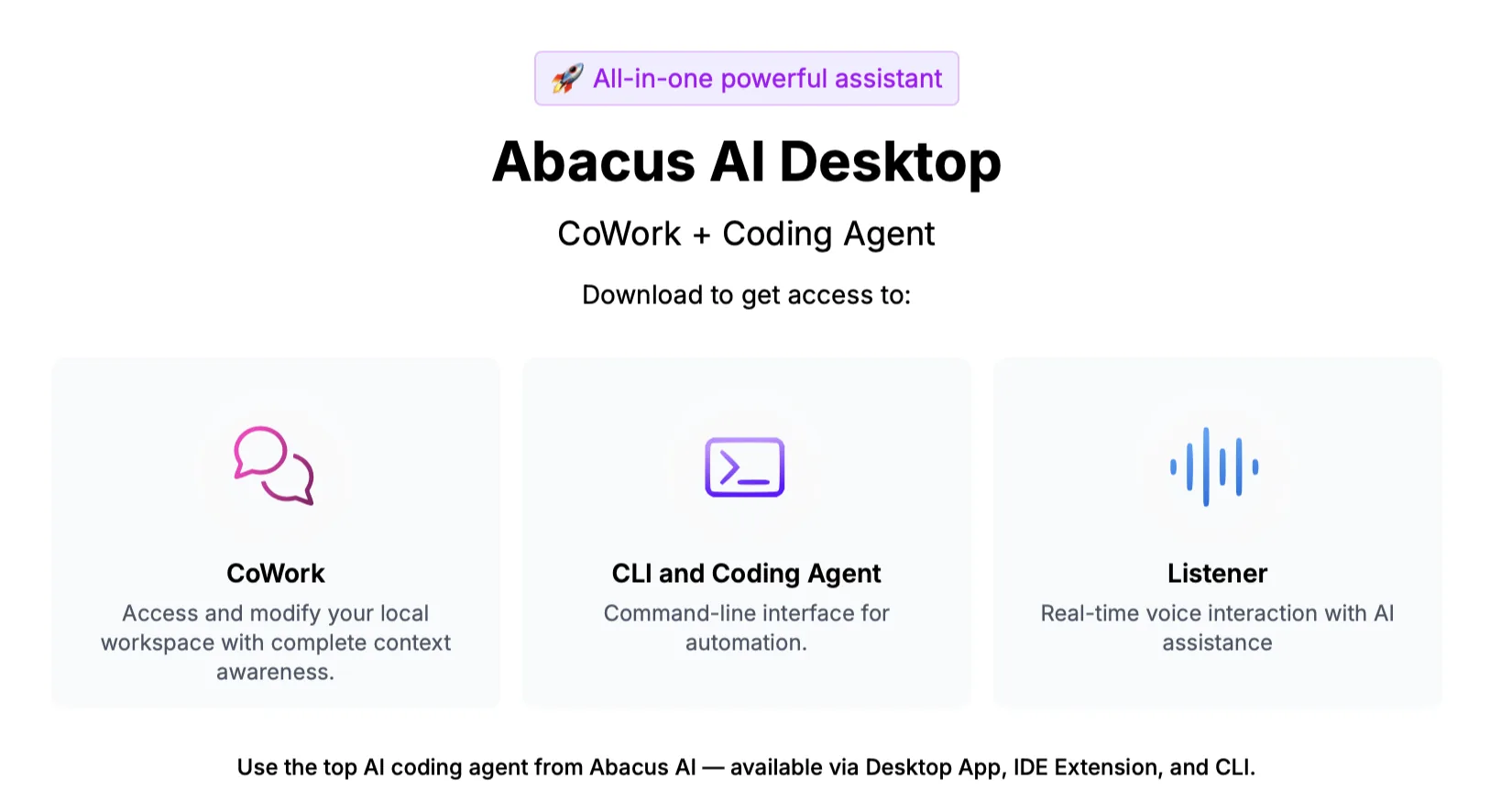
Abacus AI CoWork brings agentic, autonomous task execution to your desktop β€” extending Abacus AI Agent's power beyond coding into general knowledge work. CoWork can plan, break down, and execute complex, multi-step tasks directly on your local files without requiring terminal access or manual uploads.

CoWork has the following key capabilities:

  • Direct Local File Access: Read, write, organize, and transform files on your machine β€” documents, spreadsheets, presentations, images, data files, and more.
  • Sub-Agent Coordination: Complex tasks are automatically decomposed into subtasks and executed in parallel for faster completion.
  • Professional Outputs: Generate polished, fully editable deliverables β€” Excel spreadsheets with working formulas, formatted Word documents, PowerPoint presentations, PDF reports, and more.
  • Long-Running & Scheduled Tasks: Handle tasks that require extended execution without conversation timeouts. Schedule recurring tasks to run automatically on a chosen cadence.
  • Browser Integration: Combine local file operations with web-based workflows β€” fill forms, navigate sites, and pull data from online sources seamlessly

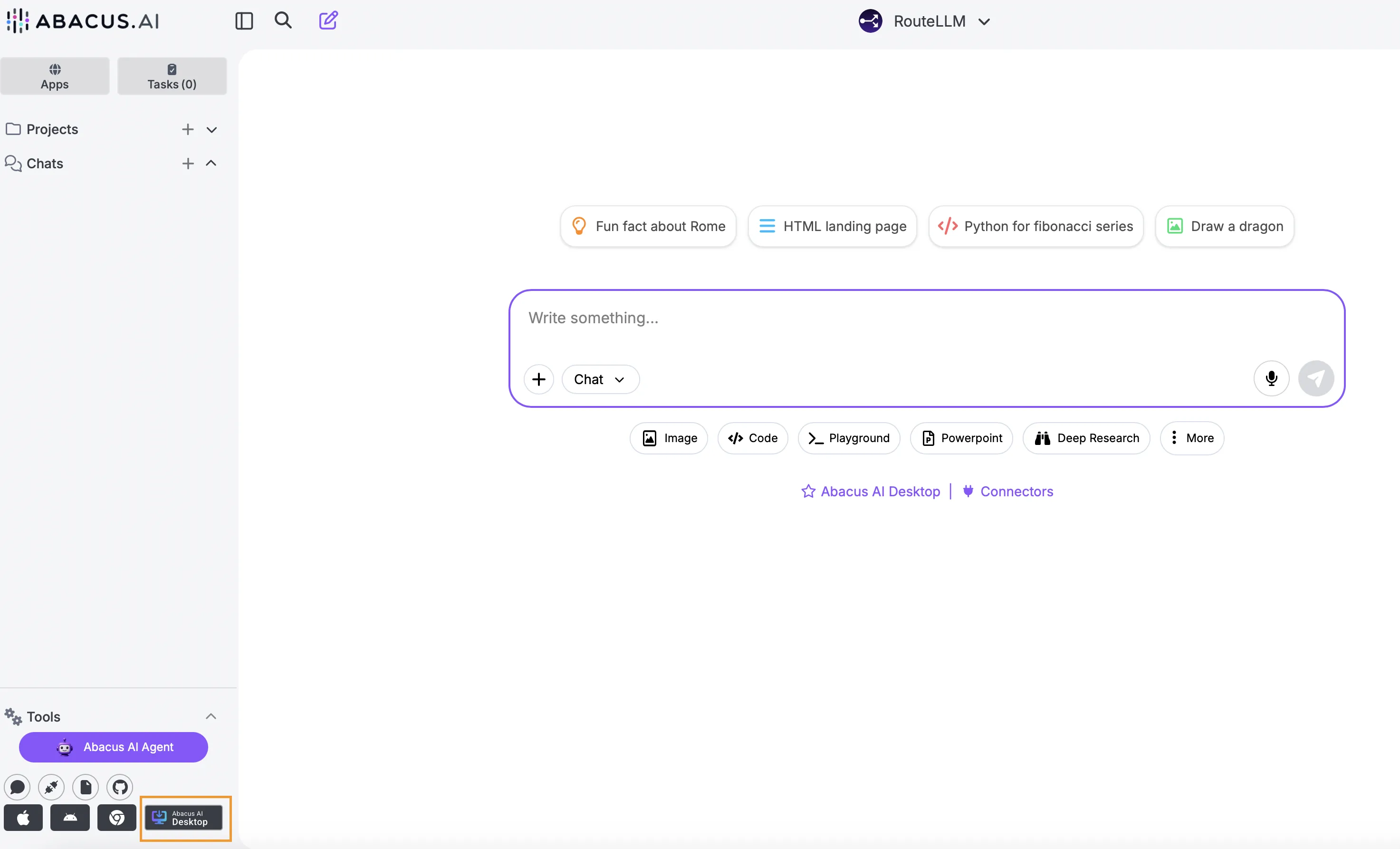
CoWork can be accessed as part the Abacus AI Desktop suite. Us the download link at the bottom of the Super Assistant screen:

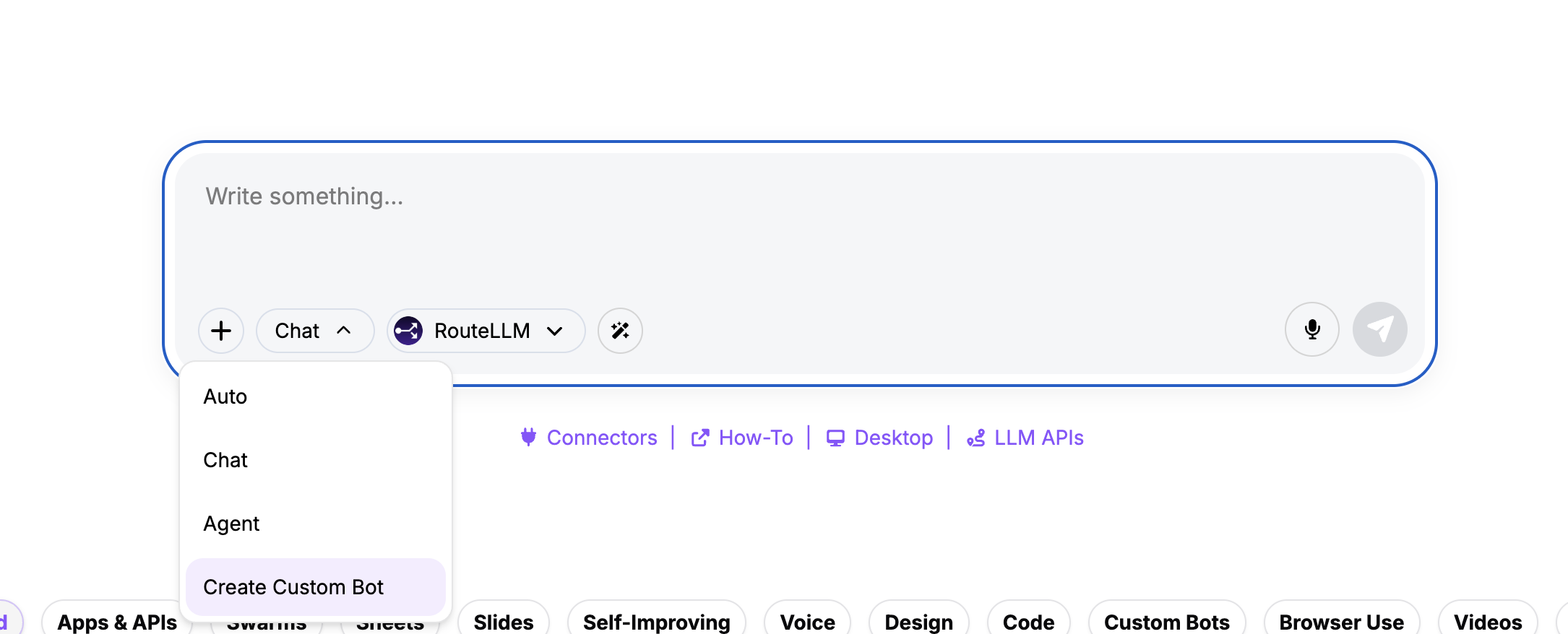
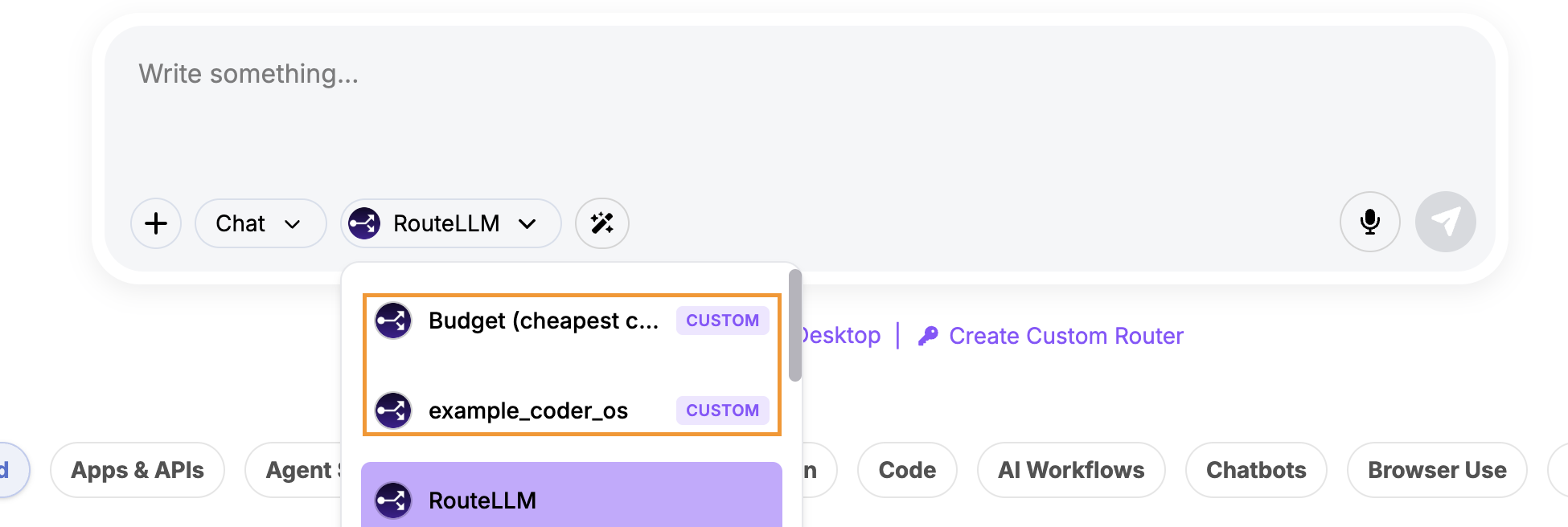
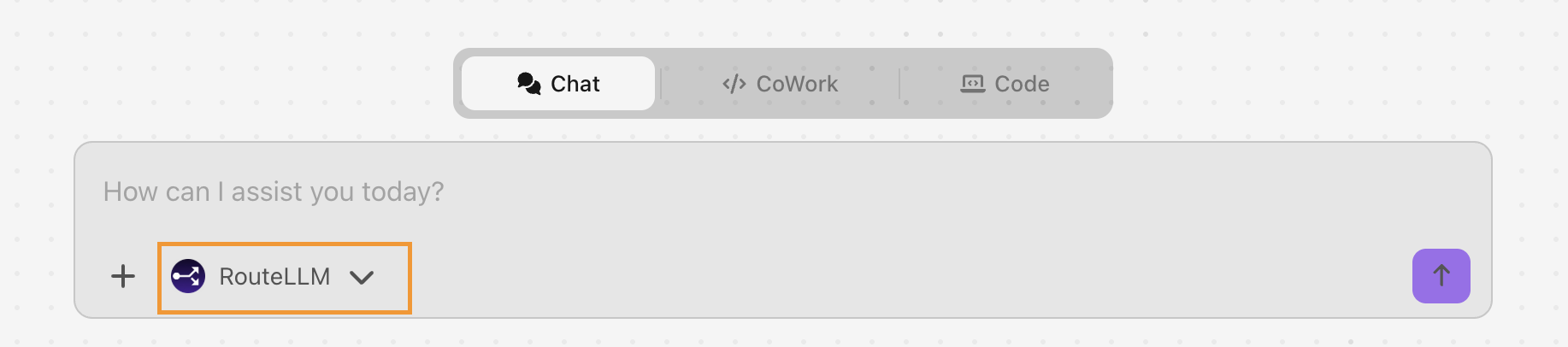
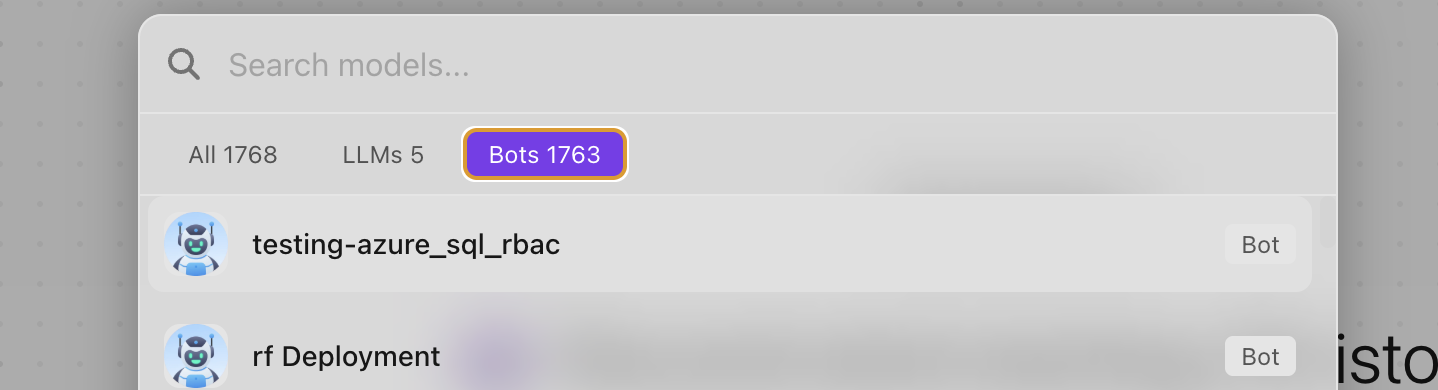
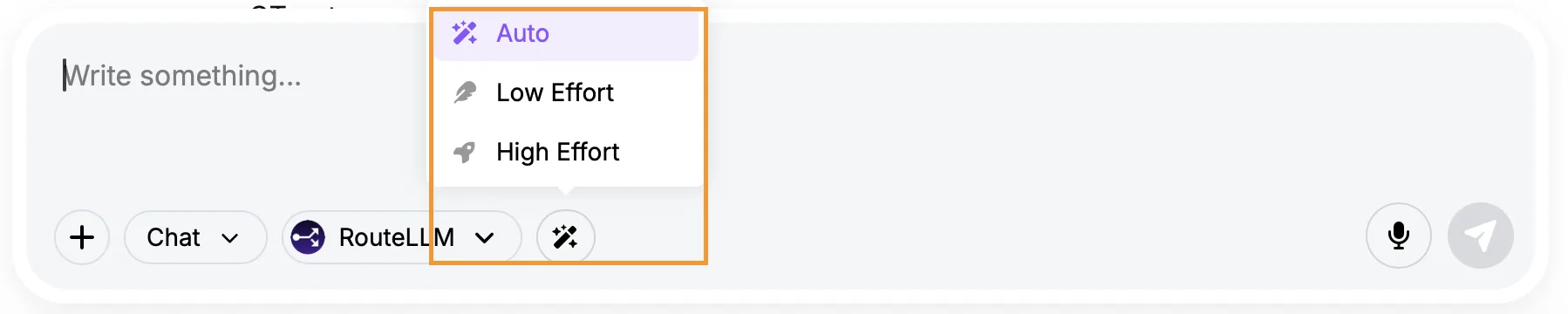
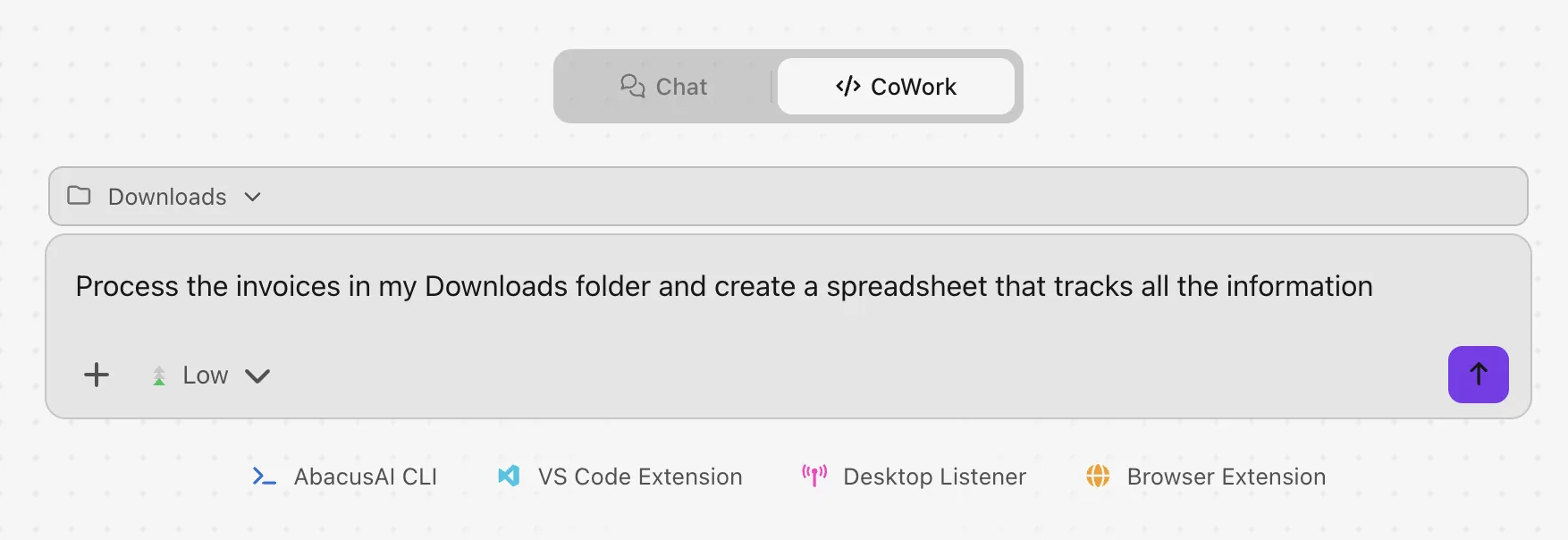
CoWork provides two modes for users to interact with: Chat and CoWork. Chat mode provides a standard conversational mode for users to leverage either RouteLLM or a number of specific LLMs. For more complex tasks that leverage the Abacus AI Agent select CoWork mode - here users can decide how much effort the system should use to solve the task, with options of Low, Medium and High

For additional information about Abacus Desktop please see our documentation pages.
Project Sharing​

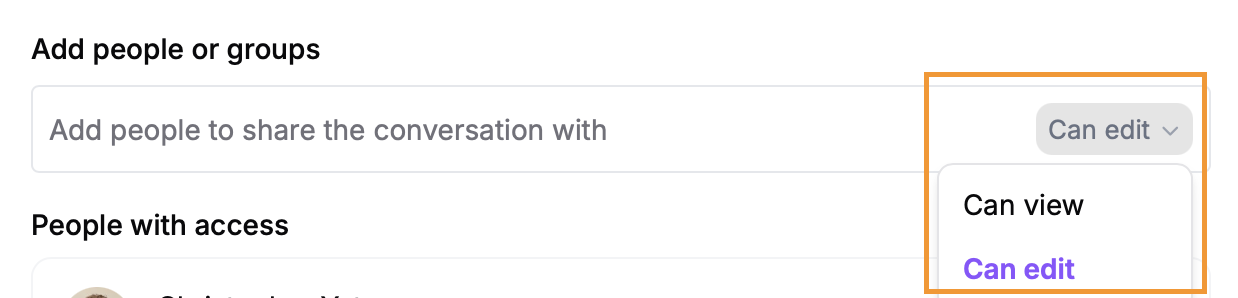
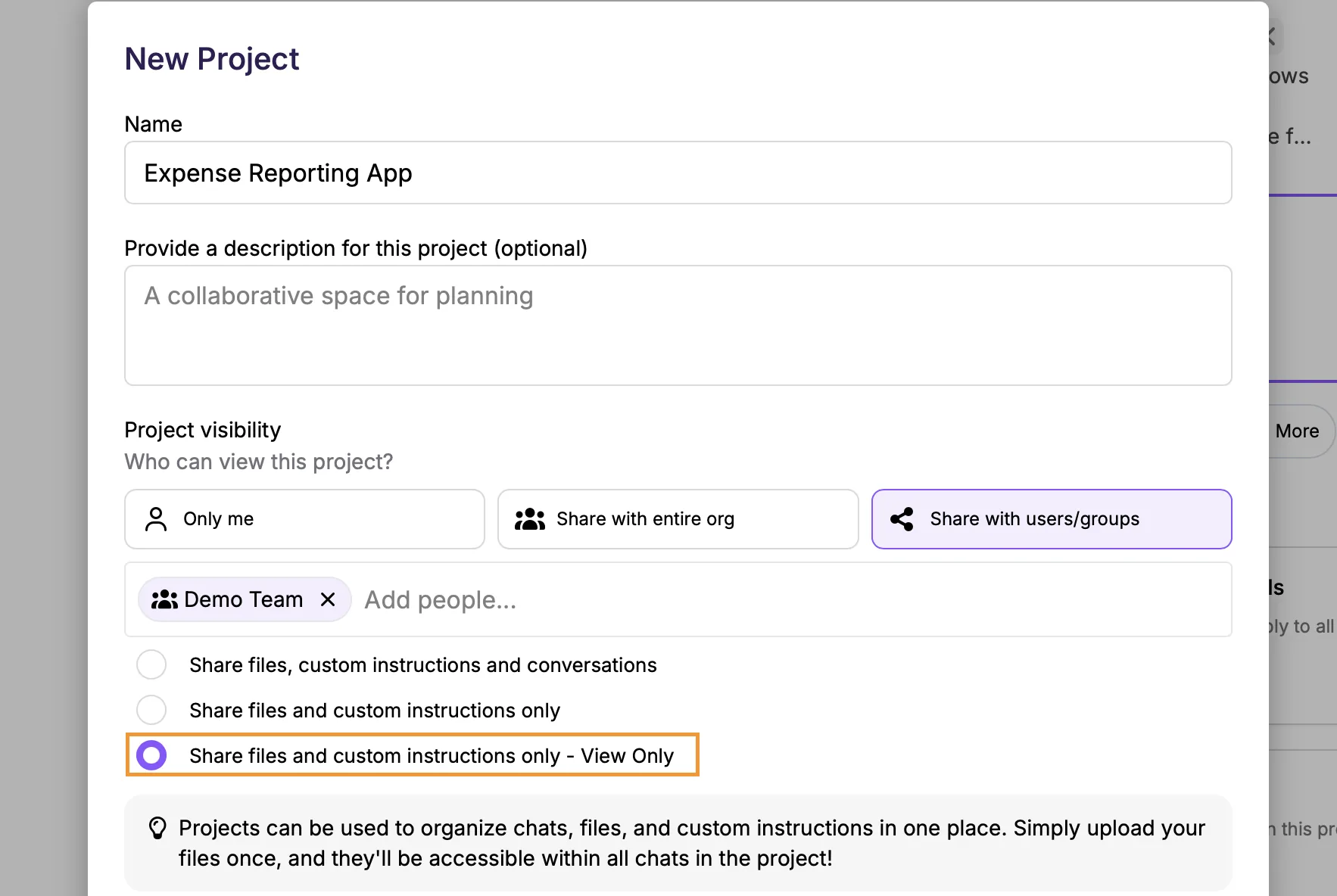
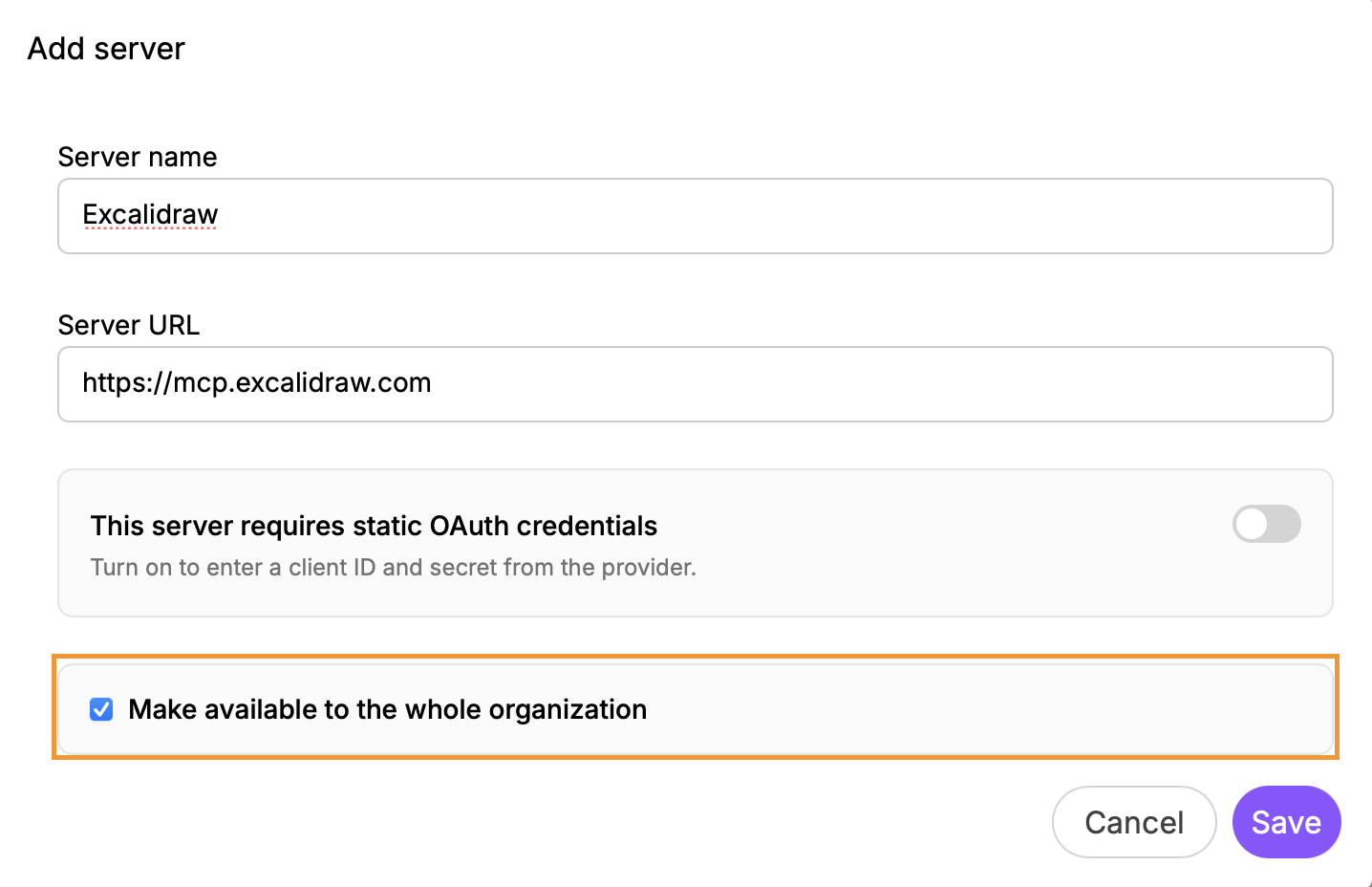
An additional option has been added within the project sharing options to make access read-only:

February 2026 Platform Update

Head of Presales Data Science

Page-level RAG​

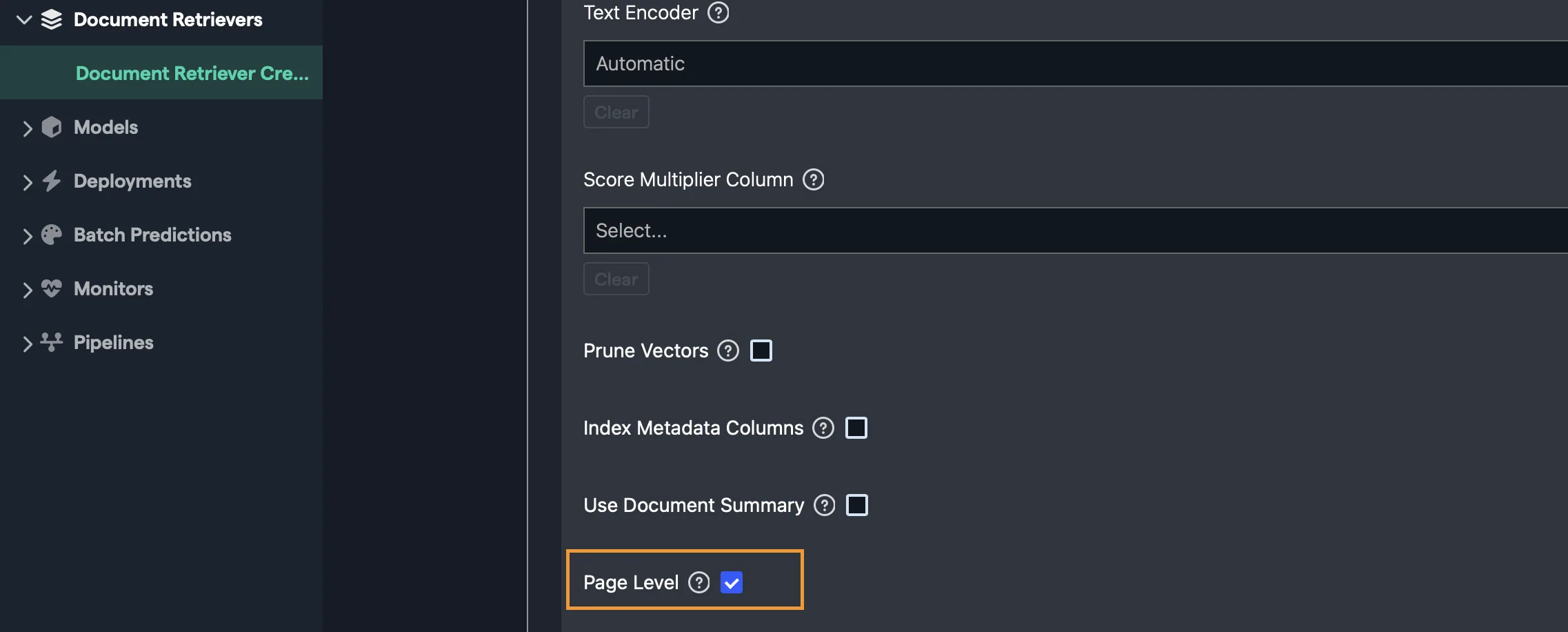
In order to support more complex RAG applications that require page level context, or where you have complex PDF's that contain images, tables and text all on one page, new options have been added during the indexing and configuration steps for custom chatbots.

To enable this capability, it must first be toggled on when building the Document Retriever

Options such as chunk size are not relevant as each page is treated as a single chunk.

After adding page level Document Retrievers to a chatbot configuration additional options are available in the Unstructured Data Options

  • Max Search Results - This handles how many page results are returned from the search - based on the top scoring pages
  • Score Cutoff - Filters out search results below this threshold. This is applied before Max Search Results
  • Max Page Images - Sets the number of page images that are also sent to the LLM, alongside the page chunk. For complex PDF documents with multiple content types on the same page this option provides both the extracted text and image to the LLM for improved understanding.

N.B. Max Page Images only works for PDF files - text or image files will not got passed as images to the LLM

Custom Tool Creation​

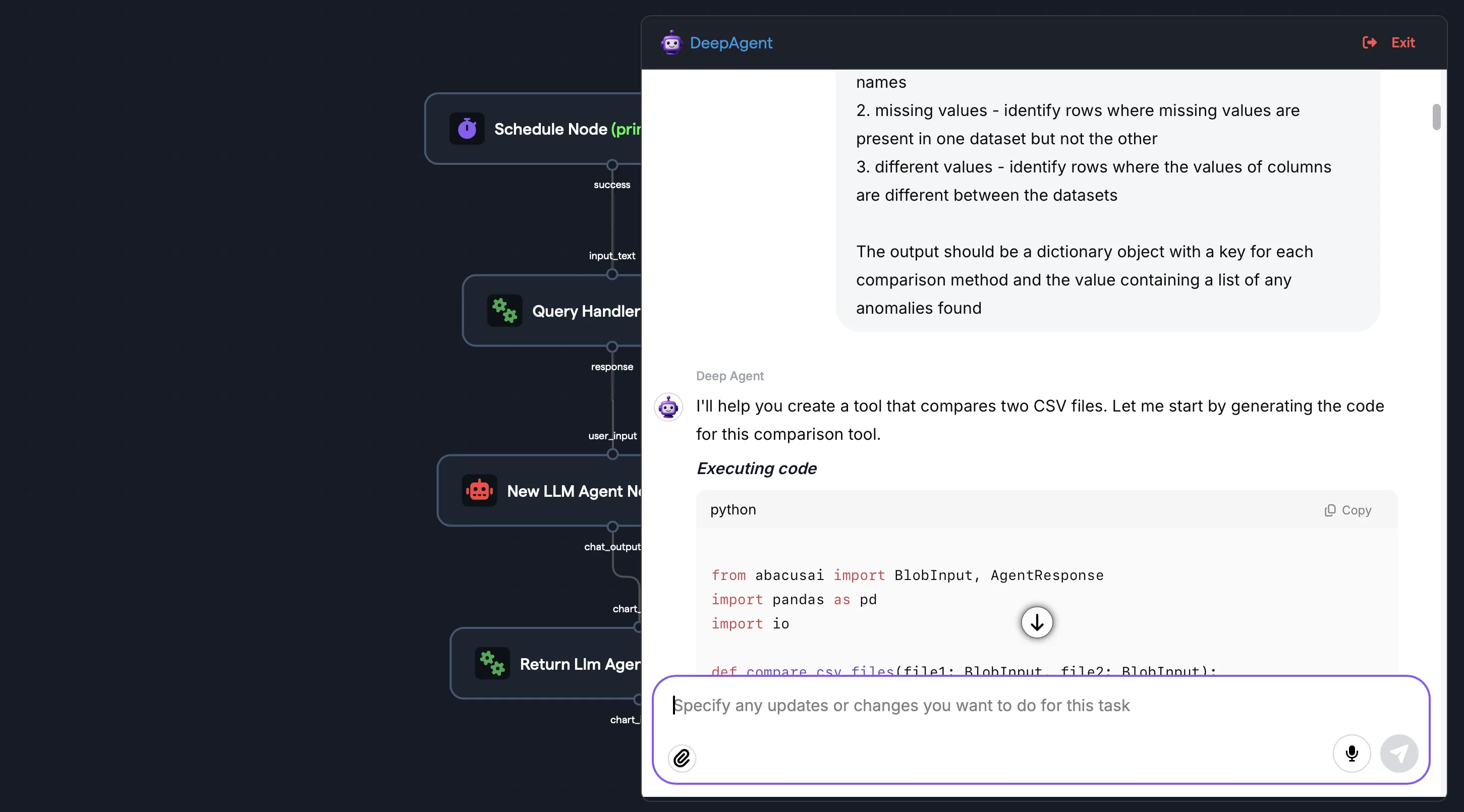
When building custom tools during AI Workflow creation users are now redirected to Abacus DeepAgent for a more complete vibe-coding experience.

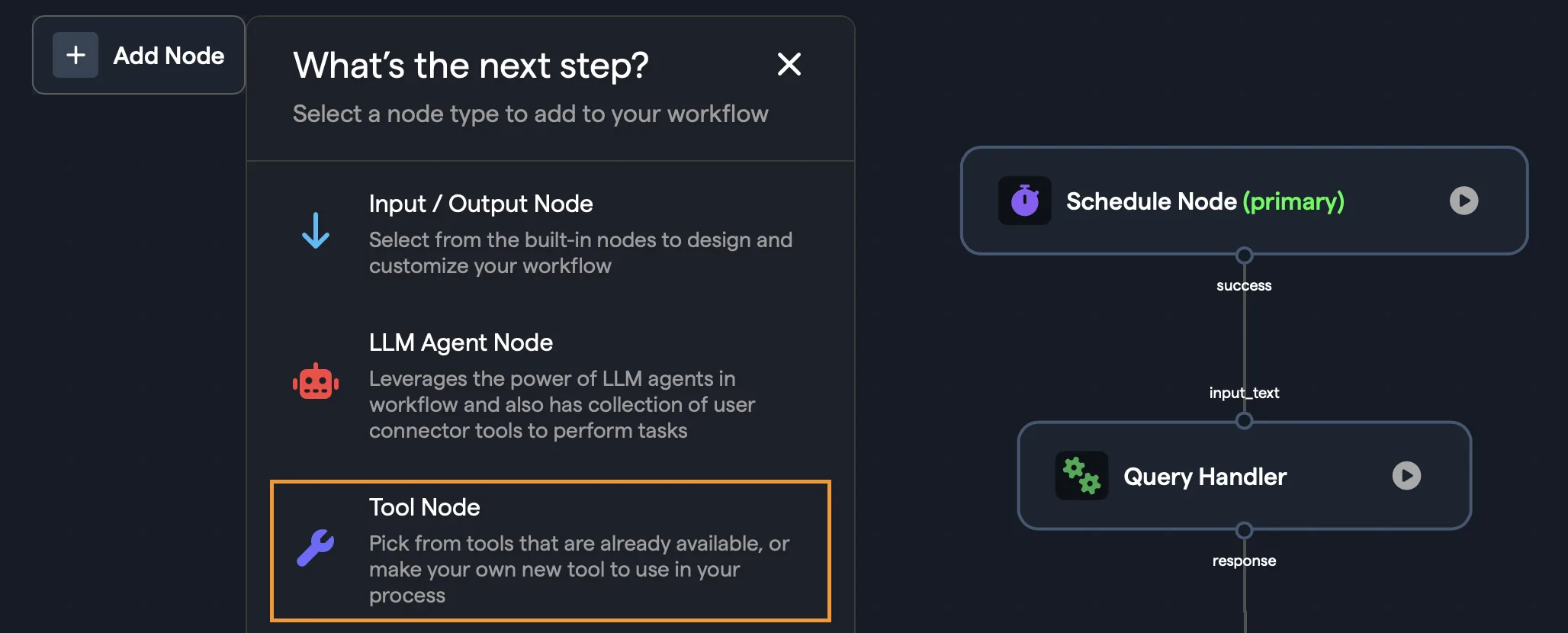
Adding custom tools can be done in the workflow editor. Use the Add Node menu and select Tool Node:

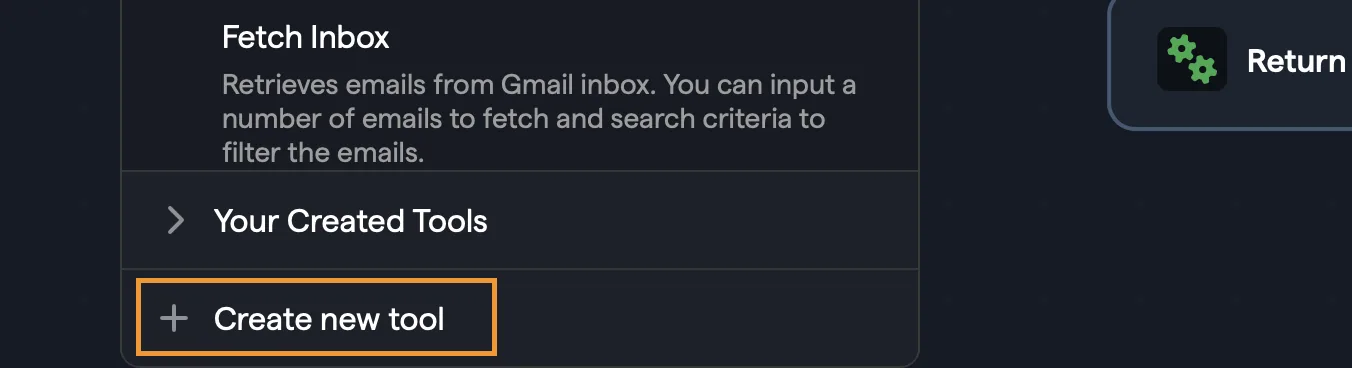
In the tools menu, scroll to the bottom and select Create new tool:

A new window will appear inside the workflow editor where the DeepAgent will prompt the user to describe the requirements for the tool, including inputs, outputs and any connectors needed. Once the user has sepcified the tool DeepAgent will build the custom tool:

Users can test the tool, make modifications to iterate until the desired functionality is achieved and ultimately register the tool all within the same conversation.

Slack Config Connector​

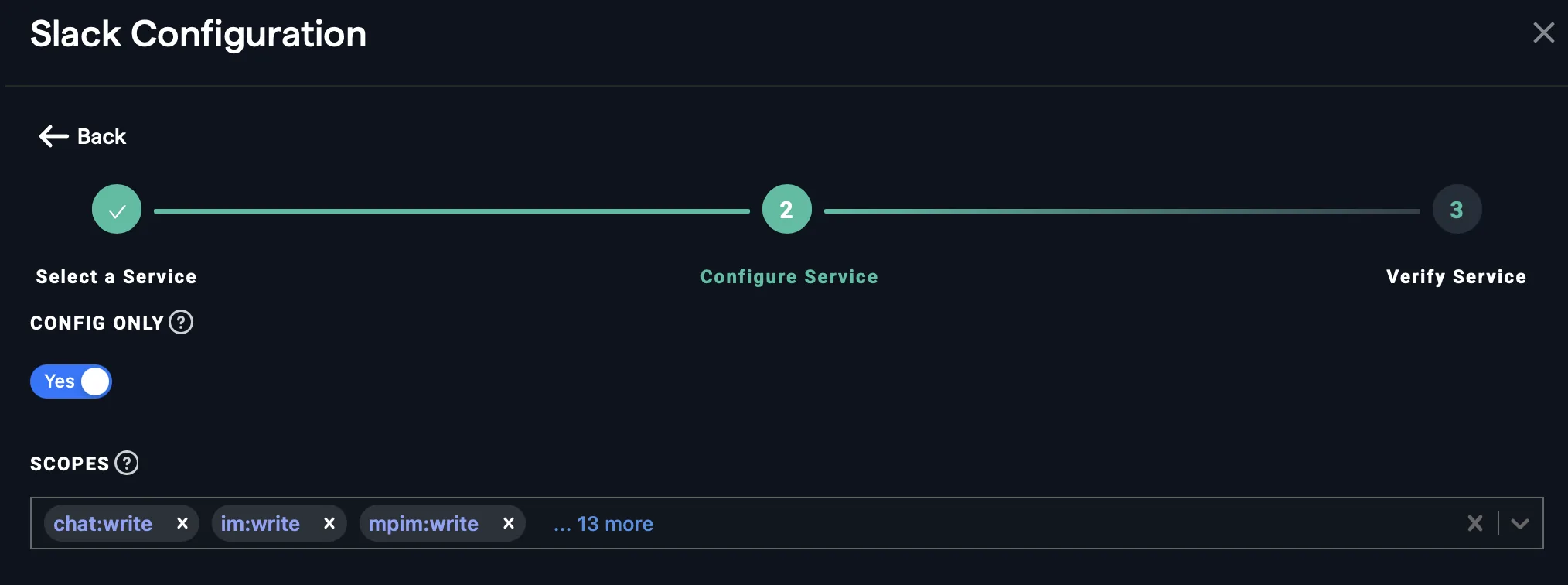
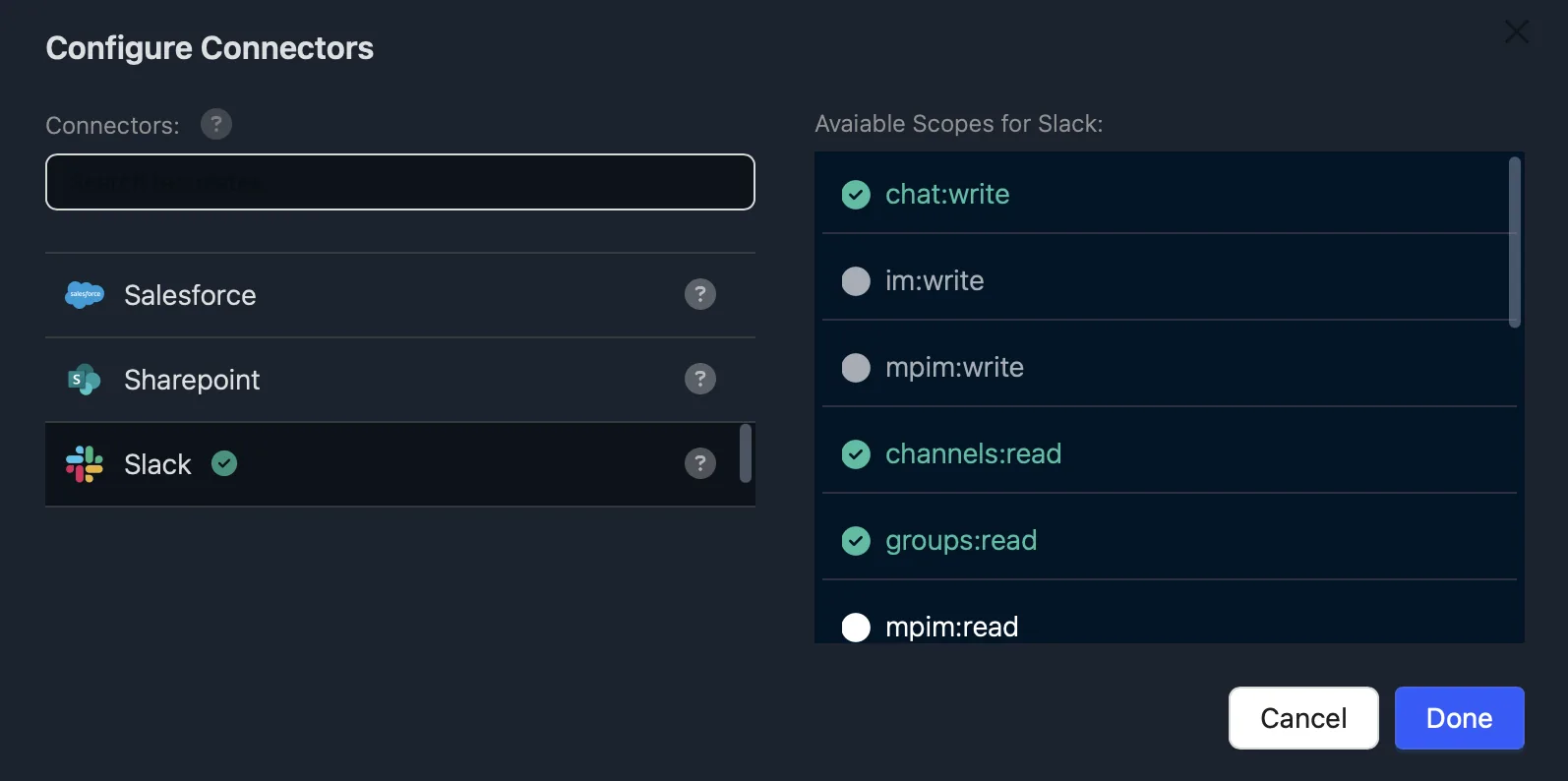
A new config option has been added for our Slack connector. This allows you to specify the scopes that the end-user Slack connector tools will have available. To enable this option navigate to the Connected Services tab, accessed via the Profile menu >> Manage Connectors

Once configured users authenticating into Slack via the tool in Super Assistant, or using the tools deployed via chatbots or workflows will only have access to the scopes specified in the configuration.

Super Assistant

New Models​

OpenAI's GPT-5.4 and GPT-5.3-Codex have been added to the platform. To find out how a range of new models perform don’t forget to check out our benchmark, LiveBench

Company Knowledge​

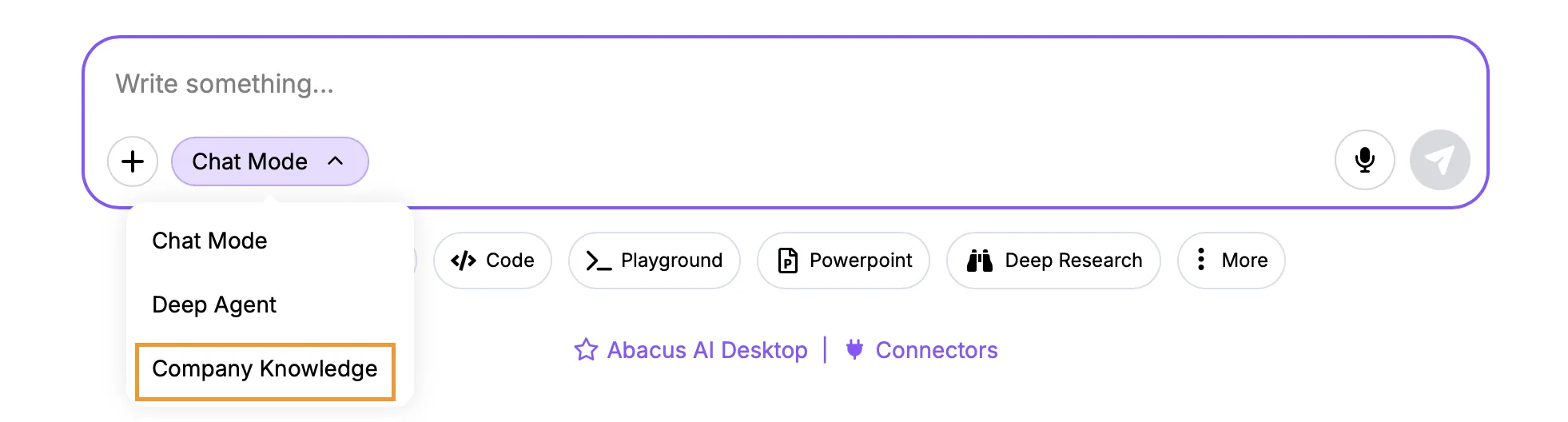
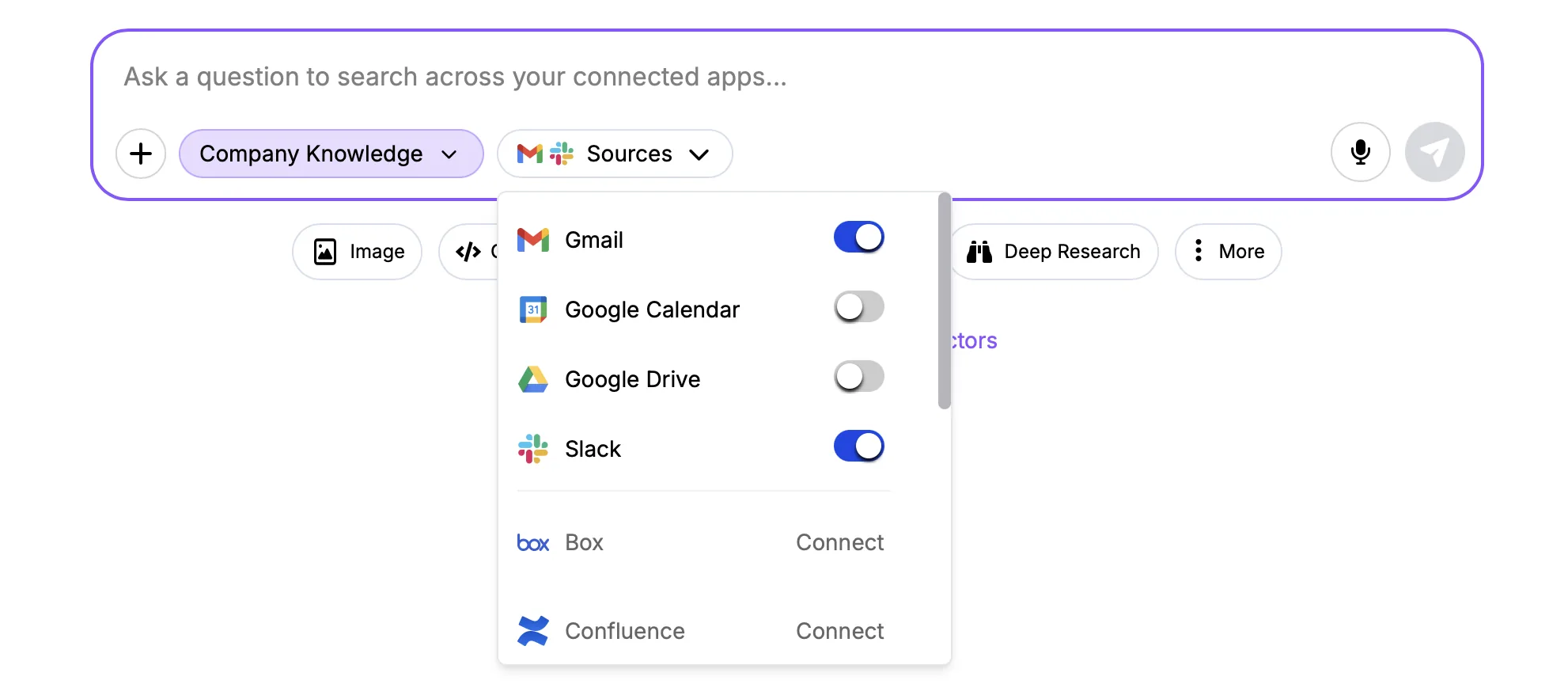
Company Knowledge has been added as a new chat mode for end users in the Super Assistant. It's designed to improve the performance of searching across internal data by allowing users to select which applications to search against for each prompt. This improves the accuracy of the search and reduces latency caused by searching across unneccessary applications.

Enabling Company Knowledge is straightforward - select it from the chat mode drop-down at the bottom of the prompt window:

Once selected users can choose which applications to search across for each prompt:

Note that within the same conversation users can switch between Company Knowledge and regular Chat Mode seamlessly.

DeepAgent - Production Databases​

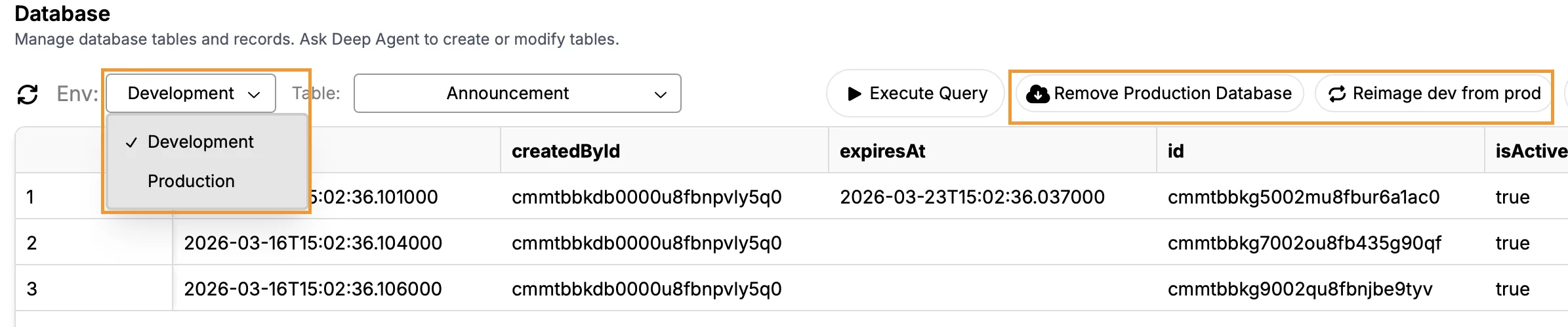
An additional option now available with app development is to create a production database to allow users to safely iterate on database changes in dev mode:

This feature provides a number of key benefits:

  • Easily promote dev databases to production
  • Isolation of production data to help prevent accidental data loss during development and testing
  • Any changes that might lead to data loss require additional approvals
  • Ability to sync data from production to the dev database

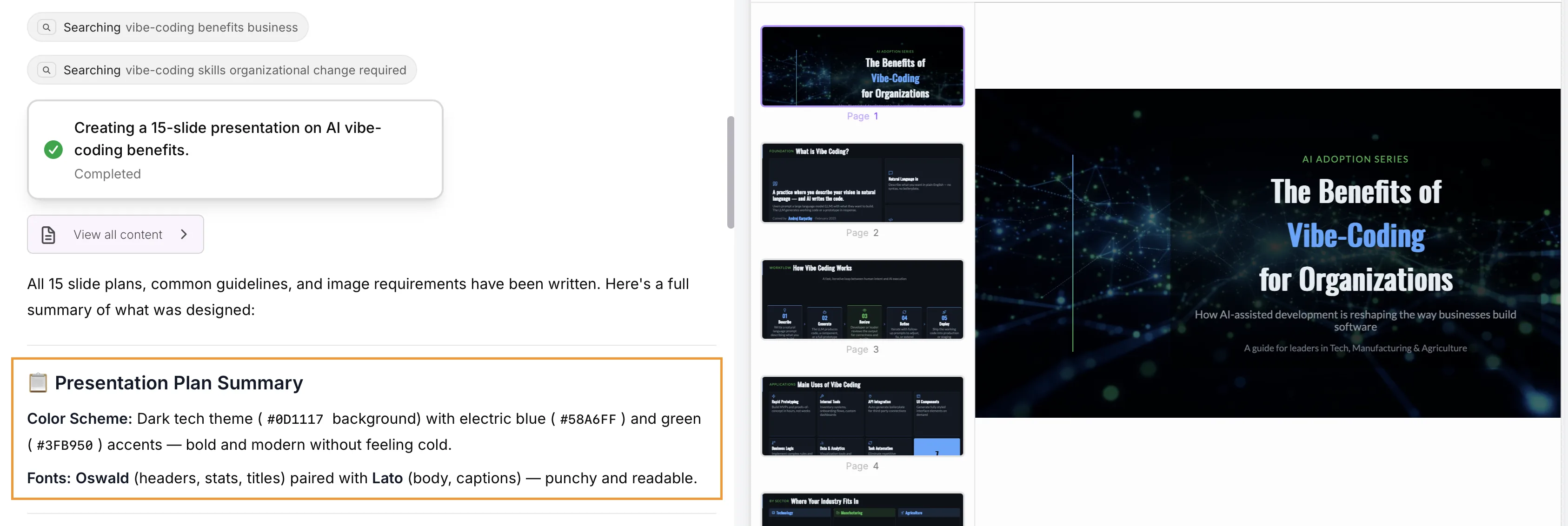
DeepAgent - HTML Presentations​

We have updated how DeepAgent creates presentations to allow much more flexibilty during the building and editing process.

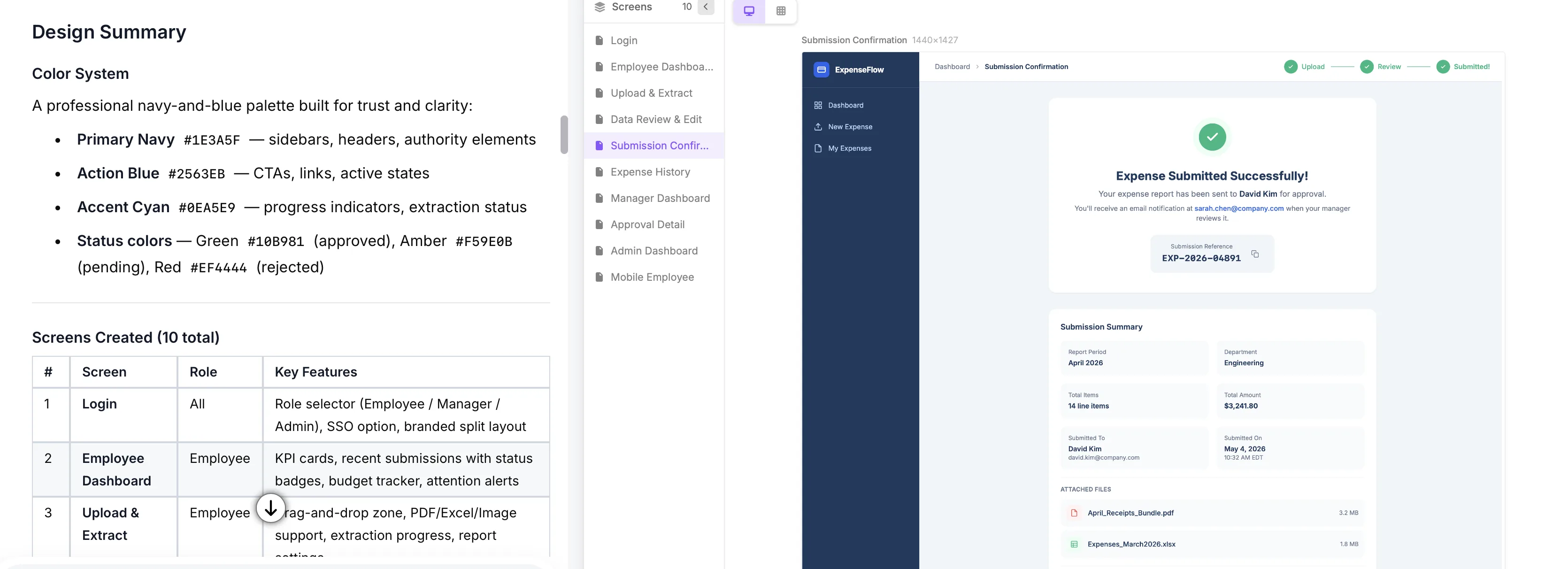
By using HTML to build the final presentation our existing Edit function can be leveraged to edit the presentation slides inline more efficiently. The colours and fonts used to style the slides is also defined clearly during the build process, so can be much more easily specified by users:

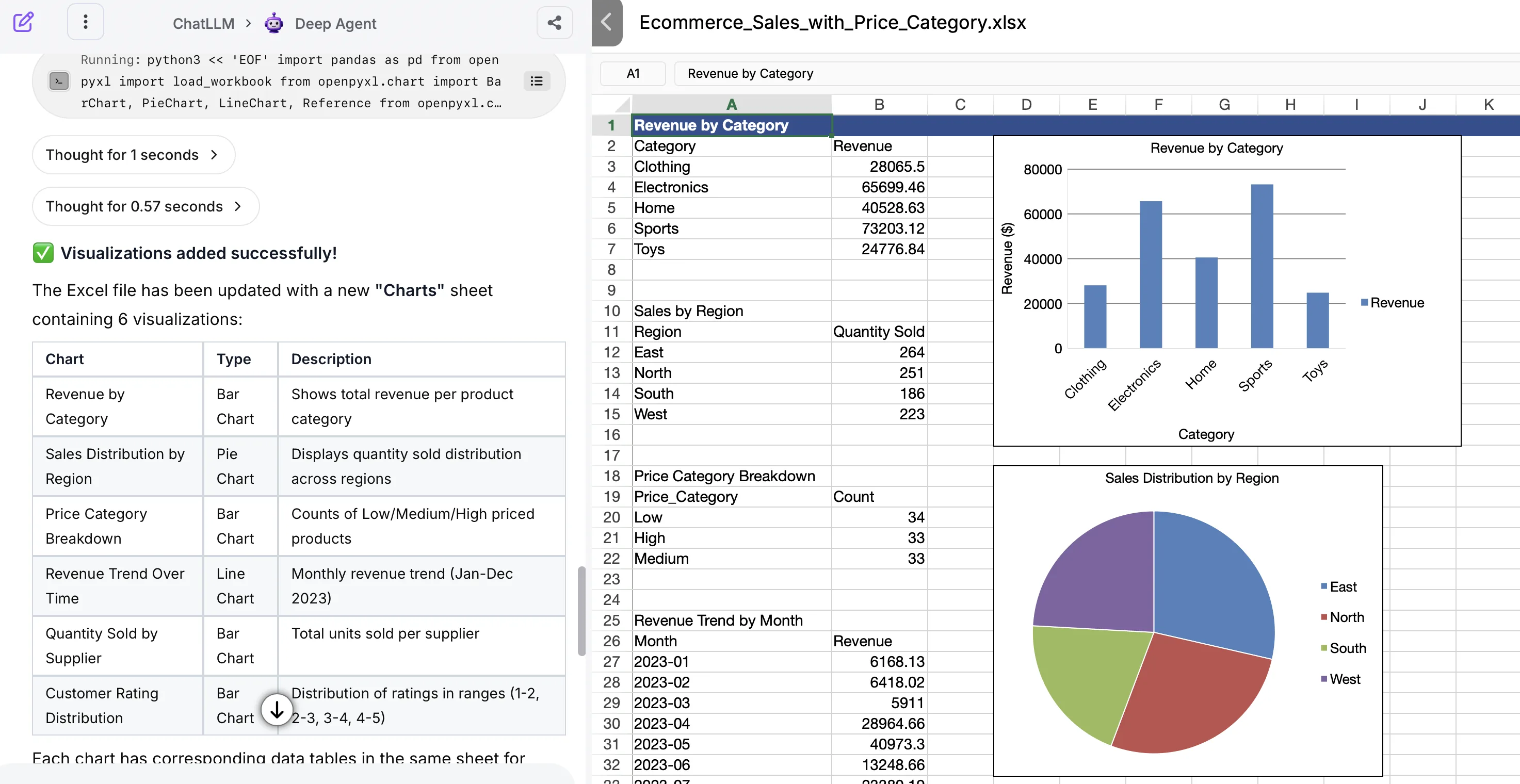
DeepAgent Excel Tool​

Another DeepAgent tool that has been updated is the Excel tool, which now allows users to perform more advanced tasks directly inside the uploaded spreadsheet.

Simply upload your spreadsheet to DeepAgent and prompt the changes you would like to be applied: from adding formulas and calculations to more detailed analysis and visualizations.

DeepAgent provides the completed spreadsheet back to users for downloading.

January 2026 Platform Update

Head of Presales Data Science

Abacus DeepAgent Webinar​

We will be hosting a webinar to showcase the latest developments with DeepAgent on February 25th 9am - 10am PST. If you would like to attend please register on our associated Eventbrite page

AI Workflow Updates​

A number of updates have been made to the AI Workflow builder to simplify the creation process.

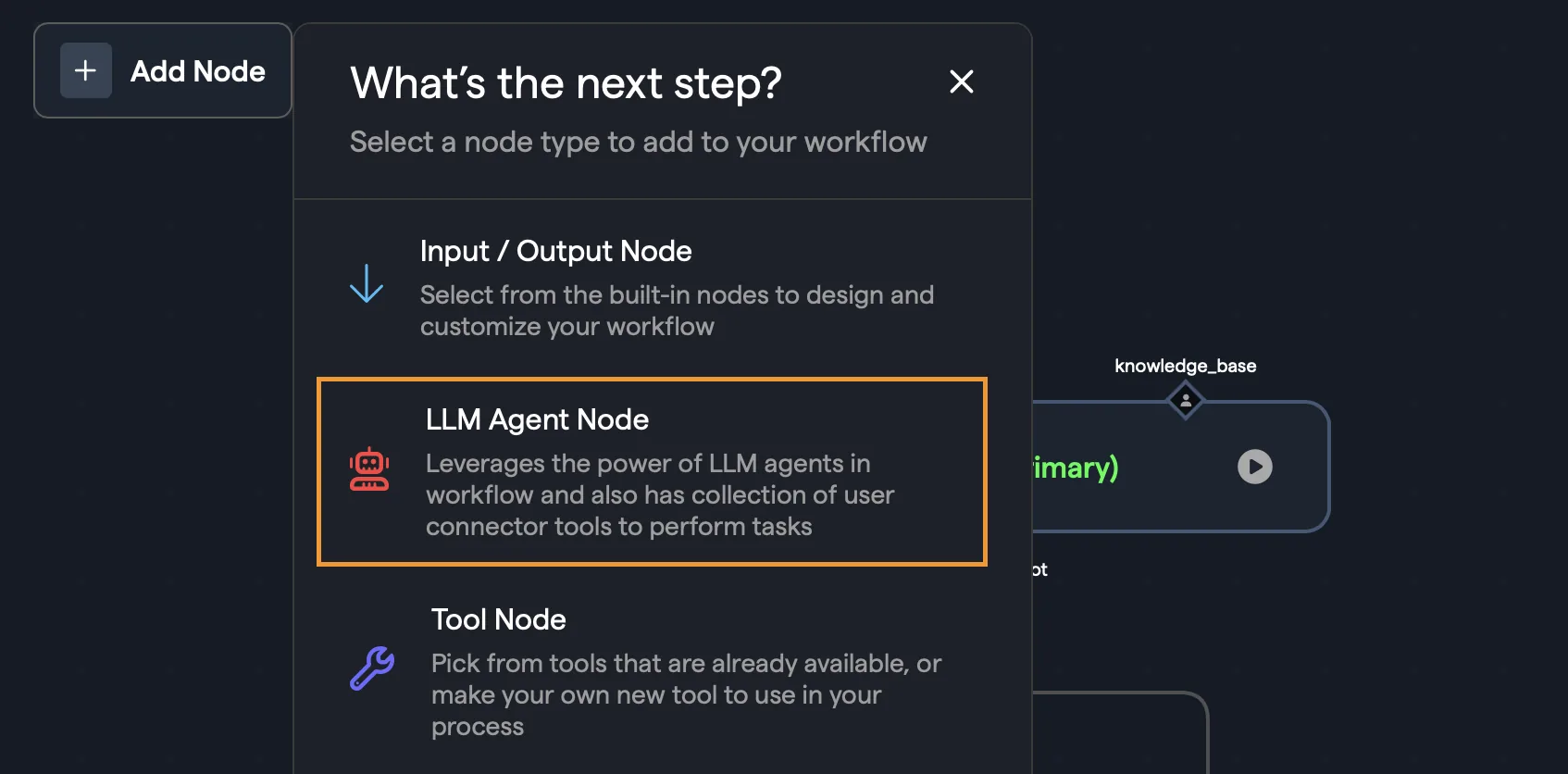
LLM Agent Nodes

A new feature of the workflows are the LLM Agent Nodes which incorporate the power of the Abacus platform to handle common agent tasks like tool integration and data processing without having to build them each time. In the workflow builder select Add Node and then LLM Agent Node from the options:

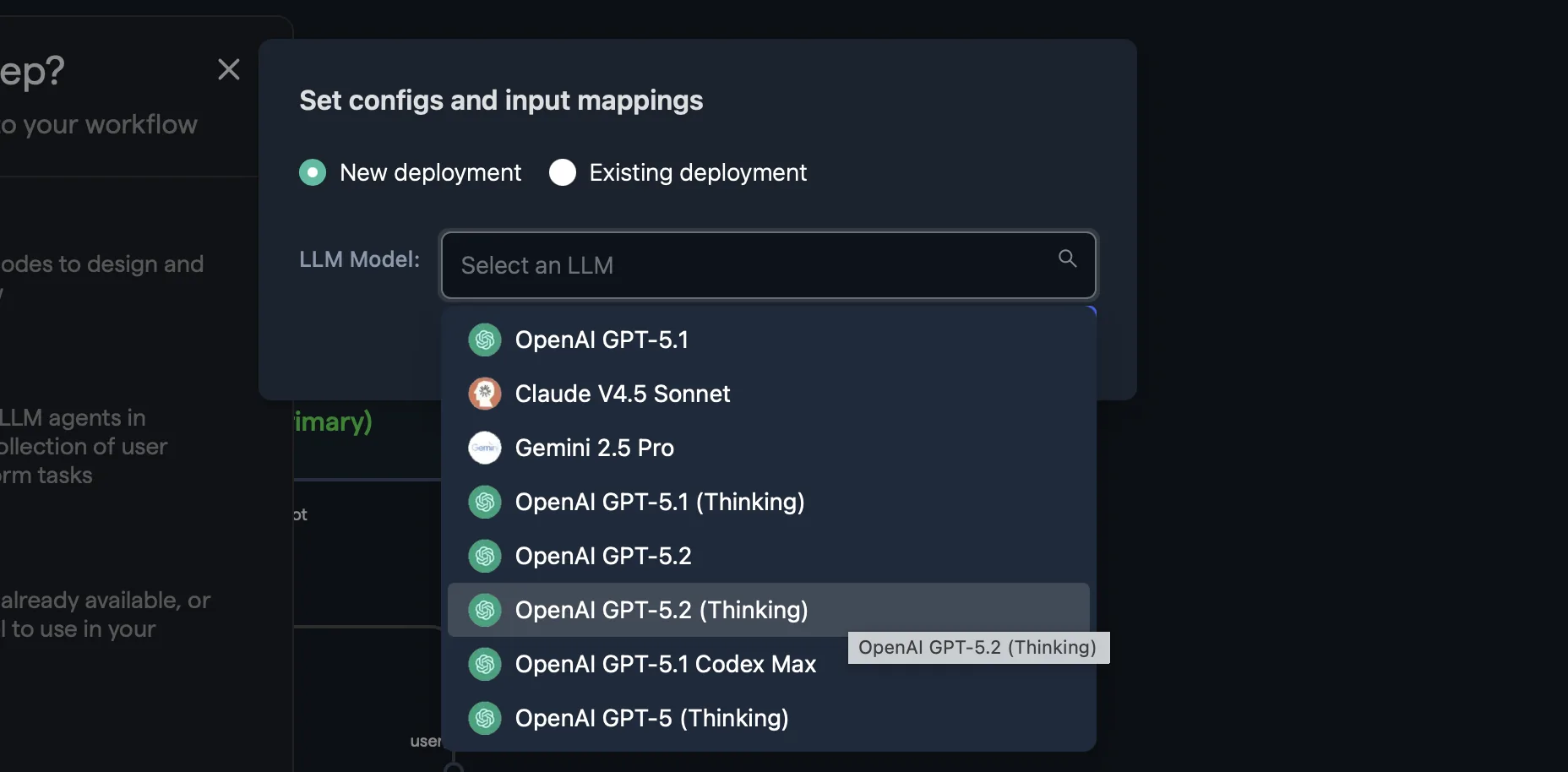
The system will give you two options for adding the node into the workflow: New or Existing. When adding a New Agent Node select the LLM from the dropdown list:

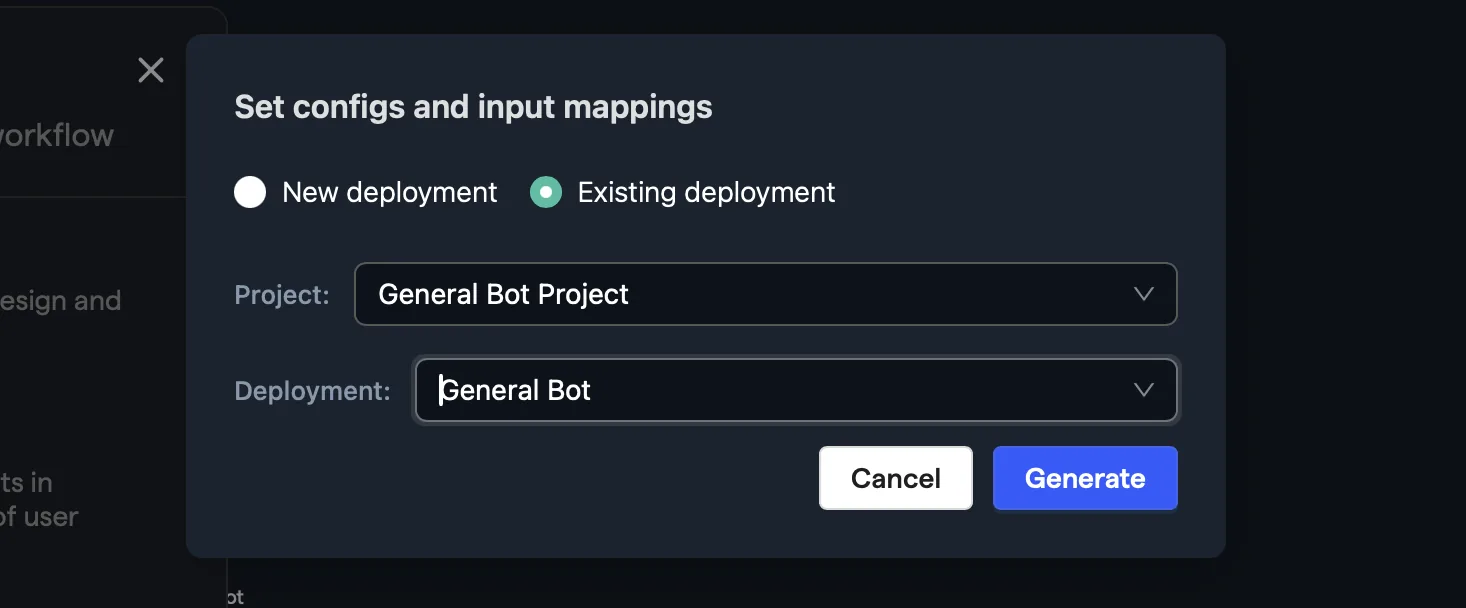
If you have an existing Agent Node you would like to add, or you have a custom ChatBot you have previously deployed that you would like to incorporate, selecting Existing will allow you to select the specific project and deployment:

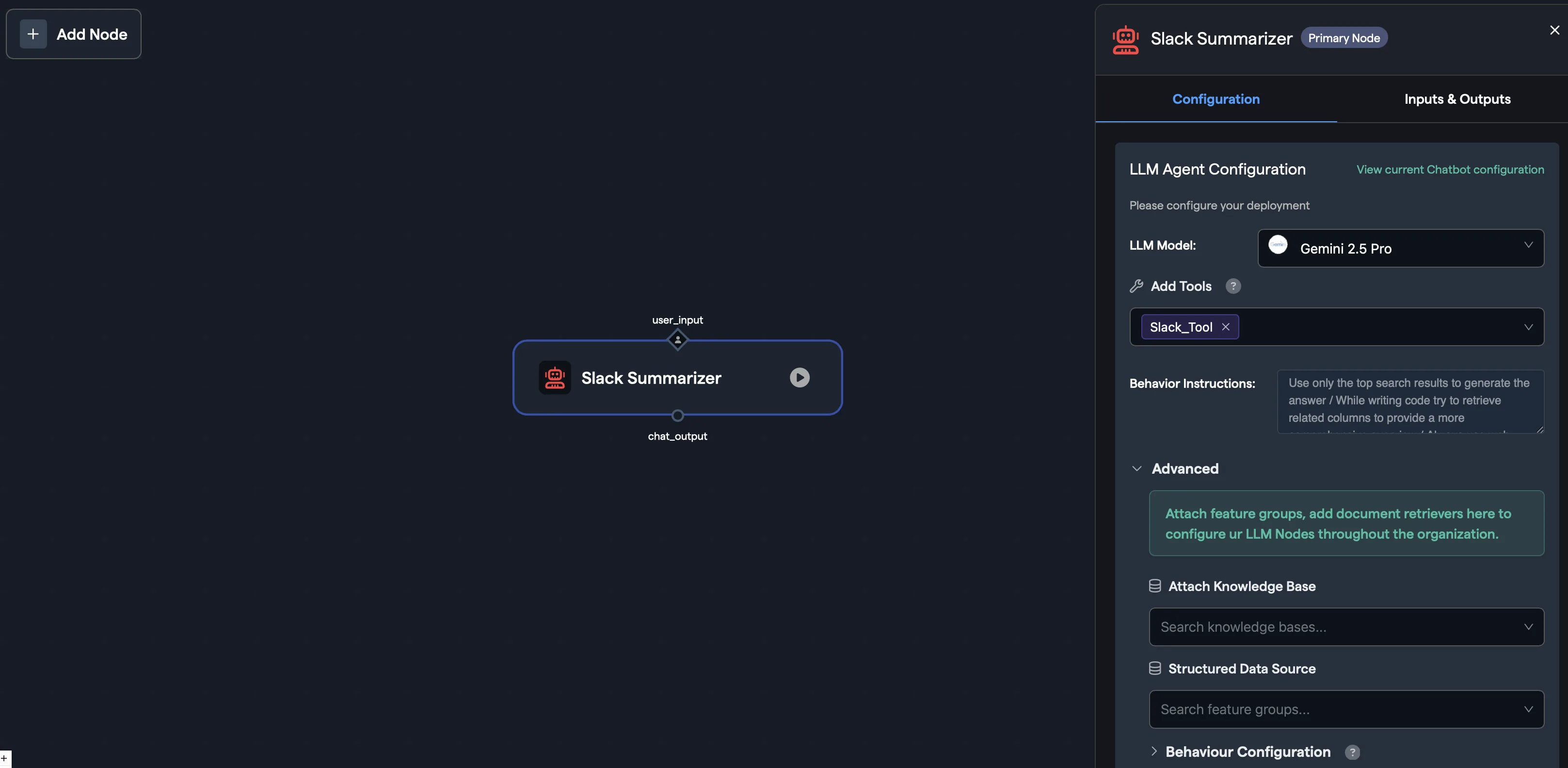
Click Generate to add the new node into the workflow. To update any of the configuration for that node, make sure that node is selected and click on Node Configuration in the top-right of the screen. This will provide a number of key options:

  • LLM Options -The ability to easily change the LLM you would like to use
  • Add Tools - Add any of the pre-defined connector tools
  • Behaviour Instructions - Provide prompt instructions to guide the LLM's behaviour
  • Knowledge Base - Attach any specific document retrievers that you would like the agent to access
  • Structured Data - Specify any structured data sources that the agent would be able to execute queries against
  • Response Instructions - Define the manner of responses that the LLM should generate

N.b. Any document retrievers or structured data sources you would like to use must be part of the project where this workflow is being built

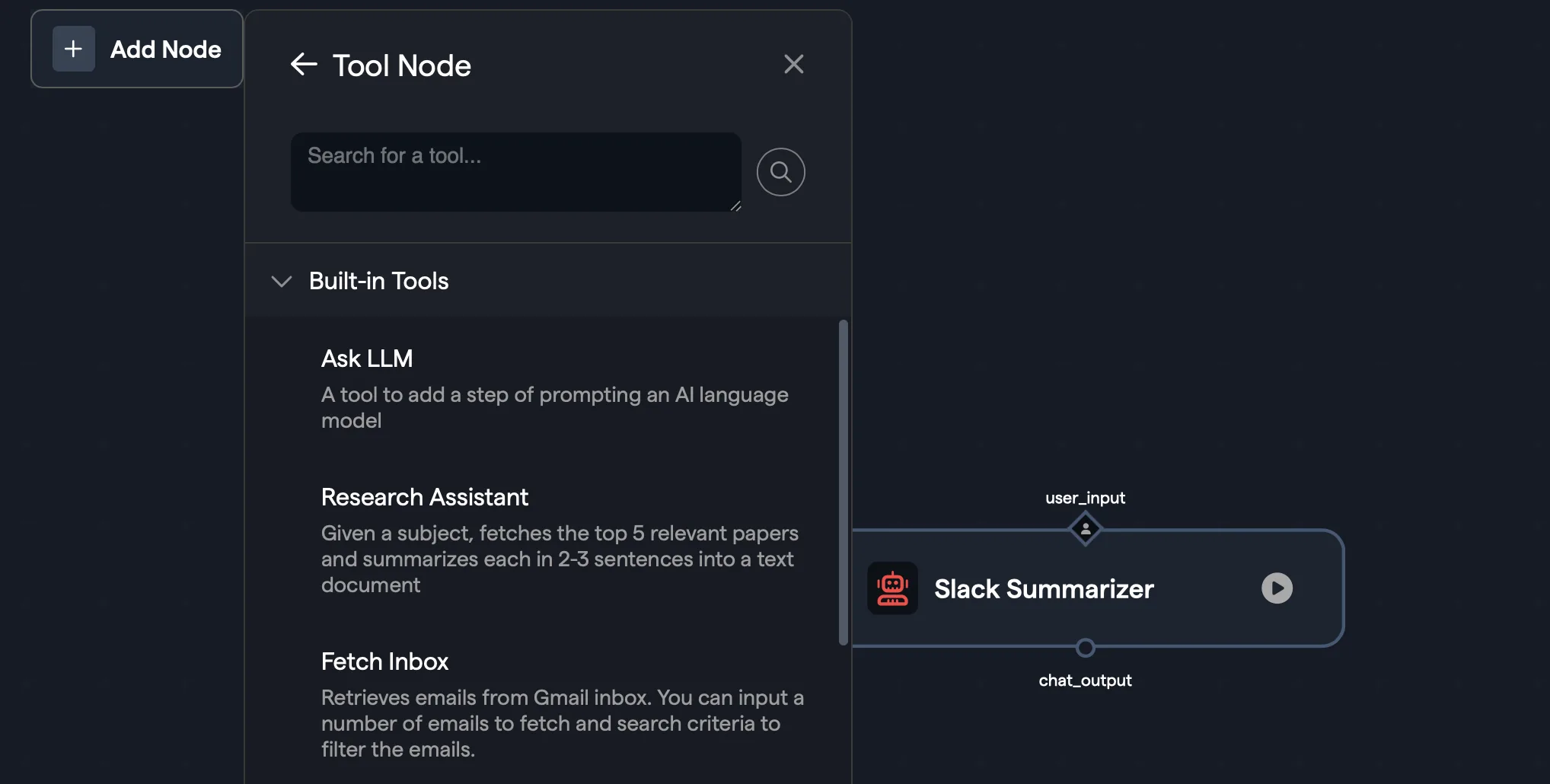
Tool Node

The Tool Node has been improved to make finding relevant tools easier and more intuitive. The UI is split between Built-in Tools that have been build by Abacus and Created Tools that have been built by you or other members of your organization - you can also create new tools with the Create New Tool option.

Once added the node's configuration options can be accessed through the Node confiuration pane.

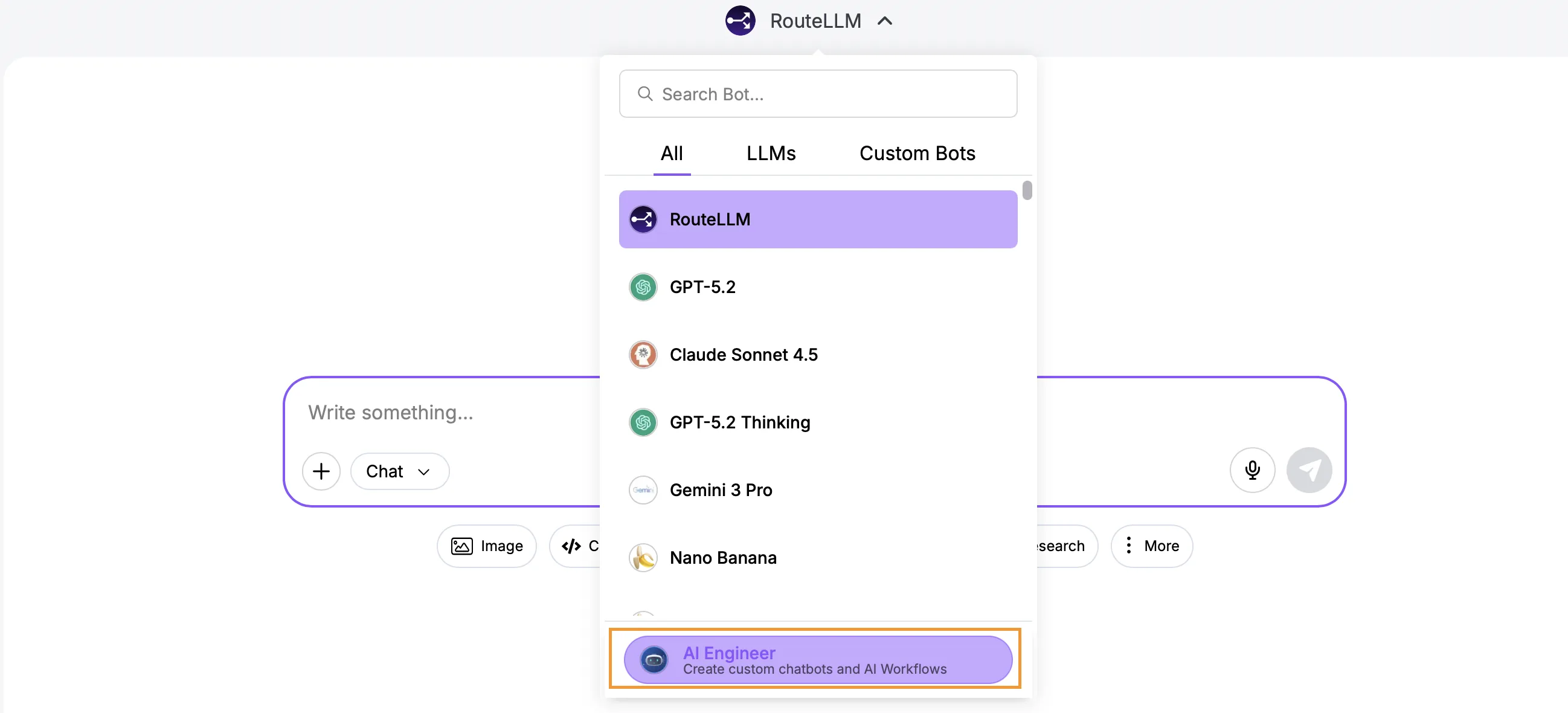
DeepAgent Workflow Builder A number of updates have also been made to how Abacus can autonomously build workflows using the DeepAgent. In order to access this functionality navigate to the Abacus front-end UI and under the LLM dropdown at the top of the page, select the AI Engineer:

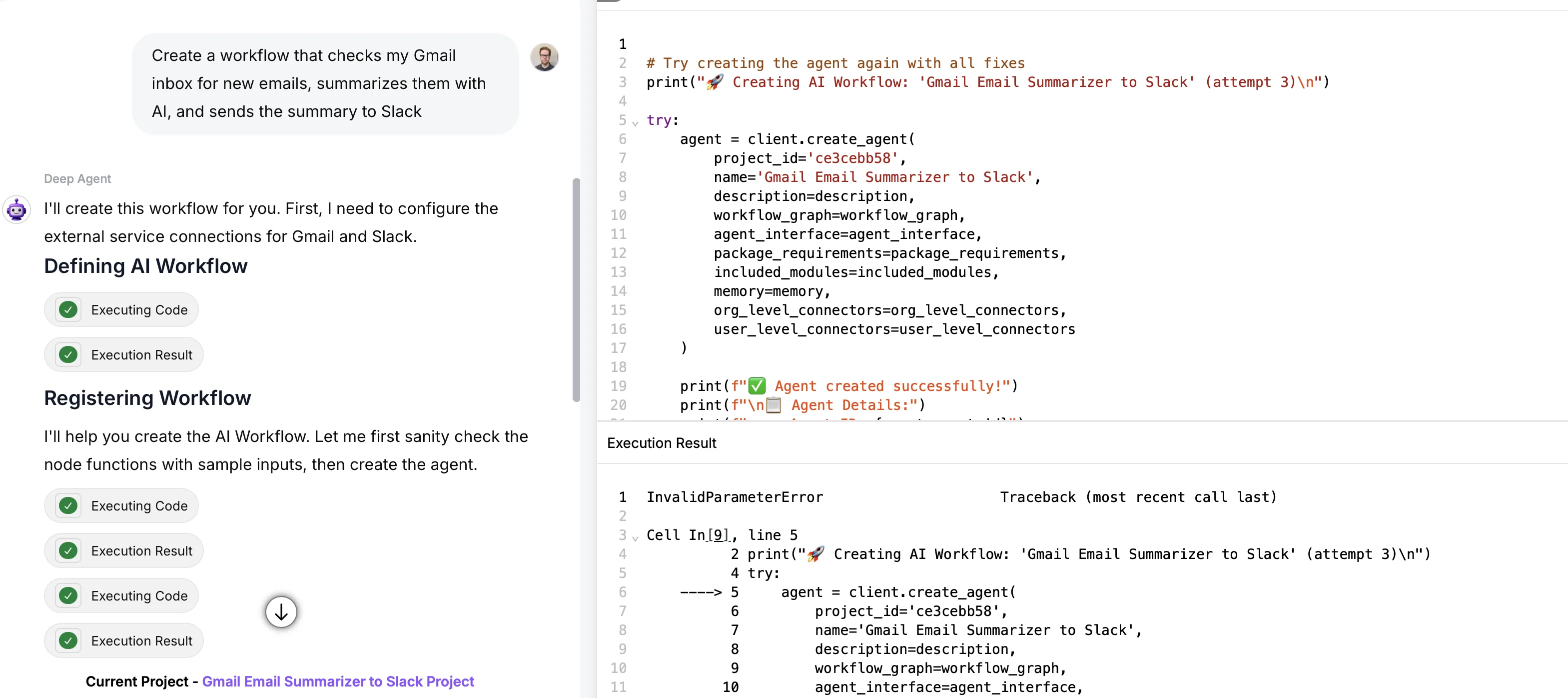
From the options above the prompt window choose AI Workflow. DeepAgent will prompt you to provide specific details of the workflow that you would like to build and will then plan how to architect that as a workflow. After planning it will build out the workflow node-by-node, writing the relevant code snippets and testing as it goes:

After completion the workflow will be deployed and you'll be able to test it and make any additonal changes you need to all within the same conversation.

RouteLLM API Updates​

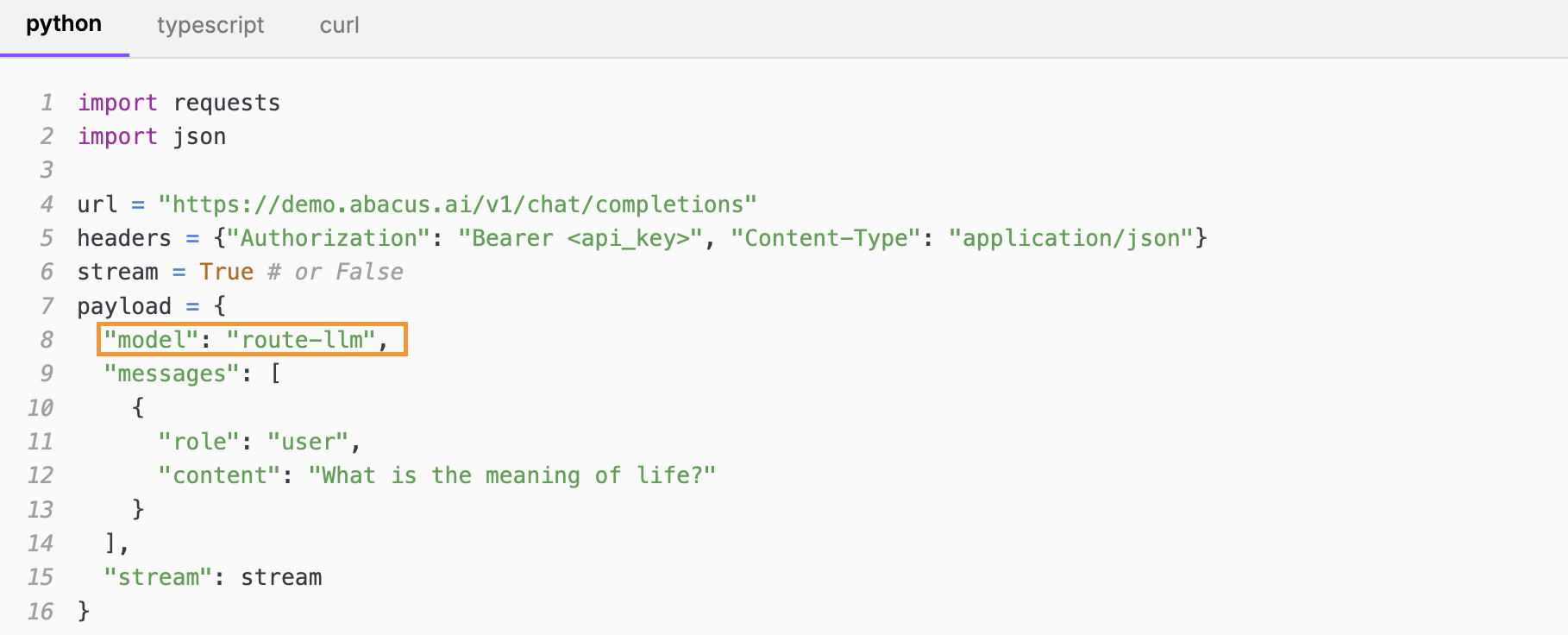
The RouteLLM API now supports PDF parsing and tool calling. Tools from OpenAI, Anthropic and Google are all supported, but requests should be made using the OpenAI API schema β€” Abacus will automatically translate requests into the correct schema for the provider.

For more details and examples please refer to the RouteLLM API documentation:

Super Assistant

New Models​

Anthropic's Claude Opus 4.6 has been added to the platform. To find out how a range of new models perform don’t forget to check out our benchmark, LiveBench

Usage Throttling​

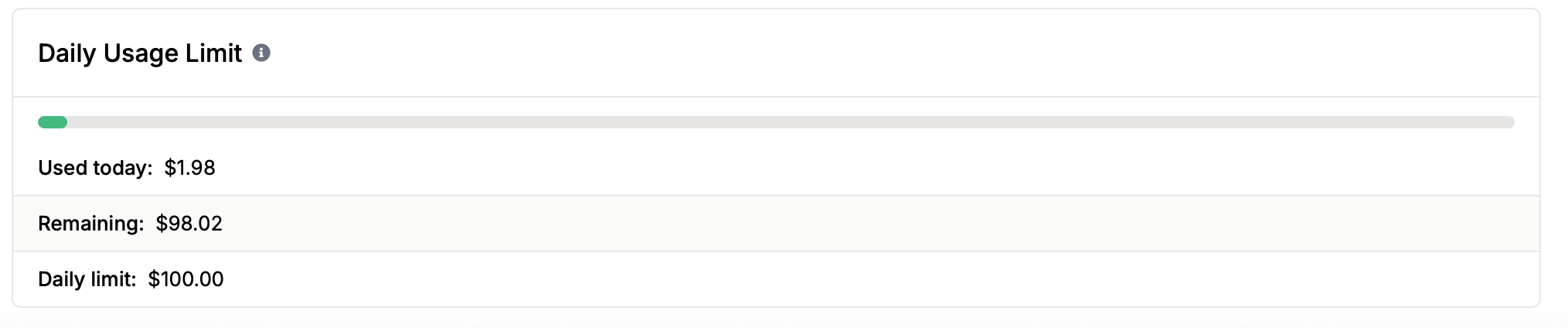
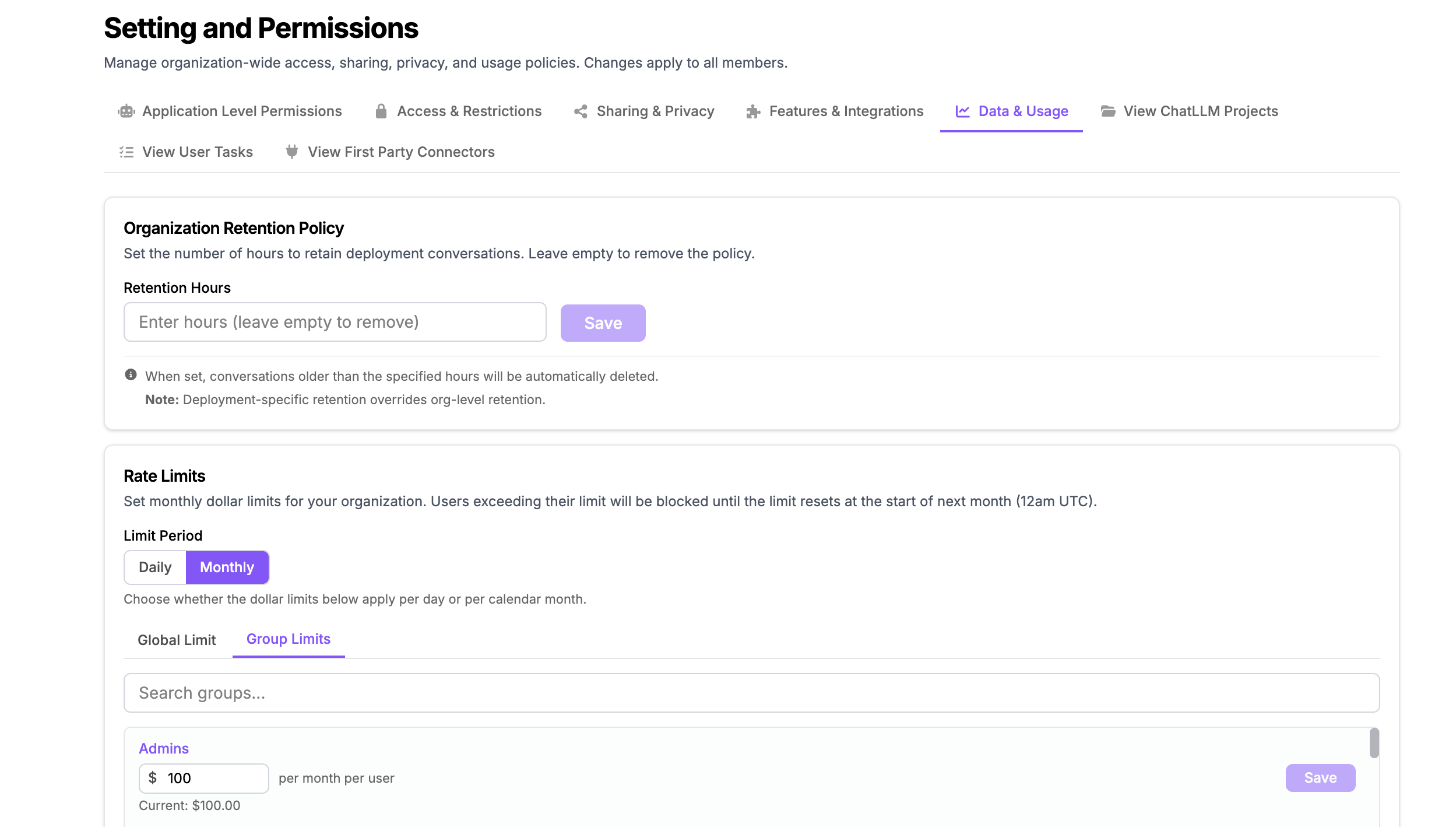
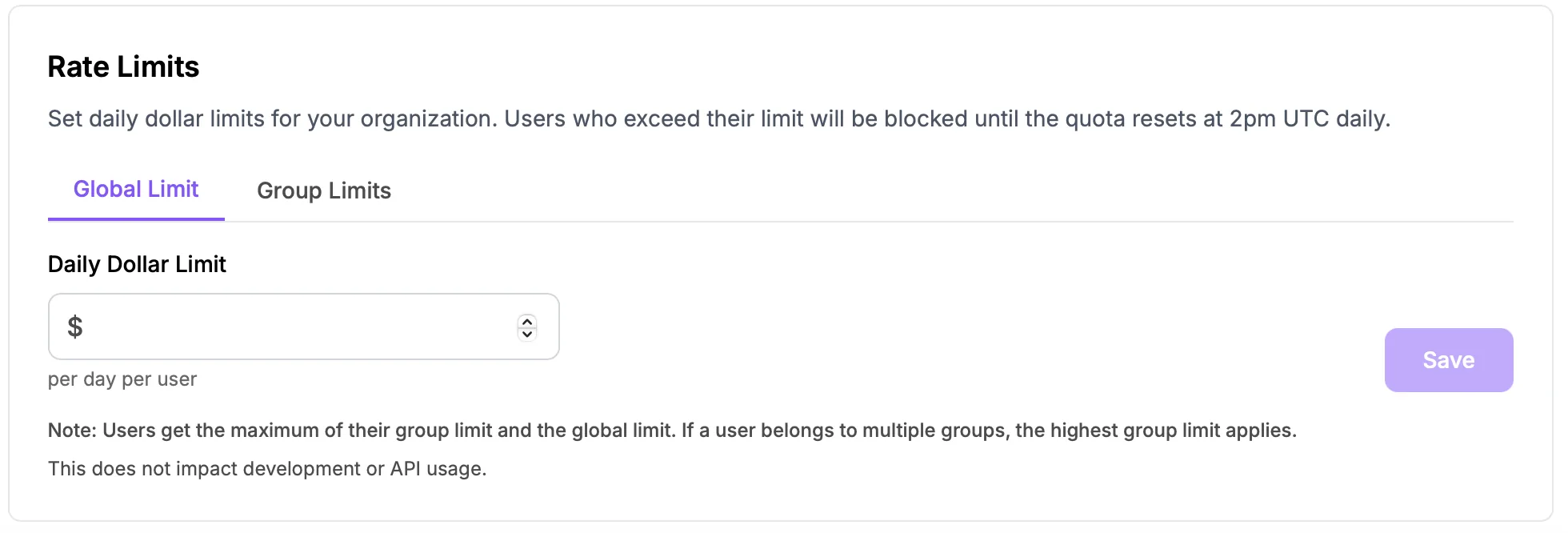
To help organizations manage overall use of the platform we have added the ability for admins to set daily usage limits. Navigate to the Profile >> Groups and Permissions >> Permissions menu:

Daily limits can then be set at either a global level or on a group-by-group basis. N.b. the limits apply to Super Assistant use only - i.e. RouteLLM, DeepAgent, Tasks. Autonomous agents or access of chatbots through our API's are not affected.

DeepAgent - Editing Function​

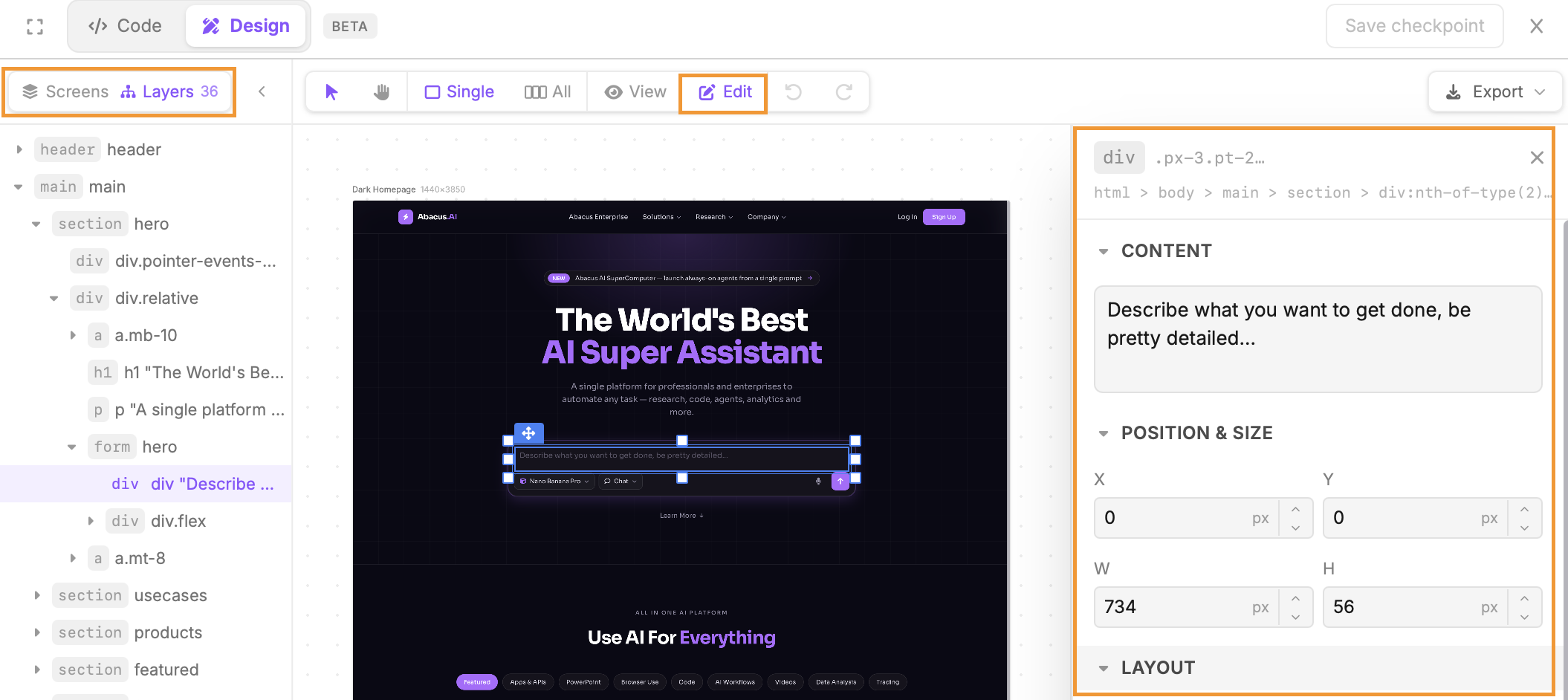
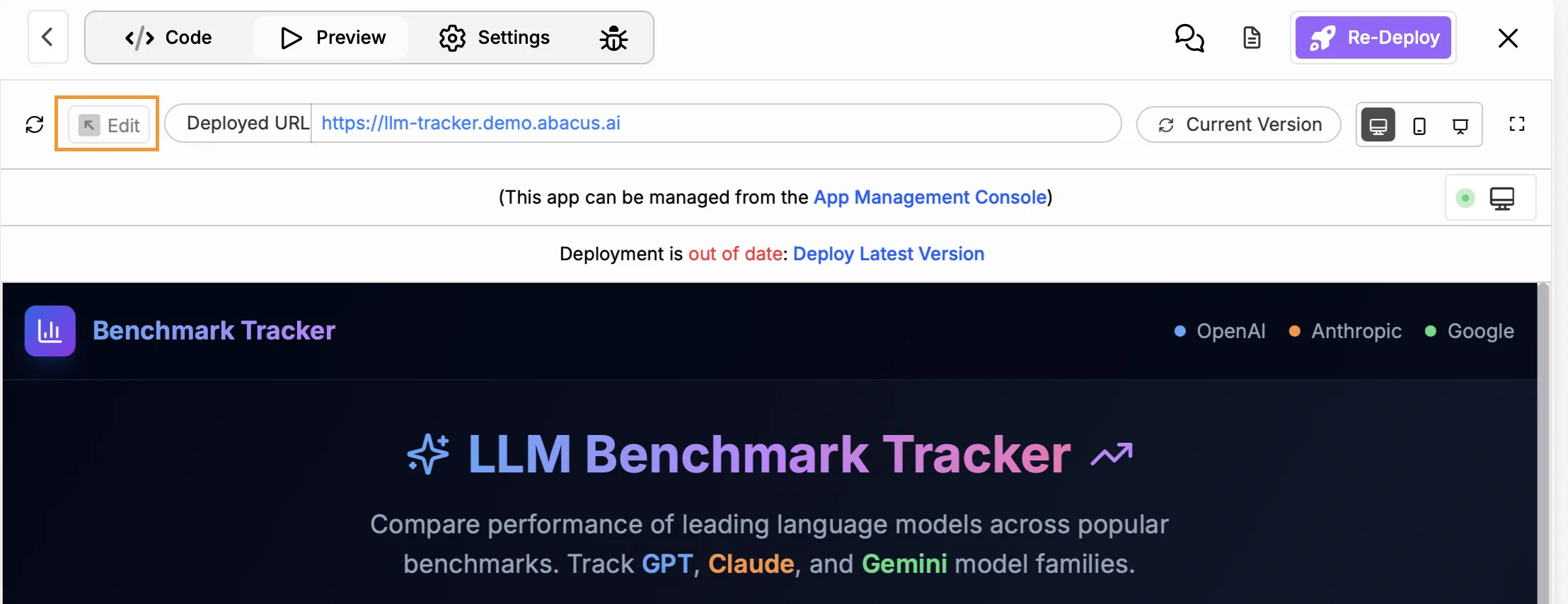
We have added a new Edit function for DeepAgent projects when building either apps or slides. One of the biggest challenges with these projects is that they often require edits and changes after the inital version has been built. Traditionally it is hard for the agent to pinpoint the exact context from the code to make only the relevant changes requested. The Edit feature solves this by providing an inline selection tool that allows you to pinpoint the exact changes you require. The precise context for that element is then passed to the agent making changes much more accurate and efficient.

To enable the Edit feature make sure you are in the preview window, then click on the Edit button at the top of the screen:

For powerpoint, Edit mode will enable you to edit inline elements of the slides - directly changing text and moving elements around.

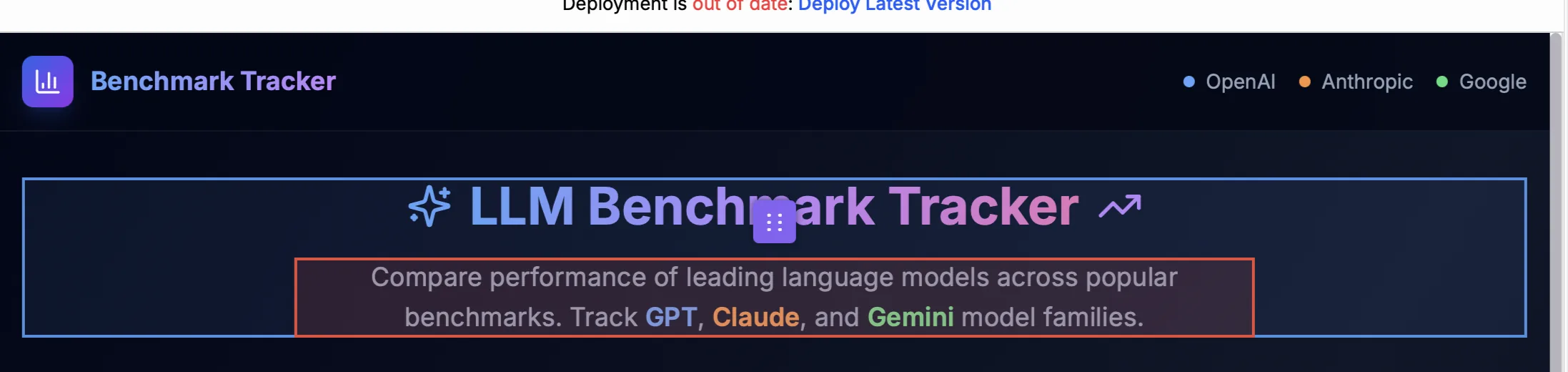
With apps you will be able to select elements and then prompt the specific changes that you would like. The specific code for that element will be loaded into the chat as context to increase the efficiency and accuracy of the editing process

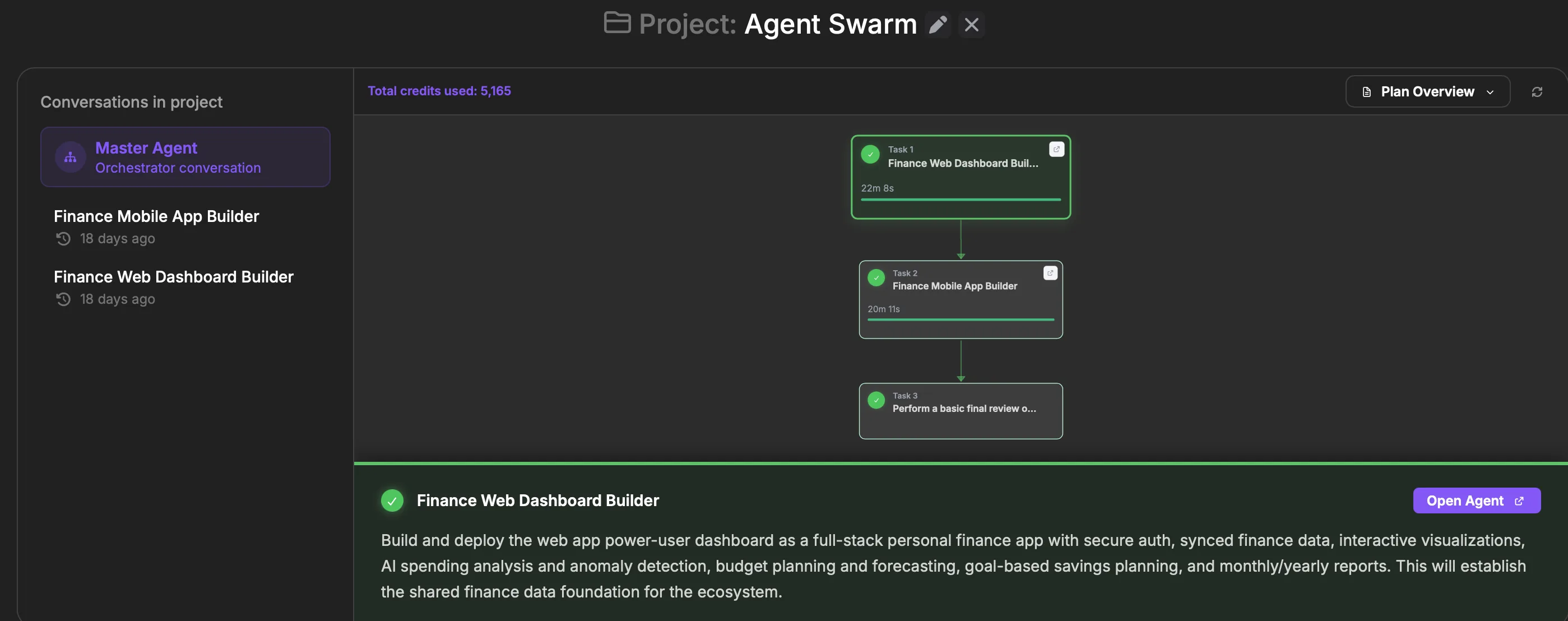
DeepAgent - Projects​

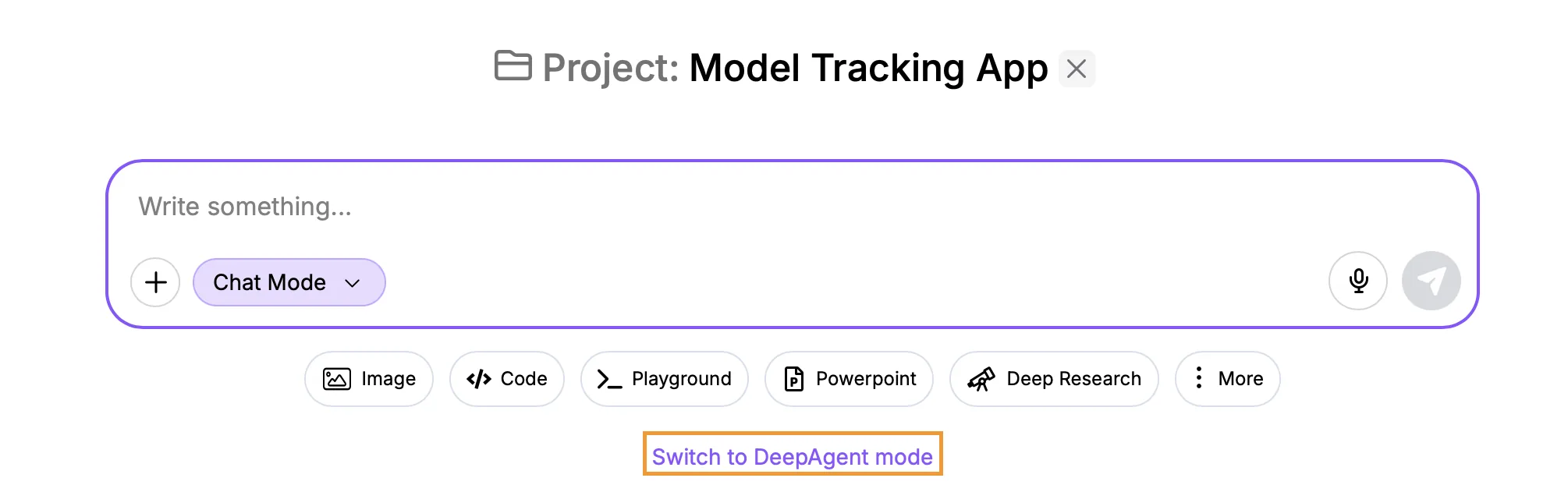
It is now possible to include DeepAgent conversations inside of projects, making it much easier to work collaboratively on DeepAgent tasks. To start a new DeepAgent conversation inside an existing project, using the Switch to DeepAgent mode button:

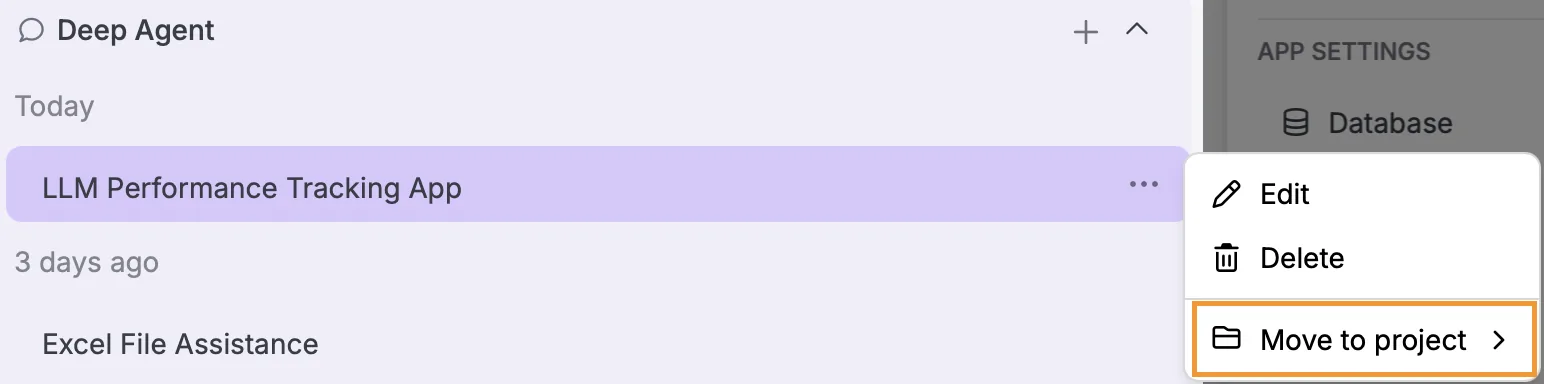
Alternatively you can add an existing DeepAgent conversation into a project:

Click on the ... next to a DeepAgent conversation and then use the menu to select Move to project

DeepAgent - App Updates​

Database Scheduling

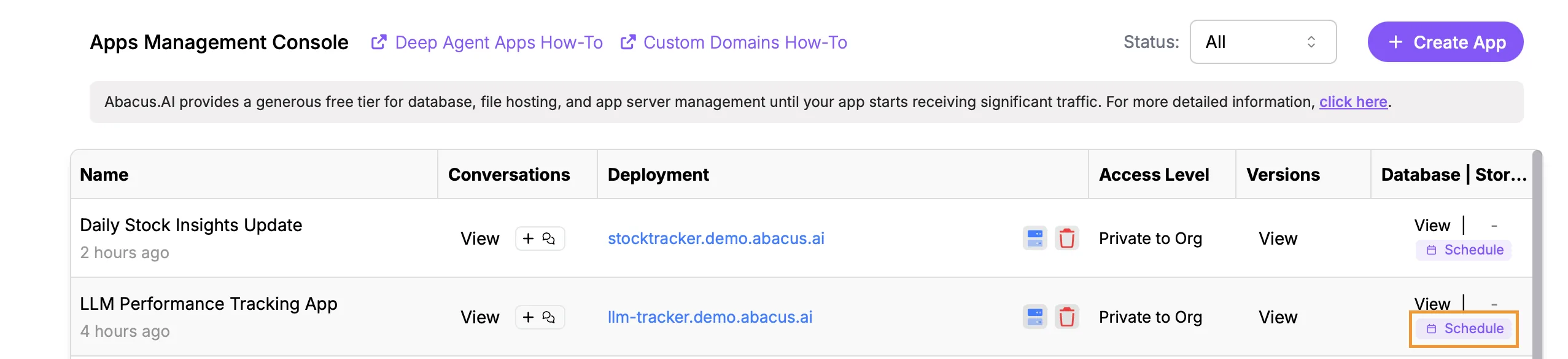
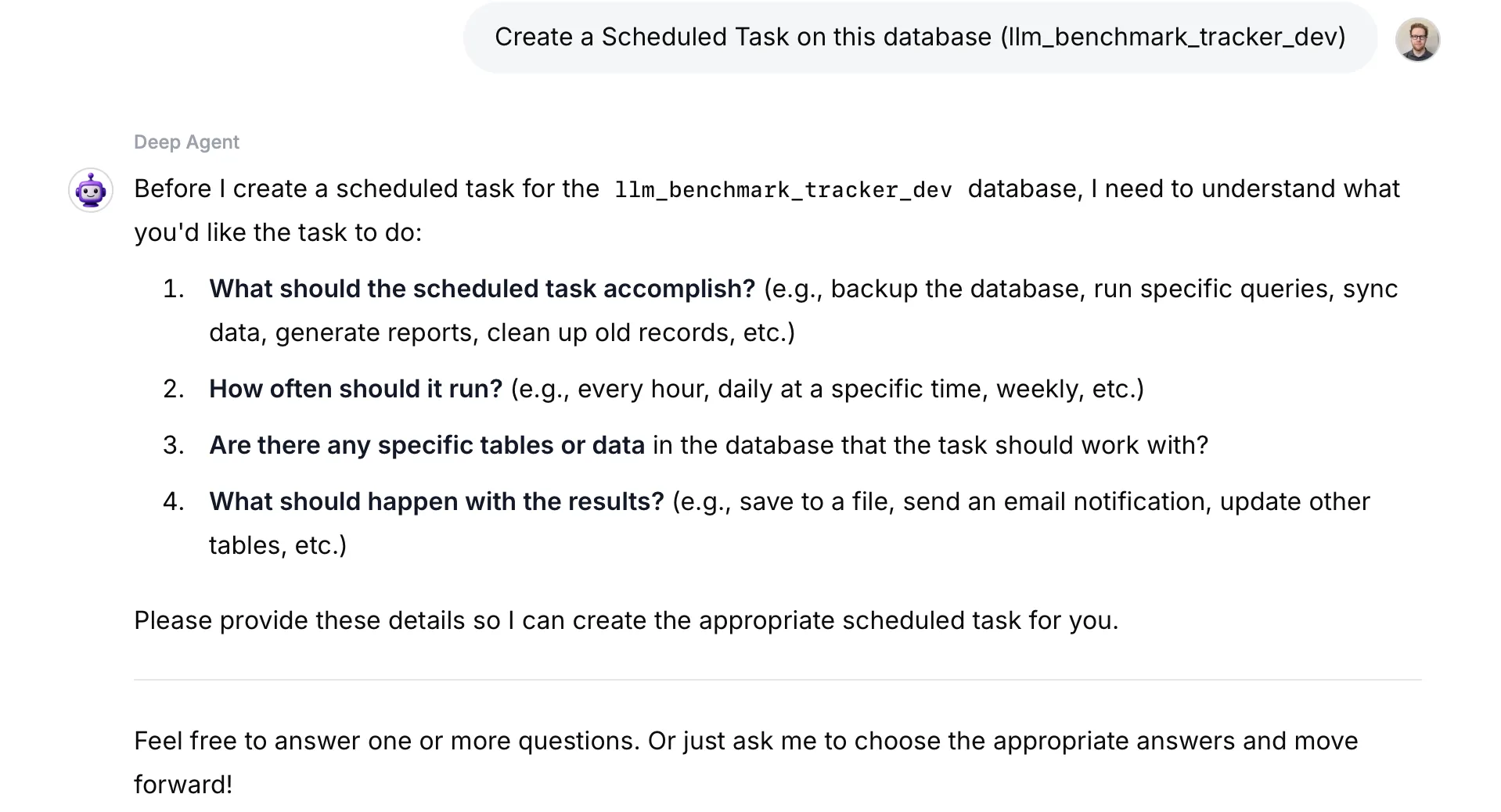
A specific option has been added to the app management console to make scheduling database refreshes much easier. To access the App Management Console click on the Apps button in the top-left of the Super Assistant screen. Any apps that contain a database will give you the option the view or schedule

Clicking on the schedule button will open up a new conversation with DeepAgent to specify exactly what the refresh process should be. When complete the DeepAgent will create a Task that can be managed through the Tasks Management Console

App Notifications

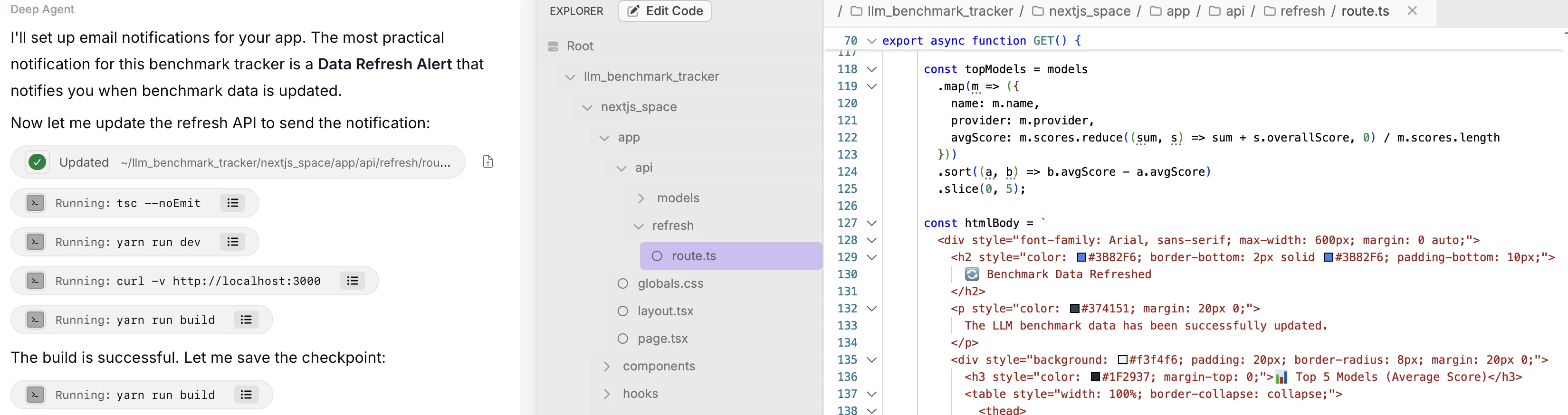
You can use DeepAgent to create notifications for your deployed apps. These notifications can cover a range of things e.g. new users, completed forms, updated data. In order to access notifications you need to navigate to the app settings, which can be done in one of two ways:

  • When previewing the app as part of the conversation - at the top of the page select Settings
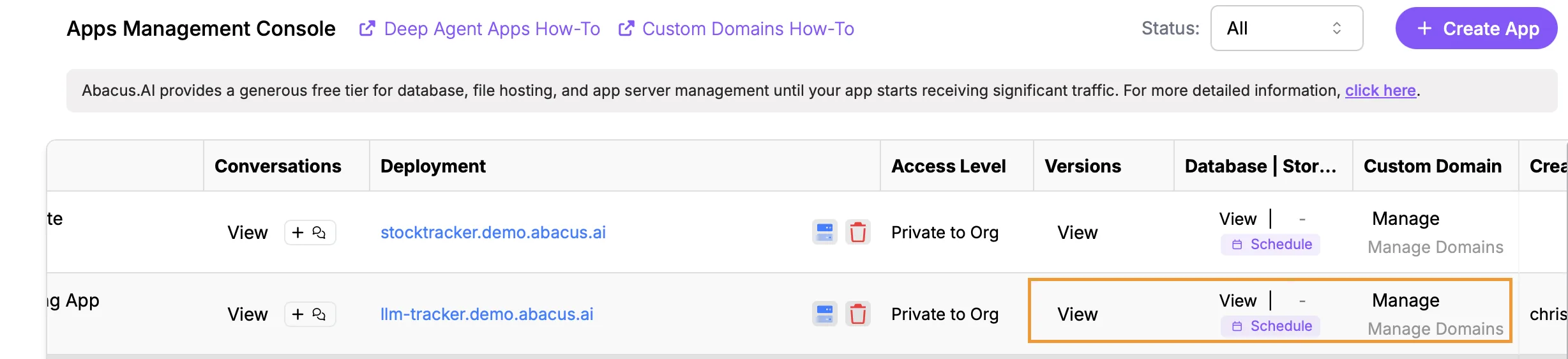
  • Through the App Management Console by clicking to View Versions or Database, or by clicking Manage under Custom Domain.

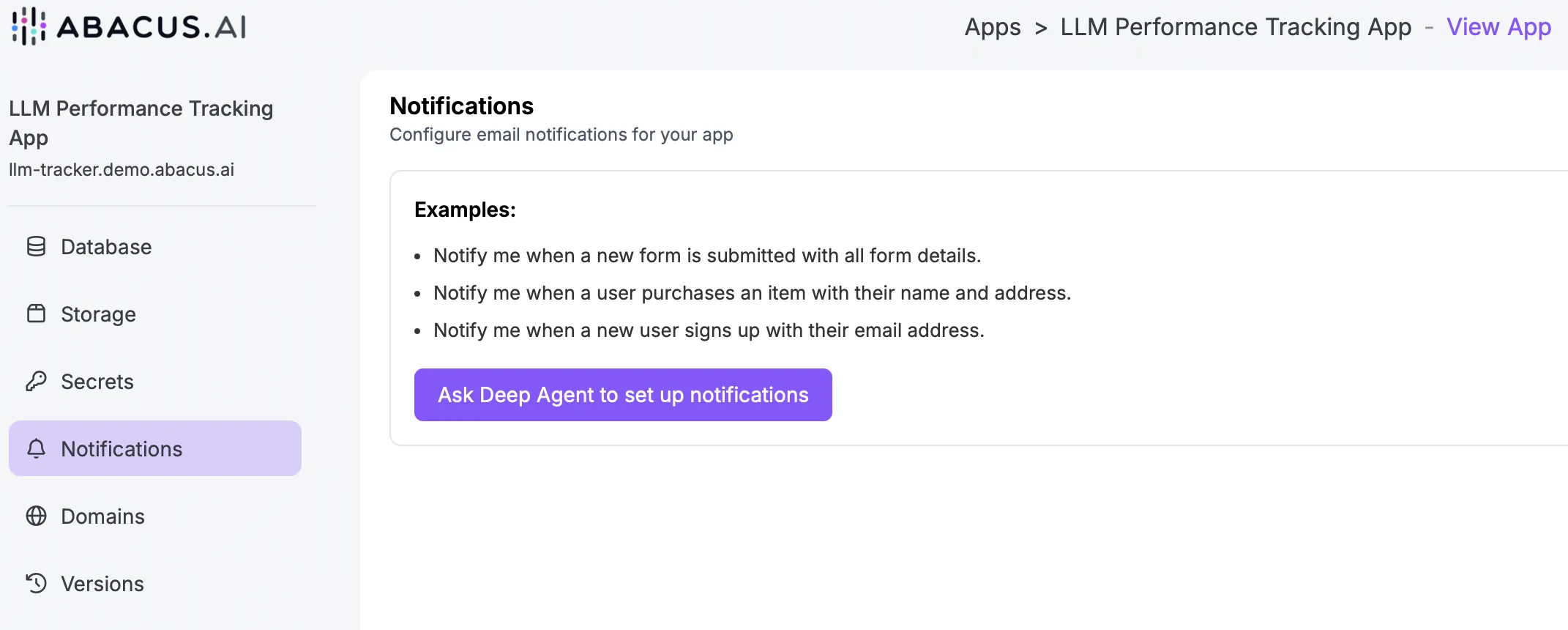
Once in Settings click on the Notifications tab

From the notifications screen you will be able to launch a DeepAgent conversation to build the specific notifications that you would like. Notifications are currently limited to email outputs, but the emails can contain any data that can be captured or analysed from the app. N.b. for more detailed analysis the app can be integrated with Google Analytics

In this example DeepAgent creates a simple email notification that tracks when the underlying LLM benchmark data changes with a summary of the new top models:

Database Sharing

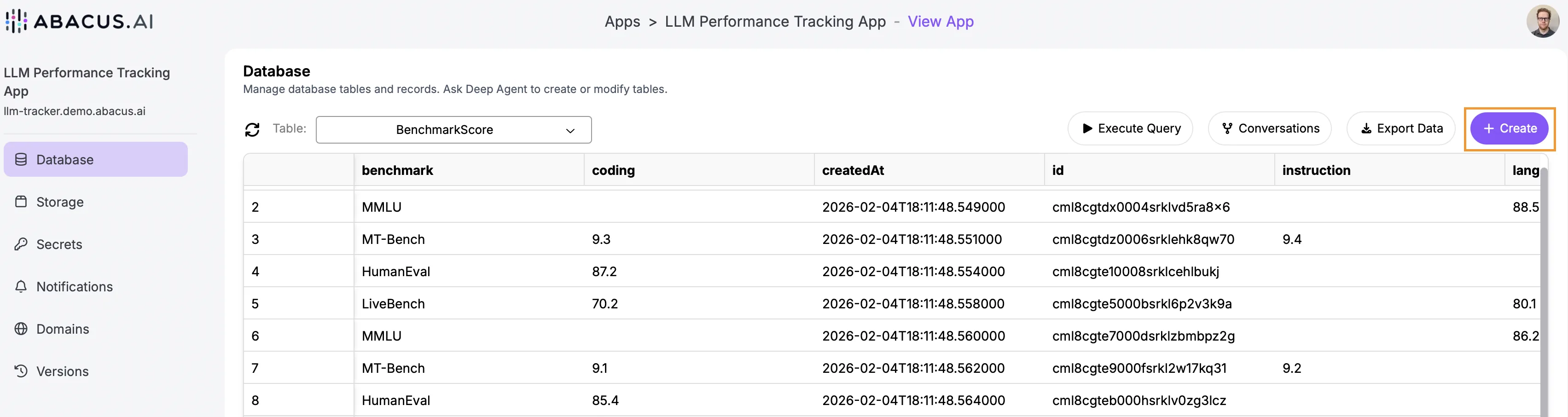
Another new option for DeepAgent apps is the ability to build multiple apps that leverage the same underlying database. This allows for much more efficient data management by preventing the need to host multiple copies of the same data. To do this navigate to the Settings page of the app that has the database you would like to re-use. On the Database tab click on the Create button in the top-right hand corner.

This will start a new DeepAgent conversation for designing the new app.

Mobile Apps

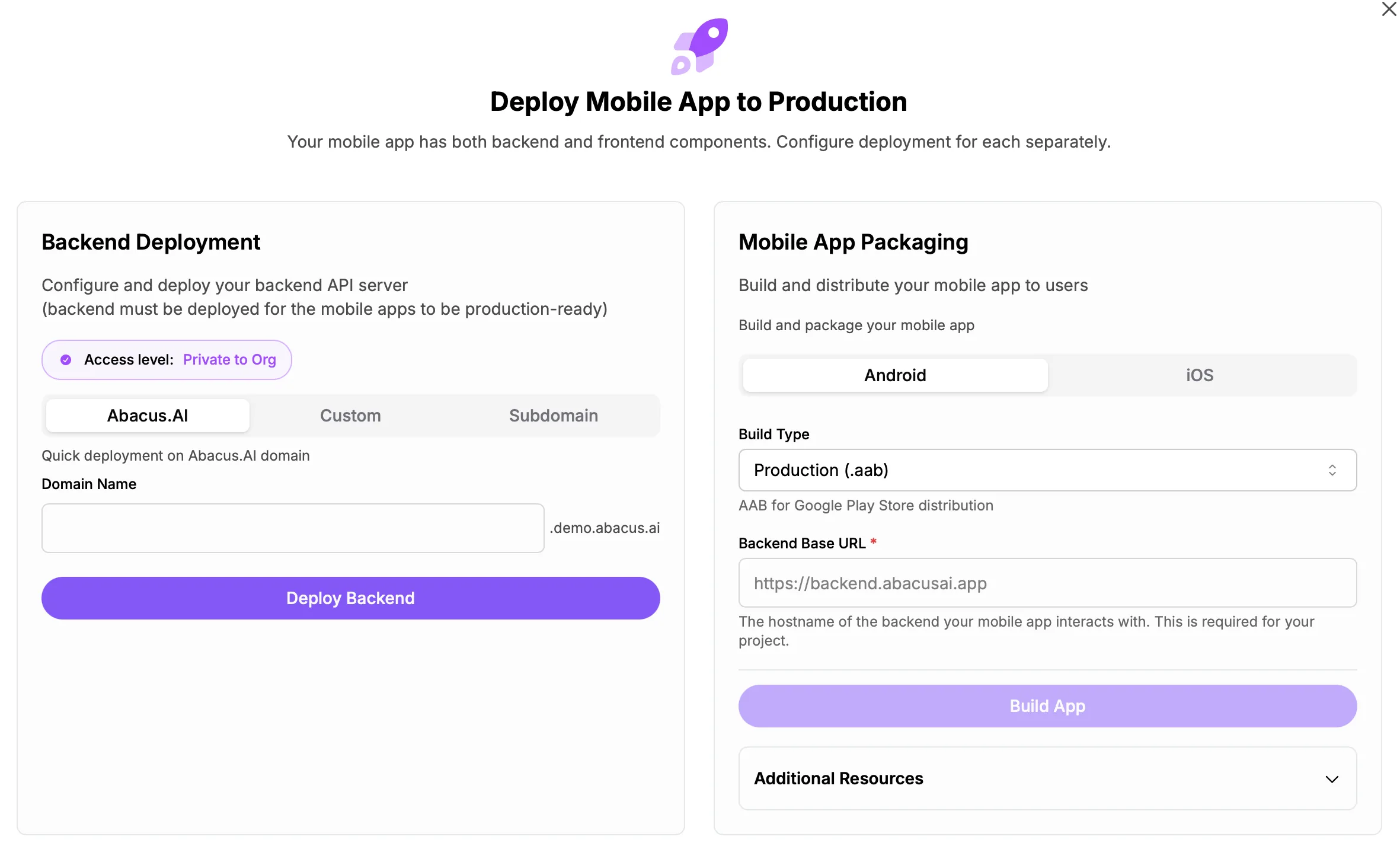
Finally, DeepAgent now supports building mobile apps. Simply add into your prompts that you'd like to build an app for mobile devices and it will optimize the build process, creating the frontend UI as well as all the backend api's that get deployed separately.

To deploy the app choose how the backend should be deployed (like you would any other DeepAgent app), and then use the Mobile App Packaging options to deploy the app as either Android or iOS:

OAuth Connectors​

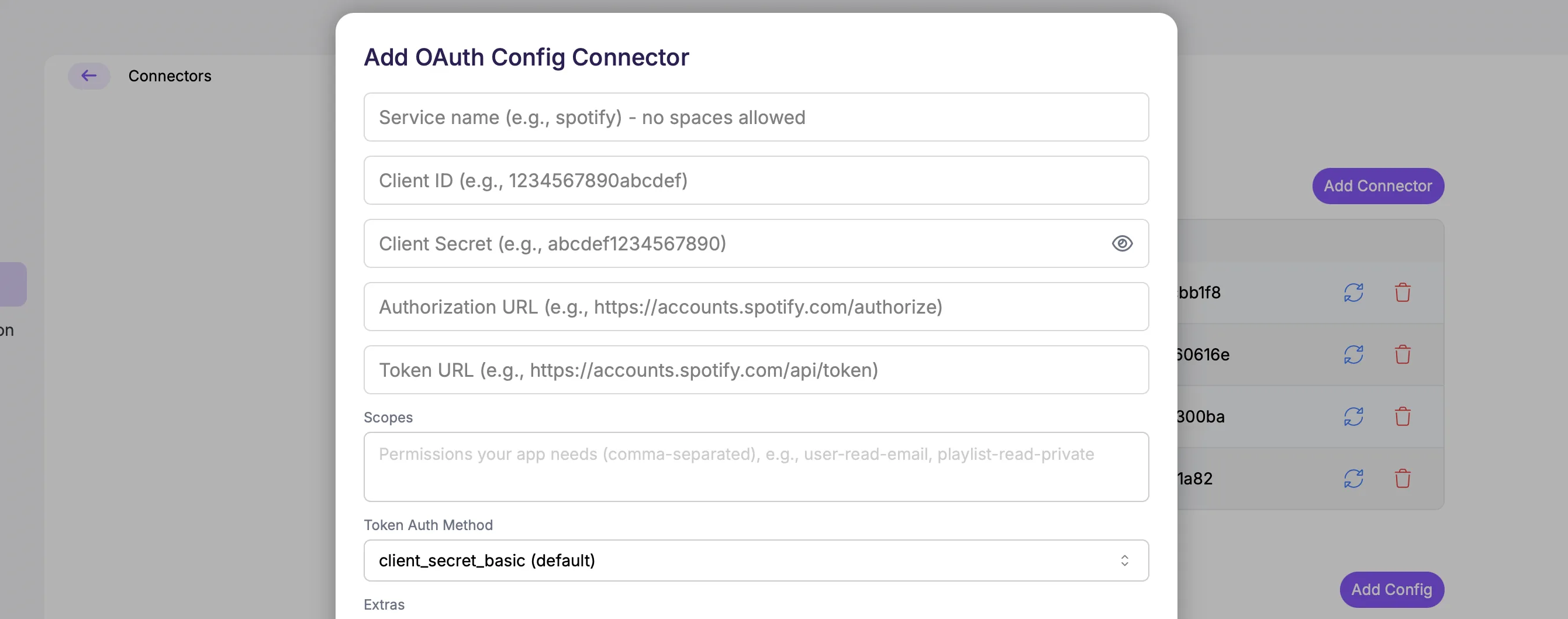
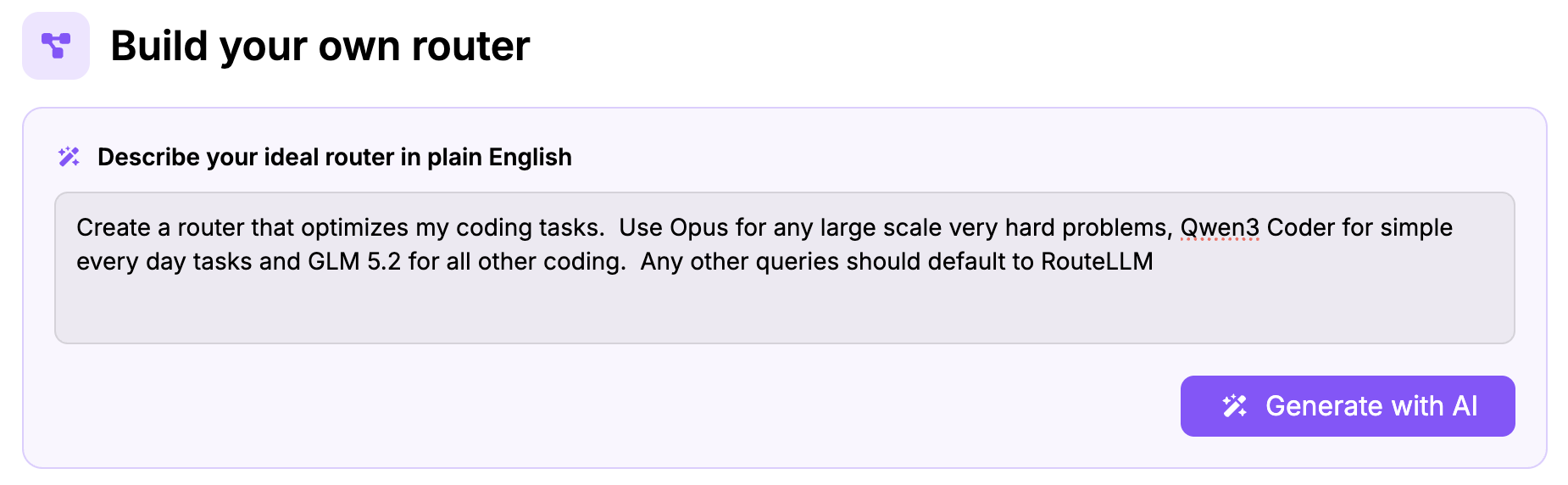
We have extended support for generic OAuth connectors into the Super Assistant. Under Profile >> Connectors there is a new option for creating connectors into specific services using the Generic OAuth tool:

Clicking Add Config will open the configuration screen for authentication. Most services that support this type of connectivity will have OAuth or developer specific documentation that you will need to follow to generate the relevant IDs, urls and tokens.
December 2025 Platform Update

Head of Presales Data Science

DataLLM - Multiple Source Types Support​

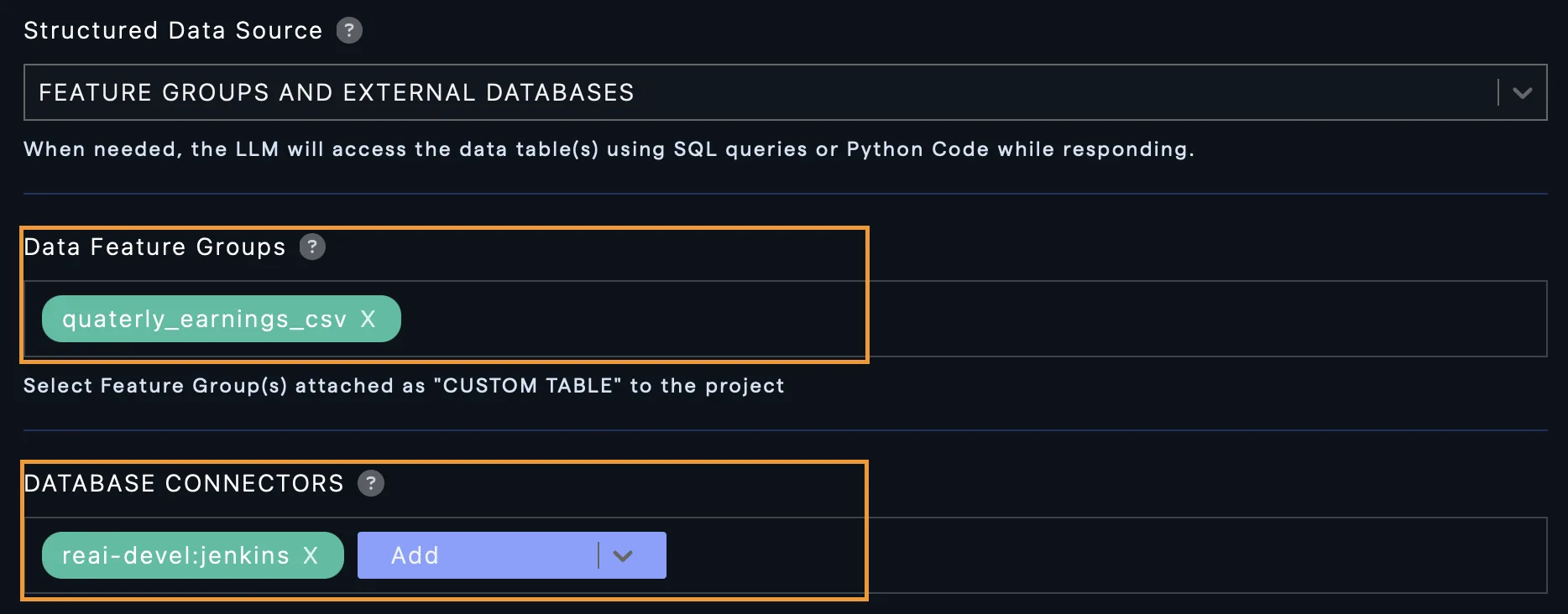
A new option when building custom chatbots on structured data allows the integration more seamlessly between feature group and database data sources.
When configuring the chatbot select the FEATURE GROUP AND EXTERNAL DATABASES option in the Data Source dropdown. Then specify the feature groups and database connectors that the bot should have access to.
When asking questions of the bot it can reference both feature groups and database connectors in the same query.

Connector Updates​

Sharepoint Config Connectors

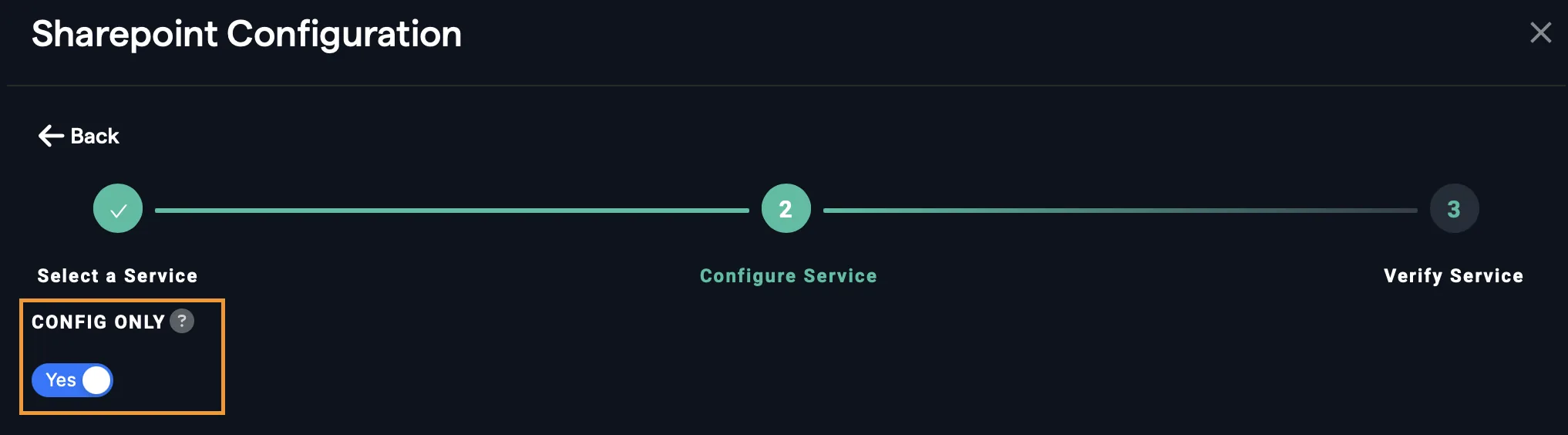
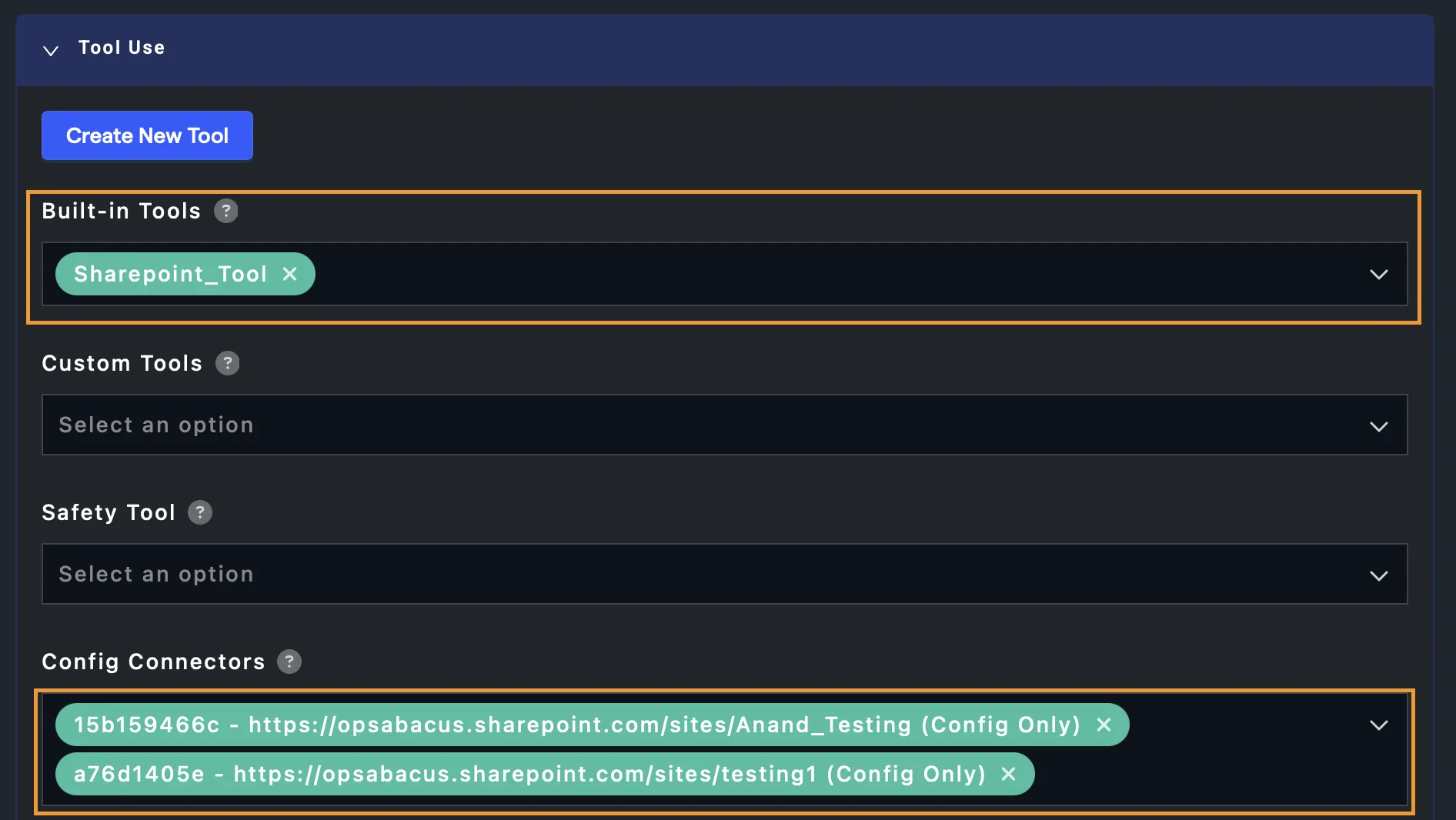
We have added the ability for users of custom bots to be able to authenticate against multiple Sharepoint sites. A config connector for each site should be created and then added to the configuration screen of the custom bot.
Creating a config connector for the Sharepoint site is similar to creating a regular connector, except that you should select the config only option during creation:
Once your config connectors are created add them into the configuration screen for the custom chatbot. For each config connector the end users will be asked to authenticate the first time using the bot:
Super Assistant

New Models​

OpenAI GPT 5.2 (including thinking and pro models) have been added to the platform. To find out how well the new models perform don’t forget to check out our benchmark, LiveBench

App Permissions​

Default Organizational Permissions

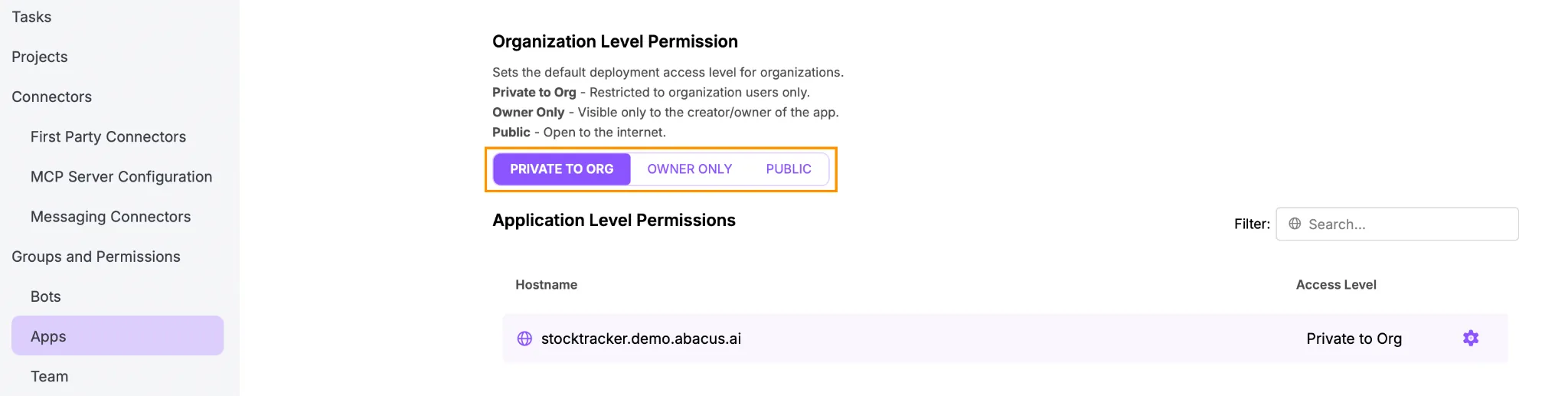
Permission handling for DeepAgent generated apps has been updated to add more controls. At the organization level admins can set the default access permissions for all apps that are created. It can be managed in the Profile >> Groups and Permissions >> Apps menu.

  • Private to Org - Apps are restricted to organizational users only
  • Owner Only - Visible only to the creator/owner of the app
  • Public - Open to the internet

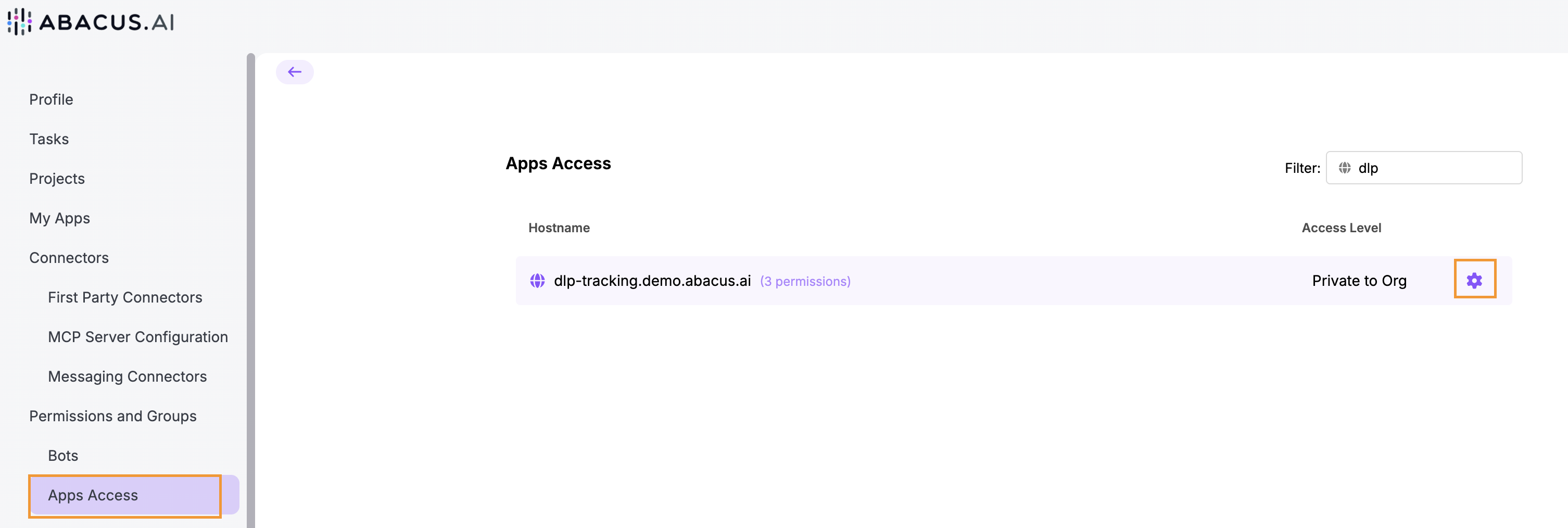
Individual App Permissions The permissions for individual apps can be changed from the default by clicking on the cog symbol next to each app.

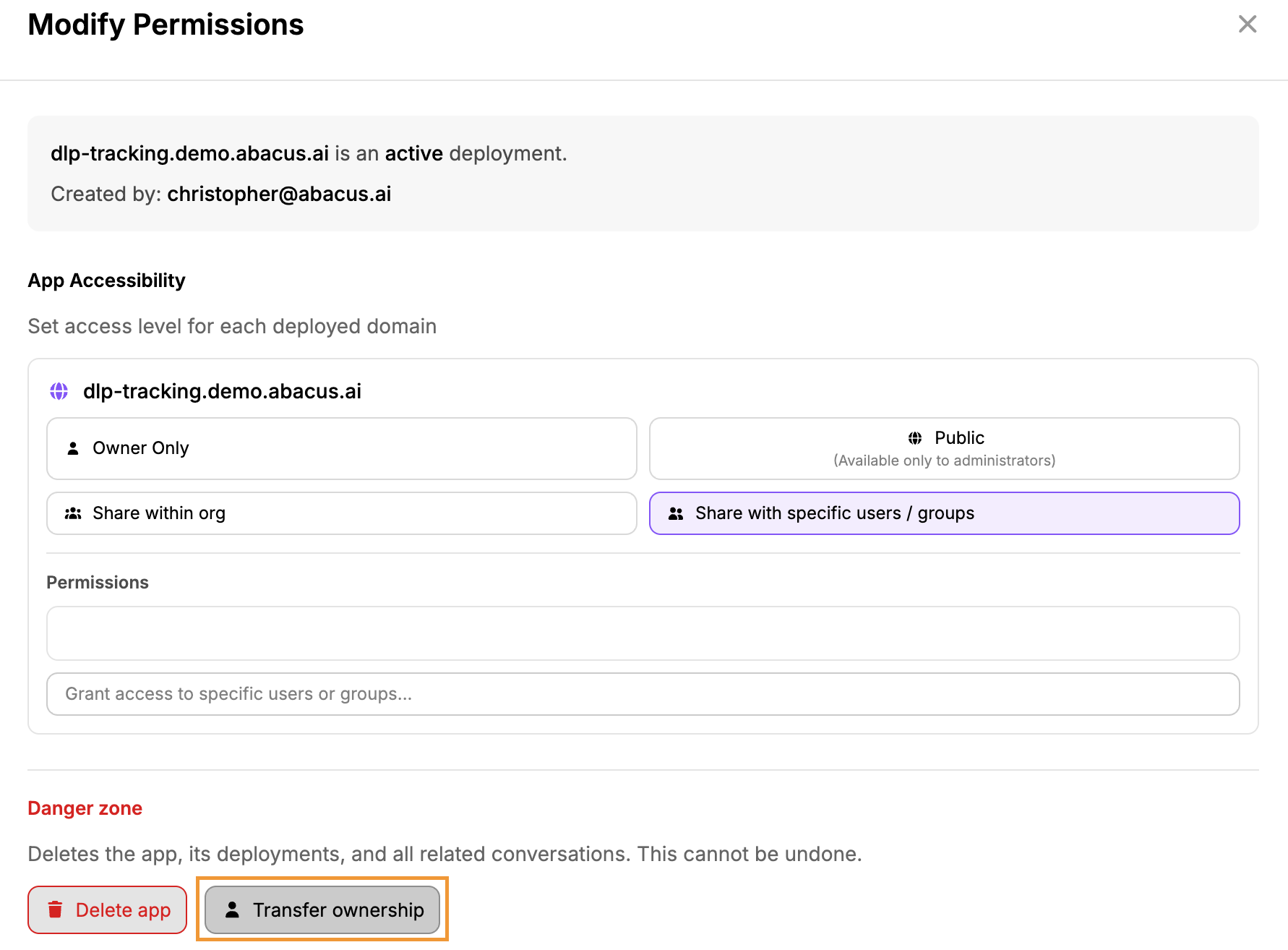
Within the settings for each app the owner or an admin can change the permissions between Owner Only and Private to Org. Only an admin can make apps Public if this is not the organization default.

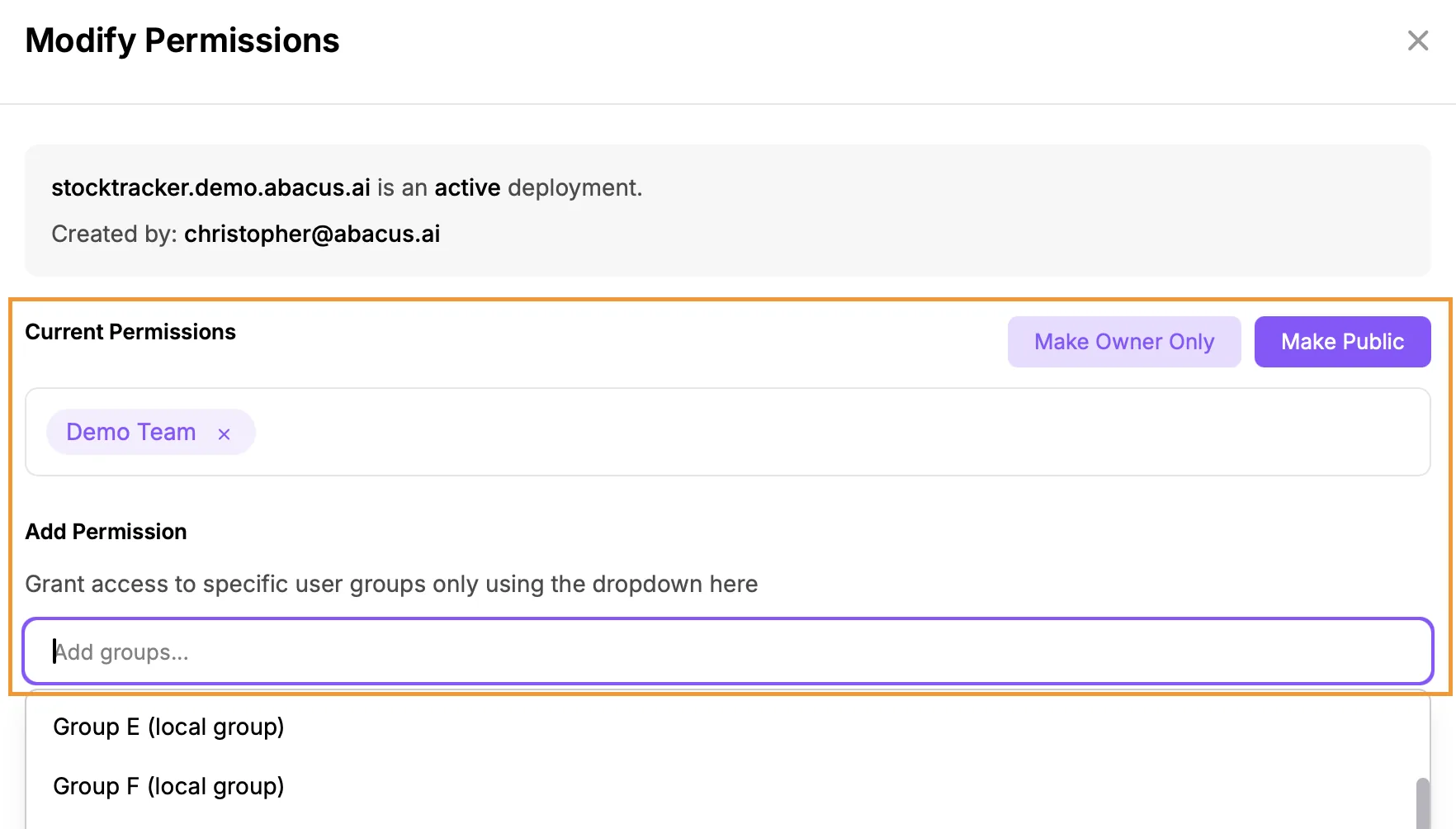
When an app is Private to Org it is also possible to control access based on permission groups that have been created / are available in the platform. To do this use the Add Permissions drop-down in the app’s modify permissions screen:

Controlling App Sharing Permissions

Platform admins are also able to control who is able to share their apps, which limits an individual user's ability to assign permission groups to an app.

This is controlled through the Permissions menu (Profile >> Groups and Permissions >> Permissions). Adding groups into this selection means that users in these groups can only create apps visible to themselves

November 2025 Platform Update

Head of Presales Data Science

Updated Agent Workflow UX​

We have the first of a number of updates coming on our AI Workflow builder, with the overall aim to improve the ease of building workflows and to streamline the user experience.
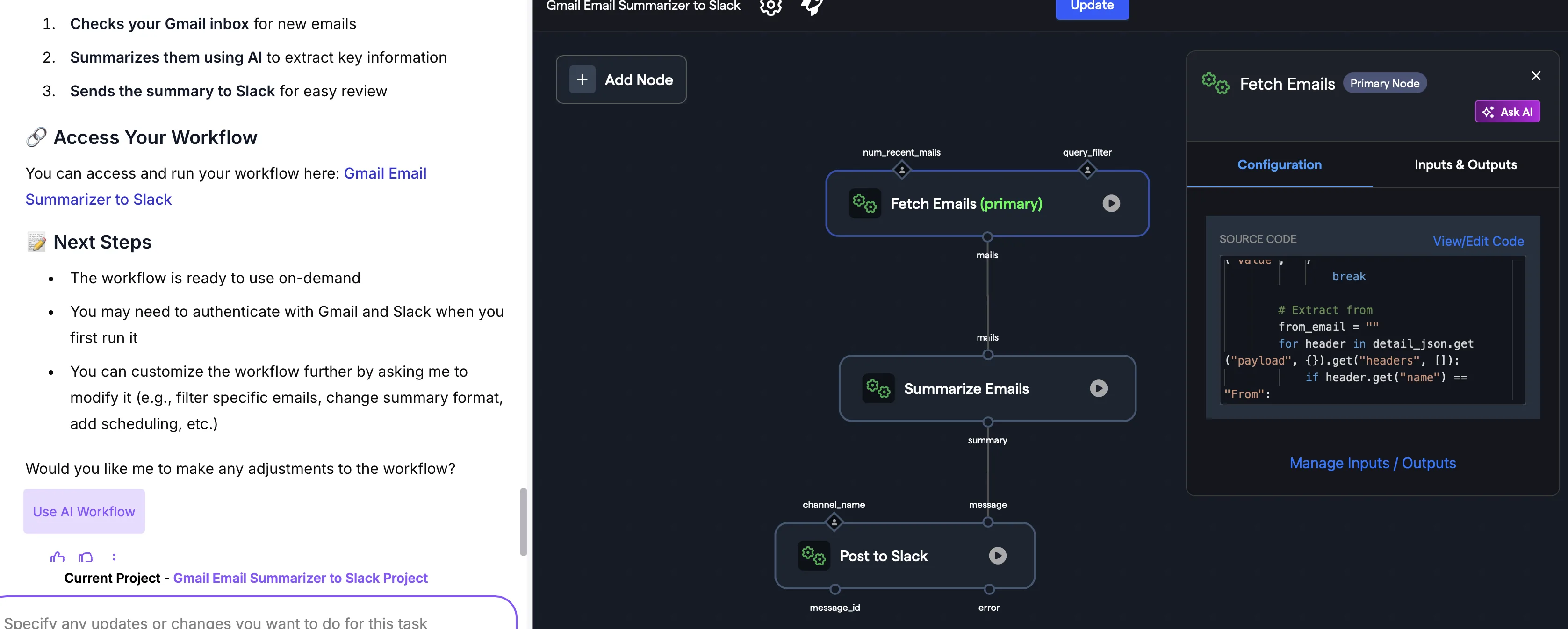
Node Definition

The new workflow builder has a much cleaner UX to simplify the building process, which starts with the nodes themselves:

The code that defines each node is now hidden in the side-menu keeping the main workflow diagram cleaner and easier to understand. Clicking on any individual node will load the relevant code definitions on the right-hand pane.

Inputs / Outputs

Managing the node inputs and outputs has been improved. Clicking on the *Manage Inputs and Outputs *button on the side menu launches the input / output management pages.

  1. NODE INPUTS Manage inputs that come from other nodes:

  2. Easily identity from which nodes variables originate

  3. *Required *nodes are clearly marked

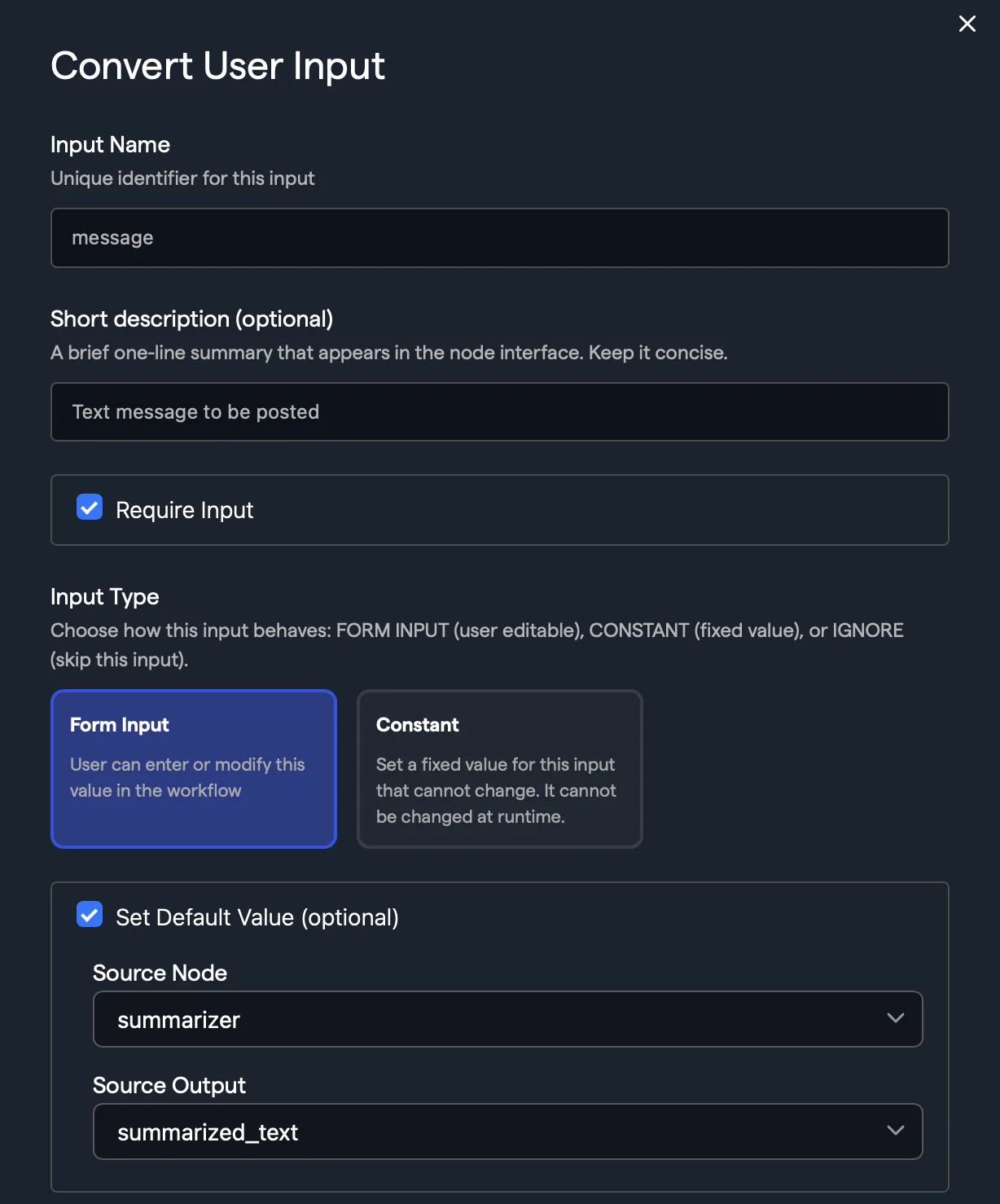
  4. Quickly convert to user input with the Convert to User Input button

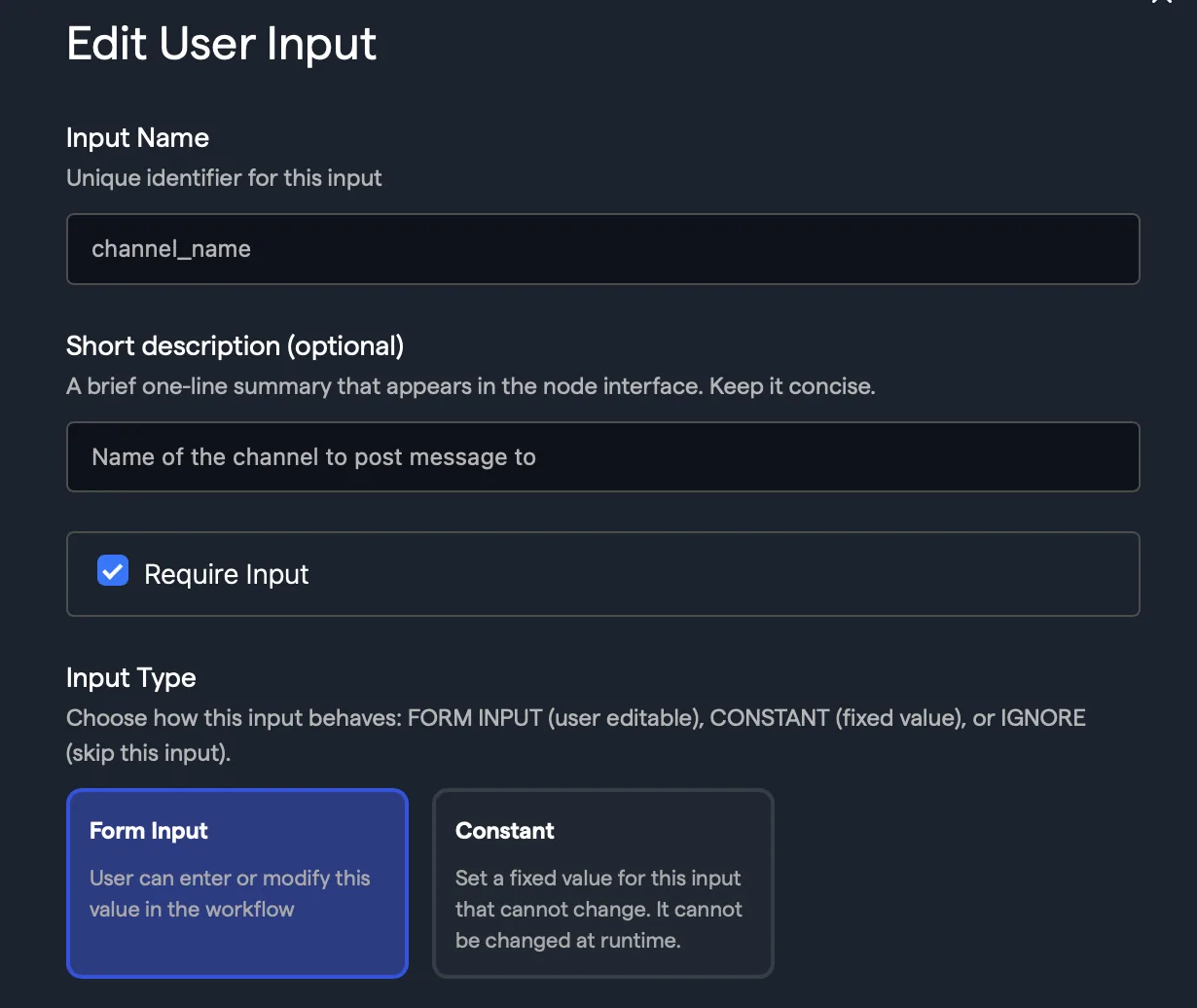
  5. Edit specific variables through the new configuration form

  1. USER INPUTS Manage inputs that are from users:

  2. Easily convert to node input, using the Convert to Node Input button

  3. Required nodes clearly marked

  4. Edit specific variables through the new configuration form

  5. Manage overall input form structure and definition

  6. OUTPUTS Manage node outputs:

  7. Add / delete variables

  8. Edit existing variables through the new Edit Outputs form

  9. Visible in the UI variables are clearly marked to easily understand which are returned to users and which are passed through Node Testing

Testing individual nodes has been simplified by adding a Run button prominently on each node in the workflow diagram.

Enabling Run mode allows you to manually test individual nodes by providing the relevant inputs manually and evaluating the node outputs inside of the workflow editor.

Workflow Configuration

Elements of the workflow configuration have been updated to provide much greater controls and options, especially when adding in connector nodes.

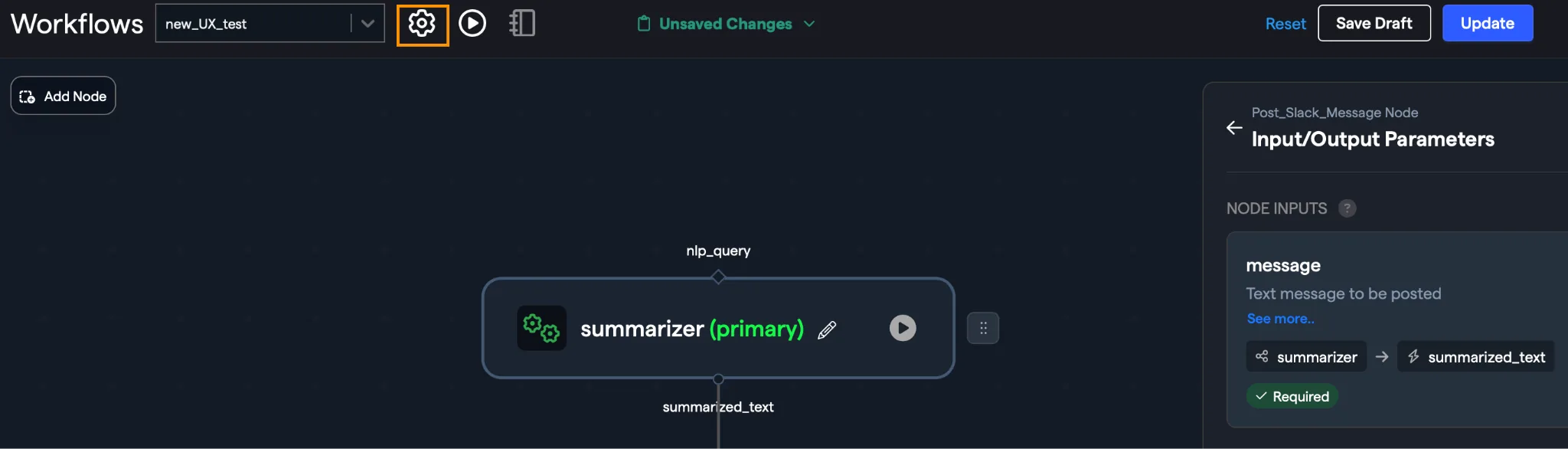
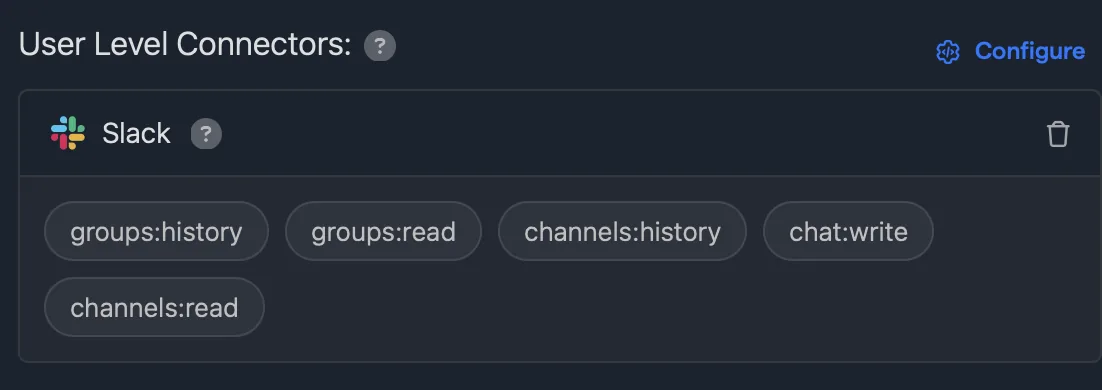
To access the configuration settings click on the cog symbol at the top of the page. In this example we have added the Slack tool to the workflow, and the configuration screen shows the actual scopes that have been enabled:

To update any of the specific connector scopes for these tools added to a workflow, click on the configure button. This will allow you to manage the specific access / capabilities for the connectors on a workflow by workflow basis.

More updates in the coming months…
Connector Updates​

Azure Storage

A new Azure Storage Container connector has been added that can be authenticated using O-Auth. This can be configured to access a specific container or at account level

Generic O-Auth

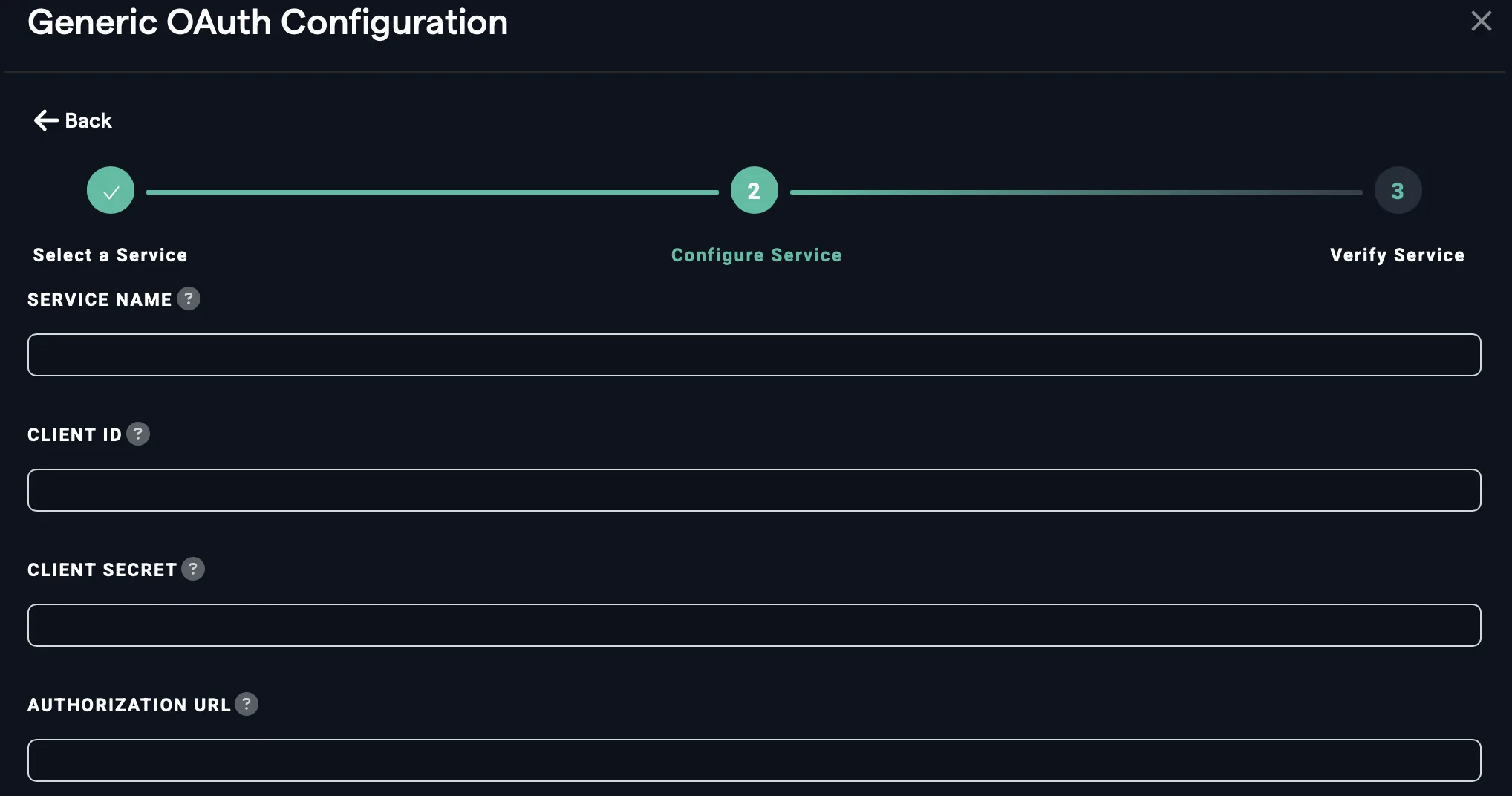
The generic O-Auth tool has been developed to make it possible for platform users to be able to create their own connectors to any service that supports O-Auth.

The configuration screen details the parameters that need to be provided to build the connector, as well as any scopes that you would like the connector to have access to:
Please note, the specific configuration parameters and scopes available will be determined by the individual service you are connecting to. Details of how to register and authenticate are often provided as part of providers developer pages.

Outlook

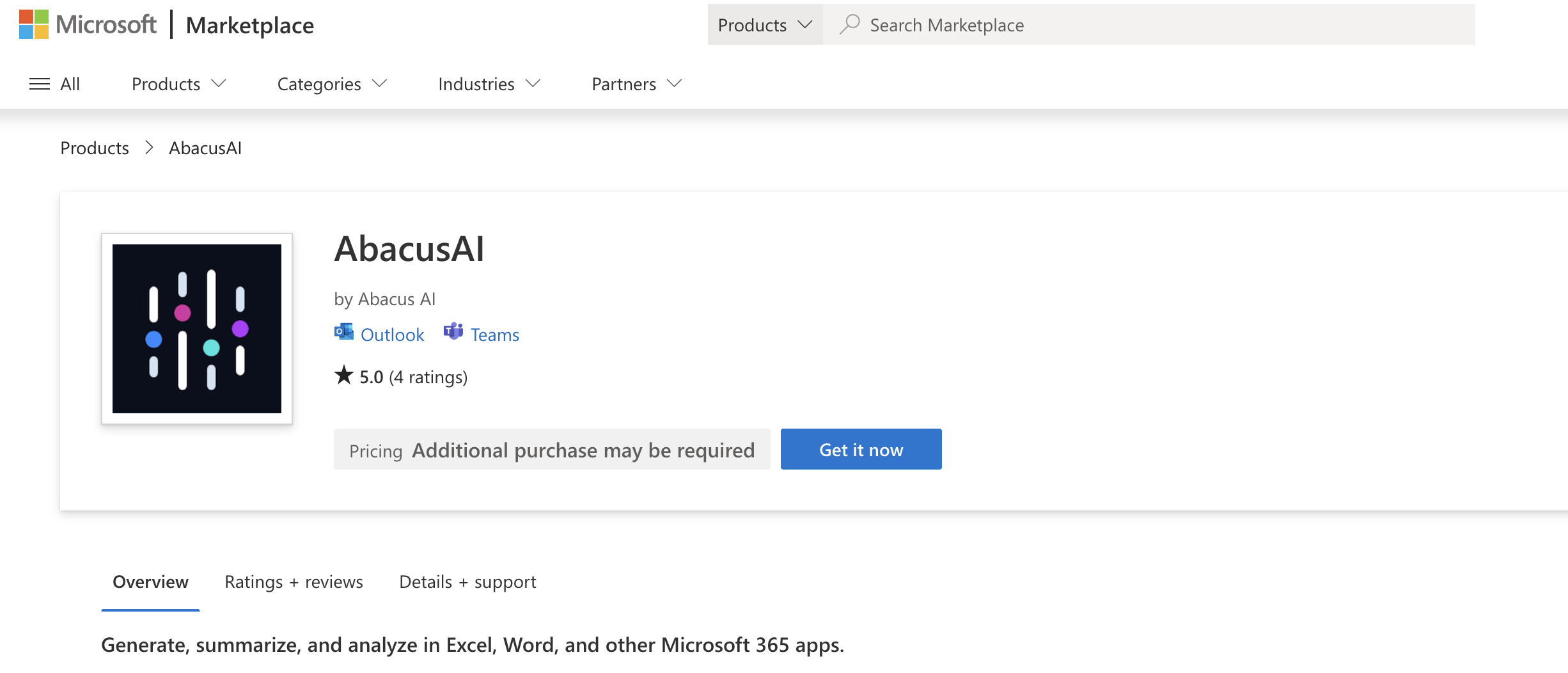
The Outlook connector tools have been updated to also interact with Outlook calendar, enabling a far wider range of potential use cases

Super Assistant

New Models​

OpenAI 5.1 and Gemini 3 have both been added to the platform. To find out how well the new models perform don’t forget to check out our benchmark,

Organization Level GitHub Policies​

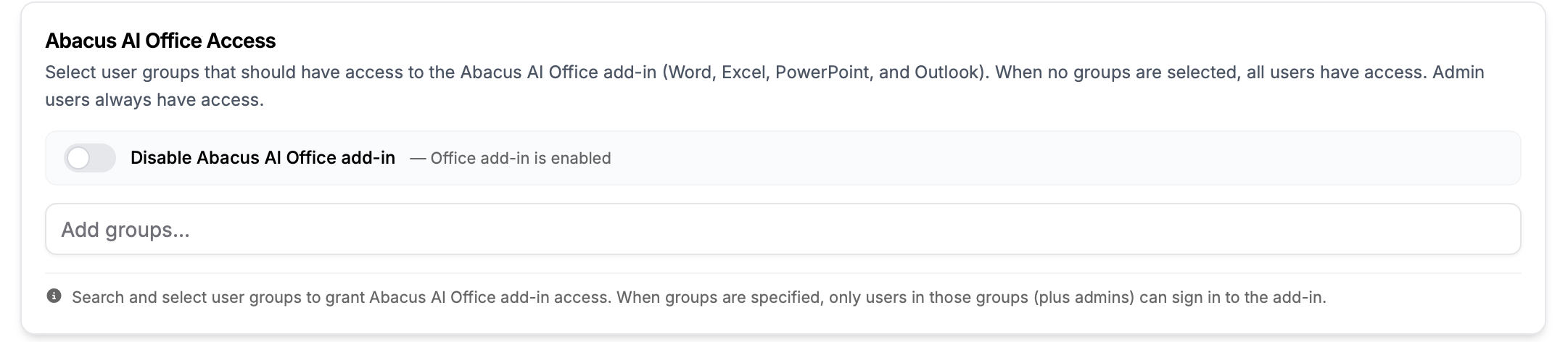
A new setting has been enabled to manage organization access to the GitHub connector. To enable this navigate to the Profile menu by clicking on your profile on the top right-hand corner and selecting profile.

On the Profile page then use the menu on the left to select Manage >> Permissions