August 2026 Platform Update
New Models
A number of new models have been made available in the platform over the last month:
- OpenAI's GPT-6 Astra
- Google's Gemini 3.8 Flash
- GLM 5.3 Flash
- Deepseek V4 Flash Vision
- Qwen 3.8 27B, 3.8 Max, 3.8 Flash Next
Abacus Smaug
We are very excited to release our new Smaug family of models, starting with Smaug Flash.
Smaug Flash is an agentic fine-tune of DeepSeek V4 Flash and the workhorse of the line. It is tuned for continuously running enterprise self-improving agents: loops that stay alive for hours, carry a long context from step to step, and spend most of their tool calls outside code — reading and writing documents, querying data systems, calling APIs, and driving automations. DeepSeek V4 Flash is fast, cheap and robust for frequently running agentic tasks, but it is susceptible to spins and confusion in long-context tool use. Smaug Flash was trained to make those loops faster and less prone to spins and stalls at maximum reasoning effort, using trajectories curated from real-world use cases together with synthetic variants that target specific tool-use failure modes, while keeping the cost and speed advantages of the base.
Benchmark testing shows that our new Smaug Flash model significantly outperforms the original Deepseek model but also shows better performance than Claude's Sonnet 5 model:
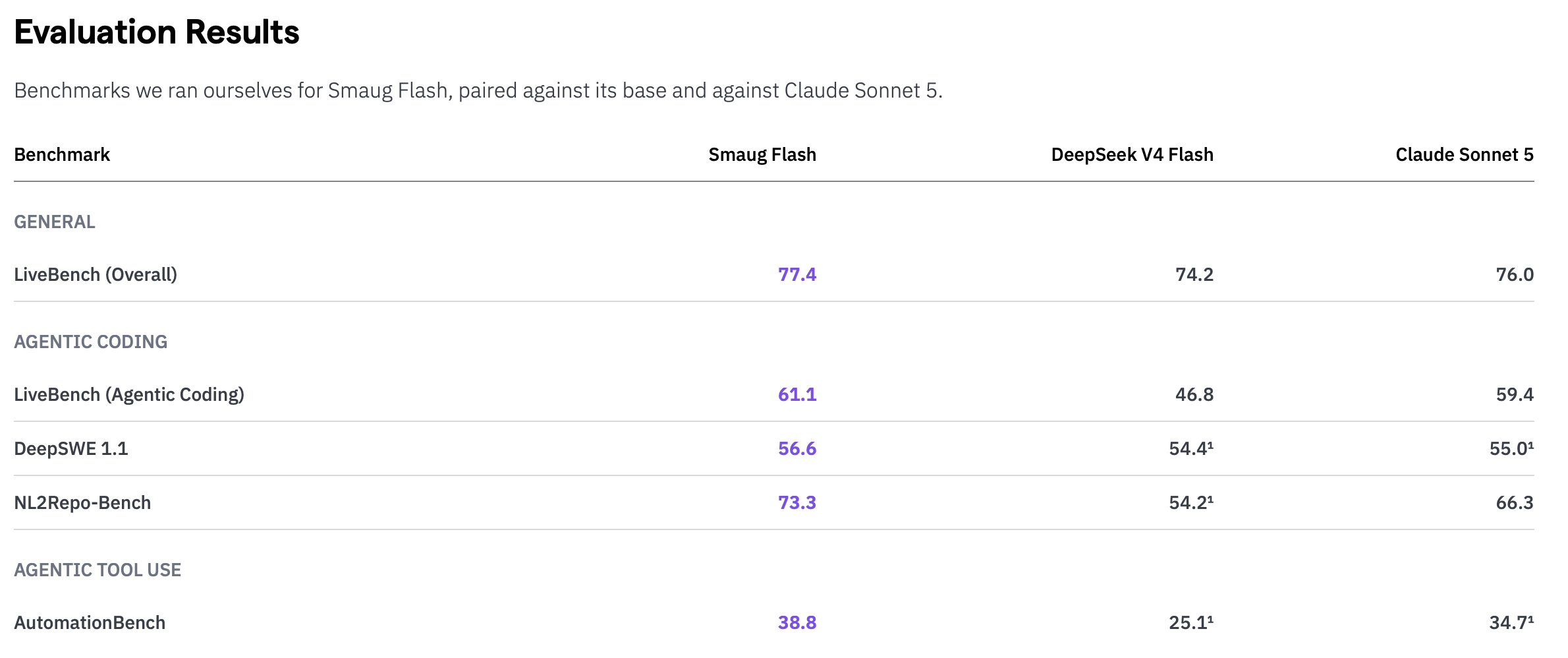
For more details please read our our post here
Agent Templates
Agent templates are a new feature in the Abacus platform that extend the ability of the Agent to create user specific tasks. The extended ability allows for tasks to be created as templates or agent architectures that can then be shared with other users. Other users then running these templates do so within the context of their own permissions and access rights.
To create an agent template use the chat mode drop-down below the prompt window and select Create Custom Bot:
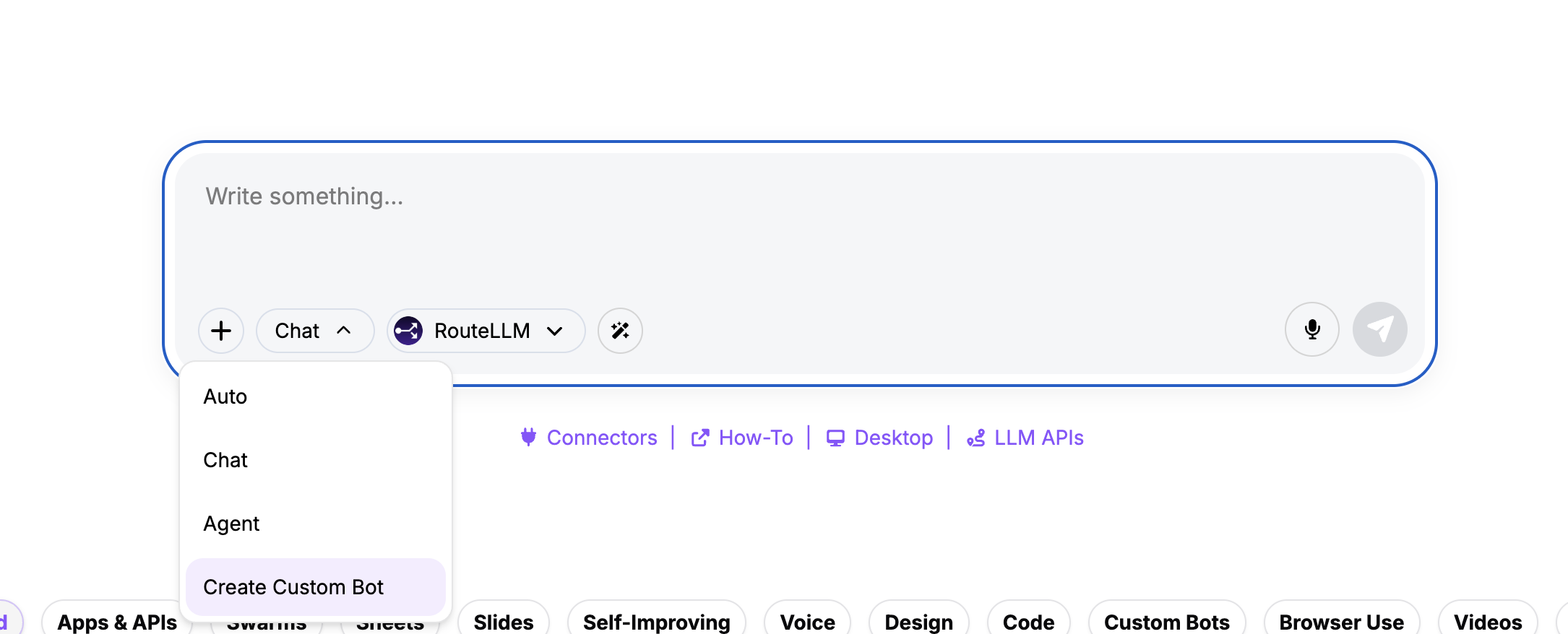
If you already have custom bots or agent templates built this option will differ slightly. In that instance select Custom Bots from the drop-down and then Create New from the Select Bot / Agent menu
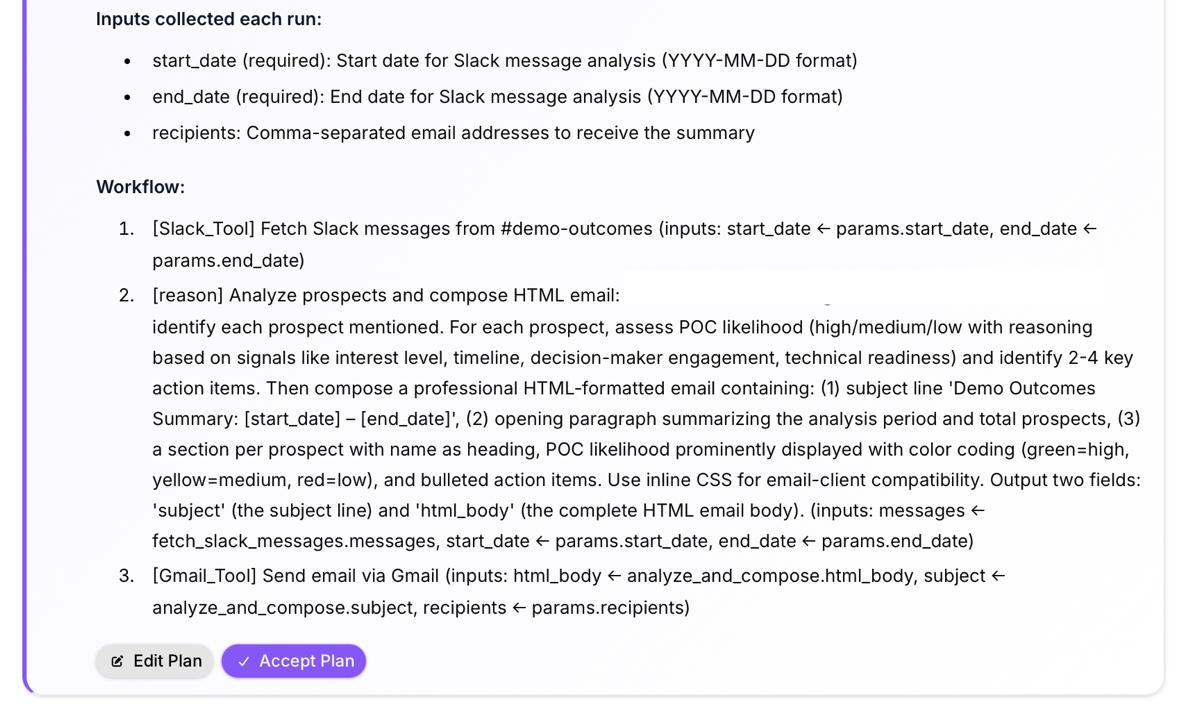
Submit your prompt of what the agent should be doing and Abacus will create an action plan for you to review, including the overall task, any inputs that would need to be provided and a step-by-step execution plan. Hitting Accept starts the build:
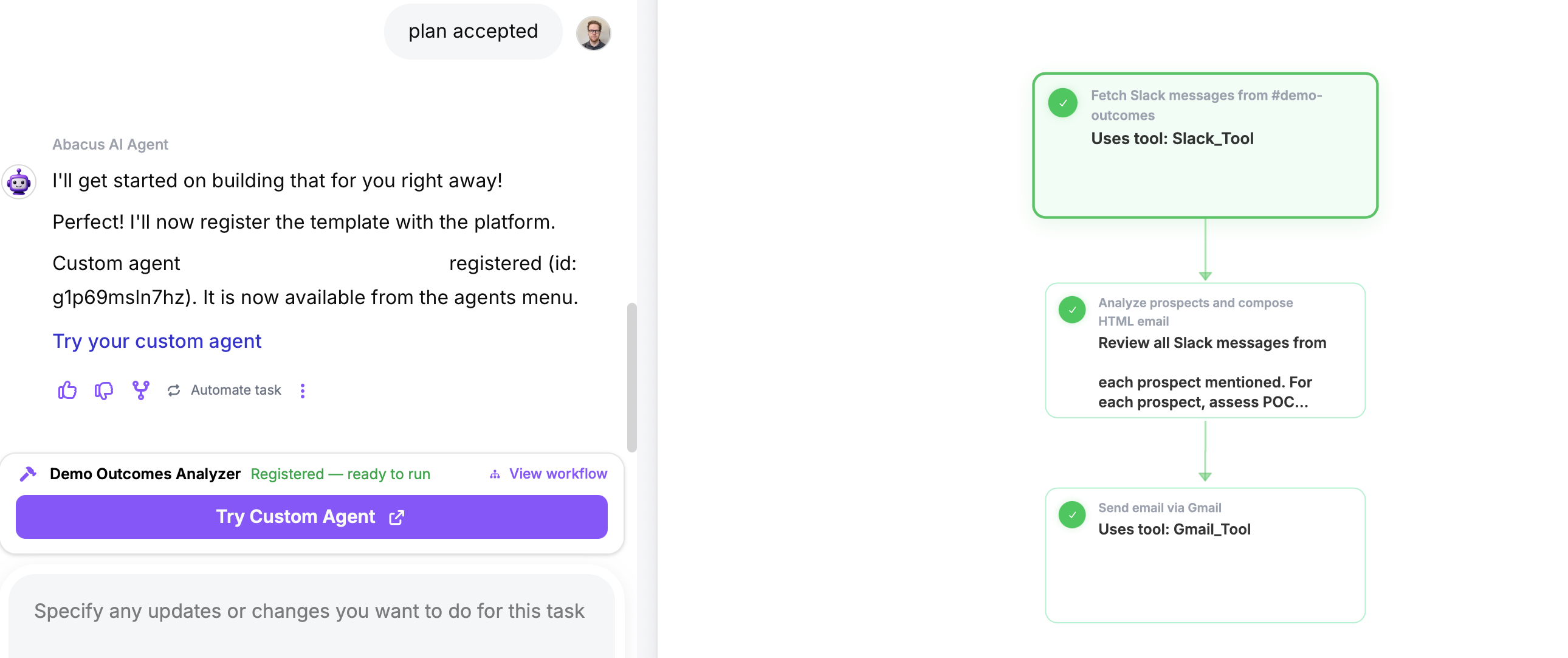
Once completed you can review the specific workflow that was created by the Agent and run it via the Custom Bot drop-down.
Sharing these agents can be done via the Profile >> Bots menu under the Custom Agents section:

Claude / OpenAI History Import
We have now made it possible to easily import conversation history from other AI platforms that you may be using. This feature currently supports data from ChatGPT and Claude. To do so naviagte to your Profile menu and scroll to the pottom of the page. A new option called Import Conversations is availble.
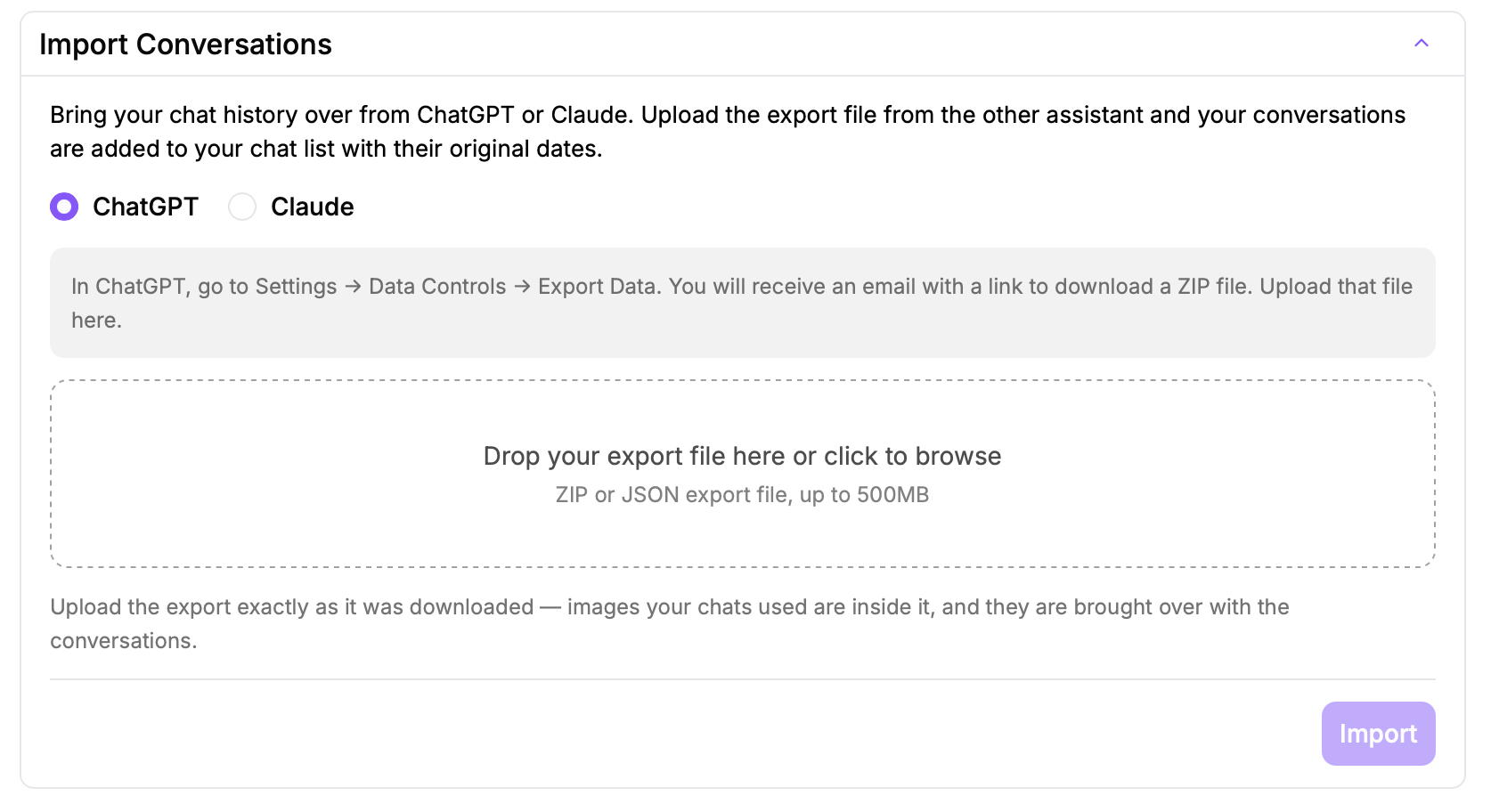
Expand the dropdown and follow the instructions depending on the vendor.
AppLLM Security Scanning
Apps built using the Abacus Agent can now be scanned for a comprehensive set of security vulnerabilities. Found within the App Management Dashboard under the new Security tab, users can now run the security scan which provids a comprehensive report on the findings:
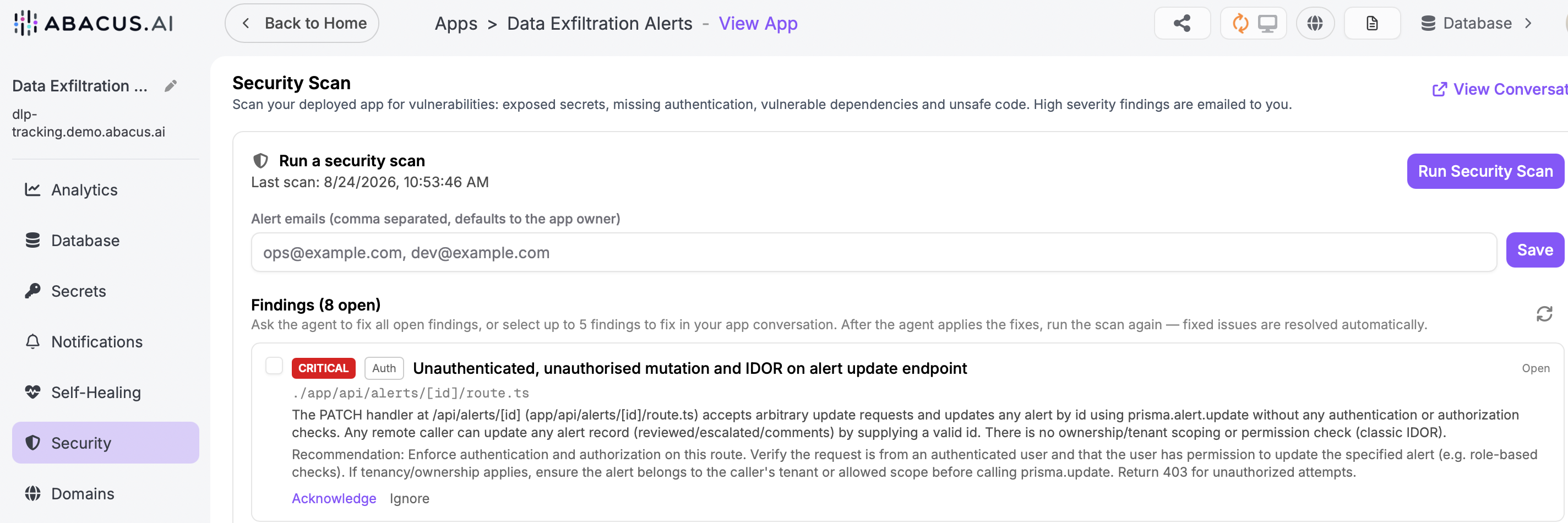
Users can ask the Agent to directly provide fixes for all or some of any vulnerabilities that it finds.
Slide Presentation Sharing
To improve sharing of slide presentations created using the Abacus Agent the sharing capability has been updated to ensure that published presentations can only be accessed by the provisioned user groups. To publish the presentation use the Publish button at the top of the presentation preview screen:
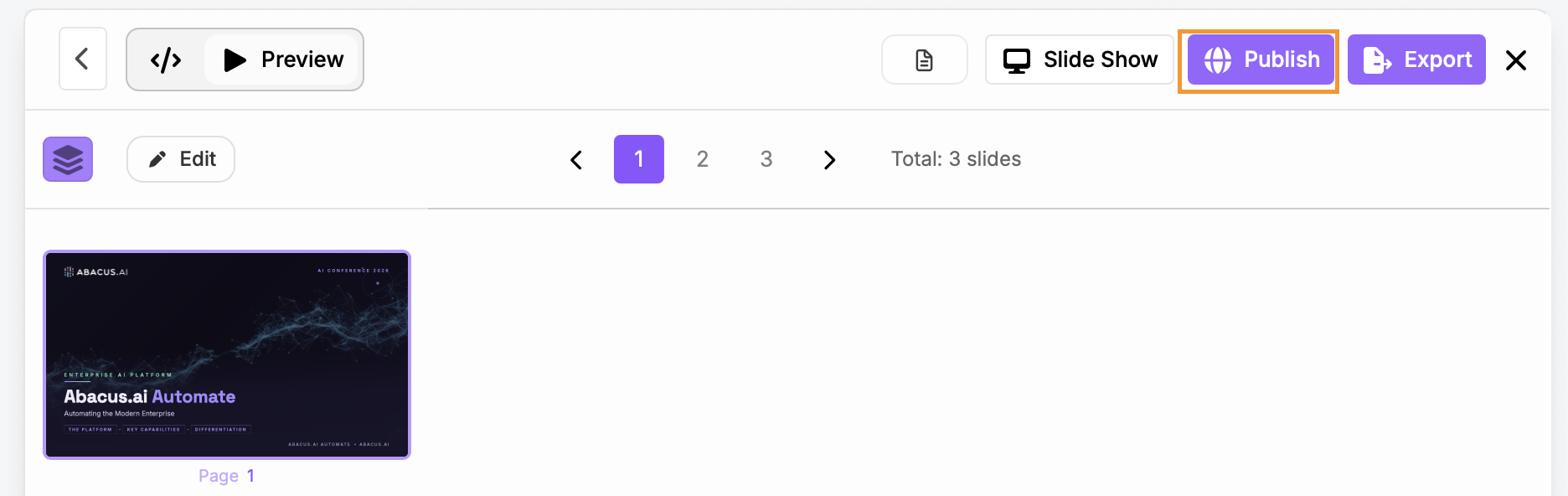
Users can then define who can access the published presentation using the drop-down.
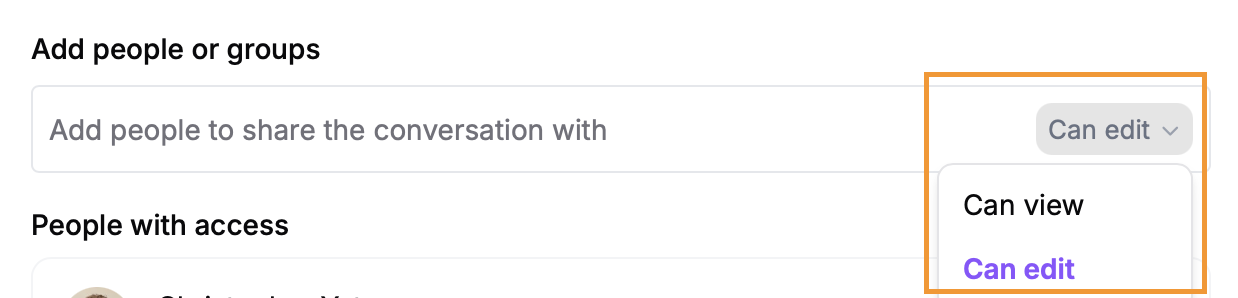
In addition to the published presentation, the sharing options for the conversation and presentation have been updated to allow users to provide view only access as well as the origial edit role. To provide view only access click on the Share button above above the conversation:
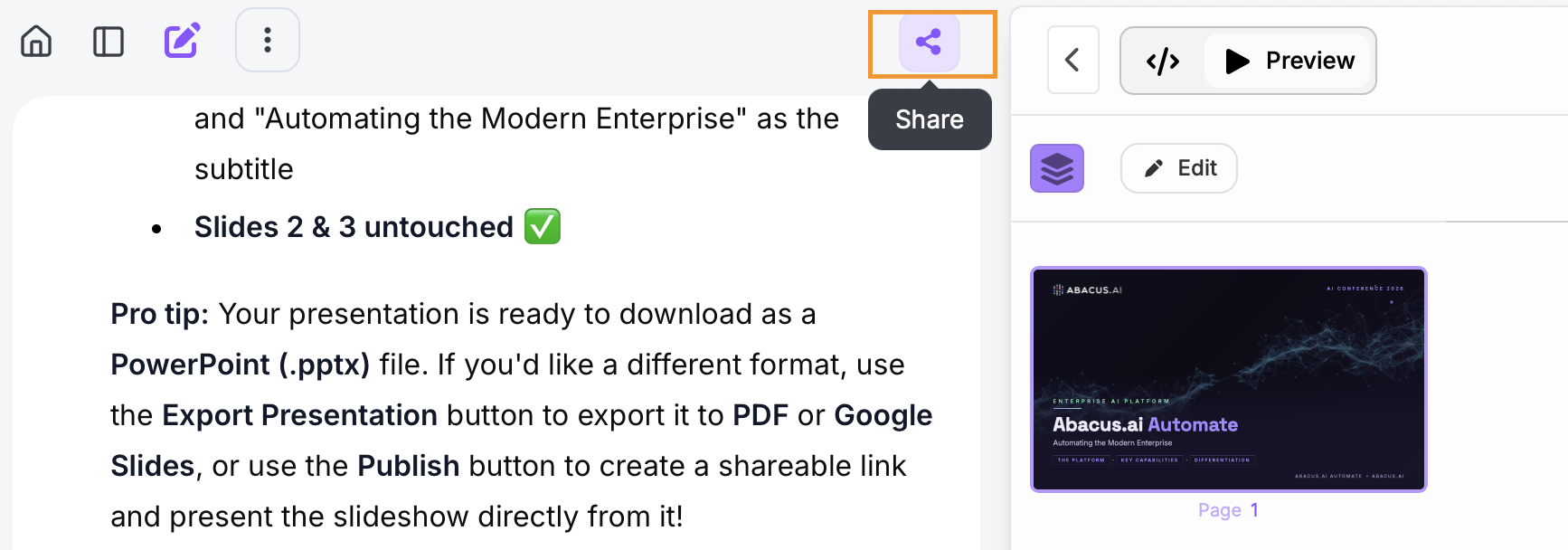
Users can then select which groups should be able to access the artifact as well as provision which role they should have:
Updated Usage Dashboard
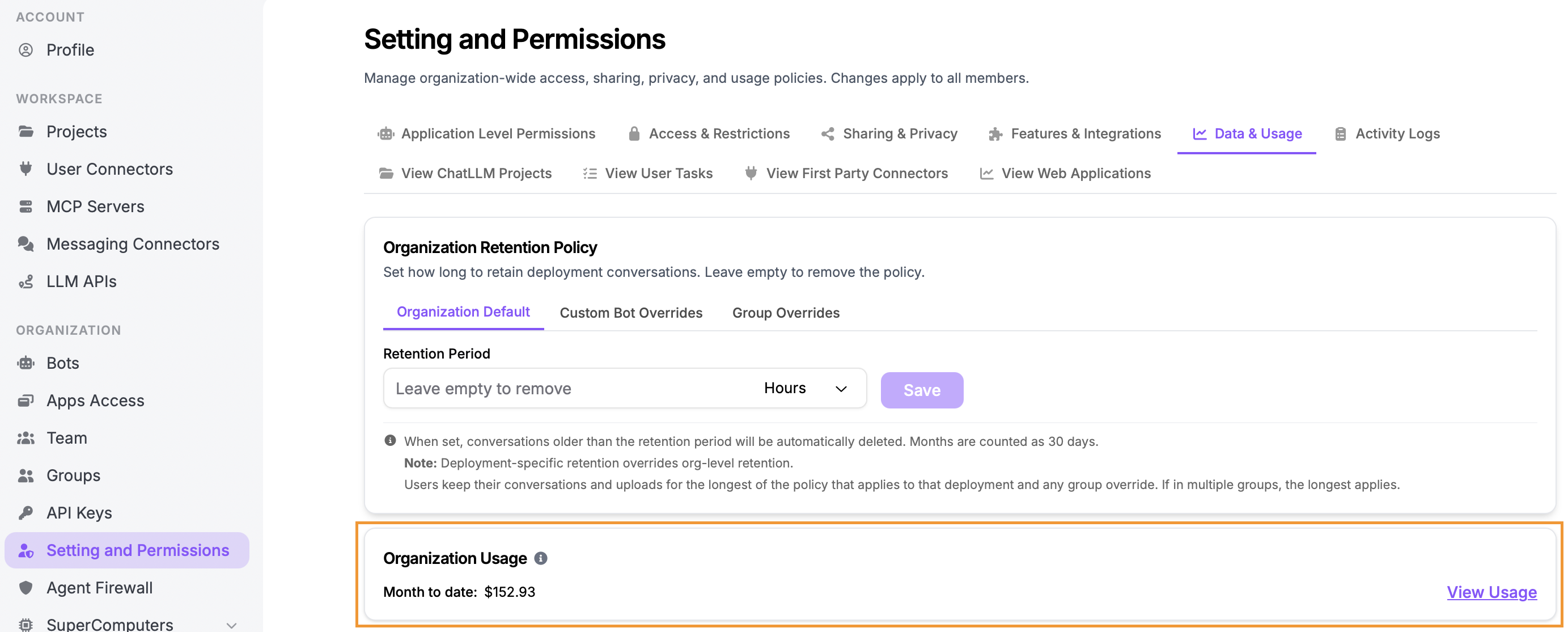
The usage dashboard in the Super Assistant admin section has been updated to profive platform admins with more detailed information. Under Settings and Permissions >> Data & Usage a new Organization Usage option is shown. This provides the overall token spend for the organization month-to-date:
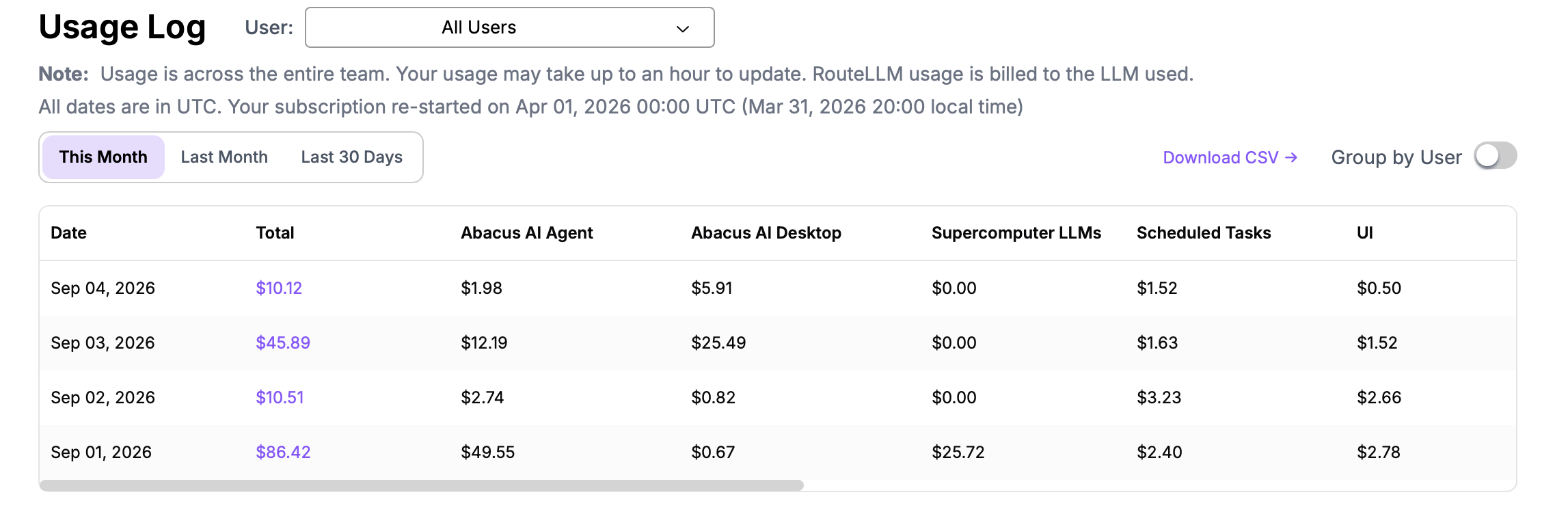
Click on the View Usage button to see a more comprehensive view across individuals and source:
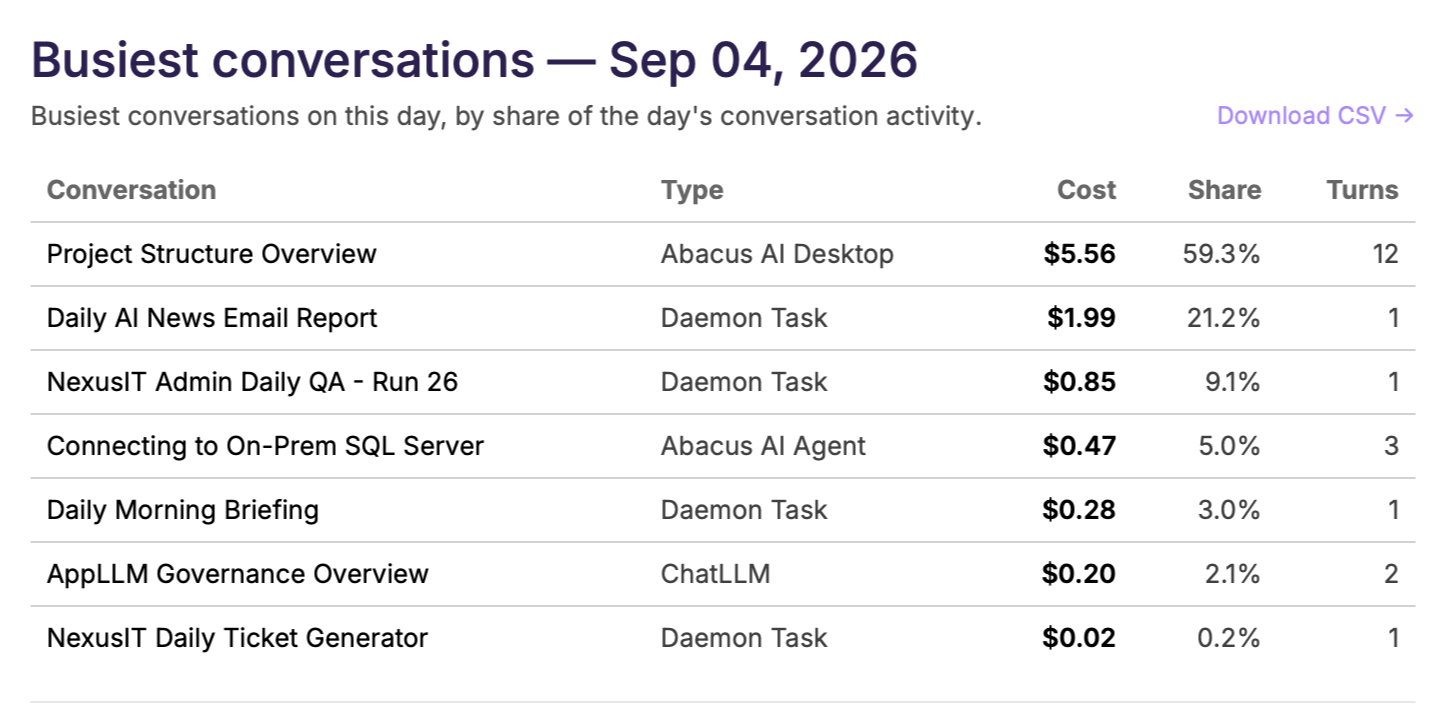
Clicking on the purple values in the Total column provides more information on the conversations and type of use:
For more comprehensive insights and details admins should refer to the Usage Logs or Usage Metrics.
Connectors
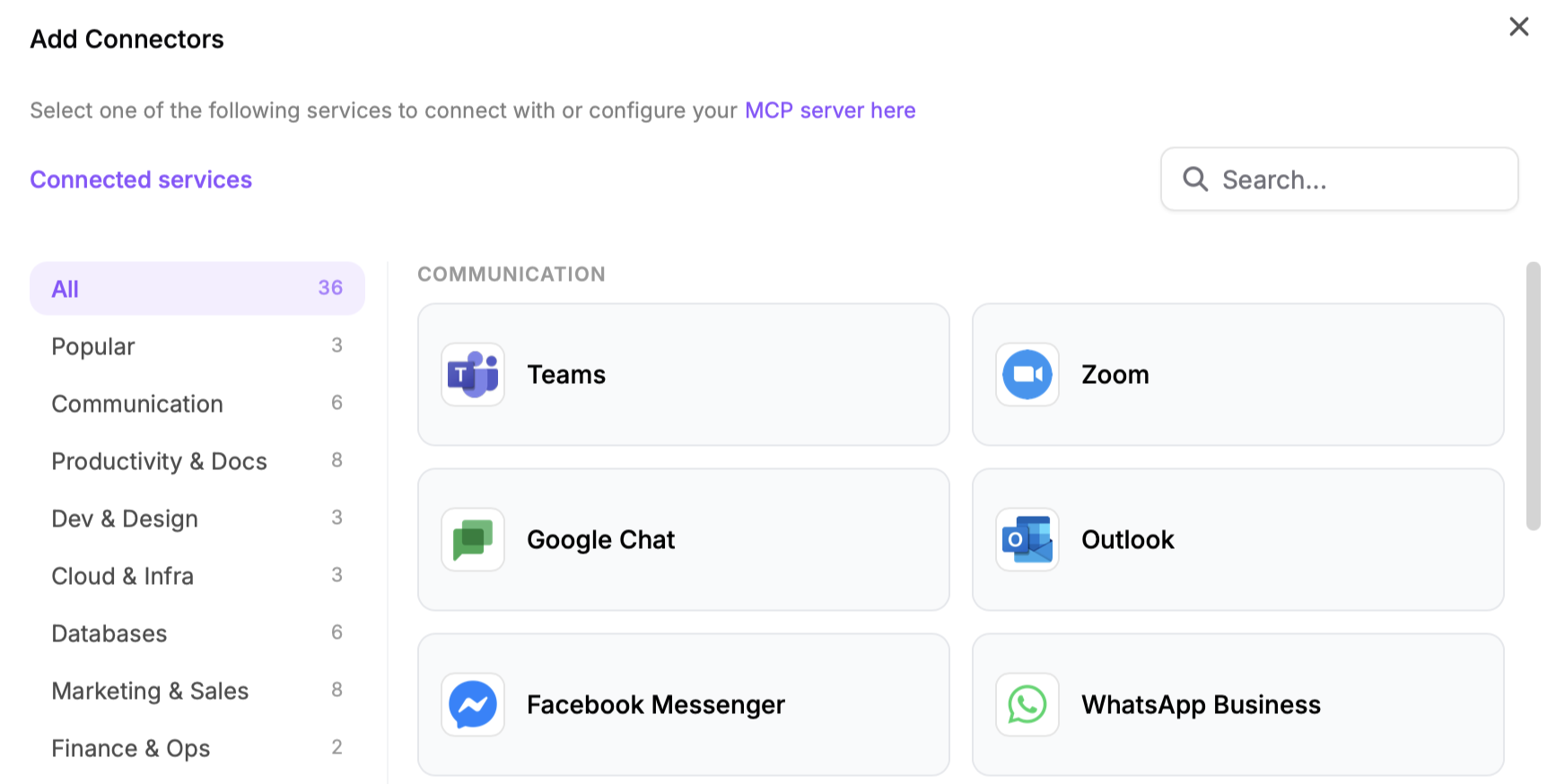
A number of new connectors have been added to increase out-of-the-box connectivity for end users. This includes messaging services like WhatsApp Business, Facebook Messenger and Google Chat as well as popular marketing systems, such as: Google Ads, Google Analytics and Meta Ads.
To connect any of these services navigate to Profile >> Connectors then click on Add connector:
Voice Agents - bring your own number
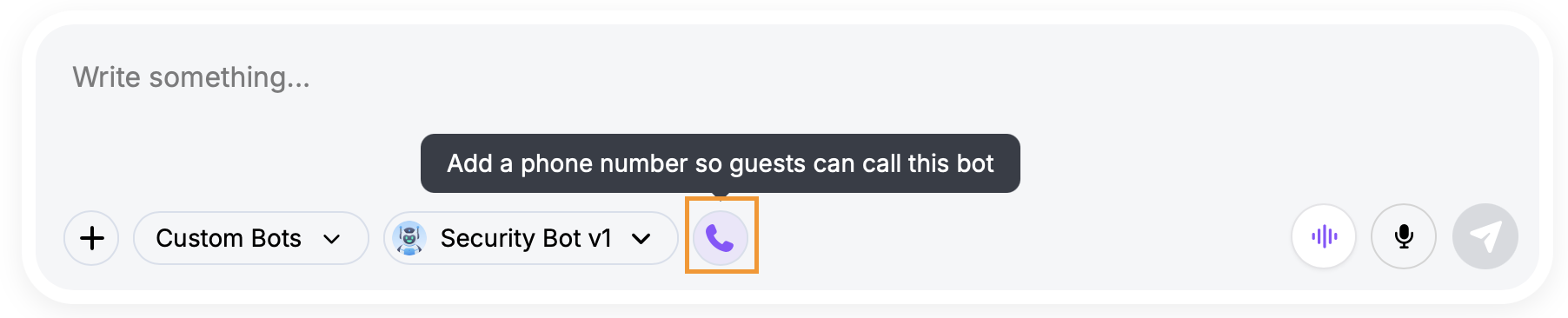
As part of our rollout of voice-enabled agents, the phone number provisioning now has the option to bring your own number. To enable this option navigate to the voice enabled custom bot in the Super Assistant UI and click on the manage phone numbers button:
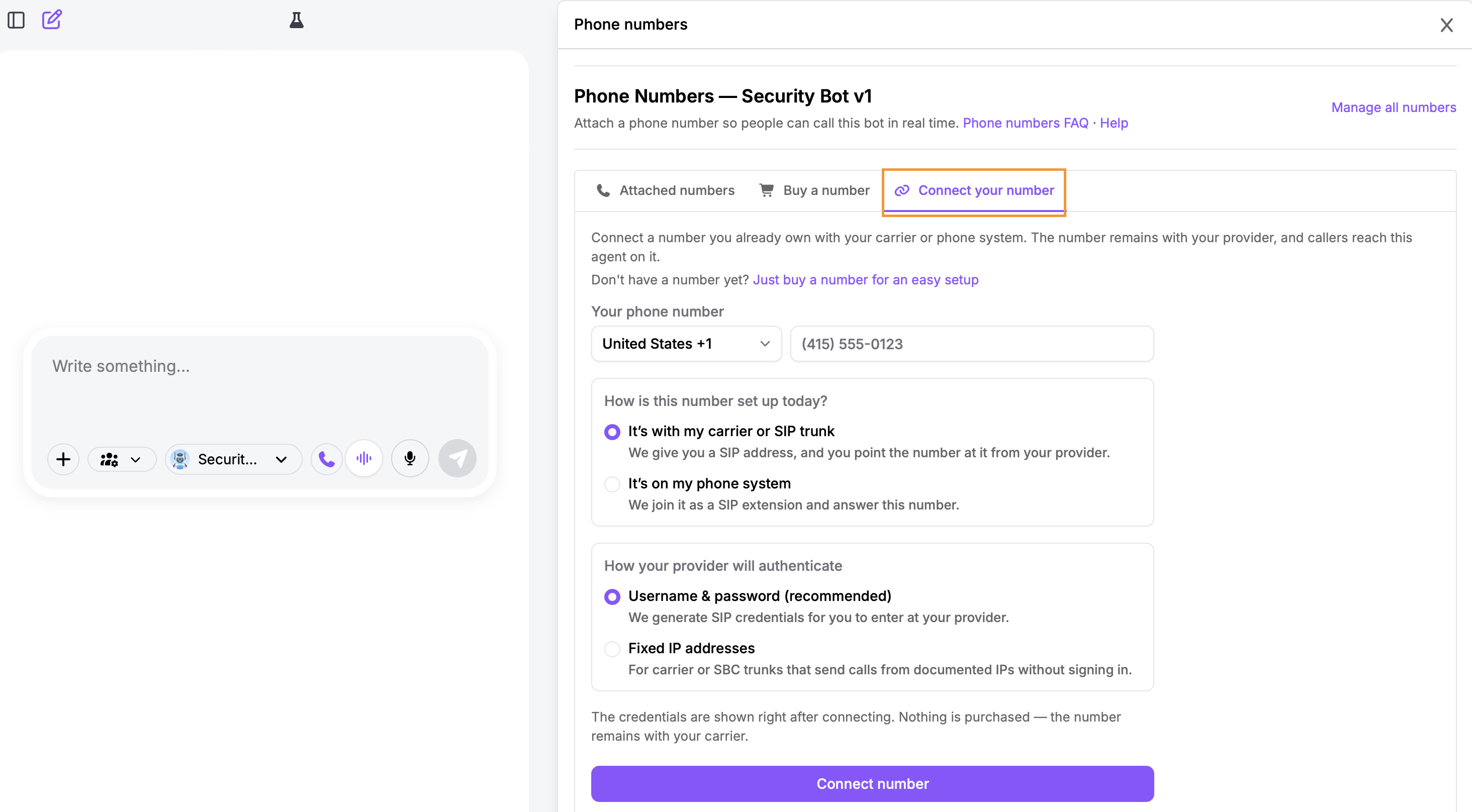
Use the Connect your number tab in the phone number management screen:
For more information on creating and configuring voice agents please see our documentation
Abacus Desktop
Two important updates to the Abacus Desktop products that significantly extend their capabilities.
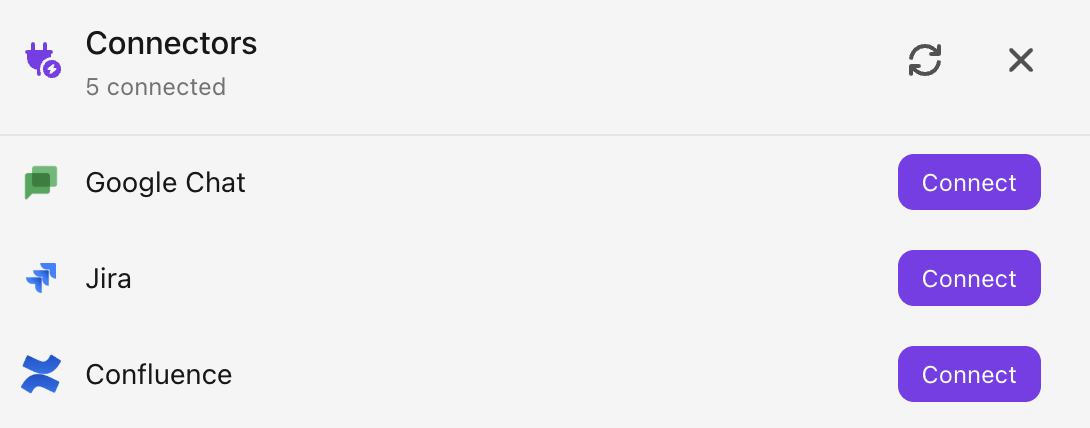
Connectors in Cowork and Chat Mode Both Cowork and Chat Mode in the Abacus Desktop now support the User Connectors that are available in the Web Application. To manage the connectors available in the Desktop use the Tools >> Connectors menu (available via your profile menu in the bottom-left of the screen):
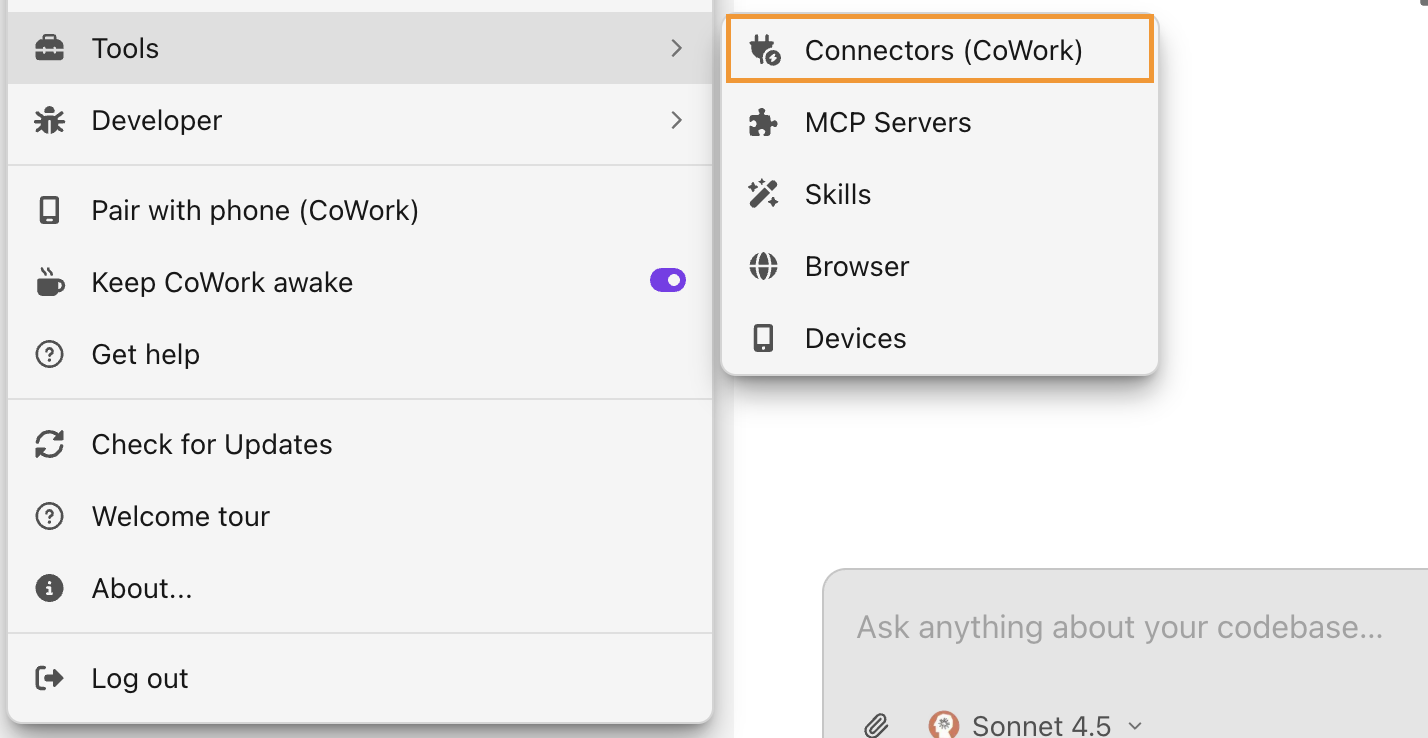
The connectors menu will allow you to connect or disconnet specific connectors for Desktop to use. Any connectors previously authentcated in the Web Application will also be connected in Desktop by default:
Bring Your Own Keys to IDE and CLI To extend usability of our IDE and CLI tools we now support users bringing both their own API keys and connecting to existing subscriptions (e.g. Codex).
Additionally we give the option to run local or third-party providers. A provider you add yourself runs the conversation on your machine against any endpoint you choose: Ollama or LM Studio on your laptop, OpenRouter, Groq, DeepSeek, or OpenAI, Anthropic and Google directly. With the local providers option nothing about the conversation reaches Abacus.AI.
For more details on enabling these options and the configuration steps please see our documentation page
Admin Updates
Retention Policies All platform retention policies have been consolidated into one location, now found under Settings and Permissions >> Data & Usage:
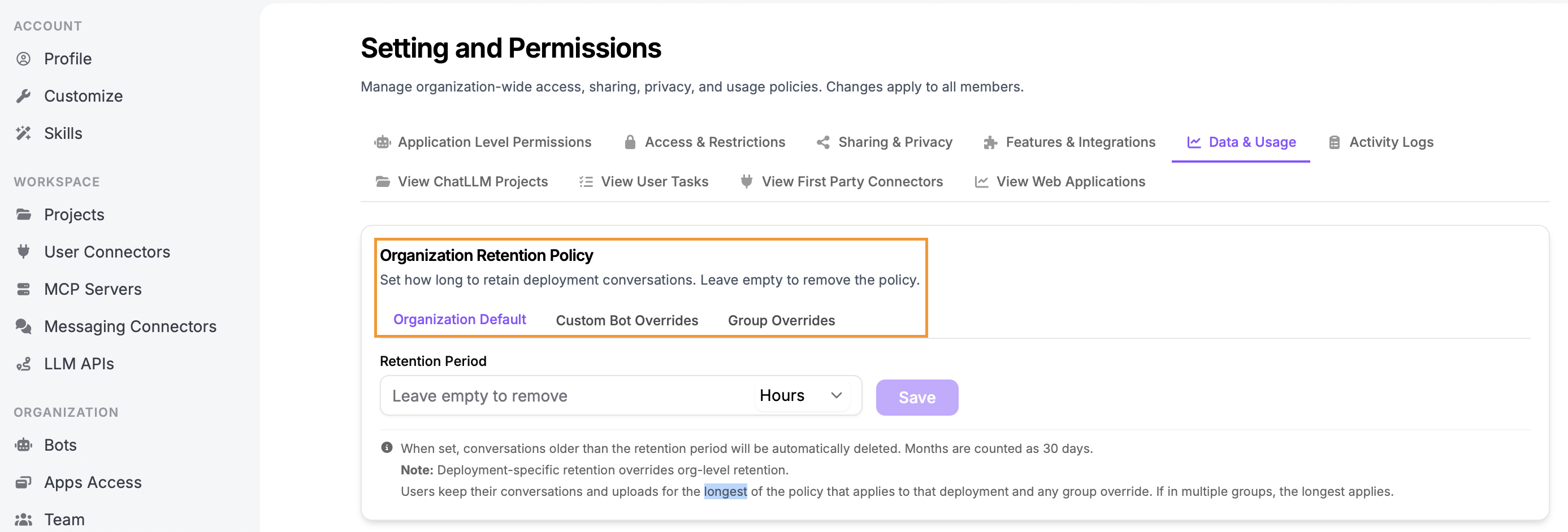
There are three options for managing data retention:
- Organization Default sets the standard default retention period for all use of the platform
- Custom Bot Overrides allows you to set specific retention periods for custom bots. This was previously found under the settings for each custom bot in the Bots menu. Any retention periods configured here override the organzaion default
- Group Overrides provides the ability to apply longer retention policies for specific groups. An override only applies where it is longer than the policy that would otherwise apply. For example, if a custom bot has a retention policy of 30 days the group overrides could be used to extent this retention (e.g. to 60 days) for specific groups.
Company Knowledge Access For platform administrators to control access to the Company Knowledge feature a new option has been added under Settings and Permissions >> Access & Restrictions:

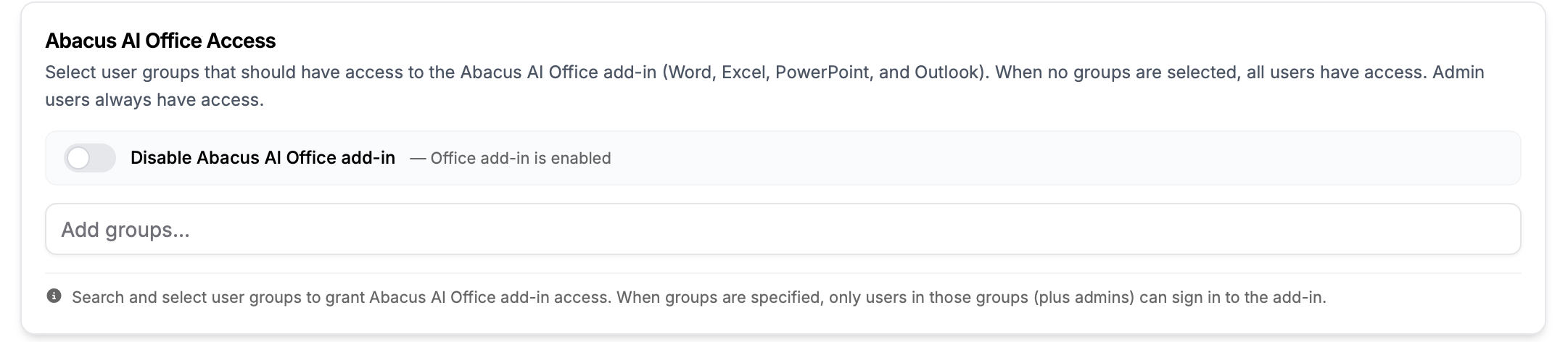
Office Add-ins Access Also found under the Access & Restrictions tab in the settings is the new option to control which user groups can access the Microsoft Add-ins. Admins can additionally decide to fully disable access:
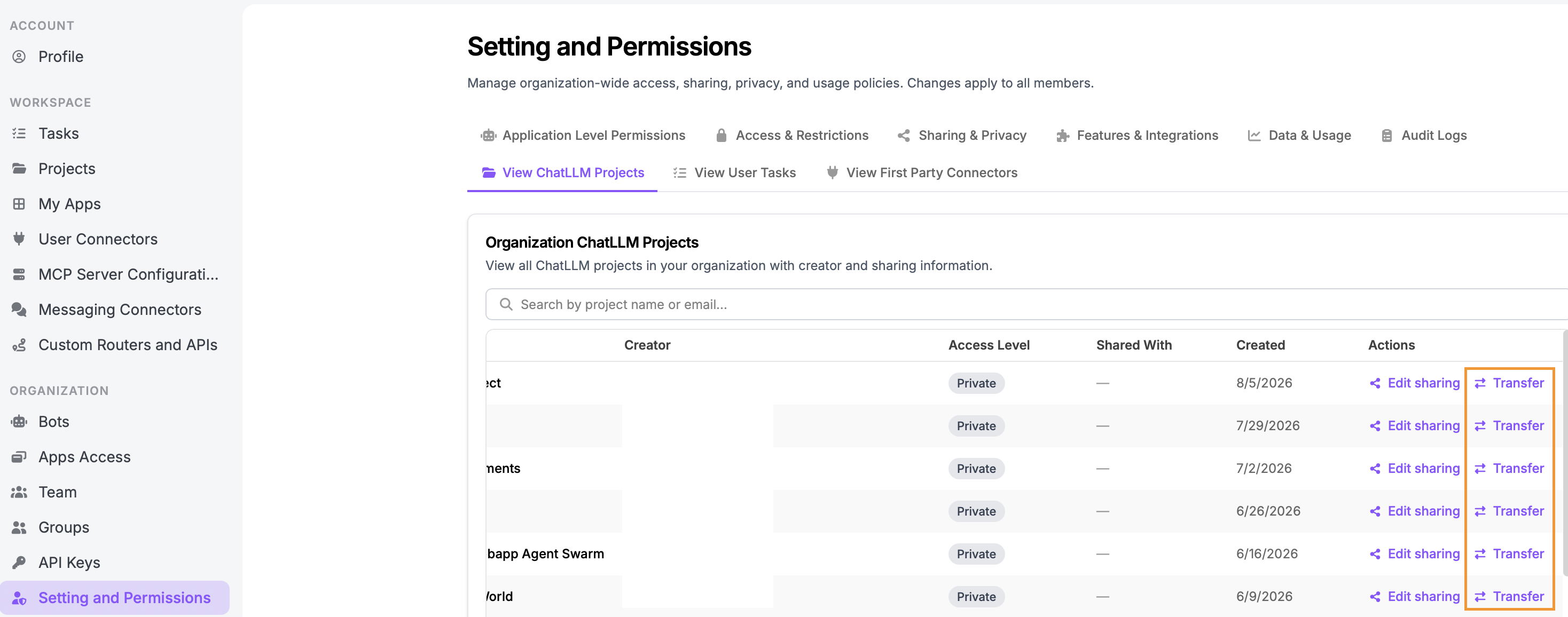
Project Ownership Transfer In order to provide more flexibilty to manage work on the platform admins can transfer ownership of individual projects. Previously all projects owned by a particular user had to be transferred, with no ability to sub-select particular ones.
To transfer projects use the View ChatLLM Projects tab, found under Settings & Permissions. A new Transfer tab is available:
Okta OIDC Support
Finally for this month we have updated our SSO options to now fully support OIDC setup for Okta. The update adds creation and syncing of users through the OIDC - more details can be found in our documentation