July 2026 Platform Update
New Models
A number of new models have been made available in the platform over the last month:
- Meta's Muse Spark 1.1
- Thinking Machines's Inkling
- DeepSeek's V4 Flash
SCIM Provisioning
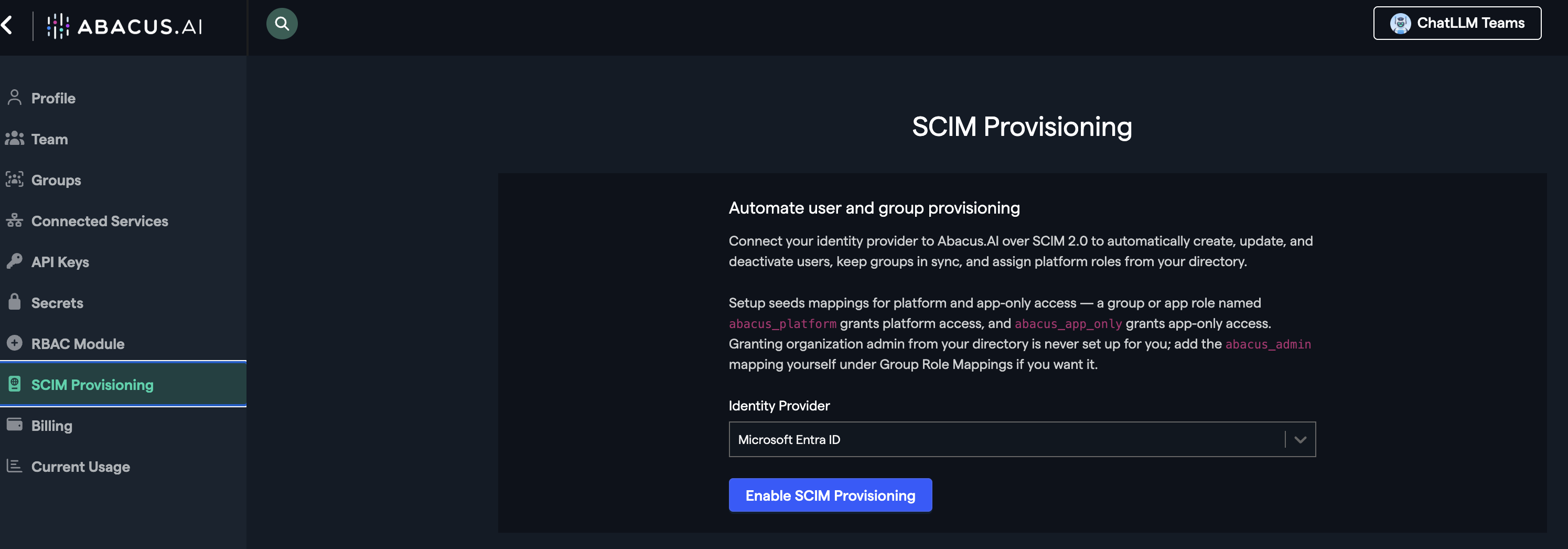
A major update to SCIM has been added to support creating, updating, de-activating and removing Abacus users automatically, as well as syncing directory groups. A new option in the dev platforms settings is available for admins to configure this:
For more information please read our documentation
Voice Agents
Voice Agents are AI assistants that you can interact with using real-time speech instead of typing. They combine advanced speech-to-text, reasoning, and text-to-speech technologies to enable fluid, human-like verbal conversations. On the Abacus AI platform, these agents typically offer:
-
Real-Time Verbal Interaction: You can speak directly to the agent (using the microphone icon in the chatbot or a dedicated mobile interface) and hear a spoken response with very low latency.
-
Dedicated Phone Line: Provision a dedicated phone number to the agent to allow users to call in directly.
-
Multimodal Capabilities: The agent can "listen" to your instructions, process complex data or code, and explain the results verbally while simultaneously showing relevant text or artifacts on your screen.
-
Mobile Accessibility: They are particularly useful on the ChatLLM mobile app, allowing for hands-free productivity while you are on the go.
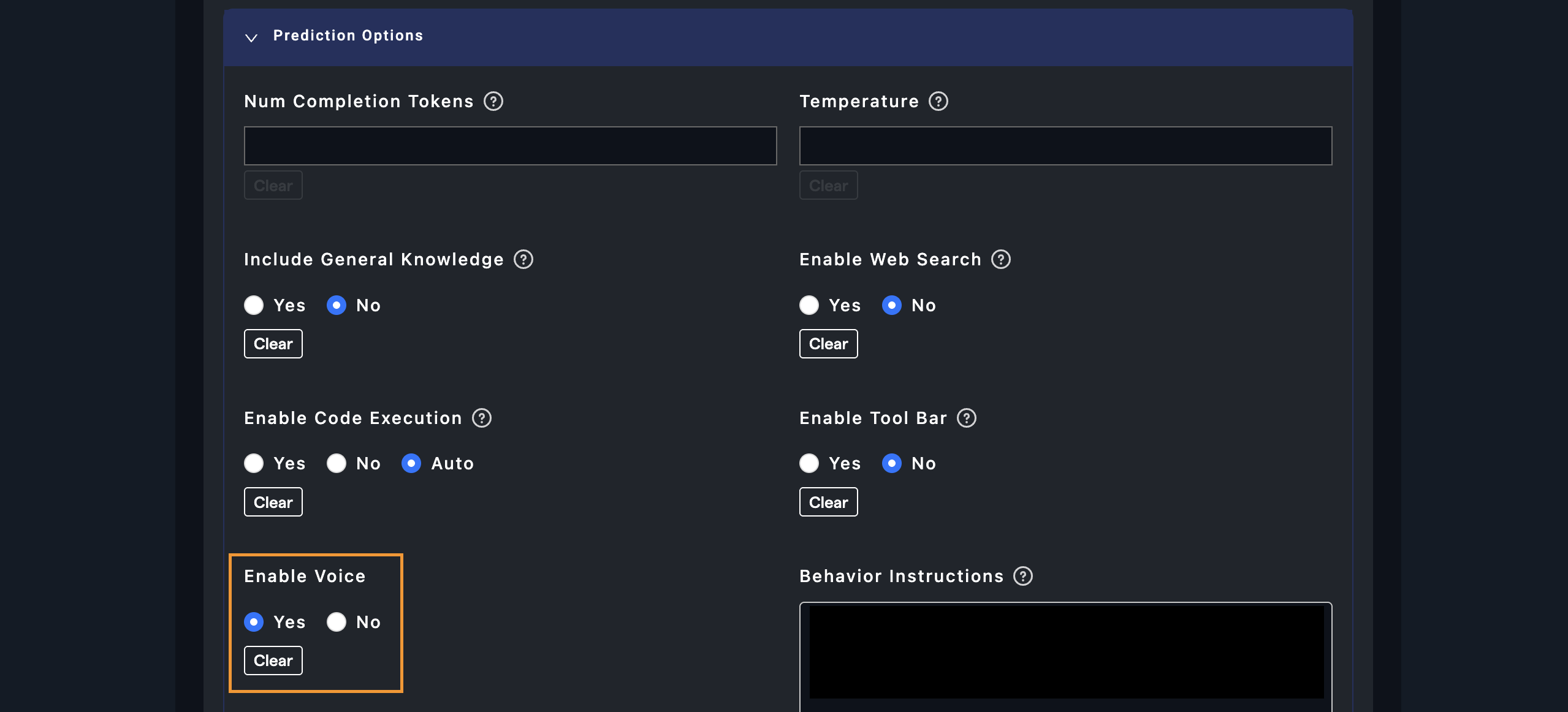
Enabling agents for voice interaction is done as part of a custom bot. This can be configured manually using Enable Voice option in the bot configuration screen or via the Abacus AI Agent:
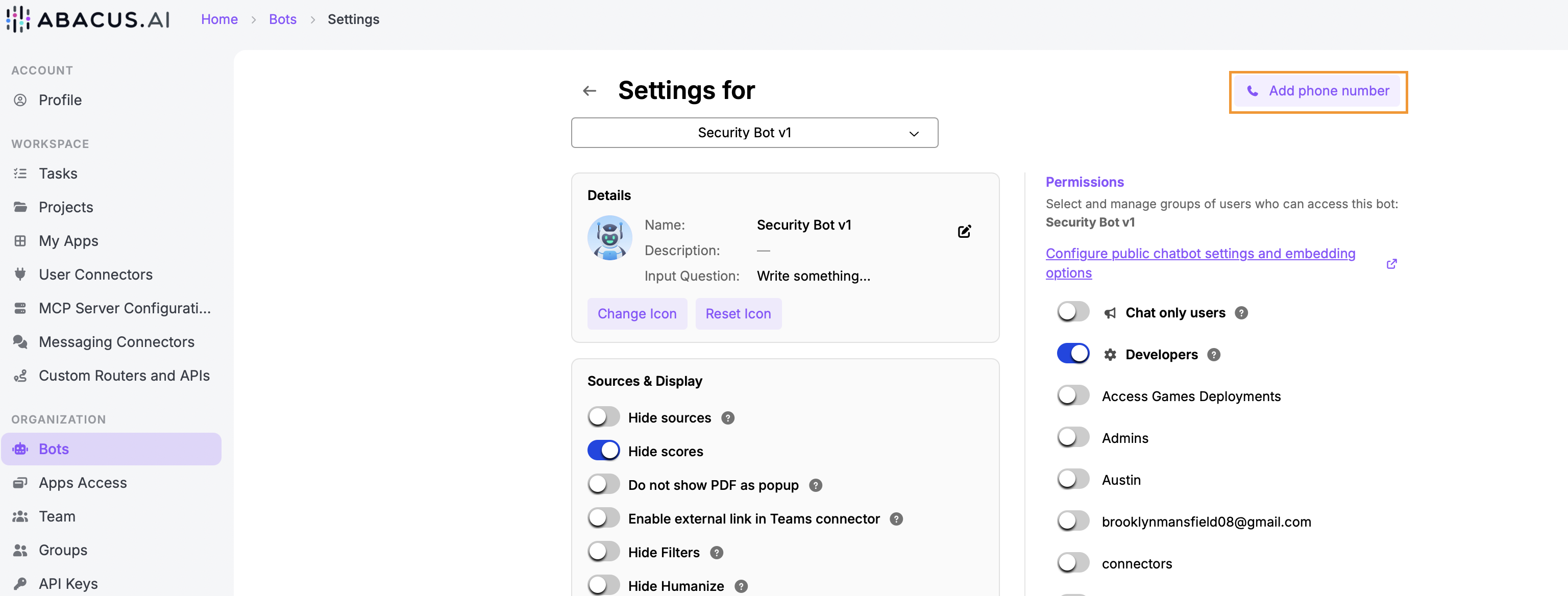
To provision a phone number to the agent requires additional setup steps. Once deployed navigate to the Super Assistant UI to interact with the agent, where a new Add phone number option will be available:
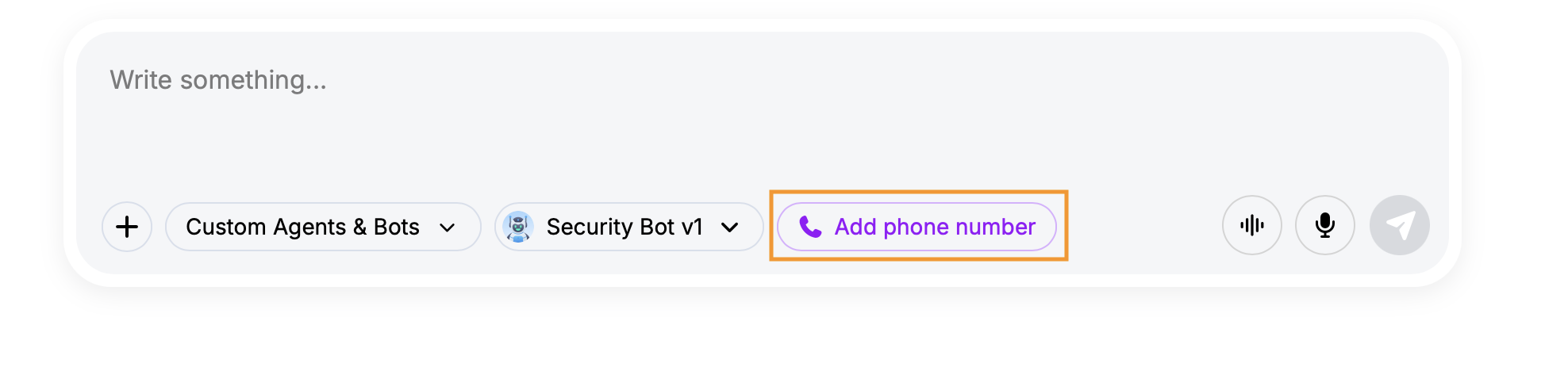
This will open a new window in the Bot settings page for creating and managing the phone number for this agent:
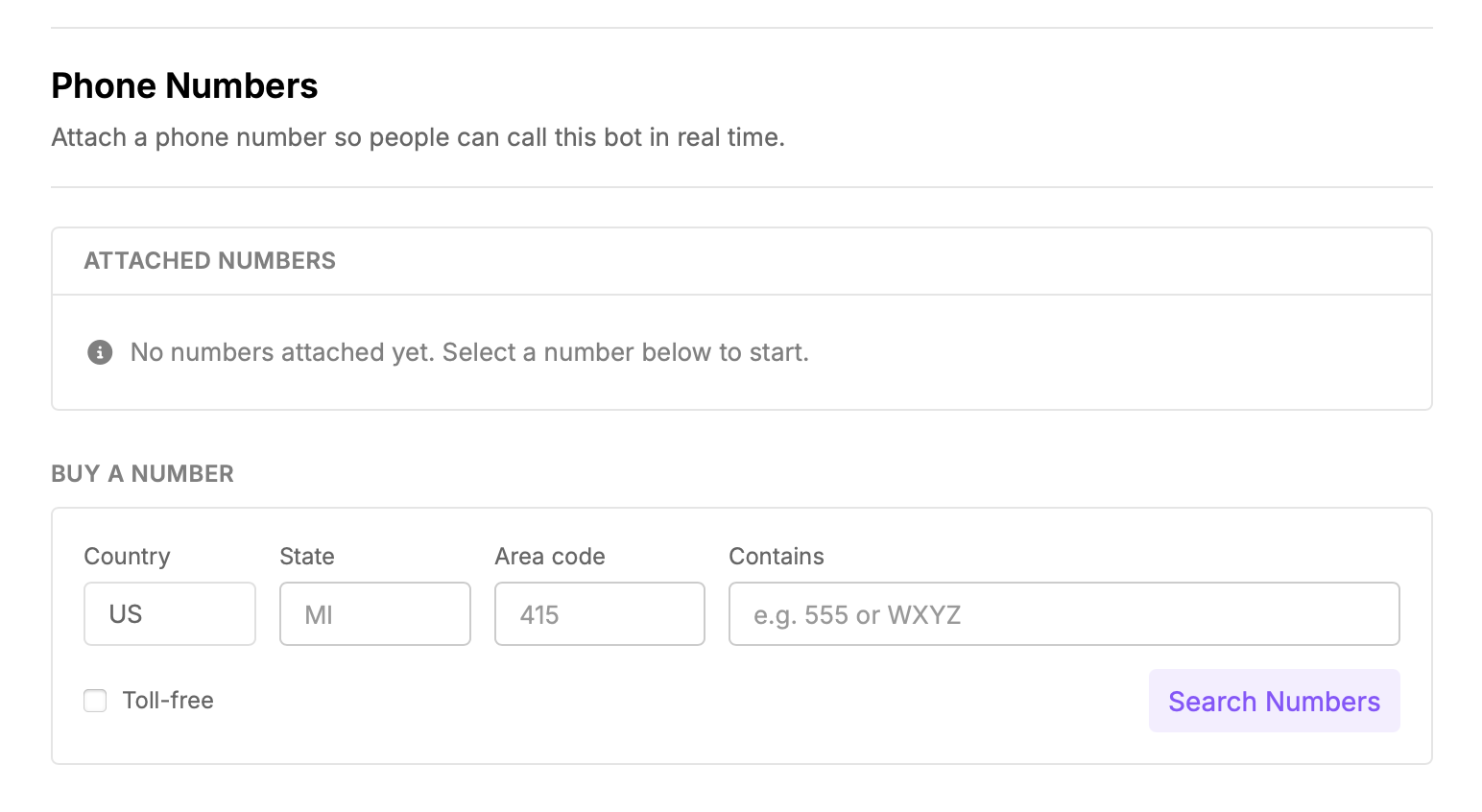
Phone numbers can be managed on an agent-by-agent basis in the settings page:
Custom Bot Settings
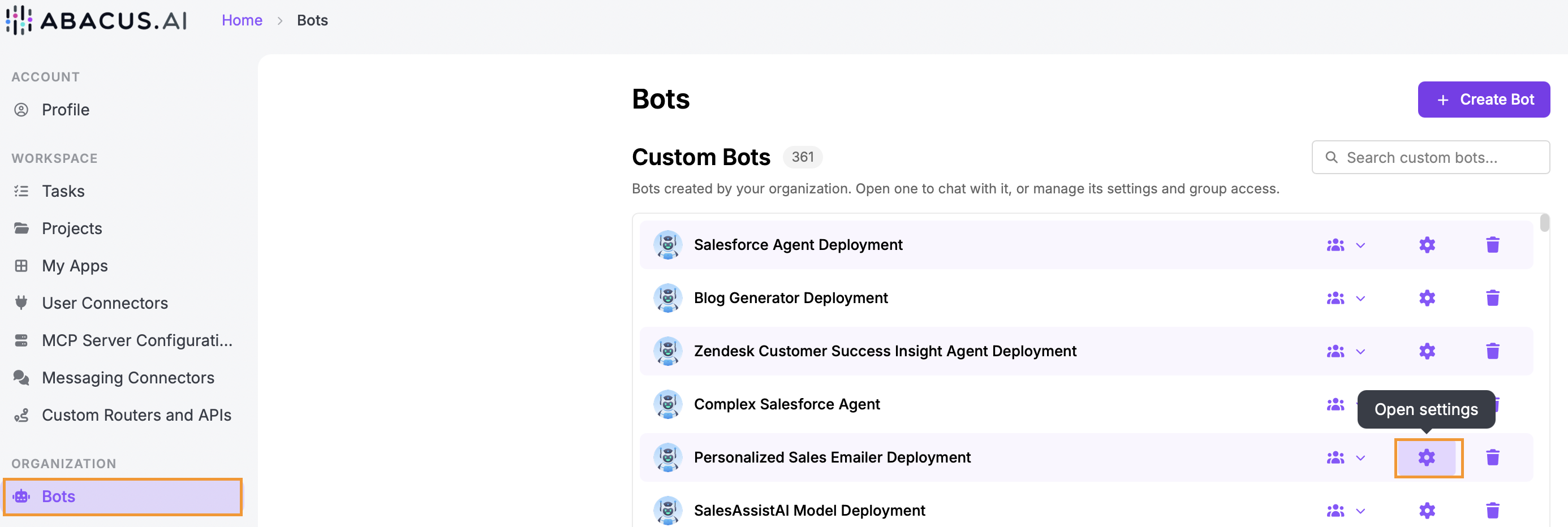
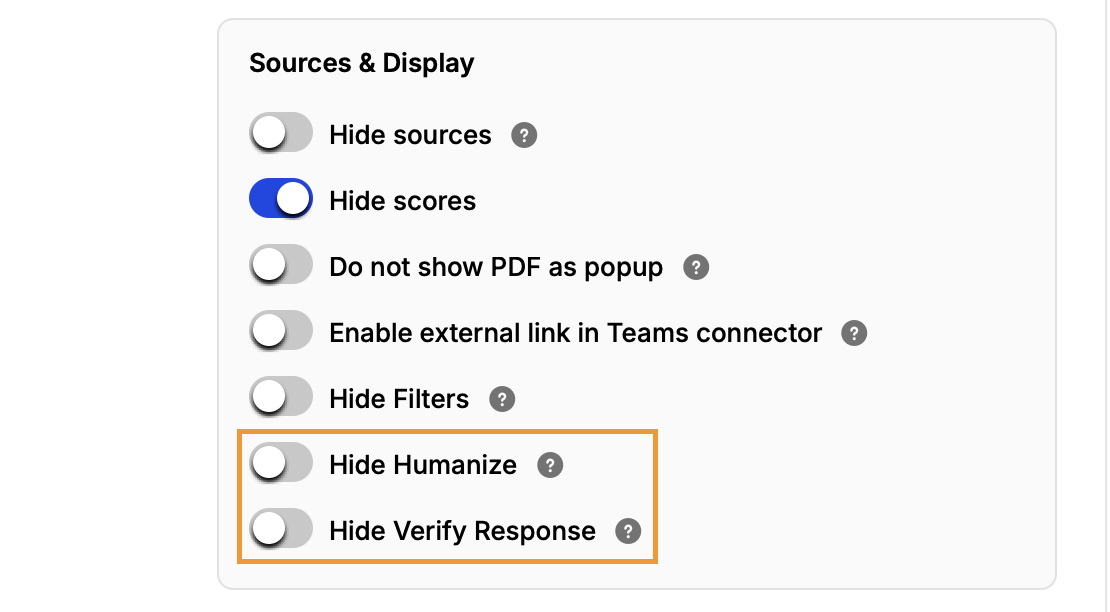
As part of the UI settings for custom bots we have added two new options for controlling access to the Humanize and Verification tools. Navigate to the bot settings menu found under Bots in the Super Assistant settings:
Under Open Settings there are two new toggles for managing these tools:
Self-Improving Tasks
An exciting new feature for the AI Agent is the ability to create self-improving tasks that recursively work to improve the outcome. While normal tasks handle recurring work, self-improving tasks work to get measurably better at a task over time. Each run makes one focused change, an independent evaluation measures the result and the next run builds on what actually worked.
To create a self-improving task use the menu option on the left of the Super Assistant homescreen, and then click on the Self-improving AI banner above the prompt window:

We provide some examples to get you started or you can create your own. What’s important when creating these tasks is to be clear in the prompt how the task should execute:
- What to improve (the objective)
- What the agent may change (e.g. code, prompts, data, replies…)
- How to measure it (the metric and where the data comes from)
- How often to run
- Any limits or approvals (e.g. “open a PR, don’t merge”, “max one post per day”)
In this example we prompted the agent task to score incoming lead data from a CRM. Over multiple runs assessing conversation data and new leads it improves its overall precision in identifying the most promising customers:
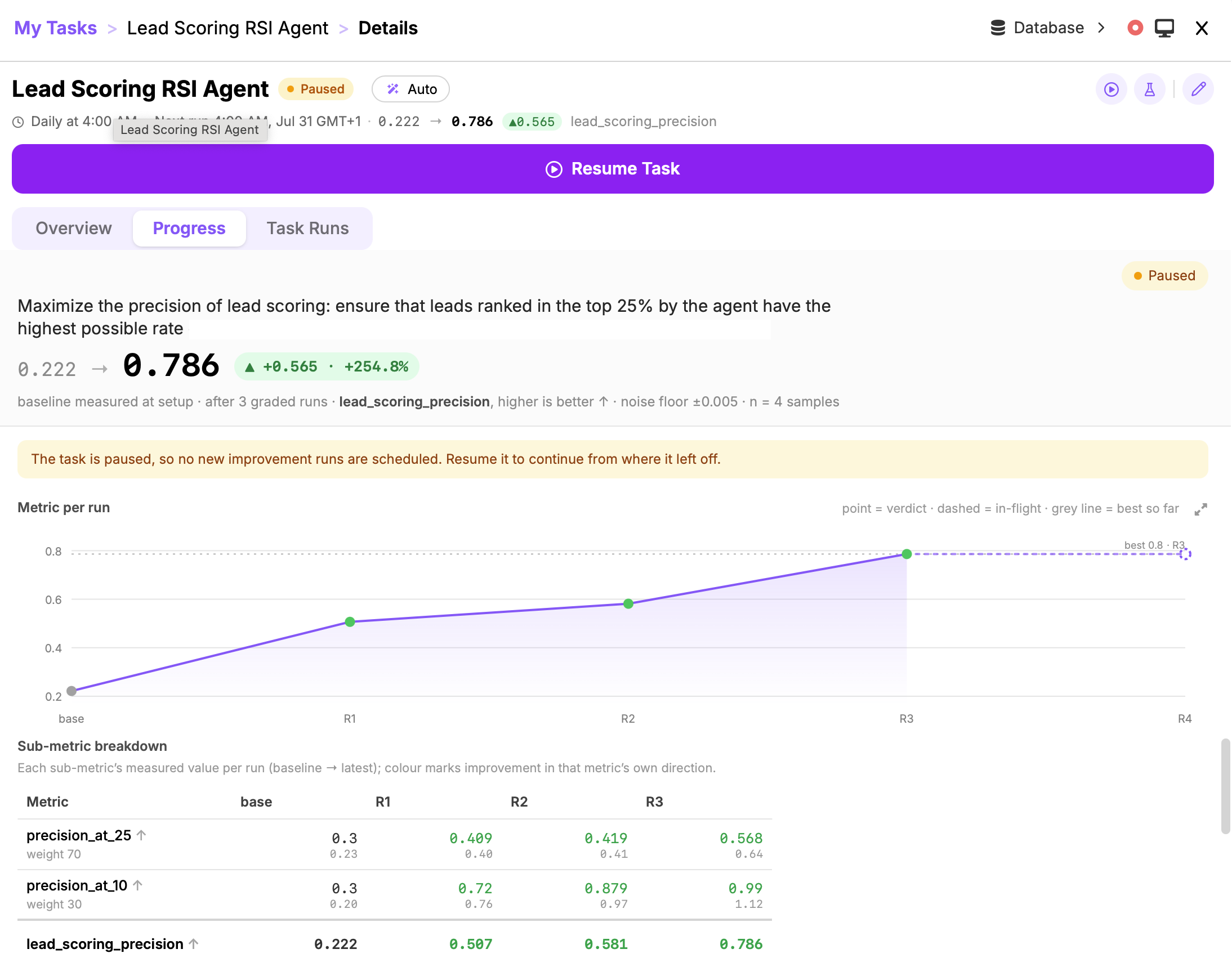
For more details please reference the documentation
Custom Router Updates
Several updates have made to the new custom router functionality:
Custom Chatbot RoutingFirstly, custom chatbots can now be added as one of the options that a prompt gets routed to. Within the LLM selection for a particular router classification a new tab is available that lists all deployed bots:
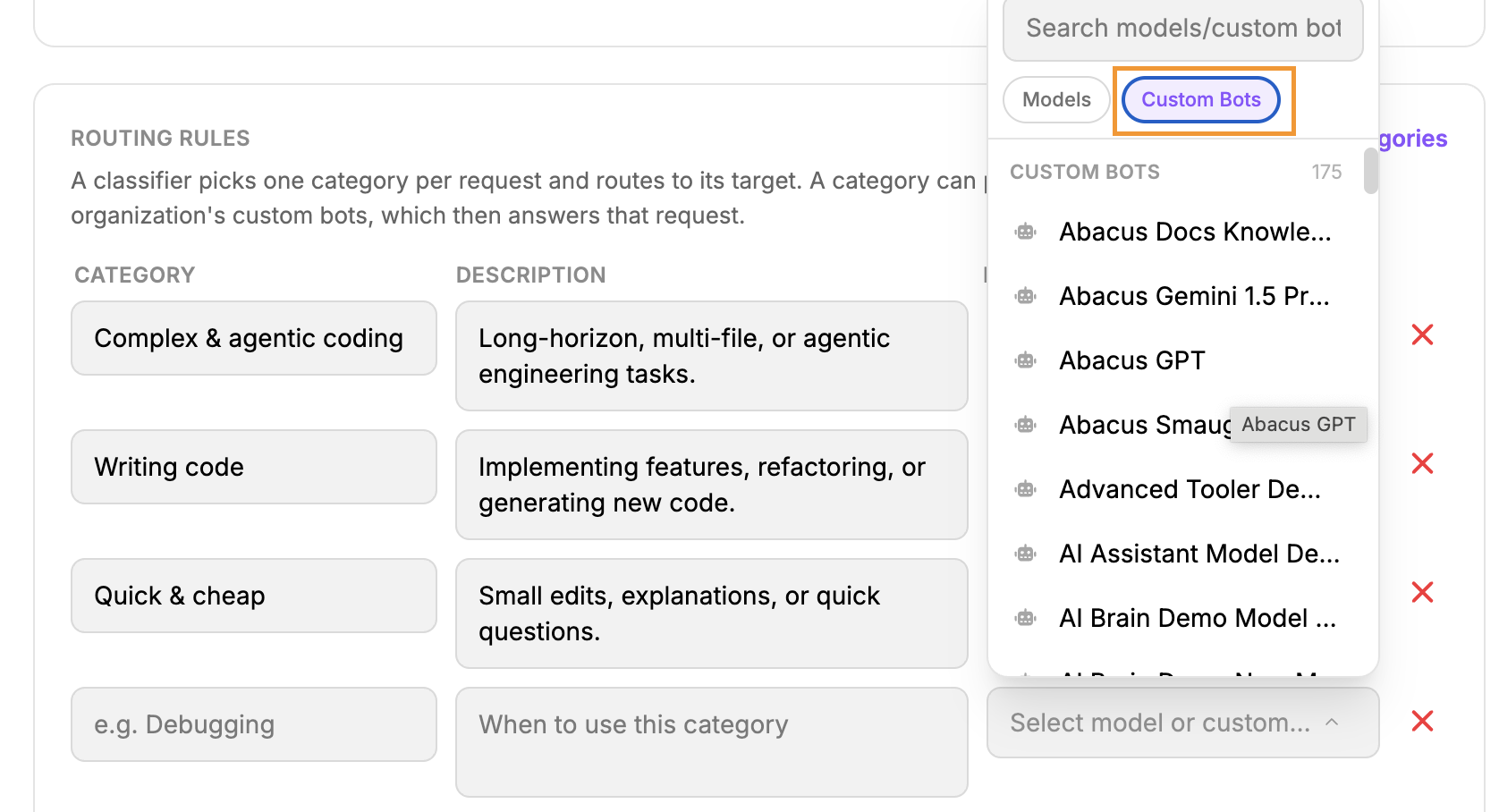
This option provides extended flexibility to ensure users are re-directed to the correct source, without them having to select chatbots independently. It also more seamlessly marries the underlying power of the Super Assistant with any specific solutions you have designed.
Group PermissioningIn addition custom router access can now be permission controlled through access groups in the same way as custom bots, giving added flexibility to design routers for specific groups within your organization.
To manage this navigate to the Profile >> ORGANIZATION >> Bots menu in Super Assistant:

Use the group icon column to manage access permissions for each custom router.
User-Level Connectors Management
Connector ConfigurationsConnector configurations are used to manage the default scopes and settings of the connections end-users are authenticating in the Super Assistant. These had previously been part of the developer platform but have now been added to the User Connectors menu in the Super Assistant.
To create a connector configuration navigate to the Connectors page through your profile menu:
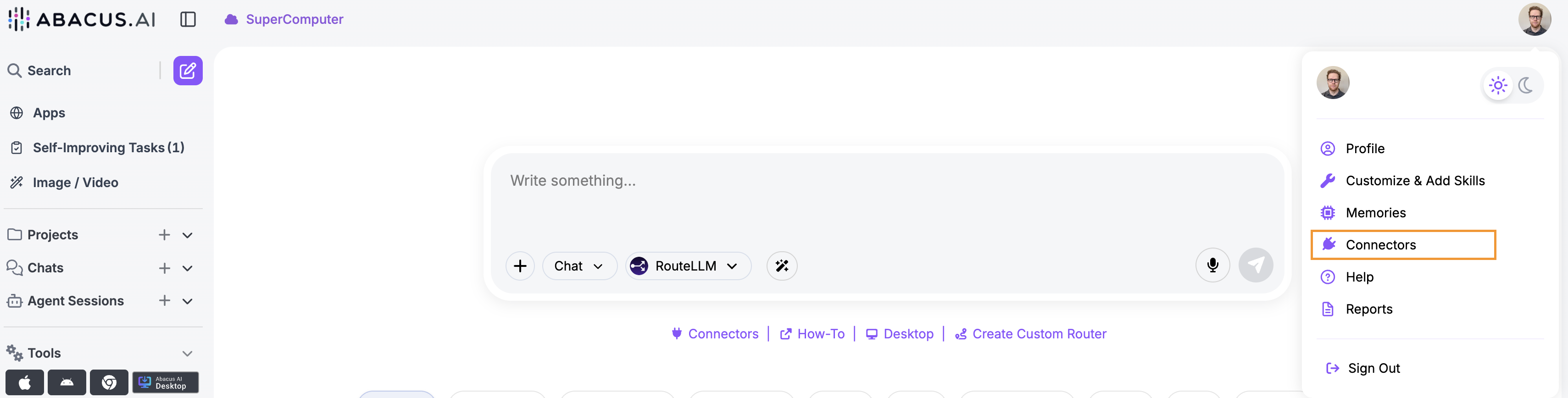
Once on the User Connectors tab a Connector Configurations option will be available below the list of user connectors that have already been authenticated. Click on Add Config to view a list of the available connectors to configure (n.b. Not all user level connectors have an associated configuration connector available).

Select a connector to configure. Depending on the application the options will differ, but for Outlook the configuration options will look like this:
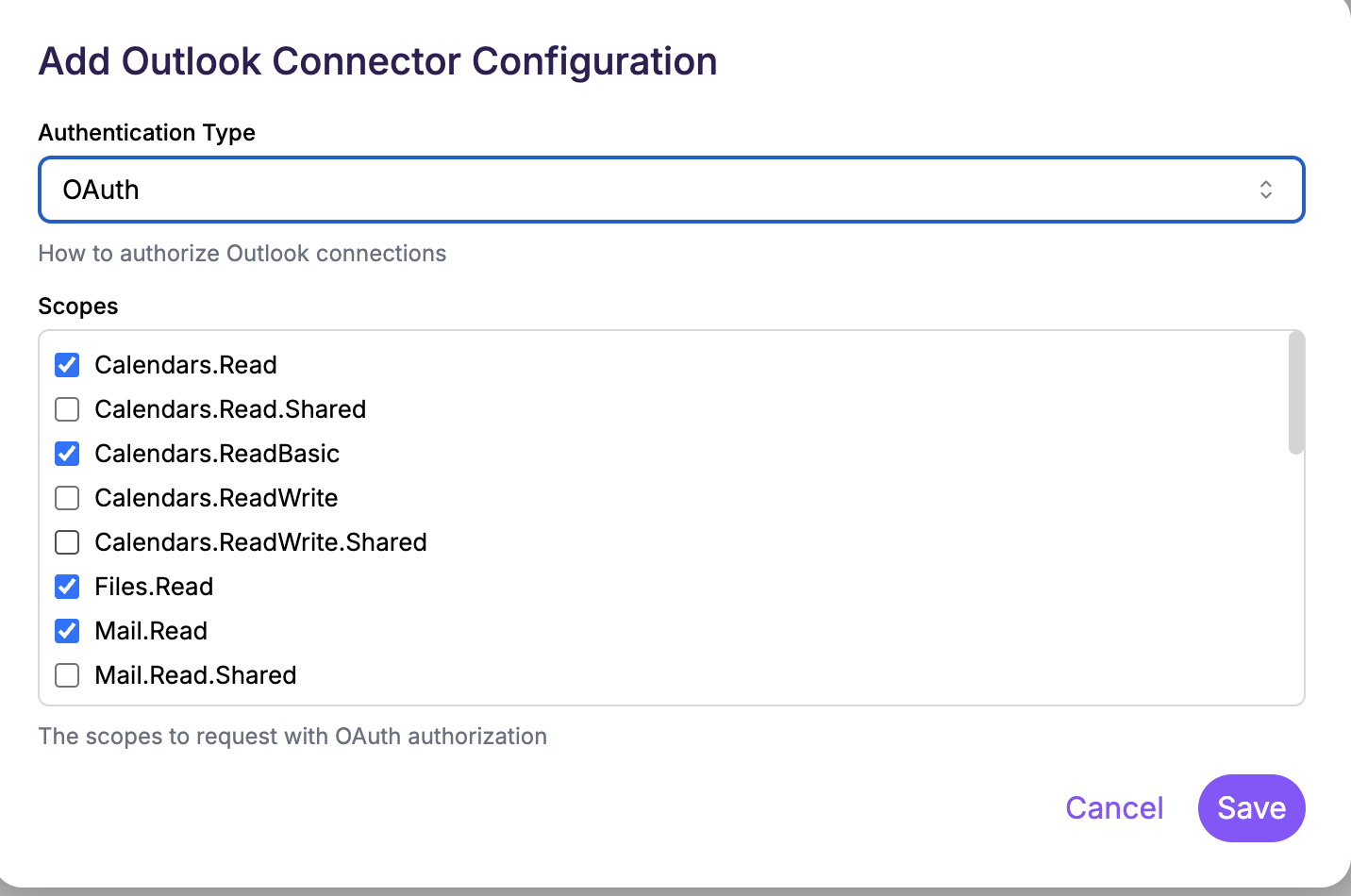
Click Save to create that configuration. To apply this configuration to all users you will need to Connect:
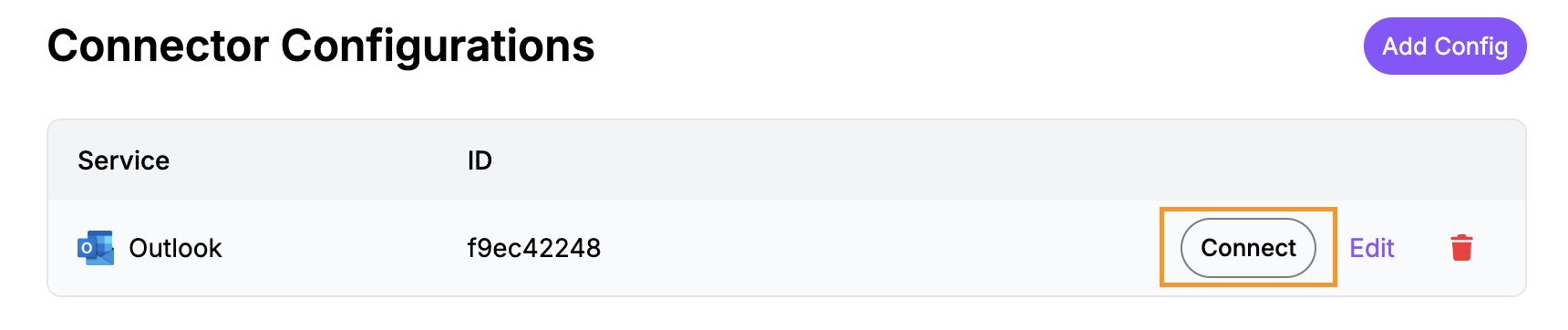
Any users connecting to that service through the Super Assistant will now be restricted to the configuration established in the connector configuration. Existing connections authenticated will be asked to re-authenticate in order to apply these changes.
Connectors PolicyThis feature allows platform admins to control which connectors are available for end-users to authenticate to. It is found under the Settings and Permissions >> Features & Integrations menu:
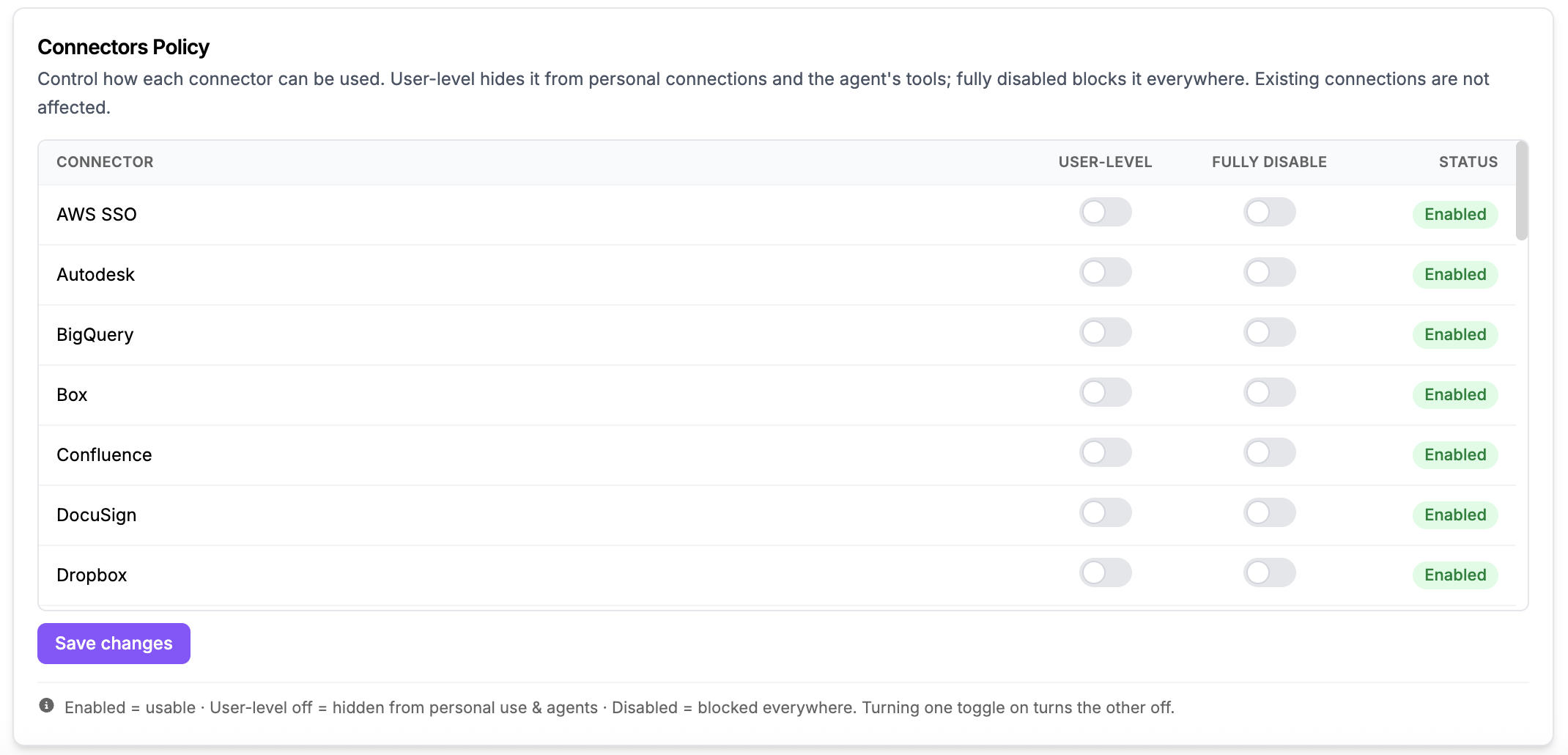
Admins can use the toggles to manage how connectors are available in the organization, with three STATUS levels:
- Enabled - the connector is available at both a user and organizational level
- User-level off - the connector is only available as an organizational level connector in the developer platform
- Disabled - the connector is not available
The other new related feature is also found on the same Features & Integrations page. In order to enforce authentication of connectors with only approved organizational domains admins can turn on the Enforce Connector Email Domain option:
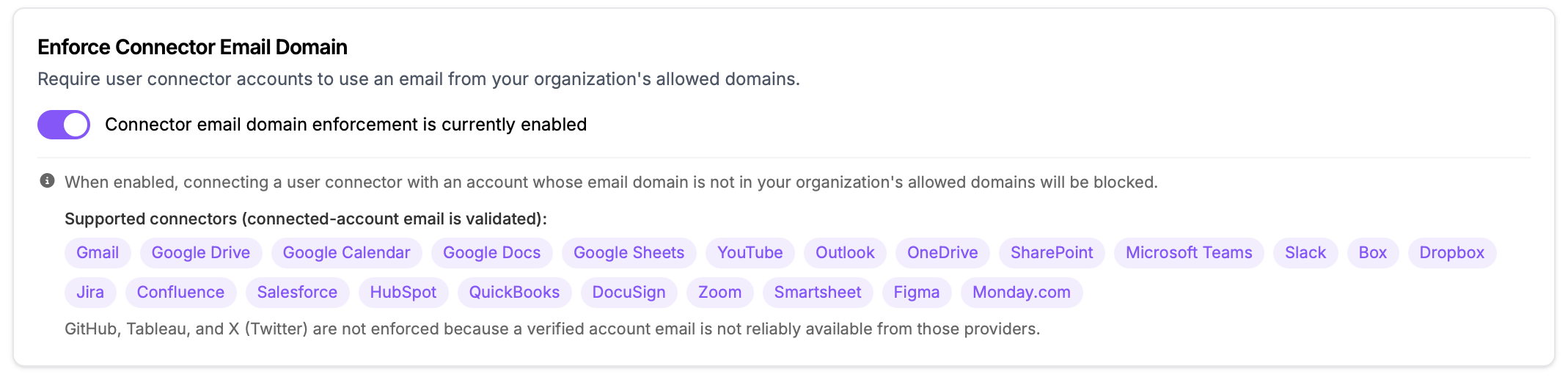
Domains are configured as part of your organization setup - for more details on managing the domains please contact your account's Forward Deployed Engineer.
Logs Export
Abacus now provides the ability to directly export usage and admin logs. Under Settings & Permissions >> Audit Logs admins can configure how the logs should be exported:
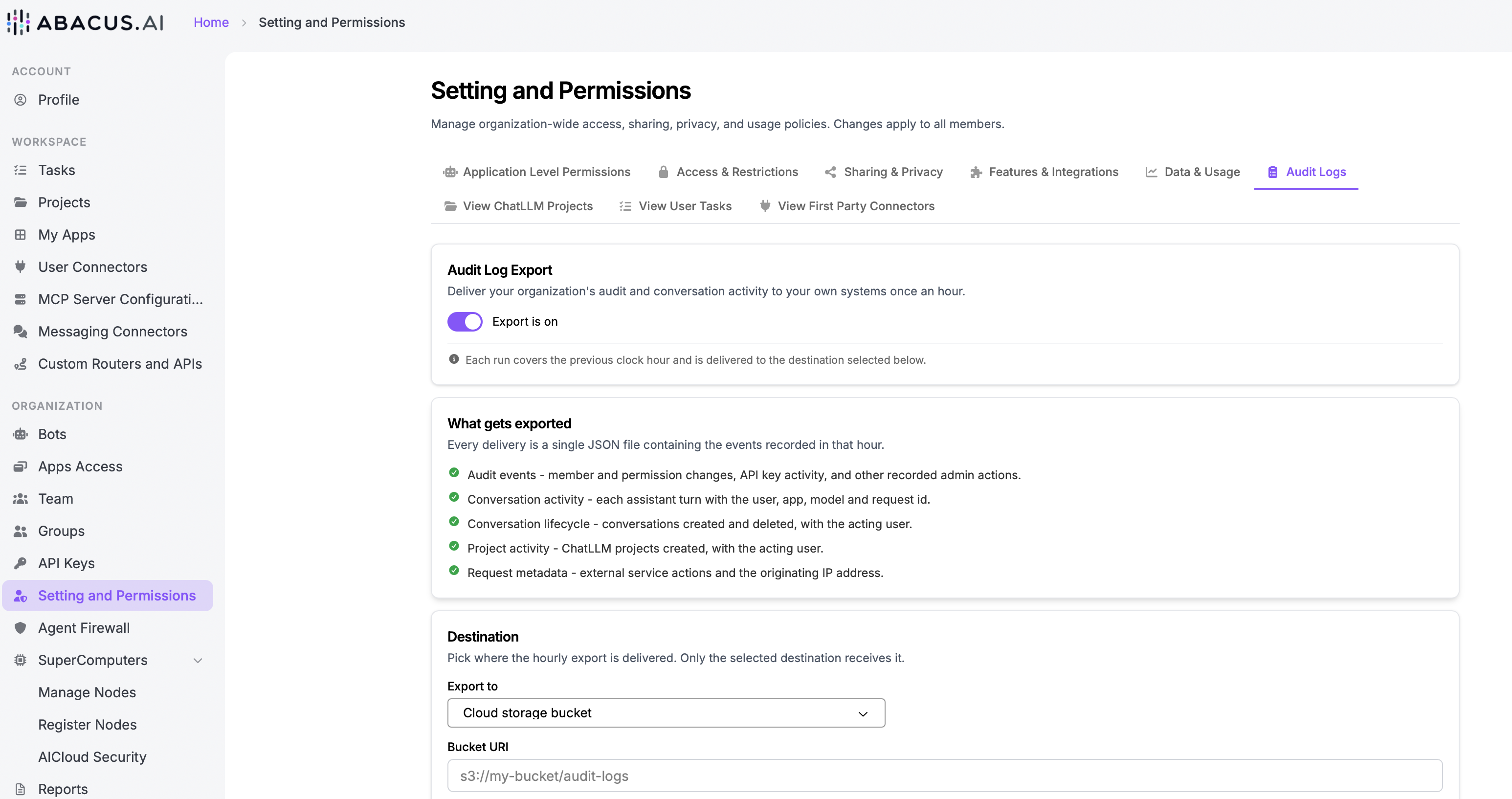
Standard options include:
- Abacus managed storage
- Cloud storage bucket (customer owned)
- Splunk
Once configured the export runs every hour for the previous hour’s activity.
Global Context
In order for organizations to be able to provide standard prompts for all interactions in the Super Assistant a new Global Context option has been added. To provide global context navigate to the Settings and Permissions >> Features & Integrations menu in the Super Assistant.
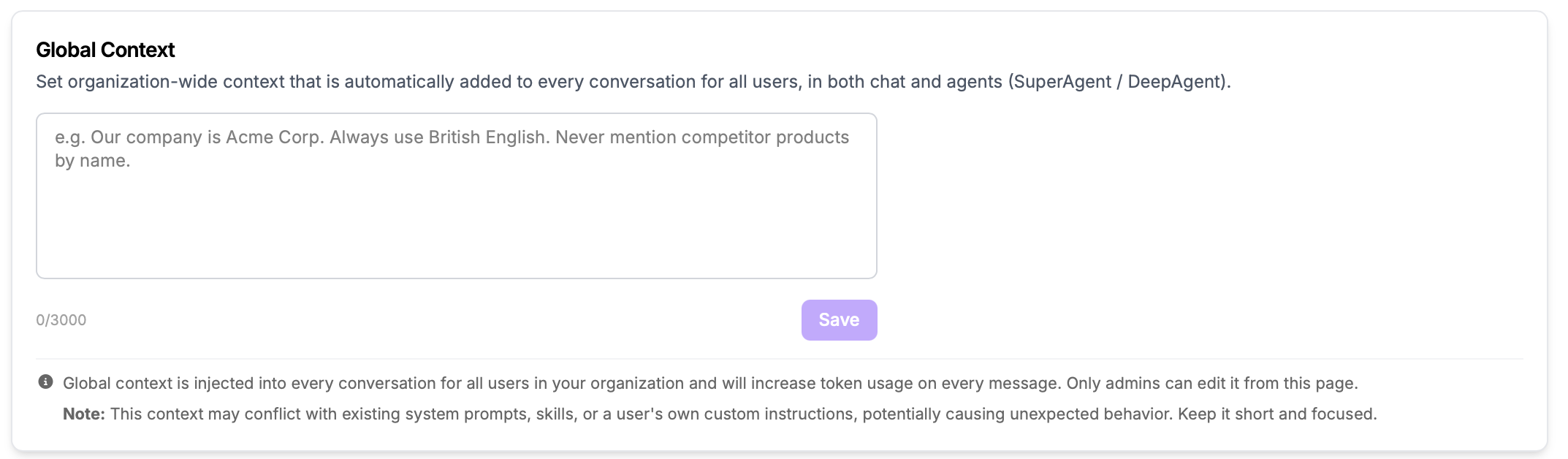
Note that Global Context is injected into every conversation and will increase token usage on every message. The context may conflict with existing system prompts or a user’s own custom instructions causing unexpected behaviour.
Any prompts here should be kept short and focused.
App Tools
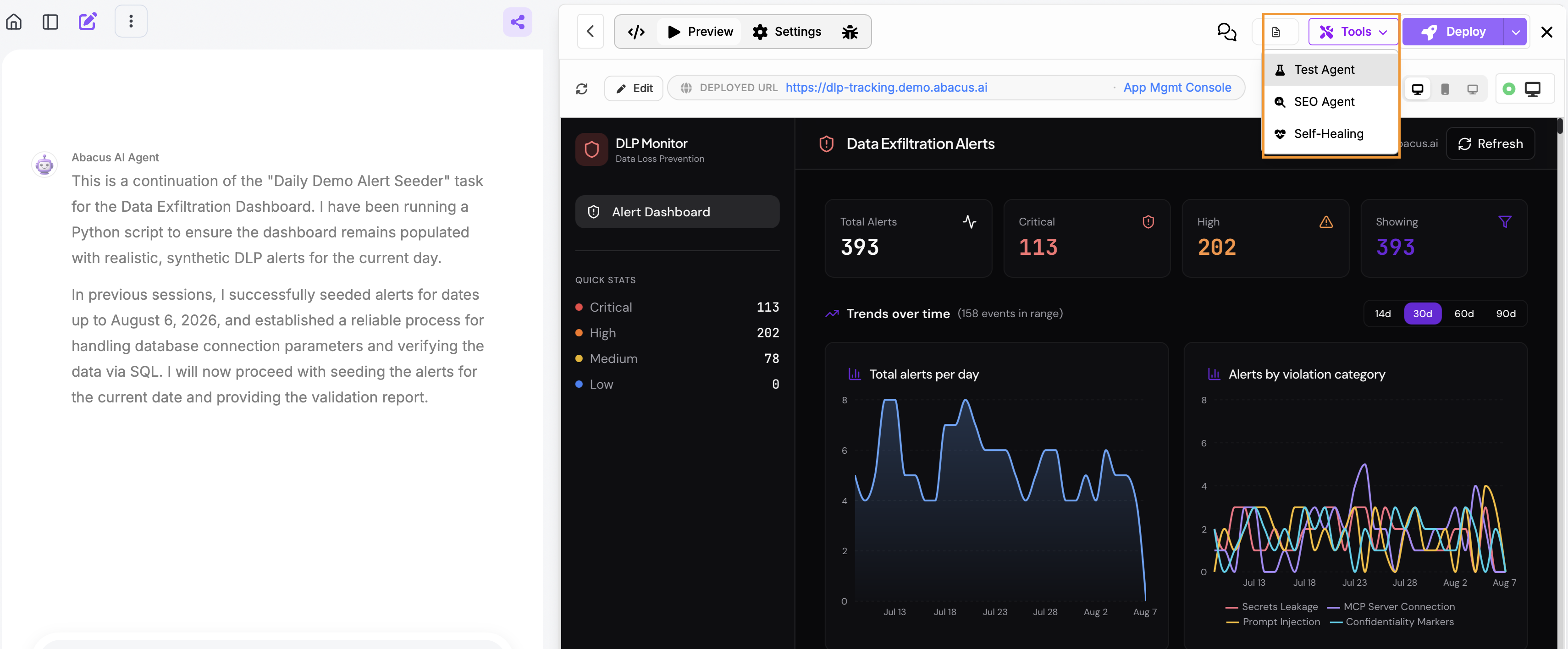
Several tools have been added as part of the Application building process with the Abacus Agent. Once the application is in preview mode a Tools menu is available with the ability to run:
- Test Agent - The Test agent runs automated QA tests on your app and can set up a testing scheduled task that re-runs them regularly
- SEO Agent - The SEO agent audits your deployed app and helps optimize it for search engines. It will review your Lighthouse SEO score, meta tags and descriptions, sitemap, and ease of crawling, then apply improvements to your app.
- Self-Healing Agent - Scan production logs daily for backend errors and email you a digest. Fixes are staged on a separate URL so production is never touched
Coming Soon...
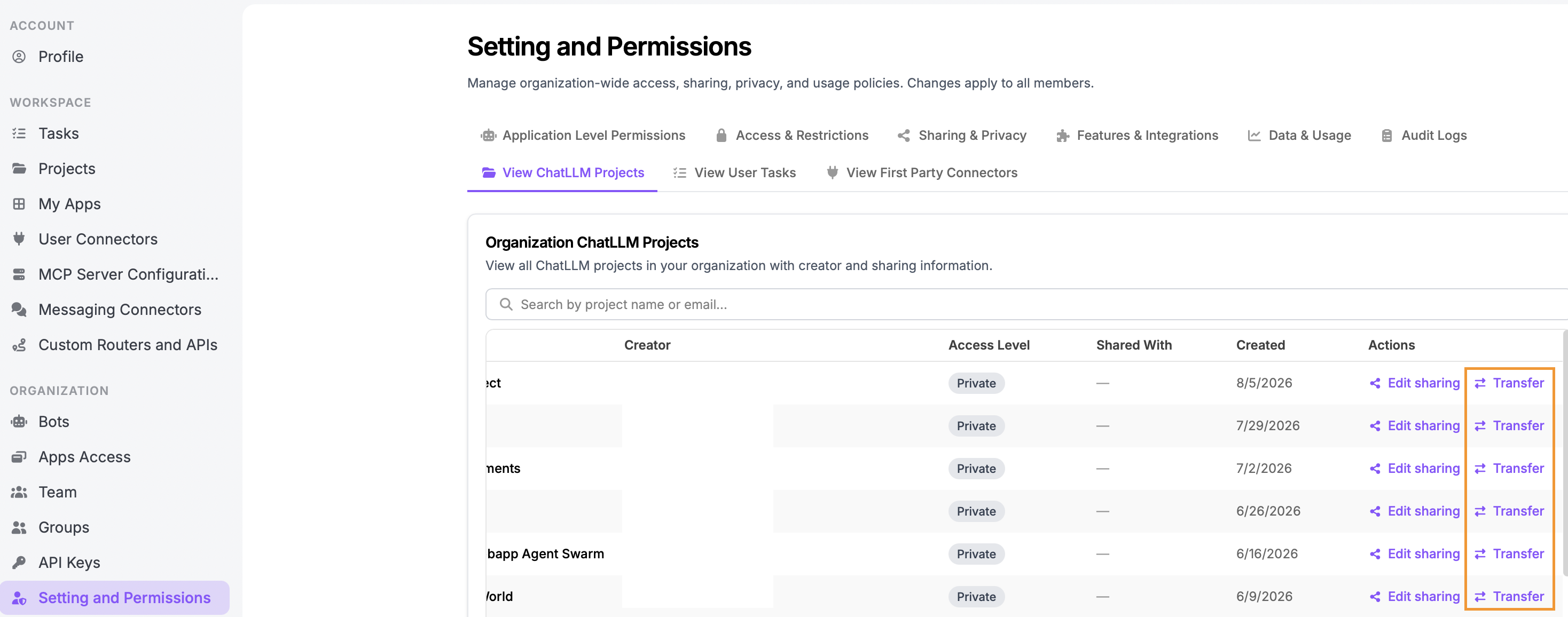
Project Ownership TransferIn order to provide more flexibilty to manage work on the platform admins will be able to transfer ownership of individual projects. Previously all projects owned by a particular user had to be transferred, with no ability to sub-select particular ones.
To transfer projects use the View ChatLLM Projects tab, found under Settings & Permissions. A new Transfer tab is available: