March 2026 Platform Update
Connectors
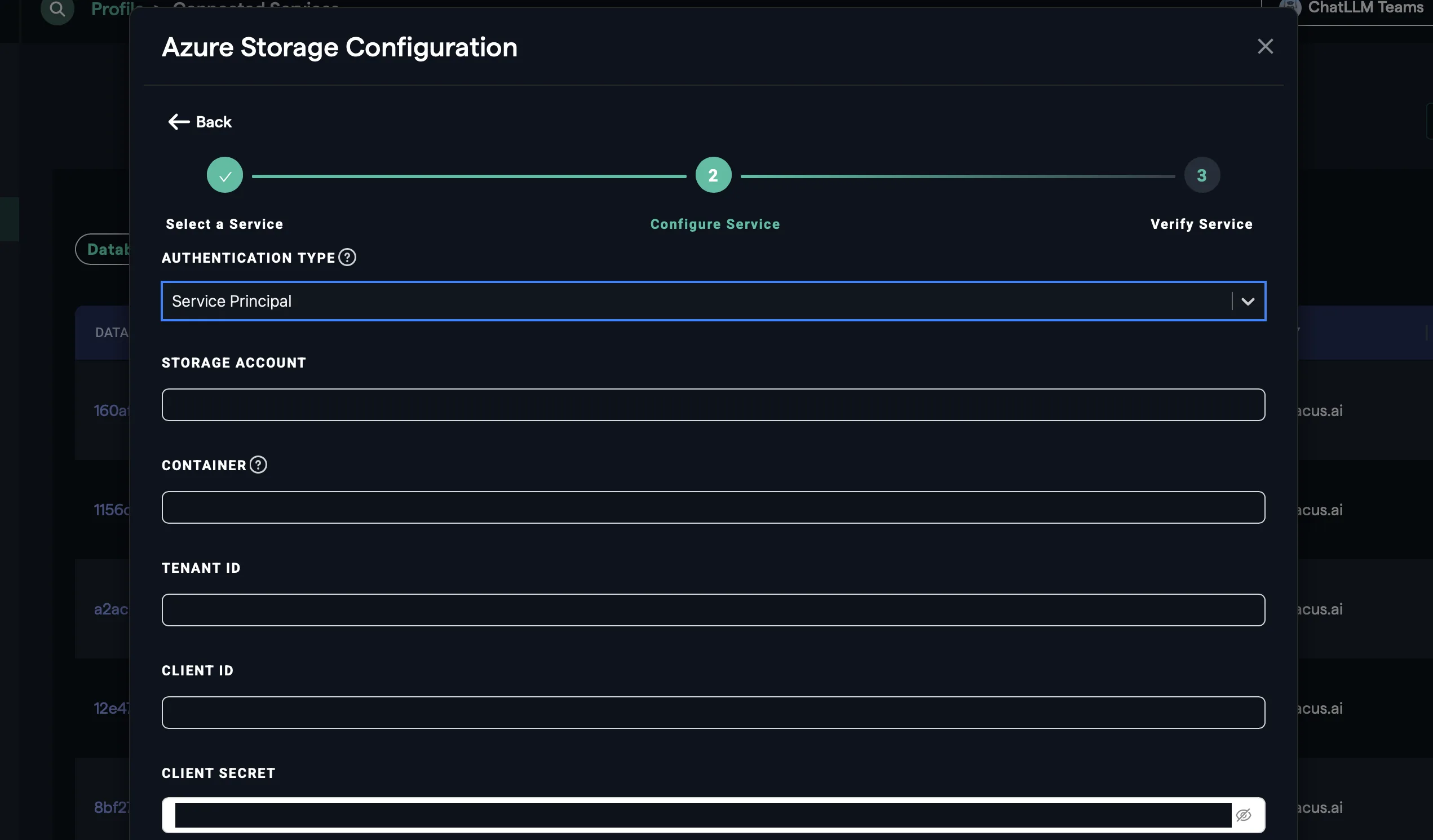
Azure StorageWhen connecting to Azure Storage, service principal has been added as a new authentication method. To configure Azure Storage navigate to the Connected Services tab, accessed via the Profile menu >> Manage Connectors
Super Assistant
New Models
A number of new models have been made available in the platform over the last month: Google Gemma 31B, GLM 5.1, MiniMax M2.7 and Qwen 3.6. To find out how a range of new models perform don’t forget to check out our benchmark, LiveBench
Abacus AI Agent
Abacus AI Agent is the new name for Deep Agent. The name is being updated across the platform and will be fully rolled-out in the coming weeks.
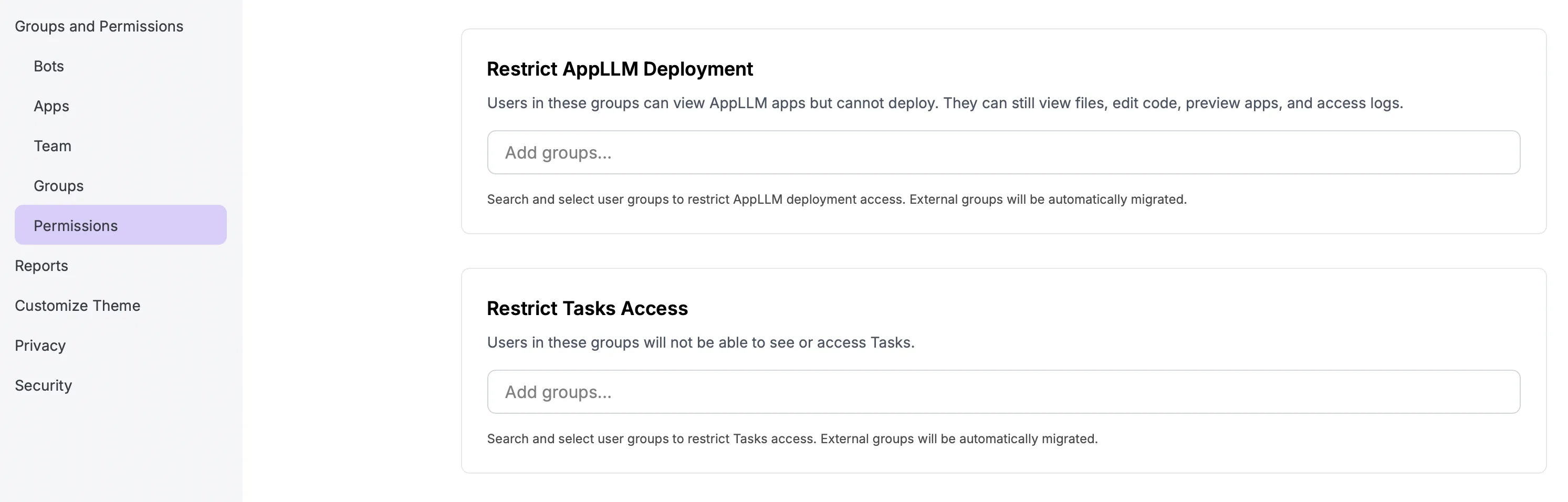
App Deployment and Task Controls Two new admin controls have been added to enhance controls over which users in an organization can deploy applications and create automated tasks.
To enable these options use the Permissions menu in the Super Assistant UI, accessed via: Profile >> Groups and Permissions >> Permissions
Manage Agent Video Exmaples For organizations that would like to remove the video exmaples from the AI Agent workspace, a new option is available under the Permissions menu:

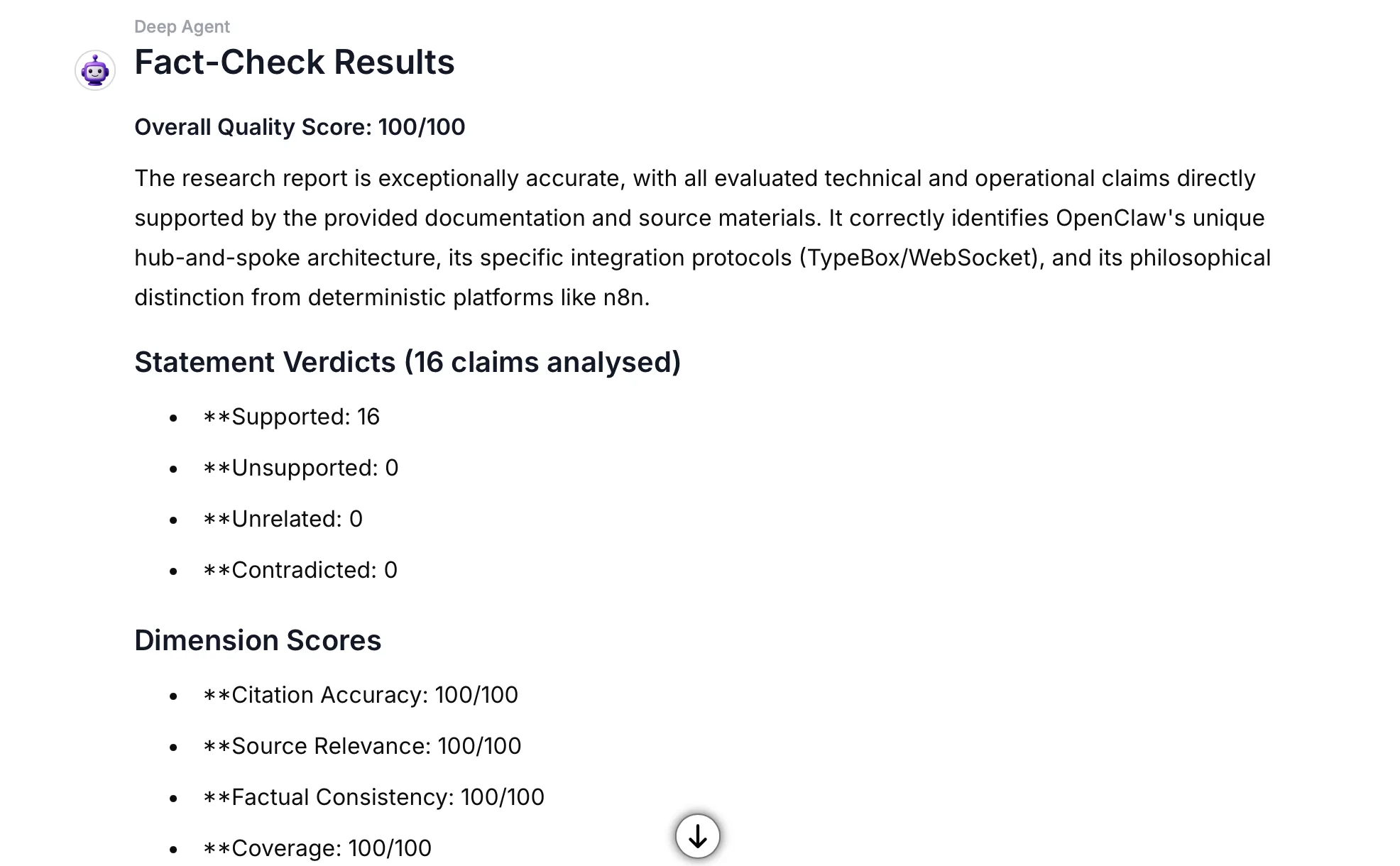
Deep Research Verification When the Abacus Agent completes a research task a new option appears in the preview screen allowing users to perform a fact verification check on the content.
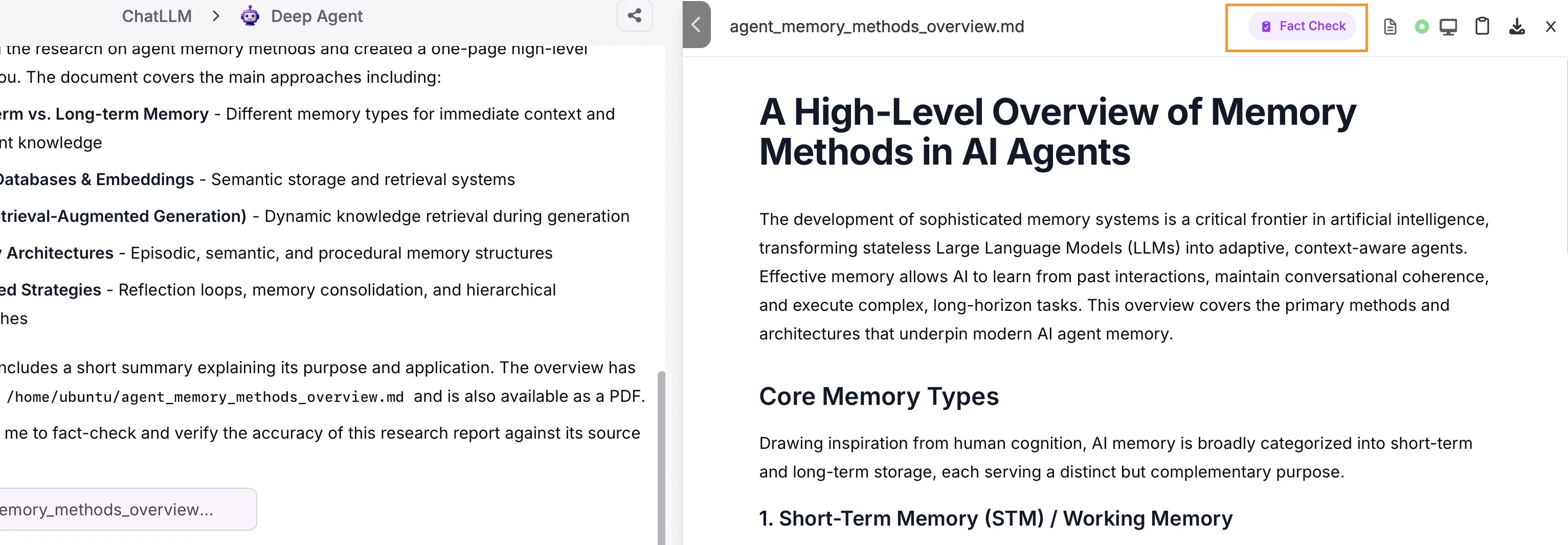
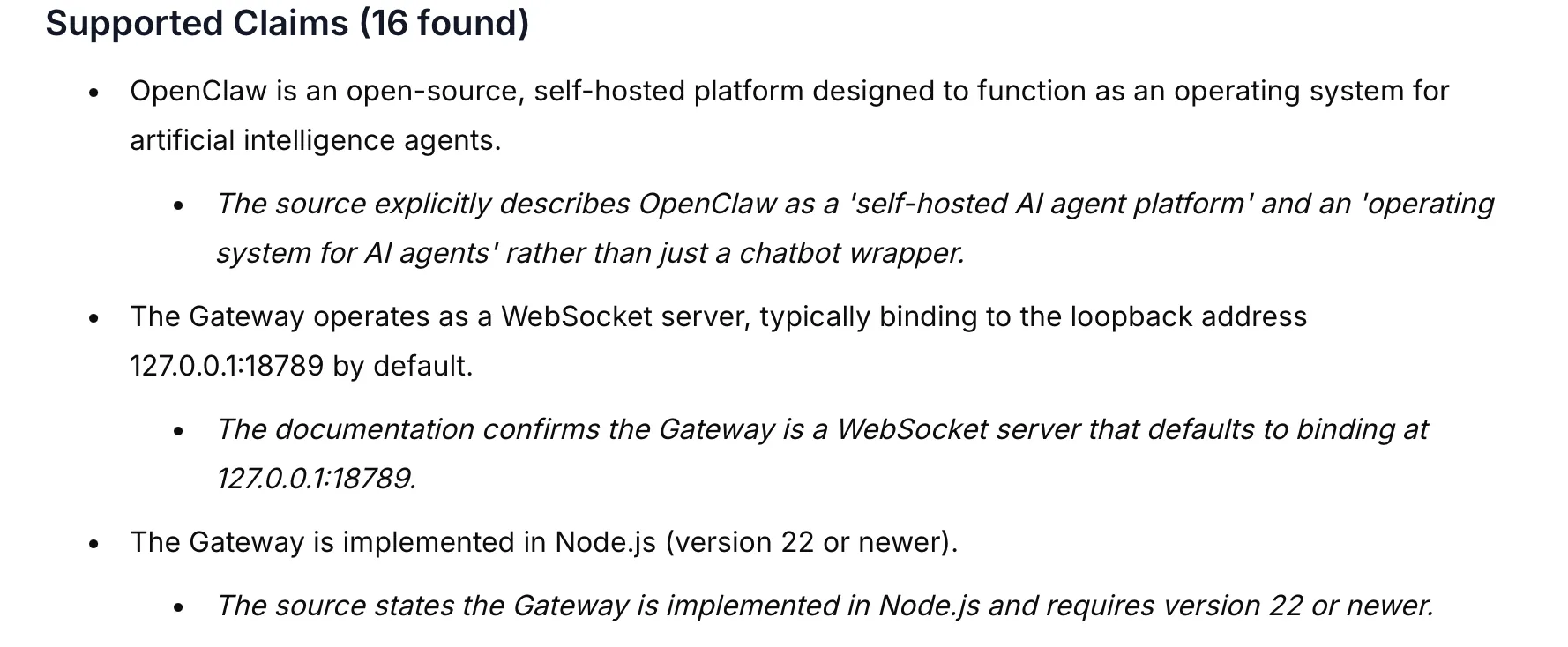
The agent will perform the verification analysis and provide a report to the user on the quality of the research, covering metrics such as: statement classification into supported, unsupported, unrelated and contradicted; citation accuracy; source relevance and factual consistency.
These metrics are provided as both high level statistics,
as well as more detailed comparisons for specific statements:
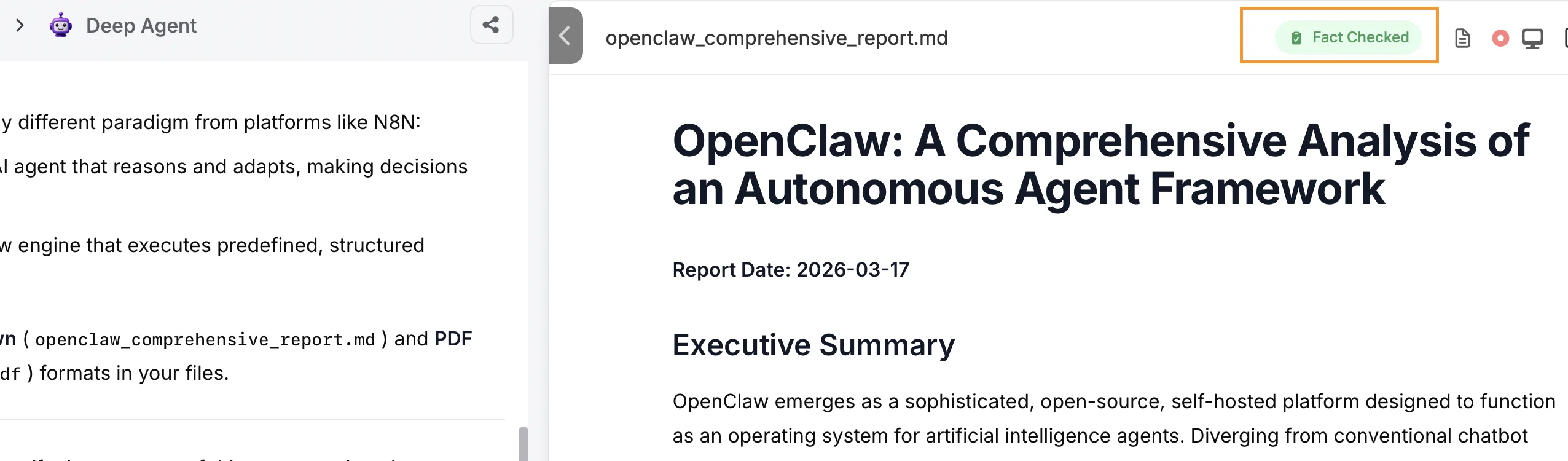
Once the verification has been completed the preview panel will show a Fact Checked label:
 Powerpoint Updates
Several updates have been made to powerpoint generation in the Abacus Agent covering editing, speaker notes and direct publishing options.
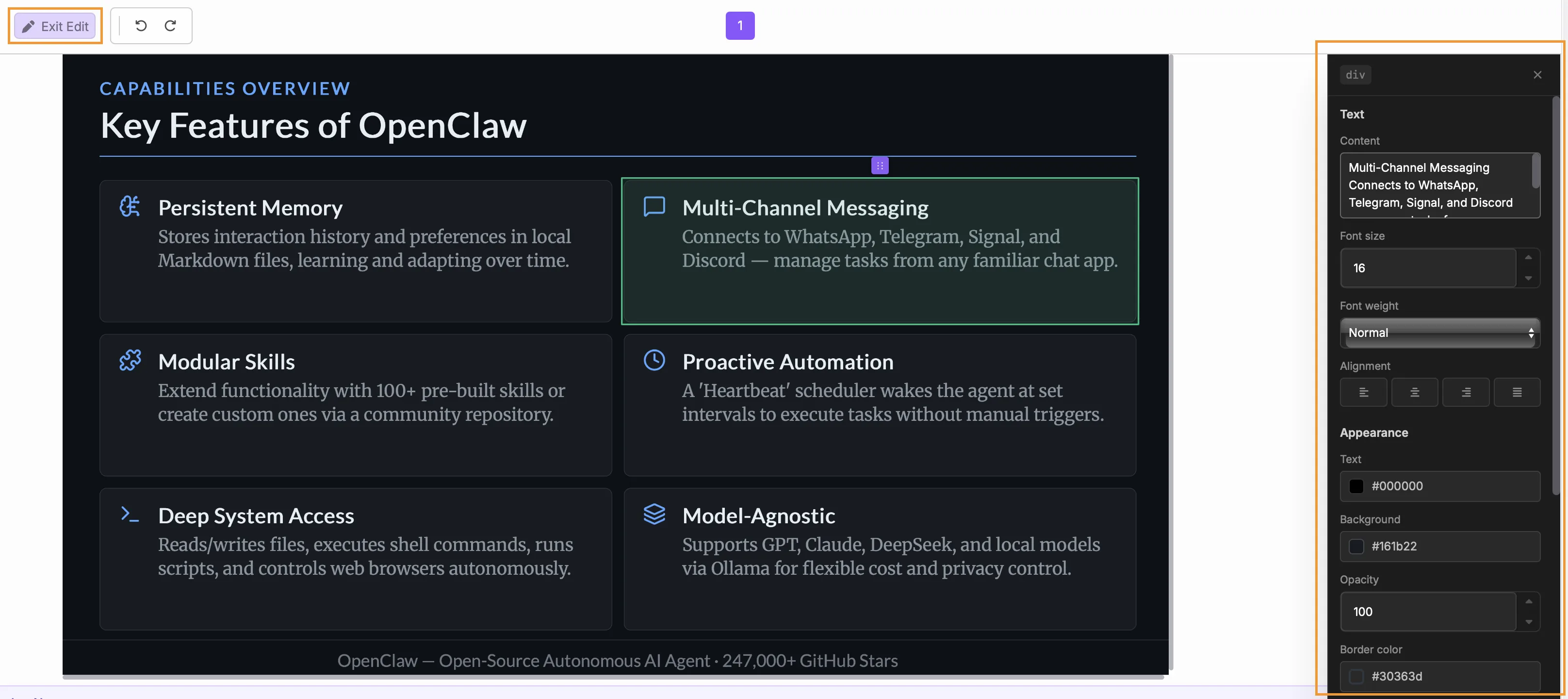
Slide Editing The editing function for slides has been enhanced to provide considerably more options for users handling in-line edits in the preview screen. Use the Edit button at the top of the screen to open the editing interface, whereby the editing toolbar will appear on the right of the screen:
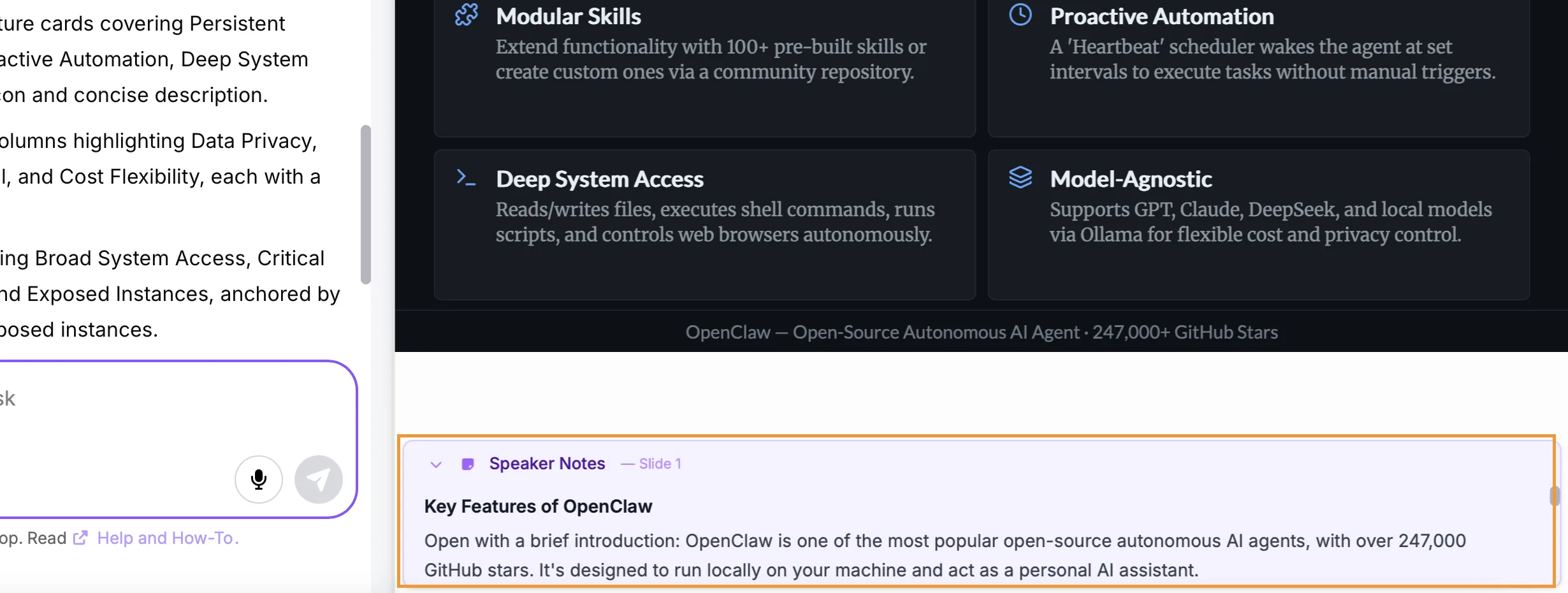
Speaker Notes Prompt the Abacus Agent to add speaker notes if you would like the additional context to accompany each slide. Notes are added under the slide images in the preview panel:
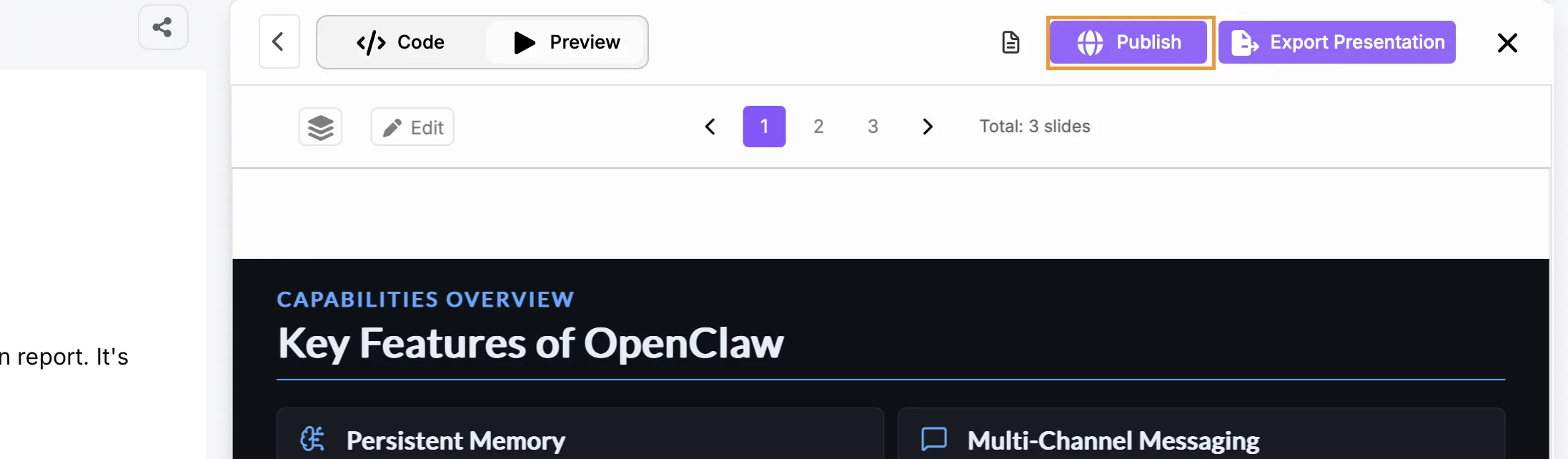
Slide Publishing A new option has been added to enable slide publishing for easier sharing and presentation. Once the slides are complete use the Publish button at the top of the screen:
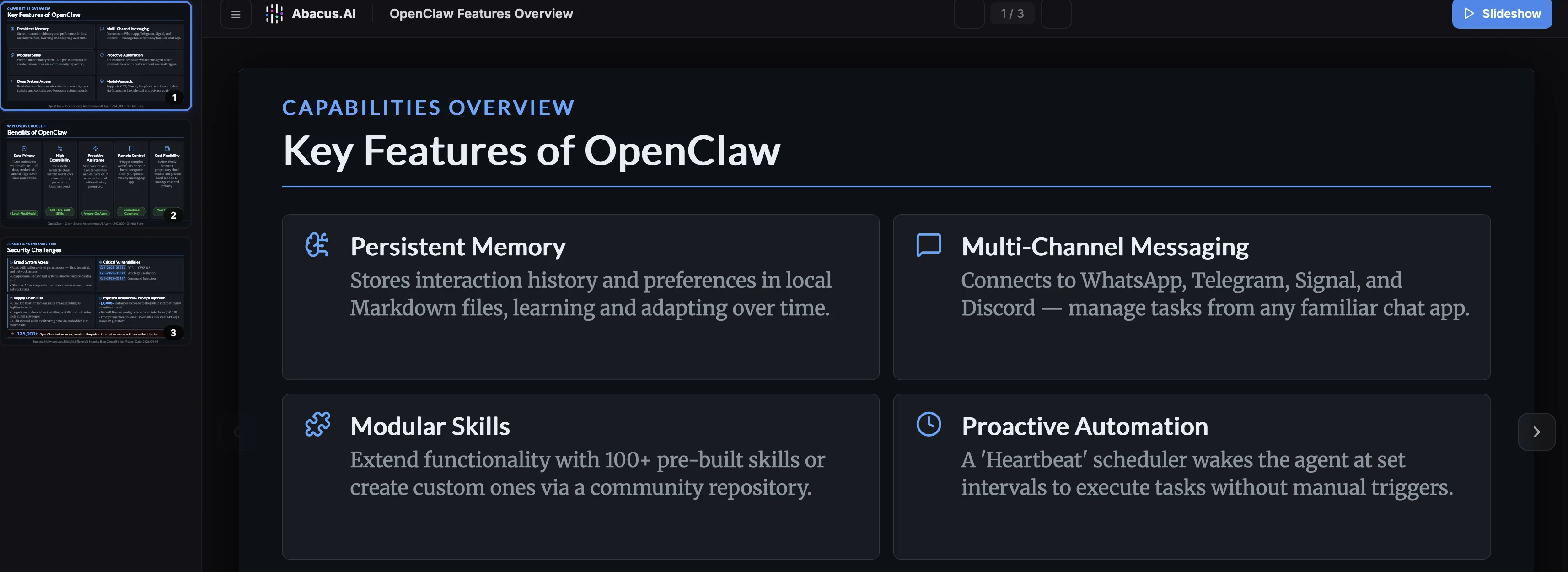
Once published the presentation is available at a dedicated url and can be viewed as a slideshow directly from that location:
Skills
A significant new feature is the introduction of skills to the Abacus platform. Skills give the Abacus AI Agent the ability to execute with specific instructions or domain expertise in a consistent manner. They ensure that there is:
- Consistent Quality - The agent follows established methods every time
- Specialized Expertise - You can provide specific instructions on how it handles technical writing, data analysis, code review and more
- Automatic Activation - The Abacus AI Agent detects when to use each skill based on your request
- Time saving - Skills streamline the prompting process avoiding repeatedly needing to define prompts
Skills can be simply defined as a SKILL.md file, but can also be configured with separate folders that contain examples, templates and references. More details on how to create skills are available on our documentation page.
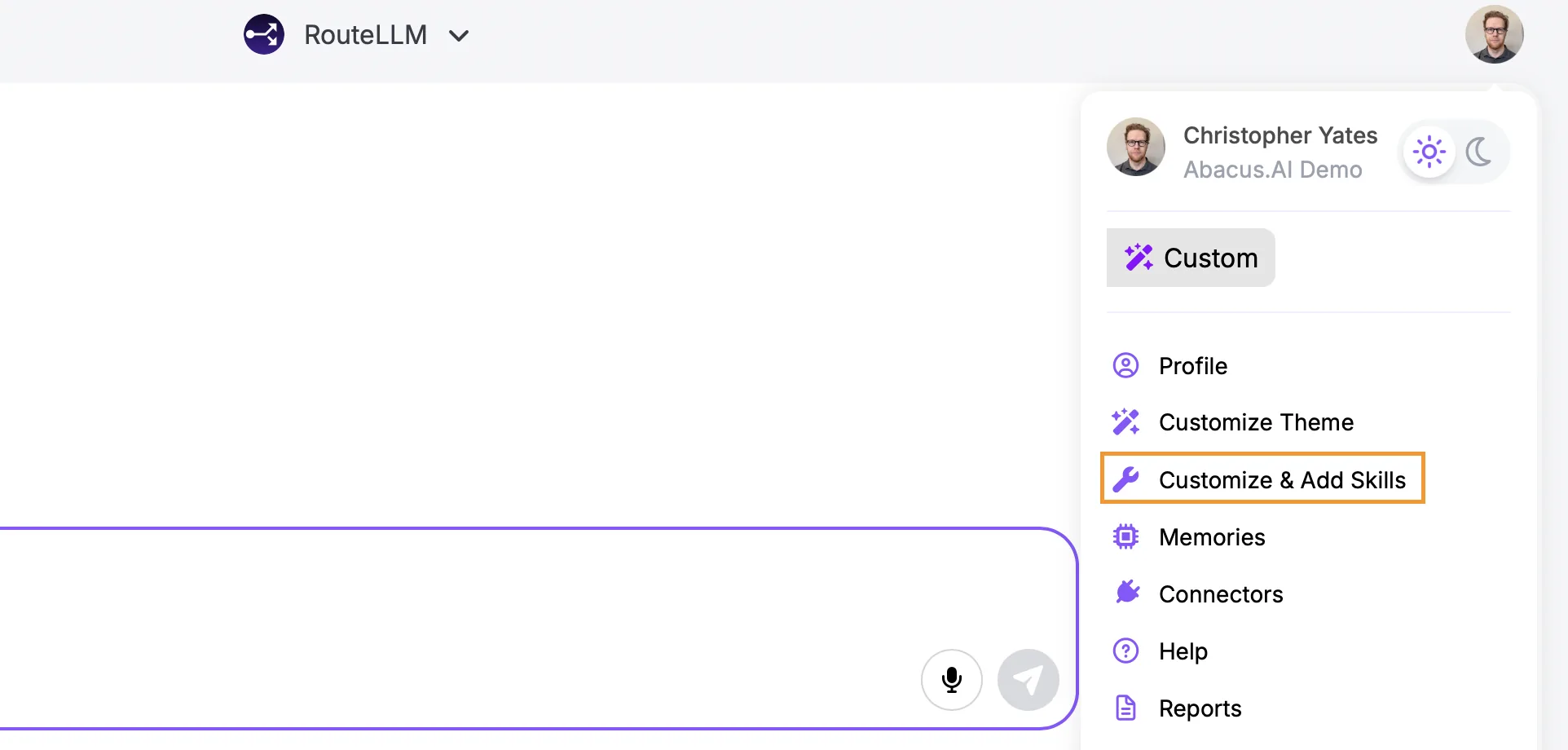
Managing Skills Adding and managing skills in the platform can be done through the Customize & Add Skills menu, which is found when clicking on your profile icon in the top-right of the screen:
Then select the Agent tab:
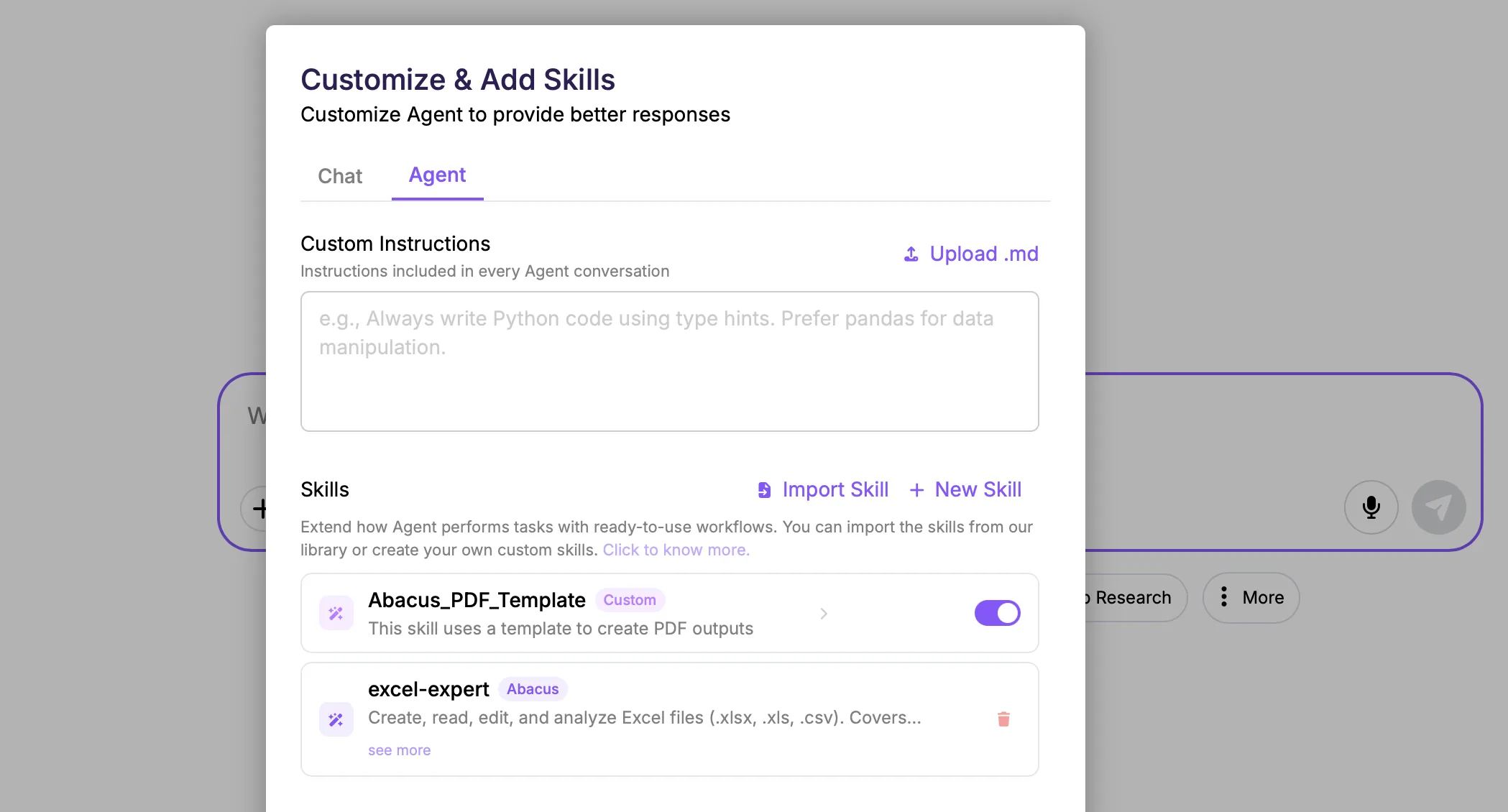
Under the Skills section you will see any custom skills that you have already added as well as any Abacus built system skills that you have imported. For custom skills a toggle is available to turn them on or off, but system skills you have imported are on by default - to turn these off delete that skill, it can be re-imported later if required.
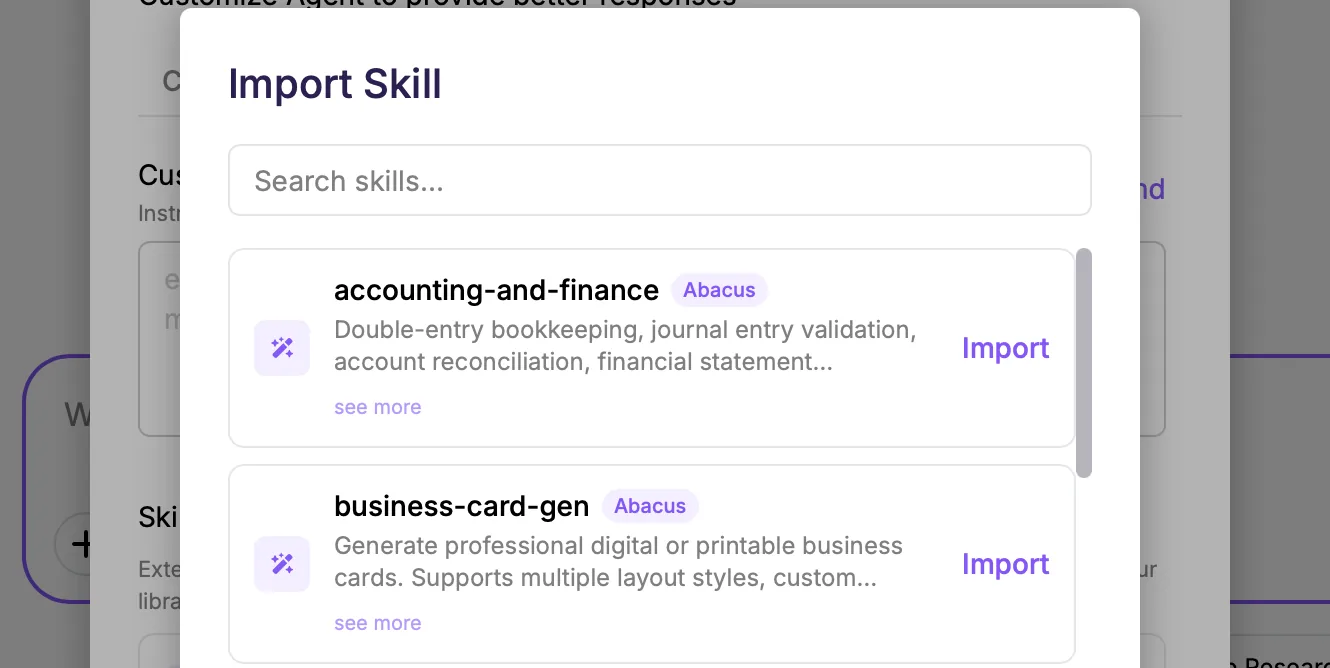
Importing System Skills To import Abacus built system skills click on the Import Skill button:
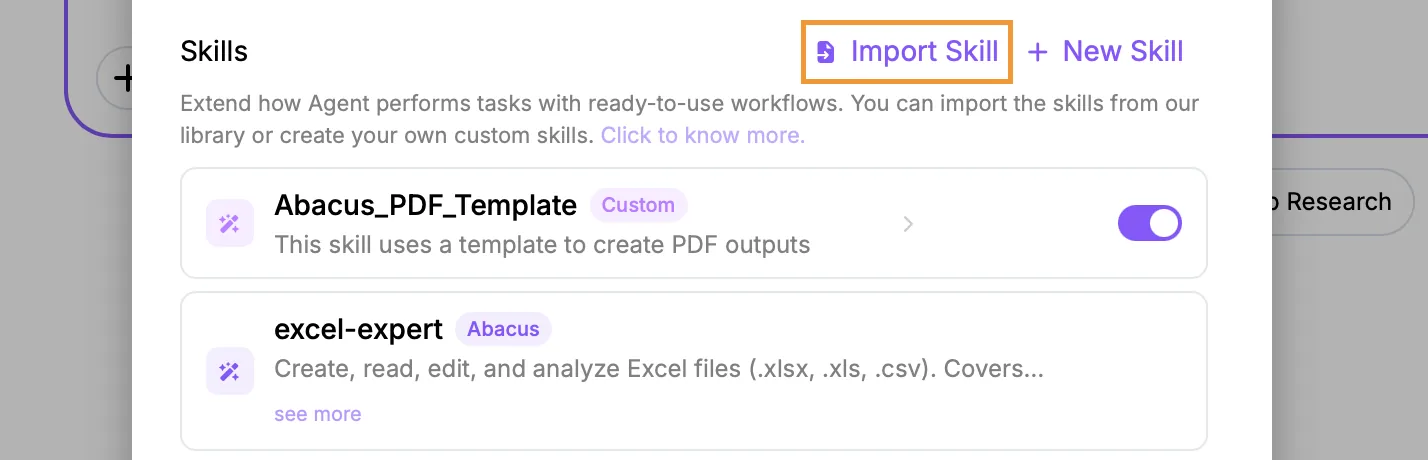
This will open a new window listing all of the available system skills to import. Once imported they will be automatically available for the Abacus AI Agent.
Adding Custom Skills If you have defined your own custom skills, these are added using the New Skill button:
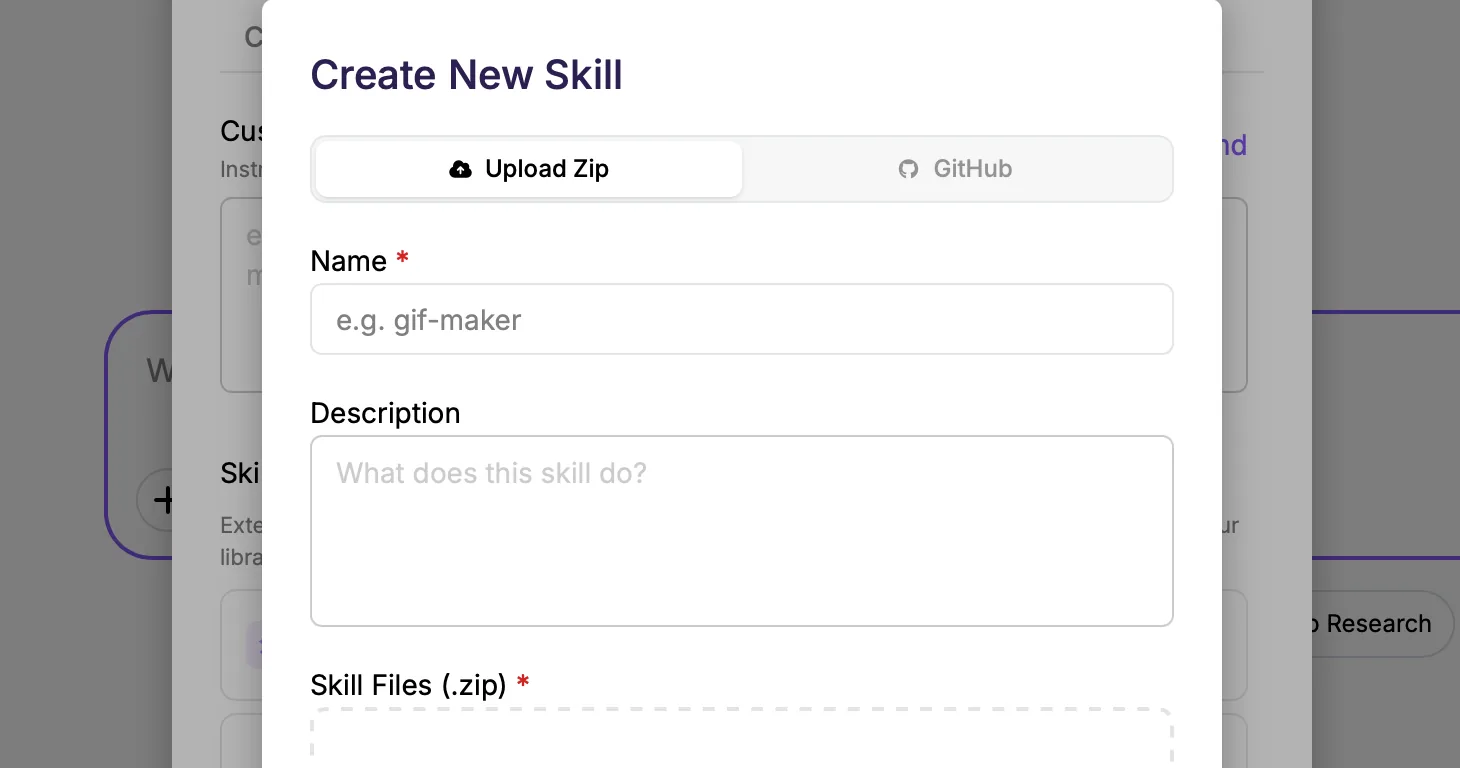
New skills can be added either by directly uploading a .zip file or by providing a valid GitHub repo url. For both options the SKILL.md file must be at hte root level.
Custom skills can be managed in the main menu, allowing you to:
- Edit existing skills by uploading new versions of the skill files
- Delete the file completely
- Toggle custom skills on or off
Both system and custom skills can also be added to projects using the Customize & Add Skills option:
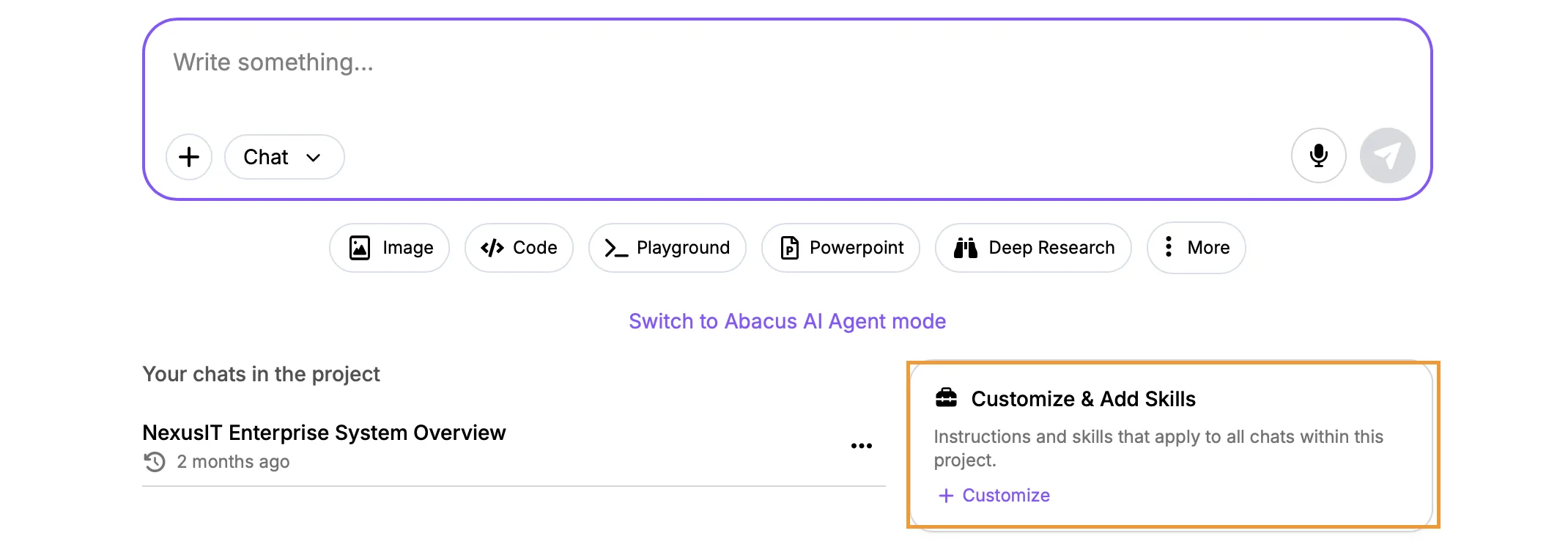
Note: currently skills are only available for use by the Abacus AI Agent for standalone tasks, or AI Agent tasks inside of projects. Skills added to projects won't be used for regular, chat mode, conversations
Abacus Desktop - Cowork
Abacus AI CoWork brings agentic, autonomous task execution to your desktop — extending Abacus AI Agent's power beyond coding into general knowledge work. CoWork can plan, break down, and execute complex, multi-step tasks directly on your local files without requiring terminal access or manual uploads.
CoWork has the following key capabilities:
- Direct Local File Access: Read, write, organize, and transform files on your machine — documents, spreadsheets, presentations, images, data files, and more.
- Sub-Agent Coordination: Complex tasks are automatically decomposed into subtasks and executed in parallel for faster completion.
- Professional Outputs: Generate polished, fully editable deliverables — Excel spreadsheets with working formulas, formatted Word documents, PowerPoint presentations, PDF reports, and more.
- Long-Running & Scheduled Tasks: Handle tasks that require extended execution without conversation timeouts. Schedule recurring tasks to run automatically on a chosen cadence.
- Browser Integration: Combine local file operations with web-based workflows — fill forms, navigate sites, and pull data from online sources seamlessly
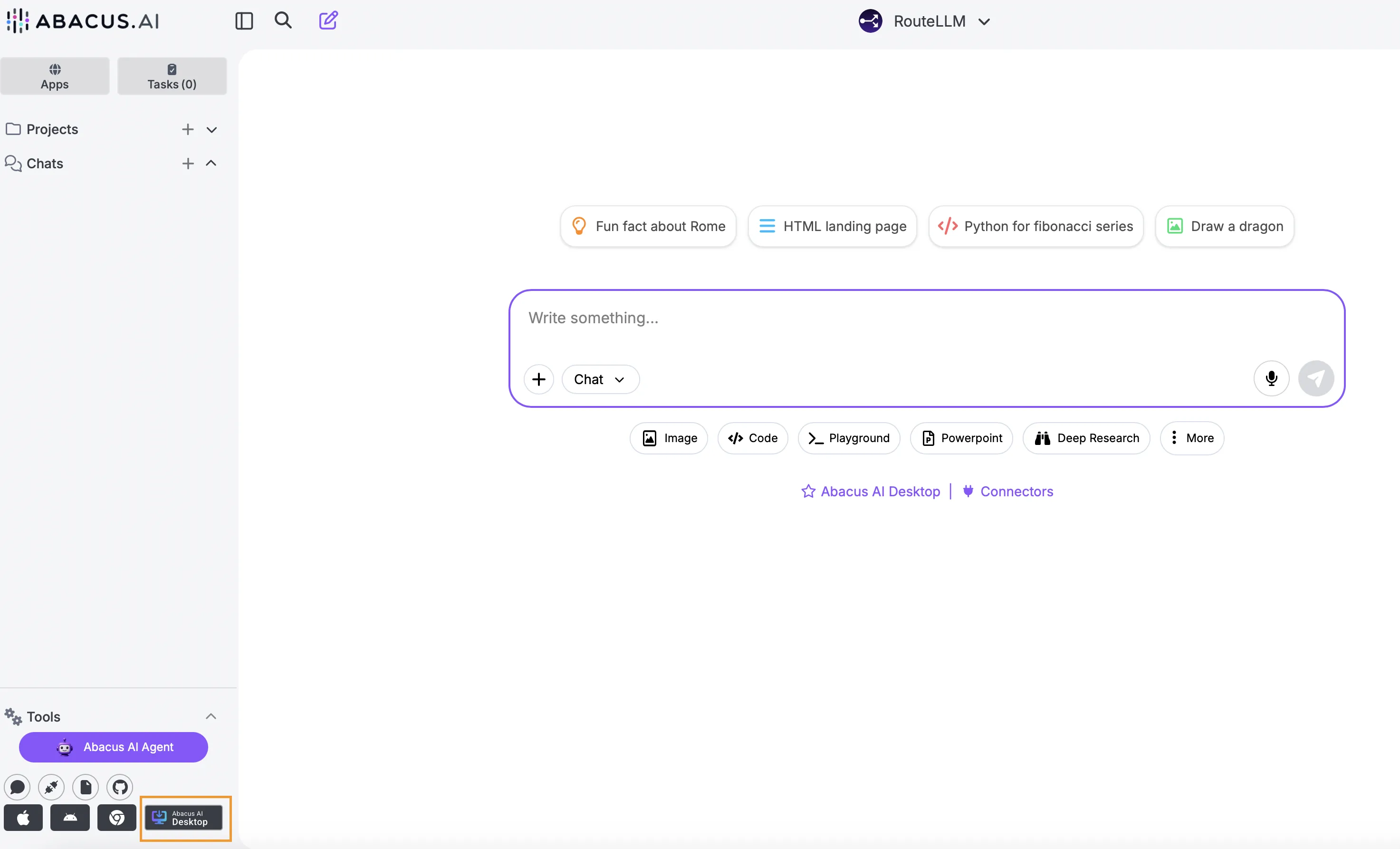
CoWork can be accessed as part the Abacus AI Desktop suite. Us the download link at the bottom of the Super Assistant screen:
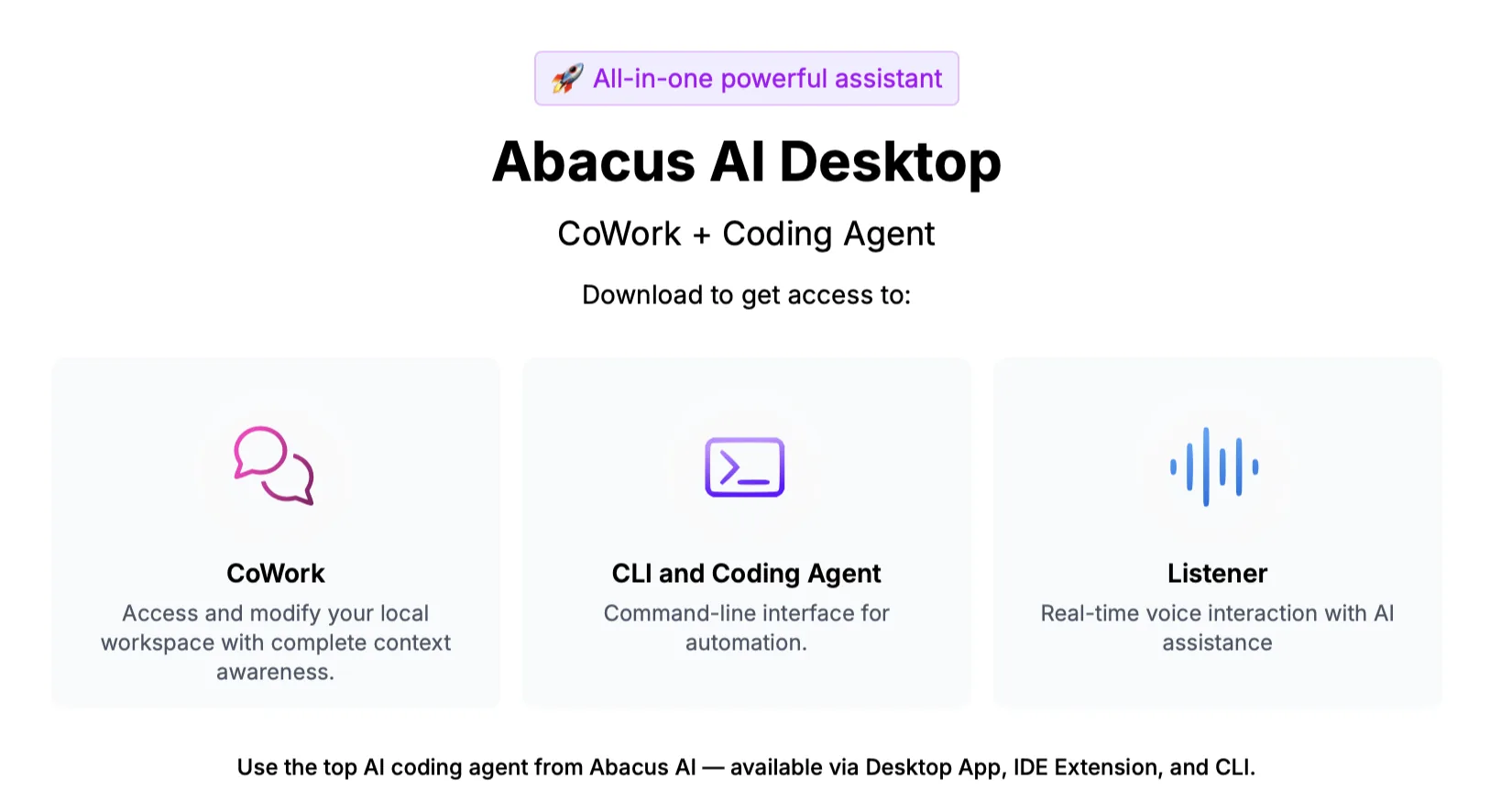
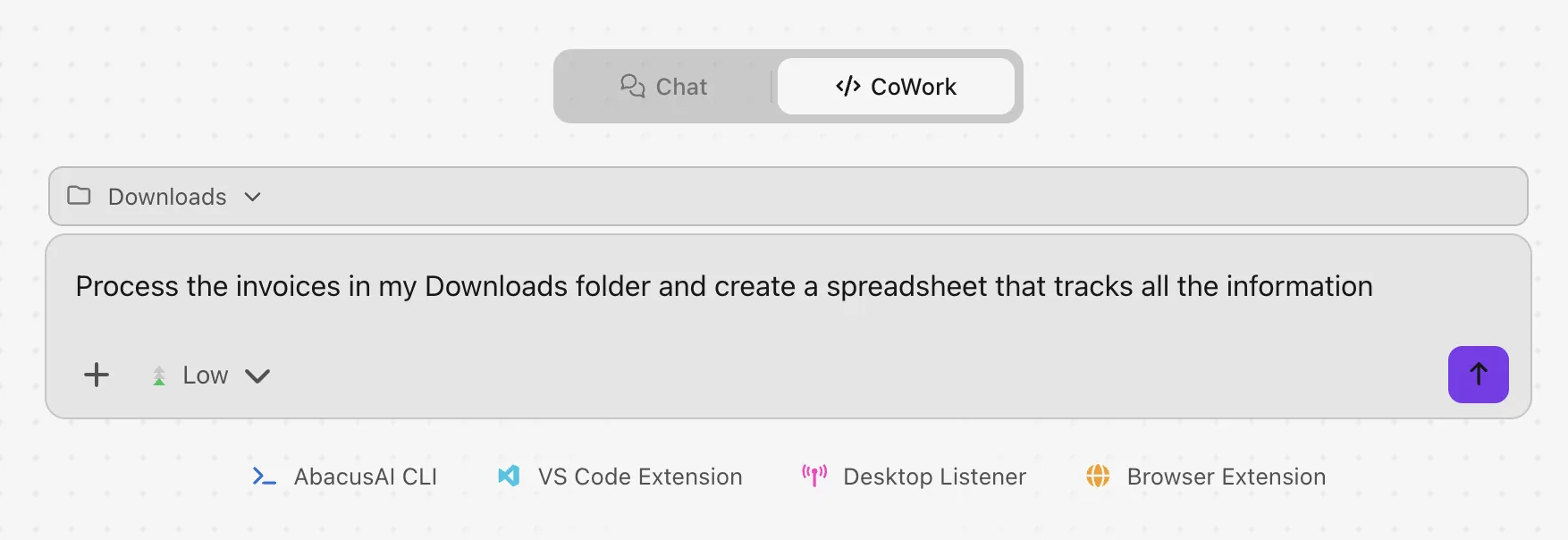
CoWork provides two modes for users to interact with: Chat and CoWork. Chat mode provides a standard conversational mode for users to leverage either RouteLLM or a number of specific LLMs. For more complex tasks that leverage the Abacus AI Agent select CoWork mode - here users can decide how much effort the system should use to solve the task, with options of Low, Medium and High
For additional information about Abacus Desktop please see our documentation pages.
Project Sharing
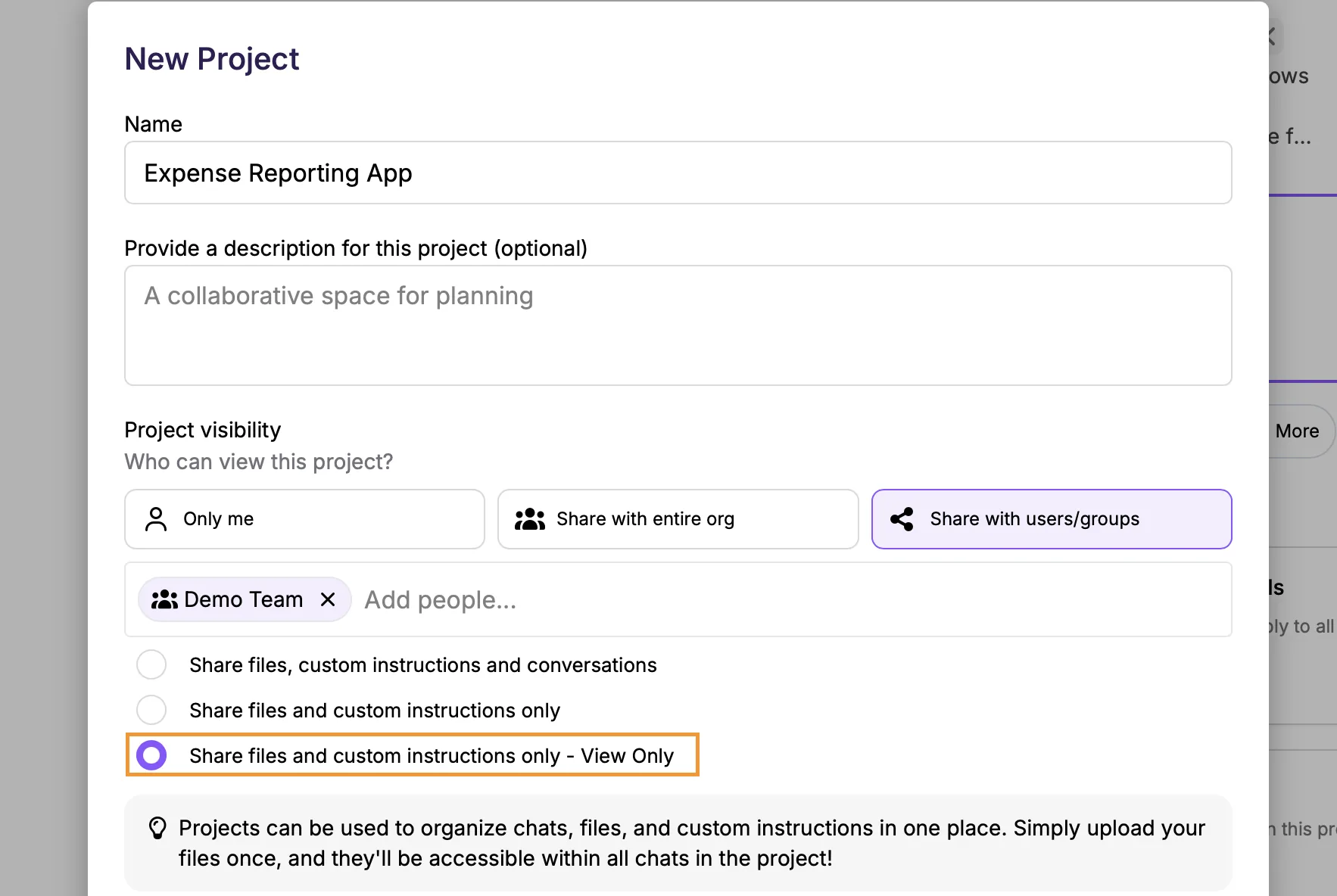
An additional option has been added within the project sharing options to make access read-only: