Setting and Permissions
Overview
Setting and Permissions is the single admin console where you govern how your organization uses ChatLLM. From this one page you can:
- Decide the default visibility of everything your members deploy.
- Restrict features to specific user groups — sharing, app deployment, Tasks, Skills, Desktop/CLI, Studio, MCP, and the Abacus AI Agent.
- Control conversation sharing and privacy defaults.
- Turn individual connectors off entirely, or allow them for agents only.
- Enforce retention policies and daily/monthly dollar rate limits per organization, per group, and per user.
- Stream audit logs to your own S3 bucket, Splunk instance, or an email distribution list.
- Audit what already exists: every ChatLLM project, user Task, and user connector in the organization.
Changes made here apply to all members of the organization.
These controls are enterprise features and are managed by organization administrators.
Where to find it
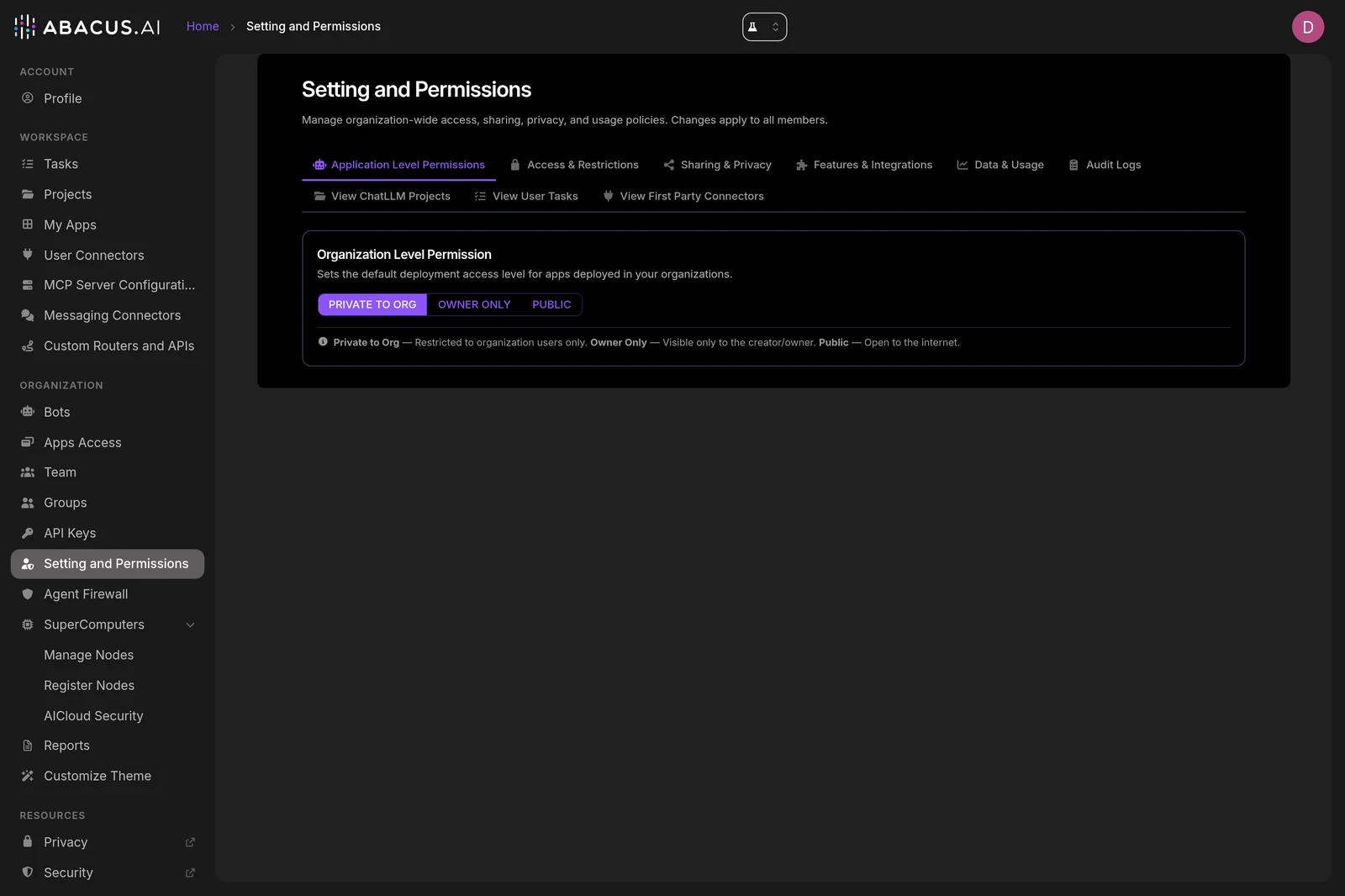
Sign in to ChatLLM, open the left navigation, and under ORGANIZATION select Setting and Permissions.
The page lives at:
https://<your-workspace>.abacus.ai/chatllm/admin/permissions/
Who can use it
| Role | What they see |
|---|---|
| Organization admin | The full page — all nine tabs. |
| Non-admin member | A lock panel: "You need organization admin privileges to manage these settings." The Activity Logs tab is hidden entirely. |
Some controls are additionally gated:
- Application Level Permissions requires a custom domain suffix configured for your organization.
Page layout
The page is organized into nine tabs:
| # | Tab | Purpose |
|---|---|---|
| 1 | Application Level Permissions | Default access level for deployed apps |
| 2 | Access & Restrictions | Group-based feature restrictions |
| 3 | Sharing & Privacy | Conversation sharing and privacy defaults |
| 4 | Features & Integrations | Connectors, email domains, global skills and context |
| 5 | Data & Usage | Retention policy and rate limits |
| 6 | Activity Logs | Hourly admin/activity export |
| 7 | View ChatLLM Projects | Read-only inventory of projects |
| 8 | View User Tasks | Read-only inventory of Tasks, with pause/delete |
| 9 | View First Party Connectors | Read-only inventory of connectors and MCP servers |
1. Application Level Permissions
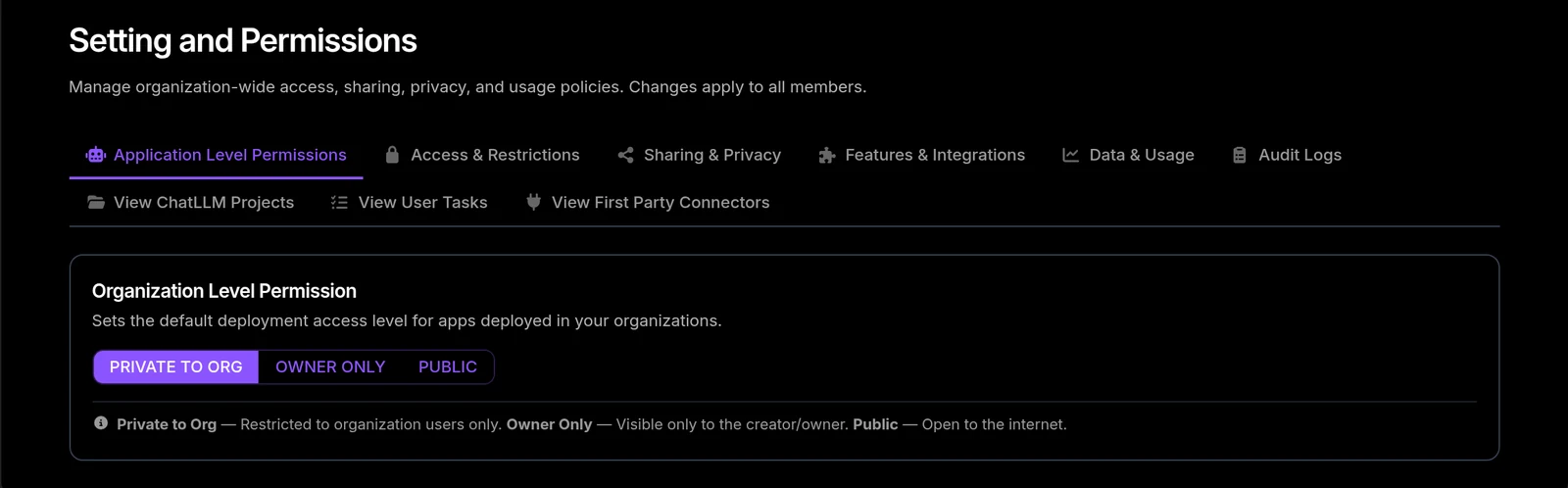
Sets the default deployment access level for apps deployed in your organization.
| Option | Effect |
|---|---|
| Private to Org | Restricted to organization users only. |
| Owner Only | Visible only to the creator/owner. |
| Public | Open to the internet. |
2. Access & Restrictions
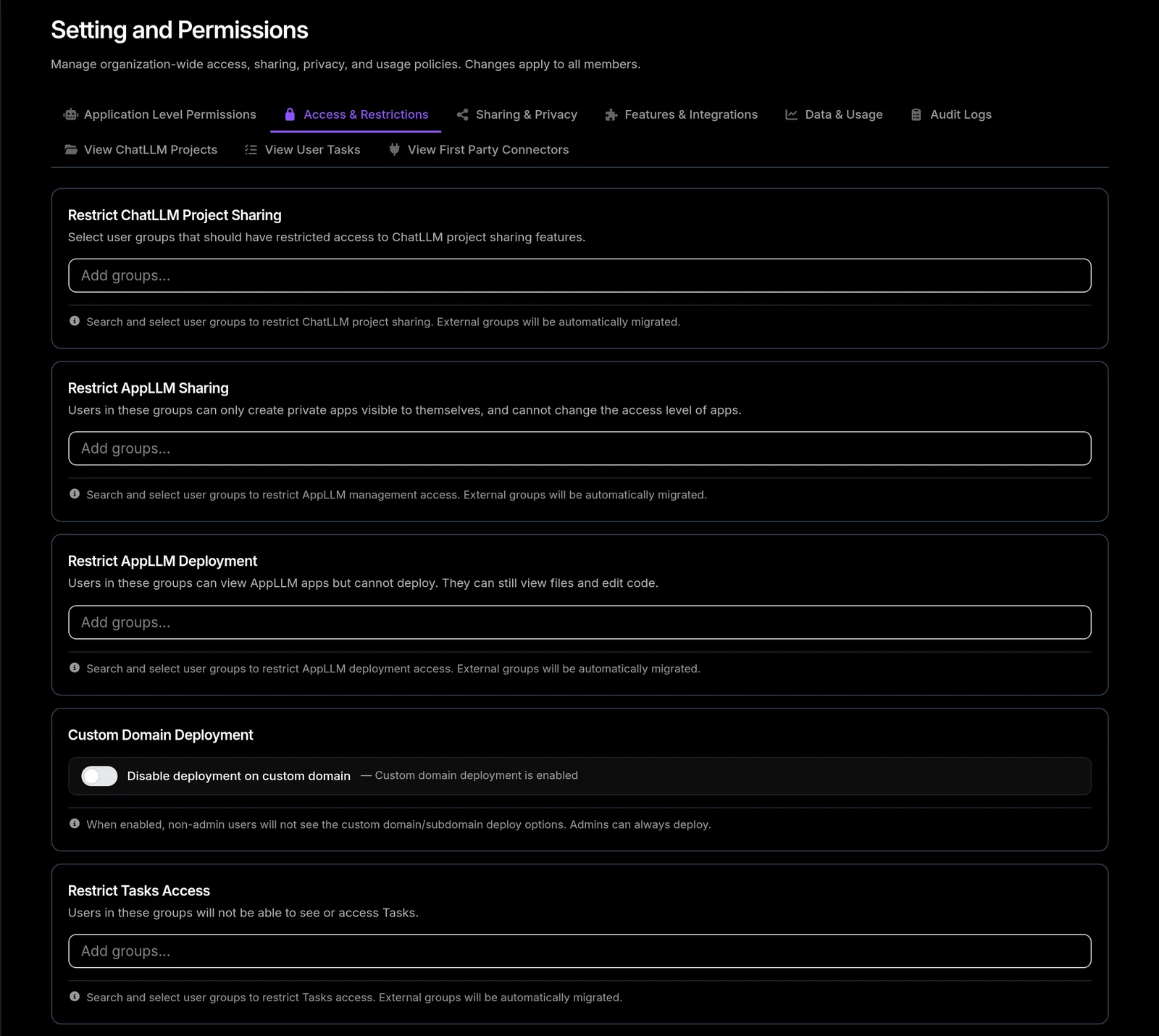
This is the primary tab for limiting who can do what. Each card is a searchable multi-select of user groups, and there are two distinct polarities:
- Restrict-type cards — the groups you add are denied the capability. Everyone not in those groups keeps it.
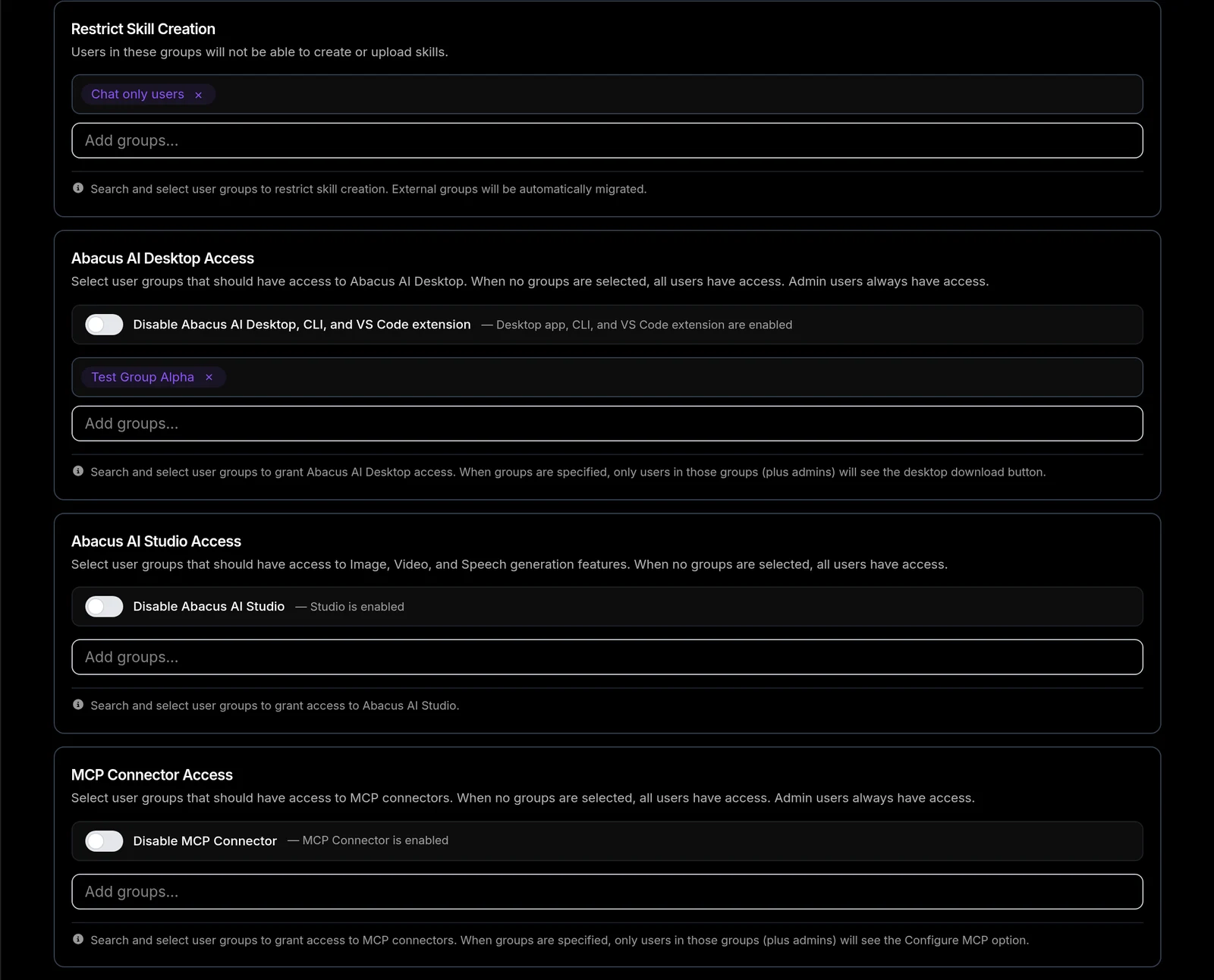
- Allow-type cards — when no groups are selected, everyone has access. As soon as you add a group, access is limited to that group (plus admins).
Set up your user groups first under Users and Groups, then come back here to attach restrictions to them. External groups (for example, from SSO/SCIM) are automatically migrated when you select them.
Sharing, apps, and Tasks
| Card | Type | What it does |
|---|---|---|
| Restrict ChatLLM Project Sharing | Restrict | Selected groups have restricted access to ChatLLM project sharing features. |
| Restrict AppLLM Sharing | Restrict | Users in these groups can only create private apps visible to themselves, and cannot change the access level of apps. |
| Restrict AppLLM Deployment | Restrict | Users in these groups can view AppLLM apps but cannot deploy. They can still view files and edit code. |
| Custom Domain Deployment | Toggle | Disable deployment on custom domain. When enabled, non-admin users will not see the custom domain/subdomain deploy options. Admins can always deploy. |
| Restrict Tasks Access | Restrict | Users in these groups will not be able to see or access Tasks. |
Skills, Desktop, Studio, and MCP
| Card | Type | What it does |
|---|---|---|
| Restrict Skill Creation | Restrict | Users in these groups will not be able to create or upload skills. |
| Abacus AI Desktop Access | Allow + toggle | Limits who can use Abacus AI Desktop. The toggle Disable Abacus AI Desktop, CLI, and VS Code extension switches all three off for the whole organization and hides the desktop download button. Admin users always have access. |
| Abacus AI Studio Access | Allow + toggle | Limits who can use Image, Video, and Speech generation. The toggle Disable Abacus AI Studio removes it for everyone. |
| MCP Connector Access | Allow + toggle | Limits who can configure MCP servers. Only permitted users see the Configure MCP option. The toggle Disable MCP Connector removes it for everyone. |
Abacus AI Agent access
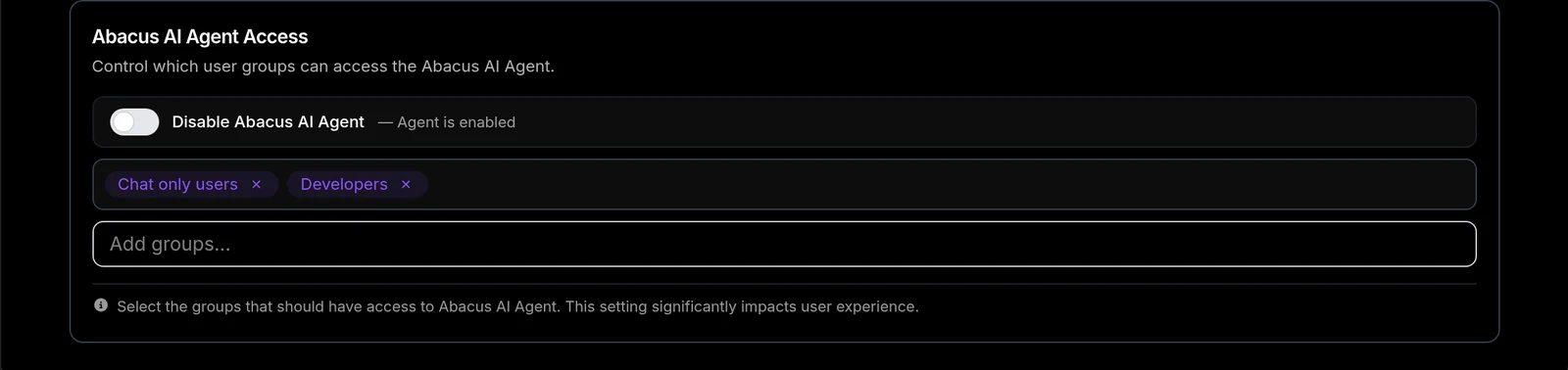
Abacus AI Agent Access controls which user groups can access the Abacus AI Agent, and the Disable Abacus AI Agent toggle turns it off organization-wide.
Restricting or disabling the Abacus AI Agent significantly impacts user experience — it is the primary agentic surface in ChatLLM. Confirm with your teams before switching it off.
3. Sharing & Privacy
Three organization-wide toggles that govern conversation visibility.
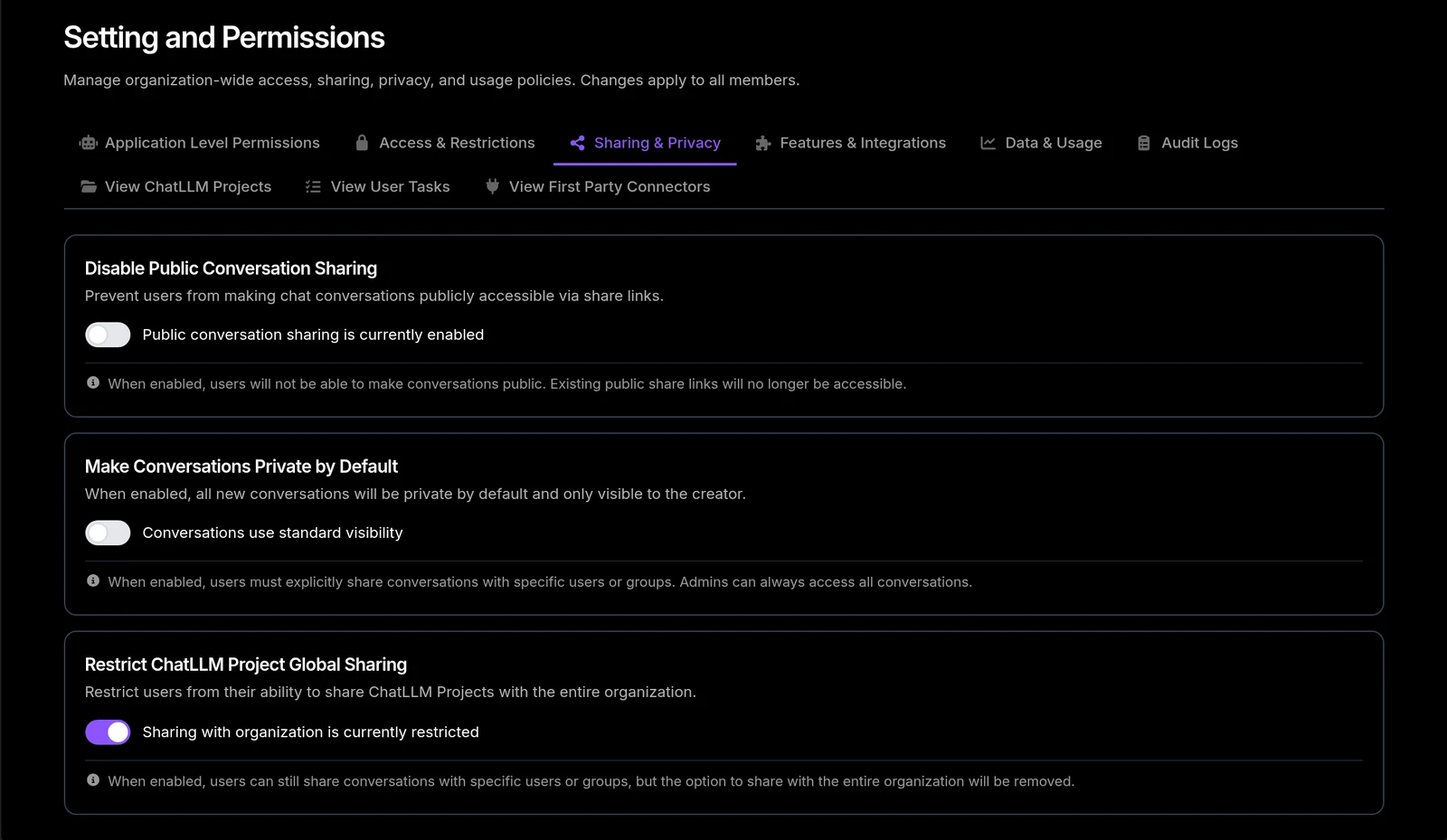
Disable Public Conversation Sharing
Prevents users from making chat conversations publicly accessible via share links.
When enabled, existing public share links will no longer be accessible. Any link you have already circulated outside the organization stops working immediately.
Make Conversations Private by Default
All new conversations become private and visible only to the creator. Users must then explicitly share a conversation with specific users or groups. Admins can always access all conversations.
Restrict ChatLLM Project Global Sharing
Removes the share with the entire organization option. Users can still share conversations with specific users or groups.
4. Features & Integrations
Connectors and showcase panels
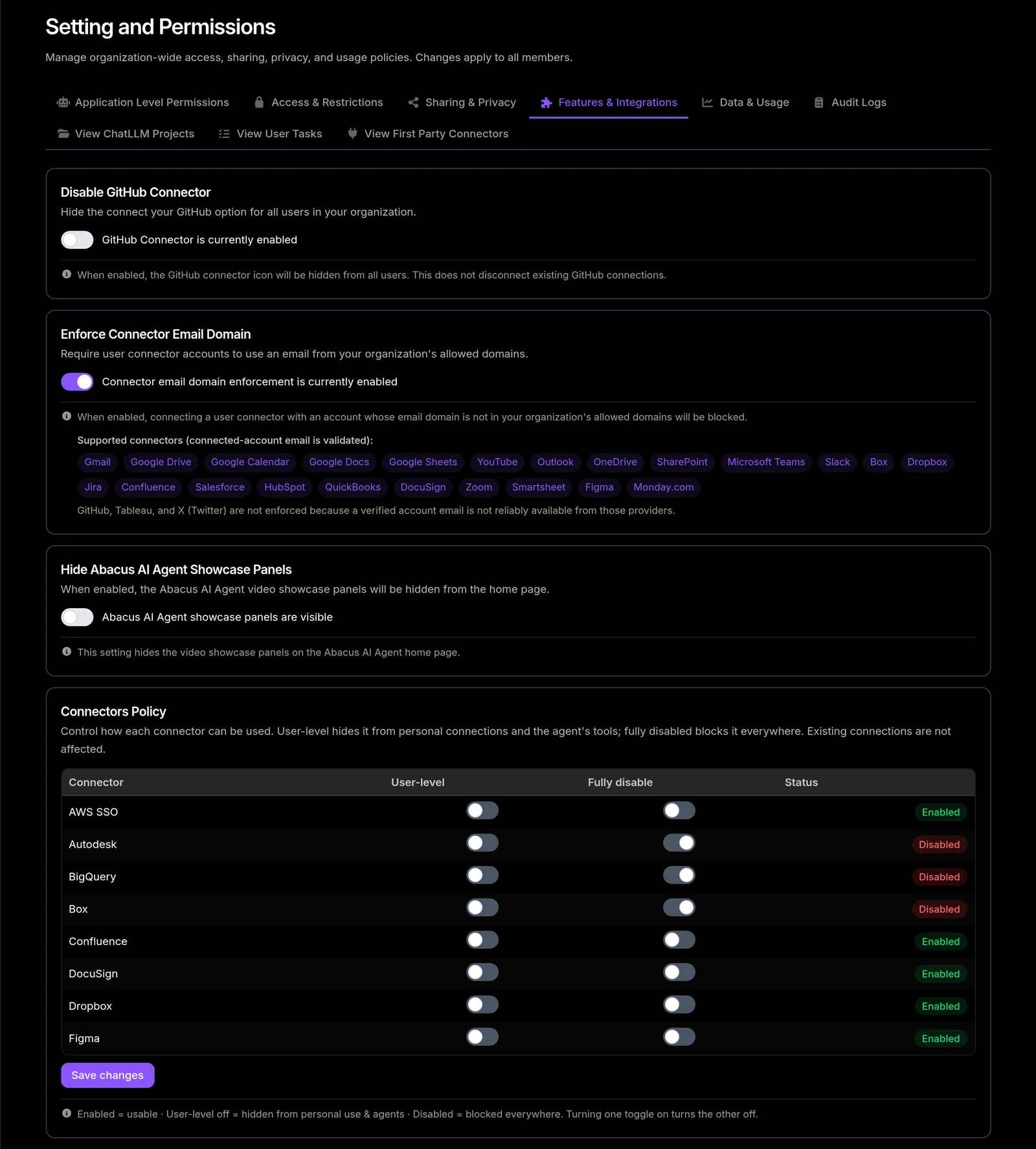
Disable GitHub Connector hides the connect your GitHub option for all users. It does not disconnect existing GitHub connections.
Enforce Connector Email Domain requires user connector accounts to use an email from your organization's allowed domains. The card lists every connector whose connected-account email is validated: Gmail, Google Drive, Google Calendar, Google Docs, Google Sheets, YouTube, Outlook, OneDrive, SharePoint, Microsoft Teams, Slack, Box, Dropbox, Jira, Confluence, Salesforce, HubSpot, QuickBooks, DocuSign, Zoom, Smartsheet, Figma, and Monday.com.
GitHub, Tableau, and X (Twitter) are not enforced, because a verified account email is not reliably available from those providers.
Hide Abacus AI Agent Showcase Panels hides the Abacus AI Agent video showcase panels from the home page.
Connectors Policy
The Connectors Policy table gives per-connector control over how each integration can be used.
| Column | Meaning |
|---|---|
| Connector | The integration name. |
| User-level | Hides the connector from personal connections and from the agent's tools. |
| Fully disable | Blocks the connector everywhere. |
| Status | Enabled (green) · User-level off (amber) · Disabled (red). |
Turning one toggle on turns the other off. Existing connections are not affected. Click Save changes to apply.
Allowed Email Domains
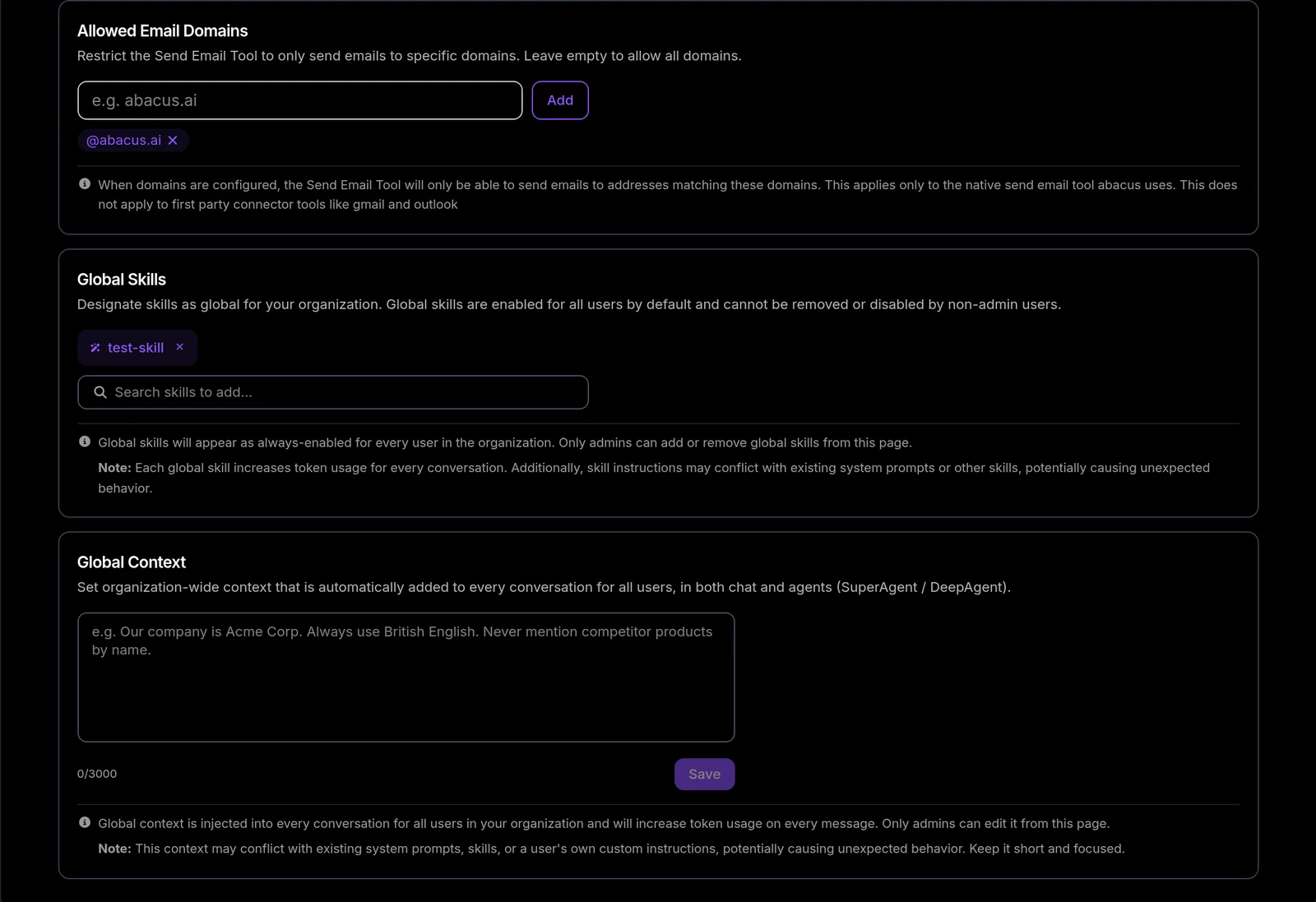
Restricts the Send Email Tool to only send emails to specific domains. Type a domain (for example abacus.ai), click Add, and it appears as a chip you can remove. Leave the list empty to allow all domains.
This applies only to the native send-email tool. It does not apply to user connector tools such as Gmail and Outlook.
Global Skills
Designate skills as global for your organization. Global skills are enabled for all users by default and cannot be removed or disabled by non-admin users. Only admins can add or remove them from this page.
Each global skill increases token usage for every conversation. Skill instructions may also conflict with existing system prompts or other skills, potentially causing unexpected behavior.
Global Context
Organization-wide context that is automatically added to every conversation for all users, in both chat and agents (SuperAgent / DeepAgent). Limited to 3,000 characters; the counter next to the field shows your usage.
Example: "Our company is Acme Corp. Always use British English. Never mention competitor products by name."
Global context is injected into every conversation and increases token usage on every message. It may conflict with existing system prompts, skills, or a user's own custom instructions. Keep it short and focused.
This card is visible to organization admins only.
5. Data & Usage
Organization Retention Policy
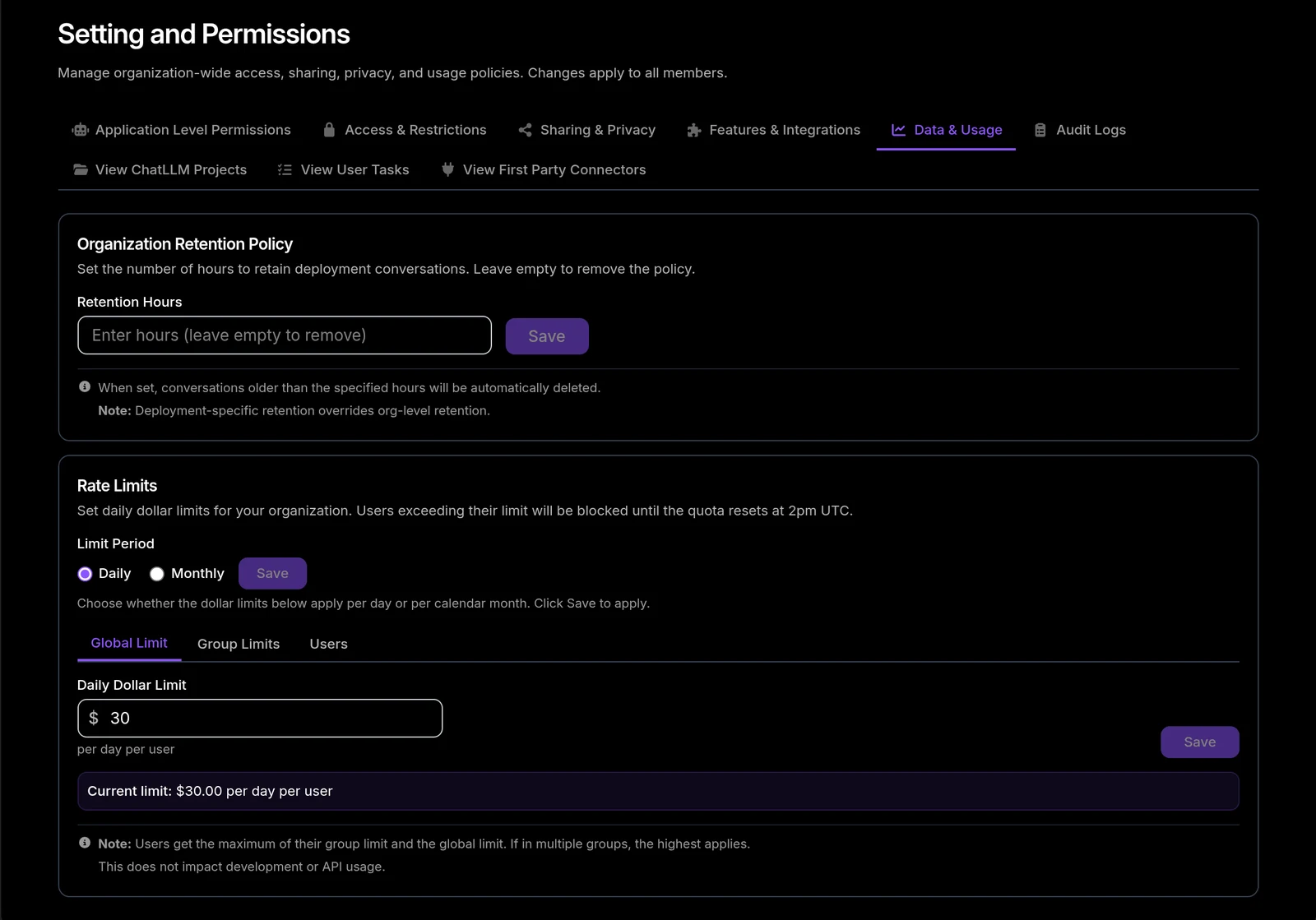
Set the number of hours to retain deployment conversations. Conversations older than the specified value are automatically deleted. Leave the field empty and save to remove the policy.
Deployment-specific retention overrides org-level retention.
Rate Limits
Set dollar limits for your organization. Users exceeding their limit are blocked until the quota resets.
Limit Period — choose whether the dollar limits apply Daily or Monthly, then click Save.
- Daily limits reset at 2 pm UTC.
- Monthly limits reset at the start of the next month, 12 am UTC.
Rate limits are split across three sub-tabs:
Global Limit
A single dollar limit per period, per user, applied to everyone in the organization. The card shows the currently applied value, for example Current limit: $30.00 per day per user.
Group Limits
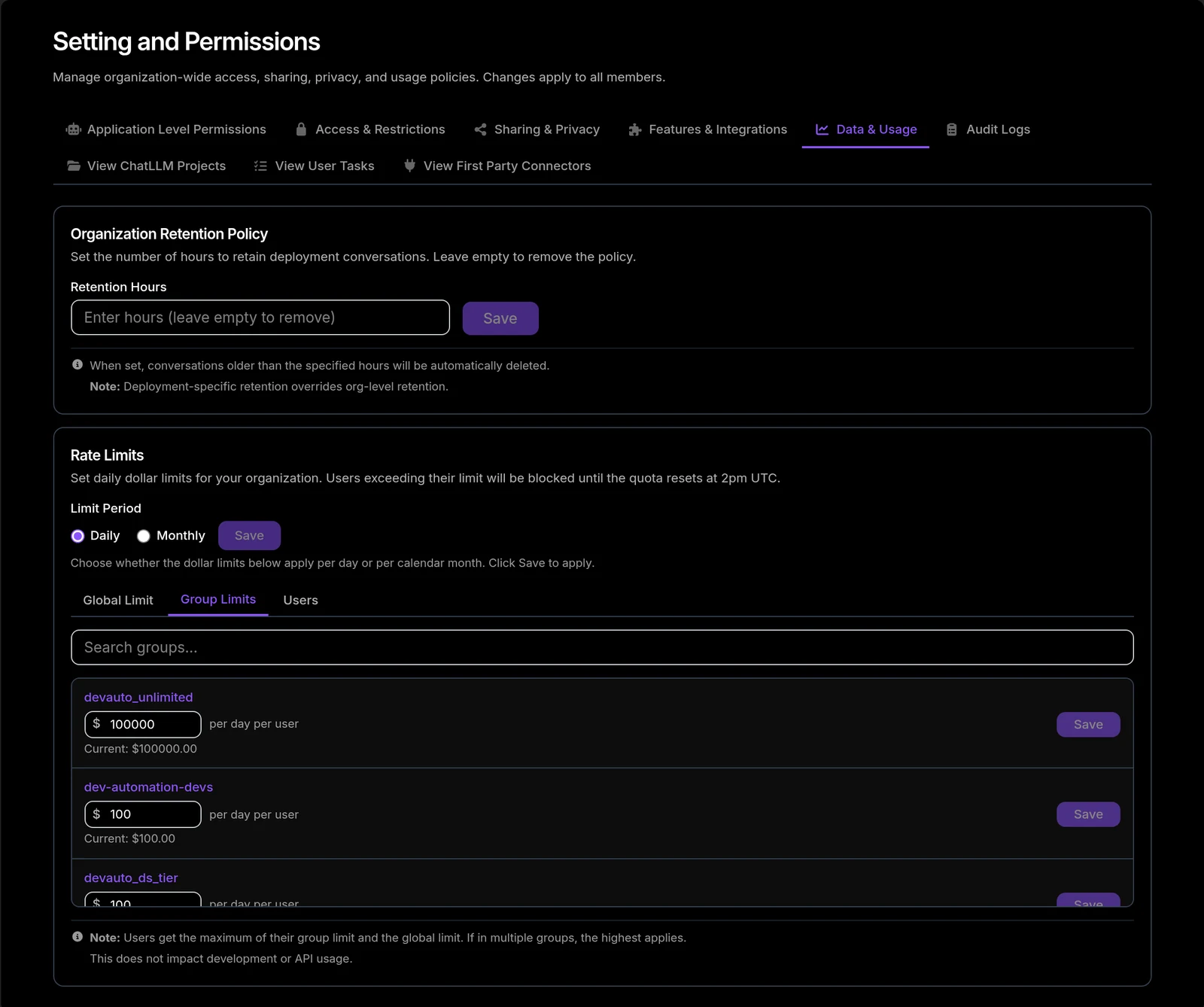
Search for a user group and set a dollar limit for it. Each group row shows its current limit and links through to the group's page under Users and Groups.
Users get the maximum of their group limit and the global limit. If a user is in multiple groups, the highest limit applies.
Users
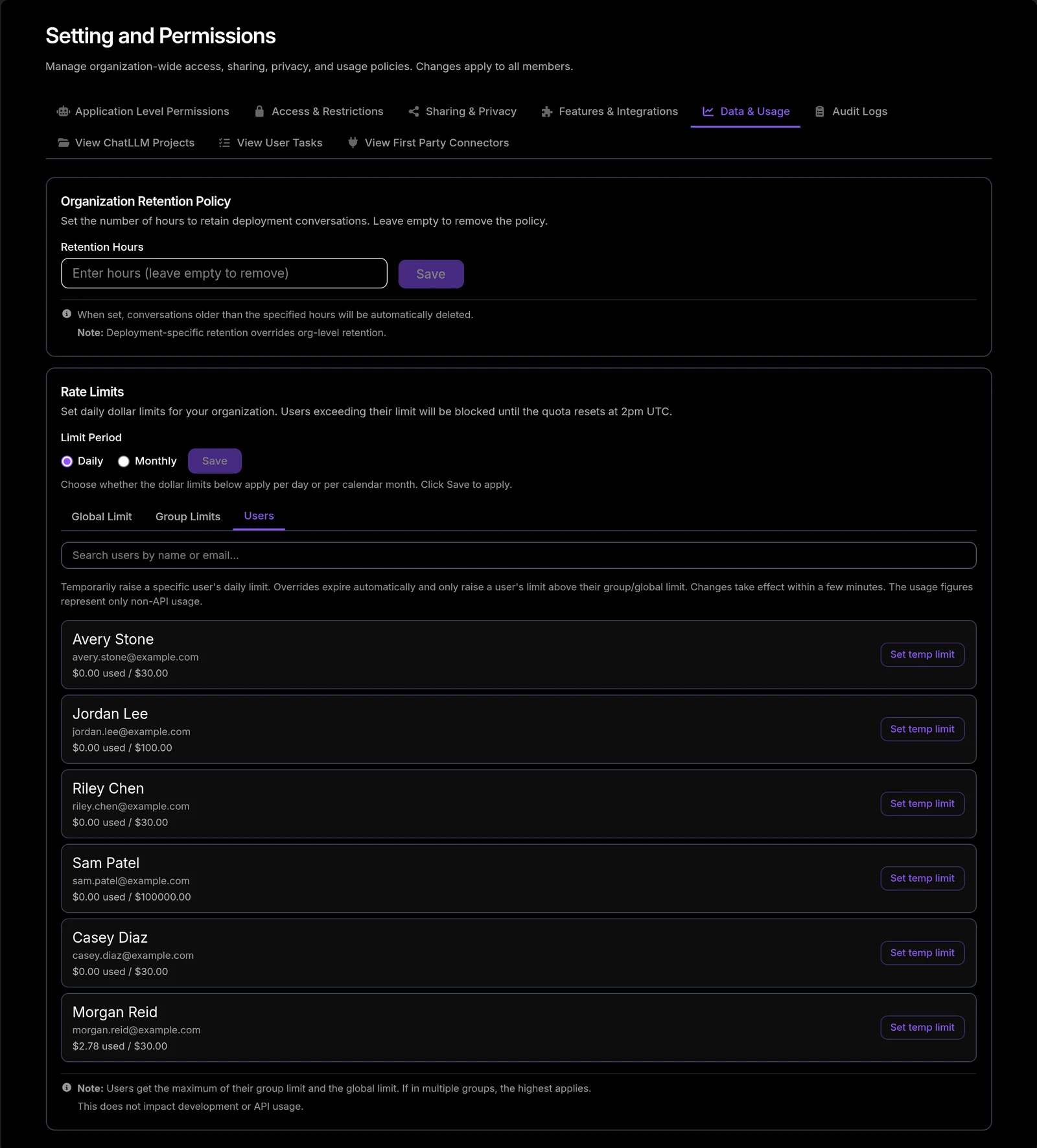
Temporarily raise a specific user's limit. Search by name or email; each row shows usage against the effective limit ($X used / $Y), a Throttled badge when the user is currently blocked, and any active override as Temp limit · Nd left with the underlying base limit.
Click Set temp limit (or Edit temp limit) to open the dialog. An override:
- Only ever raises a user's limit above their group/global limit.
- Expires automatically — the duration is specified in hours, up to 720 hours (30 days).
- Takes effect within a few minutes.
The button is disabled if the user has no base limit yet: "Set a group or global rate limit before adding a temporary limit for this user."
Rate limits do not impact development or API usage — the usage figures shown represent non-API usage only.
6. Activity Logs
Deliver your organization's audit and conversation activity to your own systems once an hour. Each run covers the previous clock hour.
If you see "Activity log export is not available for this organization", contact your Abacus.AI representative to have activity log export enabled.
This section describes the configuration UI. For the delivered record format, field-level schema, and history re-delivery, see Activity Log Export.
What gets exported
Every delivery is a single JSON file containing the events recorded in that hour:
| Event group | Contents |
|---|---|
| Admin events | Member and permission changes, API key activity, and other recorded admin actions. |
| Conversation activity | Each assistant turn with the user, app, model, and request id. |
| Conversation lifecycle | Conversations created and deleted, with the acting user. |
| Project activity | ChatLLM projects created, with the acting user. |
| Request metadata | External service actions and the originating IP address. |
Destination
Pick where the hourly export is delivered — only the selected destination receives it.
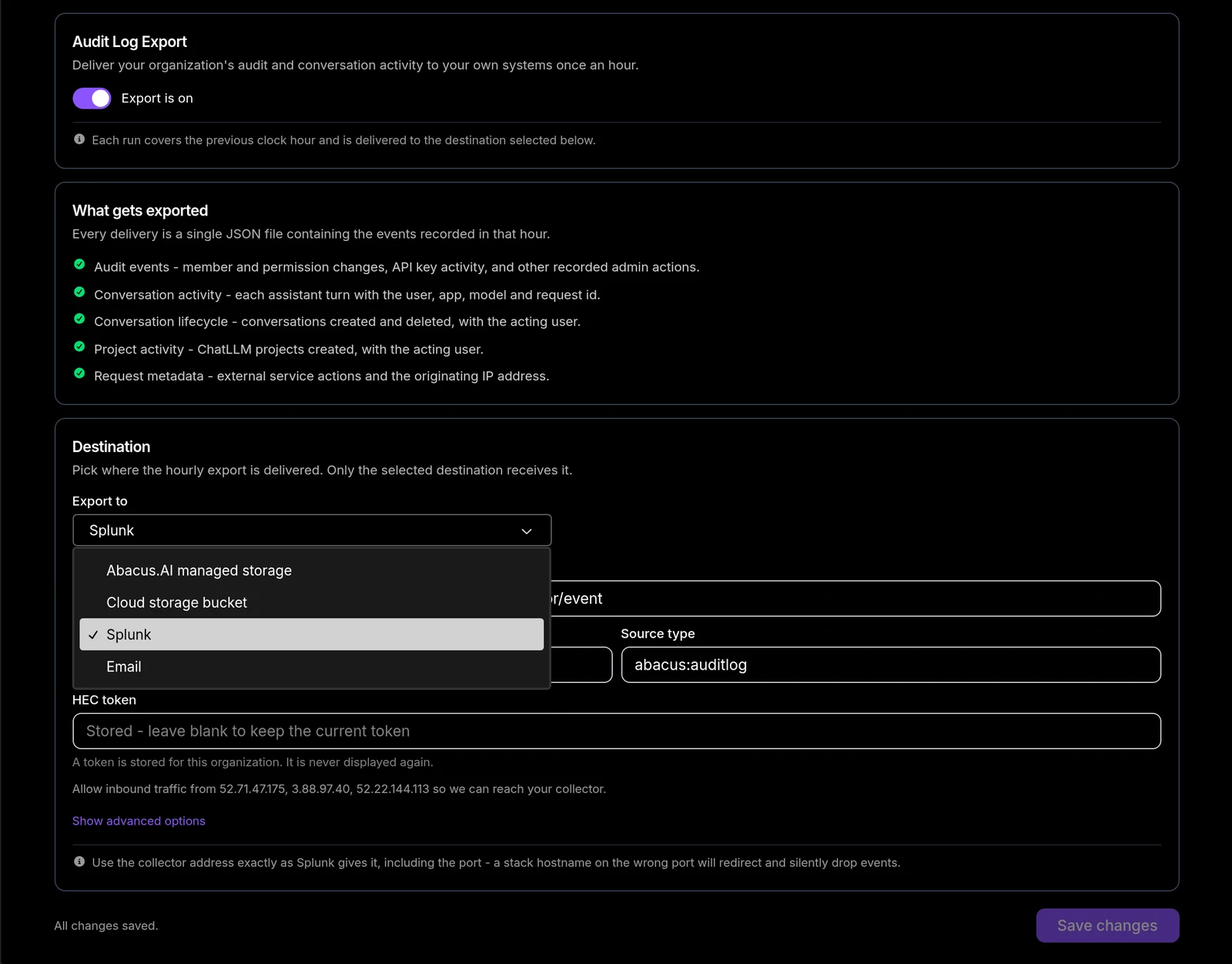
Abacus.AI managed storage
The default. No further configuration required.
Cloud storage bucket
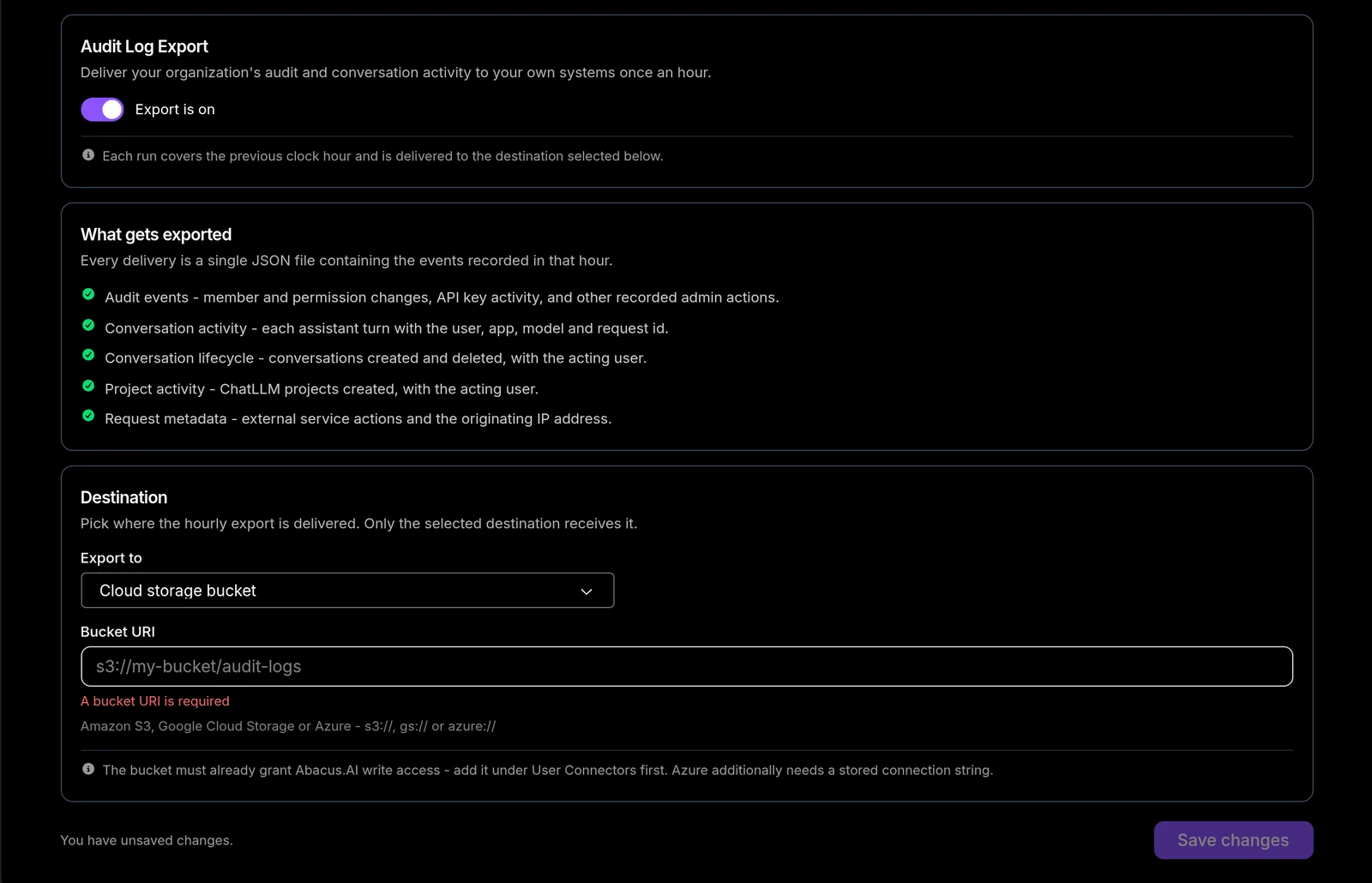
Provide a Bucket URI for Amazon S3, Google Cloud Storage, or Azure — s3://, gs://, or azure:// (for example s3://my-bucket/audit-logs).
The bucket must already grant Abacus.AI write access — add it under User Connectors first. Azure additionally needs a stored connection string.
Splunk
Shown in the screenshot above. Fill in:
| Field | Notes |
|---|---|
| HEC endpoint | Your Splunk HTTP Event Collector address, including the port. |
| Index | Leave blank to use the token's default. |
| Source type | Defaults to abacus:auditlog. |
| HEC token | Once stored it is never displayed again — leave blank to keep the current token. |
Show advanced options exposes Skip TLS verification and Send uncompressed.
You must allow inbound traffic from the Abacus.AI egress IP addresses listed on the card so the exporter can reach your collector.
Use the collector address exactly as Splunk gives it, including the port — a stack hostname on the wrong port will redirect and silently drop events.
Email
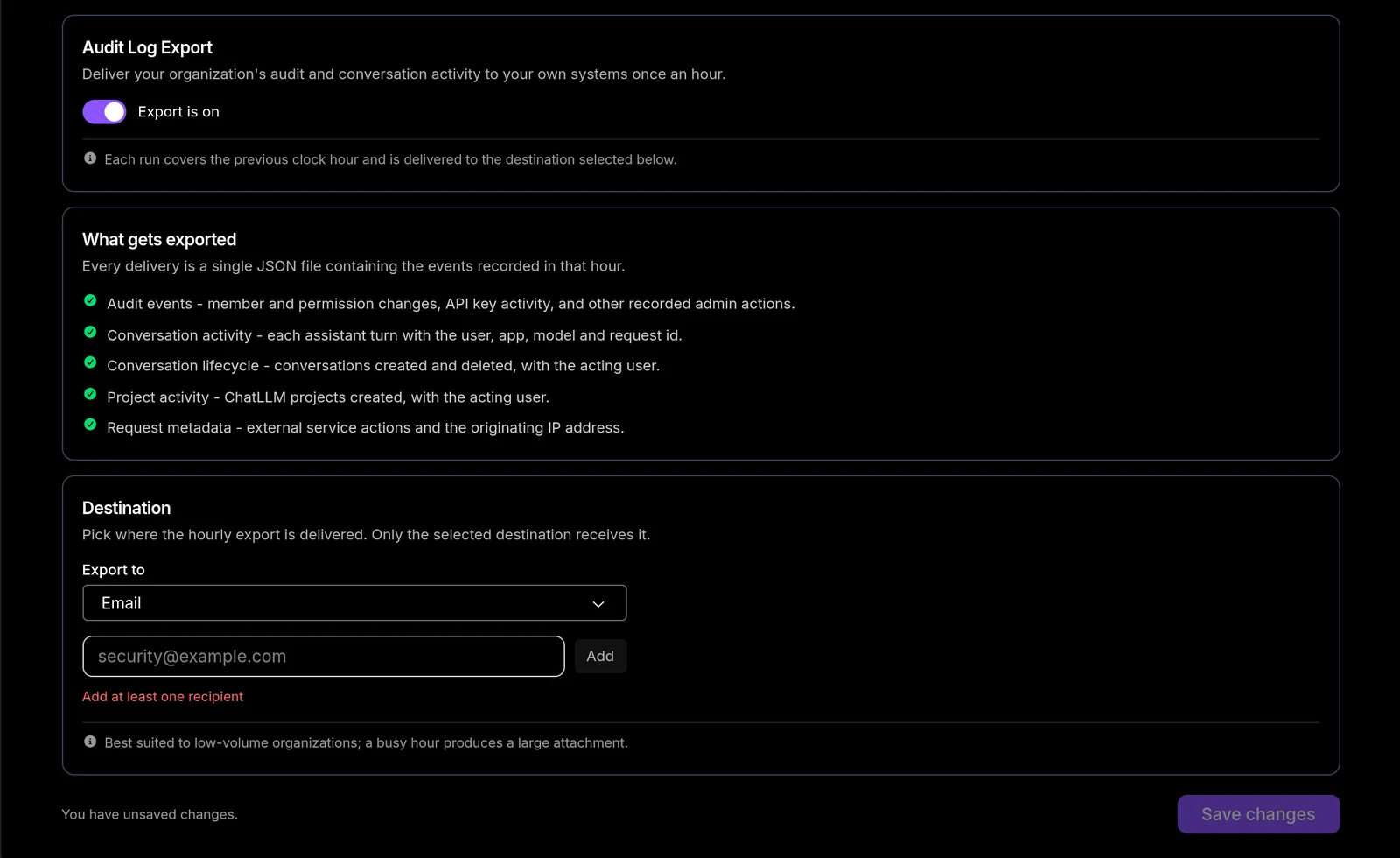
Add one or more recipient addresses as chips. At least one recipient is required.
Email is best suited to low-volume organizations — a busy hour produces a large attachment.
Changes on this tab are staged: a sticky bar at the bottom shows You have unsaved changes until you click Save changes.
7. View ChatLLM Projects
A read-only inventory of all ChatLLM projects in your organization, with creator and sharing information.
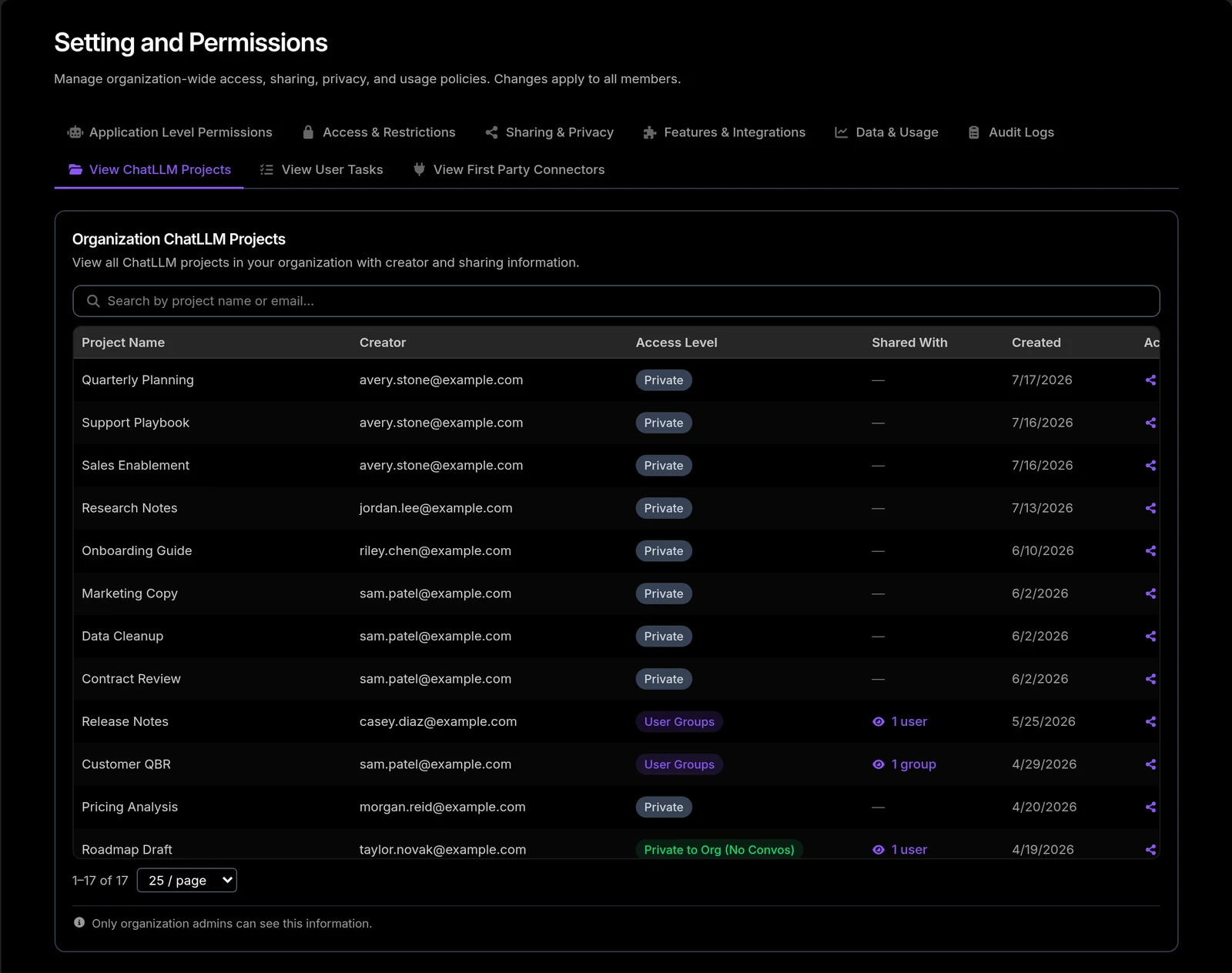
Columns: Project Name, Creator, Access Level, Shared With, Created, and Actions. Search by project name or email, and page through the results (10/25/50/100 per page).
The Access Level column uses these labels:
| Label | Meaning |
|---|---|
| Private | Only the creator. |
| Private to Org | Everyone in the organization. |
| Private to Org (No Convos) | Organization-wide, but conversations are not shared. |
| Private to Org (View Only) | Organization-wide, read-only. |
| User Groups | Limited to specific groups. |
| Groups (No Convos) | Specific groups, without conversations. |
Clicking Shared With opens Shared Access Details, listing the individual Users and Groups the project is shared with and their permission — Can View, Can Edit, or View (No Convos).
Only organization admins can see this information.
8. View User Tasks
Every Task created by users in your organization.
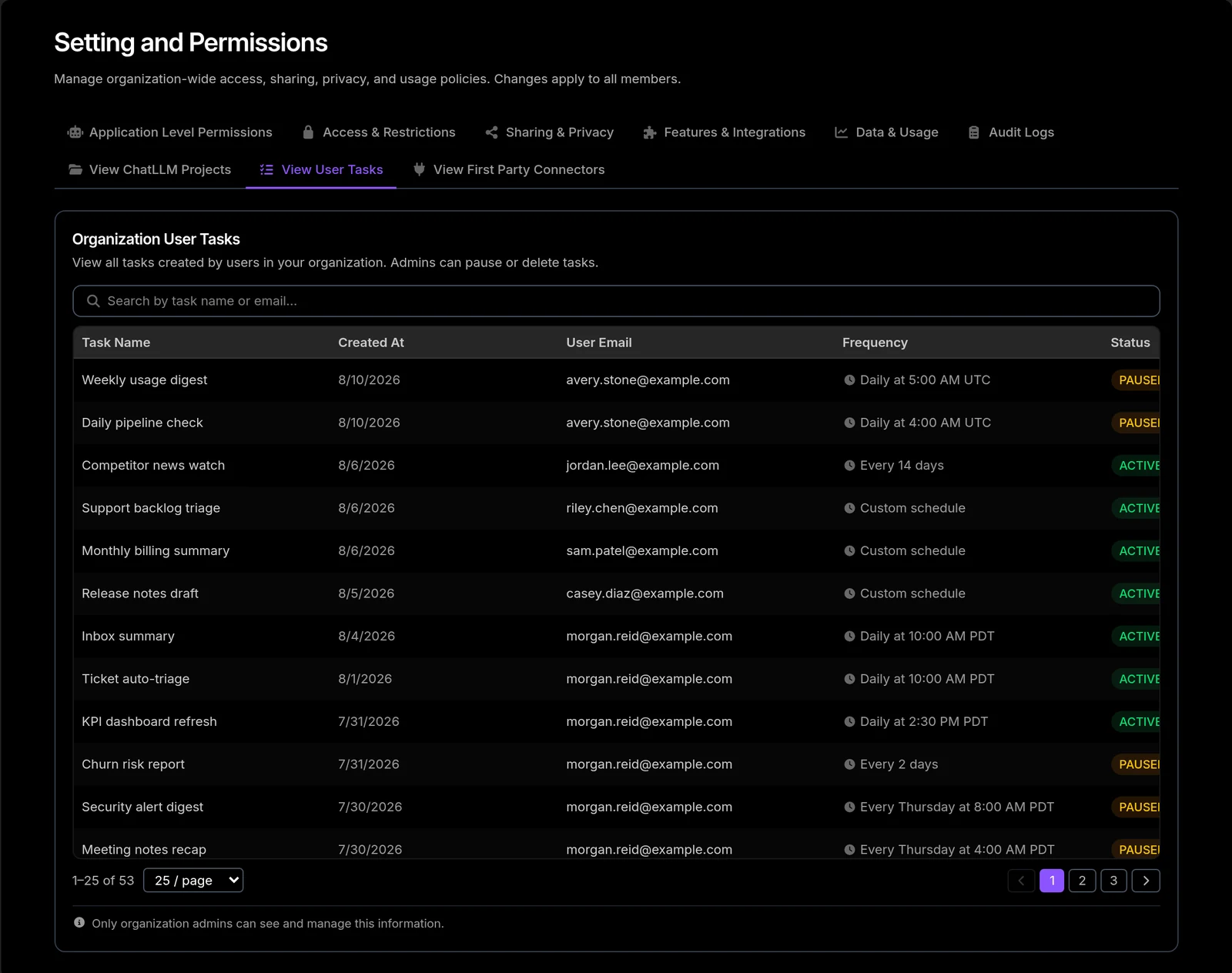
Columns: Task Name, Created At, User Email, Frequency, Status, and Actions. Status is ACTIVE or PAUSED.
This is the one View tab that is not read-only — admins can pause or delete any user's task, which is useful for stopping a runaway scheduled task or cleaning up after a departed member. Search by task name or email to find a specific task.
9. View First Party Connectors
All connectors and MCP servers created by users in your organization.
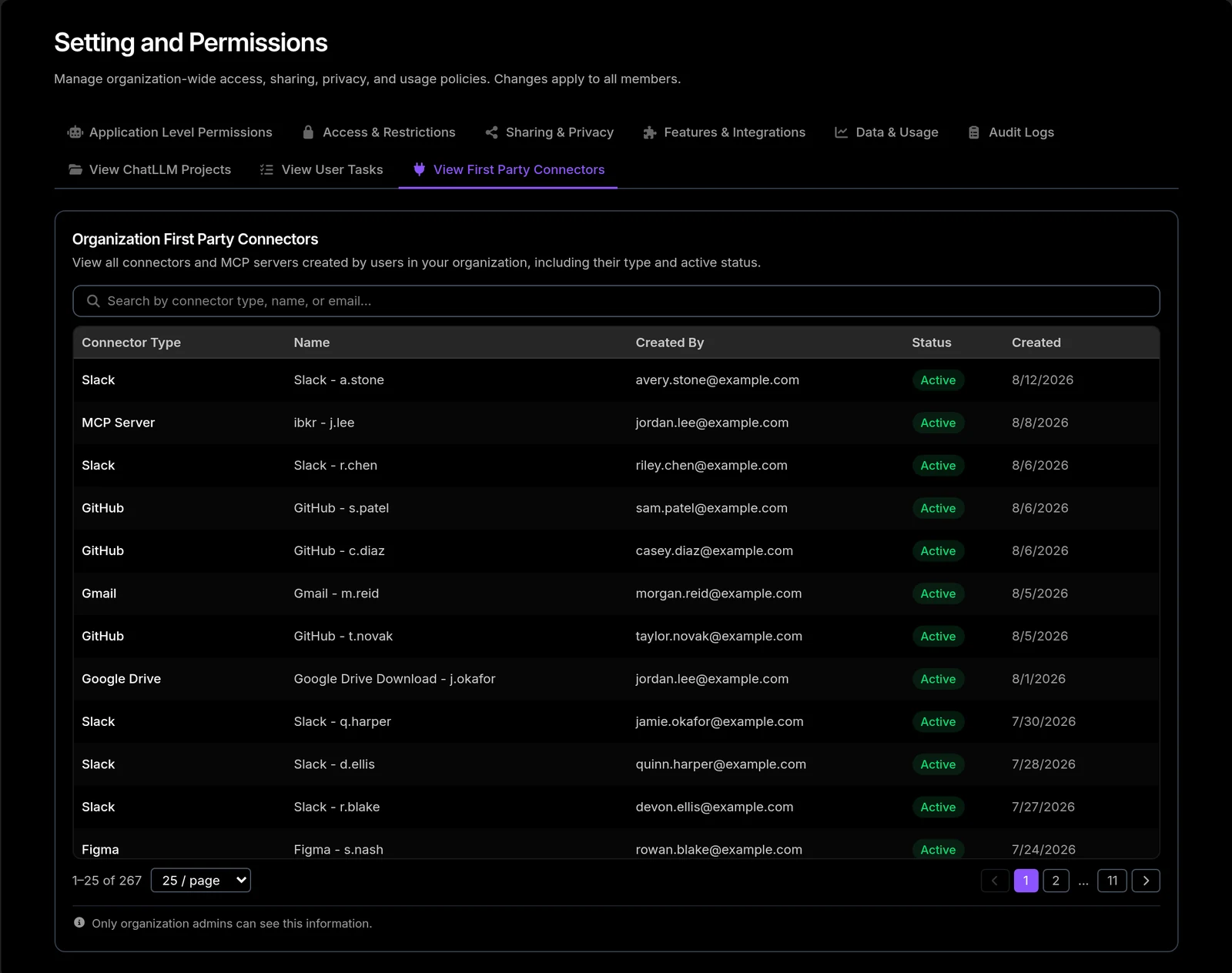
Columns: Connector Type, Name, Created By, Status, and Created. Search by connector type, name, or email.
Use this tab to audit which third-party services members have actually connected before deciding what to lock down in the Connectors Policy.
Quick reference: every way to limit access
| Goal | Where | Control |
|---|---|---|
| Make deployed apps private by default | Application Level Permissions | Private to Org / Owner Only |
| Stop a group from sharing ChatLLM projects | Access & Restrictions | Restrict ChatLLM Project Sharing |
| Force a group to build private-only apps | Access & Restrictions | Restrict AppLLM Sharing |
| Let a group code but not deploy | Access & Restrictions | Restrict AppLLM Deployment |
| Block custom-domain deploys for non-admins | Access & Restrictions | Custom Domain Deployment toggle |
| Hide Tasks from a group | Access & Restrictions | Restrict Tasks Access |
| Prevent skill creation/upload | Access & Restrictions | Restrict Skill Creation |
| Limit or disable Desktop / CLI / VS Code | Access & Restrictions | Abacus AI Desktop Access |
| Limit or disable image/video/speech generation | Access & Restrictions | Abacus AI Studio Access |
| Limit or disable MCP servers | Access & Restrictions | MCP Connector Access |
| Limit or disable the Abacus AI Agent | Access & Restrictions | Abacus AI Agent Access |
| Kill public share links | Sharing & Privacy | Disable Public Conversation Sharing |
| Make every new conversation private | Sharing & Privacy | Make Conversations Private by Default |
| Remove "share with whole org" | Sharing & Privacy | Restrict ChatLLM Project Global Sharing |
| Hide the GitHub connector | Features & Integrations | Disable GitHub Connector |
| Require corporate emails on connectors | Features & Integrations | Enforce Connector Email Domain |
| Disable a specific connector everywhere | Features & Integrations | Connectors Policy → Fully disable |
| Allow a connector for agents but not personal use | Features & Integrations | Connectors Policy → User-level |
| Restrict outbound email recipients | Features & Integrations | Allowed Email Domains |
| Push mandatory instructions to everyone | Features & Integrations | Global Skills / Global Context |
| Auto-delete old conversations | Data & Usage | Organization Retention Policy |
| Cap spend for everyone | Data & Usage | Rate Limits → Global Limit |
| Cap spend per team | Data & Usage | Rate Limits → Group Limits |
| Temporarily raise one user's cap | Data & Usage | Rate Limits → Users |
| Stream activity to SIEM | Activity Logs | Destination → Splunk / bucket / email |
| Stop a runaway scheduled task | View User Tasks | Pause / Delete |