Organization Brain
Organization Brain is the shared memory for your whole organization. It holds the terms, facts, contacts, processes and policies that every agent should know before a conversation starts, so your team does not have to repeat them in every chat.
It is an admin page. Admins decide what the Brain may learn, review what it proposes, and see which connectors, data and agents the organization depends on.
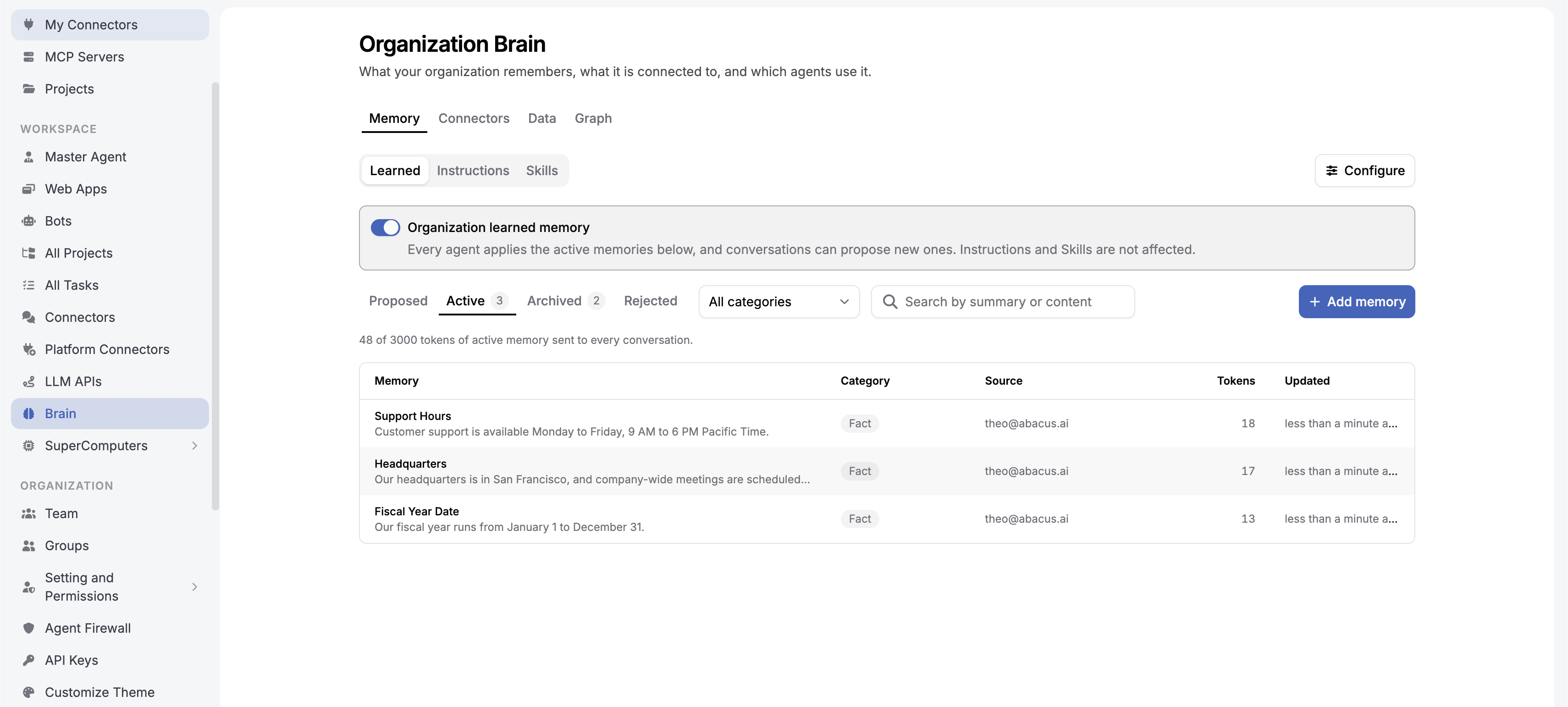
Who can use it
| Organization type | Availability |
|---|---|
| Enterprise | The page is available to admins by default. Admins can add memories straight away. Learning from conversations stays off until an admin saves Configure. |
| Self-serve teams | Available on paid plans. The Brain does nothing until an admin clicks Turn on and saves the configuration. Learning uses credits. |
Only organization admins can open the page. Members never see it, but their agents use what it holds.
Where to find it
- Open the admin settings for your organization.
- Select Brain in the left rail.
The page has four tabs:
| Tab | What it shows |
|---|---|
| Memory | What every agent in the organization knows: learned memories, admin-written instructions, and the skills enabled for everyone. |
| Connectors | Every connection the organization can use, who connected it, and how much it is used. |
| Data | The tables and objects behind your organization-level data connectors. |
| Graph | A map of services, agents and data, sized by use. |
How it works
1. The Brain collects candidate memories
A memory can come from three places:
- An admin adds it. On the Memory tab, click Add memory. It is active immediately for every agent.
- A member says it in chat. When someone tells an agent that the whole organization should know or follow something, the agent records it. If an admin says it, it is active at once. If a member says it, it becomes a proposal.
- The Brain notices it. With Learn from conversations on, the Brain proposes memories from what your team keeps saying in conversations.
Agents only record an organization memory when the person clearly says it is for everyone. Personal preferences stay in that person's own memory, and passwords, tokens and other credentials are never stored.
2. Every memory has a category
| Category | What it holds | Example |
|---|---|---|
| Vocabulary | Terms and names your team uses, and what they mean. | "ARR means annual recurring revenue, excluding one-time services." |
| Fact | Stable facts about the business. | "Our fiscal year starts on February 1." |
| Contact | Who owns or handles what. | "Security questionnaires go to the Trust team at trust@example.com." |
| Process | How work gets done: steps, tools and hand-offs. | "Invoices are reconciled on the 5th of each month in NetSuite." |
| Policy | Rules every agent must follow. | "Never share customer names in public-facing content without legal approval." |
| Preference | How people like things done. A member's own instructions still win. | "Internal reports use bullet summaries, not long paragraphs." |
3. Admins review proposals
Proposals wait under Memory > Learned > Proposed. For each one an admin can Approve, Edit, or Reject it. Active memories can be edited or archived at any time, and archived or rejected ones can be restored.
4. Agents apply active memories
Active memories are added to every agent in the organization: chats, project agents, tasks and bots. A change reaches agents within about a minute.
Agents treat memories in three groups:
| Group | Categories | How agents treat it |
|---|---|---|
| Rules | Policy, Process | Always apply. They override a member's personal preferences and instructions. |
| Ground truth | Vocabulary, Contact, Fact | The names, definitions and contacts to use. |
| Defaults | Preference | Apply unless the member's own instructions say otherwise. |
If you turn off Org rules override personal instructions, policies and processes move into the Defaults group.
5. Active memory has a budget
Active memory is capped at 3,000 tokens for the organization, and up to 1,500 tokens are sent to each conversation. When everything does not fit, policies and processes go first, then vocabulary, contacts, preferences and facts, with the most-used memories ahead. The Memory tab shows how much of the budget is in use. When it is full, archive something before adding more.
Configuration
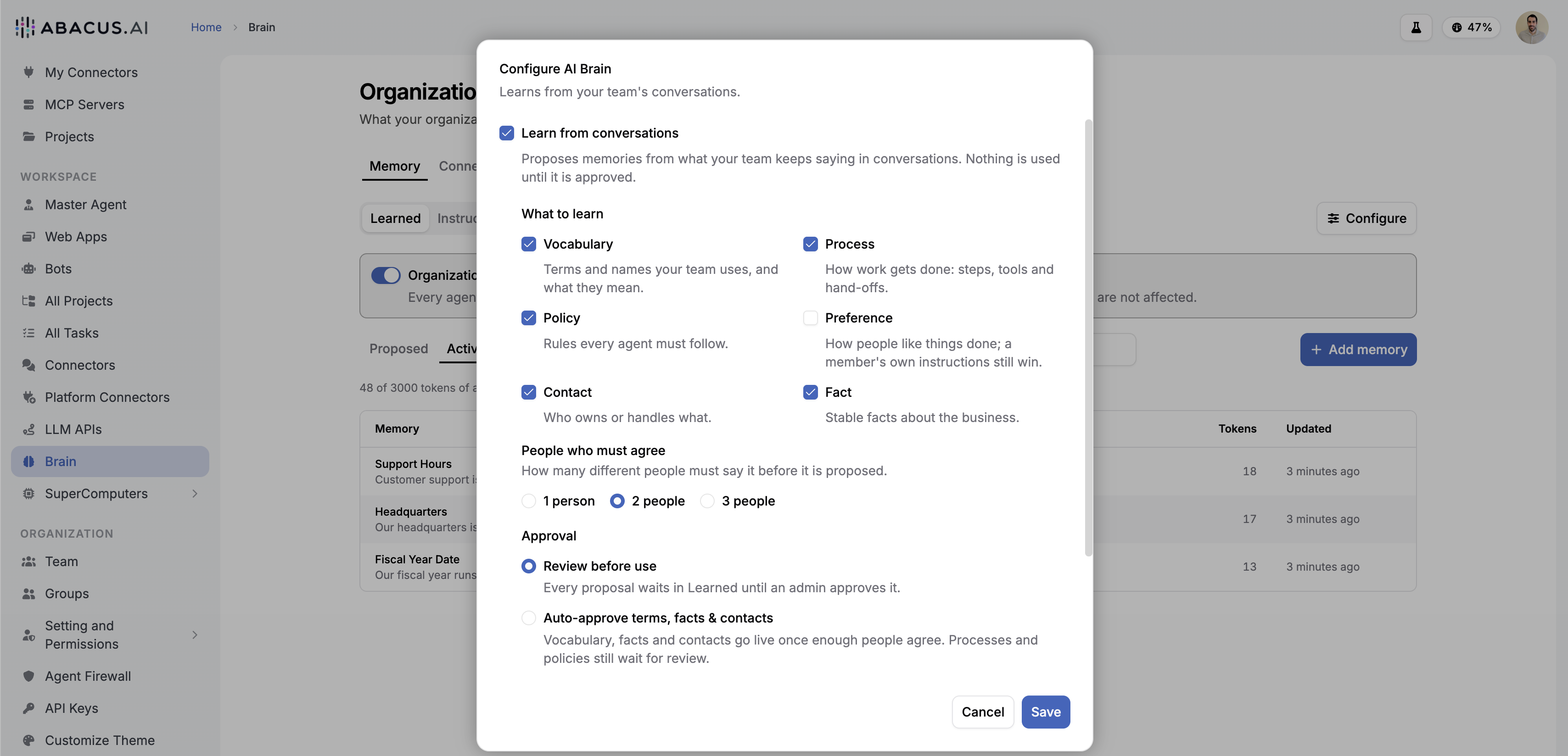
Click Configure on the Memory tab to open Configure AI Brain. Nothing is learned until you save this dialog.
| Setting | What it does | Default |
|---|---|---|
| Learn from conversations | Master switch for learning. Proposes memories from what your team keeps saying. Nothing is used until it is approved. | On |
| What to learn | The categories the Brain may learn. | Vocabulary, Fact, Contact, Process, Policy (Preference is off) |
| People who must agree | How many different people must say something before it is proposed: 1, 2 or 3. | 2 for Enterprise, 1 for self-serve teams |
| Approval | Review before use: every proposal waits for an admin. Auto-approve terms, facts & contacts: vocabulary, facts and contacts go live once at least three people agree. Processes and policies always wait for review. | Review before use |
| Show who said it | Proposals name who said it and link their conversations instead of showing counts. | Off |
| Org rules override personal instructions | Learned policies and processes take precedence over a member's own standing instructions. | On |
Example configuration
A typical setup for a 200-person company that wants a careful rollout:
| Setting | Value |
|---|---|
| Learn from conversations | On |
| What to learn | Vocabulary, Fact, Contact, Process, Policy |
| People who must agree | 2 people |
| Approval | Review before use |
| Show who said it | Off |
| Org rules override personal instructions | On |
This is the Enterprise default. Two people have to say the same thing before admins see a proposal, an admin approves everything, and members' names and conversations stay private.
Turning learned memory off
The Organization learned memory switch on the Memory tab pauses learned memory for the whole organization. While it is off, no agent reads these memories or proposes new ones. The memories are kept for when you turn it back on, and Instructions and Skills still apply.
Instructions and Skills
The Memory tab has two more panes next to Learned:
- Instructions: text an admin writes for every agent, such as who you are, how you work and what every agent should know. Use it for the stable background you want in place from day one.
- Skills: the skills every agent in the organization can use. Click Manage to change them.
Connectors, Data and Graph
Connectors lists each service the organization is connected to, whether it is connected at the organization level or per user, how many people connected it, and how many conversations and tasks used it in the last 30 days.
Data lists the tables and objects behind your organization-level database connectors. Click Scan data to catalogue them. You can Pin as key object to keep important tables at the top, or Hide from Brain to leave an object out of the lists and counts. If Ontology is available for your organization, you can open it from this tab.
Graph draws services, agents and data as a map. Select a hub to see the agents and data behind it.
Example prompts
Teaching the Brain from a chat
Say clearly that it is for everyone. Phrase it as a fact about the organization, not about a person.
- "Tell everyone: our fiscal year starts on February 1."
- "Company-wide rule: never include customer names in public-facing content without legal approval."
- "For the whole organization: 'Tier 1' means customers above $100K ARR."
- "Everyone should know that security questionnaires go to the Trust team at trust@example.com."
- "The org process is: invoices are reconciled on the 5th of each month in NetSuite."
An admin's statement is active immediately. A member's statement becomes a proposal for admins to review.
FAQ
Does the Brain start learning as soon as it is available? No. Nothing is learned until an admin saves Configure.
Can members see or edit organization memories? No. Only admins can open the page. Members can suggest a memory by telling an agent it is for the whole organization.
How fast does a change take effect? Within about a minute, from the next message a member sends.
What happens when two memories conflict with a member's own instructions? With Org rules override personal instructions on, policies and processes win. Preferences always yield to the member's own instructions.
Can bots and scheduled tasks add memories? No. They read active memories, but only a signed-in member's own chat can add or propose one.
Is anything deleted when I turn learned memory off? No. Memories are kept and apply again when you turn it back on.