SharePoint user connector: write access
With Write Access, the connector can create, edit, upload and delete SharePoint files and items on behalf of the signed-in user, in addition to reading. It uses a separate write-capable Abacus.AI app registration, so the read-only scopes are replaced by their read/write equivalents (Files.ReadWrite.All, Sites.ReadWrite.All, AllSites.Write, MyFiles.Write).
An organization administrator enables it once for the whole organization with a config connector.
Set the access type from the platform
- Go to the Connected Services Dashboard. You can click your profile in the top right and then click Manage Connectors.
- Click Add New Connector, select SharePoint from the list, and turn the Config Only toggle on.
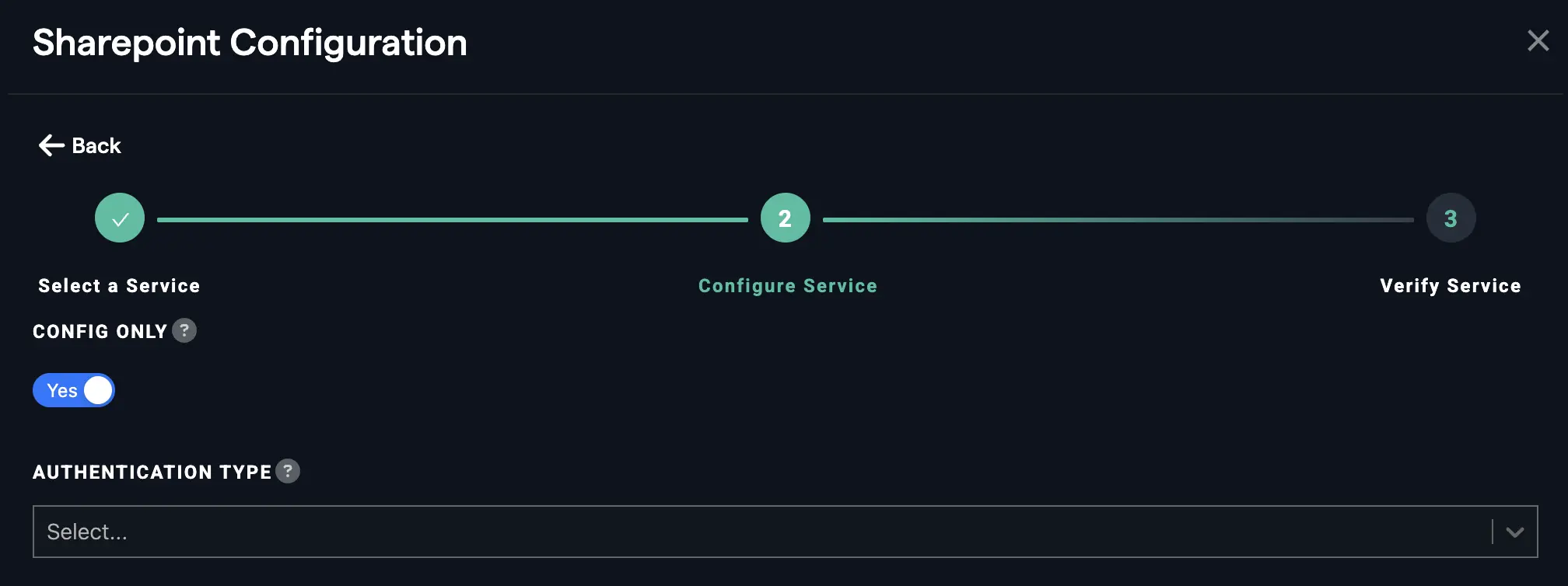
- Under Authentication Type, select Write Access.
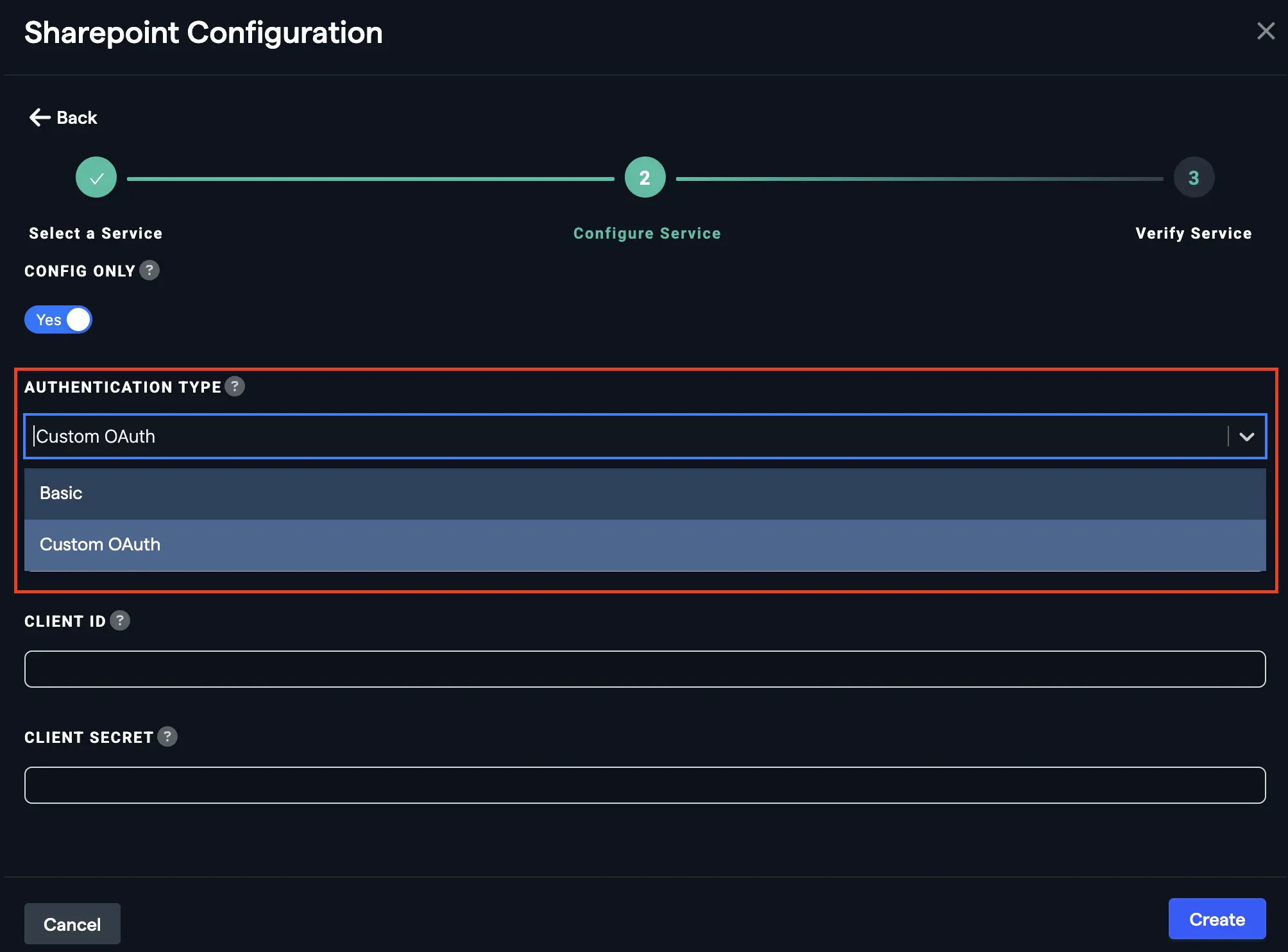
- Enter the SharePoint site URL.
- Click Create.
The write-capable app is a different Abacus.AI app registration. A Microsoft Entra admin must create the first write-enabled connection and tick "Consent on behalf of your organization" for it as well. See Microsoft Entra Tenant Consent.
Permissions requested
Microsoft Graph scopes
- email: View users' email address
- Files.ReadWrite.All: Have full access to all files user can access
- offline_access: Maintain access to data you have given it access to
- openid: Sign users in
- profile: View users' basic profile
- SensitivityLabel.Read: Get labels user scope
- SensitivityLabels.Read.All: Get labels app scope
- Sites.ReadWrite.All: Edit or delete items in all site collections
- User.Read: Sign in and read user profile
- User.Read.All: Read all users' full profiles
SharePoint scopes
- AllSites.Write: Read and write items in all site collections
- MyFiles.Write: Read and write user files
- Sites.Search.All: Run search queries as a user
- Sites.Selected: Access selected site collections
- User.Read.All: Read user profiles
Next step
Return to Use SharePoint in ChatLLM. Users who had already connected SharePoint must reconnect it from Profile → User Connectors before they can write.