SharePoint user connector: read-only access
Basic (Read Only) is the default access type. The connector uses the Abacus.AI app registration and can read SharePoint sites and files, but cannot create, modify or delete content.
You only need the config connector below if you want to set it explicitly (for example to record the SharePoint site URL, or to switch back from Write Access). Otherwise users can simply connect SharePoint from ChatLLM Teams.
Set the access type from the platform
- Go to the Connected Services Dashboard. You can click your profile in the top right and then click Manage Connectors.
- Click Add New Connector, select SharePoint from the list, and turn the Config Only toggle on.
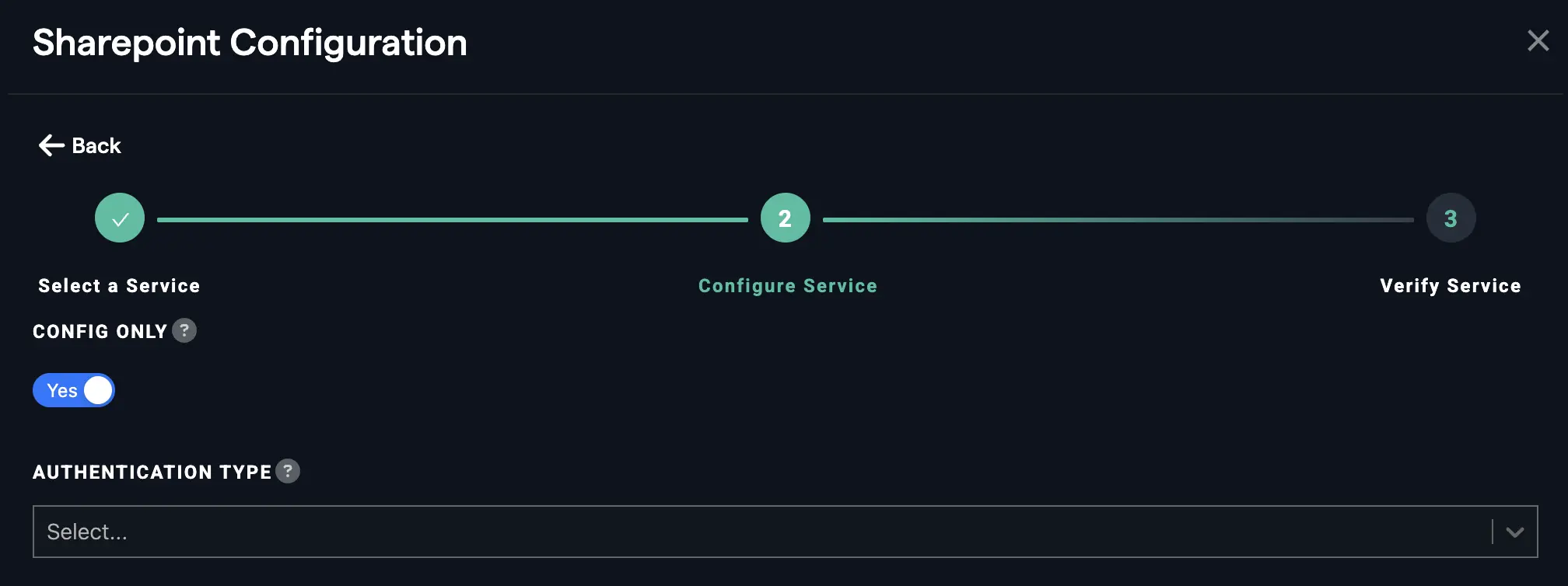
- Under Authentication Type, select Basic (Read Only).
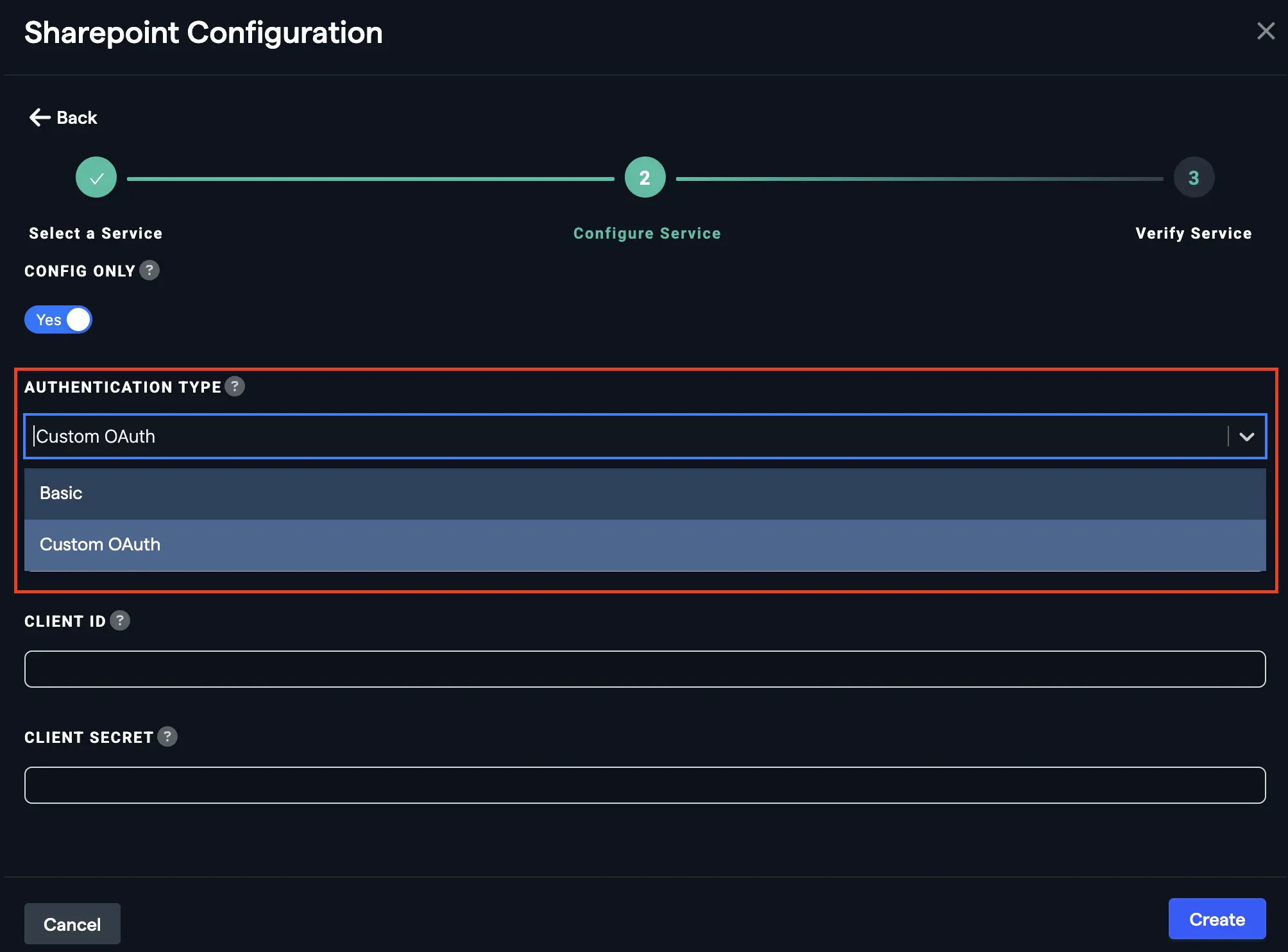
- Enter the SharePoint site URL.
- Click Create.
Permissions requested
Microsoft Graph scopes
- Directory.Read.All: Read directory data
- email: View users' email address
- Files.Read.All: Read all files that user can access
- offline_access: Maintain access to data you have given it access to
- openid: Sign users in
- profile: View users' basic profile
- SensitivityLabel.Read: Get labels user scope
- SensitivityLabels.Read.All: Get labels app scope
- Sites.Read.All: Read items in all site collections
- Sites.Selected: Access selected Sites, on behalf of the signed-in user
- User.Read: Sign in and read user profile
SharePoint scopes
- AllSites.Read: Read items in all site collections
- MyFiles.Read: Read user files
- Sites.Search.All: Run search queries as a user
- Sites.Selected: Access selected site collections
- User.Read.All: Read user profiles
Next step
Return to Use SharePoint in ChatLLM. Users who had already connected SharePoint must reconnect it from Profile → User Connectors to pick up the change.