OneNote User Connector
Connect your own Microsoft OneNote account to Abacus.AI so that ChatLLM Teams chats with RouteLLM, the Abacus AI Agent and Custom Chatbots can work with your notebooks under your own identity. Every request is made with your own Microsoft token, so the connector can only reach notebooks you can already open in OneNote.
Once connected, the OneNote Tool can, for example:
- List your notebooks, section groups, sections and pages
- Read a page's content, including images and attached files on the page
- Create notebooks, sections and pages, including pages with images and file attachments
- Append, insert or replace content on an existing page
- Copy pages, sections and notebooks, and delete pages
- Work with notebooks that are shared with you, including Microsoft 365 group, Teams and SharePoint notebooks
Writing, copying and deleting work only when the connection was granted a write scope. See Scopes and permissions.
Prerequisites
- Access to ChatLLM Teams
- A Microsoft account with OneNote (a Microsoft 365 work or school account, or a personal Microsoft account)
- To change which scopes are requested: administrative access in Abacus.AI to create connectors
Scopes and permissions
The connector uses the Abacus.AI application and requests only delegated Microsoft Graph permissions. You review them on Microsoft's consent screen when you connect. Delegated permissions act on behalf of the signed-in user, so the connector can never see more than your own OneNote account can, and it never uses application (app-only) permissions.
By default the connector requests:
| Permission | Purpose |
|---|---|
Notes.Read | Read your own notebooks |
Notes.Read.All | Read all notebooks you can access, including group, Teams and SharePoint notebooks shared with you |
Notes.Create | Create new notebooks, sections and pages |
Notes.ReadWrite | Read and change your own notebooks |
Notes.ReadWrite.All | Read and change all notebooks you can access |
User.Read | Sign you in and read your profile |
openid, profile, email, offline_access | Sign you in and keep the connection active without signing in again |
None of these permissions requires tenant admin consent in Microsoft Entra ID, so in most tenants each user can connect OneNote without an Entra admin. If your tenant restricts user consent for third-party apps, Microsoft shows "Need admin approval" instead. See Troubleshooting.
To revoke access later, remove OneNote from Profile → User Connectors. You can also revoke the Abacus.AI app from your Microsoft account settings, or an Entra admin can remove it for the tenant.
Restrict or extend the scopes (config connector)
An organization administrator can create a OneNote config connector to choose which scopes every user-level OneNote connection in the organization requests. Use it, for example, to make OneNote read-only for everyone, or to add Team.ReadBasic.All so users can find the notebooks of the teams they belong to.
- In the Abacus.AI interface, click your profile picture in the top right corner and select Manage Connectors (or open the Connected Services Dashboard).
- Click Add New Connector and choose OneNote from the list.
- Optionally enter a Connector Name to identify the configuration. "(Config Only)" is appended automatically.
- Under Scopes, select the scopes users may request. The default scopes listed above are preselected.
- Click Create.
The OneNote form always creates a configuration for user connectors. It never signs in to OneNote or creates an organization-level OneNote connection, so there is no Config Only toggle to set. An organization has one OneNote config connector; creating it again updates the existing one.
| Scope | Available in the config connector | Use it for |
|---|---|---|
User.Read, offline_access | Always included | Sign-in and staying connected |
Notes.Read | Optional | Read-only access to the user's own notebooks |
Notes.Read.All | Optional | Read-only access to every notebook the user can open |
Notes.Create | Optional | Create notebooks, sections and pages |
Notes.ReadWrite | Optional | Change the user's own notebooks |
Notes.ReadWrite.All | Optional | Change every notebook the user can edit |
Team.ReadBasic.All | Optional, not requested by default | List the user's teams, to locate Teams notebooks |
openid, profile, email | Optional | Standard sign-in claims |
To keep OneNote read-only for everyone, select only Notes.Read (own notebooks) or Notes.Read.All (all accessible notebooks), and leave every Notes.Create and Notes.ReadWrite* scope unselected. Microsoft Graph then rejects any write the agent attempts.
Scopes are fixed when a user authorizes OneNote. After you create or change the config connector, users who connected earlier must remove OneNote and connect it again from Profile → User Connectors for the new scopes to take effect.
Use OneNote in ChatLLM
Step 1 — Connect OneNote
In ChatLLM Teams, click the Connectors link on the home page, or click your profile in the top right and navigate to Profile → User Connectors.
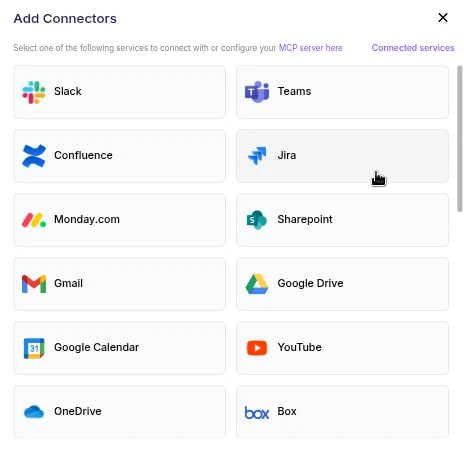
- Scroll the connector list and click OneNote.
- A browser pop-up opens asking you to sign in to OneNote and authorize Abacus.AI.
- Review the requested permissions and click Allow (or Authorize).
- After authorization completes, OneNote appears under your connected services and is ready to use.
User connectors are configured once per user and run under your own identity. After the connector is set up, every chatbot and the Abacus AI Agent in your workspace can query data from it.
Step 2 — Chat with RouteLLM
- Open a new chat in ChatLLM Teams.
- From the model selector, choose RouteLLM (
route-llm). RouteLLM automatically routes each request to the most suitable underlying model, and is available for unlimited use to ChatLLM subscribers.
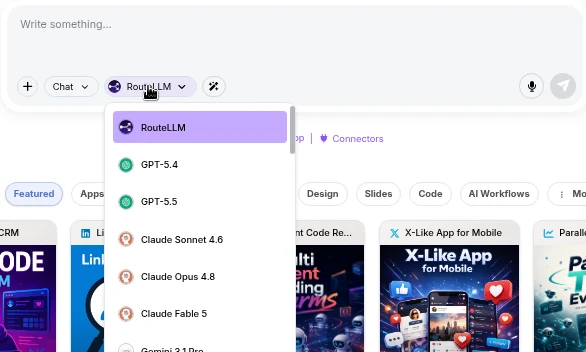
- Ask a question that references OneNote, for example "Summarize the pages I updated this week in my Project Alpha notebook". RouteLLM invokes the OneNote tool, fetches the data under your identity, and responds in chat.
The first time you query a newly connected service in a chat, you may be prompted to authorize the connector. Complete the sign-in once and the request continues automatically; subsequent requests reuse the connection.
You don't need to train a Custom Chatbot to use OneNote with RouteLLM. Once the connector is configured in the User Connectors panel, it is immediately available across your workspace chats and to the Abacus AI Agent.
A few more things to try:
- "List the sections in my Meeting Notes notebook."
- "Create a page called 'Sprint 42 retro' in my Team Notes section with these action items: …"
- "Append today's decisions to the 'Q4 planning' page."
- "Copy the 'Onboarding checklist' page into my Personal section."
Mention OneNote by name in your request. The OneNote Tool is not used for generic note-taking unless OneNote is clearly asked for.
If you want a dedicated bot with its own instructions and a restricted set of tools, train a Custom Chatbot in the Developer Platform and, under Advanced Options → Tool Use, select OneNote_Tool. If your organization has a OneNote config connector, also pick it under **Config Connectors**. End users of that chatbot are prompted to sign in to OneNote once, and the bot then acts under each user's own identity. See the Custom Chatbots guide for the full training and deployment walkthrough.
How OneNote data is accessed
- Live, on demand. OneNote is not a dataset or indexing connector. Notebooks are not synced, crawled or indexed; content is read from Microsoft Graph only when a request needs it.
- Your permissions only. Each connection belongs to one user and uses only that user's delegated token, so it cannot act as another user or reach anything outside that user's own OneNote access.
- Microsoft Graph only. The OneNote Tool only calls
https://graph.microsoft.com/v1.0and refuses any other host. - Bounded reads. List requests return 50 items by default and at most 1,000 per request. Images and files downloaded from a page are capped at 50 MB each.
- Retries are safe. When Microsoft throttles requests, the tool waits and retries. Writes are never replayed after a network error, so a page is not created or appended to twice.
- Content goes to your chat's model. Page content the agent reads is passed to the LLM selected for that conversation and stays in the conversation, like any other tool result.
Limitations
- No full-text search. Microsoft Graph does not support
$searchon OneNote pages. The tool finds pages by title, date and section; for content questions, name the notebook or section so it reads the right pages. - Large notebooks. Graph caps the number of pages returned across all sections at once. For large notebooks, name the section you mean.
- No per-notebook scoping. You cannot limit the connector to specific notebooks or sections. Access is governed by the scopes and by your own permissions in OneNote.
- Copy operations are asynchronous. Copying a page, section or notebook starts a background operation in OneNote; the agent checks it until it completes.
Troubleshooting
- The authorization pop-up does not appear: allow pop-ups for the Abacus.AI site in your browser and click OneNote in the User Connectors panel again.
- "Need admin approval" when connecting: your tenant does not allow users to consent to third-party apps. Ask a Microsoft Entra admin to connect OneNote once and tick Consent on behalf of your organization, as described in Microsoft Entra Tenant Consent, or to approve the request in the Entra admin center.
- "Microsoft did not return a refresh token": the
offline_accesspermission was not granted. Remove OneNote and connect it again, accepting all requested permissions. - "The OneNote connection is no longer valid" or other sign-in errors: remove OneNote from Profile → User Connectors and connect it again.
- Writes fail with
403 Forbidden: the connection has no write scope. Ask your administrator to addNotes.CreateorNotes.ReadWrite.Allin the config connector, then reconnect OneNote. - Shared, group, Teams or SharePoint notebooks are missing or return
403 Forbidden: the connection needsNotes.Read.All(orNotes.ReadWrite.Allto change them). Check that you can open the notebook in OneNote yourself, then reconnect after the scope is added. - A notebook, section or page is "not found": it was moved, renamed or deleted, or you lost access to it. Ask the agent to list the parent notebook or section again.
- "OneNote is throttling requests": Microsoft is rate-limiting your account. Wait a minute and try again.