Use a database connector in a Custom Chatbot
Database user connectors (Snowflake, Athena, BigQuery, Azure SQL and Azure Databricks) are not direct chat tools. You use them by training a Custom Chatbot on the connector as an External Database. Each end user then signs in to the database once, and the chatbot runs every query under that user's own database role.
The steps below are the same for every database connector. Complete the connector's own setup guide first, so that the organization-level connector exists, is RBAC-enabled and has been verified.
Step 1 — Create the project
- Navigate to the projects page by clicking the Abacus.AI logo.
- Click Create a new project.
- Select GenAI → Custom Chatbot.
- Enter a descriptive name for the project.
- Select Skip to project dashboard.
Step 2 — Train the model on the connector
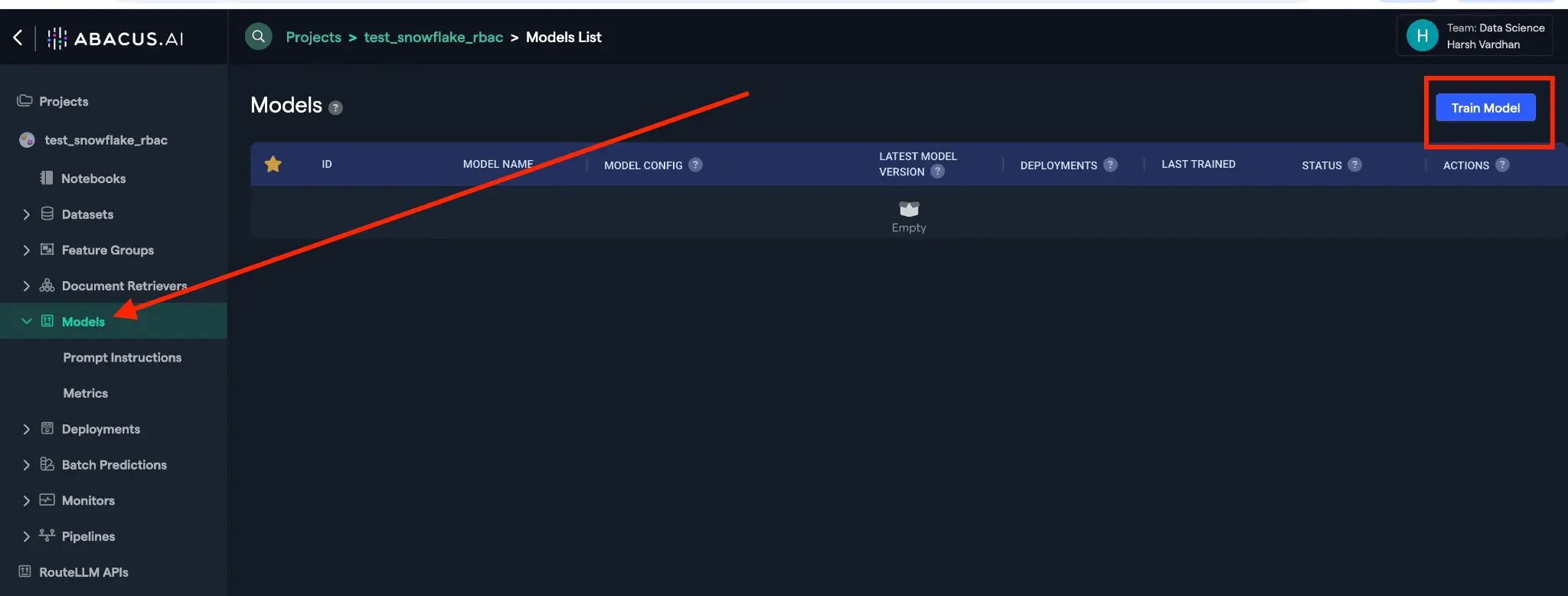
- Click Model in the left toolbar and select Train Model in the top right corner.
- Under Structured data source, select External Databases.
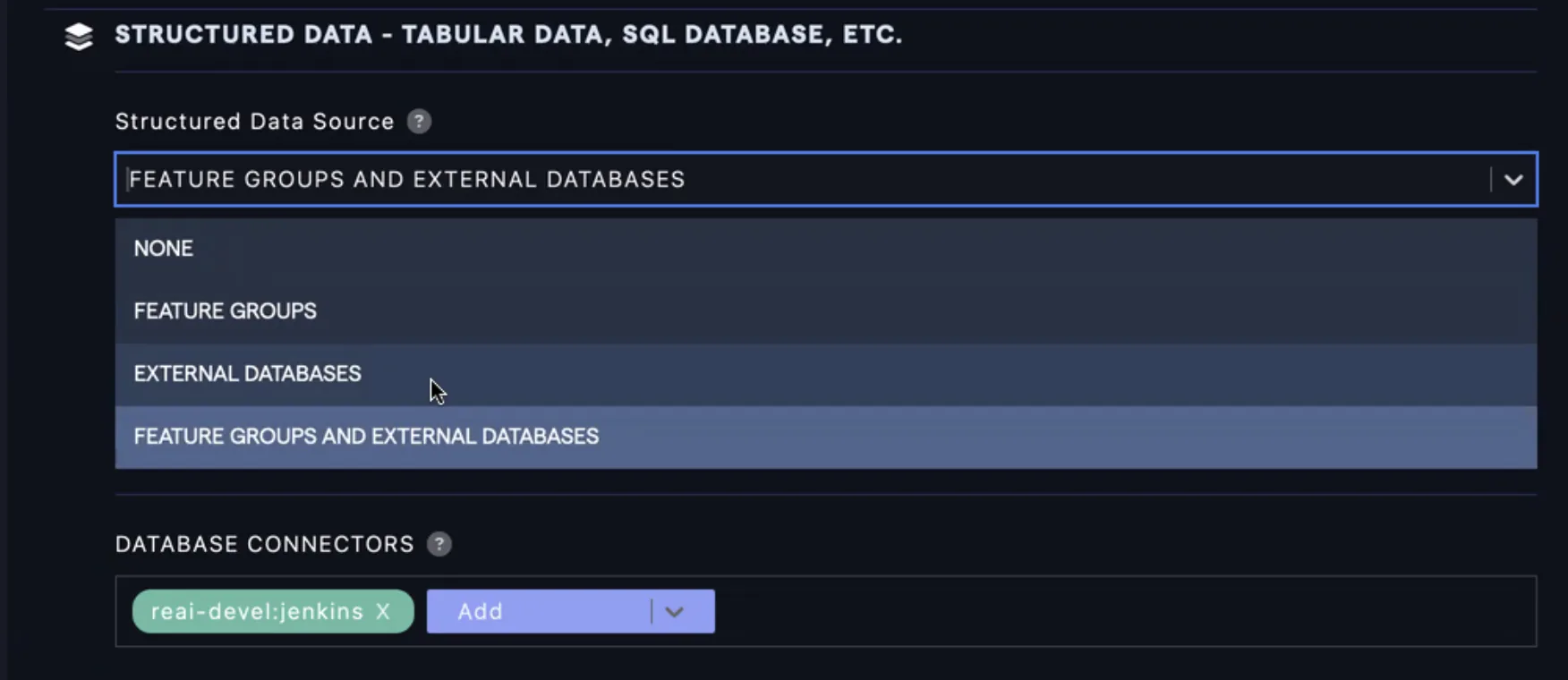
- Select the RBAC-enabled connector you created in the connector's setup guide, and add the tables the chatbot may query.
- Click Train Model.
Step 3 — Deploy the model
- Once training is complete, click Models and select your trained model.
- Click Create a new deployment.
- Select the Offline Batch + Realtime deployment type and click Next.
- Enter a user-friendly deployment name that your end users will see, then click Deploy.
- Return to the model (Models → your model name) and wait for the deployment to reach Active, then click the deployment name.
Step 4 — Test the chatbot
- Under Deployment, open the Prediction Dash.
- Click Go to Abacus.AI Chat to open the chat interface.
- Enter a question. On the first query, each user is prompted to sign in to the database with their own credentials (for example Snowflake login, Amazon Cognito, Google, or Microsoft Entra ID, depending on the connector).
- After signing in, the chatbot answers using only the data that user's database role can see.
Sharing the chatbot
Give the deployment name to your end users, or publish the chatbot to ChatLLM Teams. Each user authenticates individually the first time they use it, and Abacus.AI refreshes their session tokens automatically afterwards.
Troubleshooting
- Deployment is not Active: wait for the deployment status to reach Active before testing.
- Users are asked to sign in repeatedly: check the connector's token or session settings in the source system (for example refresh-token lifetime or rotation).
- Users see fewer tables or rows than expected: this is the connector's RBAC working as designed. Check the user's role and grants in the source system, not in Abacus.AI.
- Connector verification fails: return to the connector's setup guide and re-check the credentials and network allowlisting (egress IPs).