AWS SSO User Connector
Connect AWS IAM Identity Center (AWS SSO) to Abacus.AI so that ChatLLM Teams chats with RouteLLM and the Abacus AI Agent can execute AWS operations (S3, EC2, Lambda, IAM, DynamoDB and more) on your behalf, using your own identity and the exact permissions of your SSO permission set.
The connector uses the IAM Identity Center device authorization flow. Once connected, the AWS Tool can:
- Execute any AWS API call using temporary credentials scoped to your SSO role
- Manage S3 buckets, EC2 instances, Lambda functions, IAM resources and 100+ other AWS services
- Operate with the permissions defined by your SSO permission set, with no separate AWS access keys
This guide has two pages:
| Page | Who it is for |
|---|---|
| Set up AWS IAM Identity Center | AWS administrators, only if IAM Identity Center is not configured yet |
| This page | Every user who wants to connect AWS SSO and use the AWS Tool |
Prerequisites
- Access to ChatLLM Teams
- An AWS account with IAM Identity Center enabled
- A user account in IAM Identity Center with a permission set assigned for at least one AWS account
- The following details, from your AWS administrator or from Step 5 of the setup page:
| Detail | Example |
|---|---|
| SSO Start URL | https://mycompany.awsapps.com/start |
| SSO Region | us-east-1 |
| AWS Account ID | 123456789012 |
| SSO Role Name (permission set) | AdministratorAccess, ReadOnlyAccess or a custom permission set |
If IAM Identity Center is not set up yet, follow Set up AWS IAM Identity Center first.
Scopes and permissions
There are no OAuth scopes to choose. The connector registers an OIDC client with the default sso:account:access registration scope, and everything the AWS Tool can do is decided by the permission set assigned to you in IAM Identity Center. For example, with ReadOnlyAccess the tool can list and describe resources but cannot create or modify them. To change what the tool may do, ask your AWS administrator to change your permission set.
Use AWS SSO in ChatLLM
Step 1 — Connect AWS SSO
In ChatLLM Teams, click the Connectors link on the home page, or click your profile in the top right and navigate to Profile → User Connectors.
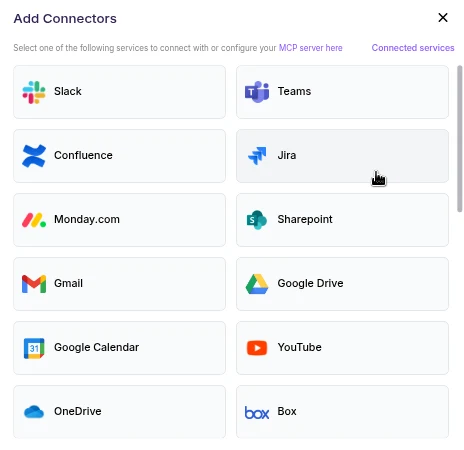
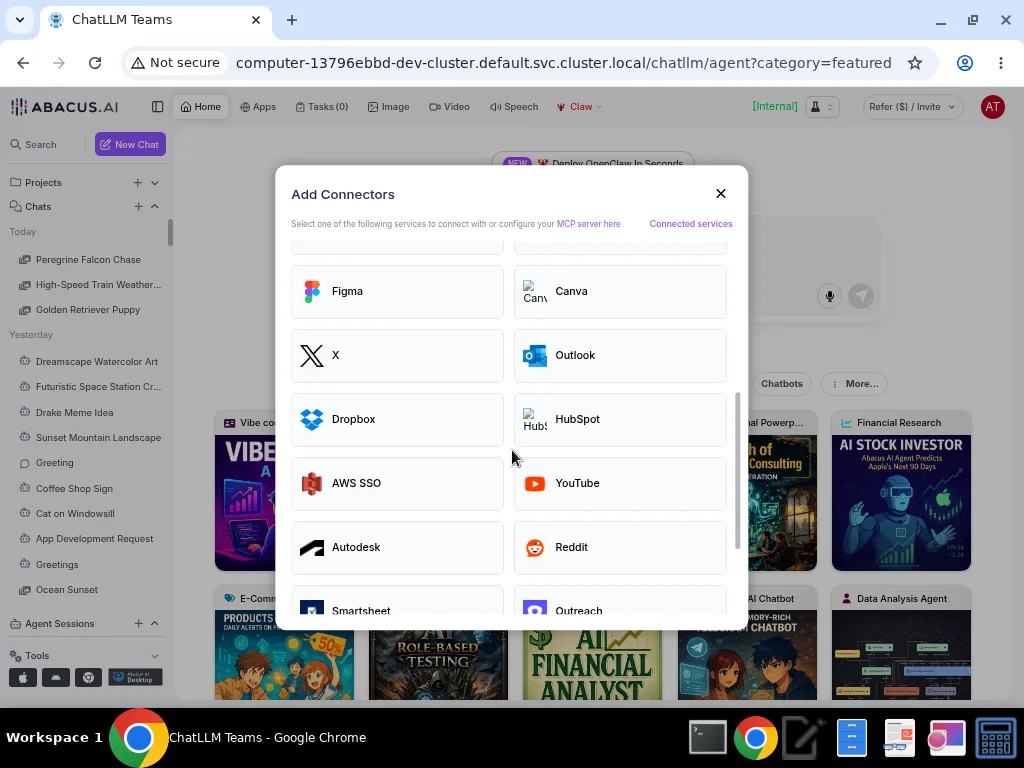
- Scroll down in the connector list and click AWS SSO.
- Fill in the dialog with your AWS SSO details and click Continue:
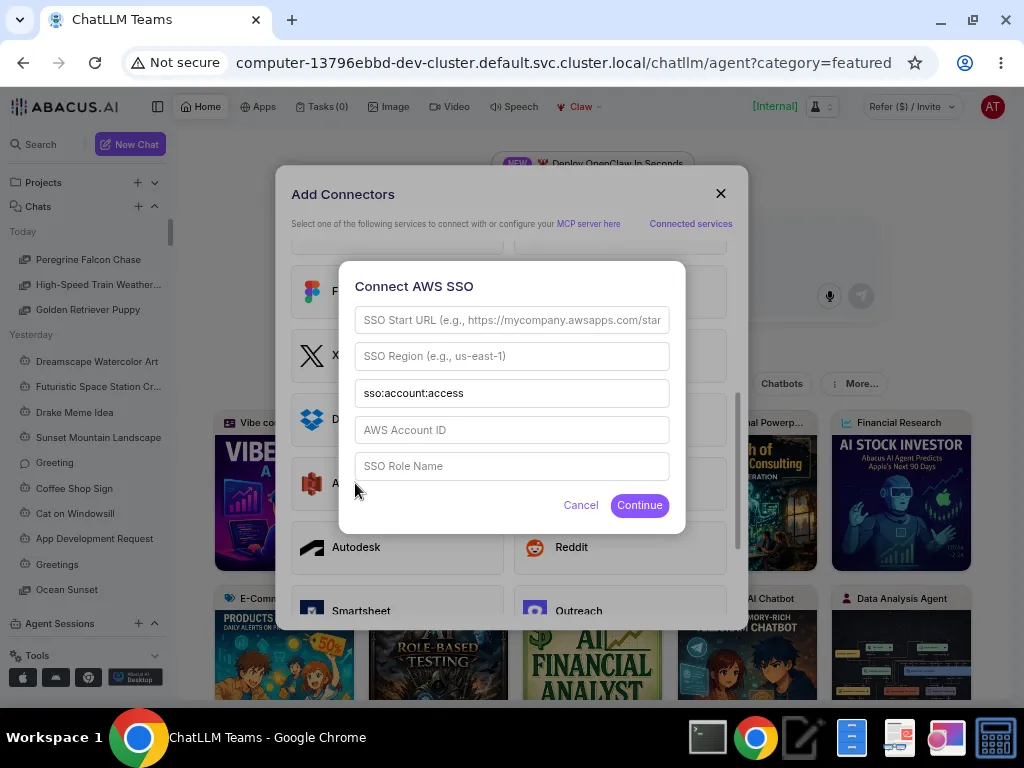
| Field | Description | Example |
|---|---|---|
| SSO Start URL | Your AWS SSO portal URL | https://mycompany.awsapps.com/start |
| SSO Region | AWS region where IAM Identity Center is enabled | us-east-1 |
| Registration Scopes | SSO scopes (leave the default unless you have specific needs) | sso:account:access |
| AWS Account ID | The 12-digit AWS account ID to operate on | 123456789012 |
| SSO Role Name | The permission set / role name assigned to you | AdministratorAccess |
- Authorize in your browser. Abacus.AI starts the device authorization flow and shows a verification link and a user code. Click the link, sign in to your AWS SSO portal if prompted, enter the user code and click Authorize.
- Return to Abacus.AI and click I've Authorized. AWS SSO now appears in your connected services.
The authorization code expires after approximately 10 minutes. If it expires, click Cancel and start the process again.
Step 2 — Chat with RouteLLM
- Open a new chat in ChatLLM Teams.
- From the model selector, choose RouteLLM (
route-llm). RouteLLM automatically routes each request to the most suitable underlying model, and is available for unlimited use to ChatLLM subscribers.
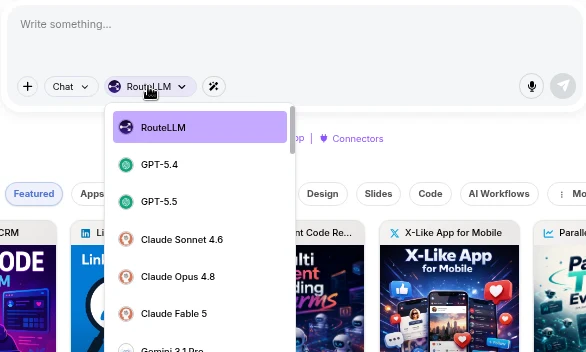
- Ask a question that references AWS, for example "List all my S3 buckets". RouteLLM invokes the AWS tool, fetches the data under your identity, and responds in chat.
The first time you query a newly connected service in a chat, you may be prompted to authorize the connector. Complete the sign-in once and the request continues automatically; subsequent requests reuse the connection.
You don't need to train a Custom Chatbot to use AWS with RouteLLM. Once the connector is configured in the User Connectors panel, it is immediately available across your workspace chats and to the Abacus AI Agent.
Example prompts
| Prompt | What it does |
|---|---|
| "List all my S3 buckets" | Calls s3:ListBuckets |
| "Show me all running EC2 instances" | Calls ec2:DescribeInstances |
| "Create an S3 bucket named my-data-bucket in us-east-2" | Calls s3:CreateBucket |
| "List all Lambda functions" | Calls lambda:ListFunctions |
| "Who am I in AWS?" | Calls sts:GetCallerIdentity |
| "List all DynamoDB tables" | Calls dynamodb:ListTables |
| "Describe my CloudFormation stacks" | Calls cloudformation:ListStacks |
Important notes
- Per-user credentials: each user authenticates with their own AWS SSO identity. The AWS Tool operates with the exact permissions of your assigned SSO role.
- Temporary credentials: AWS SSO provides temporary credentials that are refreshed automatically. No long-lived AWS access keys are stored.
- Permission scope: the AWS Tool can only perform actions allowed by your SSO permission set. If an action fails with access denied, check your permission set in IAM Identity Center.
Troubleshooting
| Issue | Solution |
|---|---|
| "Failed to register OIDC client" | Verify your SSO Region is correct and IAM Identity Center is enabled in that region. |
| "Device authorization expired" | The verification code expired. Click Cancel and restart the connection process. |
| "Access denied by user" | You denied the authorization request in the browser. Try again and click Authorize when prompted. |
| "AWS SSO session has expired" | Re-connect the AWS SSO connector to refresh your credentials. |
| "Failed to get AWS role credentials" | Verify your AWS Account ID and SSO Role Name are correct, and that your user has been assigned the permission set for that account. |
| API calls return access denied | Your SSO permission set does not include the required permissions. Ask your AWS administrator to update the permission set. |