Microsoft Entra Tenant Consent for Microsoft Connectors
Every Abacus.AI connector that signs in through Microsoft (OneDrive, SharePoint, Outlook, Microsoft Teams, Azure Storage, Azure SQL / MS SQL with Entra ID authentication) authorizes against Microsoft Entra ID. In most tenants, Microsoft blocks ordinary users from consenting to a third-party app on their own.
Because of this, a Microsoft Entra admin must create the connector first and grant consent on behalf of the organization. Until that happens, other users in the same tenant are stopped by Microsoft with a "Need admin approval" screen and cannot create their own connector — the Abacus.AI side of the setup is irrelevant at that point, because the block happens inside Microsoft's own sign-in popup.
The "Consent on behalf of your organization" checkbox on Microsoft's Permissions requested screen is a different action from the Grant admin consent button in the Entra admin center (App registrations / Enterprise applications → API permissions).
The Entra admin center button can only be used on an app that already exists in your tenant. The Abacus.AI Microsoft apps are multi-tenant and are only provisioned into your tenant the first time somebody from your tenant signs in to them, so there is usually nothing for that button to act on yet. Admins frequently click Grant admin consent somewhere else, see a success message, and are surprised that their users are still blocked.
The step that actually unblocks your users is the checkbox described below.
What the Entra admin has to do
The admin performs the ordinary connector setup once, and ticks one extra checkbox while doing it.
- Sign in to Abacus.AI with an account that is a Global Administrator, Privileged Role Administrator, Cloud Application Administrator or Application Administrator in your Microsoft Entra tenant.
- Create the connector as normal:
- User-level connector — go to Profile → User Connectors and connect the Microsoft service.
- Organization-level connector — go to Profile → Manage Connectors → Add New Connector and select the Microsoft service.
- Complete the Microsoft sign-in. Microsoft shows the Permissions requested screen listing the permissions the connector asks for.
- Tick the "Consent on behalf of your organization" checkbox. This checkbox is only shown to accounts that hold one of the admin roles above — if you do not see it, you are signed in with a non-admin account.
- Click Accept.
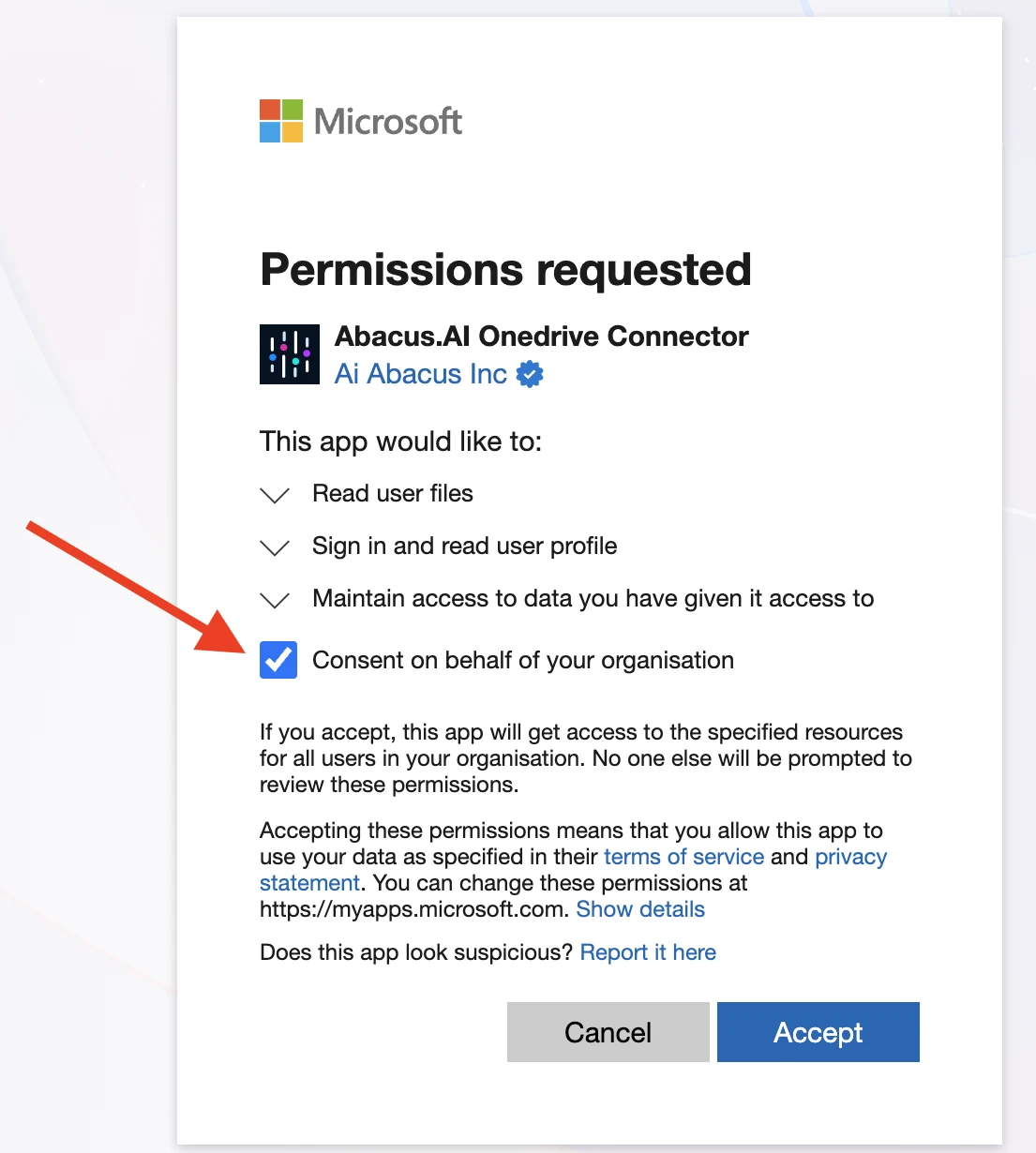
Microsoft's own wording under the checkbox confirms what it does: "If you accept, this app will get access to the specified resources for all users in your organisation. No one else will be prompted to review these permissions."
Tenants using English (UK) show the checkbox as "Consent on behalf of your organisation". It is the same control.
After the admin has consented
Once the admin has accepted with the checkbox ticked:
- The Abacus.AI app is registered in your tenant as an enterprise application, with tenant-wide consent recorded for the permissions shown on that screen.
- Any user in that tenant can then sign in and create their own connector freely. They still authenticate individually, so a user-level connector still only reaches the data that user is permitted to see, but they are no longer stopped for approval.
- Users are not prompted to review the permissions again.
This is a one-time action per Microsoft connector — for example, consenting for OneDrive does not cover SharePoint or Outlook, because each one is a separate Entra application. Repeat the steps above for each Microsoft connector your organization intends to use.
What users see when it has not been done
If a non-admin user tries to connect first, Microsoft interrupts the sign-in with one of the following:
- "Need admin approval" — the app requires permission that only an administrator can grant. Depending on your tenant policy the user may be offered a Request approval button, which sends an admin consent request to your Entra admins.
AADSTS65001— the user or administrator has not consented to use the application.AADSTS90094— an administrator has set a policy that prevents the user from granting the application the permissions it is requesting.
All three mean the same thing in practice: the tenant consent step above has not been completed yet. Ask an Entra admin to run through it.
Related options
- Admin consent requests — if your tenant has the admin consent workflow enabled, a blocked user can submit a request from the Need admin approval screen and an admin can approve it from the Entra admin center. This is an alternative path to the same result.
- Custom OAuth — instead of consenting to the Abacus.AI app, you can register your own Entra application and point the connector at it. Several connector pages document this as the Custom OAuth or Config Only flow. Your own app registration still needs admin consent for its delegated permissions, granted from App registrations → your app → API permissions → Grant admin consent.
- Enterprise application user assignment — separately from consent, your tenant may restrict which users may use an enterprise application. If users hit
AADSTS50105after consent has been granted, assign them under Microsoft Entra ID → Enterprise applications → the Abacus.AI app → Users and groups.
Microsoft connectors this applies to
| Connector | Type |
|---|---|
| OneDrive | User-level |
| SharePoint | User-level |
| Outlook | User-level |
| Microsoft Teams | User-level |
| Azure SQL | User-level |
| OneDrive | Organization-level |
| SharePoint | Organization-level |
| Outlook | Organization-level |
| Microsoft Teams | Organization-level |
| Teams Transcripts | Organization-level |
| Azure Data Storage | Organization-level |
| MS SQL via JDBC/ODBC, when users sign in with Entra ID | Organization-level |
Connectors that authenticate with a key, certificate or service principal instead of an interactive Microsoft sign-in are not affected.