Connect Your Own Number
Use a phone number you already have with your voice agent — your business line, your support number, or a number on your office phone system.
Nothing is purchased and nothing is ported. The number stays with your current provider. You only change where your provider sends its calls.
This guide covers:
- Is this for me?
- How it works, in plain language
- Option A: your number is with a carrier or SIP trunk
- Option B: your number is on a phone system
- After you connect
- Notes for specific providers
- Troubleshooting
- Frequently asked questions
Is this for me?
Connect your own number if:
- You already have a phone number your customers know, and you want the voice agent to answer it.
- You want a number in a country where we do not sell numbers yet. We do not restrict connecting by country — whether it works depends on your provider, as explained below.
- You do not want to pay a monthly rental for a second number.
If you do not have a number yet, or you just want the quickest setup, buy a number instead — see Voice Agents.
How it works, in plain language
Your phone provider decides where calls to your number go. Today they probably go to a desk phone, a mobile app, or voicemail. Connecting your number means telling your provider to send those calls to Abacus.AI instead.
Providers hand calls to each other using a standard called SIP. You do not need to know how SIP works. Think of a SIP address the way you think of a forwarding address for mail: it is just where the calls should be delivered.
There are two ways to connect, and the right one depends on where your number lives today.
| Where your number lives | What that looks like | Use |
|---|---|---|
| A carrier or SIP trunk provider (Twilio, Telnyx, Vonage, Bandwidth, SignalWire, a telecom trunk) | You log in to a dashboard where each number has "voice" or "routing" settings. | Option A — we give you an address, and you point your number at it. |
| A phone system (RingCentral, Zoom Phone, 3CX, Dialpad, FreePBX, Asterisk, most office phone systems) | You manage users, extensions, and devices, and you can "add a phone" or "add a SIP device". | Option B — you give us a login, and we join your phone system as an extension. |
| A plain landline or mobile number from a traditional carrier | There are no SIP settings anywhere in your account. | Not connectable directly. Buy a number here and turn on call forwarding at your carrier. |
If you are not sure, look for the words "SIP", "trunk", "SIP device", or "extension" in your provider's settings. If you cannot find any of them, the last row applies.
Option A: your number is with a carrier or SIP trunk
We give you a SIP address plus a username and password. You enter those at your provider so that calls to your number are delivered to us.
Step 1: Open the phone numbers panel
Open your voice agent and click the phone icon in the message box — its tooltip reads "Add a phone number so guests can call this bot". The Phone Numbers panel opens on the right.
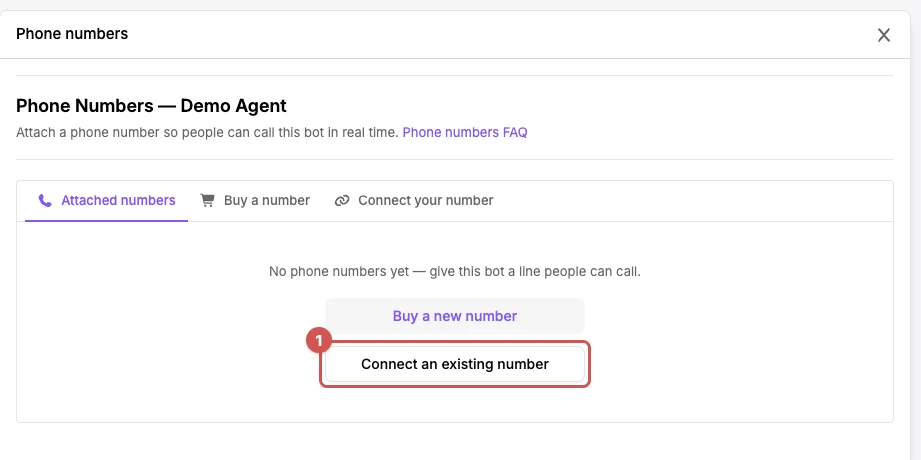
If the bot has no numbers yet, click Connect an existing number. Otherwise open the Connect your number tab.
Step 2: Enter your number
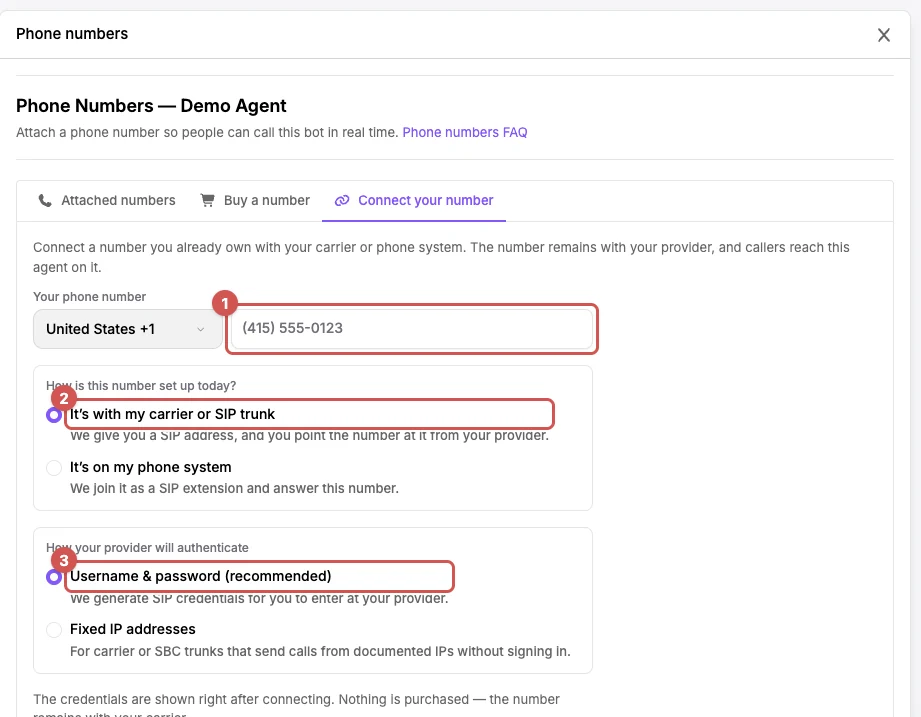
Under Your phone number, pick the country and type the rest of the number.
Under How is this number set up today? choose It's with my carrier or SIP trunk.
Under How your provider will authenticate, keep Username & password (recommended). The other option, Fixed IP addresses, is covered below.
Click Connect number.
Step 3: Copy your connection details
A dialog titled SIP connection details opens, with a copy button beside each field.
| Field | What it is |
|---|---|
| SIP host | sip.abacus.ai — where your provider should send calls. |
| SIP username | A username generated for this number. |
| SIP password | The password that goes with it. |
| Route your number to | The full address, for example sip:+14155550123@sip.abacus.ai. Some providers ask for this single line instead of the host. |
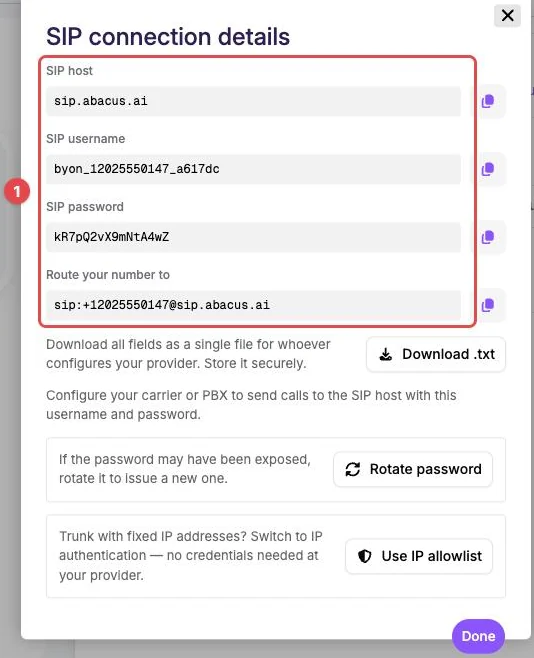
Treat these details like a password — anyone who has them can send calls to your agent as your number.
Click Done. You can open these details again later from the number's row, so there is no need to write them down.
Step 4: Point your number at us in your provider's dashboard
Open your number in your provider's dashboard and find its voice routing settings. Providers name this differently: "A call comes in", "Voice configuration", "Inbound routing", "Connection", or "Trunk".
Set the destination to the Route your number to address (or to the SIP host, if the provider asks for host and number separately). Enter the SIP username and SIP password where the provider asks for SIP authentication or credentials, and save.
See Notes for specific providers for the exact place in Twilio and Telnyx.
Step 5: Call the number
Call your number from a mobile phone. The agent should answer within a couple of rings, and the call appears in your call activity and transcripts like any other call.
Fixed IP addresses
Some carrier trunks and session border controllers cannot send a username and password. They identify themselves by the internet addresses they send calls from instead.
Only choose Fixed IP addresses if your provider's documentation tells you to. Then:
- Type each of your provider's outbound SIP addresses under Allowed source IPs and click Add. Single addresses like
203.0.113.10and ranges like203.0.113.0/24are both fine, up to 20 entries. - At your provider, point the trunk at
sip-trunk.abacus.ai, using port5080if the provider asks for one.
Calls from those addresses to your number reach the agent, and calls from anywhere else are rejected. You can edit the list later, or switch the number back to a username and password, from the number's row.
Option B: your number is on a phone system
You create a new "phone" on your phone system for the voice agent. We sign in as that phone and take the number's calls. Nothing is forwarded and no trunk is needed.
Step 1: Add a SIP device for the agent on your phone system
In your phone system's admin console, add a new SIP device, generic SIP phone, or extension — systems name it differently, and the provider notes list some of them. Assign your phone number to that device so calls to the number ring on it.
Write down the three details your phone system gives you:
- SIP host, sometimes called registrar, SIP server, domain, or outbound proxy. For example
sip.provider.com. - Username, sometimes called auth ID, SIP user, or device login.
- Password.
Create a dedicated device for the agent. If you reuse a person's extension login, the agent may answer calls meant for that person's phone.
Step 2: Connect the number
Open the Connect your number tab, pick the country and type the rest of the number, then choose It's on my phone system.
Paste the Provider SIP host, Extension username, and Extension password from step 1.
Open Advanced options only if your phone system told you to use TCP or TLS instead of UDP, or gave you a non-standard port — a port goes on the end of the host, like sip.example.com:5096.
Click Connect number.
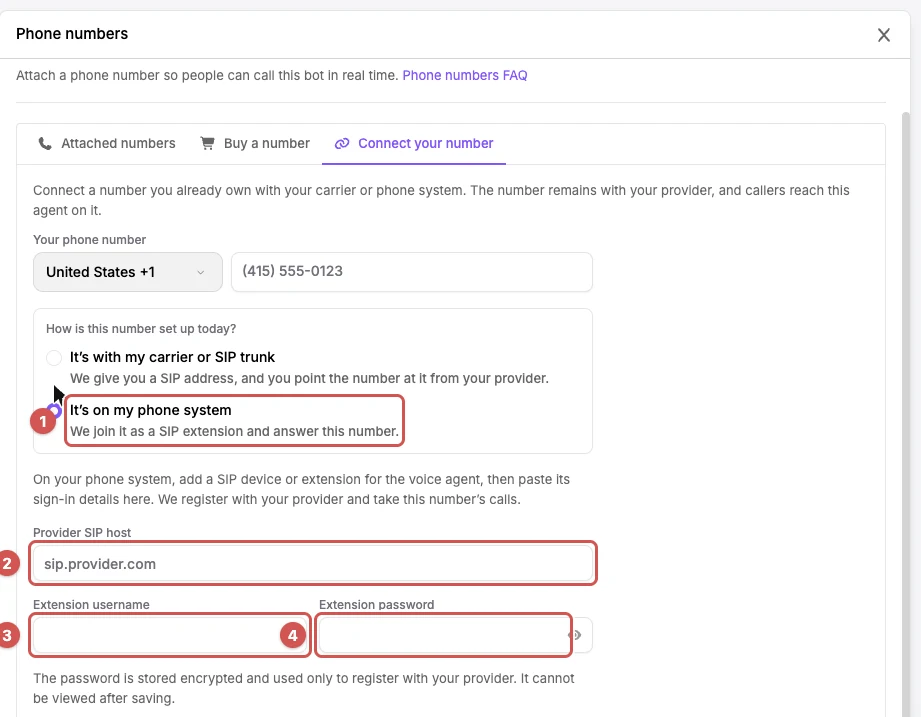
The password is stored encrypted and used only to sign in to your phone system. It cannot be viewed again after saving.
Step 3: Wait about a minute, then call
We sign in to your phone system within about a minute, and the number's row then reads "Registered to your provider". Call the number from a mobile phone and the agent should answer.
You can change the host, username, password, or transport later without disconnecting. Calls keep arriving until your phone system accepts the new sign-in.
After you connect
The number's row carries a Your number badge and reads "Connected over SIP" or "Registered to your provider", so you can tell it apart from rented numbers. There is no monthly charge for it.
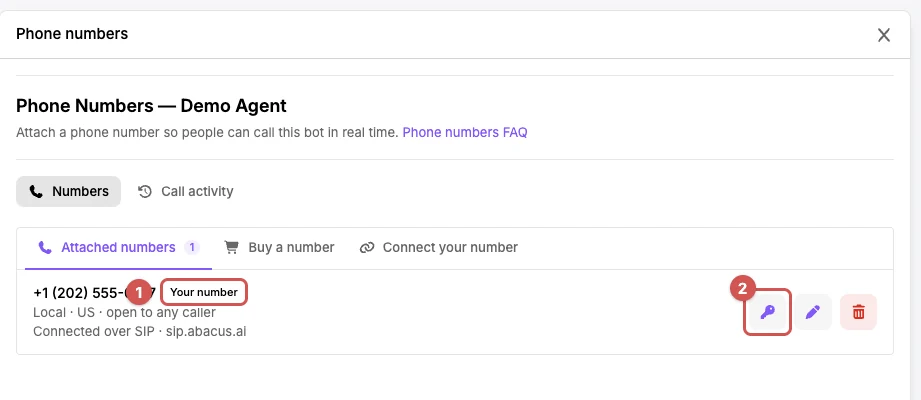
Testing. Call the number from any phone. The outbound test call button is not offered on connected numbers, because test calls go out over our own carrier rather than yours.
Transcripts and call activity work as they do for rented numbers. The Call activity tab at the top of the panel lists every call.
Viewing or rotating the SIP password (Option A). Click the key icon on the number's row to open SIP connection details again. If the password may have been exposed, click Rotate password — the old password stops working immediately, and calls fail until you update your provider with the new one. The same dialog offers Use IP allowlist if you need to switch the number to fixed IP addresses later.
Editing source IPs (Option A, fixed IP addresses). Click the shield icon on the number's row. Saving replaces the whole list.
Disconnecting. Click the red trash icon on the row and confirm Disconnect. Only the connection here is removed — the number remains with your provider.
After disconnecting, change the routing at your provider too. Until you do, callers hear a failure.
Notes for specific providers
Step-by-step settings for the providers we have tested end to end:
Other providers are not listed because we have not verified them ourselves, not because they cannot work. If your provider can send a number's calls to a SIP address, or can issue SIP device credentials, the two options in this guide cover it — search your provider's own help for "SIP" to find where those settings live.
Traditional landline or mobile numbers
If your carrier has no SIP settings at all, you cannot connect the number directly. Buy a number here instead and turn on call forwarding to it at your carrier. Most carriers let you forward every call, or only the ones you do not answer.
Troubleshooting
Calls do not reach the agent at all
- Check that the number you connected matches, digit for digit, the number your provider sends, including the country code.
- Check that the destination at your provider is exactly the address shown to you. A missing plus sign or a typo in the host is the most common cause.
- The SIP username and password are case sensitive. Open the details from the key icon and compare.
- For Option B, wait a full minute after connecting, and confirm the number is assigned to the device you created.
Callers hear a busy tone or "the call cannot be completed"
- The provider is being rejected. Usually the username or password at the provider is wrong — rotate the password and enter the new one.
- With fixed IP addresses, the provider is sending from an address that is not on your list. Check your provider's current list of signaling addresses.
- Your organization may be out of credits. Incoming calls are rejected until credits are refilled.
The agent answers but there is no sound, or sound in one direction only
Your phone system or firewall is blocking the audio stream. Audio uses a different connection from the call setup, and some firewalls allow one but not the other. Ask whoever manages your network to allow SIP and RTP traffic, or contact support.
"This number is already connected to a voice agent."
The number is attached to another agent, possibly in another organization. Disconnect it there first.
"Your organization has reached its daily limit of connected numbers."
An organization can connect up to 10 numbers per day. Try again tomorrow.
The caller's number shows as unknown in the transcript
Some carriers remove the original caller's number when they forward a call. Ask your provider to keep the caller ID on forwarded calls.
Frequently asked questions
Does connecting my number cost anything?
There is no monthly charge for a connected number. Calls cost the same per minute as calls to a rented number, and that cost is inclusive of everything on our side. Your provider may charge you separately for carrying the call to us, as it does for any call.
Which countries are supported?
We do not restrict which country a connected number comes from. Whether it works is decided by your provider — it has to be willing to route the number to a SIP address, or to let us sign in as an extension.
Two things to check before you rely on it:
- Your provider's own rules. Some carriers, and some countries' regulations, do not allow routing calls to an external or overseas SIP endpoint. Ask your provider whether they permit it for your number.
- Distance to us. Calls are delivered to our SIP infrastructure in the United States, so a call originating far from there travels further and callers may notice slightly more delay before the agent responds.
Do you take over or port my number?
No. Your number stays in your provider's account, and you can change its routing back at any time.
Can I connect the same number to two agents?
No. A number connects to one agent at a time.
How many numbers can one agent have?
Up to 10 in total, connected and rented combined.
Can I put a PIN on a connected number?
Not at the moment — connected numbers answer any caller. If you need PIN access, use a rented number.
Can the agent transfer a call from a connected number?
Not yet. The hand-off has to go back through your own carrier and many carriers refuse it, so transfer is not offered on connected numbers today.
Can the agent place outbound calls from my connected number?
Not yet. Outbound and test calls go out only from rented numbers.
What happens if my credits run out?
Incoming calls are rejected until credits are refilled, the same as for rented numbers.
Who can see the SIP password?
Anyone who can manage the agent can view it from the number's row. If someone who should not have it has seen it, rotate the password.
What if I disconnect the number by mistake?
Connect it again. You will get a new SIP username and password (Option A) or re-enter your phone system's login (Option B), and you will need to update your provider with the new details.
Still Need Help?
If you're still stuck, contact support and include your number, your provider's name, and the time of a test call that failed.