Skills
A skill is a folder with a SKILL.md file that teaches the agent one kind of task: how to fill PDF forms, how your team writes changelogs, how to deploy. The agent sees each skill's name and description and reads the full instructions only when a task calls for them, so you can keep many skills without crowding the conversation.
Skills work the same in the CLI, the VS Code extension and the Desktop app. Instructions that apply to every task in a project belong in AGENTS.md instead.
Create your first skill
-
Make a folder for the skill under
.abacusai/skills/in your project, or under~/.abacusai/skills/to use it in every project.mkdir -p .abacusai/skills/changelog -
Write
.abacusai/skills/changelog/SKILL.md:---description: Write a changelog from the commits since the last tag. Use when asked for a changelog, release notes, or "what shipped".argument-hint: "[since-ref]"---1. Run `git log --oneline $(git describe --tags --abbrev=0)..HEAD`, or from the ref the user gave.2. Group commits into Features, Fixes and Internal.3. Write one line per user-visible change, past tense, no commit hashes. -
Start a new session and try it both ways: type
/changelog, or ask "what shipped since the last release?" and let the agent pick it.
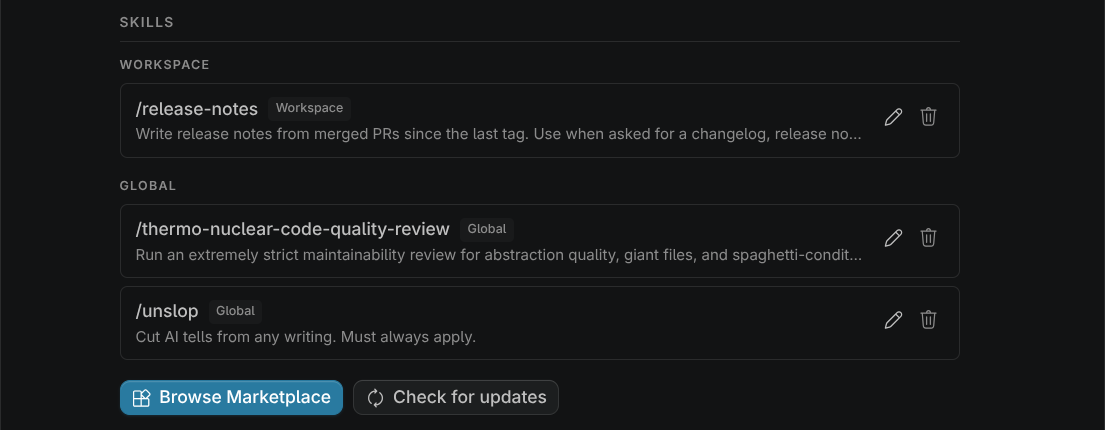
The skill appears in /skills list in the CLI and in the Skills section of the VS Code settings.
Use a skill
| You type | What happens |
|---|---|
| "Write the changelog" | The agent matches your request against skill descriptions and reads the one that fits |
/changelog v2.1.0 | The agent uses that skill, with the rest of the line as your request |
| "Fix the bug, then follow /changelog for the summary" | A /skill-name anywhere in a message works the same way |
Typing / opens a picker with commands and skills. Built-in commands such as /model win over a skill with the same name, so give your skills names no command uses.
The description is all the agent has to decide with, so say what the skill does and when to use it.
Where skills live
| Scope | Folder | Who gets it |
|---|---|---|
| Project | <project>/.abacusai/skills/ or <project>/.agents/skills/ | Everyone who opens the project. Commit it. |
| Global | ~/.abacusai/skills/ or ~/.agents/skills/ | You, in every project |
| Built-in | Ships with the product | Everyone. See Built-in skills. |
The project folder is the one the CLI was started in, or the first VS Code workspace folder. Parent folders and .claude/skills are not searched; use /import to bring Claude Code skills across.
When two skills share a name, a project skill replaces a global one, and a global skill replaces a built-in one. A project skill only replaces another once you have trusted the folder, so a cloned repository cannot swap out /review for its own version.
A skill is either skills/<name>/SKILL.md or a single file, skills/<name>.md. Skills can also sit in group folders, such as skills/<group>/<name>/SKILL.md. The name you type after / comes from the folder or file name.
SKILL.md reference
A SKILL.md starts with a YAML header between two --- lines, followed by the instructions in Markdown.
| Field | Required | What it does |
|---|---|---|
description | yes | What the skill does and when to use it. A skill without one is skipped. |
name | no | Display name. Defaults to the folder name. |
argument-hint | no | Shown after /skill-name in the picker, such as <file.pdf> or [since-ref]. A hint that starts with < marks the argument as required. |
user-invocable | no | false hides the skill from the / picker. The agent can still choose it. |
disable-model-invocation | no | true stops the agent choosing the skill on its own. You can still run it with /name. |
allowed-tools | no | Tools to approve when you run the skill with /name. See Tools a skill may use. |
metadata | no | String key-value pairs. short-description sets the summary shown in the picker. |
license, compatibility | no | Accepted so skills written to the Agent Skills specification load unchanged |
Skills can include scripts and reference files next to SKILL.md. The agent knows where the skill lives and can open them.
The agent is offered up to 100 skills to choose from on its own. Past that you see a notice, and the / picker still lists every skill.
Tools a skill may use
allowed-tools lists tools to approve, in the same syntax as a permission rule:
allowed-tools: Read, Grep, Bash(git status *), mcp__github__list_issues
These tools run without asking for the rest of the turn, but only when you run the skill yourself with /name. A skill the agent picks on its own still runs, and its tools ask as usual. allowed-tools approves tools; it does not limit the skill to them.
- Your
denyandaskrules still win. - Nothing is saved to your settings.
- A project skill approves nothing until you trust the folder.
allowed-tools changes what runs without asking, so read it before installing a third-party skill.
When changes take effect
Edits to an existing skill's instructions apply the next time the agent uses it. A new skill, a deleted one, or a changed description shows up once you open /skills list in the CLI or the Skills section of the VS Code settings, or start a new session.
Install from the marketplace
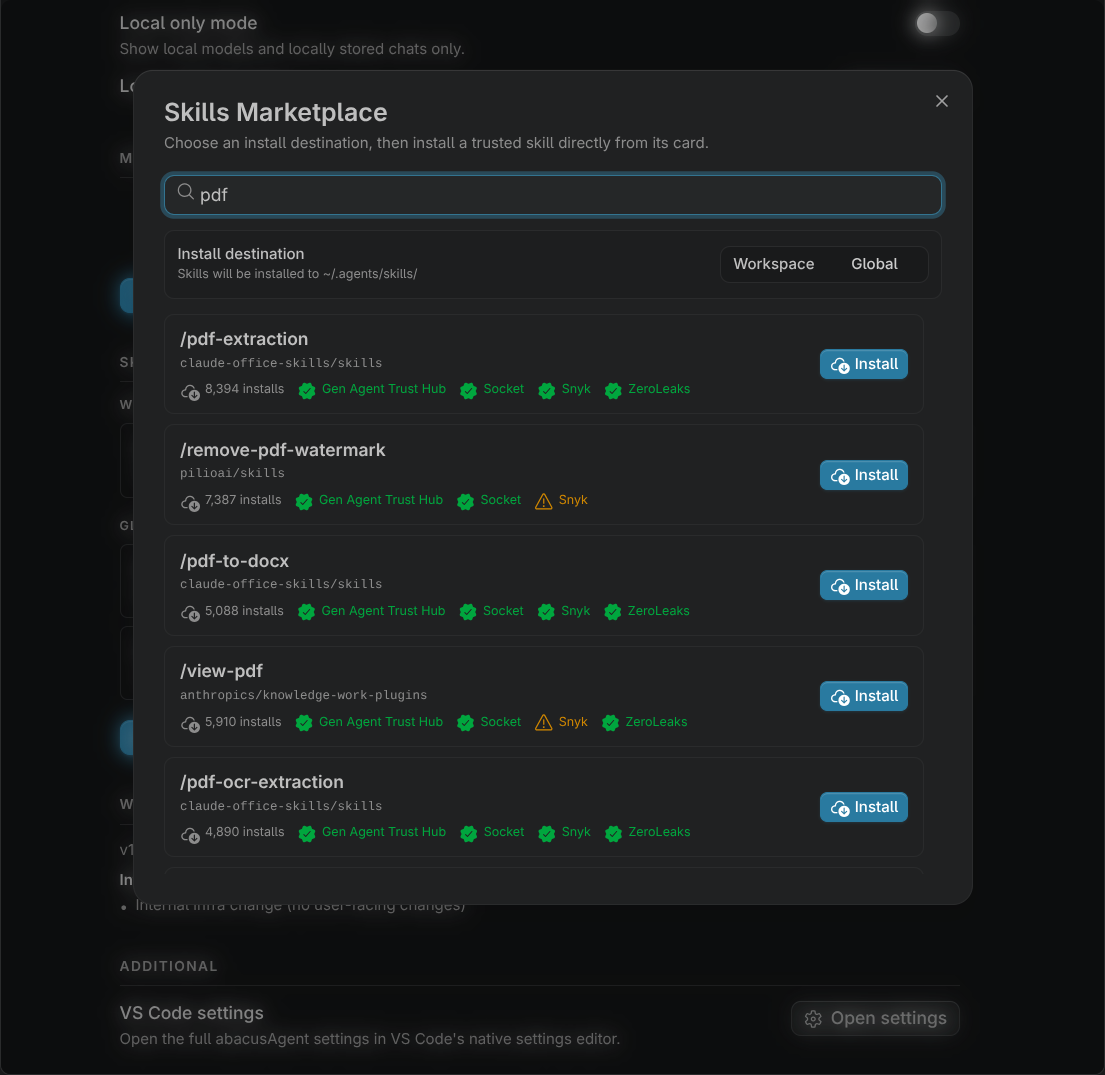
Search and install community skills from skills.sh in the CLI or VS Code. Skills that failed a security audit are hidden, and the audit results are shown on the rest.
| CLI command | What it does |
|---|---|
/skills list | Show installed skills grouped by project, global and built-in |
/skills add <search> | Search and install into <project>/.agents/skills/ |
/skills add-global <search> | Search and install into ~/.agents/skills/ |
/skills remove <name> | Delete an installed skill |
/skills update | Update every marketplace skill that changed |
In VS Code, open Abacus Settings and scroll to Skills. Browse Marketplace opens the search, with a Workspace or Global destination. Check for updates marks skills that changed. The pencil icon opens a skill's SKILL.md and the trash icon deletes it.
Updates never touch skills you wrote yourself.
Built-in skills
These ship with the product. Run one with /name, or describe what you want and the agent picks it. A global skill with the same name replaces a built-in one.
| Skill | What it does |
|---|---|
/init | Writes this project's AGENTS.md by studying the codebase. --refresh updates an existing one. |
/review | Reviews the current diff, or a PR number, branch or path, for bugs. --fix applies the findings. |
/security-review | Audits changes for exploitable vulnerabilities and reports only findings it can trace to a real impact |
/simplify | Simplifies and cleans up a change without changing its behavior |
/verify | Proves a change works by running it end to end |
/browser-use | Drives a Chromium-based browser you have installed: opens pages, clicks, fills forms and reads results. CLI and VS Code. |
/doctor | Diagnoses an unhealthy CLI install: stale installs, config files that fail to parse, repeated sign-outs, certificate errors. Narrow it with /doctor config, /doctor network and similar. CLI only. |
/setup | Sets up this machine for the CLI: Shift+Enter for newlines, terminal titles, tmux key passthrough, notifications. CLI only. |
/abacus-help | Answers questions about Abacus.AI itself: installing, signing in, plans and credits |
CoWork in the Desktop app adds skills for Word, PowerPoint, Excel and PDF files.
Importing from Claude Code
/import in the CLI copies your Claude Code skills and custom commands, along with your MCP servers and settings. Run /import --dry-run first to see the plan.
| Claude Code source | Written to |
|---|---|
<project>/.claude/skills/ | <project>/.agents/skills/ |
~/.claude/skills/ | ~/.agents/skills/ |
<project>/.claude/commands/**/*.md | <project>/.agents/skills/, one skill per command |
~/.claude/commands/**/*.md | ~/.agents/skills/, one skill per command |
A command in a subfolder gets a dashed name: .claude/commands/git/commit.md becomes /git-commit. Nothing is overwritten. A skill whose name is taken, including by a built-in such as review, is skipped and reported.
Differences from Claude Code and Codex
The SKILL.md format is the same.
| Topic | Claude Code | Codex | Here |
|---|---|---|---|
| Project folder | .claude/skills/ | .agents/skills/, in the current folder and each parent up to the repository root | .abacusai/skills/ or .agents/skills/, at the project root only |
| Your own folder | ~/.claude/skills/ | ~/.agents/skills/ | ~/.abacusai/skills/ or ~/.agents/skills/ |
| Run a skill yourself | /skill-name | $skill-name or /skills | /skill-name |
| Legacy commands | .claude/commands/ read as skills | Converted to skills by /import | |
context, agent, model, hooks fields | Supported | Ignored | |
agents/openai.yaml | UI metadata and allow_implicit_invocation | interface.short_description sets the picker summary, and policy.allow_implicit_invocation: false works like disable-model-invocation: true |
Sources: Claude Code's Skills and Codex's Build skills.
In print mode and CI
abacusai -p loads the same skills as an interactive session. A /skill-name in the prompt runs that skill and applies its allowed-tools:
abacusai -p "/changelog v2.1.0" > CHANGELOG-draft.md
In a folder that is not trusted, project skills load but their allowed-tools approve nothing. See Scripting and CI.
Sharing skills and trust
Skills are files, so share them like code: commit .abacusai/skills/ or .agents/skills/ to the project, keep your own in ~/.abacusai/skills/, or publish a skill on GitHub so others can install it through skills.sh. Keep secrets out of skill files. Put credentials in environment variables or an MCP server's configuration.
A skill is instructions the agent will follow, and its scripts are code the agent may run. Read SKILL.md, its scripts and its allowed-tools before you install a third-party skill. Project skills arrive with every clone, which is why workspace trust holds back their allowed-tools and stops them replacing a built-in or global skill until you trust the folder.
To turn a skill off for everyone in a project, add a deny rule that names it to the project's .abacusai/config.json and commit it:
{ "permissions": { "deny": ["Skill(deploy)"] } }
A denied skill is not offered to the agent, /deploy does not run it, and it approves none of its allowed-tools. Skill(skill:dep*) matches by pattern.
To use your own marketplace server that implements the skills.sh API, set SKILLS_API_URL, and SKILLS_API_TOKEN if it needs one.
Troubleshooting
My skill is not listed
- The header has no
description, or is not valid YAML. An unquoted:in a value is the usual cause: writedescription: "Deploy: staging or prod". - The file is not named
SKILL.md. - The CLI was started in a subfolder, so the project's skills folder was not found. Start it at the repository root.
- The skill was added during the session. Open
/skills listto rescan. - It is a project skill whose name matches a global or built-in skill, and the folder is not trusted yet.
- A deny rule such as
Skill(<name>)hides it.
Typing /name runs something else
A built-in command has that name, and commands win. Rename the skill's folder.
The agent does not use my skill
Make the description say what the skill does and list the requests that should trigger it. Until then, run it with /name.
A skill's allowed-tools still asks
The approval applies only when you run the skill with /name, only for that turn, and only in a trusted folder. A deny or ask rule for the same tool still wins.
For further help, reach out at support@abacus.ai.