Abacus AI Listener: Real-time AI Meeting Help
What is Abacus AI Listener?
Abacus AI listener is your personal AI that can listen, see, and assist, all in real time.
With its listening and screen-reading capabilities, the Listener helps you during meetings, calls, or any on-screen task. You can ask it questions directly, and it will respond based on live context from your desktop screen or the meeting/video.
Whether you're coding, attending a meeting, or watching a tutorial, the Listener is always there to help.
Where Can You Access It?
You can access Abacus AI Listener from the Abacus AI Desktop App.
Simply:
- Download/Open the Abacus AI Desktop App (available on macOS and Windows only)
- Launch it from either Chat Mode or Code Editor Mode
- Click on "Desktop Listener" to get started
Access Setup
Before you start, let's give your Listener the permissions it needs to function properly.
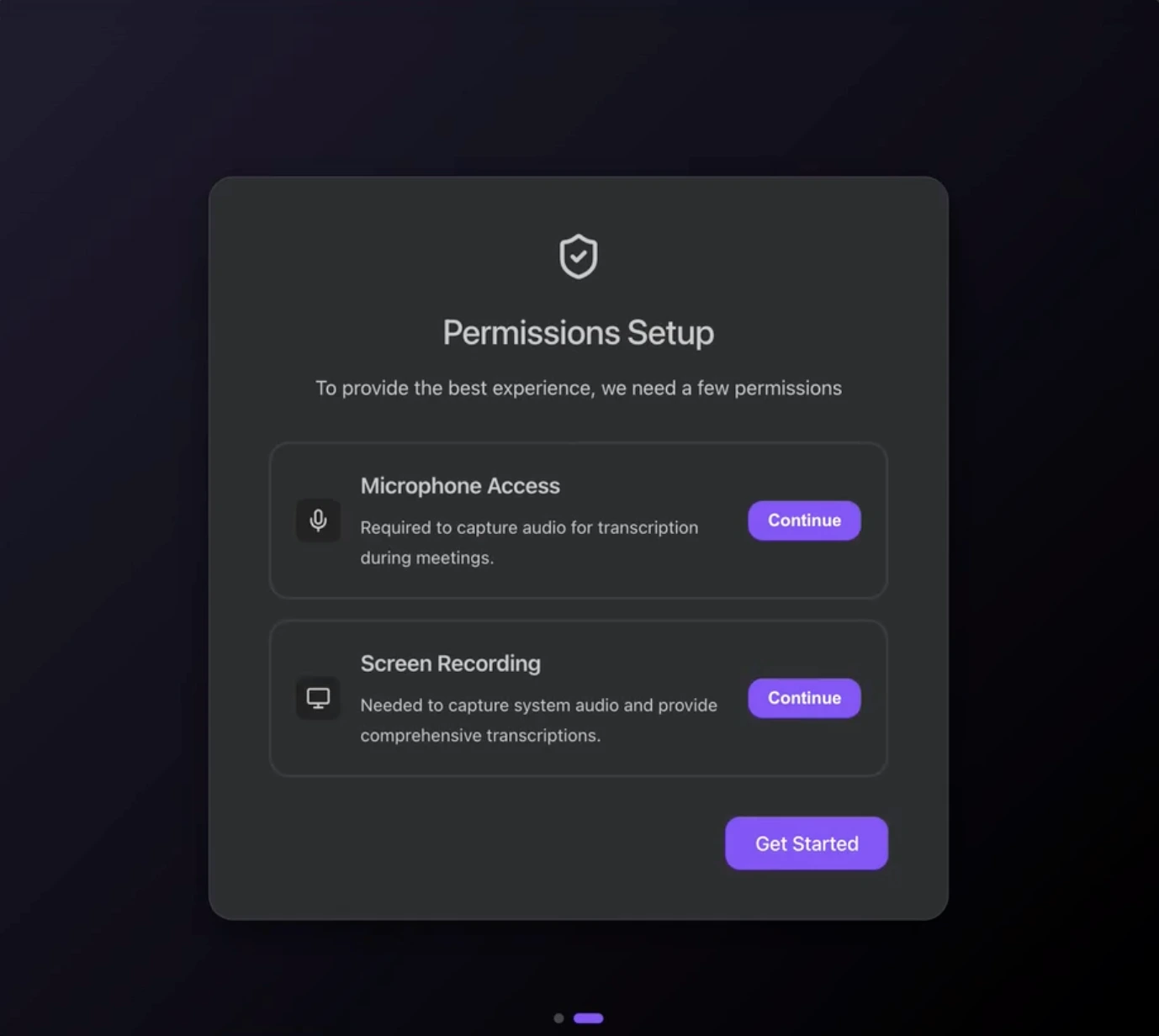
Step 1: Allow Microphone Access
The Listener requires microphone access for capturing audio for transcription during a meeting or video playback.
Step 2: Allow Screen Reading Access
The Listener uses screen reading to understand your desktop context.
Once permissions are granted, your Listener is ready to assist you.
Quick Start - Testing the Listener
You can test Abacus AI Listener in just a few clicks:
- Click on "Listen."
- Play any video, join a meeting, or start speaking - you'll see real-time transcriptions appear on screen.
- In the chat window, ask it any question - and get instant answers from what's being said or shown.
- You can also access summarized insights from the live transcript in the Insights Tab.
Example Prompts
- With a video playing in the background, Ask it to summarize the key ideas and explain them to you like you're five.
- While viewing a coding problem on screen, Ask it to solve it in your preferred language and explain the solution step by step.
UI Controls
- Hide or Show UI: Click the eye icon to hide the on-screen interface. Click the Listener App icon to bring it back.
- Pause or Close Session: Use the Pause or Close buttons anytime during a session.
Accessing Past Sessions
All your past interactions are saved in one place.
Go to the "Your Sessions" tab in the Listener app to:
- Review previous transcriptions
- Export the session transcription, insights and conversation
- Continue from where you left off